

Raise the volume safely by checking device limits, cleaning the headphones, and using the right audio settings.
Knowing how to make headphones louder is not only about moving a volume slider. Low sound can come from a phone setting, a dirty speaker grille, weak amplification, poor fit, low-quality audio, or headphones that need more power. This guide explains the safest fixes first, then covers advanced options such as equalizers, headphone amplifiers, and high-impedance headphones.

Check the Basic Volume Controls
Before changing advanced settings, check every volume control in your setup. Many phones, computers, music apps, and headphones can control volume separately.
Follow these steps:
- Turn up the volume on the headphones, if they have physical buttons.
- Raise the media volume on your phone, tablet, or computer.
- Check the volume inside the music or video app.
- Disconnect and reconnect Bluetooth headphones.
- Restart the device and test the headphones again.
Some devices lower volume when you connect new headphones. This feature helps protect your hearing, but it can make the sound seem weak. Wireless headphones may also have their own volume memory, so raising the phone volume alone may not be enough.
If one app sounds quiet while another sounds normal, the issue may be inside that app. Look for settings such as volume normalization, sound check, or a loudness limit.
Remove Volume Limits on Your Device
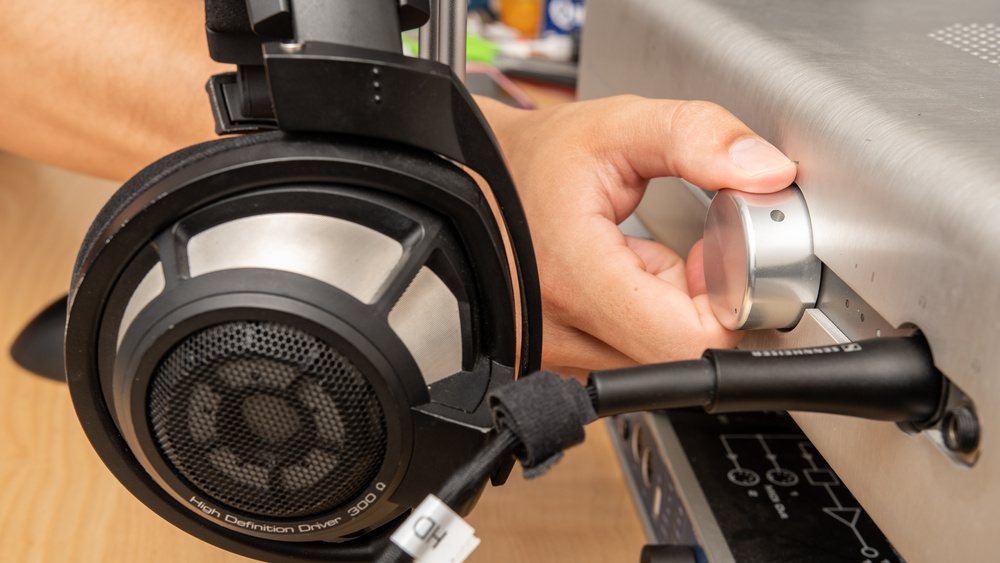
Phones and computers often include volume limits. These limits may protect your ears, but they can also reduce headphone loudness more than expected.
iPhone and iPad
On an iPhone or iPad, check the following areas:
- Open Settings.
- Tap Sounds & Haptics.
- Select Headphone Safety.
- Review Reduce Loud Audio.
- Adjust or disable the limit only if you understand the hearing risks.
Some regions and device settings may not allow the limit to be removed. Apple may also lower headphone volume after detecting loud listening over time.
Android phones
Android menus differ by brand. Search Settings for terms such as:
• Media volume limit
• Volume limiter
• Safe headphone volume
• Hearing protection
• Dolby Atmos
• Sound quality and effects
Samsung, Google Pixel, OnePlus, and Motorola phones may use different names for similar controls. If you cannot find the option, type “volume limit” into the Settings search bar.
Windows computers
On Windows, right-click the speaker icon and open Sound settings. Choose your headphones, then check the volume level and device properties. Also review the Enhancements or Audio Enhancements section, since some drivers include loudness equalization.
Mac computers
On a Mac, open System Settings, choose Sound, and select the correct output device. If your headphones are connected through Bluetooth, confirm that the Mac is not using a low-quality microphone mode that changes the audio profile.
Clean the Headphones and Check the Fit
A blocked speaker grille is one of the most common reasons headphones sound quiet. Earwax, dust, skin oil, and pocket lint can cover the mesh and reduce sound. This is especially common with in-ear earbuds.
Clean them carefully:
• Remove silicone ear tips before cleaning.
• Use a dry, soft brush to loosen dust.
• Wipe the outside with a slightly damp cloth.
• Do not push dirt deeper into the speaker mesh.
• Never pour water or cleaning liquid into the earbuds.
• Let the parts dry fully before using them.
Fit also affects loudness. In-ear earbuds need a gentle seal in the ear canal. If the seal is weak, bass escapes and outside noise becomes louder. Try another ear tip size, or rotate the earbuds slightly until they sit securely.
Over-ear headphones should cover your ears without leaving large gaps. Glasses, thick hair, or a loose headband can reduce the seal. A better fit may make headphones sound louder without increasing the actual volume.

Improve Bluetooth and Wireless Connections
Bluetooth headphones can sound quiet because of a weak connection, low battery, or an incorrect audio profile. Start by charging both the headphones and the source device.
Then try these fixes:
- Move the phone closer to the headphones.
- Turn Bluetooth off and back on.
- Forget the headphones in Bluetooth settings.
- Pair the headphones again.
- Disconnect other nearby Bluetooth devices.
- Update the headphone firmware through the brand’s app.
Some wireless headphones use a separate volume level from the phone. Raise the volume on both devices. On certain Android phones, the Developer Options menu includes “Disable absolute volume.” This setting can help in some cases, but it can also create unusual volume behavior, so change it only if normal pairing steps fail.
Bluetooth codecs can affect sound quality, but they do not always make headphones louder. A codec mainly changes how audio is compressed and transmitted. It cannot overcome a hardware volume limit or a blocked speaker.
Use Equalizer Settings Carefully
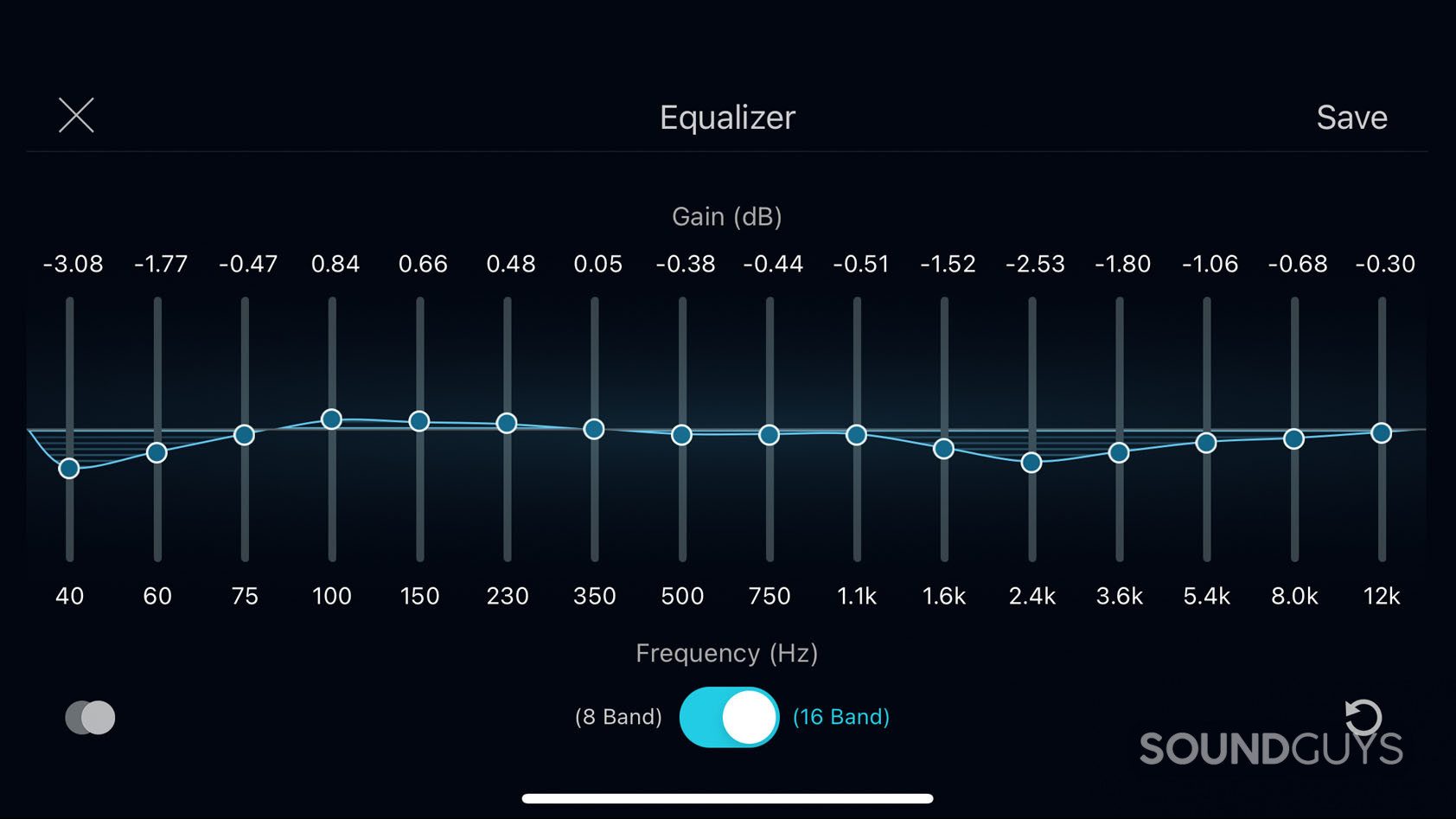
An equalizer changes the balance between low, middle, and high frequencies. It does not always increase true volume, but it can make music feel clearer and more powerful.
Try these simple changes:
• Reduce very deep bass if the sound is muddy.
• Add a small amount of midrange for clearer voices.
• Raise treble slightly if music sounds dull.
• Use a loudness or volume boost setting only in small amounts.
• Avoid pushing every frequency band to the maximum.
Boosting all frequency bands can cause clipping. Clipping happens when the audio signal becomes too strong for the device or headphones. It creates distortion and may damage your listening experience.
A better method is to lower the preamp slightly, then raise only the frequencies that need help. Many music apps, including Spotify and Apple Music, offer built-in equalizer controls. Start with small changes and compare the result with the original sound.
Turn Off Volume Normalization
Volume normalization makes different songs play at similar loudness. This is useful for playlists, but it may make some tracks seem quieter.
Look for settings named:
• Normalize volume
• Sound check
• Loudness normalization
• ReplayGain
• Volume leveling
Turn the setting off temporarily and test the same song. If the volume improves, you have found the cause.
Keep in mind that normalization does not always reduce volume. It may also raise quiet songs or lower loud songs to create a more even listening level. The result depends on the app and the audio files.

Check the Audio File and Streaming Quality
A quiet recording may not be caused by your headphones. Some albums, podcasts, videos, and older music files are mastered at lower levels.
Test your headphones with:
- A familiar song from another app.
- A high-quality local audio file.
- A video from a trusted platform.
- Another pair of headphones on the same device.
If every source sounds quiet, focus on the device or headphones. If only one album or app sounds quiet, check its playback settings and audio quality.
Streaming quality can affect detail and clarity more than maximum loudness. A higher-quality stream may sound cleaner, but it will not always be louder. Loudness depends heavily on the recording’s mastering and the playback device.
Use a Headphone Amplifier
A headphone amplifier can make headphones louder when the source device cannot provide enough power. This is most useful for wired headphones with high impedance or low sensitivity.
Impedance is measured in ohms. Sensitivity shows how loudly headphones play from a specific amount of power. A pair of headphones with high impedance often needs more voltage than a basic phone or laptop can provide.
A headphone amplifier may help if:
• You use wired studio headphones.
• The headphones have an impedance of 80 ohms or more.
• The sound remains quiet at maximum device volume.
• The audio becomes weak or distorted when you raise the volume.
• You use a digital-to-analog converter with a low-power headphone output.
Do not assume every quiet pair needs an amplifier. Many modern headphones are designed for phones and laptops. An amplifier cannot fix damaged drivers, a faulty cable, bad software, or a poor ear seal.
For portable use, a USB-C or Lightning DAC with a built-in headphone amplifier may work better than a basic adapter. Choose a trusted model with volume control and suitable power output.

Understand Headphone Impedance and Sensitivity
Headphone specifications can explain why one pair sounds louder than another. Impedance measures electrical resistance. Sensitivity indicates how efficiently headphones convert power into sound.
In simple terms, high-sensitivity headphones are easier to drive. Low-sensitivity or high-impedance headphones may need more power.
For example, two pairs may both have a 32-ohm rating, but one may still sound quieter because its sensitivity is lower. This is why impedance alone does not tell the full story.
When buying headphones, check:
• Impedance in ohms
• Sensitivity in decibels per milliwatt or volt
• Recommended source power
• Connector type
• Whether an amplifier is recommended
A good retailer or manufacturer should provide these specifications. Be cautious when a product lists only impedance but gives no sensitivity information.
Fix One-Sided or Uneven Volume
If one ear sounds quieter, increasing the overall volume is not the right solution. Uneven sound may come from dirt, a balance setting, a damaged cable, or a failing speaker.
Check the left and right balance:
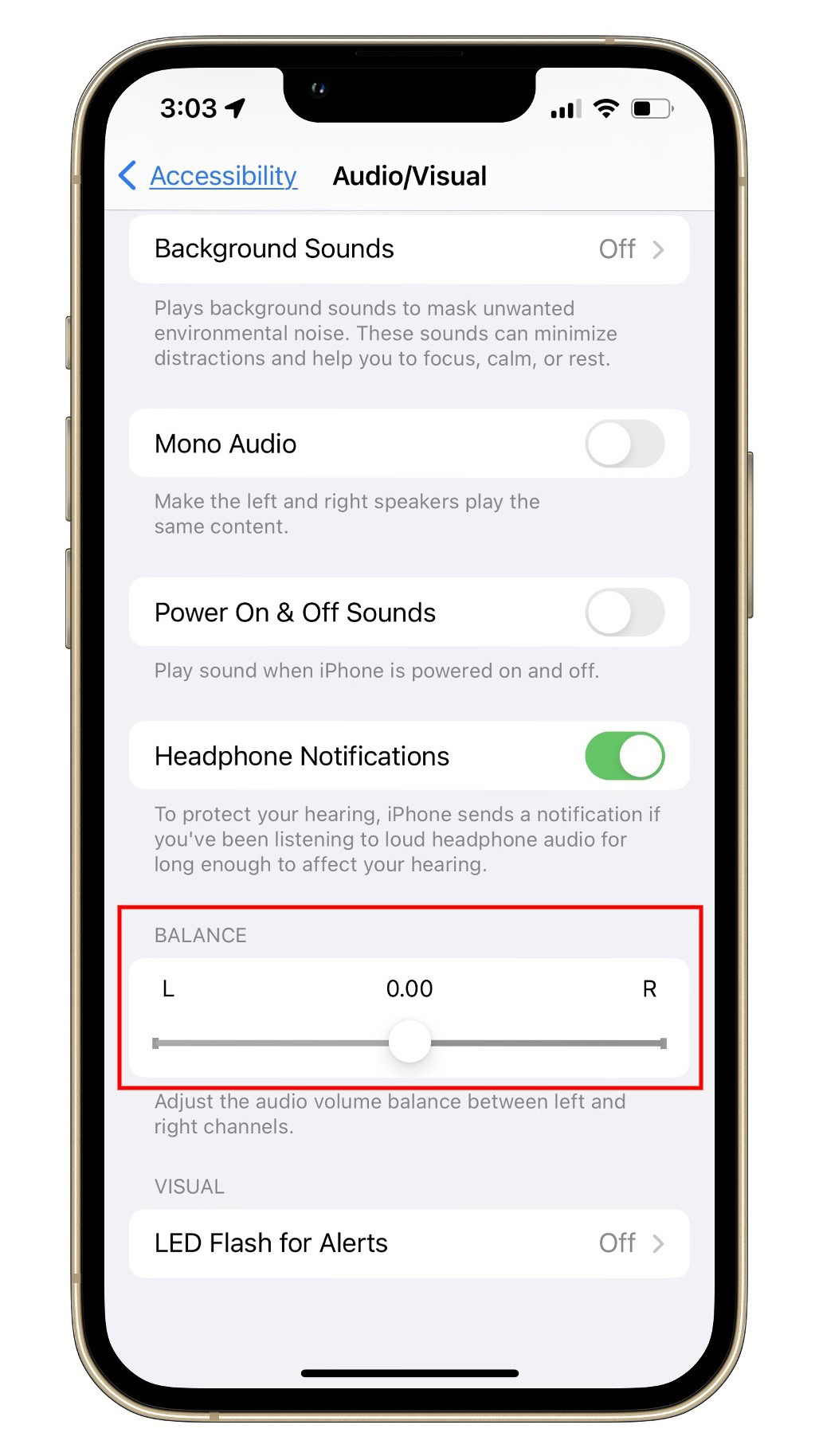
- Open your device’s accessibility or audio settings.
- Find the left/right balance slider.
- Place it in the center.
- Test the headphones again.
Then swap the headphones between ears. If the quiet side follows the earbud or earcup, the headphones may be the problem. If the quiet side stays with your ear, consider earwax buildup or another hearing issue.
Test wired headphones by gently moving the cable near the plug and earcup. If the sound cuts in and out, the cable may be damaged. Replace the cable if it is detachable, or have the headphones inspected.
Avoid Unsafe Volume Boost Apps
Many apps promise to make headphones louder than the normal device limit. These apps may increase gain, but they can also cause clipping, distortion, sudden volume jumps, or hearing damage.
Use caution with any app that:
• Bypasses built-in safety limits
• Boosts volume far beyond normal levels
• Starts playback at maximum volume
• Has no clear volume control
• Comes from an unknown developer
The Centers for Disease Control and Prevention and the World Health Organization both warn that loud sound can damage hearing. Hearing risk depends on both volume and listening time. A louder setting is not automatically better.
As a practical rule, keep enough volume to hear clearly without needing to shout over your music. Take quiet breaks, especially during long listening sessions. If you notice ringing, muffled hearing, or ear pain, stop listening and give your ears time to recover.
Make Headphones Louder on Common Devices
How to make headphones louder on an iPhone
Check the Headphone Safety limit, raise the media volume, and test another app. Clean the earbuds and make sure the ear tips create a good seal. If you use wired headphones, confirm that the adapter supports the correct connector and audio output.
How to make headphones louder on Android
Check the media volume limit and sound effects menu. Turn off volume normalization in your music app, then test both phone and headphone volume controls. If the sound is still weak, update the phone and headphone software.
How to make headphones louder on a laptop
Select the correct output device in sound settings. Raise the system and app volume, then review audio enhancements. If you use demanding wired headphones, a USB DAC or headphone amplifier may provide more power.
How to make headphones louder on a TV
Open the TV’s audio settings and check for volume leveling or night mode. These features often reduce loud peaks. A soundbar, Bluetooth transmitter, or headphone amplifier may be needed if the TV’s headphone output is weak.
When You Should Replace the Headphones
Sometimes the safest answer to how to make headphones louder is to replace a damaged or poorly matched pair. A broken driver, worn cable, weak battery, or failing amplifier can limit volume.
Consider replacement when:
• One side remains quiet after cleaning.
• The sound crackles at normal volume.
• The battery drains unusually fast.
• The headphones disconnect often.
• The ear pads no longer seal.
• The headphones need maximum volume for basic listening.
Do not keep increasing volume to compensate for a hardware problem. That approach can strain your hearing without fixing the underlying fault.
When choosing new headphones, consider fit, sensitivity, comfort, source compatibility, and noise isolation. Active noise cancellation can also help in loud places because it reduces the need to turn up the volume.
Common Mistakes to Avoid
People often make headphones louder in ways that create new problems. Avoid these mistakes:
• Boosting every equalizer band to maximum
• Using unknown volume booster apps
• Ignoring a dirty speaker grille
• Listening at full volume for long periods
• Buying an amplifier without checking compatibility
• Assuming high impedance always means better sound
• Using a poor-quality adapter
• Ignoring ringing or muffled hearing
I have found that the best results usually come from simple checks first. Cleaning the mesh, fixing the fit, turning off normalization, and checking volume limits often solve the issue without extra equipment.
The biggest mistake is treating loudness as the only measure of good sound. Clear audio at a moderate level is usually more enjoyable than distorted audio at maximum volume.
Frequently Asked Questions About How to Make Headphones Louder
Why are my headphones so quiet even at full volume?
The cause may be a device volume limit, dirty speaker mesh, poor ear fit, low battery, or weak headphone output. Test the headphones with another device to find out whether the problem follows the headphones or the source.
How can I make Bluetooth headphones louder?
Raise the volume on both the headphones and the connected device. Then recharge the headphones, reconnect Bluetooth, check for volume limits, and update the headphone firmware.
Can an amplifier make headphones louder?
Yes, a headphone amplifier can provide more power for demanding wired headphones. It will not fix damaged drivers, blocked grilles, poor fit, or software limits.
Is it safe to use a headphone volume booster?
Volume booster apps can cause distortion and sudden loud sounds. Use built-in device controls when possible, and keep listening levels low enough to protect your hearing.
Why is one side of my headphones quieter?
A blocked grille, damaged cable, incorrect balance setting, or earwax buildup may cause uneven sound. Clean the headphones, center the balance control, and test them on another device.
Does noise cancellation make headphones louder?
Noise cancellation can make music seem louder because it reduces outside noise. It does not always increase the headphone’s maximum output, but it may help you listen comfortably at a lower volume.
Do high-impedance headphones need an amplifier?
Not always, but high-impedance headphones often need more power than a phone or laptop can provide. Check both impedance and sensitivity before deciding whether you need an amplifier.
Conclusion
Learning how to make headphones louder starts with simple fixes: check every volume control, remove device limits, clean the speaker grilles, improve the fit, and test another audio source. Equalizer settings and volume normalization can improve clarity, while a headphone amplifier may help demanding wired models.
Keep hearing safety in mind. More volume is not always better, and distortion is a sign to stop and investigate. Try these steps one at a time, compare the results, and choose clear sound at a comfortable level. Share your experience or explore more audio guides to find the setup that works best for you.
