How To Pair Dime 2 Earbuds: Quick Pairing Guide
Introduction
Pairing Skullcandy Dime 2 earbuds with a phone, tablet, or computer in the United States usually takes less than a minute. The first time, remove both earbuds from the charging case, open your device’s Bluetooth settings, and select Dime 2.
If the earbuds do not appear, place them back in the case, remove them again, and follow the reset steps in this guide. These steps work with most iPhones, Android phones, Windows PCs, Macs, and Bluetooth-enabled tablets sold in the U.S.

Before You Pair Dime 2 Earbuds
Check a few simple things before you start:
- Charge the earbuds and case.
- Keep the earbuds close to your phone or computer.
- Turn on Bluetooth on your device.
- Make sure the earbuds are not connected to another nearby device.
- Remove any old Dime 2 entry from your Bluetooth list if you are pairing them again.


The Dime 2 earbuds use standard Bluetooth pairing. You do not need the Skullcandy app for basic listening or calls.
If the earbuds are new, remove any protective film from the charging contacts. Then place both earbuds in the case for a few seconds. This helps ensure that both earbuds start with power.

How to Pair Dime 2 Earbuds With an iPhone
Follow these steps to connect Dime 2 earbuds to an iPhone:
- Open the Settings app.
- Tap Bluetooth.
- Turn Bluetooth on.
- Remove both Dime 2 earbuds from the charging case.
- Wait for Dime 2 to appear under Other Devices.
- Tap Dime 2.
- Wait until the status changes to Connected.
The earbuds may enter pairing mode automatically when you remove them from the case. A flashing LED on one earbud usually indicates that it is searching for a device.
If Dime 2 already appears under “My Devices”
Tap the information icon next to Dime 2, choose Forget This Device, and confirm. Then place both earbuds in the case, remove them, and pair them again as a new device.
Do this when the iPhone shows the earbuds as connected but no sound comes through them. Removing the old Bluetooth record often clears a bad connection.
How to Pair Dime 2 Earbuds With an Android Phone
The names may vary slightly by Android brand, but the process is much the same:
- Open Settings.
- Tap Connected devices, Connections, or Bluetooth.
- Turn Bluetooth on.
- Select Pair new device if that option appears.
- Remove both Dime 2 earbuds from the charging case.
- Tap Dime 2 when it appears in the list.
- Approve the pairing request if your phone displays one.
After pairing, the earbuds should connect automatically whenever you remove them from the case, provided Bluetooth is on and the phone is nearby.
Some Android phones show a pop-up pairing notice. If no pop-up appears, use the regular Bluetooth menu instead.


How to Pair Dime 2 With a Windows PC
To pair Dime 2 earbuds with a Windows 11 PC:
- Select Start.
- Open Settings.
- Choose Bluetooth & devices.
- Turn Bluetooth on.
- Select Add device.
- Choose Bluetooth.
- Remove the Dime 2 earbuds from the case.
- Select Dime 2 from the device list.
- Select Done after the connection finishes.
On Windows 10, open Settings > Devices > Bluetooth & other devices, select Add Bluetooth or other device, and then choose Bluetooth.
If the earbuds pair but your computer uses its built-in speakers, select the speaker icon on the Windows taskbar. Choose Dime 2 as the sound output device.
How to Pair Dime 2 With a Mac
Use these steps to connect the earbuds to a Mac:
- Select the Apple menu.
- Open System Settings. Older macOS versions may show System Preferences.
- Select Bluetooth.
- Turn Bluetooth on.
- Remove both earbuds from the charging case.
- Find Dime 2 in the list.
- Select Connect.
If the Mac connects to the earbuds but plays sound through its speakers, open System Settings > Sound > Output. Select Dime 2 as the output device.
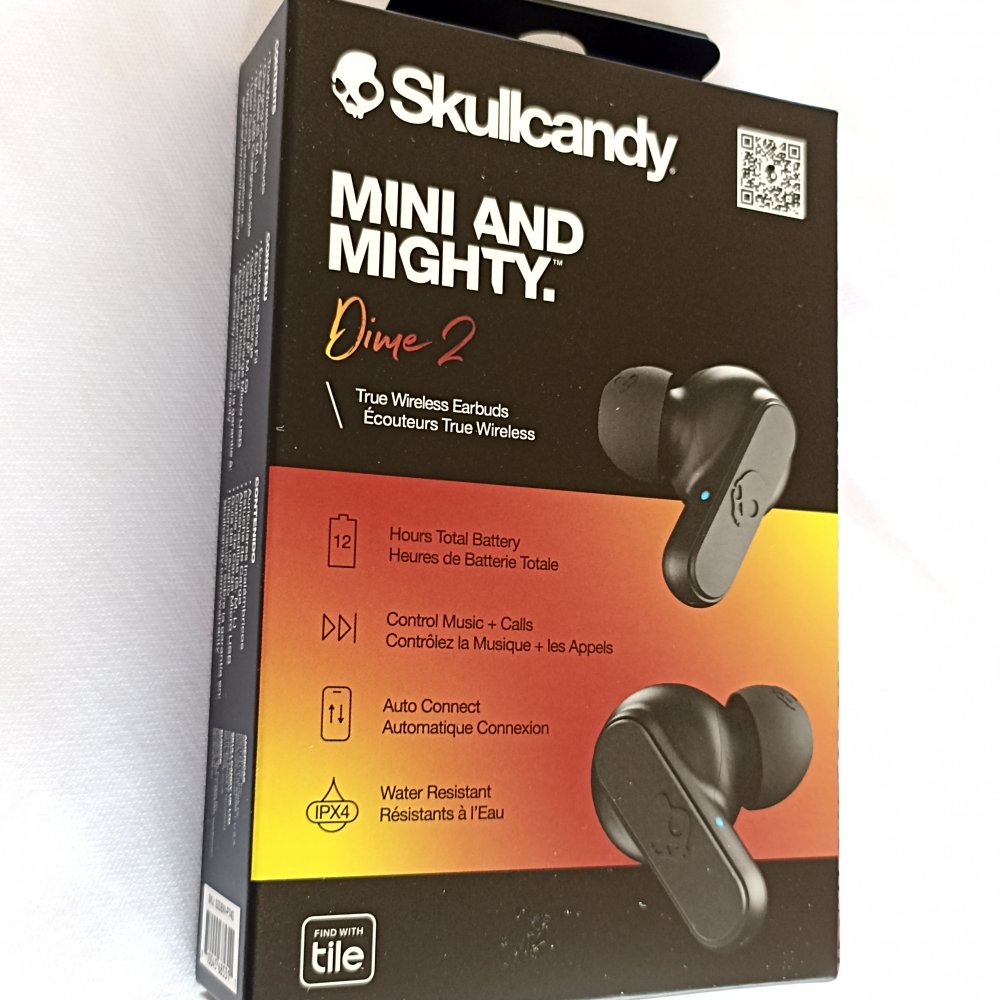
What to Do If Dime 2 Earbuds Will Not Pair
If Dime 2 does not appear in the Bluetooth list, work through these checks in order.
1. Check the charge
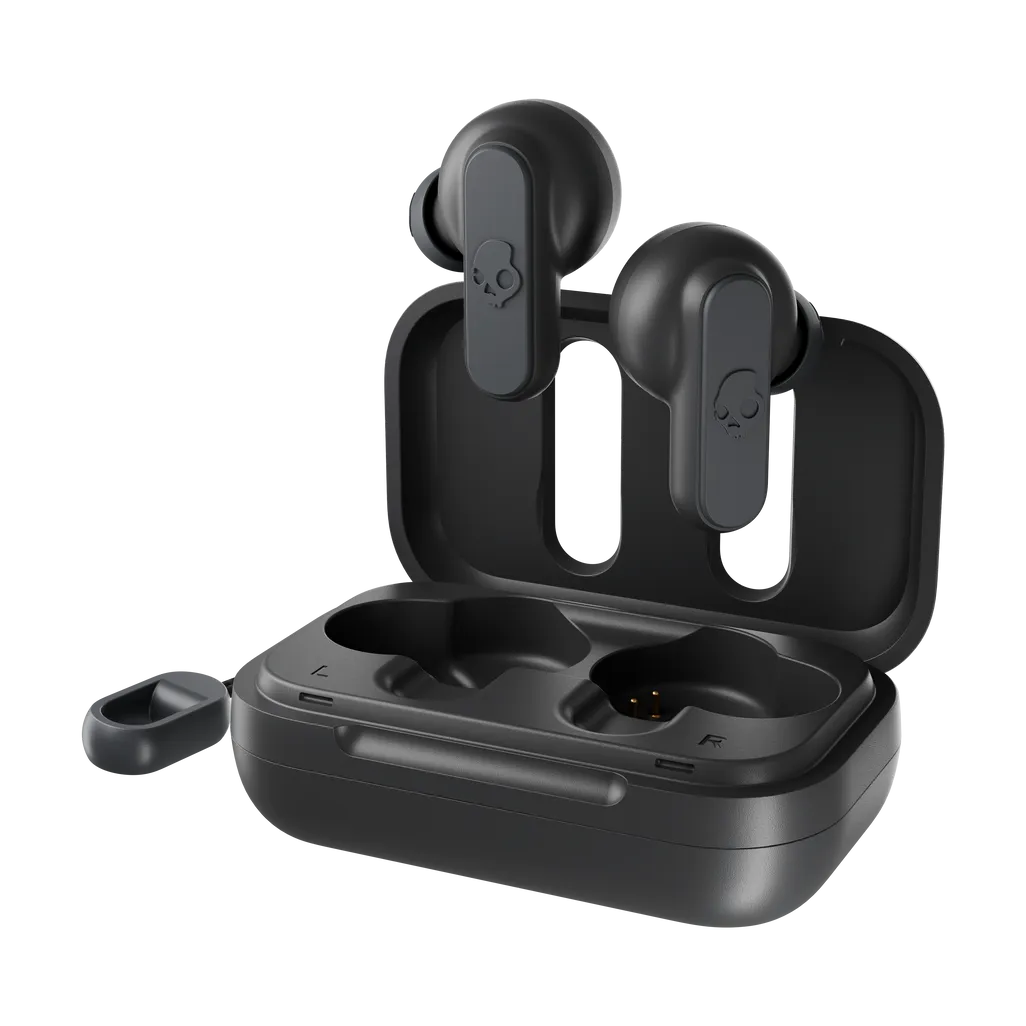
Put both earbuds in the case. Confirm that they sit correctly on the charging contacts. If an earbud does not charge, clean the contacts with a dry, soft cloth.
Do not use water or metal tools inside the case. Moisture and metal can damage the charging contacts or cause a short.
2. Move away from other Bluetooth devices
Turn off Bluetooth on nearby phones, tablets, and computers. The earbuds may be trying to reconnect to a device they previously used.
This is common in homes with several phones or laptops. The Dime 2 may connect to the first remembered device that is available.
3. Forget the old Bluetooth connection
On your phone or computer, remove Dime 2 from the saved Bluetooth list. Then turn Bluetooth off for a few seconds and turn it back on.
A saved connection can prevent the earbuds from entering fresh pairing mode.
4. Power cycle the earbuds
Place both earbuds in the charging case. Close the lid, wait several seconds, and remove them again.


If the earbuds do not power on automatically, press and hold the button on each earbud for about two seconds. The exact LED behavior may vary as the earbuds start or search for a connection.
5. Reset the earbuds
Use the reset process when the earbuds still do not pair, only one earbud works, or the two earbuds fail to connect to each other.
- Remove Dime 2 from your phone or computer’s Bluetooth list.
- Turn Bluetooth off on the device.
- Remove both earbuds from the charging case.
- Turn the earbuds off by pressing and holding their buttons for about four seconds, if they are on.
- Press and hold the button on each earbud for about 10 seconds to clear the previous pairing state.
- Place both earbuds back in the case.
- Remove both earbuds at the same time.
- Turn Bluetooth back on.
- Select Dime 2 from the available devices.
The reset clears the old Bluetooth connection. It does not repair a damaged battery, charging case, speaker, or button.
6. Restart the source device
Restart the phone, tablet, Mac, or PC. Bluetooth services can occasionally stop responding even when the Bluetooth switch looks active.
After the restart, repeat the pairing process from the beginning.
How to Tell When Dime 2 Is Paired
The connection is ready when:
- Your device lists Dime 2 as Connected.
- The earbuds stop searching for a new Bluetooth device.
- Audio plays through both earbuds.
- The earbuds reconnect after you place them in the case and remove them again.
Test the connection with a short video or song. Then adjust the volume on both the device and the earbuds if needed.
If only one earbud produces sound, the issue may be earbud-to-earbud synchronization rather than a phone connection. Reset both earbuds together instead of pairing only the working earbud.
How to Use One Dime 2 Earbud
Dime 2 earbuds support single-earbud use after the earbuds have been paired correctly. Take one earbud from the case and leave the other inside.
If the single earbud does not connect:
- Forget Dime 2 on your phone.
- Turn Bluetooth off.
- Place both earbuds in the case.
- Remove the earbud you want to use.
- Turn Bluetooth back on.
- Select Dime 2.
Using one earbud may change stereo sound into mono or send both audio channels to the single earbud. That behavior depends on the device and its Bluetooth settings.

Common Dime 2 Pairing Problems
| Problem | Likely cause | Best first step |
|---|---|---|
| Dime 2 does not appear | Earbuds are not in pairing mode | Put both earbuds in the case and remove them again |
| Only one earbud works | Earbuds lost their internal connection | Forget the device and reset both earbuds |
| Earbuds connect to the wrong phone | Another saved device is nearby | Turn off Bluetooth on nearby devices |
| Connected but no sound | Wrong audio output is selected | Select Dime 2 in sound output settings |
| Pairing works but cuts out | Low charge, distance, or wireless interference | Charge the earbuds and keep the source nearby |
| One earbud will not charge | Poor contact or debris | Clean the contacts with a dry cloth |
| Bluetooth shows two entries | Previous pairing data remains | Forget all Dime 2 entries and reset the earbuds |
Bluetooth range can drop when walls, metal objects, crowded wireless networks, or other electronic devices sit between the earbuds and the source. For the first pairing, keep the earbuds within a few feet of the phone or computer.



Mistakes to Avoid When Pairing Dime 2
Avoid pairing each earbud as a separate device. In normal use, select the single device name Dime 2.
Also avoid repeatedly tapping random Bluetooth entries. This can leave an old or partial connection saved on the phone. When pairing fails, a clean reset is usually faster than trying many entries.
Do not reset only one earbud when both earbuds are having problems. Resetting the pair together gives them the best chance to restore their internal connection.
Finally, do not rely only on the Bluetooth icon. A device can show a connection while routing sound to its built-in speaker. Always test audio output after pairing.

Frequently Asked Questions
Why are my Dime 2 earbuds not showing up on Bluetooth?
They may be connected to another nearby device, out of charge, or not in pairing mode. Turn off Bluetooth on nearby devices, place both earbuds in the case, remove them again, and search for Dime 2.
How do I put Dime 2 earbuds into pairing mode?
Place both earbuds in the charging case, then remove them together. They should power on and search for a Bluetooth device. If they do not appear, forget the old Bluetooth entry and reset the earbuds.
Can I pair Dime 2 earbuds with an iPhone and Android phone?
You can pair them with either type of device, but basic Bluetooth use does not mean they will actively play audio from both devices at once. If they connect to the wrong device, turn off Bluetooth on that device before pairing.
Why does only one Dime 2 earbud work?
The earbuds may have lost their connection to each other, or one earbud may not be charged. Charge both earbuds, forget Dime 2, and reset both earbuds at the same time.
Do I need the Skullcandy app to pair Dime 2?
No. You can pair Dime 2 through the normal Bluetooth settings on your phone, tablet, Mac, or Windows PC. An app may offer extra features if supported, but it is not required for basic Bluetooth pairing.
Key Takeaways
- Remove both earbuds from the case.
- Open Bluetooth settings on your device.
- Select Dime 2.
- If pairing fails, forget the old Bluetooth entry.
- Reset both earbuds together if only one works or Dime 2 does not appear.
- Choose Dime 2 as the audio output when using a computer.
Conclusion
To pair Dime 2 earbuds, charge both earbuds, remove them from the case, open Bluetooth settings, and select Dime 2. The same basic method works on U.S. iPhones, Android phones, Windows PCs, Macs, and tablets.
If the connection fails, start with the simple checks: charge the earbuds, disable Bluetooth on nearby devices, forget the old connection, and reset both earbuds together. Then pair Dime 2 as a new Bluetooth device.