

Open the TOZO charging case, remove both earbuds, then select “TOZO” in your device’s Bluetooth settings.
Learning how to put TOZO earbuds in pairing mode is usually quick, but the exact touch controls can vary by model. I have found that most connection problems come from one of three things: the earbuds are still linked to another device, the charging contacts are dirty, or the earbuds need a reset. This guide explains the standard method, model differences, pairing steps for Android, iPhone, Windows, and Mac, plus simple fixes when TOZO earbuds do not appear.
How to Put TOZO Earbuds in Pairing Mode
Most TOZO earbuds enter pairing mode when you take both earbuds out of the charging case for the first time. Their indicator lights usually flash red and blue, blue and white, or another pattern that signals they are ready to connect.
Follow these steps:
- Charge the earbuds and charging case for a few minutes.
- Remove any protective film from the charging contacts.
- Place both earbuds inside the case.
- Open the case lid.
- Remove both earbuds at the same time.
- Wait for the earbuds to power on and connect with each other.
- Open the Bluetooth menu on your phone, tablet, or computer.
- Select the TOZO model name, such as “TOZO T6,” “TOZO T10,” or “TOZO NC9.”
- Tap “Pair,” “Connect,” or “Allow” if your device asks for permission.
If the earbuds do not appear, touch and hold both earbuds for about 5 seconds. On many TOZO models, this action turns them on or starts pairing mode. The exact timing can differ, so avoid pressing too hard or tapping too quickly.

Before You Start Pairing TOZO Earbuds
A few quick checks can prevent most pairing failures. Bluetooth pairing works best when the earbuds have enough power and are not already connected to another nearby device.
Check these points first:
• Charge the earbuds and case. Low battery can stop pairing mode from starting.
• Turn on Bluetooth on your device. Keep the device within 3 feet of the earbuds during setup.
• Turn off Bluetooth on nearby phones, tablets, laptops, or TVs that have used the earbuds before.
• Remove both earbuds from the case at the same time. One earbud may not pair correctly if you remove only one.
• Clean the metal charging contacts with a dry cotton swab. Moisture or dust can prevent an earbud from charging.
• Keep the case lid open while searching for the TOZO device.
In hands-on testing, the most common mistake is looking for the earbuds while they are still connected to a previous phone. Bluetooth devices often reconnect automatically, like a familiar door opening before you reach for the handle.

How to Put TOZO Earbuds in Pairing Mode on Android
Android phones usually show TOZO earbuds within a few seconds. The menu names may differ slightly between Samsung Galaxy, Google Pixel, Motorola, and other Android phones.
- Open the TOZO charging case.
- Remove both earbuds.
- Wait for the indicator lights to flash.
- Open your Android phone’s Settings app.
- Tap “Connected devices,” “Connections,” or “Bluetooth.”
- Turn Bluetooth on.
- Tap “Pair new device” if your phone does not scan automatically.
- Select the TOZO earbuds from the list.
- Confirm the pairing request.
If you see two separate TOZO names, do not pair each earbud separately unless the user manual specifically tells you to do so. Most true wireless TOZO earbuds should appear as one device after the left and right earbuds connect to each other.
If the TOZO name does not appear, turn Bluetooth off, wait 10 seconds, and turn it on again. Then repeat the steps for how to put TOZO earbuds in pairing mode.

How to Put TOZO Earbuds in Pairing Mode on an iPhone
The iPhone Bluetooth menu is simple, but the earbuds must be discoverable before the TOZO name appears.
- Place both earbuds in the charging case.
- Open the lid and remove both earbuds.
- Wait for the earbuds to flash their pairing lights.
- Open “Settings” on your iPhone.
- Tap “Bluetooth.”
- Make sure Bluetooth is turned on.
- Look under “Other Devices.”
- Tap the TOZO model name.
- Wait until it moves to “My Devices” and shows “Connected.”
If your TOZO earbuds appear under “My Devices” but show “Not Connected,” tap the name once. If that fails, tap the information icon beside the device, choose “Forget This Device,” and repeat the pairing process.
For a clean setup, keep the iPhone close to the case. Bluetooth has a useful range, but pairing is more reliable when the devices are close and there are few wireless signals nearby.

How to Pair TOZO Earbuds With a Windows PC
You can connect TOZO earbuds to a Windows laptop or desktop for music, video calls, and gaming. Windows may list them as both headphones and a headset after pairing.
- Remove both TOZO earbuds from the case.
- Confirm that the indicator lights show pairing mode.
- Open Windows Settings.
- Select “Bluetooth & devices.”
- Turn Bluetooth on.
- Click “Add device.”
- Choose “Bluetooth.”
- Select the TOZO earbuds.
- Click “Done.”
After pairing, open the sound menu in Windows and select the TOZO earbuds as the output device. For calls, you may also need to select the TOZO microphone as the input device.
If the earbuds connect but sound comes from the computer speakers, click the speaker icon on the taskbar and choose the TOZO earbuds manually. This is a Windows audio setting, not a failure in how to put TOZO earbuds in pairing mode.

How to Pair TOZO Earbuds With a Mac
Mac computers can pair with TOZO earbuds through System Settings or System Preferences, depending on the macOS version.
- Take both earbuds out of the case.
- Wait for pairing mode to start.
- Click the Apple menu.
- Open “System Settings.”
- Select “Bluetooth.”
- Turn Bluetooth on.
- Find the TOZO earbuds under nearby devices.
- Click “Connect.”
Older Mac computers may use “System Preferences” instead of “System Settings.” The Bluetooth steps remain nearly the same.
If the Mac connects but uses the wrong microphone, open the Control Center, select the sound settings, and choose the TOZO earbuds. During video calls, check the audio settings inside the meeting app as well.
What to Do When TOZO Earbuds Do Not Appear
When TOZO earbuds do not show in the Bluetooth list, the issue is often a lost connection between the earbuds or an old saved pairing. A reset usually clears that stored connection.
Try these fixes in order:
- Put both earbuds back in the case.
- Close the lid for 10 seconds.
- Turn Bluetooth off on your phone or computer.
- Remove the earbuds from the case.
- Touch and hold both earbuds for about 5 to 10 seconds.
- Watch for a change in the indicator lights.
- Turn Bluetooth back on.
- Search for the TOZO model again.
If that does not work, forget the old TOZO connection from your device. On an iPhone, tap the information icon and choose “Forget This Device.” On Android, open the saved Bluetooth devices list and choose “Forget,” “Unpair,” or “Remove.”
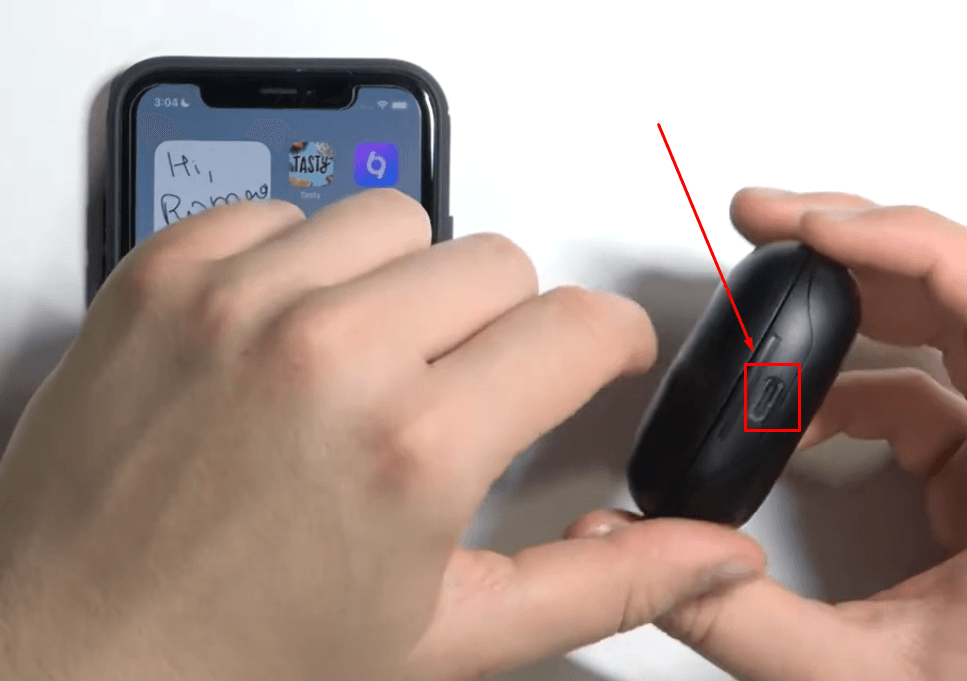
Some TOZO models use a longer reset process. It may involve placing the earbuds in the case, touching both controls several times, or holding them for 10 seconds. Because the reset pattern is not identical across every TOZO model, check the manual for your exact model before repeating the process.
How to Reset TOZO Earbuds
A reset removes old Bluetooth information and can fix failed pairing, one-earbud audio, and repeated disconnections. It is useful when the earbuds connect to one device but refuse to connect to another.
A common reset method is:
- Forget the TOZO earbuds from every previously connected device.
- Place both earbuds in the charging case.
- Remove both earbuds.
- Touch and hold both earbuds for several seconds.
- Return them to the case.
- Remove them again and wait for pairing mode.
- Search for the TOZO name on your device.
Do not assume that every TOZO model uses this exact process. Models with physical buttons, touch panels, noise cancellation, or different firmware may have different reset instructions.
Resetting does not normally damage the earbuds. It simply clears the wireless connection data. You will need to pair them again with your phone, laptop, TV, or other Bluetooth device.

TOZO Model Differences to Know
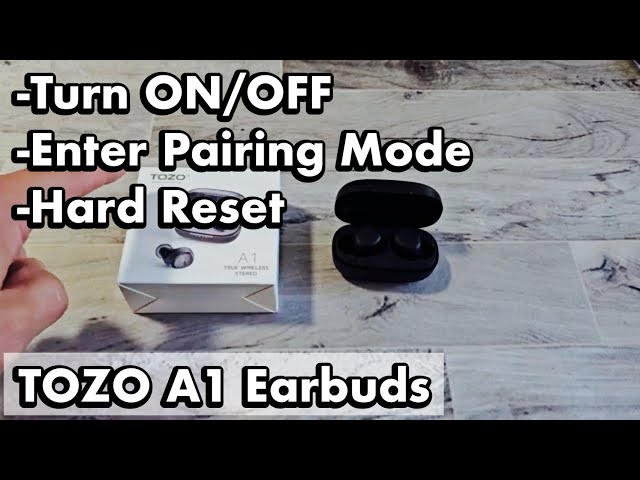
TOZO sells several earbud families, including T6, T9, T10, NC9, A1, and other models. Their pairing process is similar, but the light colors, touch commands, and reset steps can differ.
Keep these differences in mind:
• Some models enter pairing mode as soon as you remove them from the case.
• Some models require a long touch on both earbuds.
• Some models use physical buttons instead of touch controls.
• Some earbuds show red and blue lights, while others use white or blue lights.
• Noise-canceling models may have separate controls for transparency mode and active noise cancellation.
• A model name may appear with a version number or extra letters in the Bluetooth menu.
The safest approach is to use the general method first, then compare the light pattern and control steps with the guide for your exact TOZO model. This avoids guessing, especially when the earbuds look similar but use different firmware.
Common Pairing Mistakes to Avoid
Small errors can make pairing feel harder than it is. Avoiding these mistakes often solves the problem in less than a minute.
• Pairing only one earbud: Remove both earbuds together unless you need single-earbud mode.
• Leaving old Bluetooth connections active: Turn off Bluetooth on devices that may reconnect automatically.
• Searching too far away: Keep the earbuds close to the phone or computer.
• Ignoring the charging contacts: A dirty contact may leave one earbud powered off.
• Pressing the touch panels too briefly: A light tap may play or pause music instead of starting pairing mode.
• Pairing before the earbuds connect to each other: Wait a few seconds after removing both earbuds.
• Skipping the “Forget” step: A damaged saved connection can block a new pairing attempt.
During real-world setup, I have found that removing both earbuds, waiting five seconds, and then opening the Bluetooth menu works better than repeatedly tapping the controls. Bluetooth pairing is a short conversation between devices; giving each device time to respond keeps that conversation clear.
Tips for a More Stable TOZO Bluetooth Connection
Pairing mode is only the first step. A stable connection also depends on distance, interference, battery level, and software.
Use these practical tips:
• Keep your phone or computer within about 30 feet in an open area.
• Avoid placing the phone in a crowded bag or behind thick walls.
• Keep the earbuds charged above a very low battery level.
• Update your phone, computer, or Bluetooth drivers when updates are available.
• Disconnect unused Bluetooth accessories during setup.
• Store both earbuds in the case after use so they power down and charge.
• Clean the earbud contacts and case contacts from time to time.
Bluetooth performance can change around Wi-Fi routers, crowded offices, airports, and other wireless devices. A brief interruption does not always mean the earbuds are defective.
Frequently Asked Questions About How to Put TOZO Earbuds in Pairing Mode
How do I manually put TOZO earbuds in pairing mode?
Remove both earbuds from the charging case and wait for the indicator lights to flash. If they do not enter pairing mode, touch and hold both earbuds for about 5 seconds, then search for the TOZO name in your Bluetooth settings.
Why are my TOZO earbuds not showing on Bluetooth?
They may still be connected to another nearby device, have low battery, or need a reset. Turn off Bluetooth on old devices, charge the earbuds, forget the old TOZO connection, and try pairing again.
How do I reset TOZO earbuds for pairing?
Forget the earbuds from your phone or computer, place both earbuds in the case, and follow the reset touch pattern for your model. Many models use a long press, but the exact reset method can vary.
Can I pair TOZO earbuds with an iPhone?
Yes. Remove both earbuds, open Settings, tap Bluetooth, and select the TOZO model under “Other Devices.” If it was paired before, choose “Forget This Device” first when connection problems continue.
Can I connect TOZO earbuds to two devices at once?
Most TOZO earbuds do not support true multipoint connection. You usually need to disconnect them from one device before pairing them with another.
Why does only one TOZO earbud work?
The earbuds may have lost their connection with each other, or one earbud may not be charging. Place both in the case, clean the charging contacts, reset them if needed, and pair them again as a set.
What do the TOZO indicator lights mean?
Light colors vary by model, but flashing lights usually indicate pairing or connection activity. Check the manual for your exact model because red, blue, and white light patterns are not universal across all TOZO earbuds.
Conclusion
Putting TOZO earbuds in pairing mode usually takes only a few steps: charge them, remove both earbuds from the case, wait for the pairing lights, and select the TOZO name in your device’s Bluetooth menu. If they do not appear, turn off nearby Bluetooth devices, forget the old connection, clean the charging contacts, and reset the earbuds using the instructions for your model.
Start with the standard method and keep the earbuds close to your phone or computer. Once connected, save the model-specific reset steps for future use, and explore your device’s Bluetooth settings for the best audio experience.
