How To Turn Off Headphone Notification: Easy Fix
If your iPhone or Android phone keeps warning you about headphone volume, showing a headset icon, or sending Bluetooth earbud alerts, you can often turn off the notification in your device settings. The exact steps depend on the alert type and your device model. In the United States, the most common alert is Apple’s Headphone Notifications warning, but Android and Windows use several different notification systems.
The safest approach is to identify the message first. A loud-volume warning, a Bluetooth connection alert, a low-battery notice, and a media-control notification do not use the same setting.
Quick answer
To turn off a headphone notification:
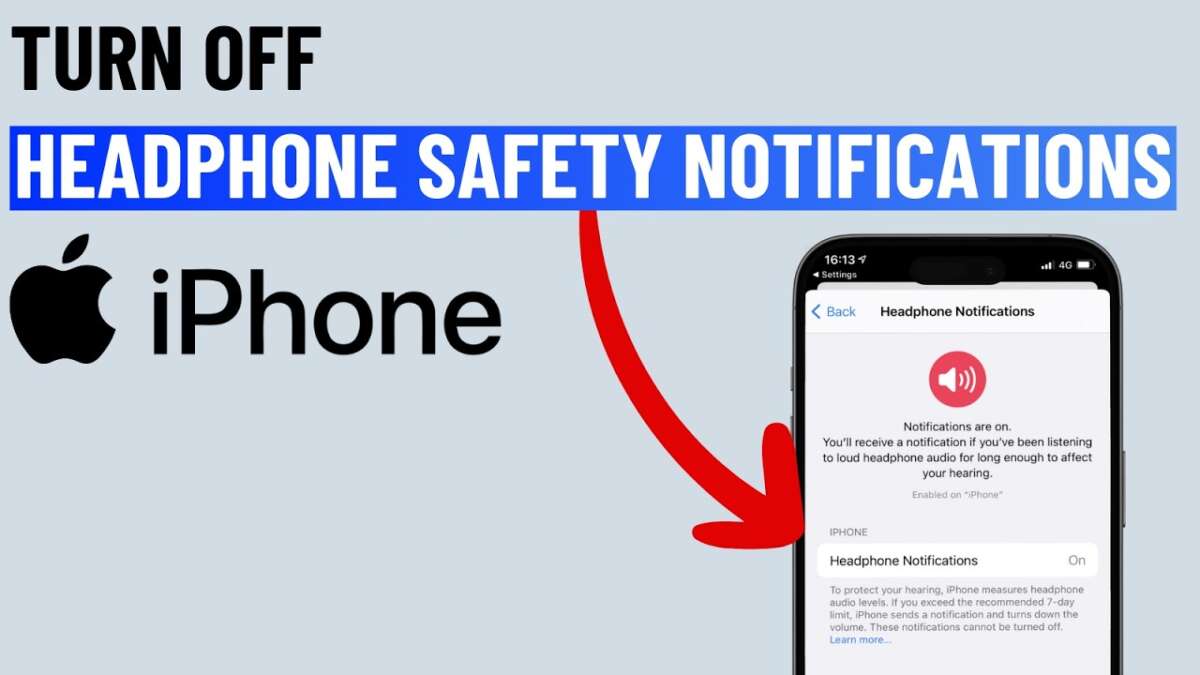
- iPhone: Open Settings > Sounds & Haptics > Headphone Safety, then turn off Headphone Notifications, if the option is available.
- Android: Open Settings > Notifications > App notifications and disable alerts for the app or system service sending the message. On some phones, check Android System, Bluetooth, or the earbuds’ companion app.
- Samsung Galaxy: Go to Settings > Notifications > App notifications, select the relevant system or wearable app, and adjust its alerts.
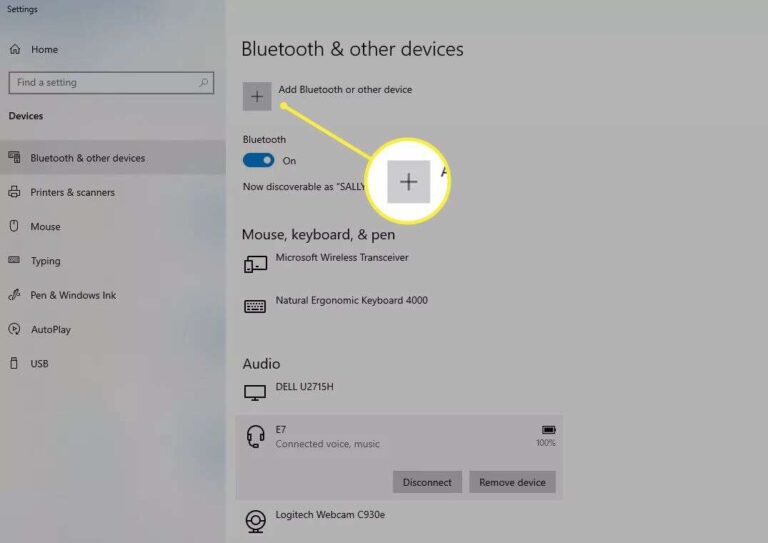
- Windows 11: Open Settings > System > Notifications and turn off notifications for the app or Bluetooth-related service creating the alert.


If you cannot find a switch, the notification may be required by local safety rules, controlled by the headphone manufacturer’s app, or built into the operating system.
What kind of headphone notification are you seeing?
The message usually falls into one of these groups:
| Notification type | Common example | Where to look |
|---|---|---|
| Hearing safety warning | “Headphone volume is too loud” | Headphone Safety or Sound settings |
| Bluetooth connection alert | “Connected to Bluetooth device” | Bluetooth, Android System, or Bluetooth settings |
| Earbud battery alert | “Left earbud battery low” | Earbuds app or Bluetooth device settings |
| Media control notification | Playback controls on the lock screen or notification shade | Media, notification, or app settings |
| Headphone mode problem | Phone shows headphones after unplugging them | Port, Bluetooth, or hardware troubleshooting |
| Windows audio alert | Device connected or output changed | Windows Notifications, Sound, or Bluetooth settings |
The first step is to read the exact wording. A volume warning cannot always be disabled in the same place as a connection alert.

How to turn off headphone notifications on an iPhone
On most U.S. iPhones with a current version of iOS, you can manage headphone safety alerts from the Sound & Haptics menu.
Turn off Headphone Notifications
- Open the Settings app.
- Tap Sounds & Haptics.
- Tap Headphone Safety.
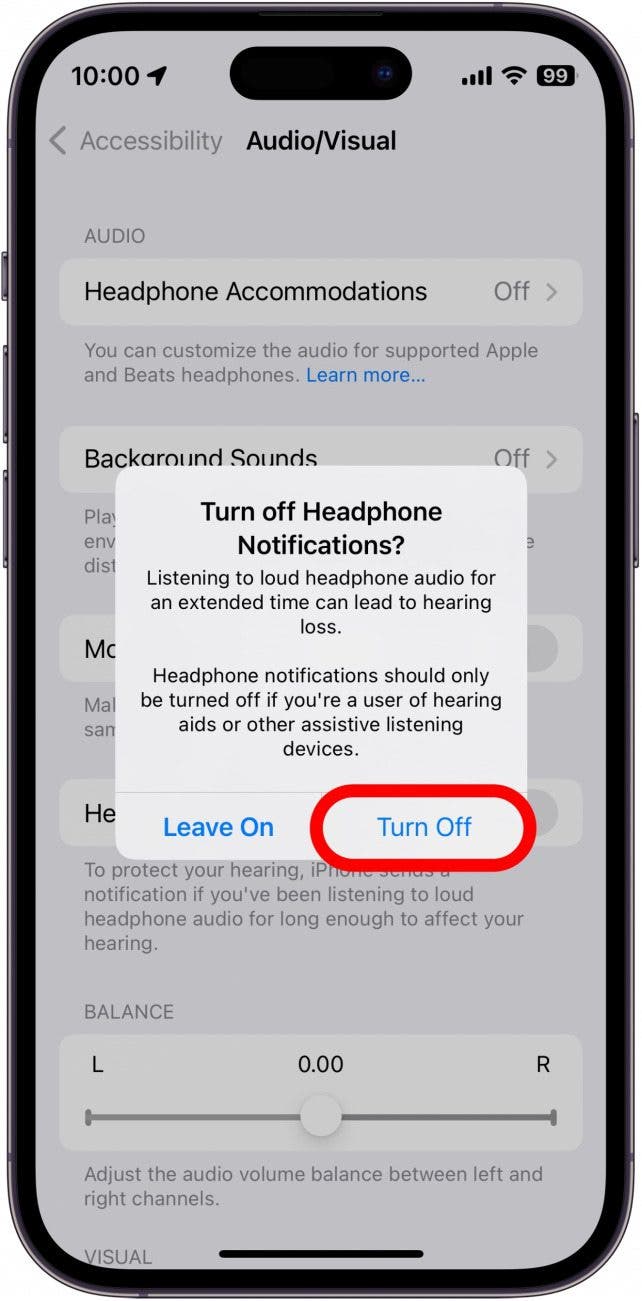
- Turn off Headphone Notifications, if the switch appears.
- Confirm the change if iOS asks you to do so.
The setting may be listed as Headphone Notifications. It controls warnings about extended exposure to loud headphone audio.
Apple may not show this option in every country or region. Local laws and safety requirements can affect whether the setting is available. If the switch is missing, changing the iPhone region is not a reliable or appropriate fix.
Lower the volume warning without disabling all alerts
If you want fewer loud-volume warnings but still want some hearing protection, check the other settings under Headphone Safety.
You may see options such as:
- Reduce Loud Audio
- A maximum headphone volume slider
- Headphone audio level information
- Hearing-related notifications
Reduce Loud Audio limits the volume above a level you choose. This is different from turning off a notification. Lowering the maximum volume can reduce the chance of repeated warnings while still protecting your hearing.
Why an iPhone may keep showing the warning
An iPhone may continue to show a warning when:


- You have reached the headphone exposure limit measured by the device.
- The volume is set above the level allowed by Reduce Loud Audio.
- You changed the setting on one device but are using another iPhone or iPad.
- A work, school, or family-management profile controls sound settings.
- Your iPhone is in a region where Apple does not allow the alert to be disabled.
Apple’s support documentation explains that Headphone Notifications are designed to help users manage exposure to loud sound. Turning off the alert does not make high volume safer.

How to turn off headphone notifications on Android
Android does not use one universal headphone notification setting. Menus vary by manufacturer, Android version, and the app that manages your headphones.
Disable the notification from the notification shade
This is often the fastest method:
- Wait for the headphone notification to appear.
- Touch and hold the notification.
- Tap Turn off notifications, Silent, or Settings.
- Turn off that notification category or adjust its alert level.
- Tap Done.
Some Android phones let you disable only one category, such as connection alerts, while keeping battery or security alerts active.
Do not turn off every notification from Android System unless you understand the result. Android System may handle important alerts for Bluetooth, USB devices, charging, and other core functions.
Use Android notification settings
If the notification is no longer visible:
- Open Settings.
- Tap Notifications.
- Tap App notifications or See all.
- Find the app or service linked to the alert.
- Turn off the relevant notification category.
Depending on the phone, the sender may be listed as:
- Android System
- Bluetooth
- System UI
- Media
- Device connectivity
- The headphone maker’s app
- A wearable-device app
The names can differ even when the function is the same. Search Settings for notifications, Bluetooth, headphones, or connected devices if you cannot find the menu.
Turn off headphone alerts in the manufacturer’s app
Many wireless earbuds use a companion app. Examples include apps made for Pixel Buds, Galaxy Buds, Sony, Bose, Jabra, and other brands.
Open the app and look for settings such as:
- Device notifications
- Connection announcements
- Voice prompts
- Battery notifications
- Touch controls
- Sound or hearing protection
- Assistant notifications


Some alerts are generated by the app, not by Android. In that case, changing Android’s general Bluetooth settings may not stop them.
Stop media controls from appearing
If you mean the music controls in the notification panel or lock screen, the process may be different:
- Open Settings.
- Tap Notifications.
- Look for Media, Media player, or the music app.
- Turn off that notification category if your phone allows it.
You can also check the music app’s own settings. Android media controls are often tied to the active music, podcast, or video app rather than the headphones themselves.

How to turn off headphone notifications on a Samsung Galaxy phone
Samsung Galaxy phones may show headphone alerts through Android System, Bluetooth, One UI, or the Galaxy Wearable app.
Try these steps:
- Open Settings.
- Tap Notifications.
- Tap App notifications.
- Tap the three-dot menu, if available.
- Enable Show system apps.
- Search for Bluetooth, Android System, One UI, or Galaxy Wearable.
- Turn off only the notification category related to the headphone alert.
For Galaxy Buds, also open Galaxy Wearable:
- Open Galaxy Wearable.
- Select your earbuds.
- Review Earbuds settings and Notifications.
- Disable optional alerts or voice announcements.
Menu names may change after a One UI update. If the alert is a hearing-safety warning rather than a connection notice, check Settings > Sounds and vibration and search for sound or volume safety options.

How to turn off headphone notifications on Windows 11
Windows may show a notification when Bluetooth headphones connect, disconnect, or become the active audio output.
Disable Windows notifications
- Open Start.
- Select Settings.
- Choose System.
- Select Notifications.
- Find the app or service responsible for the alert.
- Turn notifications off, or disable only banners and sounds.
If the message comes from a manufacturer utility, such as a laptop audio app, change that app’s notification settings instead.
Stop connection sounds
A connection sound is not always a notification. It may be a Windows system sound.
To reduce or stop it:
- Open Settings.
- Select System > Sound.
- Check the active output device.
- Open More sound settings.
- Select the Sounds tab.
- Review system events related to device connection.
- Choose No Sounds for the event, if available, or use a different sound scheme.
Windows menu names can vary between Windows 10 and Windows 11. The notification setting and the sound setting may need separate changes.


What to do if the headphone icon will not disappear
A headphone icon that remains after you unplug wired headphones is usually not a normal notification. It may indicate a dirty port, moisture, a stuck switch, Bluetooth audio still connected, or a software error.
Try the following safe checks:
- Disconnect the headphones.
- Turn Bluetooth off for a moment.
- Restart the phone.
- Check whether another Bluetooth device is connected.
- Inspect the headphone or USB-C port with a light.
- Let the port dry if the phone may have been exposed to moisture.
- Install available system updates.
- Test with another compatible headset.
Do not push a sharp object into the port. Do not use liquid, heat, or compressed air unless the device maker specifically permits it. If the icon remains after basic checks, the port or audio circuit may need professional inspection.
On an iPhone, Apple recommends keeping liquid and debris out of the connector. On Android phones, follow the specific manufacturer’s cleaning and moisture guidance because port designs differ.

Why the notification keeps coming back
A notification can return for several reasons:
The setting changed on another device
Headphone safety settings may not match across an iPhone, iPad, Android phone, tablet, or computer. Change the setting on the device that is producing the alert.
The alert is from an app
Disabling a system notification will not stop alerts created by the headphone manufacturer’s app. Check the app’s notification and voice-prompt controls.
The operating system restored the setting
A major software update, device reset, or restored backup can change notification preferences. Check the setting again after an update.
The phone is enforcing a safety setting
Some regions, managed devices, and parental-control profiles may restrict changes to audio safety features. A work or school administrator may also control certain settings.
You disabled sound but not banners
A notification can have separate controls for:
- Sound
- Vibration
- Banners
- Lock-screen display
- Notification badges
- Notification history
If you want a quiet alert rather than no alert, set the category to Silent instead of turning it off.

Should you turn off headphone safety notifications?
You can turn off an alert, but that does not remove the risk that the alert describes. Loud sound can damage hearing, especially when exposure lasts a long time or happens often.
A practical compromise is to:
- Keep the volume at a moderate level.
- Use noise cancellation in loud places rather than increasing volume.
- Take breaks during long listening sessions.
- Keep Reduce Loud Audio enabled when available.
- Check the device’s sound-exposure information from time to time.
- Stop listening and seek medical advice if you notice pain, ringing, muffled hearing, or sudden hearing changes.
A notification is only a warning. It cannot measure every factor that affects hearing, including fit, background noise, listening time, and the sensitivity of the individual user.


Common mistakes to avoid
Turning off all system notifications
This may hide useful Bluetooth, charging, security, and device alerts. Disable only the category connected to the headphone message.
Confusing a connection alert with a hearing warning
A connection alert says that a device connected or disconnected. A hearing warning relates to sound exposure. They usually have different controls.
Changing the phone’s region
Changing regional settings may affect language, date formats, services, and app availability. It may not remove safety controls and can create other problems.
Using a third-party “notification blocker”
These apps may need broad access to notifications. Use the built-in controls first, especially for messages involving Bluetooth, hearing, or device security.
Ignoring a stuck headphone icon
If the phone stays in headphone mode, the issue may be physical rather than a notification problem. Inspect the port and seek repair if the problem continues.

Frequently asked questions
Can I turn off Headphone Notifications on every iPhone?
No. The option is available on many U.S. iPhones, but Apple says availability can depend on the country or region. If the switch does not appear under Settings > Sounds & Haptics > Headphone Safety, the device may be subject to a regional or managed-device restriction.
Can I turn off only the sound but keep the headphone notification?
Often, yes. On Android, touch and hold the alert and choose Silent. On Windows, turn off notification sounds while keeping banners. iPhone provides fewer separate controls for some headphone safety alerts.
Why do my AirPods keep announcing notifications?
Your iPhone may have Announce Notifications enabled for Siri and supported headphones. Check Settings > Notifications > Announce Notifications and review the headphone or app options. This setting is separate from Headphone Safety.
Why does my Android phone show a headphone notification with no headphones connected?
Possible causes include a Bluetooth device that is still connected, a stuck USB-C or headphone-port sensor, a system error, or an app that is displaying an old alert. Turn Bluetooth off, restart the phone, and inspect the port.
Will turning off the notification improve headphone battery life?
Usually, the change has little effect on battery life. A notification itself uses very little power. Battery drain is more likely to come from Bluetooth use, high volume, active noise cancellation, voice assistants, or a companion app running in the background.

Final recommendation
Start by identifying the alert’s exact wording. On an iPhone, check Settings > Sounds & Haptics > Headphone Safety. On Android or Samsung, touch and hold the alert to find its notification category, then change only that category. On Windows, check both System > Notifications and the sound settings.
If the alert is a hearing-safety warning, consider lowering the volume or enabling a volume limit instead of removing every safeguard. If the headphone icon remains after unplugging, treat it as a possible port or Bluetooth problem rather than a simple notification issue.