

To unpair Bose headphones, remove them in bluetooth settings, then clear their saved device list.
Knowing how to unpair Bose headphones can prevent auto-connection problems, pairing errors, and unwanted switches between your phone, tablet, and computer. The steps vary slightly by model, but this guide explains the safest methods for Bose QuietComfort, Bose 700, Bose Sport, Bose SoundLink, and other Bluetooth headphones.
What Does Unpairing Bose Headphones Mean?
Unpairing removes the connection between your Bose headphones and a device such as an iPhone, Android phone, Mac, or Windows PC. It is different from simply turning Bluetooth off.
When you disconnect, the headphones may still remember the device. When you unpair or forget the headphones, the device removes the saved Bluetooth profile. You can then pair the headphones again as if they were new.
Learning how to unpair Bose headphones is useful when:
• Your headphones connect to the wrong device
• Bluetooth pairing keeps failing
• You are giving the headphones to someone else
• Your phone shows an old or duplicate Bose connection
• Audio cuts out or switches between devices
• You want to connect the headphones to a new computer
Bose headphones can remember several recently connected devices. That feature is convenient, but it can also act like a crowded key ring. Clearing the list often solves connection issues faster than repeatedly tapping the Bluetooth button.
How to Unpair Bose Headphones From an iPhone
Apple calls unpairing “forgetting” a device. This removes the Bose headphones from your iPhone’s Bluetooth memory.
Open the Settings app on your iPhone.
Tap Bluetooth.
Find your Bose headphones under My Devices.
Tap the information icon beside the headphone name.
Select Forget This Device.
Tap Forget Device to confirm.
Your iPhone will no longer connect to the headphones automatically. If the headphones still connect to the iPhone, turn Bluetooth off on the iPhone for a few seconds, then turn it back on.
If you want to pair the headphones again, place them in pairing mode. Open the iPhone’s Bluetooth menu and select the Bose product name when it appears.
When explaining how to unpair Bose headphones on an iPhone, many people stop after tapping Forget This Device. That removes the phone’s record, but the headphones may still remember the iPhone internally. To remove both records, clear the headphone device list as well.

How to Unpair Bose Headphones From Android
Android menus can look different depending on the phone brand and software version. The general process remains almost the same.
Open Settings.
Tap Connected devices, Connections, or Bluetooth.
Select Bluetooth or Previously connected devices.
Find your Bose headphones in the list.
Tap the Settings icon beside the headphones.
Choose Forget, Unpair, or Remove.
Confirm your choice.
Some Android phones show the Bose headphones under Saved devices. Others place them under Previously connected devices. If you cannot see the headphones, check that Bluetooth is turned on and that the headphones are nearby.
After you unpair Bose headphones from Android, restart Bluetooth before trying a new connection. This clears a minor software hang that can make the headphones appear unavailable.
For a complete reset, also clear the Bluetooth list on the headphones. This is especially important if the headphones are going to another person.
How to Unpair Bose Headphones From a Windows PC
Windows stores Bluetooth devices in the Bluetooth settings menu. Removing the Bose headphones from Windows is simple.
Open Settings by pressing Windows + I.
Select Bluetooth & devices.
Find your Bose headphones under Devices.
Select the three-dot menu beside the headphones.
Click Remove device.
Confirm by selecting Yes.
On Windows 10, open Settings, select Devices, choose Bluetooth & other devices, click the Bose headphones, and select Remove device.
If your Bose headphones do not disappear, turn them off and on again. You can also restart the computer. Windows sometimes keeps a Bluetooth device visible until the system refreshes its device list.
When you learn how to unpair Bose headphones from Windows, remember to remove both entries if you see more than one. A headset may appear once for stereo audio and again for hands-free calling. Removing only one entry can leave the old connection partly active.
:max_bytes(150000):strip_icc()/001-how-to-connect-bose-headphones-to-iphone-4767807-01d0cf9dea7b4e2a9c9cef4a8619a322.jpg)
How to Unpair Bose Headphones From a Mac
macOS uses the Remove option in Bluetooth settings.
Open the Apple menu.
Select System Settings.
Click Bluetooth.
Locate your Bose headphones under My Devices.
Click the information button beside the device name.
Select Forget This Device.
Confirm when macOS asks.
On older versions of macOS, open System Preferences, click Bluetooth, select the Bose headphones, and choose the X or Remove option.
After removing the headphones, wait a few seconds before pairing them again. If the Bose name still appears, turn Bluetooth off and back on from the Mac’s Control Center.
This step is helpful when learning how to unpair Bose headphones from a Mac because macOS can retain a device in its recent Bluetooth history even after you remove it from the main list.
How to Clear the Bluetooth Memory on Bose Headphones
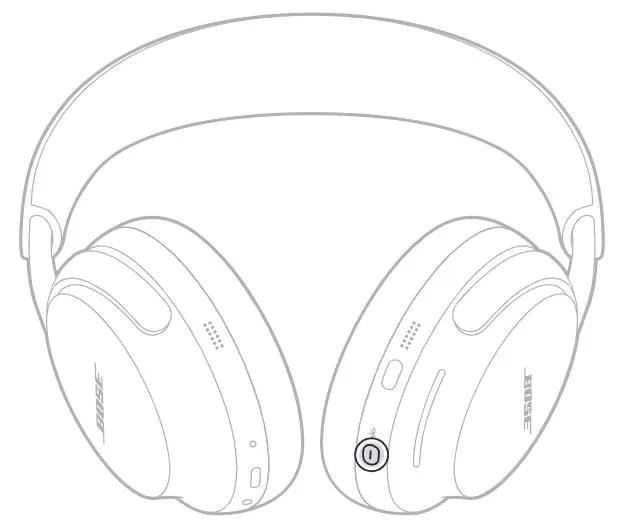
Removing the headphones from your phone or computer does not always clear the headphones’ own memory. Bose headphones usually have a separate command that deletes their stored Bluetooth connections.
For many Bose models, use these steps:
Turn on the headphones.
Find the Bluetooth button or Bluetooth/power switch.
Press and hold the Bluetooth control for about 10 seconds.
Wait for the voice prompt or indicator that says the Bluetooth device list is cleared.
Release the button.
The exact control depends on the model. Common examples include:
• Bose QuietComfort 35 and QuietComfort 35 II: Press and hold the Bluetooth button for about 10 seconds.
• Bose QuietComfort 45: Press and hold the Bluetooth button for about 10 seconds.
• Bose Noise Cancelling Headphones 700: Press and hold the Bluetooth button for about 10 seconds.
• Bose SoundLink around-ear models: Use the Bluetooth control and follow the voice prompt.
• Newer Bose QuietComfort Ultra models: Follow the model-specific instructions in the Bose app or product guide, as the control and timing may differ.
The voice prompt is the best confirmation. If you do not hear a prompt, keep holding the button for a little longer, but avoid pressing random controls. Bose changes button layouts between product generations.
This is the most complete answer to how to unpair Bose headphones when you want to erase every saved connection. It is also the best step before selling, donating, or handing the headphones to another user.
How to Remove Bose Headphones in the Bose App
The Bose app can help manage your product, install updates, and adjust settings. The app name may be Bose Music or Bose Connect, depending on the headphone model.
To remove the product from the app:
Open the Bose app.
Select your headphones.
Open Settings.
Look for Product Settings, Account, or Remove Product.
Follow the instructions shown on screen.
Removing a product from the app does not always remove its Bluetooth record from your phone. Think of the app as a control center and the phone’s Bluetooth menu as a separate lock. You may need to remove the headphones in both places.
For that reason, the best method for how to unpair Bose headphones is to use the phone or computer’s Bluetooth settings first. Then clear the headphone’s stored device list if you want a complete separation.
The Bose app is still useful when the headphones do not respond normally. It may offer firmware updates or model-specific instructions that are not available through the standard Bluetooth menu.
How to Unpair Bose Headphones Without a Phone
You can clear the saved Bluetooth list directly from many Bose headphones. This is helpful if you no longer have the old phone or computer.
Turn on the Bose headphones.
Press and hold the Bluetooth button.
Continue holding it until the headphones announce that the device list is cleared.
Turn the headphones off.
Turn them on again and place them into pairing mode.
The headphones should now behave like a device that has not been paired before. They may announce that they are ready to connect.
Some models use a power or Bluetooth slider instead of a separate button. If the usual method does not work, check the model number printed inside the ear cup or in the Bose app. Then use the official product guide for that exact model.
I have found that this method solves many “my Bose headphones keep connecting to an old phone” problems. People often reset the phone but forget that the headphones also keep their own memory.
Unpairing vs. Resetting Bose Headphones
Unpairing and resetting are not the same action.
Unpairing removes a Bluetooth relationship. A factory reset may erase additional settings, such as saved preferences, device settings, or software data. You should try unpairing before performing a full reset.
Use unpairing when:
• You want to connect to a different phone
• One device keeps taking control
• You are troubleshooting a single Bluetooth connection
• You are moving from a phone to a laptop
Use a full reset only when:
• The headphones freeze often
• Buttons do not respond correctly
• Bluetooth clearing does not solve the issue
• The Bose app recommends a reset
• You have tried charging, restarting, and re-pairing
A reset method differs by Bose model. Because of that, avoid guessing with button combinations. A wrong combination may place the headphones in another mode without solving the original problem.

What to Do If Bose Headphones Keep Reconnecting
If the headphones reconnect after you unpair them, another device may still have an active Bluetooth record. This often happens when a phone, tablet, laptop, or smart TV is nearby.
Try these steps:
Turn off Bluetooth on nearby devices.
Remove the Bose headphones from each device’s Bluetooth list.
Clear the headphones’ internal Bluetooth memory.
Restart the device you want to use.
Turn on Bluetooth only on that device.
Pair the Bose headphones again.
Also check whether multipoint connections are enabled. Some Bose headphones can connect to two devices at once. This is convenient, but audio may switch when a second device plays a notification or receives a call.
If the headphones still reconnect, place the old device in airplane mode for a moment. If the problem stops, that device is likely causing the automatic connection.
Common Problems When Unpairing Bose Headphones
The Bose headphones do not appear in Bluetooth settings
Make sure the headphones are charged and turned on. Move them close to the phone or computer, then place them in pairing mode.
If they still do not appear, clear the headphone’s Bluetooth list. A full saved device list can prevent a new device from appearing properly.
The Forget option is missing
The device may already be disconnected or removed. Check under Other Devices, Previously connected devices, or Available devices.
On some phones, tap the gear or information icon beside the Bose name to find the Forget or Unpair command.
The headphones connect to the old device after clearing the list
The old phone or computer may still be searching for the headphones. Remove the Bose entry from that device, or turn Bluetooth off there before pairing with a new device.
The Bose app cannot find the headphones
Confirm that the app has Bluetooth permission. On some phones, the app may also need nearby-device or location permission to detect Bluetooth products.
Close and reopen the app after granting permission. Updating the app can also resolve compatibility problems.
The headphones have no sound after pairing
Check the selected audio output on your phone or computer. The Bose headphones may show as connected for calls but not selected for media audio.
On Windows, choose the Bose stereo output instead of a hands-free call profile when both options appear.
Practical Tips for a Clean Bose Bluetooth Setup
A few simple habits make Bose headphones easier to manage.
• Give each device a clear name. Rename the headphones on your phone if several Bluetooth products have similar names.
• Keep software current. Firmware updates can improve stability, though they cannot fix every Bluetooth problem.
• Charge before troubleshooting. A very low battery can make pairing unreliable.
• Pair one device at a time. This makes it easier to identify which device is causing a connection problem.
• Avoid repeated resets. Resetting too often can erase useful settings without addressing the real cause.
• Check the exact model. QuietComfort, Sport, SoundLink, and Noise Cancelling Headphones products may use different button controls.
One mistake I often see is deleting the headphones from a phone and assuming the job is finished. The old phone may forget the headphones, while the headphones still remember the phone. Clearing both sides creates a clean start.
Bluetooth works much like two people saving each other’s phone numbers. Deleting one contact does not delete the other person’s copy. You need to remove the record on both ends.
When to Contact Bose Support
Contact Bose support if the headphones will not enter pairing mode, do not respond to button presses, or fail with several different devices.
Before contacting support, note:
• The exact model name
• The device used for pairing
• The phone or computer operating system
• Whether the headphones charge normally
• Any voice prompt or light pattern
• The steps you have already tried
This information helps support staff identify whether the issue involves Bluetooth settings, firmware, battery health, or hardware.
Official Bose product guides are the most reliable source for model-specific reset instructions. Bluetooth behavior can also change after operating system updates, so a problem may involve the phone or computer rather than the headphones.
Frequently Asked Questions About How to Unpair Bose Headphones
How do I unpair Bose headphones from my phone?
Open your phone’s Bluetooth settings, select the Bose headphones, and tap Forget, Unpair, or Remove. For a complete removal, also clear the stored Bluetooth list on the headphones.
How do I clear the Bluetooth list on Bose headphones?
On many Bose models, turn on the headphones and hold the Bluetooth button for about 10 seconds. Release it after the voice prompt confirms that the Bluetooth device list has been cleared.
Does removing Bose headphones from the app unpair them?
Not always. Removing a product from the Bose app may not delete the Bluetooth record saved by your phone, so remove the headphones from the phone’s Bluetooth settings too.
Why do my Bose headphones keep connecting to another device?
The other device may still remember the headphones, or multipoint pairing may be active. Remove the Bose headphones from nearby devices and clear the headphones’ internal Bluetooth list.
Will unpairing Bose headphones delete my audio settings?
Normal unpairing usually removes only the Bluetooth connection. A factory reset may remove additional product settings, so use a full reset only when standard unpairing does not solve the problem.
Can I unpair Bose headphones without the original phone?
Yes. Clear the saved Bluetooth list directly from the headphones by holding the Bluetooth control until the device list is cleared. The exact steps depend on the model.
Conclusion
The simplest way to unpair Bose headphones is to remove them from your phone, tablet, or computer’s Bluetooth settings. For a complete reset of the connection history, clear the Bluetooth memory on the headphones too.
Start with the least disruptive method, confirm the exact Bose model, and avoid a factory reset unless it is truly needed. These steps can fix unwanted auto-connections, pairing errors, and device-switching problems in just a few minutes.
Try the method that matches your device, then pair the headphones again when you are ready. If you have a model-specific issue, explore the official Bose product guide or share your experience in the comments.
