

You can use an M.2 SSD through a compatible PCIe adapter, USB enclosure, or SATA adapter.
Learning how to use M 2 SSD without M 2 slot is easier than it sounds. The right method depends on your SSD type, computer ports, speed needs, and budget. An experienced PC builder will first check whether the drive uses NVMe or SATA, because the wrong adapter can make the SSD unusable.
This guide explains how to use M 2 SSD without M 2 slot safely. You will learn which adapters work, how to install them, how to boot from the drive, and which limits to expect.
What an M.2 SSD Needs to Work
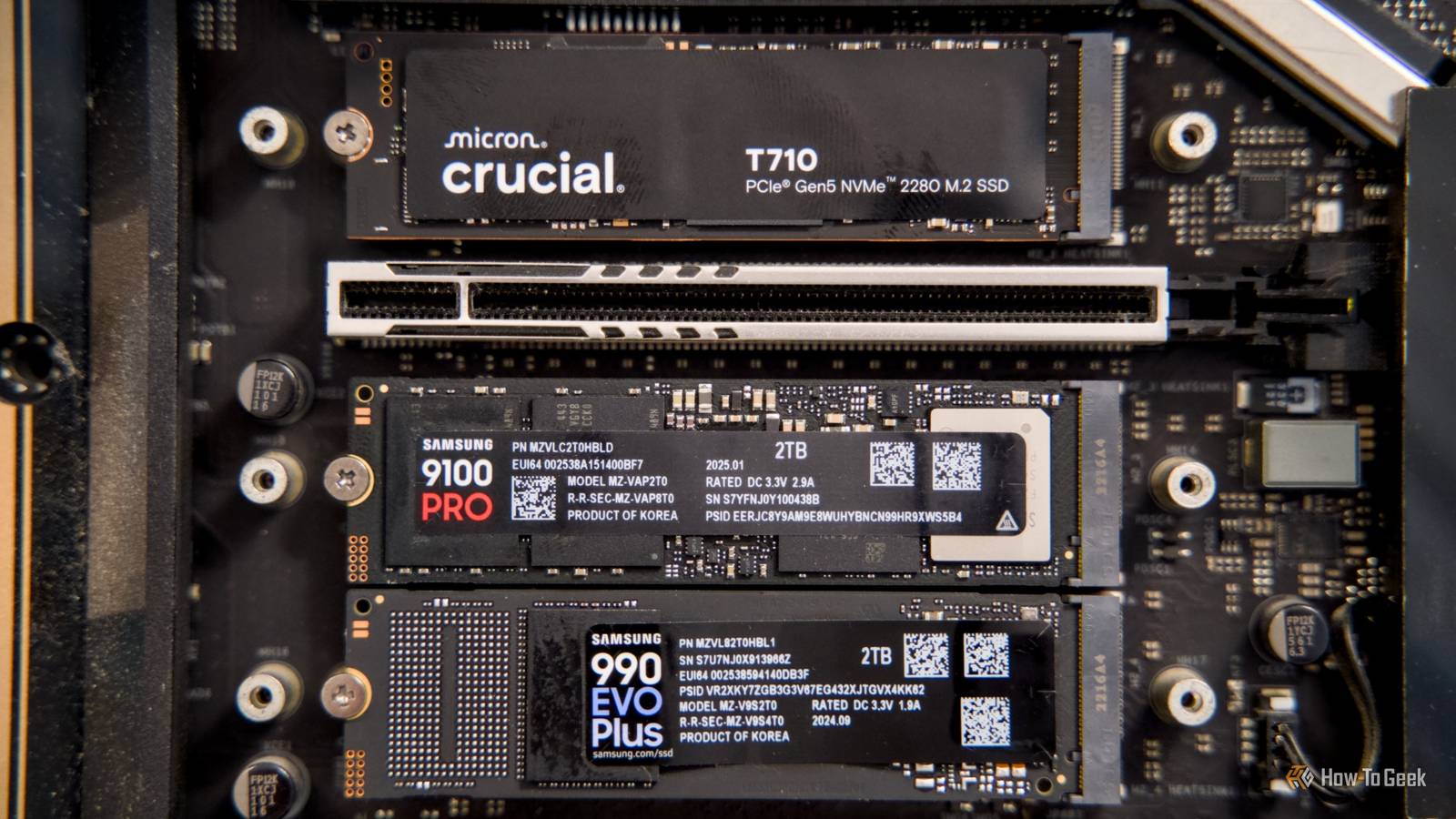
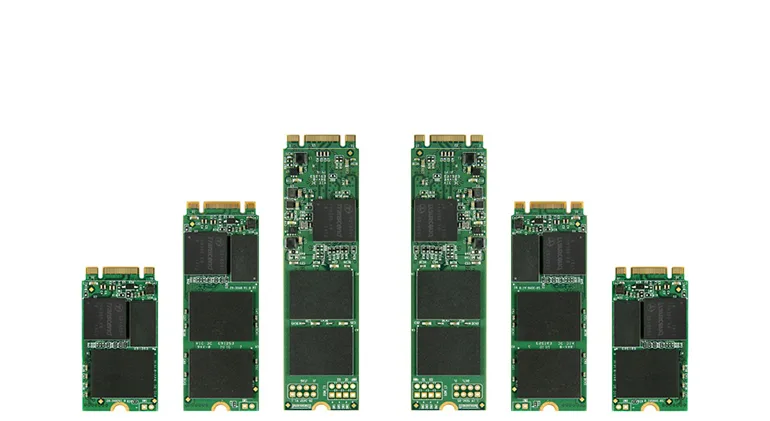
M.2 describes the shape and connector style of the drive. It does not describe the data protocol by itself. An M.2 SSD may use either NVMe over PCIe or SATA over the SATA bus.
This difference is the most important part of learning how to use M 2 SSD without M 2 slot. Think of the M.2 shape as a key, and the protocol as the lock. A key that looks right may still not fit the system inside the lock.
Check the label on the SSD or its product page. Look for terms such as:
• NVMe
• PCIe Gen 3, Gen 4, or Gen 5
• SATA
• B key, M key, or B+M key
• 2280, 2260, or 2242
The four digits show the physical size. For example, an M.2 2280 drive is 22 millimeters wide and 80 millimeters long.
An NVMe M.2 drive needs a PCIe connection. An M.2 SATA drive needs a SATA connection. Some adapters support only one type, while others clearly support both.
Check Your SSD and Computer Before Buying an Adapter
Before choosing an adapter, inspect both the SSD and the computer. This simple check prevents most compatibility problems.
First, identify the SSD protocol. Windows tools, the drive label, or the manufacturer’s specifications can help. If the drive is already installed in another computer, Device Manager may list its model number. Search that model in the manufacturer’s technical documents.
Next, check the expansion options on your computer. A desktop may have one or more of these:
• PCIe x4 slot
• PCIe x8 slot
• PCIe x16 slot
• USB 3.0 or faster port
• Spare SATA data and power cables
A PCIe adapter usually provides the best performance for an NVMe SSD. A USB enclosure is easier for external storage. A SATA adapter is needed for an M.2 SATA drive.
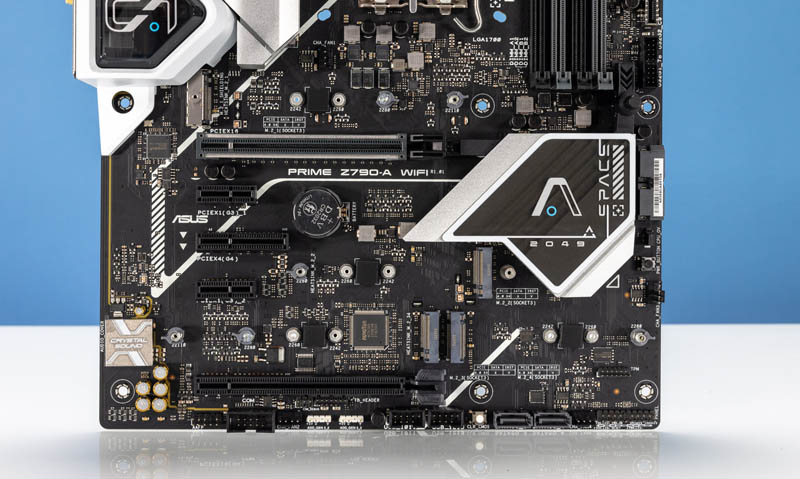
When considering how to use M 2 SSD without M 2 slot, do not assume every PCIe slot gives the same result. A long PCIe x16 slot can often accept a small x4 adapter, but the motherboard may limit its speed or disable it when other slots are active.
Also check clearance inside the case. A graphics card can cover a short PCIe slot, and a large heat sink may block the adapter.

Method One: Use a PCIe Adapter Card
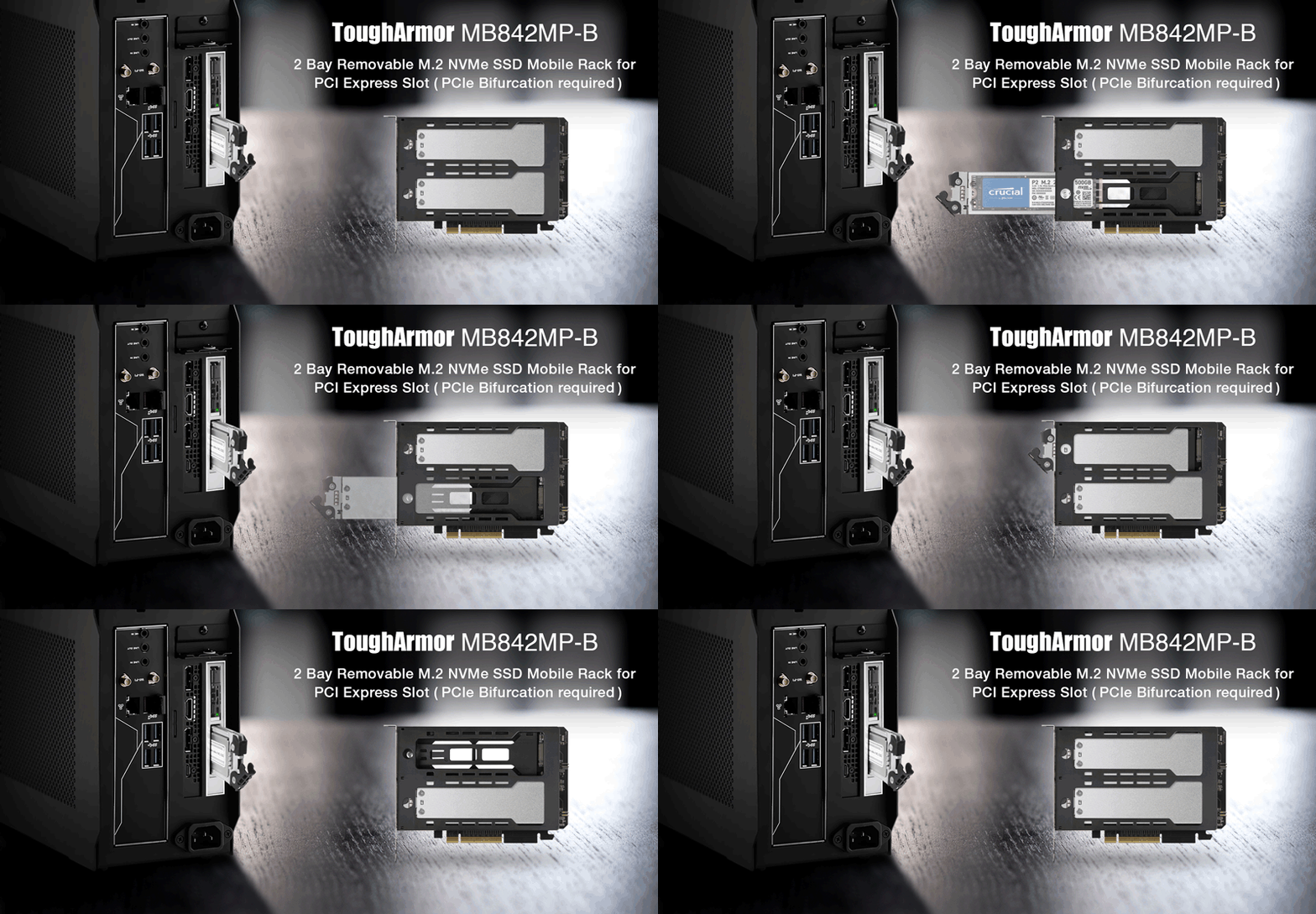
A PCIe-to-M.2 adapter is usually the best way to use an NVMe SSD in a desktop without an M.2 slot. The card holds the SSD and connects it to a standard PCIe slot on the motherboard.
Most simple adapters are passive. They do not convert the signal. They only route PCIe lanes from the motherboard to the M.2 connector. This is why the adapter must support the same type of drive.
How to install a PCIe M.2 adapter
Shut down the computer and unplug the power cable.
Press the power button for a few seconds to discharge leftover power.
Open the case and locate an available PCIe slot.
Remove the matching metal expansion bracket.
Insert the M.2 SSD into the adapter at a slight angle.
Press the drive down gently and secure it with the correct screw.
Insert the adapter into the PCIe slot.
Secure the adapter to the case.
Close the case and reconnect the power cable.
Start the computer and check whether the BIOS detects the drive.
An adapter with a heat sink can help during long transfers. This matters more with PCIe Gen 4 and Gen 5 NVMe drives, which can become hot under heavy use. A hot drive may reduce its speed to protect itself.
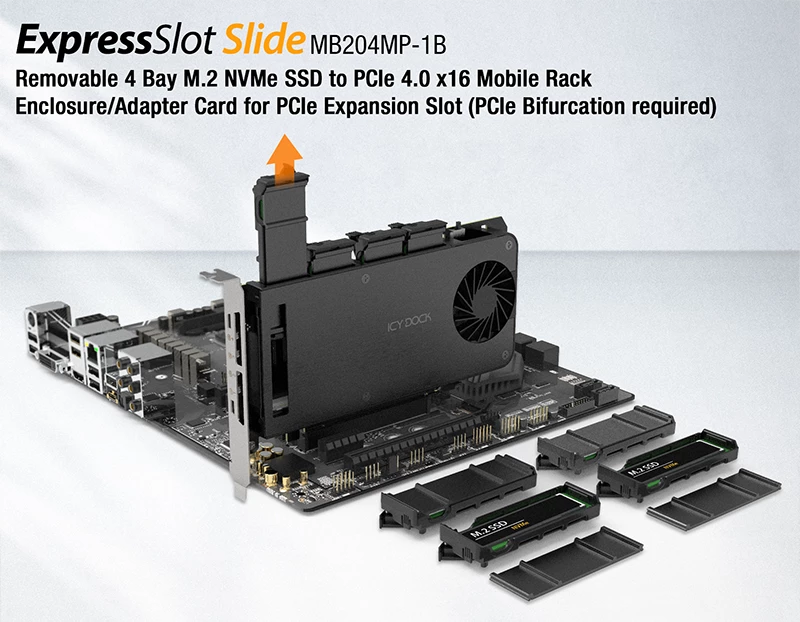
A basic PCIe adapter does not usually need a separate power cable. The PCIe slot supplies power. However, some advanced adapters include extra features, such as multiple M.2 sockets or hardware RAID. Those models may need additional power and special drivers.
This is the most reliable answer for how to use M 2 SSD without M 2 slot on a desktop computer.

Method Two: Use a USB M.2 Enclosure
A USB enclosure turns an M.2 SSD into an external drive. This is a practical choice for laptops, small computers, and desktops with no free PCIe slot.
Choose the enclosure based on the SSD type. An NVMe enclosure needs an NVMe USB bridge. An M.2 SATA enclosure needs a SATA USB bridge. A dual-protocol enclosure may support both, but always read the product specifications.
USB speed depends on the port and enclosure. Common limits include:
• USB 3.0 or USB 3.2 Gen 1: Up to 5 gigabits per second
• USB 3.2 Gen 2: Up to 10 gigabits per second
• USB 3.2 Gen 2x2: Up to 20 gigabits per second
• USB4 or Thunderbolt: Potentially much faster, depending on the computer and enclosure
Real-world speeds are lower than the advertised link rate. The USB protocol, enclosure controller, cable, heat, and SSD all affect performance.
How to install an SSD in a USB enclosure
Confirm that the enclosure supports NVMe or SATA, as needed.
Open the enclosure according to its instructions.
Insert the SSD into the internal M.2 connector.
Secure the SSD with the included screw or latch.
Close the enclosure.
Connect it with a short, certified USB cable.
Open Disk Management in Windows.
Initialize, partition, and format the drive if necessary.
USB is often the simplest solution for how to use M 2 SSD without M 2 slot. It is also useful when moving files between computers or creating a portable backup drive.
Do not place the enclosure under a laptop or inside a warm cabinet. Heat can slow the SSD and may cause unstable transfers.

Method Three: Use an M.2 SATA Adapter
If your SSD is M.2 SATA, use an adapter designed for M.2 SATA drives. This adapter may connect to a standard SATA port inside a desktop or to USB outside the computer.
An M.2 SATA adapter does not convert NVMe signals into SATA signals. This is a common source of confusion. A SATA adapter cannot make an NVMe drive work.
An internal adapter may need two connections:
• A SATA data cable from the adapter to the motherboard
• A SATA power cable from the power supply
Some adapters use a standard 2.5-inch SATA layout. These can fit into a 2.5-inch drive bay with the right mounting hardware.
For external use, an M.2 SATA USB enclosure is more convenient. It normally receives both data and power through the USB port.
This method works well for older M.2 SATA drives, file storage, and basic system upgrades. It will not provide NVMe performance because the SATA interface has a lower speed ceiling.
When learning how to use M 2 SSD without M 2 slot, verify the protocol before connecting anything. A B+M key shape does not guarantee that the drive supports both SATA and NVMe.

How to Make the Computer Detect the Drive
After installation, enter the BIOS or UEFI setup. The key is often Delete, F2, F10, or Esc, depending on the motherboard.
Look for the storage list, PCIe devices, or NVMe information page. A PCIe adapter may not appear under the same menu as a built-in M.2 socket. Some firmware lists it as a generic PCIe storage device.
If the drive appears in BIOS but not in Windows, open Disk Management:
Right-click the Start button.
Select Disk Management.
Find the new drive by its capacity.
Initialize it if Windows requests this step.
Create a new simple volume.
Assign a drive letter.
Format it with NTFS for normal Windows use.
Formatting removes existing data. If the SSD contains important files, stop and back them up first.
If the drive does not appear in BIOS, shut down and check the adapter seating, SSD screw, PCIe slot, and protocol match. For an external enclosure, try another USB port and cable.
Older motherboards may detect an NVMe drive as storage but may not boot from it. In that case, the drive can still work as a secondary storage disk.
How to Boot From an M.2 SSD Through an Adapter
Booting from an M.2 SSD installed on a PCIe adapter depends on motherboard firmware. Newer UEFI systems usually offer better NVMe boot support.
A clean installation is often the most reliable path:
Back up personal files.
Create a Windows installation USB drive.
Install the SSD through the PCIe adapter.
Start the computer from the installation USB.
Choose the M.2 SSD as the installation target.
Delete old partitions only when you are sure the correct drive is selected.
Finish the installation and set Windows Boot Manager as the first boot option.
Cloning an existing system can also work. Use disk-cloning software that supports GPT and UEFI. After cloning, disconnect the old system drive for the first test boot. This prevents the firmware from loading the wrong boot files.
Some older BIOS systems need a small boot partition on another drive. This is not ideal, but it may allow the computer to start Windows from the NVMe storage.
A USB enclosure is less reliable for everyday boot use. Many computers cannot boot from every USB bridge, even when they can read the drive after Windows starts.
Performance Expectations and Limitations
An adapter does not automatically make an SSD slower. A passive PCIe adapter can let an NVMe drive operate close to the speed supported by the motherboard.
Still, several limits can reduce performance:
• A PCIe Gen 3 slot limits a Gen 4 SSD to Gen 3 speeds.
• A PCIe x1 slot provides far less bandwidth than an x4 connection.
• A USB enclosure is limited by its USB interface.
• A SATA adapter limits the drive to SATA speeds.
• Shared PCIe lanes may reduce the speed of other devices.
• Heat may cause the SSD to slow down during long transfers.
For example, a PCIe Gen 4 NVMe SSD may perform well in a PCIe Gen 3 x4 slot, but it will not reach its full advertised Gen 4 speed. It will still feel much faster than an older hard drive in many tasks.
Synthetic benchmark results are not the whole story. Operating system startup, app loading, and file work depend on random access, software, and CPU performance too.
The main benefit of learning how to use M 2 SSD without M 2 slot is flexibility. You can reuse a high-speed drive instead of leaving it unused. The main tradeoff is that the computer may not provide the same speed or boot support as a native M.2 socket.
Common Problems and Practical Fixes
The SSD is not detected
Check whether the adapter supports the exact SSD protocol. Reseat the SSD and adapter, then test another PCIe slot or USB port.
The drive appears in BIOS but not Windows
Open Disk Management and initialize the drive. Do not format it if it contains files you need.
The computer freezes during file transfers
Heat is a likely cause, especially inside a small USB enclosure. Use a better thermal pad, improve airflow, or reduce long continuous transfers.
The computer will not boot from the SSD
Update the motherboard firmware if a safe update is available. Confirm that UEFI mode, GPT partitioning, and Windows Boot Manager are configured correctly.
The SSD is much slower than expected
Check the PCIe generation, lane width, USB standard, cable, and adapter specifications. A USB 3.0 enclosure cannot deliver the full speed of a modern NVMe drive.
The drive disconnects randomly
Try a shorter USB cable and a direct connection instead of a hub. Also check power management settings and test the SSD in another enclosure.
One lesson worth remembering is to avoid buying by appearance alone. I have seen many upgrade attempts fail because an NVMe drive was placed in a SATA-only enclosure. The connector fit, but the communication method did not.
Safety and Data Protection Tips
Back up important data before moving an SSD between systems. An adapter is usually safe, but mistakes during formatting, cloning, or partition deletion can erase the drive.
Follow these habits:
• Shut down the computer before installing an internal adapter.
• Avoid touching the gold contacts on the SSD.
• Use the correct mounting screw.
• Do not force the drive into the connector.
• Use an anti-static strap when possible.
• Keep firmware and drivers current.
• Eject an external SSD before unplugging it.
• Monitor drive health with a trusted storage utility.
The SSD’s temperature and health data can often be read through SMART tools. A rising error count, very high temperature, or repeated disconnects deserves attention.
Do not remove an SSD from a hot enclosure immediately after a large transfer. Let it cool for a few minutes, then disconnect it properly.
Which Adapter Should You Choose?
Use this simple guide when deciding how to use M 2 SSD without M 2 slot:
• Choose a PCIe-to-M.2 adapter for the best internal NVMe performance on a desktop.
• Choose a USB NVMe enclosure for portability and easy installation.
• Choose an M.2 SATA adapter for an M.2 SATA drive.
• Choose a dual-protocol enclosure only when its specifications clearly list both NVMe and SATA support.
• Choose a heat-sink adapter for heavy workloads or warm cases.
• Choose an adapter with boot support when you plan to install the operating system on the SSD.
Avoid adapters that use unclear terms such as “universal M.2” without listing supported protocols. Clear technical specifications are more valuable than a low price.
For most desktop users, a simple PCIe x4 adapter is the best balance of cost, speed, and reliability. For laptop users, a USB enclosure is usually the practical choice.
Frequently Asked Questions
Can I use an NVMe SSD without an M.2 slot?
Yes. A desktop can use an NVMe SSD with a PCIe-to-M.2 adapter, while a laptop or small computer can use a compatible USB enclosure. The adapter must support NVMe over PCIe.
Can I use an M.2 SATA SSD in an NVMe adapter?
Usually not. An NVMe-only adapter does not carry SATA signals, so you need an adapter or enclosure that specifically supports M.2 SATA.
Will a PCIe adapter reduce SSD speed?
A passive adapter usually adds little or no meaningful delay. Speed depends mainly on the motherboard’s PCIe generation, lane width, adapter design, and SSD temperature.
Can I boot Windows from an M.2 SSD installed on a PCIe adapter?
Often, yes, if the motherboard supports UEFI NVMe booting. Older systems may need a firmware update or a separate boot partition on another drive.
Can I use an M.2 SSD through a USB port?
Yes. Use an NVMe USB enclosure for an NVMe drive or a SATA USB enclosure for an M.2 SATA drive. The USB connection will set the maximum practical speed.
Is an M.2 2280 drive compatible with every M.2 adapter?
No. The adapter must support the 2280 length and the drive’s key and protocol. Most full-size adapters support 2280, but checking first is still important.
Can I use a PCIe x16 slot for an M.2 adapter?
Usually, yes, because many PCIe M.2 adapters need only four lanes. However, the motherboard may share lanes with the graphics card or other expansion slots.
Conclusion
You can use an M.2 SSD without an M.2 slot by choosing the correct PCIe adapter, USB enclosure, or SATA adapter. The key step is identifying whether the drive uses NVMe or SATA before buying anything.
A PCIe adapter is normally best for internal NVMe performance. A USB enclosure is ideal for portability, while a SATA adapter fits older M.2 SATA drives. Check the motherboard, adapter protocol, PCIe lanes, boot support, and cooling before installation.
Now that you know how to use M 2 SSD without M 2 slot, choose the connection that fits your computer and workload. Share your adapter experience or explore your motherboard manual before starting the upgrade.
