

Put your JBL earbuds in pairing mode, then select them from your phone’s Bluetooth settings.
Learning how to pair JBL Bluetooth earbuds is simple once you know the correct button sequence. Most JBL models use the same basic process, but steps can vary slightly between JBL Tune, Live, Wave, Vibe, and Reflect earbuds. This guide explains how to pair JBL Bluetooth earbuds with phones, tablets, computers, and other devices, while also covering common connection problems and useful JBL app features.
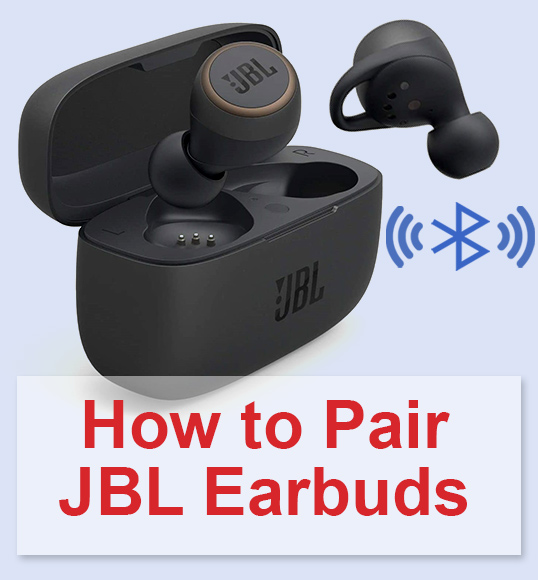
How to Pair JBL Bluetooth Earbuds for the First Time
New JBL earbuds usually enter pairing mode when you remove them from the charging case. A flashing blue or white light often means they are ready to connect. If your earbuds do not enter pairing mode on their own, you can activate it manually.
Follow these steps:
- Charge the earbuds and charging case for a few minutes.
- Remove both earbuds from the case.
- Keep the earbuds close to your phone or other device.
- Open the Bluetooth settings on your device.
- Turn Bluetooth on.
- Look for your JBL earbuds in the list of available devices.
- Tap the name of your earbuds.
- Wait for the status to change to Connected.
The name may appear as JBL Tune, JBL Live Pro, JBL Vibe Buds, JBL Wave Buds, or a similar model name. Some earbuds may show a short code after the name.
When learning how to pair JBL Bluetooth earbuds, keep both earbuds near the device during the first connection. Bluetooth pairing is like introducing two people at a busy event. The closer they are, the easier it is for them to recognize each other.

How to Put JBL Earbuds in Pairing Mode
Pairing mode allows another device to find your earbuds. Without this mode, your phone may not show the earbuds in its Bluetooth menu.
For many JBL true wireless earbuds, use this method:
- Place both earbuds in the charging case.
- Open the case lid.
- Remove the earbuds.
- Touch and hold the control area on either earbud for about five seconds.
- Watch for a flashing blue or white light.
- Search for the earbuds in your device’s Bluetooth settings.
The exact control may differ by model. Some JBL earbuds use a button, while others use a touch panel. If a short press starts or pauses music, try a longer press to enter pairing mode.
If the earbuds are already connected to another device, pairing mode may not start right away. Turn Bluetooth off on the old device first, or disconnect the earbuds from its Bluetooth menu.
This is one of the most important parts of how to pair JBL Bluetooth earbuds. Many failed connections happen because the earbuds are not actually discoverable.

How to Pair JBL Bluetooth Earbuds With an Android Phone
Android phones can connect to JBL earbuds through the Bluetooth menu. The names of menu items may vary by phone brand, but the process is nearly the same.
- Open Settings.
- Tap Connected devices, Connections, or Bluetooth.
- Select Pair new device if needed.
- Turn Bluetooth on.
- Put your JBL earbuds into pairing mode.
- Tap the JBL earbuds when they appear.
- Approve the pairing request if one appears.
After pairing, your earbuds should connect automatically whenever they are removed from the case. Bluetooth must be turned on, and the earbuds must have enough battery power.
Some Android phones ask for permission to access nearby devices. Allow this permission if requested. It helps the phone scan for Bluetooth accessories.
If your JBL earbuds do not appear, close the Bluetooth menu and open it again. You can also move away from other Bluetooth devices, such as smartwatches, speakers, and car systems.

How to Pair JBL Bluetooth Earbuds With an iPhone
The iPhone pairing process is quick and reliable when the earbuds are in pairing mode.
- Open the Settings app.
- Tap Bluetooth.
- Turn Bluetooth on.
- Wait under the Other Devices section.
- Select your JBL earbuds.
- Wait until they appear under My Devices as Connected.
If the earbuds show a spinning circle for a long time, place them back in the case. Close the lid for about ten seconds, open it, and try again.
After the first connection, the iPhone should remember the earbuds. In most cases, the earbuds will reconnect when you remove them from the case.
When explaining how to pair JBL Bluetooth earbuds with an iPhone, I always stress one point: select the earbuds from Settings, not only from the Control Center. The Control Center is useful for quick changes, but the full Bluetooth menu is better for first-time pairing.
How to Pair JBL Bluetooth Earbuds With a Windows PC
You can connect JBL earbuds to a Windows computer for music, video calls, games, and online meetings.
On Windows 11:
- Open Settings.
- Select Bluetooth & devices.
- Turn Bluetooth on.
- Click Add device.
- Choose Bluetooth.
- Put the JBL earbuds into pairing mode.
- Select the earbuds from the list.
On Windows 10, open Settings, select Devices, choose Bluetooth & other devices, and click Add Bluetooth or other device.
Once connected, click the speaker icon on the taskbar and choose the JBL earbuds as the sound output. For calls, you may also need to choose the earbuds as the microphone input.
Windows may show two sound choices for some Bluetooth earbuds. One may be labeled Stereo, while another may include Hands-Free. Stereo usually provides better sound for music. Hands-Free mode may be required for the microphone during calls.

How to Pair JBL Bluetooth Earbuds With a Mac
Mac computers can pair with JBL earbuds through System Settings or System Preferences.
On newer macOS versions:
- Open the Apple menu.
- Select System Settings.
- Click Bluetooth.
- Turn Bluetooth on.
- Put the JBL earbuds into pairing mode.
- Click Connect beside the earbuds.
On older macOS versions, open System Preferences and select Bluetooth.
After connecting, click the Control Center icon in the menu bar. Select Sound and choose your JBL earbuds if the Mac continues using its built-in speakers.
If the earbuds connect but the sound is poor, check whether another app is using the microphone. Video call apps can switch Bluetooth audio into a lower-quality call mode. Closing the app or selecting the correct audio setting often fixes the issue.
How to Pair JBL Bluetooth Earbuds With a Second Device
Many JBL earbuds support connection to more than one device, but the feature depends on the model. Some newer models support multipoint connection, which allows the earbuds to stay connected to two devices at once.
To pair a second device:
- Disconnect the earbuds from the first device, or turn off its Bluetooth.
- Put the earbuds into pairing mode.
- Open Bluetooth settings on the second device.
- Select the JBL earbuds.
- Confirm the connection.
- Turn Bluetooth back on for the first device if your model supports multipoint.
If both devices connect, audio may switch when a call arrives or when playback starts. This is useful when you use earbuds with a laptop and phone during the workday.
Not every JBL model supports multipoint. Check your model’s product guide or the JBL Headphones app for supported features. A connection list alone does not prove that two devices can play audio at the same time.

How to Use the JBL Headphones App
The JBL Headphones app can make pairing and setup easier on supported models. It may also show battery levels, firmware updates, gesture controls, and sound settings.
After pairing your earbuds:
- Install the JBL Headphones app from your device’s official app store.
- Open the app.
- Allow Bluetooth and nearby device permissions.
- Select your JBL earbuds.
- Follow the setup instructions.
Depending on the model, the app may offer equalizer controls, noise control, Smart Ambient settings, voice assistant options, and Find My Buds features.
Keep the app updated, but do not assume every feature works on every JBL product. Entry-level earbuds often have fewer controls than premium models.
Firmware updates can improve stability, but they may take several minutes. Keep the earbuds inside the charging case, follow the app instructions, and avoid closing the app during the update.

How to Fix JBL Earbuds That Will Not Pair
If your JBL earbuds do not connect, start with the simplest fixes. Pairing problems often come from an old Bluetooth record, low battery, or a nearby device that has already claimed the connection.
Try these steps:
• Charge the earbuds and case for at least 15 minutes.
• Turn Bluetooth off and back on.
• Move the earbuds within three feet of the device.
• Disconnect the earbuds from other nearby phones and computers.
• Restart the phone, tablet, or computer.
• Forget the JBL earbuds from the Bluetooth menu.
• Put the earbuds back into pairing mode.
• Try pairing with another device.
Forgetting the earbuds removes the saved Bluetooth profile. On an iPhone, tap the information icon beside the earbuds and select Forget This Device. On Android, tap the gear icon beside the earbuds and choose Forget or Unpair.
If the earbuds work with another phone, the first device may have a Bluetooth setting problem. If they fail with every device, a reset or hardware inspection may be necessary.
How to Reset JBL Bluetooth Earbuds
A reset removes stored connections and returns the earbuds to a fresh setup state. It can help when one earbud will not connect, pairing keeps failing, or the earbuds connect to the wrong device.
The reset method depends on the model. Common methods include:
- Place both earbuds in the charging case.
- Leave the case open.
- Touch and hold both earbuds for several seconds.
- Wait for the indicator lights to flash.
- Close the case, wait a few seconds, and open it again.
- Put the earbuds into pairing mode.
Some models require a longer touch on one earbud, while others use a sequence inside the JBL Headphones app. Check the guide for your exact model before resetting.
After the reset, remove the old JBL entry from your phone or computer. Then repeat the normal pairing process. A reset without deleting the old Bluetooth record may not solve the problem.
Why Only One JBL Earbud Connects
One-earbud connection problems are common with true wireless earbuds. Usually, the earbuds have lost their link to each other, or one earbud has not charged correctly.
Try this process:
- Put both earbuds in the case.
- Check that both charging contacts are clean.
- Charge them for several minutes.
- Remove both earbuds at the same time.
- Reset the earbuds if they do not link together.
- Forget the JBL earbuds from your phone.
- Pair them again as a single device.
Clean the metal charging contacts with a dry cotton swab. Do not pour liquid into the case or use sharp tools.
If one earbud remains silent, check the phone’s audio balance settings. On an iPhone, open Accessibility and Audio & Visual. On Android, search Settings for balance or mono audio. A shifted balance can make one side seem broken.
Tips for a Faster and More Stable JBL Connection
Good Bluetooth habits can prevent many pairing issues. These simple steps also help protect battery life and improve daily use.
• Keep the earbuds and phone within about 30 feet in open space.
• Avoid placing the phone in a crowded bag or behind thick walls.
• Keep the charging contacts clean.
• Charge the case before long trips.
• Install firmware updates through the official JBL app.
• Turn off Bluetooth on devices you no longer use.
• Store the earbuds in the case when not in use.
Bluetooth range can change due to walls, metal objects, Wi-Fi equipment, and other wireless signals. The advertised range is usually measured in open conditions, so indoor performance may be lower.
One practical lesson from troubleshooting JBL earbuds is to avoid changing too many settings at once. First confirm battery power, then pairing mode, then the saved Bluetooth record. This makes it easier to find the real cause.
Common Mistakes When Pairing JBL Earbuds
Small mistakes can make a normal setup seem difficult. Avoid these common errors:
• Searching for the earbuds before activating pairing mode.
• Leaving the earbuds connected to an old phone.
• Pairing only one earbud instead of both.
• Ignoring a low battery warning.
• Choosing a similarly named device nearby.
• Resetting the earbuds without forgetting the old Bluetooth profile.
• Assuming every JBL model supports the same controls.
A flashing light is useful, but its meaning can vary by model. Consult the model guide if the light is red, purple, white, or stays off.
Also, avoid pairing in a crowded place when possible. Airports, gyms, and offices may have many wireless devices nearby. A quiet room makes the first setup easier.
Frequently Asked Questions About How to Pair JBL Bluetooth Earbuds
How do I put JBL Bluetooth earbuds into pairing mode?
Remove the earbuds from the case and touch or hold the control area for several seconds. A flashing light usually shows that they are ready to pair. The exact action can vary by JBL model.
Why are my JBL earbuds not showing up on Bluetooth?
They may not be in pairing mode, or they may still be connected to another device. Charge them, turn off Bluetooth on nearby devices, reset the earbuds if needed, and search again.
How do I pair JBL earbuds with a new phone?
Forget the earbuds on the old phone or turn off its Bluetooth connection. Then activate pairing mode, open Bluetooth settings on the new phone, and select the JBL earbuds.
Can JBL earbuds connect to two devices at once?
Some JBL models support multipoint connection, while others connect with only one device at a time. Check the product guide or JBL Headphones app to confirm whether your model supports this feature.
How do I reset JBL Bluetooth earbuds?
The reset method depends on the model, but it often involves placing both earbuds in the case and holding their touch controls. After resetting, forget the old Bluetooth entry and pair the earbuds again.
Why does only one JBL earbud work?
The earbuds may have lost their connection to each other, or one side may not be charging. Clean the contacts, charge both earbuds, reset them, and pair them again.
Do JBL earbuds work with iPhone and Android?
Yes. JBL Bluetooth earbuds work with most modern iPhones and Android phones through standard Bluetooth pairing. Some app features may vary by model and operating system.
Conclusion
Learning how to pair JBL Bluetooth earbuds usually takes only a few steps: charge them, activate pairing mode, open Bluetooth settings, and select the correct JBL name. If the connection fails, forgetting the old Bluetooth profile, restarting both devices, or resetting the earbuds will often solve the problem.
Keep the earbuds charged, store them in the case, and use the JBL Headphones app when your model supports it. Try the steps above with your earbuds today, and share your model or pairing experience in the comments.
