

Turn on Bluetooth, place your JLab earbuds in pairing mode, then select them from your computer’s Bluetooth settings.
Learning how to connect JLab earbuds to computer is usually quick, but the exact steps can vary between Windows, macOS, and Chromebook devices. This guide explains the full process, including pairing mode, connection problems, sound settings, microphone use, and tips for different JLab models.

What You Need Before Connecting JLab Earbuds
Before you learn how to connect JLab earbuds to computer, check a few simple things. Your earbuds should have enough battery, and your computer must support Bluetooth or use a compatible Bluetooth adapter.
Keep the earbuds close to the computer during setup. A distance of a few feet is best for the first connection.
Check these points first:
• Charge the JLab earbuds and their case.
• Turn on Bluetooth on the computer.
• Disconnect the earbuds from your phone or tablet if they connect there first.
• Keep the computer and earbuds near each other.
• Make sure the earbuds are not already connected to another device.
Most JLab wireless earbuds use Bluetooth Classic for sound and calls. Some newer models may support updated Bluetooth features, but they generally work with standard Bluetooth computers as well.
If your computer does not have Bluetooth, you can use a small USB Bluetooth adapter. Windows computers often need a Bluetooth driver, while most modern Mac computers include Bluetooth by default.
How to Connect JLab Earbuds to a Windows Computer
The easiest way to connect JLab earbuds to computer is through Windows Bluetooth settings. These steps work on most Windows 10 and Windows 11 computers.
Put the JLab Earbuds in Pairing Mode
Take both earbuds out of the charging case. Many JLab models turn on and enter pairing mode automatically when they are removed from the case for the first time.
If they do not enter pairing mode, place both earbuds in the case, close the lid, and remove them again. You may also need to press and hold the touch sensor or button on one or both earbuds.
Look for a flashing white or blue light. A flashing light usually means the earbuds are ready to pair.
Pair JLab Earbuds With Windows 11
Follow these steps:
- Open the Start menu and select Settings.
- Choose Bluetooth & devices.
- Turn Bluetooth on.
- Select Add device.
- Choose Bluetooth.
- Wait for your JLab earbuds to appear.
- Select the JLab model name.
- Wait for the message that says the device is connected.
The name may appear as “JLab GO Air Pop,” “JLab JBuds,” “JLab Epic Air,” or a similar model name. If several devices appear, check the label on the charging case or product box.
Pair JLab Earbuds With Windows 10
Windows 10 uses a slightly different menu:
- Open Settings from the Start menu.
- Select Devices.
- Choose Bluetooth & other devices.
- Turn Bluetooth on.
- Click Add Bluetooth or other device.
- Select Bluetooth.
- Choose your JLab earbuds from the list.
- Click Done when pairing is complete.
Once connected, Windows should remember the earbuds. The next time you use them, open the case or remove the earbuds, and they should reconnect automatically.
Select the Earbuds for Audio Output
Sometimes Windows pairs the earbuds but still plays sound through the computer speakers. This is an output setting, not a pairing failure.
Select the speaker icon in the Windows taskbar. Then choose your JLab earbuds from the list of available output devices.
For a deeper check:
- Open Settings.
- Select System.
- Choose Sound.
- Select your JLab earbuds under Output.
- Adjust the volume as needed.
If you see two options, choose the “Stereo” option for music. The “Hands-Free” option is designed for calls and may produce lower-quality sound.

How to Connect JLab Earbuds to a Mac
The process for how to connect JLab earbuds to computer is also simple on macOS. Apple computers normally include Bluetooth, so you do not need extra hardware.
Pair the Earbuds With macOS
Use these steps:
- Open the Apple menu.
- Select System Settings.
- Click Bluetooth.
- Turn Bluetooth on if it is off.
- Put the JLab earbuds into pairing mode.
- Find the earbuds under Nearby Devices.
- Click Connect beside the JLab model name.
On older Mac versions, open System Preferences and select Bluetooth instead. The layout may look different, but the basic process remains the same.
Choose JLab Earbuds as the Sound Device
After pairing, click the Control Center icon in the menu bar. Select Sound, then choose your JLab earbuds.
You can also open System Settings, select Sound, and choose the earbuds under Output. For video calls, select the JLab earbuds under Input if you want to use their built-in microphones.
I have seen many Mac users stop after the pairing step and assume the process failed. In reality, the earbuds were connected but not selected as the active sound output. Checking the Sound menu usually fixes the issue in seconds.

How to Connect JLab Earbuds to a Chromebook
Chromebooks use a simple Bluetooth menu. This makes how to connect JLab earbuds to computer easy for students, remote workers, and casual users.
- Click the time in the bottom-right corner.
- Select Bluetooth.
- Turn Bluetooth on.
- Put the JLab earbuds into pairing mode.
- Select the earbuds from the available devices.
- Wait until the status changes to Connected.
To choose them for sound, click the time again and select the audio output icon. Choose the JLab earbuds from the available options.
If the earbuds do not appear, click the gear icon to open Chromebook settings. Select Bluetooth, turn it off, wait a few seconds, and turn it on again. Then repeat the pairing process.
Some school or work Chromebooks limit Bluetooth access. If the Bluetooth option is missing or blocked, contact the device administrator.
How to Put Different JLab Earbuds Into Pairing Mode
JLab earbuds use similar pairing methods, but button and touch controls can vary. The model name matters when troubleshooting.
JLab GO Air and GO Air Pop
Place the earbuds in the case, then remove them. If they are new or have been reset, one earbud may flash blue and white. This normally means it is ready to pair.
If the earbuds connect separately, place them back in the case and remove both at the same time. This can help the left and right earbuds link with each other before connecting to the computer.
JLab JBuds Models
Open the case and remove the earbuds. On many JBuds models, touch and hold the sensor for several seconds to enter pairing mode.
The exact hold time can differ. Watch for a flashing light or listen for a pairing sound.
JLab Epic Air Models
Open the charging case and remove the earbuds. If they do not enter pairing mode, touch and hold the controls until the indicator begins to flash.
Some Epic Air versions use touch controls, while others use physical buttons. Avoid pressing too hard on touch panels because repeated taps may activate other features.
JLab Models With a Bluetooth USB Adapter
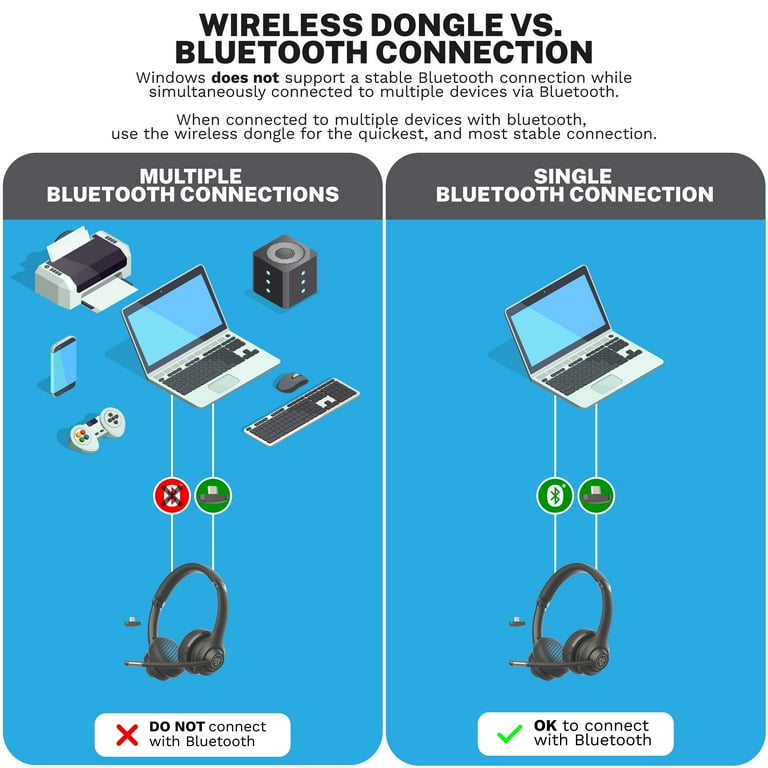
Some JLab headsets or gaming products use a USB transmitter instead of normal Bluetooth. Plug the transmitter into the computer, turn on the earbuds, and wait for them to connect.
A USB transmitter may provide a more stable connection for gaming. However, it may not work with every JLab earbud model, so check the product instructions before buying one.

How to Connect JLab Earbuds to Computer After They Were Used With a Phone
JLab earbuds often reconnect to the last device they used. This can make how to connect JLab earbuds to computer confusing when the earbuds keep connecting to a phone.
Try this method:
- Turn off Bluetooth on your phone.
- Place the JLab earbuds in their case.
- Remove the earbuds and activate pairing mode.
- Open Bluetooth settings on the computer.
- Select the JLab earbuds.
- Turn your phone’s Bluetooth back on after the computer connects.
You can also forget the earbuds on the phone. On an iPhone, open Bluetooth settings, tap the information icon beside the JLab earbuds, and select Forget This Device. On Android, open connected device settings and remove or forget the earbuds.
Some JLab products support multipoint Bluetooth. This feature allows two devices to stay connected at once. However, multipoint behavior can vary by model, so do not assume every JLab earbud supports it.
What to Do When JLab Earbuds Will Not Connect
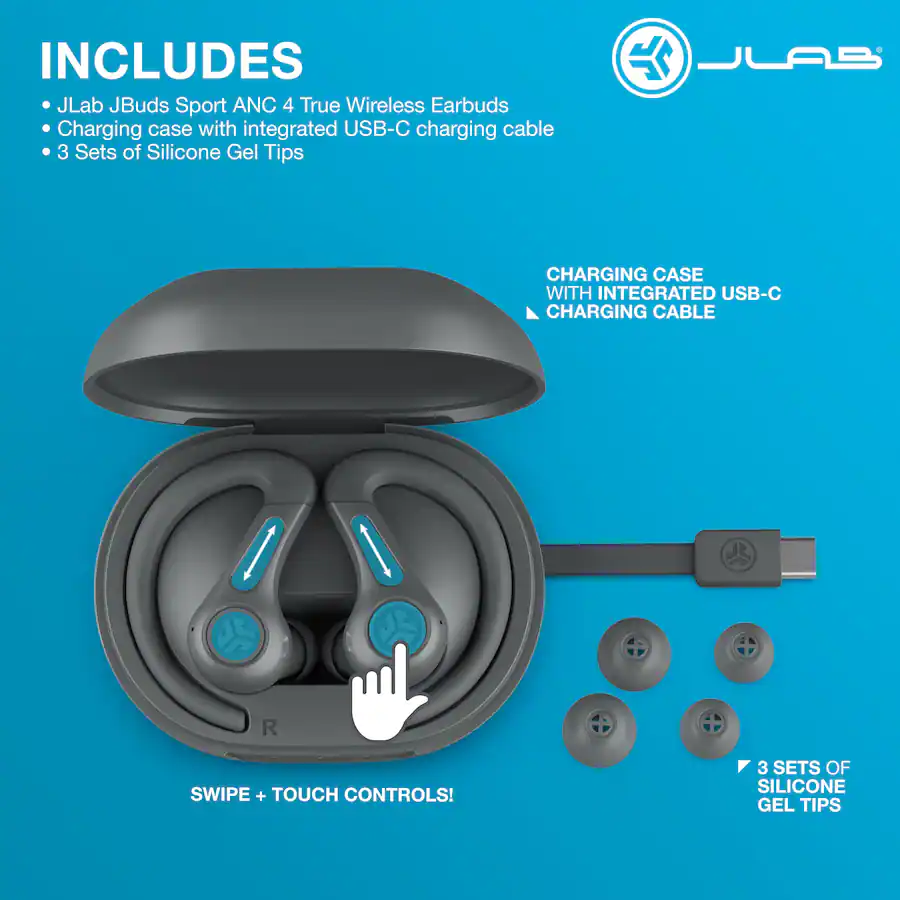
If how to connect JLab earbuds to computer steps do not work, the problem is usually related to pairing mode, a saved connection, battery power, or Bluetooth settings.
Try these solutions in order:
• Move the earbuds within three feet of the computer.
• Turn computer Bluetooth off and on again.
• Restart the computer.
• Charge the earbuds and case for at least 15 minutes.
• Turn off Bluetooth on nearby phones and tablets.
• Remove the JLab earbuds from the computer’s saved Bluetooth list.
• Put the earbuds back into pairing mode.
• Try connecting one earbud at a time if the model allows it.
• Install pending Windows or macOS updates.
• Restart the Bluetooth service or adapter.
Remove and Re-Pair the Earbuds
A saved Bluetooth profile can become damaged. Removing the old connection often works better than repeatedly clicking Connect.
On Windows, open Bluetooth & devices, find the JLab earbuds, select the three-dot menu, and choose Remove device. On a Mac, open Bluetooth settings, click the information button beside the earbuds, and select Forget This Device.
After removing the old profile, restart the computer and pair the earbuds as if they were new.
Reset the JLab Earbuds
A reset can solve connection problems that normal pairing cannot. The reset method differs by model, so use the instructions for your exact JLab earbuds.
Many JLab models require you to tap or press the earbuds several times while they are in the charging case. Others use a long press on the touch controls.
Resetting deletes previous Bluetooth connections. After the reset, repeat the steps for how to connect JLab earbuds to computer.
Check for Bluetooth Interference
Bluetooth uses the 2.4 GHz wireless band, which is also used by some Wi-Fi networks, wireless keyboards, mice, and other devices. Interference can cause dropouts or make pairing unreliable.
Keep the earbuds away from crowded USB hubs, wireless routers, and large metal objects. This will not fix every problem, but it can improve stability.

Fix Sound, Microphone, and Connection Problems
Pairing is only the first part of how to connect JLab earbuds to computer. You also need to confirm that the computer uses the correct audio profile.
No Sound From the Earbuds
Check the computer’s output device. The JLab earbuds may be connected for Bluetooth control but not selected for audio.
Also check:
• The computer volume.
• The media player volume.
• The earbud touch controls.
• Whether the earbuds are muted.
• Whether another Bluetooth speaker is selected.
If the earbuds show as connected but no sound plays, disconnect and reconnect them from the sound menu.
Poor Music Quality During Calls
Bluetooth computers may use two profiles:
• Stereo mode provides better music quality.
• Hands-Free mode enables the earbud microphone but may reduce sound quality.
This is a normal Bluetooth limitation on many computers. If you need high-quality music during a meeting, use the computer’s built-in microphone and keep the JLab earbuds in Stereo mode when possible.
The Microphone Does Not Work
Open the computer’s sound settings and select the JLab microphone as the input device. Then check that the video meeting app has permission to use the microphone.
In Windows, open Settings, select Privacy & security, and check microphone permissions. On macOS, open System Settings, choose Privacy & Security, and review microphone access.
A muted microphone inside Zoom, Microsoft Teams, Google Meet, or another app can also cause problems.
Audio Keeps Cutting Out
Keep the computer close to the earbuds and avoid covering the computer’s Bluetooth antenna with metal objects. You should also close apps that use heavy wireless data if the connection is unstable.
If the issue happens only during calls, the hands-free Bluetooth profile may be the cause. A USB Bluetooth adapter or a wired headset may provide a better result for long meetings.

How to Improve JLab Earbud Performance on a Computer
Once you know how to connect JLab earbuds to computer, a few habits can make the connection more reliable.
Keep the JLab firmware updated through the official JLab app when your model supports updates. Firmware updates may improve stability, controls, and compatibility, although they cannot fix every computer Bluetooth problem.
Use the charging case often. Low battery can cause random shutdowns, weak volume, or repeated disconnections.
For the best daily setup:
• Pair the earbuds with only the devices you use often.
• Turn off Bluetooth on unused nearby devices.
• Keep the computer’s operating system updated.
• Use Stereo mode for music when possible.
• Use Hands-Free mode only when you need the earbud microphone.
• Store the earbuds in the case when you are finished.
In my experience, the biggest mistake is pairing the earbuds once and never checking the computer’s sound output. A Bluetooth connection can be active while the computer still sends sound to built-in speakers. Checking both the connection menu and sound menu prevents that frustration.

Are JLab Earbuds Good for Computer Use?
JLab earbuds can work well for music, streaming, light gaming, and short video calls. They are small, portable, and usually pair with Windows, Mac, and Chromebook devices without much effort.
Their limits depend on the model. Tiny wireless earbuds may have more audio delay than a wired headset, and microphone quality can vary in noisy rooms. Battery life also depends on volume, call use, Bluetooth features, and the age of the earbuds.
For serious gaming or long professional calls, a headset with a dedicated USB receiver may offer lower delay and a clearer microphone. For everyday computer use, JLab earbuds are often a practical and affordable choice.
Frequently Asked Questions
How do I put JLab earbuds into pairing mode?
Place both earbuds in the case, then remove them. If they do not flash or announce pairing mode, press and hold the touch control or button according to your model’s instructions.
Why are my JLab earbuds not showing on my computer?
They may still be connected to your phone or another nearby device. Turn off Bluetooth on those devices, restart Bluetooth on the computer, and place the JLab earbuds into pairing mode again.
Can I connect JLab earbuds to a computer without Bluetooth?
Yes. You can use a compatible USB Bluetooth adapter. Plug the adapter into the computer, install any required driver, and then pair the earbuds through the computer’s Bluetooth settings.
Can I use JLab earbuds for Zoom or Microsoft Teams calls?
Yes. Select the JLab earbuds as both the speaker and microphone in the meeting app or computer sound settings. If music quality drops during calls, this may be caused by the Bluetooth hands-free profile.
Why do my JLab earbuds connect but have no sound?
The computer may still be using its built-in speakers as the output device. Open the sound settings and select your JLab earbuds as the active output.
How do I disconnect JLab earbuds from my computer?
Turn off Bluetooth, place the earbuds in their case, or choose Disconnect in the computer’s Bluetooth menu. To stop automatic reconnection, select Forget or Remove device instead.
Can JLab earbuds connect to both my phone and computer?
Some JLab models support multipoint connections, but not all do. If your model lacks multipoint, turn off Bluetooth on the device that keeps taking control of the earbuds before connecting to the computer.
Conclusion
Connecting JLab earbuds to a computer usually takes only a few steps: charge the earbuds, activate pairing mode, turn on Bluetooth, and select the JLab model from the computer’s device list. If the earbuds connect without sound, choose them manually as the output and input device.
The most reliable fix for connection problems is to forget the old Bluetooth profile, reset the earbuds if needed, and pair them again near the computer. Try these steps on your device today, and share your JLab model or connection tip in the comments.
