Are External SSD Good For Gaming: The Real Answer
Introduction
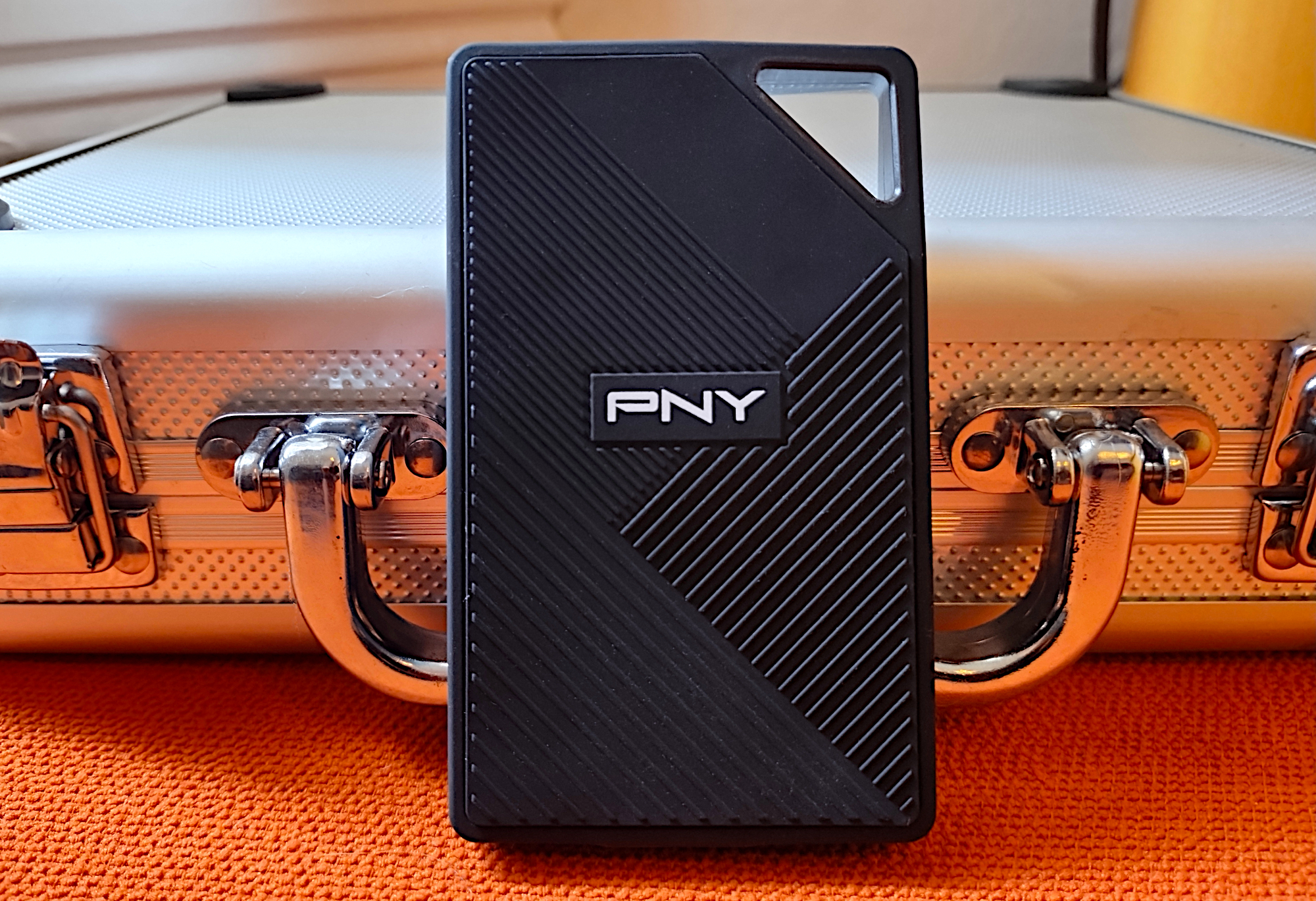
Yes, an external SSD can be very good for gaming in the United States. It can reduce game install times, make large game libraries easier to manage, and offer much faster loading than an external hard drive. It is also quiet, small, and less prone to damage from bumps.
However, an external SSD is not always the best place to play every game. Your results depend on the gaming platform, USB port, drive type, game design, and console storage rules. A USB SSD works well for many PC games and backward-compatible console games. Newer PS5 and Xbox Series X|S games have stricter limits.
The short answer is simple: buy an external SSD if you need more space, faster transfers, or a portable game library. Keep your most demanding current-generation console games on the internal drive or an approved expansion drive.


What Is an External SSD?
An external SSD is a solid-state drive inside a case. It connects to a computer or console through a USB cable. Unlike a hard disk drive, an SSD has no spinning platters or moving read heads.
This design gives an SSD several useful traits:
- Faster file transfers
- Faster game installation and updates
- Lower access time
- No mechanical noise
- Better resistance to bumps
- Lower power use in many cases
An external SSD is still limited by its connection. A fast NVMe SSD may be much quicker inside a computer than it is through a slower USB port. The drive, enclosure, cable, and host device must all support the same level of speed.
SSD types in simple terms
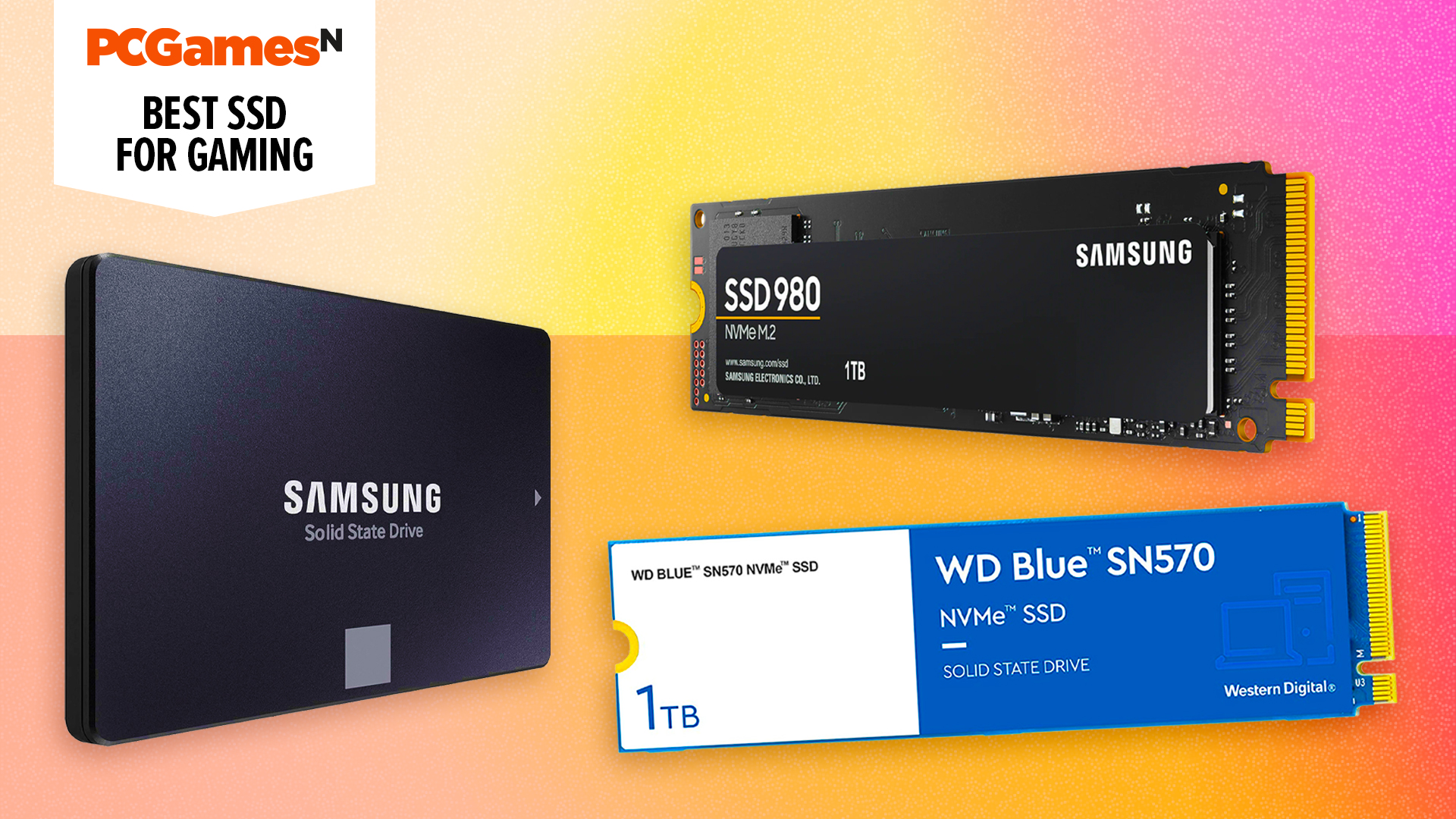
SATA SSD: Often reaches about 500 to 550 MB/s in ideal conditions. It is affordable and fast enough for most external gaming use.
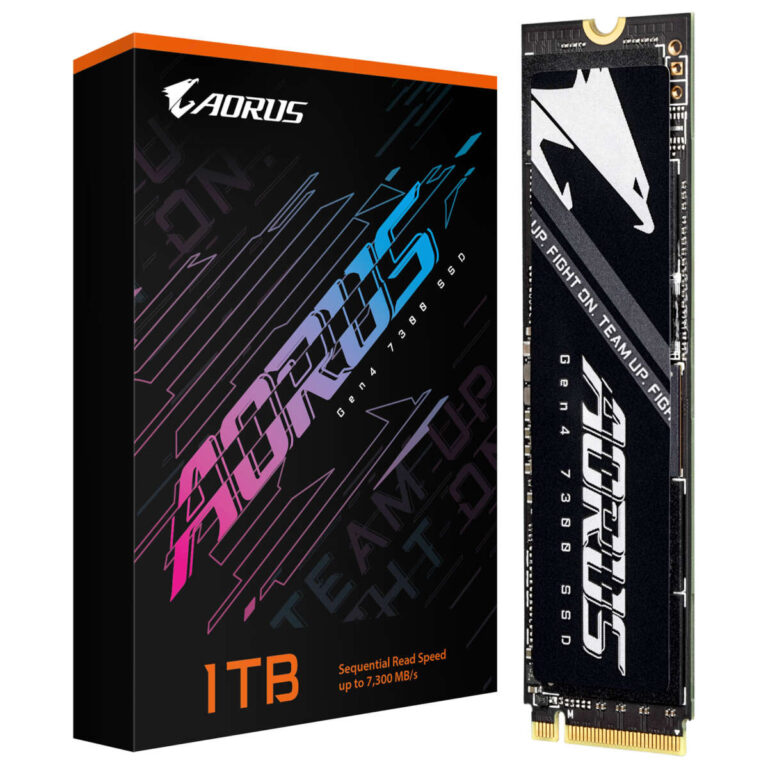
NVMe SSD: Uses a faster PCIe connection. It can reach much higher speeds inside a compatible computer, but its benefit may shrink when connected through USB.
Portable SSD: A ready-to-use external drive with a built-in enclosure, USB port, and cable.
NVMe enclosure: A separate case that holds an internal NVMe drive. It can offer strong performance, but compatibility and heat control matter more.
The advertised speed is a best-case figure. Real game transfers may be slower because of small files, heat, encryption, file system limits, or the speed of the computer or console.

Are External SSDs Better Than External Hard Drives for Gaming?
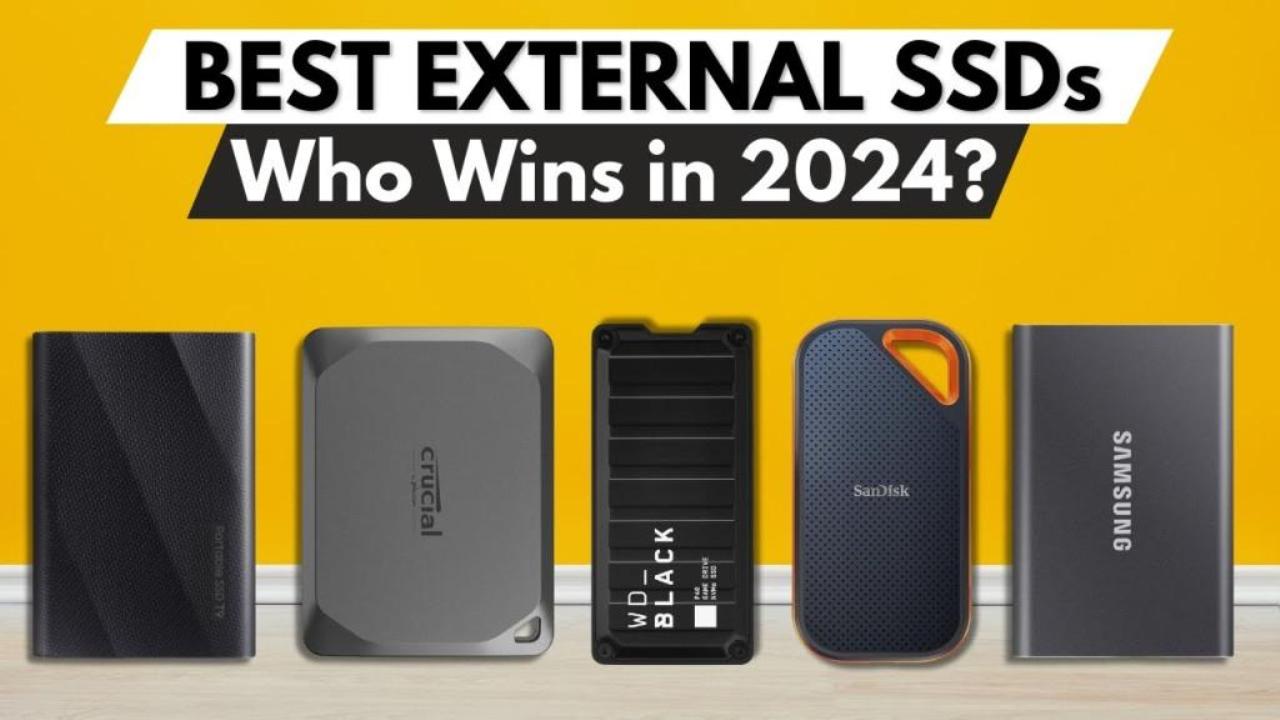
An external SSD is usually better than an external hard drive for gaming. It can load game files faster and feels more responsive when the system reads many files at once.
The difference is most clear during:


- Game installation
- Large updates
- Level loading
- Fast travel
- Texture streaming
- Moving games between drives
- Launching games with many small files
An HDD may still be useful when price matters most. A large external hard drive usually costs less per terabyte. It works well for backups, archived games, movies, and games you do not play often.
External SSD vs. external HDD
| Feature | External SSD | External HDD |
|---|---|---|
| Game loading | Usually faster | Usually slower |
| File transfers | Faster | Slower |
| Noise | Silent | Audible spinning and seeking |
| Shock resistance | Better | Lower |
| Cost per terabyte | Higher | Lower |
| Best use | Active games and frequent transfers | Archives and backups |
| Power needs | Often lower | Often higher |
An SSD does not automatically improve frame rate. Your graphics card, processor, memory, and game settings control frame rate in most games. The SSD mainly affects loading and data access.
How Much Faster Will Games Load From an External SSD?
An external SSD may reduce loading times, but the exact gain varies by game. Some games load many small files and benefit more. Others spend most of their time compiling shaders, connecting to a server, or preparing game data. In those cases, a faster drive may make only a small difference.
The biggest improvement usually comes when moving from an HDD to an SSD. The jump from an external SATA SSD to a faster external NVMe SSD is often much smaller in everyday play.
Game loading also depends on the full path:
- The game reads data from the drive.
- The USB connection transfers that data.
- The operating system processes the files.
- The game engine loads assets.
- The processor and memory prepare the level.
- The graphics system displays the scene.
The slowest major step can limit the result. This is why a drive rated at 2,000 MB/s does not make every game load four times faster than one rated at 500 MB/s.
What an external SSD does not usually improve
An external SSD normally does not produce a large increase in:
- Average frames per second
- Graphics quality
- Internet download speed
- Network latency
- Aim response
- Controller response
It can help reduce pauses caused by slow asset loading. But it cannot fix weak hardware, poor internet service, overheating, or a game server problem.
Are External SSDs Good for PC Gaming?
Yes. External SSDs are a practical choice for many Windows gaming PCs and laptops. You can install a game library on the drive, move games between computers, or use it for games on a laptop with limited internal storage.
For PC gaming, check these points first:
- Your computer has a suitable USB port.
- The drive uses a file system your operating system can read.
- The game launcher supports a library on an external drive.
- The drive has enough free space.
- The cable stays connected during play.
- The drive does not become too hot.


Steam, Epic Games Store, Xbox for PC, and other launchers may use different steps for moving or locating a game library. The launcher may need to scan the drive before it recognizes installed games.
USB speed matters
USB labels can be confusing. In broad terms:
| USB connection | Theoretical link speed | Practical gaming meaning |
|---|---|---|
| USB 3.0 / USB 3.2 Gen 1 | 5 Gbps | Suitable for most gaming |
| USB 3.2 Gen 2 | 10 Gbps | Better for fast external SSDs |
| USB 3.2 Gen 2×2 | 20 Gbps | Useful only when both sides support it |
| USB4 | Up to 40 Gbps or more, by version | Depends on the exact device and mode |
These are connection ratings, not guaranteed file-transfer speeds. A USB 3.2 Gen 2×2 drive may run at a lower speed when plugged into a 10 Gbps port. The cable must also support the required mode.
For most PC gamers, a reliable 10 Gbps USB connection is enough. Spending more for extreme speed may not help if the games are installed on a slower computer, use compressed data, or load mainly from the CPU.

Are External SSDs Good for PS5 and PS4?
External SSDs work differently on PlayStation consoles.
The PS5 supports USB extended storage for compatible games. According to Sony’s support guidance, PS4 games can be played from compatible USB extended storage. PS5 games can be stored there, but they generally must be copied back to the PS5’s internal storage or an approved M.2 SSD before you play them.
That means an external SSD is useful for a PS5 game library, but it may not replace the internal drive for current PS5 games.
For a PS5 external drive, look for:
- SuperSpeed USB support
- At least 250 GB of capacity
- A maximum capacity within Sony’s supported range
- A direct connection to the console
- A suitable cable
- No USB hub between the drive and console
Sony’s requirements can change with system software and product updates. Check the current PlayStation support page before buying.
On a PS4, an external SSD can be more useful as a direct game drive. The PS4 family supports extended storage for games when the drive meets the console’s requirements. Even there, the internal connection and console hardware limit the maximum benefit.
Best PlayStation use cases
An external SSD is a good fit for:
- Playing PS4 games on a PS5
- Storing PS5 games that you are not playing now
- Moving large games instead of downloading them again
- Expanding a PS4 library
- Keeping a backup copy of game data, where supported
It is less convenient if you constantly switch between many PS5 games. Copying a game back to internal storage takes time, even when the external SSD is fast.

Are External SSDs Good for Xbox Series X|S?
An external SSD can be useful with Xbox Series X and Series S, but Microsoft’s storage rules are important.


Many games marked Optimized for Xbox Series X|S must run from the console’s internal SSD or an approved expansion card. You can often store those games on a USB drive, but you may need to move them back before playing.
Backward-compatible Xbox One, Xbox 360, and original Xbox games can often be played from a compatible USB external drive. Exact behavior depends on the game and its optimization status.
This makes an external SSD useful for:
- Older Xbox games
- Storing current-generation games
- Moving games between internal and external storage
- Keeping a larger library available
- Reducing dependence on repeated downloads
An approved expansion card is the closer replacement for the internal Xbox Series storage. It costs more than a normal USB SSD, but it is designed to run supported current-generation games directly.
Check the game’s label and Microsoft’s current storage guidance. Do not assume that every Xbox game will run from a USB SSD simply because the drive is fast.

What Should You Look for When Buying an External SSD for Gaming?
Choose the drive based on the device you own, not just the highest speed printed on the box.
1. Check platform support first
Confirm the requirements for your PC, PlayStation, or Xbox. Console support is more restrictive than PC support. A drive that works well on a Windows computer may not meet a console’s storage rules.
2. Choose enough capacity
Modern games can use tens or more than 100 GB each. A 500 GB drive may fill quickly after formatting and updates.
A simple estimate can help:
Usable space ≈ advertised capacity minus formatting space and free-space reserve.
For example, a 1 TB drive does not provide exactly 1,000 GB of usable game space. The operating system and drive formatting use some capacity. Keeping some free space also helps with updates and file management.
For many players:
- 500 GB: Good for a small library
- 1 TB: A practical starting point
- 2 TB: Better for several large games
- 4 TB or more: Useful for a large archive, but often costly
3. Prefer a known USB standard
A USB 3.x SSD is usually enough for gaming. A 10 Gbps model offers a useful balance between speed and price. Faster models can make sense when you transfer very large files often and your computer supports the same standard.
4. Check heat control
Fast NVMe drives can become warm during long transfers. Heat may cause thermal throttling, which lowers speed to protect the drive.
Look for a sturdy enclosure with good heat control. Do not cover the drive with clothing, place it in direct sunlight, or press it against a heat source.


5. Check the cable and connector
A USB-C drive may include a USB-C cable, but your console or computer may use USB-A. You need the correct cable or a safe adapter. A poor cable can cause disconnects or lower speeds.
6. Review the warranty and support
An external SSD can fail like any other storage device. A warranty helps with replacement, but it does not restore lost files. Keep separate backups of screenshots, saved data, and other files you cannot replace.

How to Set Up an External SSD for Gaming
The setup is simple, but the steps differ by platform.
On a Windows PC
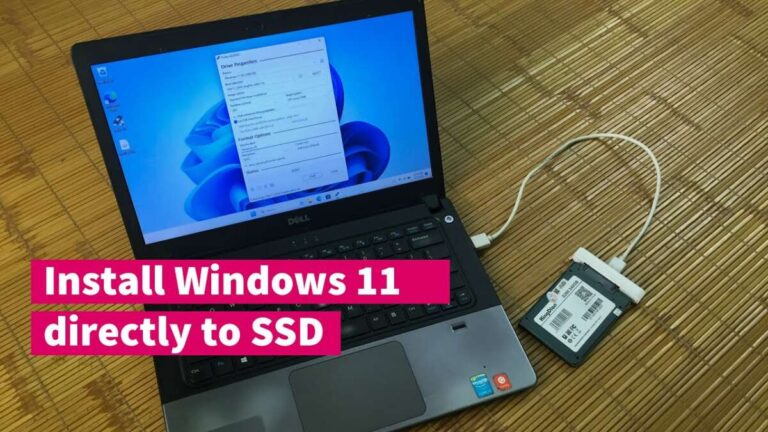
- Connect the SSD directly to a suitable USB port.
- Let Windows detect the drive.
- Format it only if required. Formatting erases existing data.
- Open your game launcher.
- Add the SSD as a library or install location.
- Move or install a game to the new location.
- Test the game before deleting the original copy.
Use a full backup before reformatting a drive. If the launcher cannot find a game, use its option to locate installed files or verify the library path.
On a PlayStation console
- Connect the drive directly to the console.
- Follow the on-screen prompt to format it as extended storage.
- Move compatible games through the console’s storage settings.
- Keep PS5 games on internal or approved M.2 storage when you want to play them.
- Use the console’s safe removal option before disconnecting the drive.
Formatting the drive for PlayStation use may prevent normal use with a PC until you reformat it.
On an Xbox console
- Connect the drive directly to the Xbox.
- Select the option to configure it for games and apps.
- Choose whether to use it for games or media when asked.
- Move compatible games through the storage settings.
- Check whether an optimized game must run from internal storage or an approved expansion card.
Do not unplug the drive while a game is running or while data is moving.
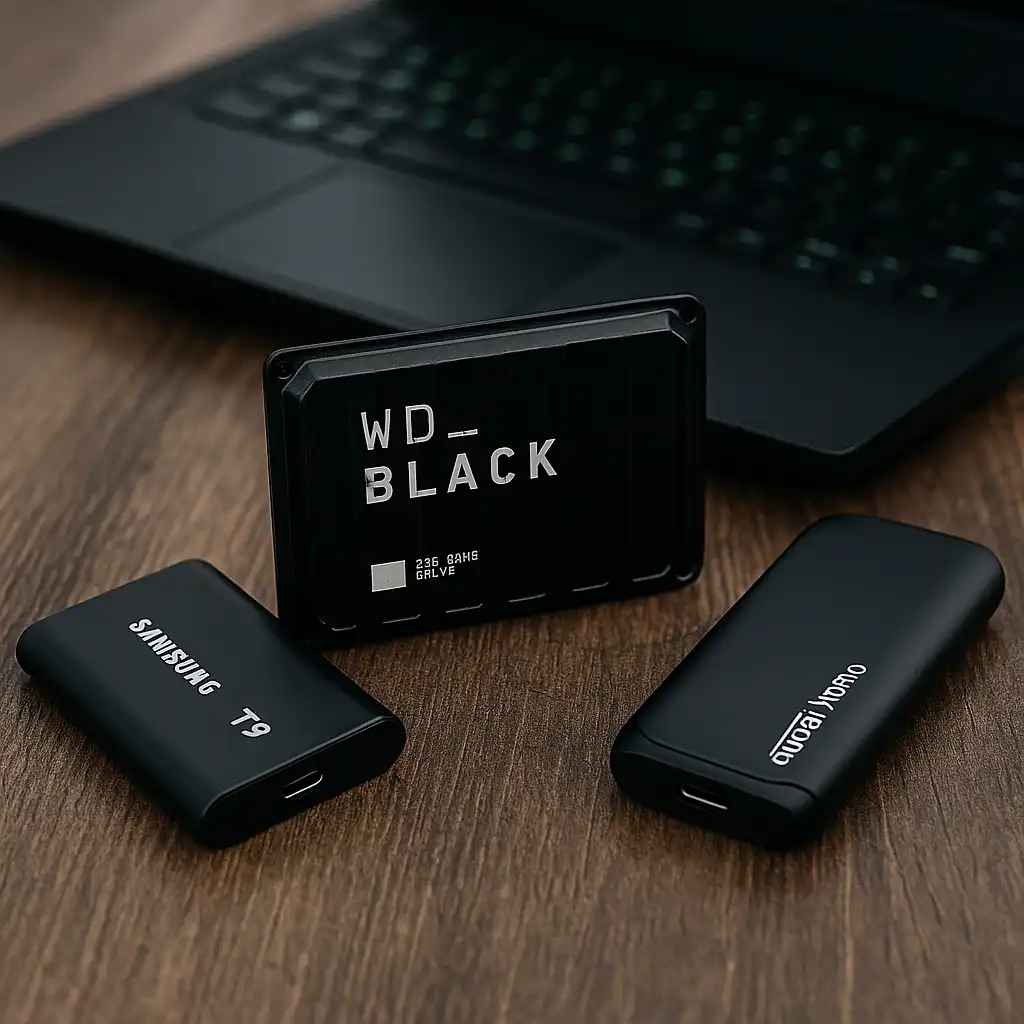
Common Problems With External SSD Gaming
The drive is not detected
Try a different USB port and cable. Avoid hubs during testing. On a PC, check Disk Management. On a console, restart the system and review its storage settings.
If the drive works on one device but not another, the issue may be compatibility rather than failure.
Games stutter or disconnect
Possible causes include:
- A damaged cable
- A loose connector
- A failing enclosure
- Insufficient power
- Excess heat
- A USB hub
- A drive with firmware problems
Move the drive to a cool, open area. Test another cable. Copy important files elsewhere before repeated troubleshooting.


The game will not run from the drive
The platform may restrict that game to internal or approved storage. This is common with some current-generation console games. Move the game to the required storage rather than repeatedly formatting the drive.
Transfer speeds are lower than expected
Check the USB port, cable, enclosure, and drive health. Also remember that advertised speeds use controlled tests. A real game transfer may contain many small files and may slow as the drive fills or heats up.
The drive becomes very hot
Warm operation can be normal, but extreme heat, sudden disconnects, or major speed drops are warning signs. Improve airflow and check the manufacturer’s temperature guidance. Back up important files if the problem continues.
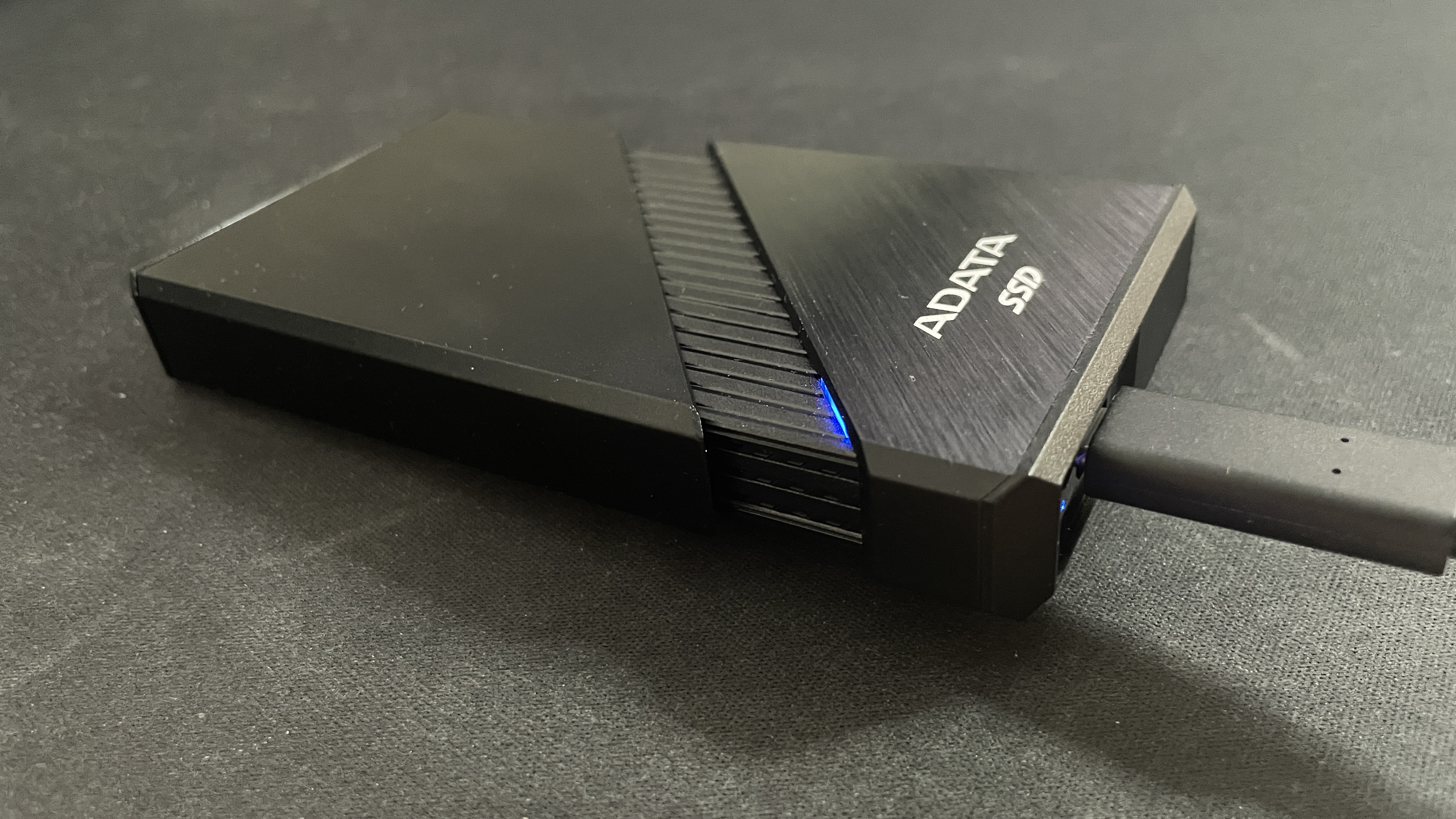
Should You Install Games on an External SSD?
Install games on an external SSD when you need more space and the platform allows the game to run there. This is especially useful for PC games, PS4 games on PS5, and many backward-compatible Xbox games.
Keep a game on internal or approved expansion storage when:
- The console requires it
- You play the game every day
- The game streams large assets constantly
- The external drive disconnects
- You need the shortest possible load times
- You are using a slow USB port
A good setup often uses both types of storage. Keep your most-played games on the internal drive. Store older, larger, or less-used games on the external SSD.
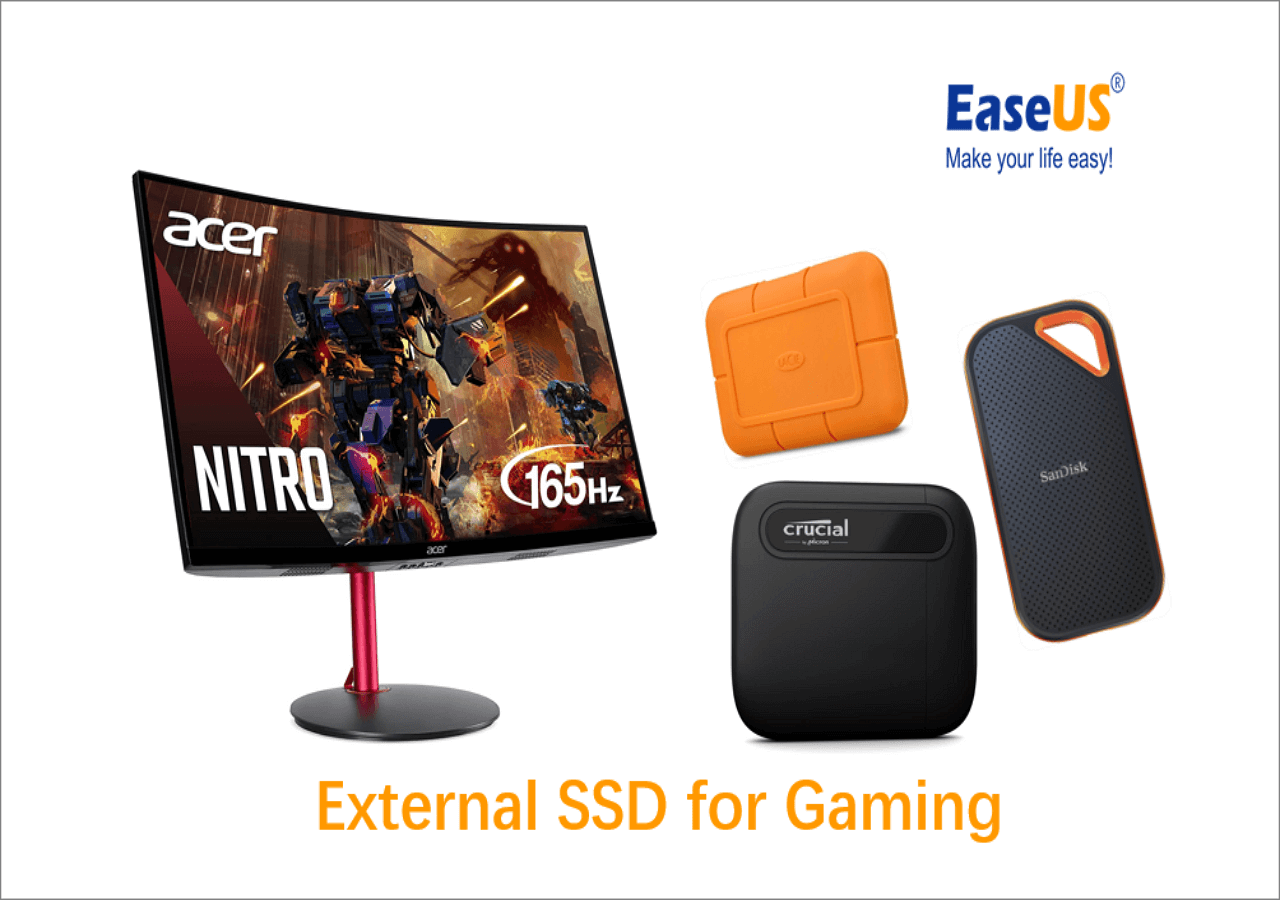
Key Takeaways
- External SSDs are good for gaming, especially compared with external hard drives.
- They improve loading and transfer times, not usually frame rate.
- A reliable USB 3.x SSD is enough for most gamers.
- PC games are generally the easiest to run from external storage.
- PS5 games may need to return to internal or approved M.2 storage before play.
- Xbox Series X|S optimized games may need internal storage or an approved expansion card.
- Choose capacity, platform support, cooling, and warranty before chasing peak speed.
- Keep backups of saves and important files. An SSD is not a backup by itself.
Frequently Asked Questions
Can an external SSD improve FPS?
Usually, no. An external SSD mainly improves loading and file transfer times. Frame rate depends more on the graphics card, processor, memory, game settings, and display.
Is a 1 TB external SSD enough for gaming?
A 1 TB external SSD is enough for a small or medium library, but usable space is lower than the number printed on the box. Large modern games and updates can fill it quickly. Choose 2 TB if you want several large games installed at once.
Is USB-C faster than USB-A for gaming?
Not automatically. USB-C describes the connector shape. USB-A and USB-C can support different USB standards and speeds. Check the actual USB version of the port, drive, cable, and enclosure.
Can an external SSD replace the internal SSD in a gaming laptop?
It can expand storage and hold games, but it usually does not replace the internal drive for the operating system or every application. A laptop’s internal SSD may also offer lower latency and higher performance.
Do external SSDs need power?
Many portable SSDs draw power through USB. Larger desktop external SSDs may use a separate power adapter. Use the power method supplied by the manufacturer, especially when connecting to a console.
Should I buy an external SSD or an internal SSD?
Buy an external SSD when you need portability, simple installation, or extra space without opening the device. Choose an internal SSD when you want the best integration, lowest latency, or a console-approved expansion option.
Conclusion
External SSDs are a strong gaming upgrade when you need more storage and faster access to games. They are much better suited to active game libraries than external hard drives, but they do not increase graphics performance or bypass console storage rules.
For a PC, a dependable 1 TB or 2 TB USB SSD is often a sensible choice. For a PS5 or Xbox Series X|S, check the exact rules for the games you play. The best approach is usually a mix: keep current, demanding games on supported internal storage and use the external SSD for compatible games, storage, and quick transfers.
Sources and Platform Guidance
- PlayStation Support: USB extended storage on PS5
- PlayStation Support: USB storage on PS4
- Xbox Support: Manage storage on Xbox consoles
- USB Implementers Forum: USB 3.2 specification
- Microsoft Learn: DirectStorage overview