How To Connect Beats Headphones To Android: Easy Guide
Introduction
If you use an Android phone in the United States, you can connect most Beats headphones through the phone’s Bluetooth settings. Put the Beats headphones in pairing mode, open Settings > Connected devices > Pair new device, then select the Beats name from the list.
Most Beats models also work with the official Beats app for Android. The app can help with setup, battery checks, firmware updates, and model-specific controls. The exact buttons vary by model, but the basic Bluetooth process is nearly the same.

Before You Connect Beats Headphones to Android
You need three things:
- A charged pair of Beats headphones or earbuds
- An Android phone with Bluetooth turned on
- The Beats headphones near the phone


Charge the headphones first if the status light does not turn on. A low battery can stop pairing or cause the connection to drop.
Also turn off Bluetooth on nearby phones, tablets, or laptops that have used the Beats headphones before. The headphones may try to reconnect to the old device instead of appearing on your Android phone.
Which Android devices work with Beats?
Beats headphones use Bluetooth, so they work with most modern Android phones and tablets. This includes devices from Samsung, Google, Motorola, OnePlus, and other brands.
Basic audio and call functions usually work without the Beats app. Some features may depend on the Beats model, Android version, phone settings, or app support. Examples include:
- Battery level displays
- Firmware updates
- Noise cancellation controls
- Transparency mode
- Custom button actions
- Find My support
- Automatic pairing features
Bluetooth pairing does not require an Apple device. Beats is an Apple-owned brand, but Beats headphones can connect to Android phones like other Bluetooth headphones.

How to Pair Beats Headphones With Android
The standard method takes about a minute. Keep the headphones close to your phone during setup.
1. Turn on Bluetooth on your Android phone
On most Android phones:
- Open Settings.
- Tap Connected devices, Connections, or Bluetooth.
- Tap Bluetooth.
- Turn Bluetooth on.
- Choose Pair new device if your phone shows that option.
Android menus differ by manufacturer. If you cannot find Bluetooth, use the search box in the Settings app and search for Bluetooth.
You can also swipe down from the top of the screen to open Quick Settings. Press and hold the Bluetooth icon to open the full Bluetooth menu.


2. Put your Beats headphones in pairing mode
The headphones must be discoverable before Android can find them.
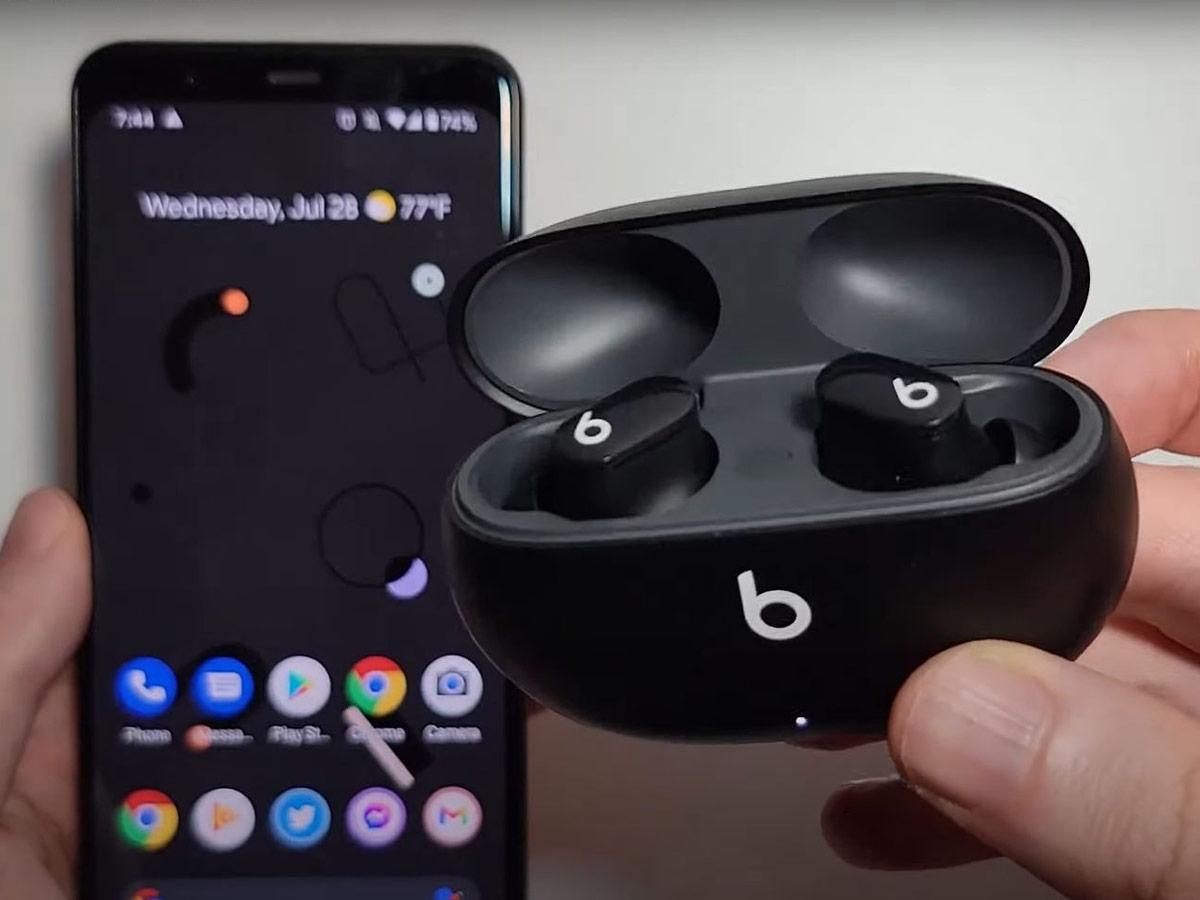
Beats earbuds
For many Beats earbuds:
- Place both earbuds in the charging case.
- Leave the case open.
- Press and hold the case’s system button until the indicator light flashes white.
- Keep the case next to your Android phone.
The system button is usually inside the case or on its front. The exact location depends on the model.
Beats over-ear or on-ear headphones
For many Beats headphones:
- Turn the headphones on.
- Press and hold the power or system button.
- Release it when the indicator light begins to flash.
- Keep the headphones near the phone.
Some models use a different button layout. If the light does not flash, check the manual for your exact model.
A flashing light usually means the headphones are ready to pair. A steady light often means they are already connected to another device.
3. Select the Beats headphones on Android
On your Android phone:
- Look under Available devices or Pair new device.
- Tap the name of your Beats headphones.
- Confirm the pairing request if Android displays one.
- Wait for the status to change to Connected.
The name may look like:
- Beats Studio Buds
- Beats Fit Pro
- Beats Studio Pro
- Beats Solo
- Powerbeats
- Powerbeats Pro
If Android asks for a PIN, try 0000 or 1234. Most newer Beats models do not need a PIN.
4. Test the connection
Play music or a video. Sound should come through the Beats headphones.
You can test calls by placing a phone call. If music works but calls do not, open the Bluetooth settings for the connected Beats device and make sure Phone calls is enabled.
How to Use Google Fast Pair With Beats
Some Beats models support Google Fast Pair on compatible Android phones. Fast Pair can show a setup message when the headphones are placed near the phone.


To try it:
- Turn on Bluetooth and Location on the Android phone.
- Unlock the phone.
- Put the Beats headphones in pairing mode.
- Hold them near the phone.
- Tap the setup notice if it appears.
- Follow the on-screen instructions.
Fast Pair support can vary by Beats model and Android software. If no pop-up appears, use the standard Bluetooth method above. The lack of a Fast Pair message does not mean the headphones are incompatible.
Fast Pair may also save the headphones to your Google account. This can make it easier to connect them to other compatible Android devices signed in to the same account.

Set Up the Beats App on Android
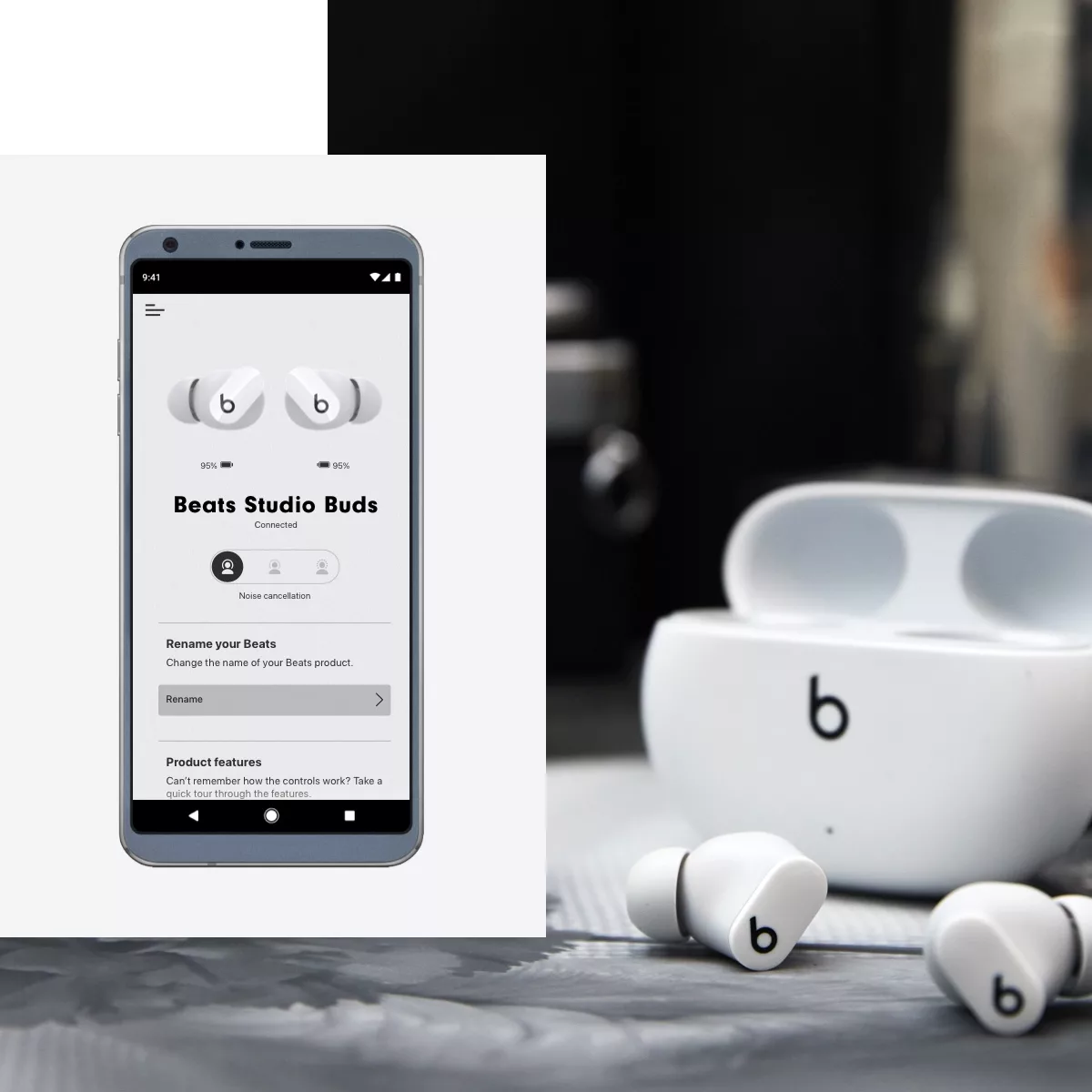
The Beats app is optional for basic Bluetooth audio. It can be useful if your model supports extra controls.
To install it:
- Open the Google Play Store.
- Search for Beats.
- Install the official Beats app from Apple.
- Open the app.
- Allow Bluetooth or nearby-device access if Android requests it.
- Select your connected Beats headphones.
Depending on the model, the app may let you:
- View battery levels
- Install firmware updates
- Change listening modes
- Customize controls
- Manage automatic ear detection
- Rename the headphones
- Learn how to use the controls
Keep the headphones near the phone while an update runs. Do not turn off Bluetooth or close the app during the update unless the app tells you to do so.
Some Apple features are limited or unavailable on Android. For example, Apple-only account features and some ecosystem functions may not work in the same way. The headphones can still provide Bluetooth audio without the app.

What to Do If Beats Headphones Will Not Connect
Start with the simplest checks. Most pairing problems come from pairing mode, an old connection, low battery, or an Android permission setting.
Beats headphones do not appear in the Bluetooth list
Try these steps in order:
- Charge the Beats headphones for at least a few minutes.
- Turn Bluetooth off and back on.
- Put the headphones back into pairing mode.
- Move the headphones within a few feet of the phone.
- Turn off Bluetooth on nearby devices.
- Restart the Android phone.
- Reset the Beats headphones if they still do not appear.
The headphones must flash in pairing mode. Simply turning them on is not always enough.
Android says “Couldn’t connect”
The headphones may already be connected to another device. Turn off Bluetooth on the old phone, computer, tablet, or television.
If the Beats name is already listed under saved devices:


- Open Settings > Bluetooth.
- Tap the gear or settings icon beside the Beats name.
- Choose Forget, Unpair, or Remove.
- Put the headphones into pairing mode again.
- Select them as a new device.
This clears the old Bluetooth record from Android.
Beats connect but no sound plays
Check the output setting:
- Open the Android volume panel.
- Tap the media output icon, if available.
- Select the Beats headphones.
- Raise the media volume.
Then open the Bluetooth settings for the Beats device. Make sure Media audio is enabled.
Some Android phones route sound to a connected car, speaker, USB device, or another Bluetooth product. Selecting the Beats headphones as the media output usually fixes this.
Music works, but phone calls do not
Open the Bluetooth settings for the Beats headphones and check that Phone calls is turned on.
During a call, tap the audio output button and select the Beats headphones. If the microphone still does not work, restart the call and restart both devices.
Some apps handle call audio differently. Test a normal phone call before diagnosing the headphones.
The connection keeps dropping
Keep the phone and headphones close together. Walls, crowded wireless areas, and other Bluetooth devices can affect the connection.
Also try:
- Charging both devices
- Restarting the phone
- Updating Android
- Updating the Beats firmware through the Beats app
- Forgetting and pairing the headphones again
- Testing the Beats headphones with another phone
If the headphones disconnect from every device, the issue may be with the headphones rather than Android.

How to Reset Beats Headphones for Pairing
A reset removes saved connection information and can fix repeated pairing failures. The reset steps depend on the model, so do not use a button combination from a different Beats product.
Common patterns include holding the system button or power button for several seconds until the indicator light changes. Some earbuds require both earbuds to be in the case during the reset.
Before resetting, try Forget or Unpair on Android. A full reset is more useful when:


- The headphones never enter pairing mode
- The headphones connect to the wrong device
- Android repeatedly reports a failed connection
- One earbud will not connect
- The headphones behave as if they are frozen
After the reset, place the Beats headphones into pairing mode and connect them as a new Bluetooth device.

How to Reconnect Beats Headphones to Android
After the first successful pairing, Beats headphones should usually reconnect when they are turned on and near the Android phone.
If they do not reconnect:
- Turn on Bluetooth.
- Turn on the Beats headphones.
- Open Settings > Bluetooth.
- Tap the saved Beats device name.
- Wait for the status to show Connected.
If the headphones keep connecting to another device, disconnect them from that device or turn off its Bluetooth. Many headphones remember more than one device, but they may not actively connect to every saved device at the same time.
Some newer Beats products support switching between devices in limited situations. The exact behavior depends on the model and the connected platforms.
Beats Headphones and Android: Features and Limits
Beats headphones generally provide Bluetooth listening, microphone use, music controls, and call support on Android. Extra functions vary by model.
| Feature | Android support |
|---|---|
| Bluetooth music | Generally supported |
| Phone calls | Generally supported |
| Play, pause, and track controls | Usually supported |
| Active noise cancellation | Supported on models that include it |
| Transparency mode | Supported on compatible models |
| Battery information | May appear in Android or the Beats app |
| Firmware updates | Supported through the Beats app on compatible models |
| Google Fast Pair | Model and phone dependent |
| Apple-only ecosystem features | May be limited or unavailable |
The key point is simple: Bluetooth audio and advanced software features are separate. A Beats model can work well for music on Android even when one Apple-specific feature is not available.
For the most accurate feature list, check the support page for the exact Beats model and the current Android app listing. Software support can change with firmware and app updates.

Common Mistakes to Avoid
Avoid these common setup errors:
- Searching before pairing mode is active: Android cannot find headphones that are only powered on.
- Pairing while connected to another device: Turn off Bluetooth on old devices during setup.
- Ignoring the app permission request: Nearby-device access may be needed for setup or device detection.
- Resetting too soon: First try charging, forgetting the device, and pairing again.
- Using the wrong reset method: Button combinations differ by model.
- Testing only one app: Check both music and a phone call.
- Assuming every feature works on every phone: Android features depend on the Beats model, app, firmware, and phone software.
- Pairing at a distance: Keep the devices close until setup is complete.

Frequently Asked Questions
Can Beats headphones connect to a Samsung phone?
Yes. Beats headphones can connect to Samsung phones through Bluetooth. Open Settings > Connections > Bluetooth, place the headphones in pairing mode, and select the Beats name.
Do I need the Beats app to connect Beats headphones to Android?
No. You only need Bluetooth for basic music and call functions. The Beats app is optional and may provide battery information, updates, and extra controls.
Why are my Beats headphones connected but silent?
Check the Android media output selector and choose the Beats headphones. Also confirm that Media audio is enabled in the Bluetooth settings for the device.
Can I connect Beats headphones to two Android devices?
Some models support connection to more than one device, while others connect to one active device at a time. Check the specifications and support guide for your exact Beats model.


How do I remove Beats headphones from Android?
Open Settings > Bluetooth, tap the settings icon beside the Beats device, and choose Forget, Unpair, or Remove. The wording varies by Android phone.
Conclusion
To connect Beats headphones to Android, turn on Bluetooth, place the headphones in pairing mode, and select them from the phone’s Bluetooth menu. If the connection fails, charge the headphones, forget the old Bluetooth record, disable nearby devices, and pair again.
Use the Beats app when you need firmware updates, battery details, or model-specific controls. For the best result, use the instructions for the exact Beats model because button locations and advanced features can differ.
For additional guidance, use the official Beats support site and the official Beats app listing on Google Play.