How To Pair Bose SoundSport Headphones: Easy Guide
To pair Bose SoundSport headphones in the United States, turn on the headphones, press and hold the Power/Bluetooth button until the light blinks blue, then select the headphones from your phone, tablet, or computer’s Bluetooth menu. You do not need the Bose Connect app for basic pairing.
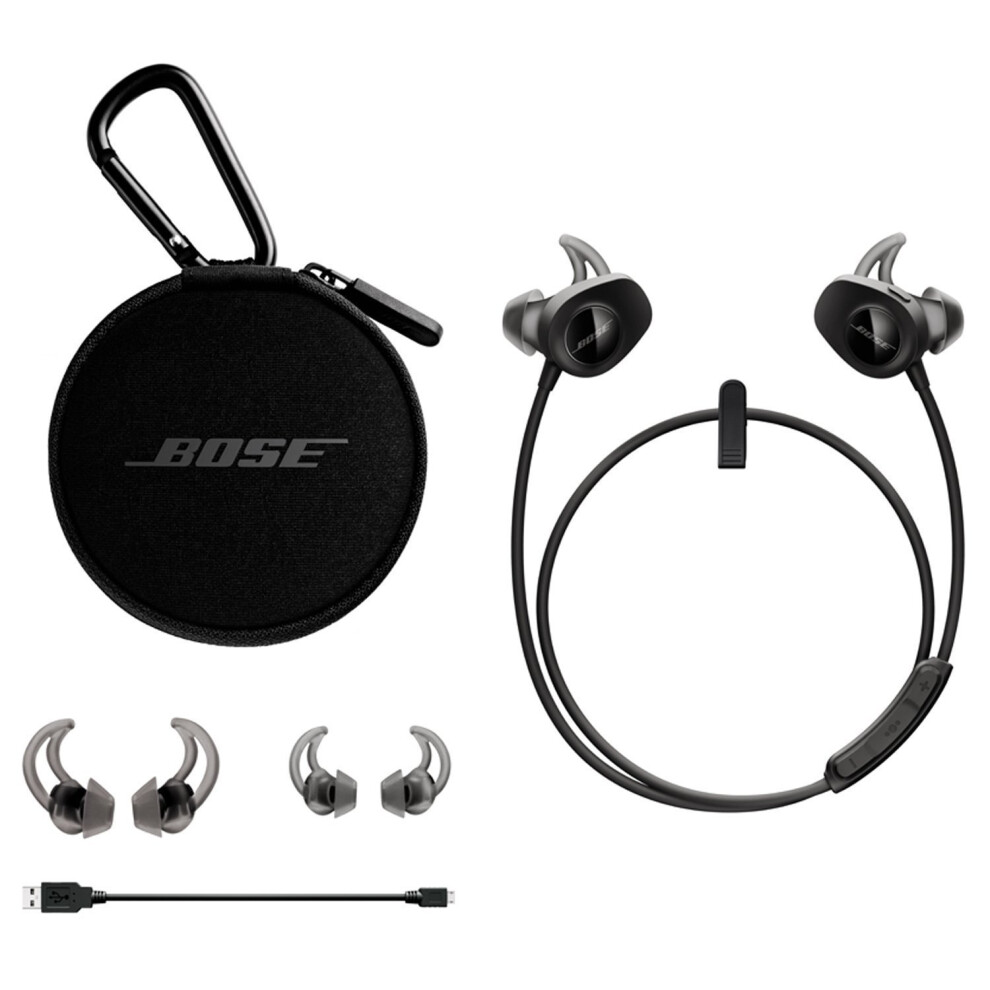
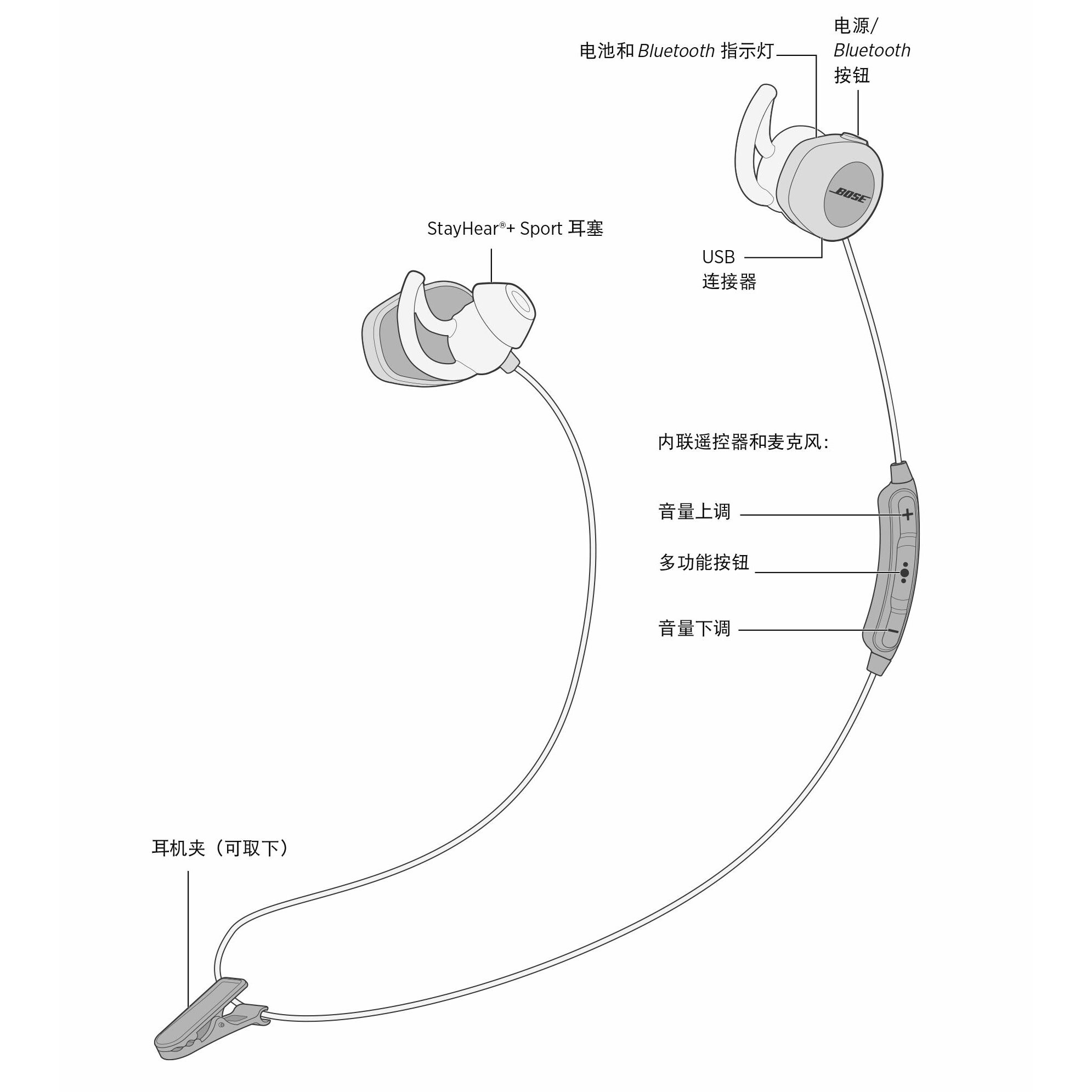
The exact steps vary by model. Bose SoundSport Wireless and SoundSport Pulse Wireless use a neckband with in-line controls. SoundSport Free uses two separate earbuds and pairs through the right earbud.
Before You Pair Bose SoundSport Headphones
Charge the headphones before pairing. A low battery can interrupt setup or make the headphones turn off during the process.
You also need:
- A Bose SoundSport model with Bluetooth
- A phone, tablet, or computer with Bluetooth turned on
- The headphones within a few feet of the device
- A clear Bluetooth connection without too many nearby active devices


The wired Bose SoundSport headphones with an audio cable do not pair through Bluetooth. Plug them into a compatible headphone jack, or use the correct wired adapter if your device has no 3.5-millimeter port.

How to Pair Bose SoundSport Wireless Headphones
These steps work for most Bose SoundSport Wireless and SoundSport Pulse Wireless headphones.
-
Turn on the headphones.
Press the Power/Bluetooth button on the in-line remote. -
Enter pairing mode.
Press and hold the Power/Bluetooth button for about three seconds. Release it when the Bluetooth indicator blinks blue and the headphones say, “Ready to pair,” or a similar voice prompt. -
Open Bluetooth settings on your device.
On an iPhone or iPad, open Settings > Bluetooth.
On Android, open Settings > connected devices > Pair new device. Menu names may differ by phone brand.
On Windows, open Settings > Bluetooth & devices.
On a Mac, open System Settings > Bluetooth. -
Choose the headphones.
Select Bose SoundSport Wireless or the name shown for your model. -
Confirm the connection.
The Bluetooth light should turn solid white, or the headphones should announce that they are connected.
If the headphones appear more than once, choose the entry that matches the model name. Do not select a nearby Bose device that belongs to another person.

How to Pair Bose SoundSport Free Earbuds
Bose SoundSport Free earbuds pair through the controls on the right earbud. Keep both earbuds near the phone during setup.
- Remove the right earbud from its charging case.
- Press and hold the Bluetooth button on the right earbud for about three seconds.
- Wait for the voice prompt that says the earbuds are ready to pair.
- Open the Bluetooth menu on your phone, tablet, or computer.
- Select Bose SoundSport Free.
- Wait for the connected message or Bluetooth status indicator.
- Remove the left earbud from the case if it does not turn on automatically.
SoundSport Free earbuds may show separate left and right battery information after they connect. The right earbud manages the main Bluetooth connection, so it must have power and remain connected to the source device.

Pair Bose SoundSport With an iPhone or iPad
The fastest method is to use the Apple device’s Bluetooth settings.
- Open Settings.
- Tap Bluetooth.
- Turn Bluetooth on.
- Put the Bose SoundSport headphones in pairing mode.
- Tap the Bose SoundSport name under Other Devices.
- Wait until the status changes to Connected.
Once paired, the iPhone or iPad usually reconnects automatically when the headphones are turned on and nearby.
If the headphones connect but sound still plays through the phone speaker, open the audio output menu in Control Center and choose the Bose SoundSport headphones.


Pair Bose SoundSport With an Android Phone
Android menus can vary by manufacturer, but the process is much the same.
- Open Settings.
- Tap Connected devices, Connections, or Bluetooth.
- Select Pair new device if that option appears.
- Put the Bose headphones in pairing mode.
- Tap the Bose SoundSport model name.
- Approve the pairing request if Android asks for confirmation.
If Android asks for a PIN, try 0000. Most Bose SoundSport models do not require a PIN, so a code request can also mean that the device was not placed in pairing mode correctly.

Pair Bose SoundSport With a Windows PC
Bluetooth must be available on the Windows computer. Some desktop PCs need a separate Bluetooth adapter.
- Open Settings.
- Select Bluetooth & devices.
- Turn Bluetooth on.
- Click Add device.
- Select Bluetooth.
- Put the Bose SoundSport headphones into pairing mode.
- Select the headphones from the list.
- Click Done when Windows completes the connection.
If Windows lists two sound options, choose the Headphones or Stereo option for music. The Headset option may use a lower-quality microphone mode during calls.
Pair Bose SoundSport With a Mac
Use the Bluetooth panel in macOS.
- Open the Apple menu.
- Select System Settings or System Preferences.
- Open Bluetooth.
- Turn Bluetooth on.
- Put the Bose headphones in pairing mode.
- Find the Bose SoundSport model in the device list.
- Click Connect.
If the Mac connects but does not send audio to the headphones, open System Settings > Sound > Output and select the Bose SoundSport headphones.

Pair Bose SoundSport Headphones With the Bose Connect App
The Bose Connect app is optional. You can pair SoundSport headphones directly through Bluetooth without it.
The app may help you:
- See battery information
- Manage connected Bose products
- Install available firmware updates
- Review connection settings
- Switch between compatible Bose devices
To use it, first pair the headphones through the app or your device’s Bluetooth settings, depending on the model and app instructions. Install the app only from the official Apple App Store or Google Play Store.
The app cannot make a non-Bluetooth, wired SoundSport model wireless. It also cannot fix hardware damage or a battery that no longer holds a charge.

What to Do if Bose SoundSport Will Not Pair
Start with the simple checks. Most pairing failures come from the headphones connecting to an old device, not from a serious fault.
1. Check the battery
Charge the headphones for at least a short period, then try again. SoundSport Free earbuds must also sit correctly in the charging case so their contacts can charge.


2. Turn Bluetooth off on old devices
The headphones may reconnect to a phone, tablet, or computer that you used before. Turn Bluetooth off on nearby devices, or remove the headphones from their Bluetooth lists.
3. Forget the old Bose connection
On your phone or computer, open the Bluetooth device list. Tap or click the Bose SoundSport entry, then choose Forget, Remove, or Unpair.
After removing it, restart Bluetooth and pair the headphones again.
4. Restart both devices
Turn the headphones off. Restart the phone, tablet, or computer. Then put the headphones back into pairing mode.
5. Move closer
Keep the headphones within a few feet of the device during setup. Avoid pairing beside many active Bluetooth devices, Wi-Fi routers, or other sources of wireless interference.
6. Clear the headphone device list
If the headphones have saved many old connections, clear their Bluetooth memory. On many Bose SoundSport Wireless models, slide the Power/Bluetooth switch toward the Bluetooth symbol and hold it for about 10 seconds. The headphones may announce that the device list was cleared.
The exact reset method can vary by model. Check the manual for your model before using a full reset.

How to Fix a Bose SoundSport Connection That Keeps Dropping
A dropped connection can have several causes:
- Low battery
- Too much distance between the headphones and source device
- A crowded Bluetooth environment
- Outdated headphone or device software
- The source device switching between saved Bluetooth products
- A damaged battery or internal component
Keep the source device nearby and remove unused Bluetooth connections. Then forget and re-pair the Bose headphones.
For SoundSport Free, make sure both earbuds are clean and seated correctly in the charging case. Dirty charging contacts can leave one earbud partly charged, which may cause it to shut down.
If the problem happens with several phones and computers, but not just one device, the headphones may need service. Bose support can confirm model-specific reset and repair options.

How to Connect Bose SoundSport to a Second Device
Bose SoundSport Wireless models can remember previously paired devices, but they may not play audio from two devices at the same time.
To connect a second device:
- Pause audio on the first device.
- Put the headphones in pairing mode.
- Select the headphones on the second device.
- Test audio from the new device.
If the headphones keep returning to the first device, turn Bluetooth off on that device before connecting the second one.


Some SoundSport models support multipoint-style switching, while others do not behave the same way. Do not assume that every Bose SoundSport version can maintain two active audio connections.

Common Bose SoundSport Pairing Mistakes
Avoid these common errors:
- Holding the wrong button: Use the Power/Bluetooth control, not the volume buttons.
- Selecting the wrong Bose product: Nearby Bose headphones may appear in the same list.
- Pairing while the headphones are off: The device must be on and in pairing mode.
- Leaving an old connection active: Another phone may capture the connection first.
- Expecting wired headphones to pair: A cable-only SoundSport model has no Bluetooth radio.
- Pairing only one SoundSport Free earbud: The right earbud controls the main wireless connection.
- Using a poor adapter: A USB-C or Lightning adapter must support audio output if the device lacks a headphone jack.
Signs That Bose SoundSport Pairing Worked
The pairing process is complete when:
- The Bose headphones appear as Connected
- The headphones announce a connection
- The Bluetooth light shows the connected status
- Music plays through the headphones
- Buttons such as volume and play/pause control the source device
Play a short audio clip to confirm the connection. A successful pairing does not always mean the headphones are selected as the active audio output, especially on Windows and Mac computers.
Frequently Asked Questions
Why do my Bose SoundSport headphones not appear in Bluetooth settings?
They may not be in pairing mode, may be connected to another device, or may have a low battery. Turn off Bluetooth on nearby devices, charge the headphones, and hold the Power/Bluetooth button until the indicator blinks blue.
Can I pair Bose SoundSport headphones without the Bose app?
Yes. Pair them directly through the Bluetooth settings on an iPhone, Android phone, Windows PC, or Mac. The Bose Connect app is optional.
How do I reset Bose SoundSport Bluetooth pairing?
First remove the headphones from your phone or computer’s Bluetooth list. Then clear the headphones’ saved device list using the model-specific Bose reset procedure. The exact button sequence can differ between SoundSport Wireless, SoundSport Pulse, and SoundSport Free.
Why is only one SoundSport Free earbud working?
The right earbud manages the main Bluetooth connection. Place both earbuds in the charging case, confirm that they charge, then remove the right earbud first and reconnect it. Clean the charging contacts if one earbud does not power on.
Can Bose SoundSport headphones connect to a TV?
Yes, if the television supports Bluetooth audio. Put the headphones in pairing mode and select them in the TV’s Bluetooth audio menu. Some TVs do not support Bluetooth headphones, and some may introduce a delay between video and sound.
Final Takeaway
To pair Bose SoundSport headphones, turn them on, hold the Power/Bluetooth button until the light blinks blue, and select the headphones in your device’s Bluetooth settings. For SoundSport Free, use the right earbud to enter pairing mode. If pairing fails, charge the headphones, remove old Bluetooth connections, restart both devices, and try again.
For model-specific reset steps, use the official Bose support page or the manual for your exact SoundSport version.