How To Reset Bose QuietComfort Earbuds 2: Quick Guide
If you use Bose QuietComfort Earbuds 2 in the United States and they will not connect, sync, charge, or respond normally, a reset can often clear the problem. The reset uses the charging case and usually takes less than a minute. It does not require a computer.
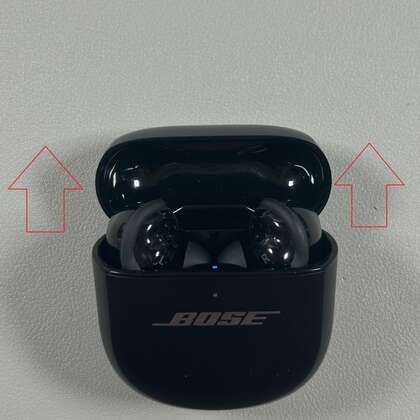
To reset Bose QuietComfort Earbuds 2, place both earbuds in the charging case, leave the lid open, and press and hold the Bluetooth button on the back of the case for about 30 seconds. Then remove the earbuds from your phone’s Bluetooth list and pair them again through the Bose app.

What a reset does
A reset restarts the earbuds and case connection system. It can help fix pairing failures, one earbud not working, connection drops, and cases where the Bose app cannot find the earbuds.
A reset is different from simply turning Bluetooth off and on. It also differs from deleting the earbuds from your phone. For the best result, reset the hardware first, then remove the old Bluetooth connection and set up the earbuds again.


A reset may help with:
- Bose QuietComfort Earbuds 2 not appearing in Bluetooth settings
- Only the left or right earbud connecting
- Audio playing through one earbud
- Earbuds that disconnect often
- The Bose Music app failing to detect the earbuds
- Touch controls that stop responding
- Earbuds that seem stuck during setup
- A charging case that does not correctly report earbud status
A reset will not repair physical damage, a worn battery, blocked charging contacts, or a case that has no power. Those problems require separate checks.
How to reset Bose QuietComfort Earbuds 2
Follow these steps in order. Keep the case open during the reset.
1. Charge the case and earbuds
Put both earbuds into the charging case. Check that each earbud sits correctly in its charging slot.
If the case has little or no power, charge it with a USB-C cable first. A reset cannot complete if the case shuts down during the process. Clean, dry charging contacts can also help if one earbud does not seem to charge.
2. Leave the case open
Open the charging case and keep the lid open. The earbuds should remain inside the case.
Do not remove either earbud while holding the reset button. Removing an earbud can interrupt the process or prevent the reset from starting.
3. Hold the Bluetooth button
Find the Bluetooth button on the back of the charging case. Press and hold it for about 30 seconds.
Continue holding the button even if the lights change before 30 seconds. Bose uses the button on the case to place the QuietComfort Earbuds 2 into their reset process.
4. Watch for the status lights
The earbud and case lights should respond during the reset. The exact light pattern can vary with the process and firmware version, so focus on completing the full button hold rather than reacting to the first flash.
After about 30 seconds, release the Bluetooth button. Give the case a short time to finish the reset.


5. Remove the old Bluetooth connection
On your phone, tablet, or computer, open Bluetooth settings. Select Bose QuietComfort Earbuds 2 and choose Forget This Device, Remove Device, or the equivalent option.
On an iPhone in the United States:
- Open Settings.
- Tap Bluetooth.
- Tap the information button next to the Bose earbuds.
- Tap Forget This Device.
- Confirm the removal.
On most Android phones:
- Open Settings.
- Open Connected devices or Bluetooth.
- Tap the settings icon beside the Bose earbuds.
- Choose Forget, Unpair, or Remove.
The wording may differ between Android phone brands and software versions.
6. Pair the earbuds again
Close and reopen the case, then follow the normal setup instructions in the Bose Music app. If the app asks for permission to use Bluetooth or nearby devices, allow it.
You can also open your device’s Bluetooth menu and select the earbuds when they appear. The Bose Music app is usually the better choice because it supports product setup, updates, controls, and settings.
The reset is successful when the earbuds appear as a new device, both earbuds connect, and sound plays through both sides.

What to do if the reset does not work
If the earbuds still do not reset, check power, contact points, Bluetooth data, and software in that order. These checks address the most common causes without risking damage.
Confirm that both earbuds charge
Place each earbud in the case and look for signs that it is seated correctly. If one earbud does not charge, the case may not recognize it during the reset.
Remove the earbud and inspect the charging contacts. Wipe away dirt or moisture with a clean, dry, soft cloth. Do not use water, metal tools, or sharp objects inside the case.
If the earbud or case is wet, let it dry fully before charging. Do not use a hair dryer or place the earbuds on a heater.
Charge the case for at least a short period
Connect the case to power with a compatible USB-C cable. Leave it connected while you try the reset if the case seems unresponsive.
Try another charging cable and power adapter if the case shows no light. A faulty cable can look like a failed reset.
Forget every old Bose entry
Some phones keep an old Bluetooth record even after a failed setup. Remove every saved entry that refers to the earbuds, then restart the phone.
After the phone restarts, open the case and try pairing again. Do not pair the earbuds with several devices at the same time during setup.


Temporarily turn off nearby Bluetooth devices
Other phones, tablets, and computers may try to reconnect to the earbuds. Turn off Bluetooth on nearby devices for a few minutes while you pair the earbuds with the intended device.
This is especially useful if the earbuds were previously used with a laptop, tablet, or another phone in your home.
Update the Bose Music app
Use the current Bose Music app from the Apple App Store or Google Play Store. An outdated app may have trouble completing setup or showing the correct product status.
Keep the earbuds in the case during app instructions unless the app tells you to remove them. If an update is offered, keep the case charged and near the phone until the update finishes.
Try another phone
Pair the earbuds with a different compatible phone. This helps separate an earbud problem from a Bluetooth or software problem on the original phone.
If the earbuds work with another phone, the original device may need a Bluetooth reset, operating system update, or removal of old pairing records.
Contact Bose if the hardware remains unresponsive
If the case has power but neither earbud responds, or if one earbud never charges after cleaning and resetting, the issue may involve the battery, charging case, or internal hardware.
Use Bose Support for model-specific service options in the United States. Have the product name, purchase details if available, and a description of the light behavior ready.

Reset versus other fixes
A reset is not always the right first step. Use the table below to match the symptom with the most useful action.
| Problem | First action | Is a reset likely to help? |
|---|---|---|
| Earbuds do not appear on a phone | Forget the old Bluetooth entry, then reset and pair again | Often |
| Only one earbud works | Check charging contacts, charge both earbuds, then reset | Sometimes |
| Audio cuts out briefly | Move closer to the phone and test without other Bluetooth devices | Sometimes |
| Bose Music app cannot find the earbuds | Reset, remove old pairing data, and restart the app | Often |
| Earbuds do not charge | Clean and dry the contacts; test the case and cable | Usually not by itself |
| Case has no light or response | Charge the case and try another cable | Usually not if the case has no power |
| Touch controls do not respond | Restart the earbuds and check app settings | Sometimes |
| Earbuds were used with another phone | Disconnect or forget them on the old phone | Not always needed |
The key distinction is simple: a reset addresses software and connection states, while charging and cleaning address power and contact problems. If the case cannot power the earbuds, resetting will not solve the underlying fault.

What happens after a Bose QuietComfort Earbuds 2 reset?
After the reset, the earbuds usually need to be paired again. Your phone may no longer treat them as the same active Bluetooth connection.
You may also need to restore settings in the Bose Music app, such as:
- Touch-control preferences
- Noise cancellation settings
- Shortcut controls
- Device names
- Connection preferences
- Firmware update status
The reset does not improve battery health or restore a damaged earbud. It only clears the connection state and restarts the product’s setup process.
For reliable use, keep the earbuds and charging case dry, place each earbud fully into its slot, and avoid storing them with dirt on the charging contacts. If connection problems return often after a successful reset, test the earbuds with another phone before repeating the reset several times.


Common mistakes to avoid
Avoid these mistakes while resetting the earbuds:
- Closing the case lid: The reset process requires the case to remain open.
- Holding the wrong button: Use the Bluetooth button on the back of the charging case.
- Removing the earbuds too soon: Leave both earbuds in the case during the reset.
- Skipping Bluetooth removal: Your phone may reconnect to old pairing data.
- Resetting with a dead case: Charge the case before trying again.
- Cleaning with liquid: Moisture can damage charging contacts and electronics.
- Pairing during the reset: Wait until the reset is complete before selecting the earbuds.
- Repeating the reset without checking charging: A dead or unrecognized earbud will continue to cause problems.
If the earbuds connect but one side remains silent, place both earbuds back in the case, confirm that both charge, and then repeat the reset and pairing process.

Frequently asked questions
Will resetting Bose QuietComfort Earbuds 2 delete saved Bluetooth connections?
The reset can clear the earbuds’ connection state, but your phone may still display an old saved entry. For a clean setup, forget the earbuds in the Bluetooth settings on every device that has used them.
Do I need the Bose Music app to reset the earbuds?
No. The reset starts with the Bluetooth button on the charging case. The Bose Music app is useful afterward for setup, firmware updates, and changing controls.
Why does only one Bose earbud connect after a reset?
The most common causes are an earbud that did not charge, dirty charging contacts, incomplete pairing data, or an interrupted reset. Charge both earbuds, clean the contacts with a dry cloth, forget the old Bluetooth entry, and repeat the process.
How long should I hold the case button?
Hold the Bluetooth button for about 30 seconds with both earbuds inside the open case. Releasing it too early may start pairing mode without completing the reset.
Can I reset the earbuds if the case will not turn on?
Usually, no. The case needs enough power to recognize the earbuds and run the reset process. Charge the case with a known-working USB-C cable. If it still shows no response, contact Bose Support.
Will a reset fix poor battery life?
No. A reset may correct an incorrect battery reading or a software issue, but it cannot restore a worn battery. If one earbud loses power much faster than the other after charging and resetting, service may be needed.
Conclusion
The standard way to reset Bose QuietComfort Earbuds 2 is to place both earbuds in the open charging case and hold the case’s Bluetooth button for about 30 seconds. Afterward, forget the old Bluetooth connection and pair the earbuds again through the Bose Music app or your device settings.
If the reset fails, check the case charge, earbud seating, charging contacts, cable, and old Bluetooth records. If one earbud remains unresponsive after those checks, the problem may be hardware-related rather than a connection error.