How To Pair Edifier Headphones: Easy Bluetooth Setup Guide
Pairing Edifier headphones in the United States usually takes less than two minutes. Turn on pairing mode, open bluetooth settings on your device, select the Edifier headphones, and confirm the connection.
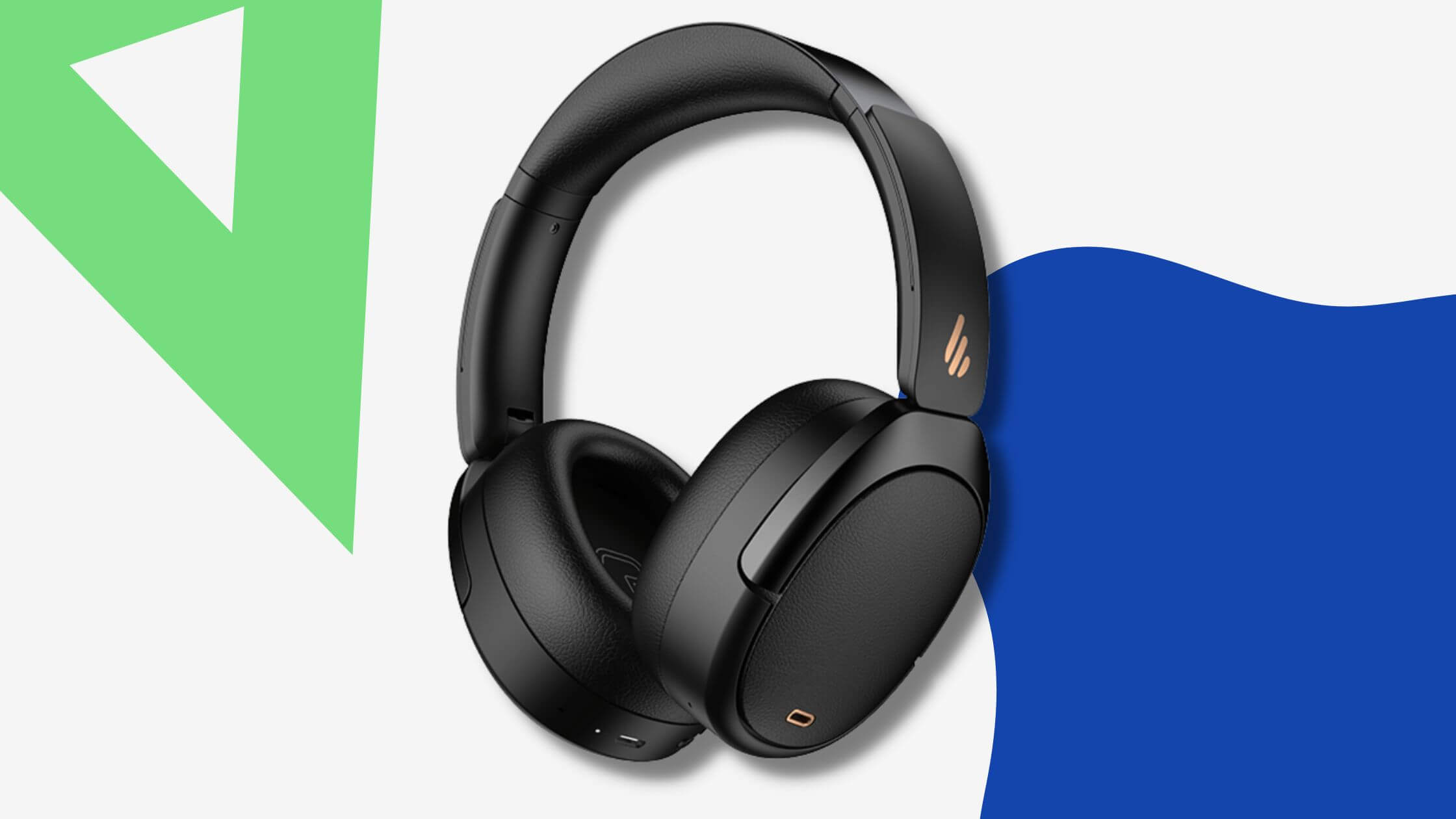
The exact button may differ by model. This guide covers common Edifier Bluetooth headphones and earbuds, including over-ear models such as the W820NB and WH series. It also explains what to do when your headphones do not appear, connect to the wrong device, or keep disconnecting.
Before You Pair Edifier Headphones
Check these points before you start:
- Charge the headphones for a few minutes.
- Keep the headphones within about 3 feet of the phone or computer during setup.
- Turn off Bluetooth on nearby devices that may connect first.
- Confirm that the headphones are not already connected to another device.
- Find the physical power or multifunction button.
- Keep the Edifier user manual nearby if your model uses a special pairing method.


Most Edifier headphones use Bluetooth Classic for wireless audio. Some newer models may also support multipoint pairing, app control, active noise cancellation, or a USB audio connection. These features can change the setup steps.
Pairing mode vs. connected mode
These two terms mean different things:
- Pairing mode: The headphones are visible to a new device.
- Connected mode: The headphones are already linked to a phone, tablet, computer, or other source.
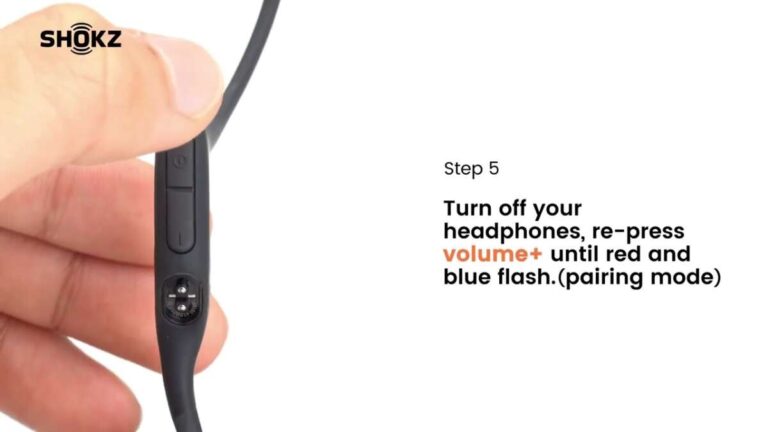
A flashing blue or blue-and-red light often means pairing mode. A steady light, a voice prompt, or no light may mean the headphones are already connected. Light patterns vary by model, so the manual is the final source for your specific Edifier product.
How to Put Edifier Headphones in Pairing Mode
Follow this general process:
- Turn off the headphones if they are already on.
- Press and hold the power button for several seconds.
- Release the button when the indicator begins to flash or the headphones say “pairing.”
- Leave the headphones close to the device you want to connect.
- Open the device’s Bluetooth menu and select the Edifier headphones.
On many Edifier models, holding the power button while the headphones are off starts pairing mode. On other models, you may need to turn the headphones on first and then hold a Bluetooth or multifunction button.
Do not tap the button repeatedly. A short press may only pause audio, answer a call, or turn the headphones on. If the headphones shut down, repeat the process and hold the button for a little longer.
What the Edifier name may look like
Your headphones may appear under:
- The model name, such as EDIFIER W820NB
- A shortened model name
- A model number followed by letters
- A name that includes “EDIFIER”
- A left or right earbud name for some true wireless products
Select the name that matches the model printed on the box, headband, charging case, or user guide. Avoid pairing with an unknown Edifier device nearby.


How to Pair Edifier Headphones With an iPhone or iPad
You can pair Edifier headphones with an iPhone or iPad through the iOS Bluetooth menu.
- Put the Edifier headphones into pairing mode.
- Open Settings on your iPhone or iPad.
- Tap Bluetooth.
- Turn Bluetooth on if it is off.
- Wait for the headphones to appear under Other Devices.
- Tap the Edifier model name.
- Wait until the status changes to Connected.
Play a song or video to test the connection. If sound still comes from the iPhone speaker, tap the audio output icon in the media controls and choose the Edifier headphones.
If the headphones appear under My Devices
If the Edifier headphones appear under My Devices but do not connect, tap the name. If that fails:
- Tap the information icon next to the headphones.
- Choose Forget This Device.
- Confirm the removal.
- Put the headphones back into pairing mode.
- Pair them again as a new device.
This removes the old Bluetooth record from the iPhone. It does not erase the headphones’ internal settings.
How to Pair Edifier Headphones With an Android Phone
Android menus vary by manufacturer, but the process is similar on Google Pixel, Samsung Galaxy, Motorola, OnePlus, and other phones sold in the United States.
- Put the Edifier headphones in pairing mode.
- Open Settings.
- Tap Connected devices, Connections, or Bluetooth.
- Turn Bluetooth on.
- Choose Pair new device if that option appears.
- Tap the Edifier headphones in the device list.
- Approve the pairing request if Android displays one.
After pairing, the headphones should show as connected for calls and media. Some Android phones may show separate switches for phone calls, media audio, or contact access. Keep Media audio enabled if you want music and video sound through the headphones.
If Android asks for a PIN
Most modern Edifier Bluetooth headphones pair without a PIN. If the phone asks for one, check the model’s manual first. Do not guess several codes in a row because repeated failed attempts can delay another pairing attempt.
How to Pair Edifier Headphones With a Windows PC
You can connect Edifier headphones to a Windows 11 or Windows 10 computer if the computer has Bluetooth.
Windows 11 steps
- Put the Edifier headphones into pairing mode.
- Select Start.
- Open Settings.
- Select Bluetooth & devices.
- Turn Bluetooth on.
- Select Add device.
- Choose Bluetooth.
- Select the Edifier headphones.
- Select Done when Windows confirms the connection.
To choose the headphones for sound, select the speaker icon on the Windows taskbar. Open the sound output list and choose the Edifier headphones.
Windows 10 steps
- Put the headphones in pairing mode.
- Open Start > Settings > Devices.
- Select Bluetooth & other devices.
- Turn Bluetooth on.
- Select Add Bluetooth or other device.
- Choose Bluetooth.
- Select the Edifier headphones.
If your computer has no Bluetooth option, it may need a Bluetooth adapter. A USB Bluetooth adapter can add this function, but compatibility and driver support depend on the adapter and Windows version.


Headphones connected but no sound
Windows may connect the headphones but continue using the computer’s speakers. Select the sound icon in the taskbar and switch the output to the Edifier device.
For meetings, you may see two Edifier options:
- Headphones or stereo: Usually better for music and video.
- Headset or hands-free audio: Uses the microphone and may reduce sound quality.
This behavior comes from Bluetooth audio profiles. It does not necessarily mean the headphones are defective.
How to Pair Edifier Headphones With a Mac
The steps are similar on recent macOS versions:
- Put the Edifier headphones into pairing mode.
- Open the Apple menu.
- Select System Settings.
- Choose Bluetooth.
- Turn Bluetooth on.
- Find the Edifier headphones under nearby devices.
- Click Connect.
On older macOS versions, Bluetooth may be listed under System Preferences instead of System Settings.
If the Mac connects but uses its built-in speakers, open System Settings > Sound > Output and select the Edifier headphones.
For a video call, also check the input device. Open the meeting app’s audio settings and select the Edifier microphone if you want to use it.

How to Pair Edifier Headphones With a Second Device
Some Edifier headphones support multipoint Bluetooth. Multipoint lets the headphones stay connected to two source devices, such as a phone and a laptop. Other models support only one active Bluetooth connection at a time.
To try pairing a second device:
- Connect the headphones to the first device.
- Check the Edifier manual to confirm multipoint support.
- Put the headphones into pairing mode again.
- Open Bluetooth settings on the second device.
- Select the Edifier headphones.
- Test switching between audio from both devices.
If the first device disconnects, the headphones may not support multipoint. In that case, disconnect or disable Bluetooth on the first device before pairing the second one.
Why the wrong device connects
Bluetooth devices often reconnect automatically to the last device used. For example, your headphones may connect to an iPad in your home before your Windows laptop has time to find them.
To prevent this:
- Turn off Bluetooth on devices you are not using.
- Choose Forget, Remove, or Disconnect on the unwanted device.
- Place the headphones into pairing mode again.
- Pair them with the intended source.
Pairing does not always mean the headphones will switch automatically between every device.


How to Use the Edifier App After Pairing
Some Edifier models work with an official Edifier mobile app. The app name and supported features depend on the model and may change over time. Check the product manual or Edifier’s U.S. support page for the app listed for your headphones.
An app may provide access to features such as:
- Firmware updates
- Battery information
- Equalizer settings
- Noise control modes
- Touch or button customization
- Sleep timers
- Device-specific controls
Pair the headphones through the phone’s Bluetooth settings first unless the model’s manual gives different instructions. App access alone does not always create a normal Bluetooth audio connection.
Do not install an app from an unknown download site. Use the Apple App Store, Google Play, or the official Edifier website.

What to Do When Edifier Headphones Will Not Pair
When pairing fails, start with the simplest checks. Most problems come from an existing connection, low battery, the wrong mode, or an old Bluetooth record.
1. Confirm that pairing mode is active
The headphones must be discoverable. A flashing indicator or voice prompt usually confirms this, but the exact signal depends on the model.
Turn the headphones off, wait a few seconds, and enter pairing mode again. Keep the headphones near the phone or computer.
2. Disconnect other devices
Turn off Bluetooth on nearby phones, tablets, TVs, and computers. If one of them connects first, the headphones may disappear from the new device’s available list.
3. Remove the old Bluetooth record
On the phone or computer, select the Edifier headphones and choose Forget, Remove device, or Unpair. Then restart pairing from the beginning.
This step is useful when the device says “connected” but audio does not work or when pairing stops at “connecting.”
4. Restart both devices
Turn the headphones off. Restart the phone, tablet, Windows PC, or Mac. Then try again.
A restart can clear a temporary Bluetooth service problem, but it will not repair physical damage or unsupported hardware.
5. Charge the headphones
A low battery can prevent pairing or cause repeated disconnections. Charge the headphones using the supplied cable or a compatible charging source. If the indicator never responds, inspect the cable, charging port, and power source.


6. Reset the headphones
A factory reset can clear stored Bluetooth connections. The reset method differs by Edifier model. It may involve holding the power and volume buttons together, holding a multifunction button, or using the charging case.
Use the instructions for the exact model. A reset may erase paired devices and custom settings.
7. Update the source device
Install available operating system and Bluetooth driver updates on the phone or computer. On Windows, check for updates from the computer maker or Bluetooth adapter maker, not only generic driver websites.
Pairing symptoms and likely causes
| Symptom | Common cause | Best first step |
|---|---|---|
| Headphones do not appear | Pairing mode is not active | Turn them off and re-enter pairing mode |
| They appear but will not connect | Old or damaged Bluetooth record | Forget the device and pair again |
| They connect to the wrong device | Another nearby device reconnects first | Turn off Bluetooth on unused devices |
| Connected but no sound | Wrong audio output selected | Choose Edifier as the sound output |
| Audio cuts out | Distance, obstacles, interference, or low battery | Move closer and charge the headphones |
| Calls sound poor | Bluetooth hands-free mode is active | Check the meeting app and system input/output |
| Only one earbud works | Earbuds lost synchronization | Reset and re-pair the earbuds |

How to Pair Edifier Headphones With a TV, Game Console, or USB Adapter
Edifier headphones may work with a television or game console if that device supports the correct Bluetooth audio profile. Many TVs support Bluetooth headphones, but some game consoles do not support standard Bluetooth audio without an approved adapter.
Smart TV
Look for a menu such as:
Settings > Sound > Sound Output > Bluetooth Speaker List
Put the Edifier headphones into pairing mode, then select them on the TV. Menu names differ by television brand.
Bluetooth audio can add a small delay between video and sound. If your TV has an audio delay setting, adjust it only after pairing succeeds.
Game console
Do not assume that every console supports Bluetooth headphones. Some consoles require a USB or controller adapter. A USB Bluetooth transmitter may also be limited by the console’s USB audio support.
Check the console maker’s current support page and the transmitter’s instructions before buying an adapter.
USB transmitter
Some Edifier products include a USB transmitter or support a USB audio connection. A USB transmitter is not the same as normal Bluetooth pairing:
- Plug the transmitter into the source device.
- Put the headphones and transmitter into their documented pairing modes.
- Select the transmitter as the audio output if the source provides that option.
If the headphones came with a dedicated transmitter, use the instructions for that model. A random Bluetooth dongle may not support the same features or codec.
Can You Pair Edifier Headphones With a Cable?
Many Edifier headphones include a 3.5-millimeter audio cable, while others may support USB audio. A cable can provide sound without a Bluetooth connection, but the result depends on the model and source.
For a wired connection:
- Turn the headphones on or off according to the manual.
- Plug one end of the cable into the headphones.
- Plug the other end into the phone, computer, airplane entertainment system, or other source.
- Select the correct output if the device does not switch automatically.


Newer iPhones and some Android phones may need a compatible USB-C audio adapter. A passive adapter may not work with every phone.
Wired use may disable Bluetooth controls, noise cancellation, or the microphone on some models. Check the Edifier manual before assuming every feature works over a cable.

Common Pairing Mistakes to Avoid
Avoid these errors when setting up Edifier headphones:
- Choosing the wrong Bluetooth name: Several nearby devices may use similar names.
- Pairing before entering pairing mode: The headphones may remain invisible.
- Leaving another device connected: The headphones may reconnect to the old source.
- Ignoring the audio output menu: A successful Bluetooth connection does not always change the active speaker.
- Using the wrong app: Edifier apps support different models.
- Resetting too early: A reset removes stored connections and should come after basic checks.
- Assuming all models support multipoint: Confirm the feature in the exact model’s manual.
- Using an unsupported game console adapter: Standard Bluetooth pairing may not work on every console.
- Pairing at a long distance: Complete setup close to the source, then test normal use farther away.
Keep the volume low when testing a new connection. Sudden audio can be uncomfortable, especially when a computer restores a previously loud volume level.
Key Takeaways
- Put the Edifier headphones into pairing mode before opening Bluetooth settings.
- Select the headphones under the available device list.
- Choose Edifier as the active audio output after pairing.
- Forget the old Bluetooth record when the connection fails.
- Turn off Bluetooth on nearby devices that may connect first.
- Check the exact Edifier manual for reset, multipoint, app, and USB instructions.
- Use an approved adapter when connecting to a game console or a device without Bluetooth.
Frequently Asked Questions
Why are my Edifier headphones not showing up on Bluetooth?
The headphones may not be in pairing mode, may already be connected to another device, or may have a low battery. Turn them off, place them in pairing mode, disable Bluetooth on nearby devices, and search again.
How do I reset Edifier headphones before pairing?
The reset process depends on the model. Check the exact Edifier manual for the button combination or charging-case procedure. A reset usually clears stored Bluetooth connections and custom settings.
Can I connect Edifier headphones to two devices at once?
Only models with multipoint support can maintain connections with two devices. Check the product manual or official Edifier specifications. If the model lacks multipoint, disconnect it from the first device before pairing another.
Why do my Edifier headphones connect but have no sound?
The source device may still use its built-in speakers. Open the sound output settings and select the Edifier headphones. On Windows and Mac, also check the output selected inside the video or meeting app.
Can I pair Edifier headphones without the Edifier app?
Yes. Bluetooth pairing normally works through the phone, computer, TV, or other source’s Bluetooth menu. The app is optional on supported models and may add controls, updates, or sound settings.
Do Edifier headphones work with an iPhone, Android phone, Windows PC, and Mac?
Most Bluetooth Edifier headphones work with these devices when the source supports compatible Bluetooth audio. Features such as multipoint, microphone use, USB audio, and app control can vary by model and operating system.
Conclusion
To pair Edifier headphones, enter pairing mode, open Bluetooth settings, select the correct Edifier model, and choose the headphones as the active audio output. If pairing fails, forget the old device record, disconnect nearby sources, restart both devices, and try again.
For model-specific button combinations, resets, apps, and USB features, use the manual for the exact Edifier headphones. That small detail matters because Edifier models do not all use the same controls or support the same Bluetooth features.