Can I Put A SSD In My Laptop: Simple Upgrade Guide
Yes, you can put an SSD in many laptops, but the right drive depends on your laptop’s slot.
If you are asking, “Can I put a SSD in my laptop?” the answer is usually yes. An SSD can make an older laptop start faster, open apps sooner, and feel much more responsive. However, laptop storage is not one-size-fits-all. Your laptop may need a 2.5-inch SATA SSD, an M.2 SATA drive, or an M.2 NVMe drive.
This guide explains how to check compatibility, choose the right SSD, move your files, and install the drive safely. I will also cover common mistakes, speed limits, costs, and what to do if your laptop has no easy upgrade path.


Can I Put a SSD in My Laptop?
Yes, most laptops can use an SSD upgrade, but compatibility is the key issue. Before buying a drive, check the type of storage connector inside your laptop and the physical space available.
There are three common laptop SSD types:
• 2.5-inch SATA SSD: This fits many older laptops that use a traditional hard disk drive.
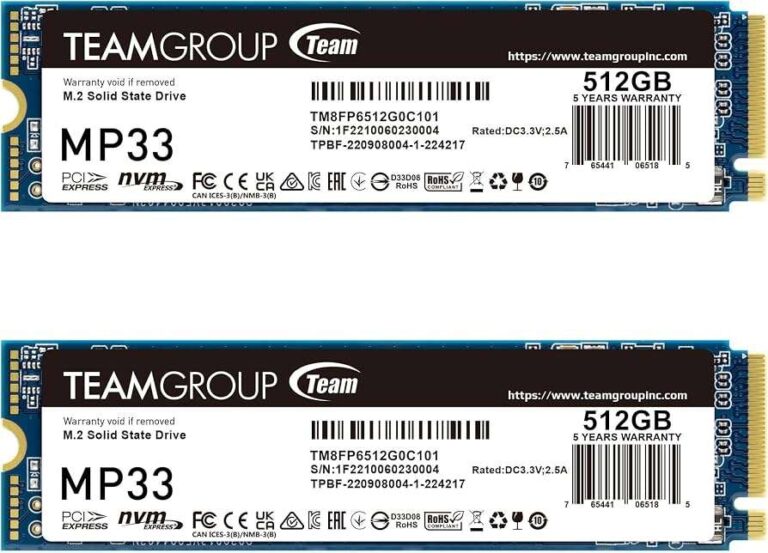
• M.2 SATA SSD: This is a small stick-shaped drive that uses the SATA interface.
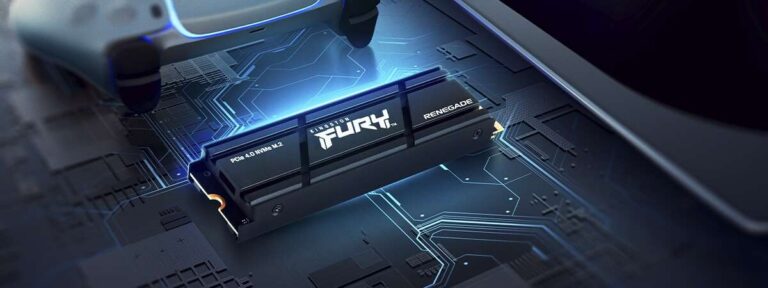
• M.2 NVMe SSD: This also looks like a small stick, but it uses the faster PCIe interface.
A 2.5-inch SATA SSD cannot replace every M.2 drive. Likewise, an NVMe SSD will not work in an M.2 slot that supports SATA only. The connector may look similar, but the technology behind it can be different.
In my experience, the most common upgrade mistake is buying a drive based only on its shape. Always check the laptop manual, service guide, or manufacturer specifications first.

How to Check if Your Laptop Supports an SSD
You can check compatibility in a few simple ways. Start with the exact laptop model number, not just the product family name. For example, “Dell Inspiron 15” is not specific enough because several versions may use different storage parts.
Use these steps:
-
Find the full model number on the bottom of the laptop, inside the battery bay, or in the system information screen.
-
Search the manufacturer’s support page for the service manual or technical specifications.
-
Look for terms such as “2.5-inch SATA,” “M.2 2280,” “M.2 SATA,” or “PCIe NVMe.”
-
Check the maximum supported storage capacity if the manufacturer lists one.
-
Confirm whether the laptop has a free slot or whether you must replace the current drive.
Windows users can also open Disk Management to see the current drive, but this does not always reveal the physical connector type. A system information tool may show whether the current drive is NVMe or SATA, but the manual remains the safest source.
A laptop with a hard disk usually has a 2.5-inch SATA bay. A newer laptop may have an M.2 slot instead. Some thin laptops have storage soldered directly to the motherboard, which means an SSD upgrade may not be possible.


Which SSD Fits Your Laptop?
Choosing the correct SSD depends on the storage interface, size, and mounting method. Here is a simple breakdown.
2.5-Inch SATA SSD
A 2.5-inch SATA SSD is the best choice for many older laptops. It uses the same basic connection as a 2.5-inch hard drive, so it can often be installed as a direct replacement.
This type of SSD is usually limited to around 500 to 560 MB per second in sequential read speed. That is much faster than a typical hard drive, even though it is slower than NVMe storage.
Check these details before buying:
• The drive should use the 2.5-inch form factor.
• It should have a SATA data and power connector.
• The laptop bay may require a mounting bracket or adapter.
• Some laptops need a special drive connector or cable.
M.2 SATA SSD
An M.2 SATA SSD is narrow and often about 80 millimeters long. This size is called 2280, where 22 means 22 millimeters wide and 80 means 80 millimeters long.
M.2 SATA drives use the SATA interface even though they look like NVMe drives. An M.2 slot must support SATA for this drive to work.
M.2 NVMe SSD
An M.2 NVMe SSD uses PCIe lanes to transfer data. It is usually much faster than a SATA SSD, especially for large file transfers, video work, and demanding apps.
Most modern NVMe drives use the 2280 size, but some laptops need shorter 2230 or 2242 drives. The numbers describe the drive’s width and length.
Do not assume that every M.2 slot supports NVMe. Some laptops support only M.2 SATA, while others support both. The laptop manual should confirm the correct type.

How to Tell Whether You Need SATA or NVMe
The easiest way to identify the right drive is to inspect the existing storage specifications. You can also look at the connector key, but visual inspection alone is not always reliable.
An NVMe drive commonly uses an M-key edge connector. A SATA M.2 drive often uses a B-key or B and M-key design. However, laptop manufacturers can use different layouts, so the key is only a clue.


Choose a SATA SSD when:
• Your laptop has a 2.5-inch hard drive bay.
• Your M.2 slot supports SATA only.
• You want a low-cost upgrade for basic use.
Choose an NVMe SSD when:
• Your laptop manual confirms PCIe or NVMe support.
• You work with large files or demanding software.
• You want the fastest storage your laptop can support.
For web browsing, schoolwork, office apps, and normal startup tasks, both SATA and NVMe SSDs feel much faster than a hard drive. In daily use, the difference between SATA and NVMe may be less noticeable than the difference between an SSD and an old mechanical drive.
What Size SSD Should You Buy?
Capacity depends on how you use your laptop. Buying the cheapest drive can create problems if you run out of space soon after the upgrade.
Common choices include:
• 500GB: A good budget size for Windows, apps, documents, and light media.
• 1TB: A practical choice for most people and often the best value.
• 2TB: Useful for games, photos, videos, and large project files.
• 4TB or more: Best for heavy storage needs, but compatibility and price need closer review.
Try to leave at least 10% to 20% of the SSD empty. An SSD needs free space for background tasks, wear management, and efficient performance. A nearly full drive can become slower and harder to manage.
If your current laptop drive is 1TB and contains 700GB of data, a 500GB SSD will not be large enough for a direct clone. You would need to remove files, move data to another drive, or choose a larger SSD.

Can I Put a SSD in My Laptop Without Losing Files?
Yes, but you must plan the migration. Installing a new SSD does not automatically copy your operating system, apps, or personal files.


You have two main options.
Clone the Existing Drive
Cloning creates a near-copy of your current drive. This method keeps Windows, programs, settings, and files in place.
A typical cloning process looks like this:
-
Back up important files to an external drive or cloud service.
-
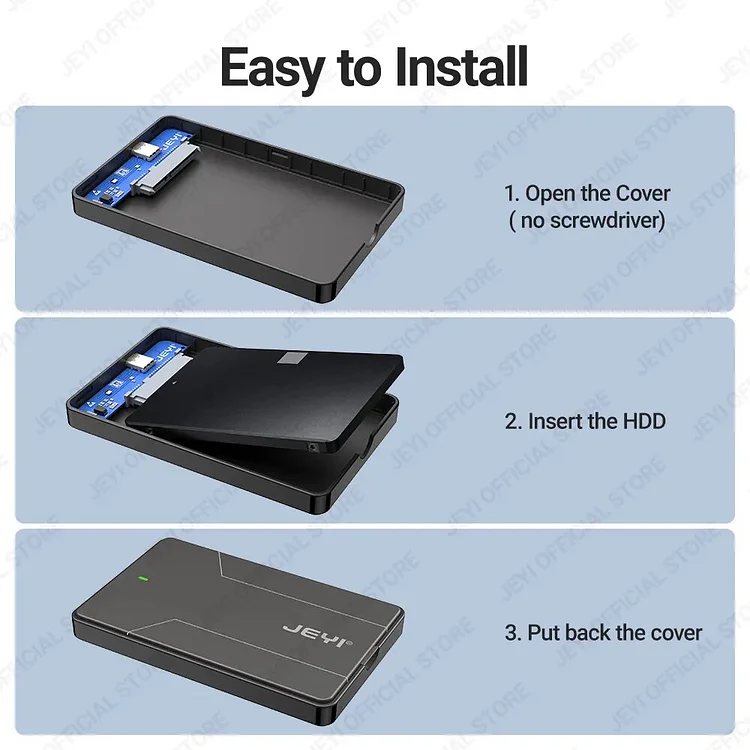
Connect the new SSD with a compatible USB-to-SATA or USB-to-NVMe enclosure.
-
Use reliable disk cloning software.
-
Clone all required system partitions, not only the visible Windows partition.
-
Shut down the laptop after cloning finishes.
-
Install the SSD and start the laptop.
-
Enter the boot menu or firmware settings if the laptop does not start from the new drive.
Cloning is convenient, but it can fail if the target SSD is smaller than the used space on the old drive. It can also copy corrupted files or unwanted software. Always keep the old drive untouched until you confirm that the new SSD works.
Perform a Fresh Installation
A fresh installation gives you a clean version of Windows. It can remove old drivers, clutter, and software problems that built up over time.
You will need:
• A Windows installation USB drive.
• A valid activation method or digital license.
• Copies of your personal files.
• Drivers and software installers.
A clean install takes more time, but it often gives the most reliable result. I usually recommend it when the old system has frequent crashes, malware concerns, or years of unused programs.

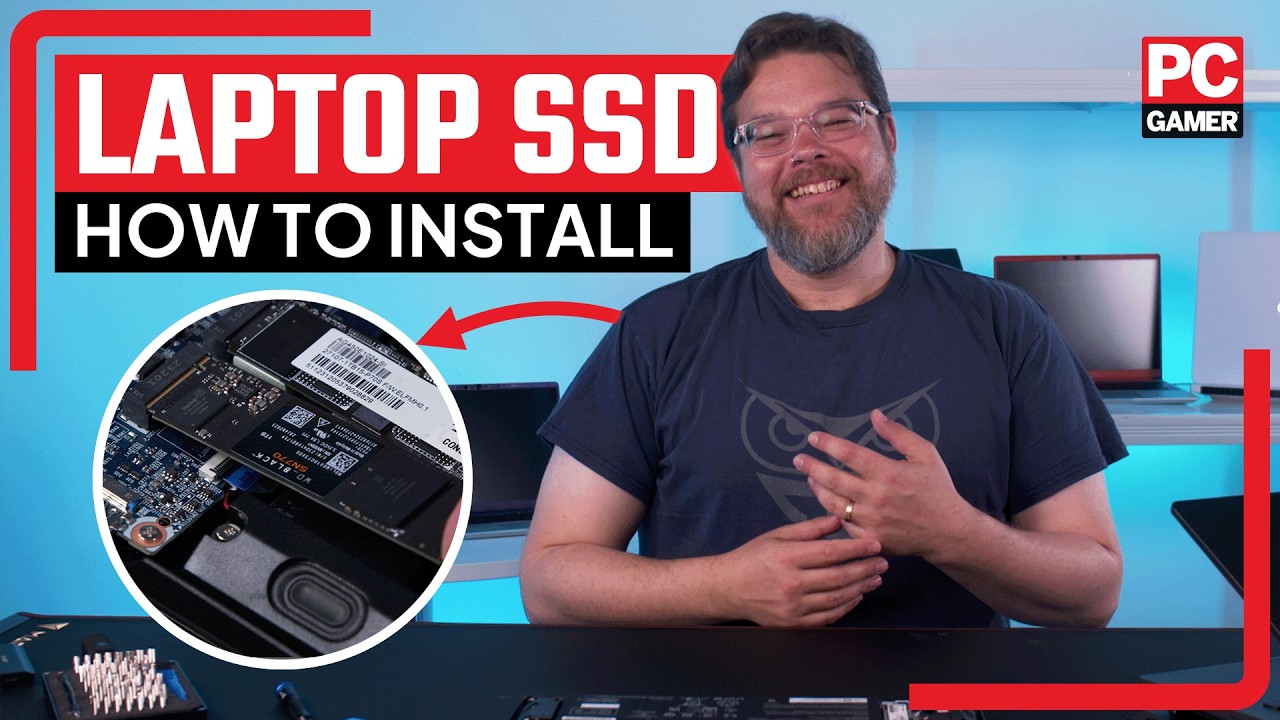
How to Install an SSD in a Laptop
Laptop designs vary, but the basic process is similar. If your laptop is under warranty, check the warranty terms before opening it.
-
Shut down the laptop completely.
-
Disconnect the charger and all accessories.
-
Hold the power button for several seconds to discharge leftover power.
-
Remove the bottom cover with the correct screwdriver.
-
Locate the existing drive or empty M.2 slot.
-
Disconnect the battery if the service manual recommends it.
-
Remove the old drive or install the new SSD in the available slot.
-
Secure the drive with the correct screw or bracket.
-
Reconnect the battery and bottom cover.
-
Start the laptop and check whether the firmware detects the SSD.
Work slowly and avoid touching gold contacts. Do not force a drive into its slot. An M.2 SSD slides in at a slight angle and then lies flat after you secure it.
Before closing the case, check the cable and screw placement. A missing bracket or loose cable can make a good SSD appear to be defective.
What to Do After Installing the SSD
After installation, enter the laptop’s BIOS or UEFI settings and confirm that the new SSD appears. If you cloned the old drive, set the new drive as the first boot option if needed.
In Windows, open Disk Management to confirm the full capacity. A new secondary SSD may need to be initialized, partitioned, and formatted before it appears in File Explorer.


You should also:
• Install the latest storage, chipset, and system drivers.
• Run Windows Update.
• Check that TRIM is enabled.
• Keep firmware updated when the SSD maker provides a safe update tool.
• Turn on a regular backup routine.
Modern Windows systems usually manage TRIM automatically. TRIM helps the operating system tell the SSD which blocks are no longer needed. This supports long-term performance and efficient data management.
Avoid using traditional hard drive defragmentation on an SSD. Windows normally detects the drive type and applies the correct optimization method.
Benefits of Putting an SSD in a Laptop
The biggest benefit is speed. An SSD has no spinning platters or moving read head, so it can access data much more quickly than a mechanical hard drive.
You may notice:
• Faster startup and shutdown.
• Quicker app launches.
• Less delay when opening files.
• Better performance during multitasking.
• Lower noise because there are no moving parts.
• Better resistance to bumps during travel.
An SSD can also improve battery life in some laptops because it may use less power than an older hard drive. The result varies by laptop design, battery health, screen brightness, and processor workload.
An SSD does not upgrade every part of a laptop. It will not add more RAM or make an old processor equal to a new one. Still, for a laptop that feels slow because of its hard drive, an SSD can feel like a major refresh.
Limits and Problems to Watch For
An SSD upgrade is not always simple. Some laptops have storage soldered to the motherboard, and others require special parts that are difficult to find.


Common problems include:
• The drive is the wrong interface.
• The M.2 drive is the wrong length.
• The laptop lacks a mounting screw or bracket.
• The new drive is not detected because of a loose connection.
• The cloned drive has incorrect boot settings.
• The laptop firmware needs an update.
• The replacement SSD is too small for the current data.
• The drive becomes hot during heavy workloads.
Some very thin laptops use a custom storage module. In these systems, a standard M.2 SSD may not fit even if the module looks similar. Always compare the exact model and part number.
If the laptop uses an encrypted drive, cloning may require extra care. Save your recovery key before making changes. Without it, you may lose access to encrypted files after a hardware change.
SSD Upgrade Cost and Value
SSD prices change often, but the upgrade is usually affordable compared with buying a new laptop. A 500GB or 1TB SATA SSD is often enough for everyday use. NVMe models may cost more, especially when they offer high endurance or advanced performance.
You may also need to budget for:
• A USB drive enclosure for cloning.
• A mounting bracket or SATA cable.
• A screwdriver kit.
• Professional installation.
• A separate backup drive.
If you are not comfortable opening the laptop, a repair shop can install the SSD and transfer your data. Ask whether the service includes cloning, testing, and a backup recommendation.
In my experience, paying a little more for a known, reliable SSD is safer than choosing an unknown drive with impressive speed claims. Warranty length, endurance rating, firmware support, and real user reviews all matter.
Common SSD Upgrade Mistakes
Avoid these mistakes before and during the upgrade:
Buying by Appearance Alone
Two M.2 SSDs can look identical but use different interfaces. Confirm SATA or NVMe support before ordering.
Skipping the Backup
A clone is not a backup. If the old drive fails during the process, you need a separate copy of important files.
Choosing Too Little Storage
A drive that is almost full will be frustrating. Compare the amount of used space on your current drive with the new SSD capacity.
Forgetting the Laptop Screw
M.2 drives need a small retaining screw. Without it, the drive can lift from the connector or move inside the laptop.
Keeping the Old Drive in the Wrong Place
After cloning, the laptop may try to boot from the old drive. Remove it temporarily or change the boot order to test the new SSD.
Ignoring Heat
Some fast NVMe drives run warm. Make sure the laptop has enough airflow and use a compatible thermal pad only when the laptop design supports one.
Frequently Asked Questions About Can I Put a SSD in My Laptop
Can I put a SSD in my laptop if it has a hard drive?
Yes, you can usually replace a 2.5-inch laptop hard drive with a 2.5-inch SATA SSD. Check whether the laptop needs a special connector, bracket, or cable before buying the drive.
Can I put a NVMe SSD in my laptop?
You can put an NVMe SSD in your laptop only if its M.2 slot supports PCIe or NVMe storage. An M.2 slot that supports SATA alone will not recognize an NVMe drive.
Will installing an SSD delete everything?
Installing an SSD does not delete files by itself, but replacing the old drive can leave you without your data if you do not clone or back it up. Make a separate backup before starting the upgrade.
Can I put a SSD in my laptop without reinstalling Windows?
Yes, cloning the old drive to the new SSD lets you keep Windows, apps, settings, and files. The new SSD must be large enough for the used data, and the clone must include the required boot partitions.
How much faster will my laptop be with an SSD?
Startup, app loading, and file access usually become much faster than with a mechanical hard drive. The improvement is smaller if your laptop already has an SSD or if its processor and memory are the main limits.
Does every laptop support an SSD upgrade?
No. Some laptops have soldered storage or use a custom module that cannot be replaced with a standard SSD. The service manual and exact model specifications can confirm whether an upgrade is possible.
Conclusion
So, can I put a SSD in my laptop? In most cases, yes, but you must match the drive to the laptop’s connector, interface, size, and mounting system. A 2.5-inch SATA SSD suits many older laptops, while newer models may support M.2 SATA or M.2 NVMe storage.
Back up your files, check the manufacturer’s specifications, and choose enough capacity for future use. If you are unsure, a repair professional can verify the slot and complete the upgrade safely. Take a few minutes to identify your laptop model before ordering, and you can turn a slow computer into a much more enjoyable daily tool.