

Improve airflow, use a proper heatsink, and monitor drive temperatures to stop gaming slowdowns.
SSD heat can turn a smooth gaming session into a stuttery one. Modern NVMe drives can move huge amounts of data, but that speed creates heat, especially during game installs, large updates, shader compilation, and file transfers. Learning how to reduce ssd overheating while gaming helps protect performance and may extend the drive’s useful life.
The good news is that most fixes are simple. With better case airflow, correct heatsink installation, sensible drive placement, updated firmware, and regular temperature checks, you can keep your SSD cool without spending much money.
Why SSDs Overheat While Gaming
Solid-state drives have no moving parts, but they still produce heat. The main source is the SSD controller, which manages data flow between the NAND flash memory and your computer. Faster PCIe 4.0 and PCIe 5.0 NVMe drives often generate more heat than older SATA or PCIe 3.0 models.
Gaming can heat an SSD in several ways:
• Loading large open-world games can create steady read activity.
• Installing or updating games can write many gigabytes of data.
• Recording gameplay can send a constant stream of video files to the drive.
• Shader compilation can cause short bursts of heavy storage use.
• Game captures, mods, and temporary files can create extra background activity.
• A graphics card may push hot air directly toward the M.2 slot.
An SSD does not need to feel extremely hot to reduce its speed. When the controller reaches its thermal limit, the drive may use thermal throttling. This lowers performance so the hardware can cool down. You may notice longer loading times, stutter during asset streaming, or slower downloads and installations.
This is why knowing how to reduce ssd overheating while gaming matters most on compact PCs, high-end systems, and computers with powerful graphics cards.
Check Your SSD Temperature First
Before changing hardware, measure the problem. Many users install a heatsink or change fan settings without knowing whether the SSD is actually too hot.
Use a trusted monitoring tool that can read NVMe or SATA SMART data. Look for these readings:
• Drive temperature: This shows the current sensor reading.
• Controller temperature: Some drives report a separate controller sensor.
• Temperature history: A peak reading is more useful than an idle reading.
• Health status: SMART data can show warnings and total data written.
As a general guide, an SSD may idle around 30 to 50°C, depending on room temperature and airflow. During heavy use, many drives operate safely around 50 to 70°C. The exact limit depends on the model, so check the technical specifications for your drive.
A brief peak is usually less worrying than a drive that remains hot for hours. If temperatures stay near the manufacturer’s maximum, or if performance drops during long transfers, take action.
For a useful test, launch a demanding game and play for 20 to 30 minutes. Then check the SSD temperature before closing the game. Repeat the test during a large game installation or file transfer. This shows whether gaming or background tasks cause the real heat problem.
Understanding the temperature pattern is one of the most important parts of how to reduce ssd overheating while gaming. It prevents you from treating a normal reading as a serious fault.
Improve Case Airflow
Good airflow is often the cheapest way to lower SSD temperature. Your case should bring cool air in from the front or bottom and push warm air out through the rear or top.
A simple airflow layout works well:
• Front or bottom fans should act as intake fans.
• Rear and top fans should act as exhaust fans.
• Keep cables away from the M.2 area.
• Remove dust from filters, fan blades, and vents.
• Leave space around the case so hot air can escape.
Airflow behaves like traffic on a busy road. If the air has no clear path, it slows down and heat builds up. A powerful fan cannot fix poor airflow if hot air remains trapped around the motherboard.
Check the graphics card position as well. Large GPUs can cover an M.2 slot or block air from reaching it. If your main SSD sits directly below the graphics card, it may absorb heat from the GPU during gaming.
In one common test setup, moving a front intake fan slightly lower improved airflow across the M.2 area more than increasing the fan speed. This is a useful lesson: fan position often matters more than fan noise.
If you use a small-form-factor case, airflow becomes even more important. Compact systems have less internal space, so heat from the CPU and GPU can quickly raise the temperature of nearby storage.
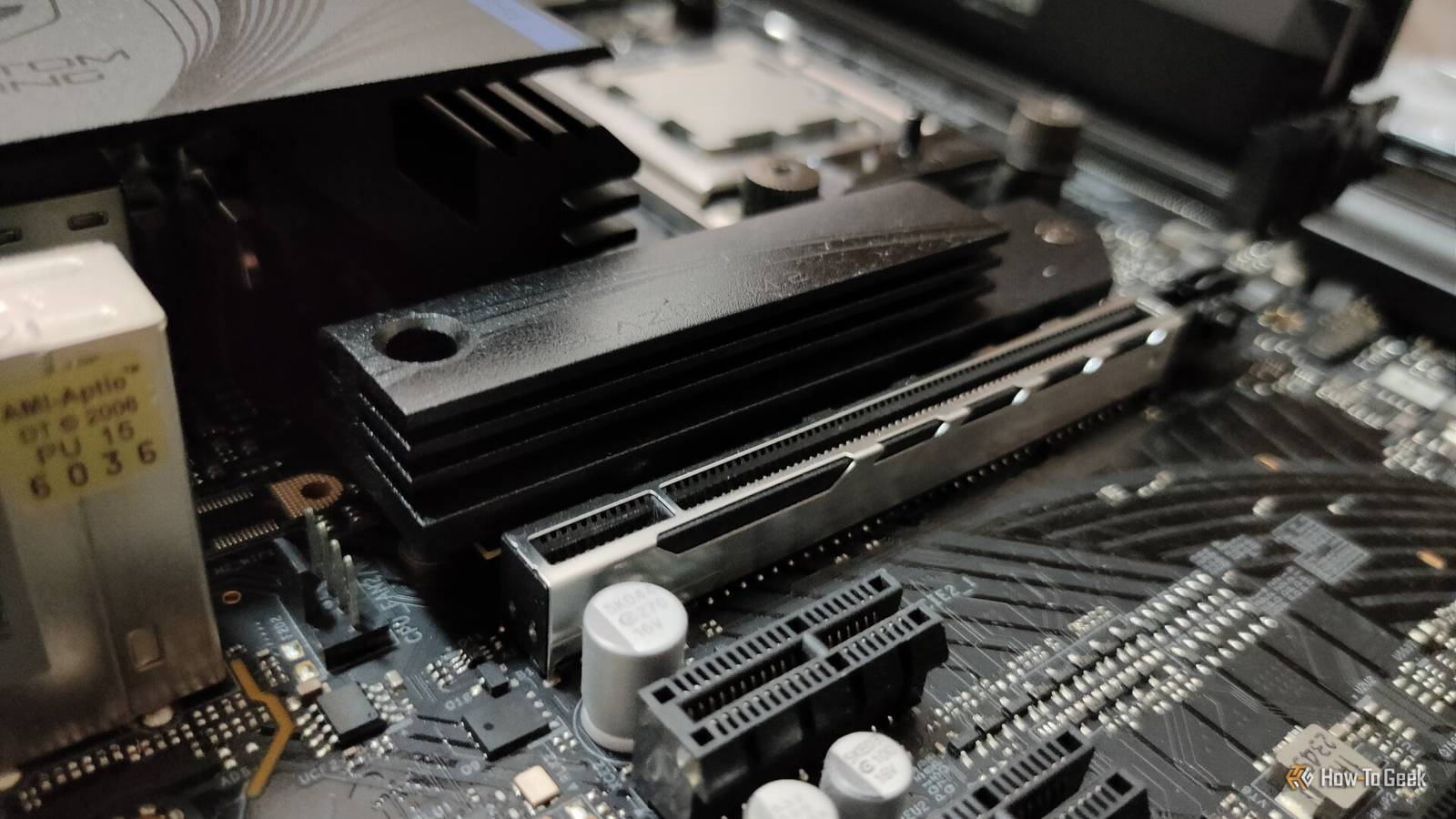
Install an SSD Heatsink Correctly
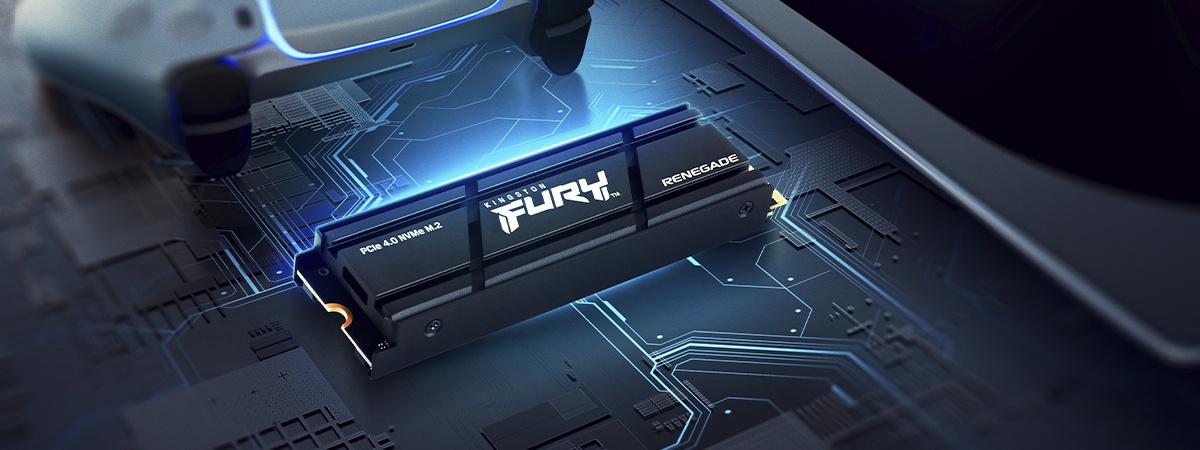
A heatsink can help move heat away from the SSD controller. Many motherboards include an M.2 cover, while some SSDs come with their own heatsink.
The best option depends on your drive and motherboard:
• Use the motherboard’s M.2 heatsink if it has a good thermal pad and fits correctly.
• Use the SSD manufacturer’s heatsink if the drive includes one.
• Choose a third-party heatsink with a thermal pad made for M.2 drives.
• Make sure the heatsink does not touch nearby components.
Correct installation matters. Remove the thin protective film from the thermal pad before installation. The pad must touch the SSD controller or the correct chip area. A pad with poor contact cannot transfer heat effectively.
Do not stack two heatsinks. For example, placing a motherboard M.2 cover over an SSD that already has a tall heatsink can create pressure or prevent proper contact. It may also interfere with the graphics card.
A heatsink does not create cold air. It spreads heat across a larger surface so airflow can remove it. In a case with poor airflow, a heatsink may only delay the temperature rise.
This is a key detail in how to reduce ssd overheating while gaming: cooling works best as a system. The heatsink, thermal pad, case fans, and room temperature all affect the result.
Choose the Best M.2 Slot
Motherboards often have more than one M.2 slot. They may not all offer the same speed or cooling.
The top slot is usually connected directly to the CPU and may support the fastest PCIe standard. It may also sit close to the graphics card, where heat is higher. A lower slot may have better airflow but share bandwidth with other devices.
Before moving the SSD, check your motherboard manual. Look for:
• PCIe generation supported by each M.2 slot.
• Whether the slot shares lanes with SATA ports or expansion slots.
• Whether a slot disables another device when used.
• Whether the slot has an included heatsink.
• Whether the slot supports your SSD’s size and interface.
Do not assume the fastest slot is always the coolest. A drive under a large graphics card may run hotter than one in a slightly slower slot with open airflow. For gaming, the real-world difference between PCIe speeds may be small, while thermal stability can matter more during long sessions.
Moving the drive is not always necessary. Test the temperature first, and make sure the new slot still supports the performance you need.
Keep the SSD Firmware and Drivers Updated
SSD firmware controls important features such as power states, error handling, thermal limits, and performance behavior. Manufacturers sometimes release updates that improve stability or fix temperature-related problems.
Before updating firmware:
Back up important files.
Identify the exact SSD model and capacity.
Use the manufacturer’s official management software.
Close games and other storage-heavy programs.
Avoid shutting down the computer during the update.
Your motherboard BIOS and chipset drivers can also affect PCIe power management. Keeping them updated may improve compatibility, but do not update firmware without a reason or backup. A failed update can create a new problem.
Windows power settings also matter. A performance-focused plan may keep the SSD and other components active more often. A balanced plan can reduce idle power use without affecting normal gaming in many systems.
Firmware updates are not a replacement for airflow. Still, they are an important part of how to reduce ssd overheating while gaming because software can affect how aggressively the drive works.
Reduce Heat From the Graphics Card
The graphics card is often the biggest heat source inside a gaming PC. Its cooler can send warm air toward the M.2 slot, especially in a compact case or with a large three-slot GPU.
Try these practical steps:
• Clean dust from the GPU and case filters.
• Set a sensible GPU fan curve.
• Use a modest GPU undervolt if you understand the process.
• Avoid blocking the GPU intake fans.
• Improve front-to-back case airflow.
• Keep the computer away from walls and enclosed shelves.
A small GPU undervolt can reduce power use and heat with little gaming performance loss. However, stability varies by graphics card, so test each change with a demanding game or benchmark.
You can also limit frame rates in games where your system produces far more frames than your monitor can display. Lower GPU power often means less heat around the SSD.
Do not place the PC on thick carpet if it blocks the bottom intake. Keep at least a few inches of open space around the case vents.
Manage Background Storage Activity
Gaming may not be the only task using your SSD. Game launchers, cloud sync tools, antivirus scans, backup programs, and operating system updates can work in the background.
To reduce unnecessary activity:
• Pause game downloads while playing another demanding title.
• Schedule large backups for times when you are not gaming.
• Close unused launchers.
• Check Task Manager for heavy disk activity.
• Keep recording software from saving footage to the same hot drive.
• Leave free space on the SSD for normal maintenance.
An SSD that is nearly full may have less room for background management. Keeping at least 10% to 20% free is a practical rule, although the ideal amount varies by model and workload.
If you record gameplay, consider saving video to a separate SSD. This spreads heat and write activity across two drives. It can also reduce competition between game loading and video recording.
Reducing background activity is one of the easiest ways to reduce ssd overheating while gaming because it lowers the total workload without changing your game settings.

Adjust Game and Windows Settings
You usually do not need to lower game graphics settings to protect an SSD. Graphics quality mainly affects the GPU, not storage. However, some settings and habits can reduce unnecessary drive activity.
Consider these changes:
• Disable automatic downloads during active gaming hours.
• Move rarely played games to a cooler secondary drive.
• Avoid repeated game benchmark runs when they are not needed.
• Limit background recording quality and file size.
• Turn off unused game mods that constantly update files.
• Use a balanced power mode when maximum system performance is not required.
Some games stream large assets from storage while you move through the world. If the SSD becomes too hot, throttling may affect asset delivery. In that case, lowering texture streaming distance may help temporarily, but cooling the drive is the better long-term fix.
Do not use extreme operating system tweaks that disable important thermal protections. Thermal throttling is a safety feature. Removing it may increase the risk of errors or permanent damage.
Control Room Temperature and Dust
Room temperature directly affects every component in your PC. If the room is already hot, the SSD has less opportunity to release heat into the air.
Helpful habits include:
• Keep the room cool during long gaming sessions.
• Clean dust filters every few months.
• Clean more often if you have pets or smoke indoors.
• Avoid placing the PC inside a closed desk cabinet.
• Make sure fan filters are installed correctly.
Dust acts like a blanket over heatsinks and filters. Even a thin layer can reduce airflow. Power off the system before cleaning, and use short bursts of compressed air while holding fans still.
Never open an SSD enclosure unless the manufacturer specifically instructs you to do so. Internal components are delicate, and opening the drive may affect its warranty.
Room temperature is often overlooked when people search for how to reduce ssd overheating while gaming. Yet lowering the ambient temperature by a few degrees can improve the starting point for the entire system.
Know When the Heat Is a Real Problem
Not every warm SSD needs immediate replacement. Look for symptoms that connect heat with performance or reliability problems.
Possible warning signs include:
• Sudden drops in transfer speed during large writes.
• Game stutter that appears after extended play.
• Drive temperatures near the specified maximum.
• SMART warnings or health alerts.
• File errors, crashes, or failed installations.
• The SSD disappearing from the BIOS or operating system.
Thermal throttling during a long file transfer may be normal. Repeated errors or disconnects are not. Back up your data at once if the drive reports health warnings or becomes unstable.
A drive can also run hot because of a faulty thermal pad, poor heatsink contact, damaged firmware, or a defective controller. If airflow and heatsink installation do not help, contact the manufacturer or a qualified technician.
Temperature readings can vary by sensor and software. One program may show the controller temperature while another shows a secondary NAND sensor. Use the same tool for before-and-after comparisons, and check the drive’s specifications for context.
A Practical Cooling Checklist
Use this checklist to apply how to reduce ssd overheating while gaming in the right order:
Check idle and gaming temperatures.
Inspect the SSD’s SMART health data.
Clean the case and filters.
Confirm that intake and exhaust fans face the correct direction.
Check whether the SSD sits under the graphics card.
Install or reseat the M.2 heatsink.
Confirm that the thermal pad contacts the controller.
Update SSD firmware and chipset drivers.
Pause unnecessary downloads and background backups.
Test the system again during a long gaming session.
Move the SSD to another supported M.2 slot if needed.
Replace the drive or seek technical support if errors continue.
Change one or two things at a time. If you change everything at once, you may not know which fix worked. Record the peak temperature and game performance after each change.
This method is safer and more useful than buying the largest heatsink immediately. In many computers, cleaning dust and improving airflow solves the problem.

Mistakes to Avoid
Some cooling attempts can make the problem worse. Avoid these common errors:
• Installing a heatsink without removing the protective film from the thermal pad.
• Using a thermal pad that is too thick or too thin.
• Covering the SSD with an incompatible motherboard shield.
• Blocking the graphics card or M.2 slot with cables.
• Increasing fan speeds so much that dust builds up faster without improving airflow.
• Disabling thermal protection in firmware or software.
• Using unverified firmware tools.
• Treating one short temperature spike as proof of failure.
Do not apply regular thermal paste directly to an M.2 SSD unless the cooler is specifically designed for it. Thermal pads are normally used because they provide the correct gap and are easier to install safely.
Also, avoid placing an SSD in a sealed external enclosure during long gaming transfers. External drives have limited airflow and may become warmer than an internal drive.
Good cooling is about balance. The goal is stable performance, not the lowest possible temperature at any cost.
Frequently Asked Questions About How to Reduce SSD Overheating While Gaming
What temperature is too hot for an SSD while gaming?
Many SSDs work normally in the 50 to 70°C range under load, but the safe limit depends on the model. Check the manufacturer’s specifications, and take action if the drive stays near its maximum temperature or begins throttling.
Does an SSD heatsink help with gaming?
Yes, an SSD heatsink can lower controller temperature and reduce thermal throttling. It works best when the thermal pad makes full contact and the case has good airflow.
Can a hot SSD cause game stuttering?
It can. If the drive throttles during asset streaming or heavy background activity, loading times may increase and stutter may appear. GPU, CPU, memory, and network issues can cause similar symptoms, so monitor the whole system.
Is it safe to put an NVMe SSD under the graphics card?
It can be safe if the motherboard supports that slot and the SSD remains within its rated temperature range. However, the area under a graphics card may be warmer, so use the included M.2 heatsink and test temperatures during gaming.
Should I move games to another drive to reduce SSD heat?
Moving some games can help if one SSD handles gaming, recording, downloads, and backups at the same time. It will not fix poor case airflow, but spreading workloads can reduce heat and storage congestion.
Does keeping free space lower SSD temperature?
Keeping free space can support normal SSD maintenance and sustained performance, but it does not directly cool the drive. Aim to keep roughly 10% to 20% free when practical, especially on a heavily used gaming drive.
Can I use a laptop cooling pad to cool an internal SSD?
A laptop cooling pad may help only if it improves airflow through the laptop’s intake vents. It cannot directly cool the SSD, and blocked vents or internal dust may still be the main cause of high temperatures.
Conclusion
The most reliable way to reduce ssd overheating while gaming is to combine temperature monitoring with better airflow, correct heatsink installation, clean vents, and controlled background activity. Start with simple steps before buying new hardware. Check the drive, clean the case, improve airflow, and test again.
A cool SSD is not only about lower numbers. It helps maintain steady performance during long gaming sessions and reduces the chance of thermal throttling. Use the checklist, follow your SSD manufacturer’s specifications, and share your results or questions in the comments.
