

To connect wireless earbuds, turn on Bluetooth, open the earbuds case, and select them from your device’s Bluetooth menu.
Learning how to connect wireless earbuds is simple once you understand pairing mode, Bluetooth settings, and the small differences between phones, computers, and tablets. This guide explains the full process, including first-time setup, reconnecting, pairing one earbud, fixing common problems, and keeping your connection stable.
What You Need Before Connecting Wireless Earbuds
Before you learn how to connect wireless earbuds, check that both the earbuds and your device are ready. Most connection problems come from low battery, an old pairing record, or earbuds that are still linked to another device.
Make these quick checks:
• Charge the earbuds and charging case. A few minutes of charging can prevent failed pairing.
• Turn on Bluetooth on your phone, tablet, laptop, or smart TV.
• Keep the earbuds within about 3 feet of the device during setup.
• Disconnect the earbuds from other nearby devices.
• Read the quick-start guide if your earbuds use a special pairing button or app.
Most Bluetooth earbuds use a small LED to show their status. A flashing white, blue, or red-and-blue light often means pairing mode is active. The exact color depends on the brand, so check the manual when the light pattern seems unclear.
In my experience testing earbuds, the most common mistake is opening the Bluetooth menu before putting the earbuds into pairing mode. The device may scan correctly, but it will not see earbuds that are already connected elsewhere.

How to Connect Wireless Earbuds for the First Time
The first connection creates a Bluetooth pairing between your earbuds and your device. After that, the earbuds will usually reconnect on their own whenever Bluetooth is enabled and the earbuds are removed from the case.
Follow these steps:
Place both earbuds in the charging case.
Open the case lid. Some models enter pairing mode at this point.
Press and hold the case button for a few seconds if the earbuds do not appear.
Open the Bluetooth settings on your device.
Look under “Available Devices,” “Other Devices,” or a similar menu.
Tap the name of your earbuds.
Accept any pairing request or confirmation message.
Play audio to test the connection.
If the earbuds ask for a PIN, try “0000” or “1234.” Most modern earbuds do not need a PIN, but some older Bluetooth devices still use one.
Once connected, you may see a battery level, connection icon, or device status. This confirms that the earbuds are paired. If you only see the earbuds listed as “Saved” or “Paired” but not “Connected,” tap the device name again.
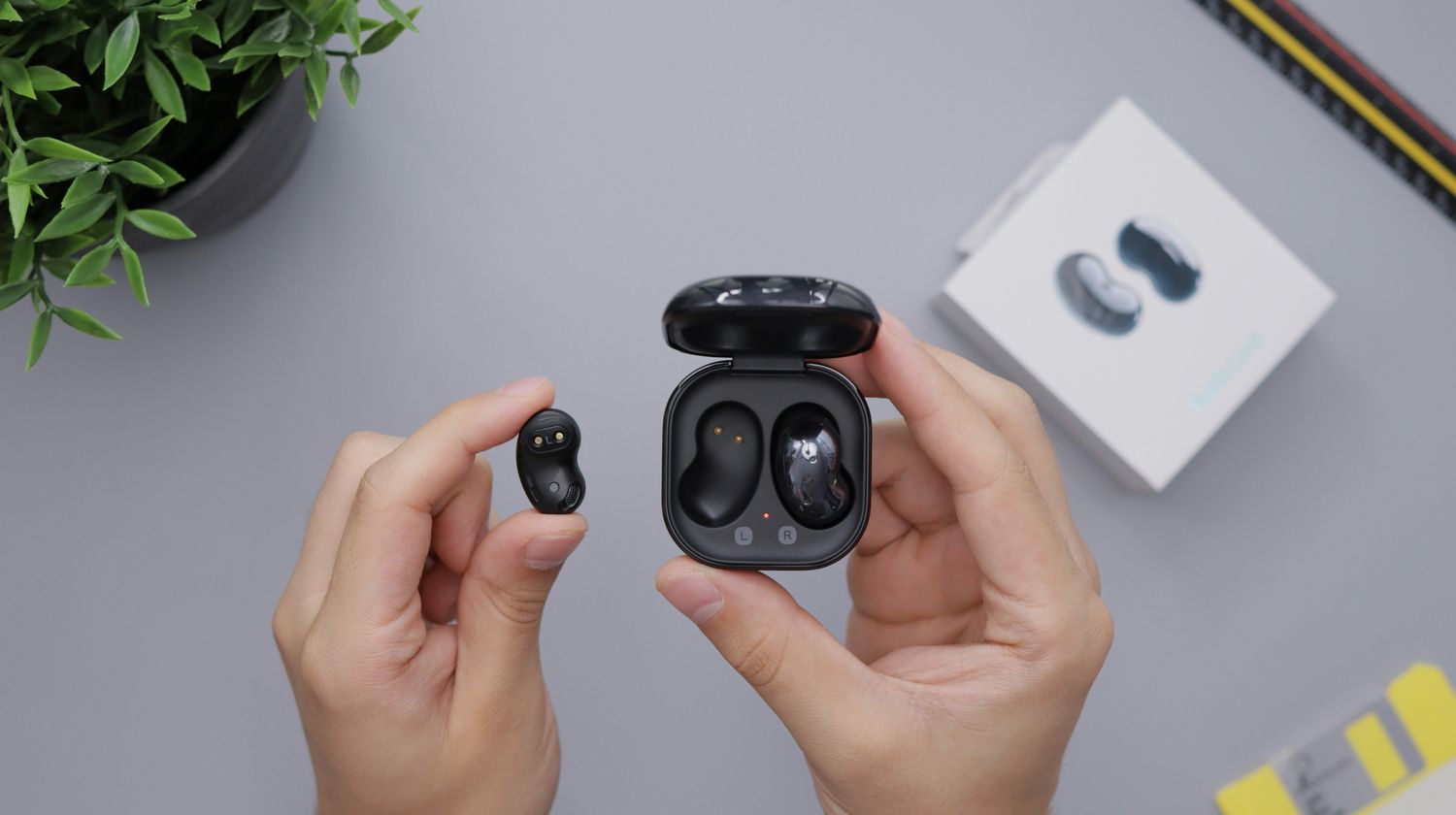
How to Connect Wireless Earbuds to an iPhone or iPad
Apple devices make it easy to connect wireless earbuds. The steps work with most Bluetooth earbuds, including models that are not made by Apple.
Open Settings on your iPhone or iPad.
Tap Bluetooth.
Turn Bluetooth on.
Put the earbuds into pairing mode.
Tap the earbuds when they appear under “Other Devices.”
Wait for the status to change to “Connected.”
AirPods may connect through a setup card when you open the case near an iPhone. For other brands, use the standard Bluetooth menu. Some features, such as battery widgets, equalizer controls, or firmware updates, may require the earbud maker’s app.
If the earbuds do not appear, close the case, wait 10 seconds, and open it again. Then press the pairing button and keep the Bluetooth screen open.
Apple devices remember many Bluetooth accessories, but they may automatically connect to the last device used. If you own an iPhone, Mac, and iPad, check which device currently has the earbuds connected.

How to Connect Wireless Earbuds to an Android Phone
Android phones use a similar process, although menu names can differ by brand. Samsung Galaxy, Google Pixel, Motorola, and OnePlus phones may place Bluetooth settings in slightly different locations.
Open Settings.
Tap Connected devices, Connections, or Bluetooth.
Select Pair new device if needed.
Put the earbuds into pairing mode.
Tap the earbuds’ name.
Approve the pairing request.
You can also open Quick Settings by swiping down from the top of the screen. Press and hold the Bluetooth icon to open the full Bluetooth menu.
Some Android phones show a Fast Pair notification when compatible earbuds are nearby. Tap Connect on the notification and follow the instructions. This can save time, but the earbuds still need enough battery and must not be connected to another device.
Android also allows many earbud apps to control sound modes, touch controls, and software updates. Install the official app only from a trusted app store, and review its permissions before completing setup.

How to Connect Wireless Earbuds to a Windows PC
Connecting wireless earbuds to Windows is useful for calls, music, games, and video meetings. Windows 11 and Windows 10 use slightly different menus, but the basic process is the same.
Windows 11
Open Settings.
Select Bluetooth & devices.
Turn Bluetooth on.
Click Add device.
Choose Bluetooth.
Put the earbuds into pairing mode.
Select the earbuds from the list.
Click Done.
Windows 10
Open Settings.
Choose Devices.
Select Bluetooth & other devices.
Turn Bluetooth on.
Click Add Bluetooth or other device.
Choose Bluetooth.
Select the earbuds.
After pairing, click the speaker icon in the taskbar and choose the earbuds as the sound output. For calls, also check the microphone input in Windows sound settings.
A common Windows issue is poor call quality. This can happen when Windows switches from a high-quality stereo profile to a headset profile that uses the earbud microphones. For better music, select the stereo output when you do not need the microphone.
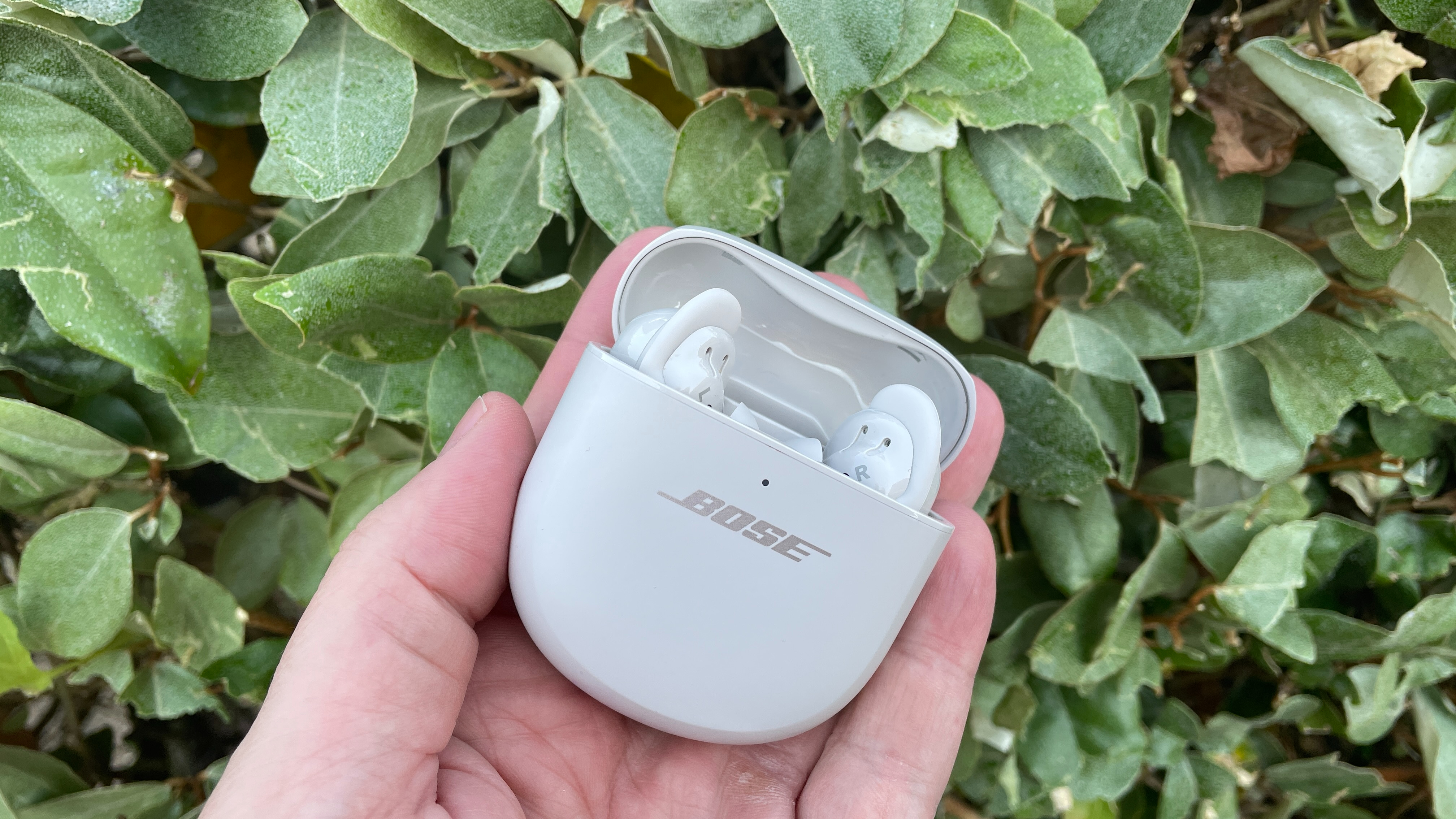
How to Connect Wireless Earbuds to a Mac
A Mac can connect to most Bluetooth earbuds in a few steps.
Open the Apple menu.
Select System Settings.
Click Bluetooth.
Turn Bluetooth on.
Put the earbuds into pairing mode.
Find the earbuds in the device list.
Click Connect.
On older macOS versions, Bluetooth appears inside System Preferences. After connection, click the Control Center icon in the menu bar and choose the earbuds under Sound.
If you use the earbuds for Zoom, FaceTime, or another calling app, select them inside the app as well. Some apps keep their own audio settings and may continue using the Mac’s built-in speakers.
When learning how to connect wireless earbuds to a Mac, remember that automatic switching may depend on your Apple account, earbud model, and operating system version. Basic Bluetooth audio should work even when advanced switching features do not.
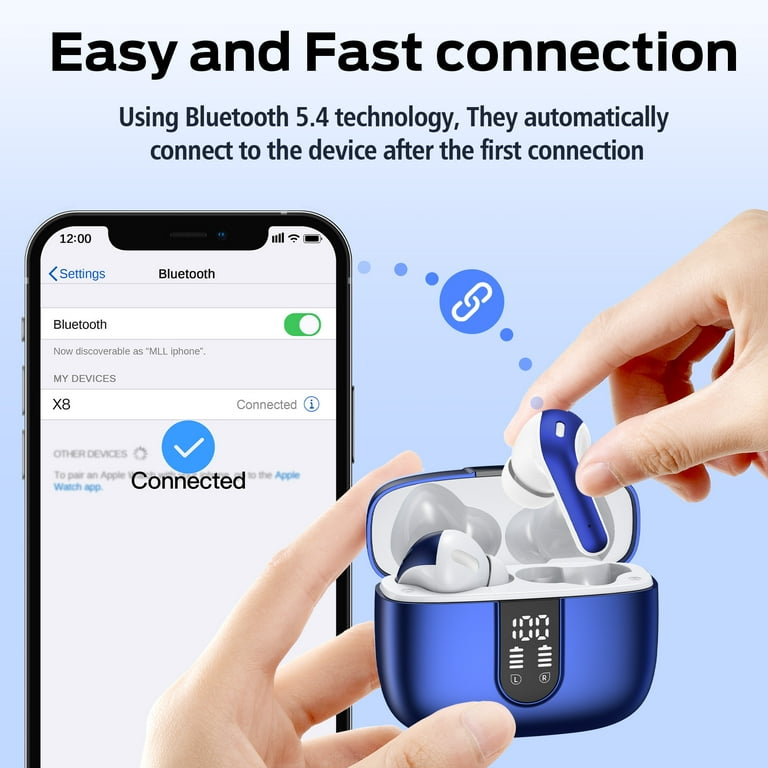
How to Pair Wireless Earbuds With a Smart TV
Many smart TVs support Bluetooth audio, but not all models do. Check the TV’s audio or sound settings for Bluetooth, wireless speaker, or headphone options.
Try this process:
Put the earbuds into pairing mode.
Open the TV’s Settings menu.
Go to Sound or Audio Output.
Select Bluetooth speaker or Bluetooth device.
Choose the earbuds.
Confirm the connection.
Some TVs support only certain Bluetooth profiles. Even when the earbuds connect, you may notice a small delay between the picture and sound. This delay is more common with older TVs, older earbuds, or video apps that do not correct audio timing.
If your TV has no Bluetooth option, you may need a Bluetooth transmitter. Connect the transmitter to the TV’s optical, headphone, or audio output, then pair the earbuds with the transmitter.

How to Connect Wireless Earbuds When They Are Already Paired
Paired does not always mean connected. Pairing means the device remembers the earbuds. Connecting means the earbuds are actively sending or receiving sound.
To reconnect them:
Turn on Bluetooth on the device.
Open the earbud case or remove the earbuds.
Open the Bluetooth device list.
Tap the earbuds’ name.
Confirm that the status says “Connected.”
If the earbuds connect to the wrong device, turn off Bluetooth on that device for a moment. You can also select the earbuds from the audio output menu instead of the main Bluetooth settings.
Some earbuds support multipoint Bluetooth. This feature lets them stay connected to two devices, such as a phone and laptop. Multipoint is convenient, but it can also make the earbuds seem unpredictable when both devices send connection requests.

How to Connect Only One Wireless Earbud
Most true wireless earbuds can work with one earbud alone. This is helpful when you want to hear traffic, save battery, or take a short call.
Use these steps:
Put both earbuds in the case.
Close the lid for a few seconds.
Remove the earbud you want to use.
Open your device’s Bluetooth settings.
Tap the paired earbud name.
Some models use the left earbud as the main connection. Others let either earbud connect independently. If one earbud works but the other does not, place both earbuds in the case and reset them according to the manufacturer’s instructions.
Single-earbud use can reduce stereo sound quality because music may still be mixed for two channels. If voices or instruments seem missing, look for a mono audio setting on your phone.

How to Fix Wireless Earbuds That Will Not Connect
When wireless earbuds will not connect, work through the problem in order. Start with simple causes before resetting everything.
Check the battery
Low battery can stop pairing or cause repeated disconnections. Charge both earbuds and the case for at least 15 minutes.
Turn Bluetooth off and on
Switch Bluetooth off, wait a few seconds, and turn it on again. This refreshes the wireless connection without changing your saved devices.
Move away from interference
Wi-Fi routers, USB 3.0 devices, microwaves, and crowded public areas can create wireless interference. Bluetooth normally handles interference well, but distance and obstacles still matter.
Forget and pair again
Open the Bluetooth settings, select the earbuds, and choose Forget This Device, Remove Device, or Unpair. Then restart the pairing process from the beginning.
Reset the earbuds
A factory reset clears old connections and solves many pairing problems. The reset method differs by brand, but it often involves holding the case button while the earbuds are inside.
Update software
Check for phone, computer, earbud app, and firmware updates. Updates can fix connection errors, improve compatibility, and address security issues. Only install firmware through the official manufacturer app or support page.
In my testing, forgetting the old Bluetooth record fixes more problems than repeatedly tapping the earbud name. Think of the old pairing record as a damaged key. Deleting it lets your device create a fresh one.
How to Improve Bluetooth Earbud Connection Quality
A strong connection depends on more than pairing. Bluetooth uses short-range radio signals, so your body, walls, and nearby electronics can affect performance.
Use these habits:
• Keep the source device within 30 feet when possible.
• Avoid placing the phone inside a bag on the opposite side of your body.
• Keep the earbud case and charging contacts clean.
• Use the latest supported Bluetooth version on both devices.
• Close apps that create heavy wireless traffic if cutting out continues.
• Keep the earbud firmware current.
Bluetooth audio quality also depends on the codec. Common codecs include SBC, AAC, aptX, and LDAC. The phone and earbuds must support the same codec, and the device may choose a lower-quality option for stability.
Codec support does not guarantee better sound in every situation. Fit, earbud design, music quality, and a quiet seal often matter more than technical specifications. A stable connection is usually more useful than a higher setting that causes dropouts.
Safety and Privacy Tips for Bluetooth Earbuds
Bluetooth is designed for short-range communication, but good security habits still matter.
• Pair earbuds in a private place when possible.
• Turn off Bluetooth when you do not need it.
• Remove old devices from your Bluetooth list.
• Do not accept unknown pairing requests.
• Use the official earbud app for updates.
• Avoid sharing earbuds during calls if hygiene is a concern.
Modern Bluetooth devices use authentication and encryption, but no wireless system is perfect. Keeping your phone and earbuds updated reduces known security risks. Also, clean ear tips with the method recommended by the manufacturer, and never push liquid into the speaker openings.
For driving, cycling, and walking near traffic, use transparency mode or one earbud only when appropriate. Noise cancellation can reduce awareness of important sounds, so use it with care.
Common Mistakes to Avoid When Connecting Wireless Earbuds
Small mistakes can make a simple setup feel much harder.
Pairing while the earbuds are inside a closed case. Some models need the lid open.
Forgetting that the earbuds are connected to another phone or laptop.
Tapping the wrong device name in a crowded Bluetooth list.
Ignoring low battery warnings.
Resetting the earbuds before trying a simple reconnect.
Using an unofficial app or questionable firmware file.
Assuming every earbud supports multipoint or TV connections.
Expecting every device to show battery levels or advanced controls.
If you see several similar device names, compare the name with the label on the case or manual. This prevents pairing with a neighbor’s earbuds in a busy place such as a gym, office, or airport.
Frequently Asked Questions About How to Connect Wireless Earbuds
Why are my wireless earbuds not showing up in Bluetooth?
The earbuds may not be in pairing mode, or they may already be connected to another device. Charge them, place them in pairing mode, and turn Bluetooth off on nearby phones or computers.
How do I put wireless earbuds into pairing mode?
Open the case and press its pairing button until the status light flashes. If there is no case button, press and hold the touch controls or buttons on both earbuds; check the user guide for the exact method.
Can I connect wireless earbuds to two devices at once?
You can do this only if the earbuds support multipoint Bluetooth. Without multipoint, you usually need to disconnect from the first device before connecting to the second.
Why do my wireless earbuds connect but have no sound?
Your device may still be using its built-in speakers. Open the sound output menu and select the earbuds, then check the volume and the audio settings inside the app you are using.
How do I connect wireless earbuds after forgetting the device?
Put the earbuds back into pairing mode, open Bluetooth settings, and select them as a new device. If they do not appear, restart Bluetooth and reset the earbuds.
Why does only one wireless earbud work?
The earbuds may have lost their link with each other, or one earbud may have a low battery. Put both earbuds in the case, charge them, and complete the manufacturer’s reset or synchronization process.
Do wireless earbuds work with every phone?
Most Bluetooth earbuds work with modern iPhone and Android phones, as well as many computers and TVs. Advanced features may not work across every brand, and some TVs do not support Bluetooth audio.
Conclusion
Connecting wireless earbuds usually takes less than a minute: charge them, activate pairing mode, open Bluetooth settings, and select the correct device name. If the connection fails, check the battery, remove old pairing records, reduce interference, and reset the earbuds only when needed.
Once you know how to connect wireless earbuds, moving between a phone, computer, tablet, or TV becomes much easier. Try these steps with your earbuds today, and share your experience or any connection question in the comments.
