

Open Bluetooth settings on your Mac, put earbuds in pairing mode, then select them from the device list.
Learning how to connect earbuds to Mac is simple once you know where macOS keeps its Bluetooth controls. This guide explains the full process for AirPods and other wireless earbuds, plus fixes for pairing errors, sound problems, and automatic connection issues.
What You Need Before Connecting Earbuds to Mac
Most modern earbuds connect to a Mac through Bluetooth. Bluetooth sends audio without a cable, much like an invisible bridge between your earbuds and computer.
Before you start, check these simple items:
- Make sure your Mac has Bluetooth turned on.
- Charge the earbuds and their charging case.
- Keep the earbuds close to your Mac.
- Remove the earbuds from your ears if the maker requires this for pairing.
- Disconnect the earbuds from your phone if they keep reconnecting there.
- Update macOS if your Mac has trouble finding newer Bluetooth devices.
AirPods usually connect smoothly with a Mac signed in to the same Apple Account as your iPhone. Other brands, including Sony, Bose, Beats, Jabra, Samsung, and Anker, may need manual pairing.
A MacBook, iMac, Mac mini, or Mac Studio can connect to most Bluetooth earbuds. The exact menu names may differ slightly between macOS versions, but the basic steps remain the same.
How to Connect Earbuds to Mac
The steps below work for most wireless earbuds. They also explain how to connect AirPods to Mac without relying on automatic setup.
Step 1: Turn on Bluetooth
- Select the Apple menu in the top-left corner of your screen.
- Open System Settings.
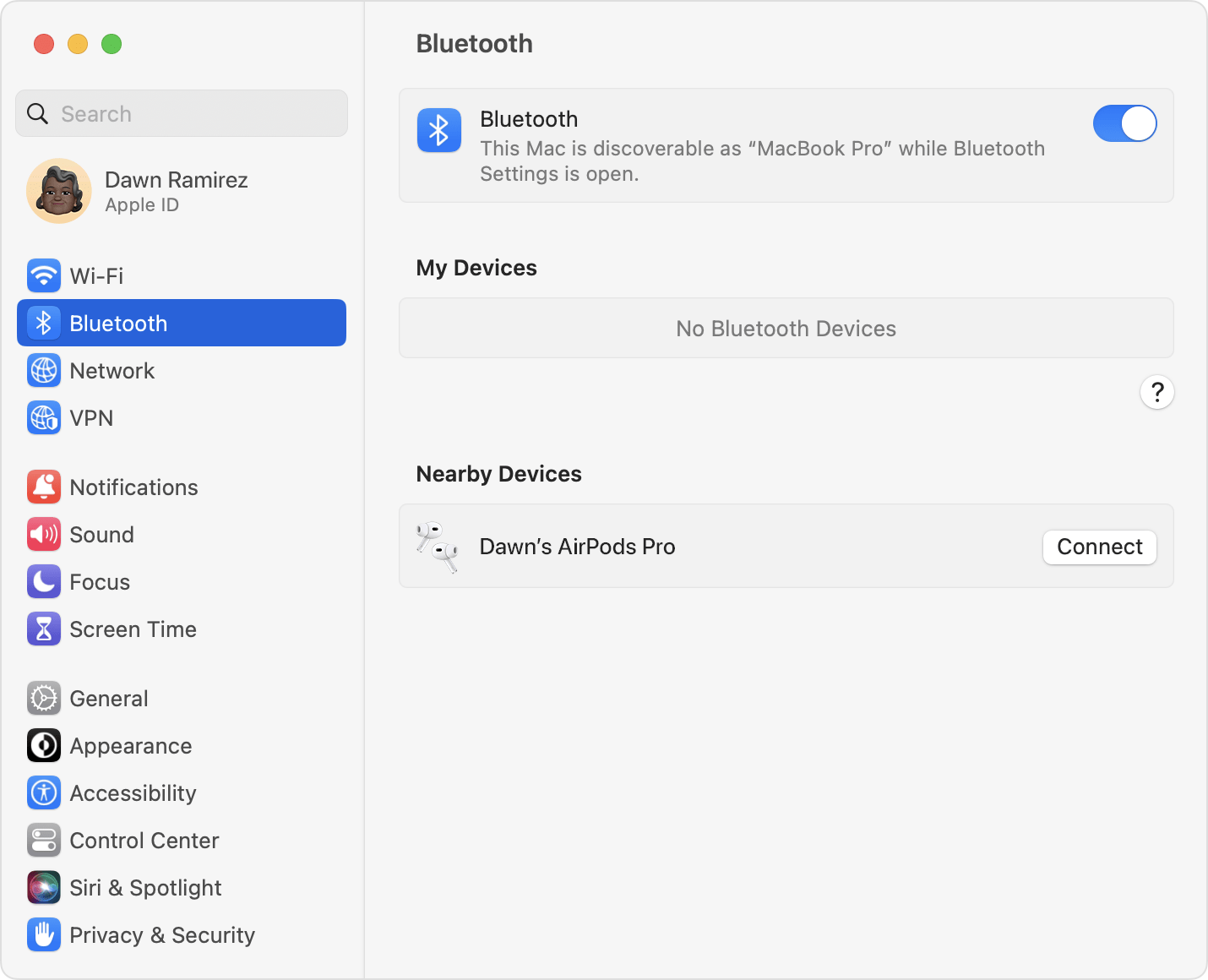
- Select Bluetooth in the left sidebar.
- Turn Bluetooth on.
On older macOS versions, open System Preferences and choose Bluetooth instead. Keep this window open while you put the earbuds into pairing mode.
Step 2: Put the earbuds in pairing mode
Pairing mode makes the earbuds visible to nearby devices. Most earbuds show this mode with a flashing white, blue, or green light.
Common methods include:
- Place both earbuds in the case and open the lid.
- Press and hold the case button for a few seconds.
- Touch and hold both earbuds at the same time.
- Hold the power button on the earbuds until the status light flashes.
The correct method depends on the brand. If you are unsure, check the quick-start guide or the maker’s support page.
Step 3: Select the earbuds on your Mac
Look for the earbuds under the Nearby Devices section in Bluetooth settings. Their name may include the brand, model, or a custom name.
Select Connect next to the earbuds. After a few seconds, the status should change to Connected.
This is the main process for how to connect earbuds to Mac. If the earbuds appear but fail to connect, place them back in the case, close the lid, open it again, and repeat the pairing step.
Step 4: Choose the earbuds for sound output
your Mac may connect the earbuds but continue playing sound through its speakers. To change this:
- Select the Control Center icon in the menu bar.
- Choose Sound.
- Select your earbuds under Output.
You can also open System Settings, choose Sound, and select the earbuds under Output and Input. The Output setting controls what you hear, while the Input setting controls which microphone your Mac uses.

How to Connect AirPods to Mac
AirPods often offer a faster setup than other Bluetooth earbuds. If your Mac and iPhone use the same Apple Account, your AirPods may appear automatically in the Sound menu.
To connect AirPods manually:
- Put both AirPods in the charging case.
- Open the case lid.
- Press and hold the setup button on the back of the case.
- Keep holding until the status light flashes white.
- Open System Settings on your Mac.
- Select Bluetooth.
- Choose your AirPods from the list.
- Select Connect.
For AirPods 4 or AirPods Pro models without a traditional rear button, follow the pairing method shown in the case instructions. In many cases, tapping the front of the case puts the AirPods into pairing mode.
Once connected, you can select your AirPods from Control Center whenever you want to switch audio. If automatic switching works, your Mac may connect to them when you begin playing sound.
Automatic switching is convenient, but it is not perfect. Video calls, multiple Apple devices, and weak Bluetooth signals can sometimes cause the earbuds to switch to the wrong device.

How to Connect Earbuds to Mac Without AirPods
Generic Bluetooth earbuds use nearly the same process as AirPods. The main difference is the way you activate pairing mode.
Try these steps:
- Turn off Bluetooth on nearby devices that may already use the earbuds.
- Place the earbuds in their case.
- Open the case or remove the earbuds.
- Press and hold the pairing button or touch controls.
- Wait for the indicator light to flash.
- Open System Settings on your Mac.
- Select Bluetooth.
- Choose the earbuds from the device list.
- Select Connect.
Some earbuds enter pairing mode the first time you remove them from the case. Others connect to the last device automatically and will not appear on your Mac until you reset the connection.
If the earbuds ask for a passcode, try 0000 or 1234. Most newer earbuds do not need a code, but some older Bluetooth audio devices still use one.
A useful lesson from testing many Bluetooth accessories is to turn off Bluetooth on your phone before pairing. Your phone may grab the earbuds first, making the Mac look like it cannot find them.

How to Make Earbuds the Default Audio Device
After you connect earbuds to Mac, set them as the default output device. This prevents your Mac from switching back to built-in speakers.
- Open the Apple menu.
- Select System Settings.
- Choose Sound.
- Select Output.
- Choose your earbuds.
To use the earbuds’ microphone, select them under Input as well. Keep in mind that Bluetooth earbuds may sound less clear when their microphone is active during a call.
This happens because Bluetooth audio profiles balance music playback and two-way voice communication. During a video call, your Mac may use a lower-quality audio mode. That behavior is normal and does not always mean the earbuds are faulty.
For the best call quality, use the earbuds for output and your Mac’s built-in microphone for input. You can change this in the Sound settings or inside apps such as Zoom, Microsoft Teams, FaceTime, and Google Meet.

How to Check Whether Earbuds Are Connected
There are several quick ways to confirm the connection.
- Open Control Center and select Sound.
- Look for the earbuds in System Settings under Bluetooth.
- Play a song and check whether sound comes through the earbuds.
- Open Sound settings and confirm the earbuds appear under Output.
- Check the battery level if macOS supports battery reporting for that model.
A connected status means the Mac has established a Bluetooth link. It does not always mean the earbuds are selected for sound output, so check both Bluetooth and Sound settings.
If the earbuds show as connected but you hear nothing, select a different output device and then select the earbuds again. This simple refresh often fixes a temporary audio routing problem.

How to Disconnect or Remove Earbuds From Mac
Disconnecting earbuds keeps them paired with your Mac but stops the current connection. Removing them deletes the saved Bluetooth relationship.
To disconnect:
- Open Control Center.
- Select Bluetooth or Sound.
- Choose another output device, such as MacBook Speakers.
To remove the earbuds completely:
- Open System Settings.
- Select Bluetooth.
- Find the earbuds under My Devices.
- Select the information button next to their name.
- Choose Forget This Device.
- Confirm the action.
Use Forget This Device when pairing becomes unreliable or when you plan to give the earbuds to someone else. You will need to put them into pairing mode again the next time you connect them.

How to Fix Earbuds That Will Not Connect to Mac
Connection problems usually come from pairing mode, another connected device, low battery, or a temporary Bluetooth error. Work through the fixes below in order.
Check pairing mode
The earbuds must be discoverable before the Mac can connect to them. A steady light often means they are already connected, while a flashing light often means they are ready to pair.
Put the earbuds back into their case, wait about 10 seconds, and activate pairing mode again.
Move the earbuds closer
Bluetooth works best over a short distance without walls or heavy wireless interference. Keep the earbuds within a few feet of the Mac during setup.
USB 3 devices, Wi-Fi equipment, monitors, and other wireless accessories can sometimes add interference. Moving the earbuds away from crowded cables or hubs may help.
Charge the earbuds
Low battery can prevent pairing or cause repeated disconnections. Charge both the case and earbuds before trying again.
Some cases show a charge light even when one earbud has not charged correctly. Clean the charging contacts gently with a dry, soft cloth and make sure each earbud sits fully in its slot.
Disconnect other devices
Earbuds often remember several devices but connect to only one at a time. Turn off Bluetooth on your phone, tablet, or another computer while pairing with the Mac.
After the Mac connects, you can turn Bluetooth back on for the other devices.
Forget and pair again
If the earbuds appear under My Devices but will not connect, remove them from the Mac.
- Open System Settings.
- Select Bluetooth.
- Choose the information button beside the earbuds.
- Select Forget This Device.
- Put the earbuds into pairing mode.
- Select them again from Nearby Devices.
This clears an old connection record and creates a fresh Bluetooth link.
Restart both devices
Restart the Mac and reset the earbuds according to the maker’s instructions. A restart can clear a temporary Bluetooth service error that normal menu changes do not fix.
Do not reset the earbuds unless basic steps fail. A full reset may erase saved devices and custom settings.
Check macOS and earbud firmware
Install available macOS updates through System Settings, then select General and Software Update. Earbud firmware updates usually happen through the brand’s mobile app.
Updates can improve compatibility, but they can also change menu names or automatic switching behavior. If the earbuds worked before an update and stopped afterward, forgetting and pairing them again is often useful.

How to Improve Bluetooth Earbud Performance on Mac
A stable connection depends on more than the first pairing. These habits can reduce dropouts and delays:
- Keep the Mac and earbuds within a reasonable range.
- Avoid covering the Mac’s wireless area with metal objects.
- Keep the earbuds charged.
- Use the latest stable macOS version.
- Close apps that are not needed during calls.
- Disconnect unused Bluetooth audio devices.
- Avoid pairing the same earbuds with many devices at the same time.
- Keep the charging case and earbud contacts clean.
Bluetooth audio may have a small delay during video playback or games. Many streaming apps correct this delay automatically, but games and live instruments may reveal it more clearly.
For serious music work, wired headphones remain more reliable. Wireless earbuds are excellent for calls, podcasts, travel, and everyday listening, but they have limits caused by battery life, wireless range, and audio profiles.

Common Mistakes When Connecting Earbuds to Mac
One common mistake is selecting the earbuds under Bluetooth and assuming they are also the sound output. Always check the Sound menu after pairing.
Another mistake is leaving the earbuds connected to a phone. Many earbuds favor the last active device, so the phone may silently take control.
Users also sometimes hold the pairing button for too long. On some models, a long press starts a factory reset instead of normal pairing. Follow the manufacturer’s timing instructions when possible.
Finally, avoid pairing the earbuds while they are inside a closed case. Most models need the case open, and some need the earbuds removed before they become visible.
Frequently Asked Questions About How to Connect Earbuds to Mac
Why are my earbuds not showing up on my Mac?
Put the earbuds into pairing mode and keep them close to the Mac. If they still do not appear, turn off Bluetooth on nearby devices, restart the Mac, and try again.
Can I connect any Bluetooth earbuds to a Mac?
Most Bluetooth earbuds work with a Mac if they support standard Bluetooth audio profiles. Some advanced features, such as automatic switching, spatial audio, or battery details, may work only with certain brands or Apple devices.
How do I connect AirPods to a MacBook?
Open the AirPods case, activate pairing mode, and select the AirPods in System Settings under Bluetooth. If they use the same Apple Account as your Mac, they may also appear automatically in the Sound menu.
Why are my earbuds connected but sound comes from the Mac?
The earbuds may be connected for Bluetooth but not selected as the audio output. Open Control Center, choose Sound, and select the earbuds under Output.
How do I fix a Bluetooth earbud connection that keeps dropping?
Charge the earbuds, keep them close to the Mac, and disconnect other Bluetooth devices. If the problem continues, choose Forget This Device in Bluetooth settings and pair the earbuds again.
Can I use my earbuds’ microphone with a Mac?
Yes, most Bluetooth earbuds can work as both an output and input device. Open System Settings, choose Sound, and select the earbuds under Input, though call quality may drop when the microphone is active.
Conclusion
Connecting earbuds to Mac usually takes only a few steps: turn on Bluetooth, place the earbuds in pairing mode, select them, and choose them as the sound output. AirPods may connect automatically, while other earbuds often need manual pairing.
If the connection fails, check pairing mode, battery level, nearby devices, and the Mac’s Sound settings. With these steps, you can connect earbuds to Mac more quickly and avoid the most common Bluetooth problems.
Try the process now with your earbuds, then share this guide with anyone who needs help setting up wireless audio on a Mac.
