

Yes, you can move an SSD to another computer, but Windows, drivers, hardware, and encryption may affect the result.
If you are asking, “can i move a ssd to another computer,” the answer depends on how the drive is used. A secondary SSD that stores photos or games usually moves easily. A boot drive with Windows or macOS needs more care because the new computer has different hardware, firmware, drivers, and activation rules. This guide explains the safe method, common risks, and the best way to protect your files.
Can I Move an SSD to Another Computer?
Yes, you can move an SSD to another computer in most cases. An SSD is a storage device, so its data does not belong to one computer. However, the operating system installed on the SSD may rely on the old computer’s hardware.
The answer is easiest when the SSD is used as a data drive. You can remove it, install it in the new computer, and access files after the system detects it. You may need a SATA cable, an M.2 slot, or a USB enclosure, depending on the SSD type.
Moving a boot SSD is different. Windows may show a repair screen, fail to start, ask for a recovery key, or require a new license. These problems do not mean the SSD is damaged. They usually mean the new computer and the old operating system are not fully matched.

When Moving an SSD Works Well
Moving an SSD often works without trouble in these situations:
• The SSD only contains personal files, photos, videos, or games.
• Both computers use the same operating system.
• The new computer supports the SSD’s physical connection.
• The drive is not protected by unknown encryption.
• You are moving between similar hardware platforms.
• The new computer has enough storage and compatible ports.
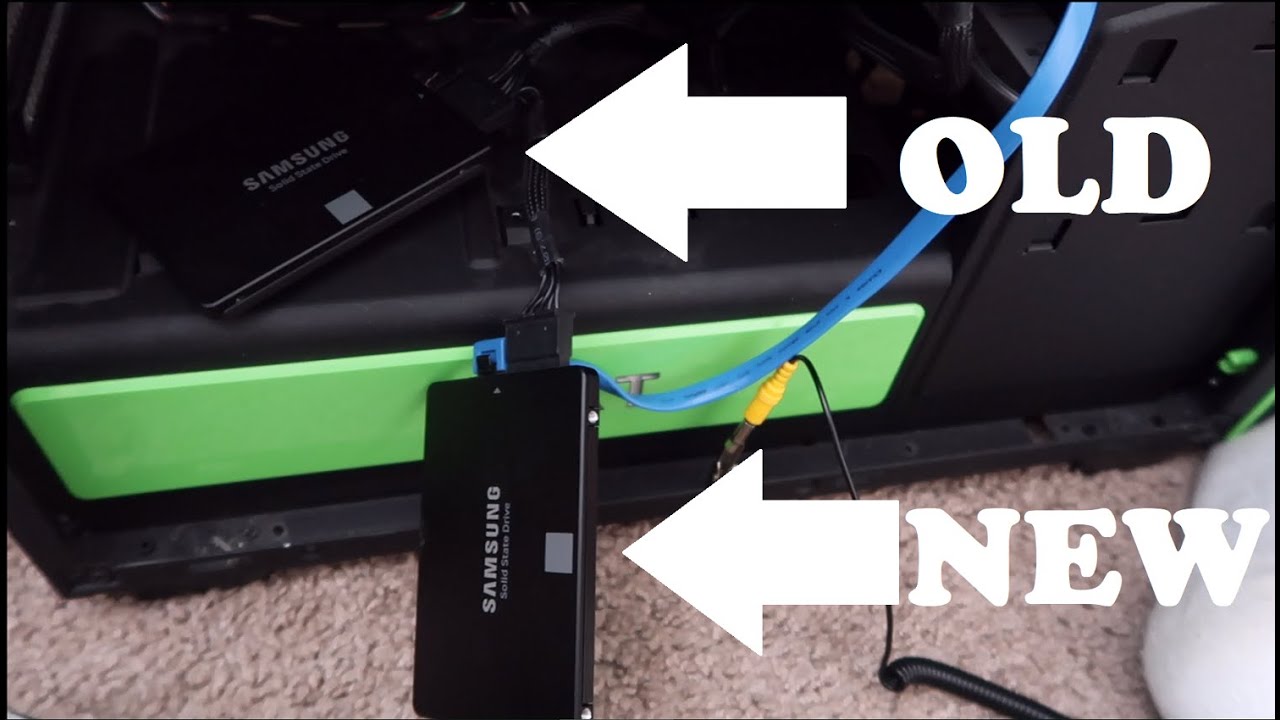
For example, a 2.5-inch SATA SSD can usually move from an older desktop to a newer desktop with a SATA data cable and a power cable. An M.2 NVMe SSD can move only to a computer with a compatible M.2 NVMe slot.
You should also check the drive’s format. Windows commonly uses NTFS, while macOS commonly uses APFS. A computer may detect a drive but still be unable to write to it without extra software or reformatting.
Moving a Secondary SSD for Files
If the SSD is not the boot drive, the process is fairly simple. The new computer only needs to recognize the drive and read its file system.
Follow these steps:
Shut down the old computer completely.
Disconnect the power cable and remove the SSD.
Check whether it is a 2.5-inch SATA SSD or an M.2 SSD.
Install it in the matching slot or connect it through a USB enclosure.
Start the new computer.
Open File Explorer on Windows or Finder on macOS.
Confirm that the files appear before changing anything.
If the drive does not appear, open Disk Management in Windows. On a Mac, open Disk Utility. The drive may be visible there even if it has no drive letter or desktop icon.
Do not click “initialize,” “erase,” or “format” if the SSD contains important files. Those options can make recovery harder. A missing drive letter is usually a small configuration issue, while formatting can remove the file system.

Moving a Boot SSD With Windows
The question “can i move a ssd to another computer” becomes more complicated when Windows is installed on that drive. Windows can adapt to new hardware, but it may not always boot properly.
The most common issues include:
• A blue screen during startup.
• Automatic repair appearing repeatedly.
• Missing storage or chipset drivers.
• A “boot device not found” message.
• Windows activation problems.
• A request for a BitLocker recovery key.
• Different UEFI and Legacy BIOS settings.
Windows 10 and Windows 11 are generally better at handling hardware changes than older Windows versions. Still, a direct move is not guaranteed. A large hardware change, such as moving from an Intel platform to an AMD platform, can expose driver and boot problems.
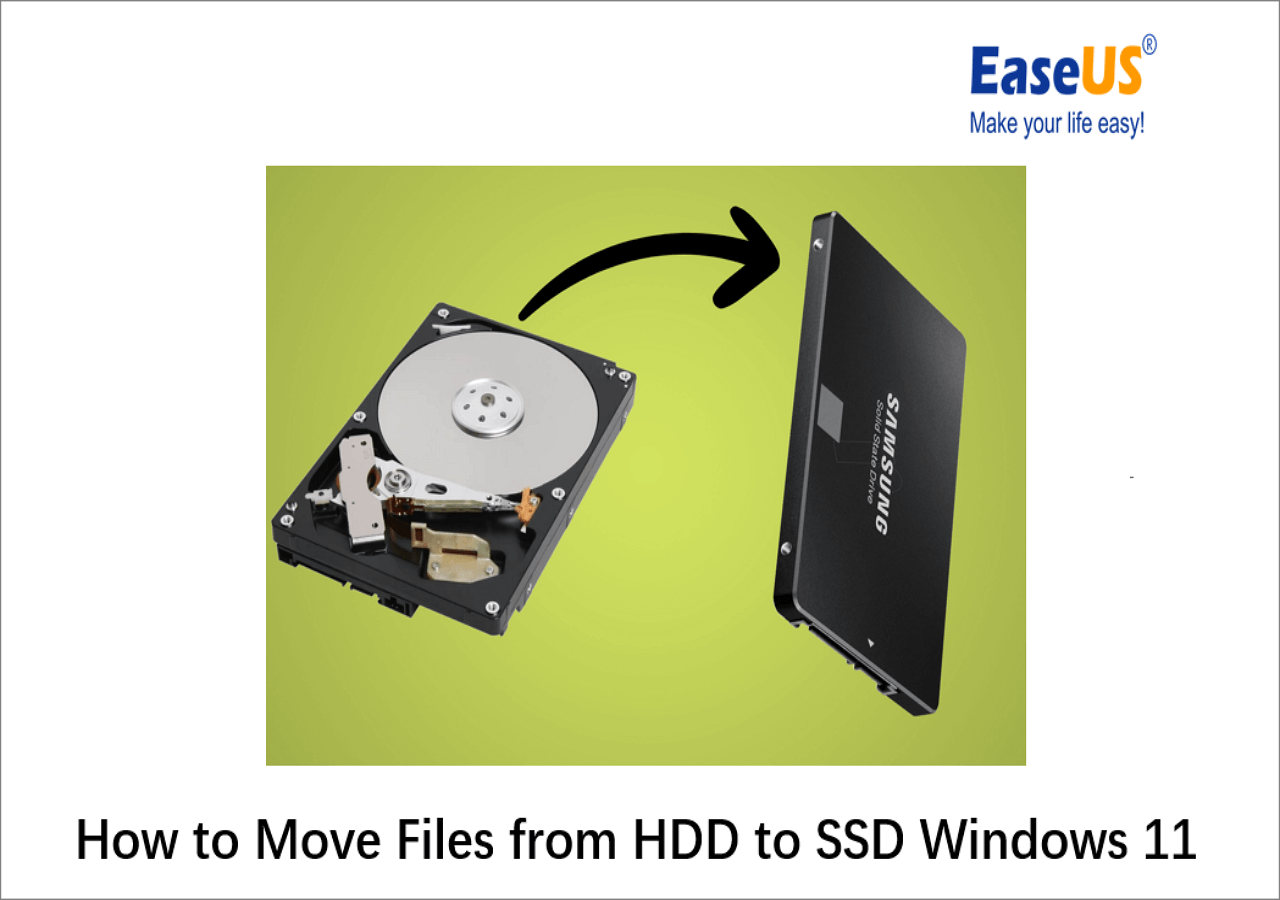
Before moving the drive, create a full backup. Ideally, make a system image and also copy important files to a separate drive. A backup is your safety net if the new computer will not start.
How to Prepare a Windows SSD Before Moving It
Preparation reduces the chance of errors. It also gives you a clean way to recover if the new computer does not boot.
Use this checklist:
Back up documents, photos, passwords, and other important files.
Save your BitLocker recovery key if device encryption is enabled.
Confirm whether your Windows license is linked to a Microsoft account.
Install pending Windows updates.
Remove special hardware utilities that only work with the old computer.
Uninstall old graphics, storage, and motherboard control software when practical.
Shut down Windows instead of using Sleep or Fast Startup.
Record your important application licenses and sign-in details.
You can check BitLocker status in Windows settings or through the encryption tools in Control Panel. If encryption is active, the new computer may ask for a recovery key even when your password is correct.
Do not assume that a Windows password replaces a BitLocker recovery key. They are different protections. Without the recovery key, encrypted files may remain inaccessible after a major hardware change.
The Safest Way to Move a Boot SSD
A direct move is not always the best choice. For important work computers, a clean installation is usually more reliable. It removes old drivers and gives Windows a fresh hardware setup.
You have three practical options:
Option 1: Move the SSD and Let Windows Repair It
This is the fastest method. Install the SSD in the new computer and try to boot. Windows may install basic drivers and start normally.
If it starts, install the new computer’s chipset, network, graphics, and storage drivers. Then run Windows Update and check activation.
Option 2: Use Windows Installation Media
If Windows cannot start, boot from a Windows installation USB. Select repair tools instead of immediately choosing a clean installation.
Useful tools may include:
• Startup Repair.
• System Restore.
• Safe Mode.
• Command Prompt for advanced boot repair.
Repair tools can help, but they do not fix every hardware mismatch. Avoid random commands from unverified websites. A wrong disk command can erase the wrong drive.
Option 3: Perform a Clean Installation
A clean installation is often the most dependable method. Back up your data first, create Windows installation media, and install Windows on the SSD in the new computer.
After installation, reconnect your backup and restore your files. You will need to reinstall applications, but the result is usually more stable than carrying years of old drivers into a different system.

UEFI, BIOS, and Partition Style Problems
Many boot failures are caused by firmware settings rather than a bad SSD. Modern computers usually use UEFI firmware and GPT partitioning. Older systems may use Legacy BIOS and MBR partitioning.
The new computer may fail to boot if:
• The old system used Legacy mode and the new system expects UEFI.
• Secure Boot settings do not match.
• The storage controller mode changed.
• The boot manager is missing or points to the wrong drive.
• The SSD is not selected as the first boot device.
Enter the firmware setup by pressing a key such as Delete, F2, F10, or Esc during startup. The exact key depends on the computer maker.
Check whether the SSD appears in the storage list. Then check the boot order. If Windows was installed in UEFI mode, choose the entry labeled “Windows Boot Manager” rather than only selecting the physical SSD name.
Do not change firmware settings without noting the original values. A simple photo of each screen can save time if you need to restore the setup.

Windows Activation After Moving an SSD
Windows activation is tied to the license type and, in many cases, the computer’s hardware. A retail license is usually easier to transfer than an original equipment manufacturer license that came with a specific computer.
After moving the SSD, Windows may show an activation warning. You can try these steps:
• Connect the new computer to the internet.
• Sign in with the Microsoft account linked to the license.
• Open Activation settings.
• Run the activation troubleshooter.
• Select the option that says you recently changed hardware.
• Enter a valid product key if required.
A license transfer can still depend on its terms. An OEM license may remain tied to the first computer, while a retail license may be transferable under its agreement. If the license came from an employer or school, contact the organization’s administrator.
Activation does not normally prevent you from accessing personal files on a secondary SSD. It mainly affects the operating system’s license status and personalization features.

Moving an SSD to a Mac or Between Macs
The phrase “can i move a ssd to another computer” has extra limits when Apple computers are involved. Macs use different hardware, startup systems, and security features. A drive from one Mac may not boot another Mac, especially when moving between Intel Macs and Apple silicon Macs.
For a data SSD, compatibility depends on the file system:
• APFS works well with modern Macs.
• Mac OS Extended is common on older Mac systems.
• NTFS is usually readable on macOS but may not support writing without additional software.
• exFAT works across Windows and macOS for many shared storage needs.
A Mac may also use FileVault encryption. You need the correct password or recovery method to unlock the drive. For a boot drive, Apple often recommends reinstalling macOS on the target Mac and restoring personal data through a backup or migration process.
Never erase a Mac SSD simply because the new Mac does not boot from it. First determine whether you need the files or the old operating system.
Hardware Compatibility You Should Check
Before asking “can i move a ssd to another computer,” identify the SSD’s connection type. The connector matters more than the storage brand.
2.5-Inch SATA SSD
This drive uses a thin rectangular case. It needs:
• A SATA data connection.
• A SATA power connection.
• A mounting space or adapter.
You can also use a 2.5-inch SATA-to-USB enclosure.
M.2 SATA SSD
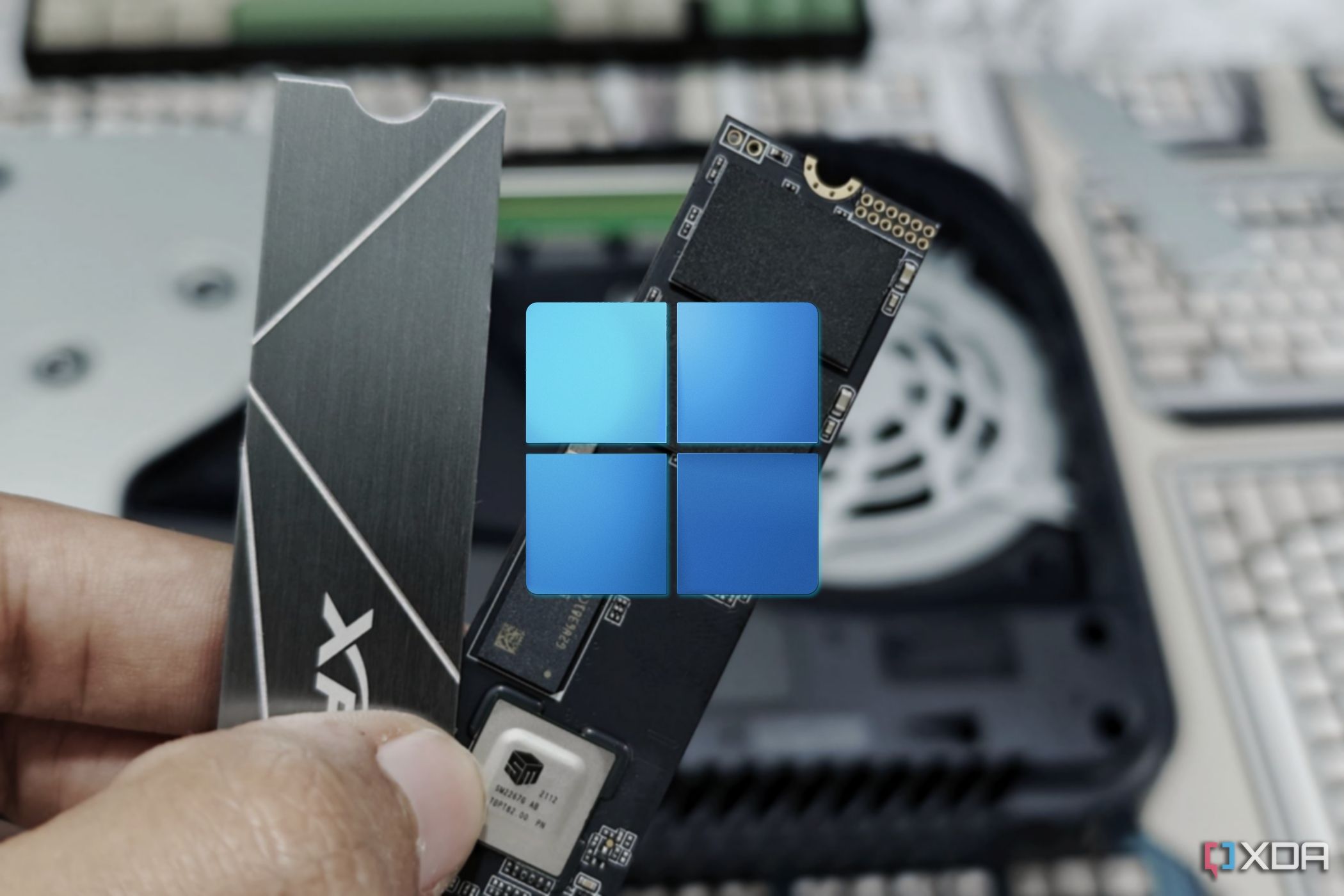
This drive looks like a small circuit board. It uses the M.2 shape but communicates through SATA. An M.2 SATA drive may not work in an M.2 NVMe-only slot.
M.2 NVMe SSD
This is a fast PCIe-based drive. It needs an M.2 slot that supports NVMe. Some slots support only certain lengths, such as 2280, so check the motherboard manual.
External SSD
An external SSD is the easiest to move. Plug it into the new computer using USB, USB-C, or Thunderbolt, depending on the enclosure. Speed depends on both the SSD and the port.
What to Do If the New Computer Does Not Detect the SSD
If the SSD is missing, stay calm and check the simple causes first. In many cases, the drive is connected correctly but has no drive letter or is disabled in firmware.
Try these steps:
Shut down the computer.
Reseat the SSD or reconnect the cable.
Try another SATA cable or USB port.
Check whether the drive appears in UEFI or BIOS.
Open Disk Management or Disk Utility.
Assign a drive letter if the partition is healthy.
Check for encryption or an unsupported file system.
Test the SSD in a USB enclosure or another computer.
Do not initialize or format the drive if the data matters. If the SSD makes unusual sounds, disconnects repeatedly, or shows an incorrect capacity, stop using it and consider professional data recovery.
SSDs do not have moving parts, but they can still fail. Repeated power cycling and repair attempts may make a failing drive less stable.
Common Mistakes to Avoid
In troubleshooting work, the biggest mistakes often happen before the SSD is installed. People rush because they want the new computer running, then accidentally erase the only copy of their files.
Avoid these mistakes:
• Moving the SSD without making a backup.
• Forgetting to save the BitLocker recovery key.
• Formatting a drive before checking its contents.
• Mixing up SATA and NVMe compatibility.
• Installing the SSD while the computer is still connected to power.
• Changing BIOS settings without recording them.
• Assuming a Windows license always transfers.
• Using repair commands without identifying the correct disk.
• Keeping old backup software or storage drivers that conflict with the new system.
Use a slow and careful process. Five extra minutes spent checking the drive model and backup can prevent hours of recovery work.
Should You Clone the SSD Instead?
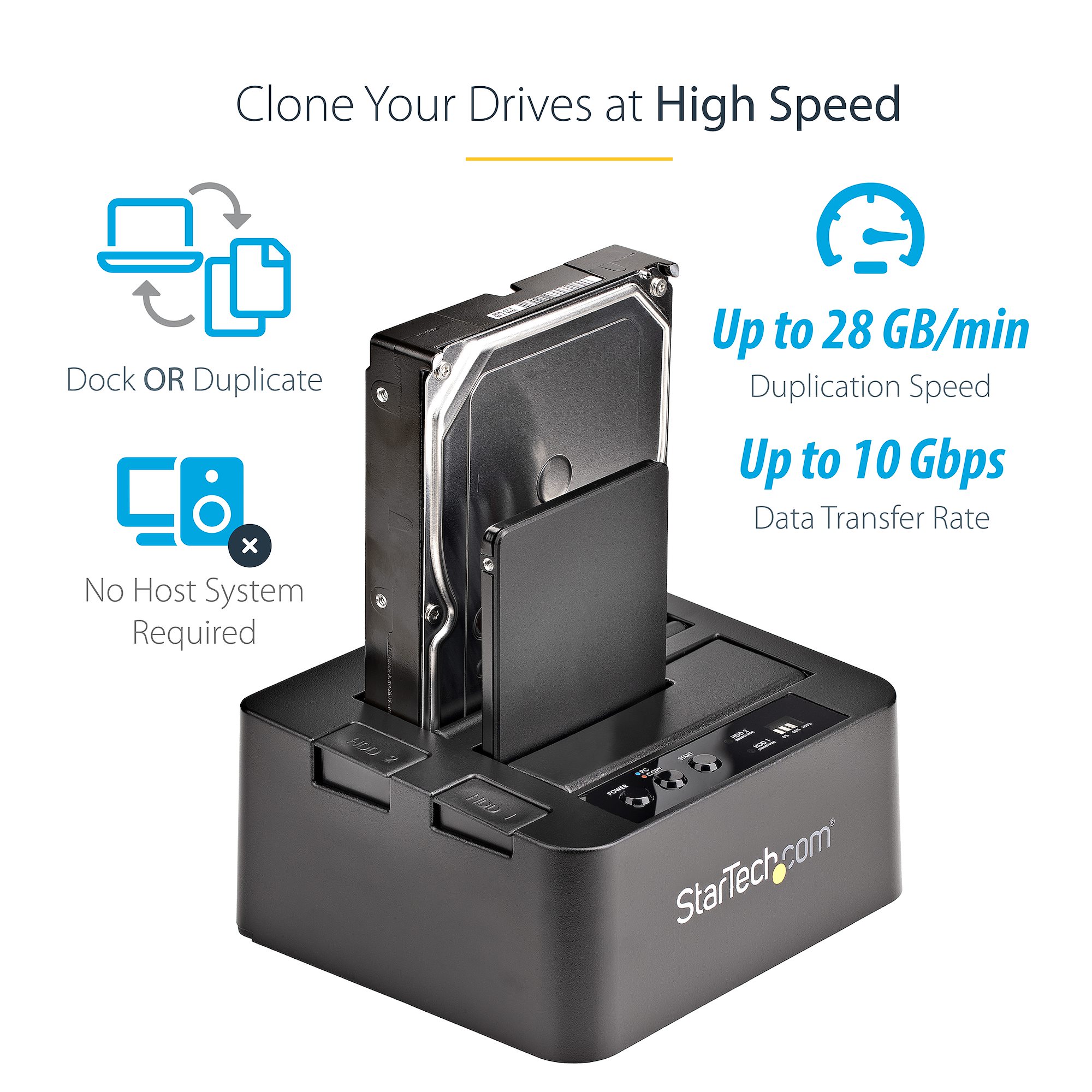
Cloning creates an exact copy of the old SSD on another drive. It can be useful when upgrading to a larger SSD or replacing an aging drive.
Cloning is helpful when:
• The new SSD will replace the old SSD.
• You want to preserve the same applications and settings.
• The computers have similar hardware.
• You have a tested backup.
Cloning does not remove hardware conflicts. If the original Windows installation has incompatible drivers, the clone will carry those problems to the new SSD.
For a move to a very different computer, a clean installation followed by file restoration is often the better choice. For a same-model replacement or a storage upgrade, cloning may save time.
Always verify that the clone can boot before wiping the original SSD. Keep the original drive untouched until the new system works properly.
Can You Move an SSD With Installed Games?
Yes, you can often move an SSD with installed games. However, the game launcher may need to locate the existing files again.
For Steam, Epic Games, Xbox, and other launchers, use the option to add or scan an existing library. Do not immediately download the games again if the files are already present.
You may still need to reinstall:
• Graphics drivers.
• Game launchers.
• Anti-cheat software.
• Microsoft Visual C++ packages.
• DirectX components.
• Saved game services.
Some saves are stored in cloud accounts, while others remain on the old Windows user profile. Copy local save folders before wiping the old computer. Game files and saved games are not always stored in the same place.
Is Moving an SSD Better Than Copying Files?
Moving an SSD is faster when you need access to many files or want to preserve an existing installation. It avoids copying hundreds of gigabytes through a slow connection.
Copying files is safer when the new computer has different hardware. It gives you a clean operating system and avoids old drivers, unwanted programs, and hidden system problems.
Choose the method based on your goal:
• Choose a direct move for a secondary data drive.
• Choose cloning for a similar computer or storage upgrade.
• Choose a clean installation for a major hardware change.
• Choose file copying when reliability matters more than keeping old settings.
If you only need documents, photos, and videos, copying them to a backup or external drive is usually the least risky option.
Frequently Asked Questions About Can I Move a SSD to Another Computer
Can I move a SSD to another computer without losing files?
Yes, moving a secondary SSD normally does not erase its files. Do not format, initialize, or delete partitions when the drive is installed in the new computer.
Can I move a boot SSD to another computer?
Yes, but the operating system may not boot because of driver, firmware, encryption, or activation issues. Back up the SSD and save your recovery key before attempting the move.
Will Windows work if I move my SSD to a new PC?
Windows may work after detecting the new hardware, but success is not guaranteed. A clean installation is often more reliable when the new computer has a different motherboard or processor platform.
Can I move an M.2 SSD to any computer?
No. The computer must support the SSD’s interface, such as SATA or NVMe, and the correct physical size. Check the motherboard or laptop manual before installation.
Do I need to format an SSD when moving it?
No, not if the new computer supports its file system. Formatting is only needed when changing file systems or preparing the drive for a fresh installation, and it erases existing data.
Can I move an encrypted SSD to another computer?
Yes, but you need the correct password, encryption key, or recovery key. BitLocker and FileVault may require recovery information after the hardware changes.
Is it safer to clone an SSD before moving it?
Cloning can provide a useful backup and preserve the old installation. However, it does not solve driver or activation problems caused by moving the operating system to different hardware.
Conclusion
You can move an SSD to another computer, especially when it is used for personal files, games, or other data. A boot SSD requires more planning because Windows or macOS must adjust to new hardware, firmware settings, drivers, encryption, and licensing.
Back up your files, save recovery keys, confirm the SSD interface, and avoid formatting until you know the drive is safe. If the computers are very different, a clean operating system installation is usually the most dependable path. Use these steps to make your SSD move safely, and share your experience or questions in the comments.
