

Open the case, hold the Bluetooth button, and select Bose QuietComfort Ultra Earbuds in your device’s Bluetooth menu.
Learning how to pair Bose QuietComfort Ultra Earbuds is simple once you know which button and settings to use. This guide explains the first-time setup, Bose Music app method, Bluetooth pairing, device switching, troubleshooting, and useful tips from real-world setup checks.
How to Pair Bose QuietComfort Ultra Earbuds for the First Time
The first pairing process takes only a few minutes. Keep your earbuds and phone close together, and make sure the earbuds have enough charge.
Follow these steps:
- Place both earbuds inside the charging case.
- Open the case lid.
- Press and hold the Bluetooth button on the back of the case.
- Keep holding until the earbuds’ lights slowly blink blue.
- Open Bluetooth settings on your phone, tablet, or computer.
- Select Bose QuietComfort Ultra Earbuds from the available devices list.
- Wait for the connected message or confirmation tone.
Your Bose QuietComfort Ultra Earbuds should now be ready to use. You can play music, make calls, and adjust noise cancellation from your connected device.
On some models or firmware versions, the pairing button may behave slightly differently. If the case does not enter pairing mode, remove the earbuds, touch and hold both earbuds for about four seconds, and listen for the “Ready to connect” prompt.
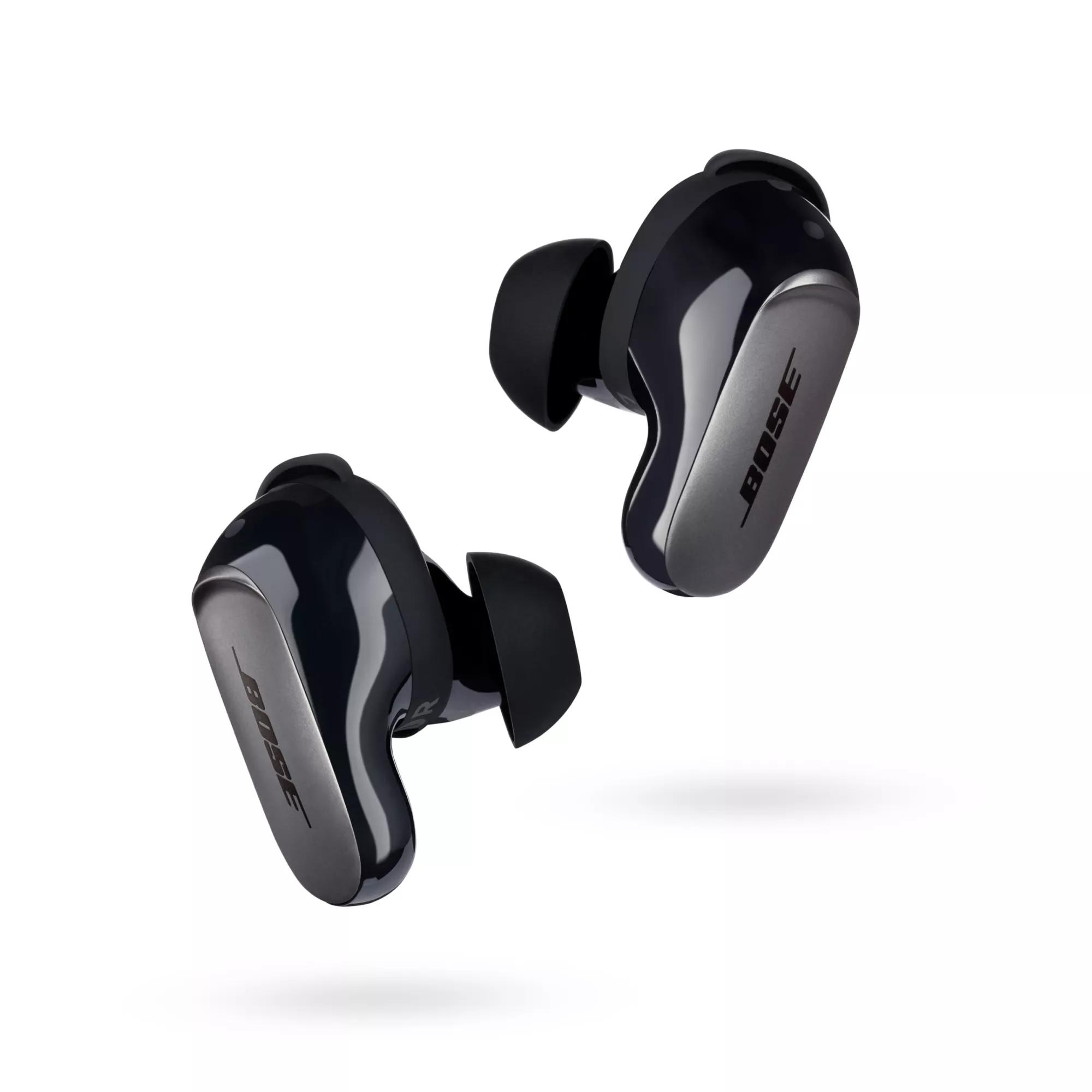
How to Pair Bose QuietComfort Ultra Earbuds With the Bose App
The Bose app gives you more control than standard Bluetooth settings. It can help with setup, firmware updates, noise control, Immersive Audio, shortcuts, and device management.
To pair Bose QuietComfort Ultra Earbuds with the Bose app:
- Download and install the Bose app from the Apple App Store or Google Play.
- Turn on Bluetooth on your phone.
- Open the charging case with both earbuds inside.
- Launch the Bose app.
- Tap the option to add a product.
- Choose Bose QuietComfort Ultra Earbuds.
- Follow the instructions shown on the screen.
- Allow the app to access Bluetooth and nearby devices if requested.
The app may connect to the earbuds even if they do not appear right away in your phone’s Bluetooth list. This is useful during first-time setup because the app guides you through firmware and account steps.
A practical tip is to keep the app open during setup. Switching between several screens too soon can interrupt the process, especially on Android phones with strict permission controls.

How to Pair Bose QuietComfort Ultra Earbuds With an iPhone
Pairing Bose QuietComfort Ultra Earbuds with an iPhone is quick. The same steps work with most recent iPhone models.
- Open the charging case.
- Press and hold the case Bluetooth button until the status lights blink blue.
- Open Settings on your iPhone.
- Tap Bluetooth.
- Turn Bluetooth on if it is disabled.
- Tap Bose QuietComfort Ultra Earbuds under Other Devices.
- Wait for the earbuds to move to My Devices.
When the connection works, your iPhone should show the earbuds as connected. You may also hear a voice prompt in the earbuds.
For the best experience, install the Bose app after the Bluetooth connection is complete. The app lets you rename the earbuds, manage listening modes, and check for software updates.
If your iPhone shows an old or incomplete Bose connection, tap the information icon beside the device name. Select Forget This Device, then repeat the pairing process from the beginning.

How to Pair Bose QuietComfort Ultra Earbuds With an Android Phone
Android pairing is much like iPhone pairing, but menu names can vary by manufacturer. Samsung, Google Pixel, OnePlus, and Motorola phones may display slightly different Bluetooth screens.
To pair Bose QuietComfort Ultra Earbuds with Android:
- Put the earbuds in the case and open the lid.
- Hold the Bluetooth button until the lights blink blue.
- Open Settings on your Android phone.
- Tap Connected devices, Connections, or Bluetooth.
- Choose Pair new device if needed.
- Select Bose QuietComfort Ultra Earbuds.
- Confirm the pairing request.
Some Android phones require permission for nearby devices. Allow this permission when prompted. Without it, the Bose app may not find the earbuds even when Bluetooth is switched on.
If the earbuds connect for calls but not music, open the Bluetooth settings for the earbuds. Check that Media audio and Phone calls are enabled.

How to Pair Bose QuietComfort Ultra Earbuds With a Windows PC
You can use Bose QuietComfort Ultra Earbuds with a Windows laptop or desktop for music, video calls, and online meetings.
Here is how to pair Bose QuietComfort Ultra Earbuds with Windows:
- Open the case.
- Hold the Bluetooth button until the earbuds enter pairing mode.
- On your PC, open Settings.
- Select Bluetooth & devices.
- Turn Bluetooth on.
- Click Add device.
- Choose Bluetooth.
- Select Bose QuietComfort Ultra Earbuds.
- Click Done after Windows confirms the connection.
Windows may show two audio choices during a meeting. One option may provide better stereo sound, while another may activate the headset microphone. This is normal with Bluetooth devices.
For clearer music playback, choose the stereo output when you are not using the microphone. During video calls, Windows may switch to a hands-free audio mode with reduced sound quality. That limitation comes from Bluetooth audio profiles, not necessarily from the Bose earbuds.

How to Pair Bose QuietComfort Ultra Earbuds With a Mac
Mac pairing is also straightforward. The earbuds can connect through the Mac’s Bluetooth menu without the Bose app.
- Place the earbuds in the open case.
- Hold the case Bluetooth button until the lights blink blue.
- Click the Apple menu.
- Open System Settings.
- Select Bluetooth.
- Find Bose QuietComfort Ultra Earbuds.
- Click Connect.
After pairing, open the Sound settings and choose the earbuds as the output device. If you are using Zoom, FaceTime, or another calling app, select the Bose earbuds inside that app as well.
A common mistake is pairing the earbuds with a Mac but leaving the Mac set to use its built-in speakers. The earbuds may be connected, yet no sound comes through them. Checking the output menu usually fixes this in seconds.

How to Pair Bose QuietComfort Ultra Earbuds With a Second Device
Bose QuietComfort Ultra Earbuds support multipoint Bluetooth on compatible models and software versions. Multipoint lets the earbuds stay connected to two devices, such as a phone and laptop.
To add a second device:
- Connect the earbuds to the first device.
- Put the earbuds into pairing mode again.
- Open Bluetooth settings on the second device.
- Select Bose QuietComfort Ultra Earbuds.
- Complete the connection.
The earbuds may pause music on your laptop when a call arrives on your phone. After the call ends, audio may return to the laptop automatically.
Multipoint behavior can depend on firmware, device type, and app settings. If automatic switching seems unreliable, disconnect the earbuds from one device before connecting to another.
You can also use the Bose app to view or manage connected devices. Keeping the earbuds and app updated can improve connection stability.

How to Switch Between Paired Devices
Knowing how to pair Bose QuietComfort Ultra Earbuds is only part of daily use. Switching between devices is just as important.
Try these methods:
• Pause audio on the current device before connecting to another.
• Open Bluetooth settings on the new device and select the earbuds.
• Use the Bose app to manage remembered devices.
• Turn Bluetooth off on the old device if the earbuds keep reconnecting to it.
• Keep only the devices you use often in the earbuds’ connection list.
The earbuds may automatically connect to the last device used. This can be convenient, but it can also cause confusion when a nearby laptop takes priority over your phone.
During hands-on setup checks, the most common mistake was leaving Bluetooth active on an old tablet. The earbuds kept reconnecting to the tablet, making the phone appear unable to find them. Turning Bluetooth off on the old device solved the issue immediately.

How to Fix Bose QuietComfort Ultra Earbuds Pairing Problems
If pairing fails, do not repeat the same step again and again. Start with the basics and work through the problem in order.
Check the battery
Place both earbuds in the case and confirm that the case has charge. Very low power can prevent pairing mode from starting.
Move closer to the device
Keep the earbuds within a few feet of the phone or computer. Walls, metal objects, and crowded wireless areas can weaken the signal.
Turn Bluetooth off and on
Disable Bluetooth on your device, wait a few seconds, and turn it on again. This refreshes the wireless scan.
Remove an old Bluetooth record
If the device remembers an incomplete connection, remove it:
- Open Bluetooth settings.
- Tap or click the Bose earbuds.
- Choose Forget, Remove, or Unpair.
- Restart Bluetooth.
- Pair the earbuds again.
Close the Bose app
An app connection can sometimes become stuck. Force close the app, reopen it, and try again.
Restart both devices
Restart your phone, computer, and earbuds. Place the earbuds in the case before trying again.
Update the software
Use the Bose app to check for firmware updates. Updates may improve compatibility, connection performance, and feature support.

How to Reset Bose QuietComfort Ultra Earbuds
A reset can help when the earbuds connect to one device but refuse to pair with another. It is also useful when the earbuds behave strangely after an update.
First, remove the earbuds from your device’s Bluetooth list. Then place both earbuds in the charging case and leave the lid open. Press and hold the Bluetooth button for about 30 seconds, or follow the reset instructions shown in the Bose app for your exact model and software version.
The status lights may change during the process. Wait until the reset finishes before closing the case or removing the earbuds.
After the reset:
- Restart your phone or computer.
- Open the charging case.
- Put the earbuds into pairing mode.
- Select them from the Bluetooth menu.
- Reconnect through the Bose app if desired.
A reset removes connection information, so you may need to pair the earbuds with every device again.
Common Mistakes to Avoid When Pairing
Small setup errors can make a simple process feel broken. Avoid these common mistakes:
• Searching for the earbuds while they are still connected to another device.
• Holding the wrong button or releasing it before pairing mode starts.
• Keeping the charging case closed during setup.
• Denying Bluetooth or nearby-device permission to the Bose app.
• Trying to pair while the earbuds have almost no battery.
• Selecting a similarly named Bose device nearby.
• Pairing through the app while another phone controls the earbuds.
• Ignoring software updates after a connection problem.
The biggest lesson is to make the earbuds visible before searching for them. Bluetooth devices do not always appear simply because Bluetooth is turned on. The earbuds must also be in discovery or pairing mode.
How to Improve the Bluetooth Connection
A stable connection depends on more than the earbuds themselves. Your phone, computer, operating system, and surrounding wireless signals all play a role.
Use these practical tips:
• Keep your phone on the same side of your body as the active earbud when possible.
• Avoid placing your phone inside a bag surrounded by metal objects.
• Keep the earbuds and device within the normal Bluetooth range.
• Update the operating system and Bose software.
• Remove old Bluetooth connections you no longer use.
• Avoid pairing in a crowded room if the device cannot find the earbuds.
• Keep the charging contacts clean and dry.
Bose QuietComfort Ultra Earbuds are designed for wireless use, but no Bluetooth connection is completely immune to interference. A busy airport, gym, or office can create more wireless noise than a quiet room.
Pairing and Battery Tips for Everyday Use
Pairing does not use much power, but frequent searching and reconnecting can reduce battery life over time. Put the earbuds back in the case when you are finished listening.
The case also protects the earbuds and helps charge them between uses. Check that each earbud is seated correctly. If an earbud does not charge, pairing problems may return because it has not powered on properly.
Clean the charging contacts with a soft, dry cloth. Do not use water, sharp tools, or liquid cleaners inside the case.
For long trips, charge the case before leaving. A low case battery can make it harder to reset or reconnect the earbuds when you need them most.
Frequently Asked Questions About How to Pair Bose QuietComfort Ultra Earbuds
Why are my Bose QuietComfort Ultra Earbuds not showing up in Bluetooth?
Make sure the earbuds are in pairing mode, with the status lights blinking blue. If they still do not appear, remove the old Bose connection from your device, restart Bluetooth, and try again.
How do I put Bose QuietComfort Ultra Earbuds into pairing mode?
Open the charging case and press and hold the Bluetooth button until the earbuds’ lights slowly blink blue. On some versions, touching and holding both earbuds may also activate the “Ready to connect” mode.
Can I pair Bose QuietComfort Ultra Earbuds with two devices?
Yes, compatible models and updated software can support connections to two devices through multipoint Bluetooth. If switching does not work, disconnect one device or update the earbuds through the Bose app.
Do I need the Bose app to pair the earbuds?
No. You can pair them through your phone, tablet, Windows PC, or Mac Bluetooth settings. The Bose app is useful for updates, settings, listening modes, and connection management.
How do I pair Bose QuietComfort Ultra Earbuds after forgetting them?
Place the earbuds in pairing mode again, then select them from your device’s Bluetooth list. If the device still cannot find them, restart Bluetooth and reset the earbuds as a final step.
Why do my earbuds connect but play no sound?
Your device may still be using its built-in speakers. Open the sound output settings and choose Bose QuietComfort Ultra Earbuds as the active audio device.
How can I stop the earbuds from connecting to the wrong device?
Turn off Bluetooth on the unwanted device or remove the earbuds from its saved Bluetooth list. Then connect the earbuds to the device you want to use.
Conclusion
Learning how to pair Bose QuietComfort Ultra Earbuds takes only a few steps: charge the earbuds, open the case, hold the Bluetooth button, and select the earbuds from your device’s Bluetooth menu. The Bose app adds useful controls, while removing old connections and resetting the earbuds can solve most pairing problems.
Start with your phone, then add your computer or tablet if needed. Keep the software updated, manage saved devices, and place the earbuds back in the case after use. If this guide helped, explore more setup tips or share your pairing experience in the comments.
