

You can often repair a corrupted SSD without formatting by checking connections, fixing the file system, and recovering data first.
A corrupted SSD can show errors, disappear from File Explorer, open files slowly, or ask you to format the drive. In many cases, the data is still present. This guide explains how to fix corrupted SSD without formatting by using safe checks, built-in repair tools, and data recovery steps. The key is to avoid actions that write too much data before you understand the problem.
What SSD corruption means
SSD corruption usually means that the file system, partition data, or stored files no longer work as expected. The SSD may still power on, but the operating system cannot read its data correctly.
Common signs include:
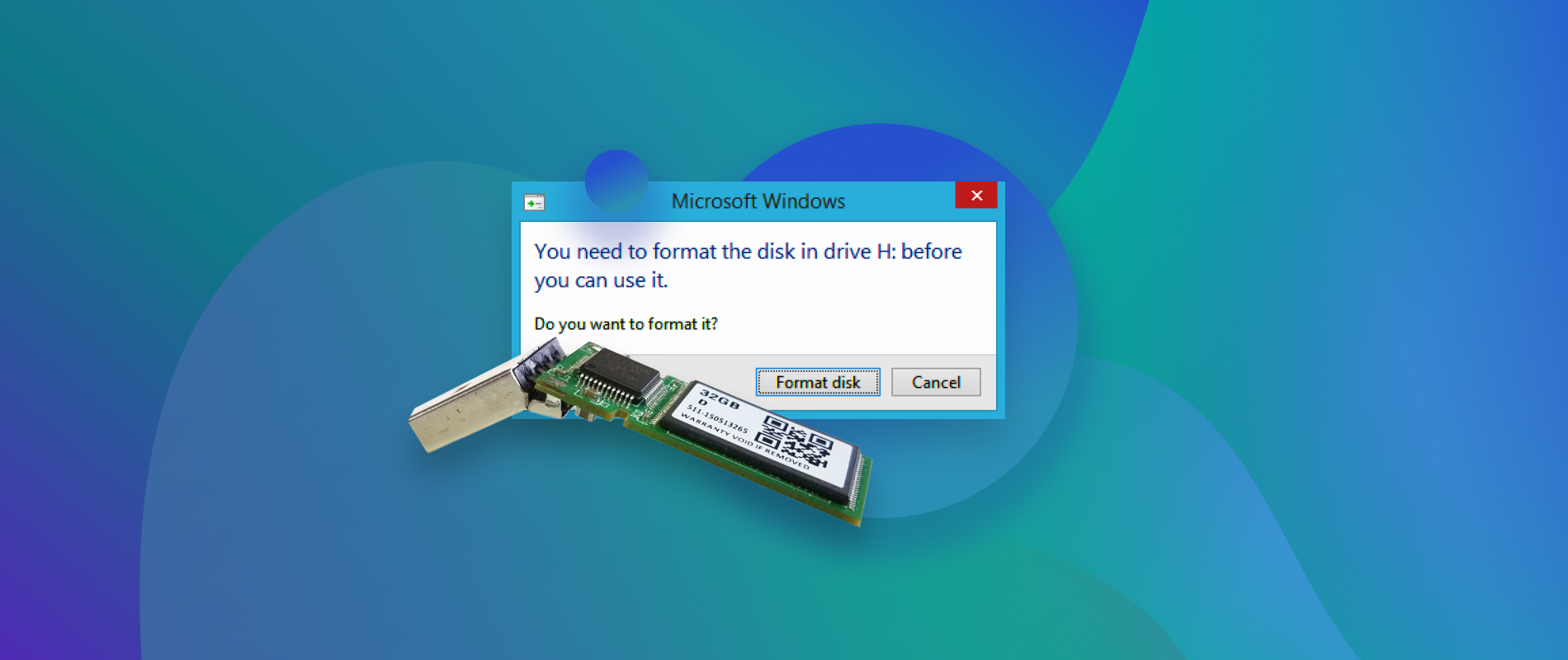
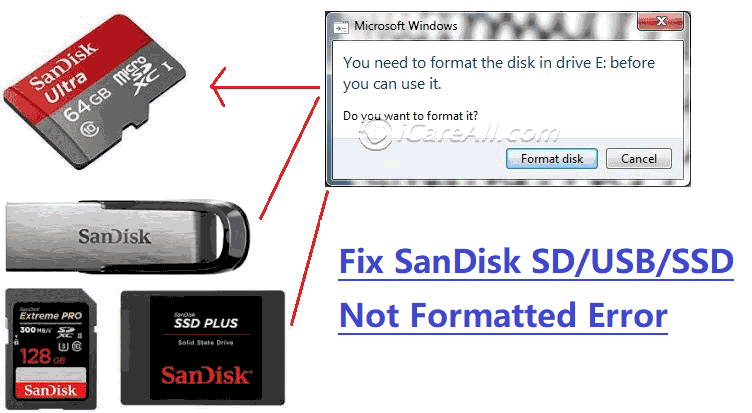
• Windows says, “You need to format the disk before you can use it.”
• Files show strange names or incorrect sizes.
• The SSD appears in BIOS but not in File Explorer.
• The drive becomes read-only.
• Programs freeze when opening files from the SSD.
• macOS shows a message that the disk cannot be read.
• Linux reports input/output errors or a damaged file system.
File system corruption is different from physical SSD failure. Corruption may result from a sudden power loss, unsafe removal, a failed update, or malware. Physical failure can come from worn flash memory, a damaged controller, overheating, or a faulty cable.
That difference matters. Software tools may repair a damaged file system. They cannot repair failing NAND flash memory or a dead SSD controller.

Stop using the SSD before you repair it
The first step in how to fix corrupted SSD without formatting is to stop making changes to the drive. Every new file, repair attempt, or system scan can overwrite information that might still be recoverable.
If the SSD contains important photos, work files, or business records, do not immediately run a repair command. First, decide whether the drive is stable enough to read.
Follow these safety steps:
• Stop copying new files to the SSD.
• Do not click “Format” when Windows or macOS displays that option.
• Disconnect the SSD safely if it repeatedly freezes.
• Avoid installing recovery software on the corrupted SSD.
• Use another computer or a separate internal drive for recovery software.
• If the SSD makes the system freeze, power it down instead of repeating scans.
If the files are valuable, create a full sector-by-sector image or clone before attempting repairs. A clone gives you a working copy and lets you test repairs without touching the original disk.
Professional data recovery is the safer choice when the SSD contains irreplaceable data and shows serious hardware symptoms.

Check the SSD connection and power
A loose connection can look like SSD corruption. This is especially common with external SSDs, USB enclosures, SATA cables, and low-quality hubs.
Start with simple hardware checks:
Shut down the computer.
Disconnect the SSD.
Reconnect the drive firmly.
Try another USB port or SATA cable.
Avoid USB hubs during testing.
Test the SSD on another computer.
If it is an external SSD, try a different enclosure or adapter.
For an M.2 SSD, make sure the drive is seated correctly and secured with its screw. An M.2 drive that is slightly loose may appear, disappear, or report read errors.
Check whether the drive appears in the system’s disk utility, BIOS, or UEFI settings. If the SSD does not appear anywhere, the problem may be hardware-related rather than simple file system corruption.
A different cable can sometimes solve the entire problem. I have seen many “corrupted drive” cases caused by weak USB power or a failing SATA cable. Always test the physical connection before using repair commands.

Check the SSD’s health before repair
Before you learn how to fix corrupted SSD without formatting, check whether the SSD is failing. Repairing a damaged file system on failing hardware can make data recovery harder.
SMART data can show useful warning signs, such as:
• Media and data integrity errors
• Uncorrectable read errors
• Critical warnings
• Excessive bad blocks
• Unsafe shutdown counts
• High drive temperature
• Remaining life or percentage used
SMART is helpful, but it is not perfect. A drive can fail without showing an obvious warning. Treat slow reads, repeated disconnects, and input/output errors as serious signs even if the health status says “Good.”
You can check SSD health with tools such as:
• Windows drive health settings or the manufacturer’s utility
• CrystalDiskInfo on Windows
• Disk Utility or smartctl on macOS
• smartctl or the drive maker’s tool on Linux
Do not confuse normal SSD wear with instant corruption. SSDs have limited write endurance, but a drive does not become corrupt simply because it has reached a certain age. The symptoms and SMART data must be considered together.
Repair a corrupted SSD in Windows
Windows includes several tools that can help repair file system errors without formatting. Use them in a careful order.
1. Check the drive in Disk Management
Press Windows + X, then select Disk Management. Find the affected SSD and check its status.
You may see:
• A normal partition with a missing drive letter
• A RAW file system
• Unallocated space
• An offline disk
• A healthy partition that does not appear in File Explorer
If the partition is healthy but has no drive letter, right-click it, choose Change Drive Letter and Paths, and assign an unused letter. Do not delete the partition or create a new volume.
If the disk shows as RAW, do not format it. RAW usually means Windows cannot recognize the file system. It does not always mean that the files are gone.
2. Try Windows Error Checking
Open File Explorer, right-click the SSD, select Properties, open the Tools tab, and choose Check under Error checking.
This tool may repair minor logical errors. If Windows cannot access the volume, move to the command-line options below.
3. Run CHKDSK carefully
Open Windows Terminal or Command Prompt as an administrator. First, run a scan without repairs:
chkdsk X: /scan
Replace X with the correct drive letter.
The /scan option checks the file system while Windows is running. If the scan finds errors and your files are backed up, you may use:
chkdsk X: /f
The /f option attempts to fix logical file system errors. It does not recover deleted files, and it cannot repair failing flash memory.
Avoid starting with:
chkdsk X: /r
The /r option searches for bad sectors and tries to recover readable data. On a failing SSD, this can create heavy read activity and may worsen the situation. Use it only when the drive is stable and your data is already protected.
If the partition is RAW or the drive repeatedly disconnects, stop running CHKDSK. Create an image or use professional recovery software instead.
Repair a corrupted SSD on macOS
macOS includes Disk Utility, which can check and repair many file system problems.
Open Disk Utility.
Select View and choose Show All Devices.
Select the affected volume.
Click First Aid.
Run First Aid on the volume, then the container, and finally the physical device if needed.
First Aid may repair directory structure and other logical errors. It does not fix hardware failure, erased partitions, or severe flash memory damage.
If the SSD does not appear in Disk Utility, check the cable, adapter, enclosure, and power source. If it appears in System Information but not Disk Utility, the storage device or its enclosure may be failing.
For important data, avoid repeated First Aid attempts. A repair tool can change directory information. If the first attempt does not work, create an image or contact a recovery specialist.
Repair a corrupted SSD in Linux
Linux users can inspect the drive with tools such as lsblk, blkid, and smartctl.
Use:
lsblk
This lists detected disks and partitions. Then check the file system type:
sudo blkid
Before using fsck, unmount the affected partition:
sudo umount /dev/sdX1
Replace /dev/sdX1 with the correct partition. Then run the suitable check:
sudo fsck -f /dev/sdX1
Do not run fsck on a mounted file system unless the tool and situation specifically allow it. A mounted repair can cause additional damage.
For an SSD that reports read errors, use a recovery-first approach. Tools such as GNU ddrescue can create an image while skipping damaged areas and returning to them later. Save the image to a different disk with enough free space.
Linux gives you powerful tools, but it also gives you enough power to select the wrong disk. Check every device name twice before pressing Enter.

Recover files before deeper repairs
If normal repair tools fail, focus on file recovery rather than forcing the file system to work. This is often the safest way to fix corrupted SSD without formatting because it protects the data before you attempt structural changes.
Recovery software may scan for:
• Lost partitions
• Deleted files
• Damaged directories
• RAW volumes
• Missing file system records
Use recovery software from a healthy computer or install it on another drive. Recover files to a separate disk. Never save recovered files back to the corrupted SSD.
For advanced recovery, create a disk image first. A typical process is:
Connect a healthy drive with enough free space.
Create an image of the corrupted SSD.
Disconnect or protect the original SSD.
Scan the image with recovery software.
Save recovered files to a separate location.
A recovery scan can take hours. Do not interrupt it unless the SSD becomes dangerously hot, disconnects, or causes system instability.
Recovery software has limits. If the controller cannot read the NAND memory, software may not see enough data to recover. Some modern SSDs also use encryption and proprietary data management, which can make chip-level recovery difficult.

Fix a corrupted partition without formatting
A damaged partition table can make an SSD appear empty even when the files remain on the disk. This may happen after accidental deletion, a failed cloning process, or a power interruption.
Partition recovery tools can search for previous partitions and restore their entries. This does not format the drive, but it still changes important disk information.
Before restoring a partition:
• Confirm the start and end points.
• Check that the partition size looks correct.
• Verify the file system type.
• Preview the files if the tool supports it.
• Create an image before changing the partition table.
Do not create a new partition just because the disk shows unallocated space. Creating a new partition can overwrite old partition information and reduce your recovery options.
If the recovered partition opens normally, copy the files to another disk immediately. A repaired partition is not a backup.
What to do when the SSD is read-only
A read-only SSD may be protecting itself from further damage. Some SSD controllers switch to read-only mode when they detect serious internal problems.
First, check whether the read-only state is caused by the operating system.
In Windows, open an administrator terminal and use:
diskpart
list disk
select disk N
attributes disk
attributes disk clear readonly
exit
Replace N with the correct disk number. Be very careful. Selecting the wrong disk can affect another drive.
If the drive remains read-only, do not keep forcing changes. A persistent read-only state may indicate controller failure or exhausted spare blocks. Copy the data while the drive is still readable and replace the SSD.
Some SD cards and USB flash devices also lock themselves into read-only mode when their memory wears out. The same principle applies: recover the data first and do not trust the device for future storage.
Common causes of SSD corruption
Understanding the cause can prevent the problem from returning. The most common causes include:
• Sudden power loss during a write
• Removing an external SSD without ejecting it
• A faulty USB cable or enclosure
• Unsafe system shutdowns
• Malware or ransomware
• Failed firmware updates
• Operating system crashes
• Damaged partition tables
• File system errors
• Overheating
• Excessive drive wear
• Defective storage controllers
Power loss is especially risky when the SSD is updating its mapping tables. The files may be present, but the information that tells the operating system where those files are stored may be damaged.
Use a reliable surge protector or uninterruptible power supply for desktop systems. On laptops, avoid forcing a shutdown while the drive activity light is flashing.
Keep SSD firmware updated only through the manufacturer’s trusted tool. Firmware updates can improve stability, but an interrupted update may make the drive unusable.
Mistakes to avoid when fixing a corrupted SSD
Many repair attempts fail because the user takes action too quickly. Avoid these common mistakes:
• Formatting the SSD before trying recovery
• Initializing a disk that contains important files
• Creating a new partition over unallocated space
• Running CHKDSK repeatedly on a failing drive
• Saving recovered files to the same SSD
• Using random firmware tools from unofficial websites
• Ignoring repeated disconnects
• Opening an SSD enclosure without checking the warranty
• Assuming a “good” SMART result means the drive is safe
• Continuing to use a repaired SSD for critical data
A repair command is not the same as a backup. Even if the SSD works again, copy the files elsewhere and monitor the drive.
One practical lesson from real-world repair cases is that the first few minutes matter most. The safest response is usually simple: stop writing, check the connection, protect the data, and then test the file system.
When formatting is the only practical option
Formatting should be the last step when the data matters. It removes the current file system structure and may make recovery more difficult, especially when new data is written afterward.
Formatting may be reasonable when:
• You have a verified backup.
• The SSD passes health checks.
• The problem is limited to a damaged file system.
• Recovery attempts are complete.
• You plan to reuse the SSD for noncritical storage.
If you decide to format, use the operating system’s disk utility or the SSD maker’s recommended tool. Choose the correct file system for your needs, such as NTFS for Windows, APFS for modern Mac storage, or exFAT for cross-platform external use.
Do not format a drive that disappears, reports serious SMART errors, overheats, or causes system crashes. A formatted failing SSD can still lose data and may fail again soon.
How to prevent future SSD corruption
Prevention is easier than recovery. These habits reduce the chance of file system damage:
• Eject external SSDs before unplugging them.
• Keep the operating system and SSD firmware updated.
• Maintain at least one current backup.
• Use the 3-2-1 backup method for important files.
• Avoid filling an SSD completely.
• Keep the drive cool and well ventilated.
• Use a high-quality cable and enclosure.
• Protect desktop systems from power interruptions.
• Scan removable drives for malware.
• Replace an SSD that shows repeated errors.
The 3-2-1 method means keeping three copies of important data, on two different types of storage, with one copy stored away from the main device. Cloud storage can serve as the off-site copy, but confirm that files can be restored before you rely on it.
An SSD is fast, quiet, and reliable, but it is not indestructible. Backups turn a stressful drive failure into a manageable hardware replacement.
Frequently asked questions
Can I fix a corrupted SSD without formatting it?
Yes, if the problem is caused by a damaged file system, partition issue, cable, or enclosure. Check the hardware first, protect the data, and then use tools such as CHKDSK, First Aid, or fsck carefully.
Will CHKDSK delete my files?
CHKDSK is designed to repair file system errors, but it can change directory records and may place damaged fragments into recovery folders. Back up or image the SSD before using repair options when the files are important.
Why does Windows ask me to format my SSD?
Windows may show that message when it cannot read the file system or partition structure. Do not format the drive immediately, because the files may still be recoverable.
Can a corrupted SSD be repaired if it is not detected?
Check the cable, port, power, enclosure, BIOS, and Disk Management first. If the SSD is not detected on multiple systems, it may have a hardware or controller failure that software cannot repair.
Is a RAW SSD always dead?
No. RAW means the operating system cannot recognize the current file system. The partition may be damaged, but the data may still be recoverable.
Should I run a full format on a failing SSD?
No. A full format creates heavy write activity and may worsen a failing drive. Recover important files and check the SSD’s health before deciding whether to replace it.
Can SSD corruption happen after a power outage?
Yes. A power loss during a write can damage file system records or partition information. A surge protector, UPS, and regular backups can lower the risk.
Conclusion
The safest way to fix corrupted SSD without formatting is to slow down and protect the data first. Check the cable and enclosure, review the SSD’s health, avoid formatting, and use Windows, macOS, or Linux repair tools only when the drive is stable.
If the SSD repeatedly disconnects, becomes read-only, or reports input/output errors, treat it as a failing device. Create an image or seek professional recovery before making more changes. Once your files are safe, replace unreliable hardware and keep a tested backup. Share this guide with someone facing a damaged drive, and explore trusted recovery tools before attempting any risky repair.
