

Use 1 MiB-aligned partitions, verify their offsets, and let modern installers handle most SSD alignment work.
Knowing how to align SSD partitions for better performance can help your drive handle reads and writes more efficiently. The process is simpler than it sounds, but the details matter when cloning disks, creating partitions manually, or moving an operating system.
Modern SSDs rarely suffer from the severe alignment problems seen with older hard drives. Still, correct alignment supports efficient data access, reduces unnecessary write activity, and helps maintain steady performance over time. This guide explains the safest methods, checks, tools, and common mistakes.
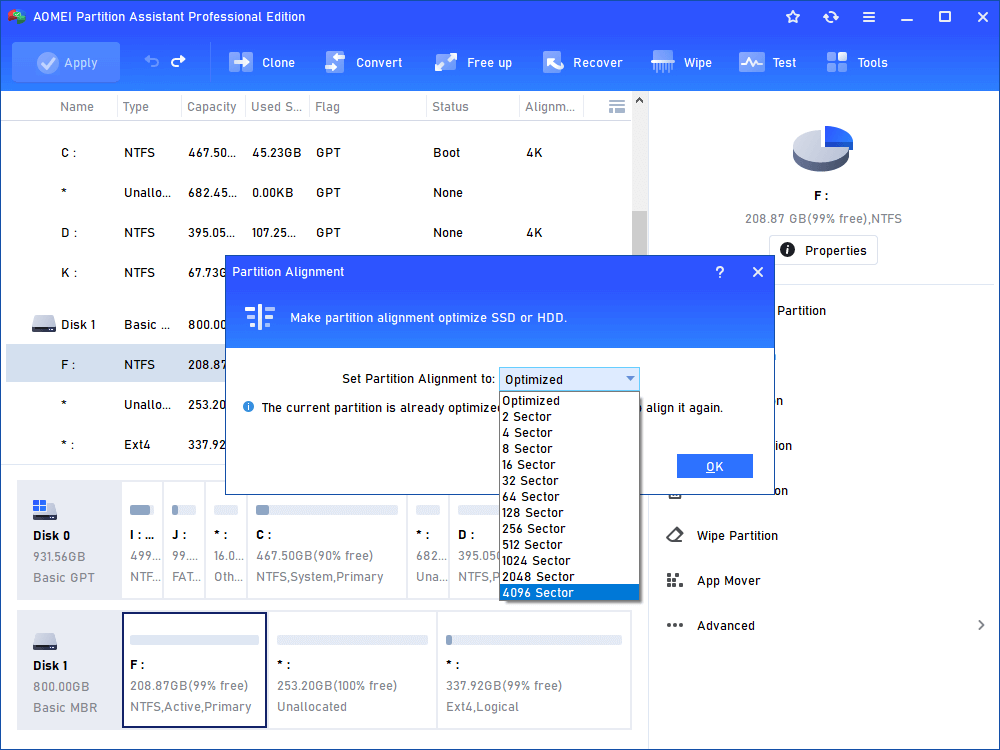
What SSD partition alignment means
SSD partition alignment means placing the start of a partition at a boundary that matches the drive’s internal data structure. Most current operating systems use 1 MiB alignment, which equals 1,048,576 bytes.
Think of an SSD as a row of storage blocks. If a partition starts in the middle of those blocks, one logical request may touch two physical areas. The SSD then does extra work to complete one operation.
For how to align SSD partitions for better performance, the key point is simple: the partition’s starting offset should divide evenly by 4,096 bytes. In most modern systems, a starting offset divisible by 1,048,576 bytes also meets this requirement.
Proper alignment can help with:
• Efficient read and write operations
• Lower write amplification
• Better random input/output performance
• More consistent performance during heavy workloads
• Lower risk during disk cloning and system migration
Partition alignment does not turn a slow SSD into a fast one. The drive controller, NAND type, firmware, interface, temperature, and workload still have a major effect.
Why SSD partition alignment affects performance
SSDs store data in pages and erase data in larger blocks. The exact sizes vary by model, but the basic rule stays the same: the operating system uses logical sectors, while the SSD manages physical pages and blocks.
When the partition boundary matches the SSD’s preferred structure, data requests are easier to process. When it does not, the drive may need to read, change, and rewrite more physical data than the operating system requested.
This extra work is often called read-modify-write activity. It may increase latency and write amplification. On a modern SSD, the difference may be small during normal desktop use, but it can become more visible during virtual machine work, database tasks, video editing, or large file transfers.
Correct alignment is especially important for:
• Older SSDs
• SSDs used in RAID arrays
• Cloned operating system drives
• Virtual disks
• High-write workloads
A useful lesson from real-world disk migrations is that alignment problems often appear after cloning, not after a clean installation. A fresh Windows or Linux installer usually creates aligned partitions automatically. Older cloning software may copy an outdated partition layout without correcting the starting offset.
How to check SSD partition alignment
Before changing anything, check the current partition offset. If the offset is already aligned, there is usually no reason to recreate the partition.
Check alignment in Windows
Open Command Prompt as an administrator and run:
wmic partition get Name, Index, StartingOffset
The StartingOffset value shows where each partition begins. To check alignment, divide that number by 4,096.
You can also divide it by 1,048,576. If the result is a whole number, the partition has common 1 MiB alignment.
For example:
StartingOffset: 1048576
This value is aligned because 1,048,576 is divisible by both 4,096 and 1,048,576.
You can also use PowerShell:
Get-Partition | Select-Object DiskNumber, PartitionNumber, Offset, Size
Then inspect each Offset value. Some storage tools display alignment status directly, which can make the check easier for less technical users.
Check alignment in Linux
Run:
lsblk -o NAME,PHY-SEC,LOG-SEC,ALIGNMENT,START,SIZE,TYPE,MOUNTPOINTS
The START value shows the beginning sector. The ALIGNMENT column may show whether the partition has an alignment issue.
You can also use:
sudo fdisk -l
Look for partition start sectors. A start sector of 2,048 is common for 1 MiB alignment when the logical sector size is 512 bytes:
2048 × 512 = 1,048,576 bytes
On a 4K-sector device, check the actual physical and logical sector sizes before judging the result.
Check alignment with a partition manager
Many current partition managers show:
• Partition offset
• Logical sector size
• Physical sector size
• Alignment status
• SSD optimization options
Choose a tool that clearly explains what it will change. Do not rely on a vague “optimize” button without reviewing the proposed operation.
How to align SSD partitions for better performance
The safest method depends on whether you are installing an operating system, creating a new partition, or fixing an existing one.
Method 1: Use a modern operating system installer
For a new installation, back up your data and allow the installer to create the partition layout.
Windows 10 and Windows 11 normally create aligned partitions when installed on a modern drive. Current Linux distributions also use alignment-friendly defaults in their graphical and command-line installers.
The basic process is:
Back up important files.
Boot from the Windows or Linux installation media.
Choose the target SSD.
Delete old partitions only if you are sure the data is backed up.
Select unallocated space.
Let the installer create the required partitions.
Confirm the layout after installation.
This approach is often safer than manually entering sector numbers. It also creates the boot, recovery, and system partitions that the operating system needs.
Method 2: Create aligned partitions with DiskPart
Windows DiskPart can create a partition with a specified alignment. Be careful: DiskPart can erase the wrong drive if you select it incorrectly.
Open an administrator Command Prompt and use:
diskpart
list disk
select disk X
clean
convert gpt
create partition primary align=1024
format fs=ntfs quick
assign
exit
Replace X with the correct disk number.
The align=1024 value means 1,024 KB, or 1 MiB. This is a common alignment choice for modern SSDs.
The clean command removes the partition table. Never run it until you have checked the disk number and confirmed that you have a complete backup.
Method 3: Create aligned partitions with Linux tools
For a new GPT partition table, use parted:
sudo parted /dev/nvme0n1
Inside parted, you can use:
mklabel gpt
mkpart primary 1MiB 100%
align-check optimal 1
quit
The exact device name may be different. SATA drives often appear as /dev/sda, while NVMe drives commonly appear as /dev/nvme0n1.
You can also use gdisk or a modern graphical tool. The important part is selecting a 1 MiB or “optimal” starting boundary.
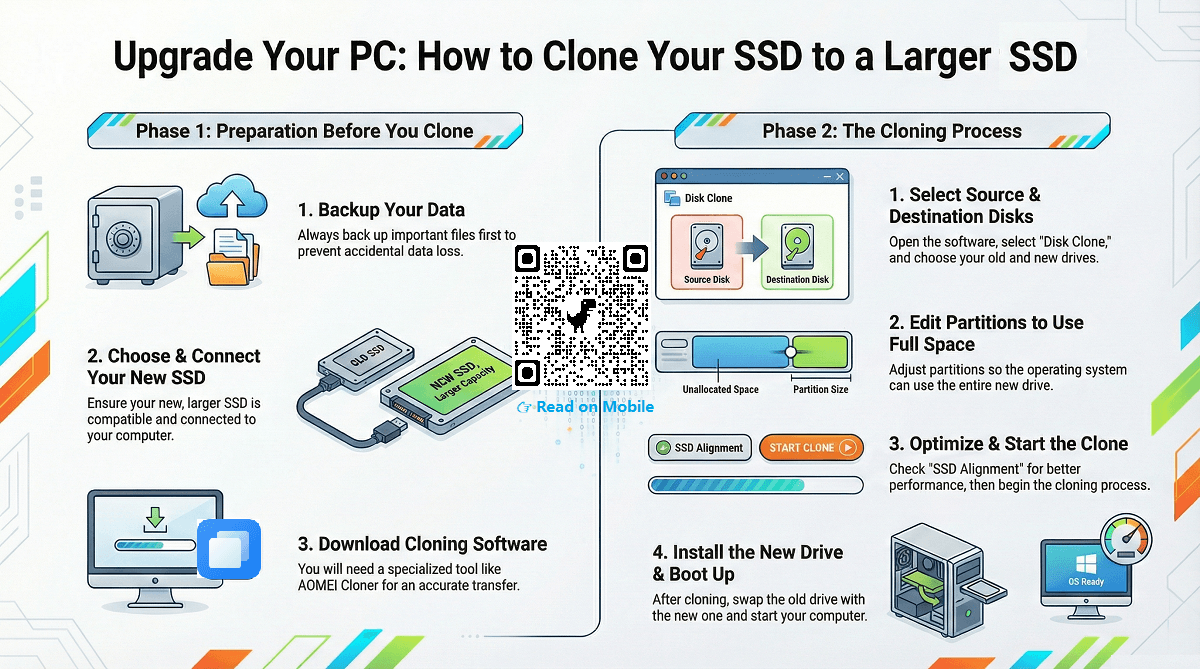
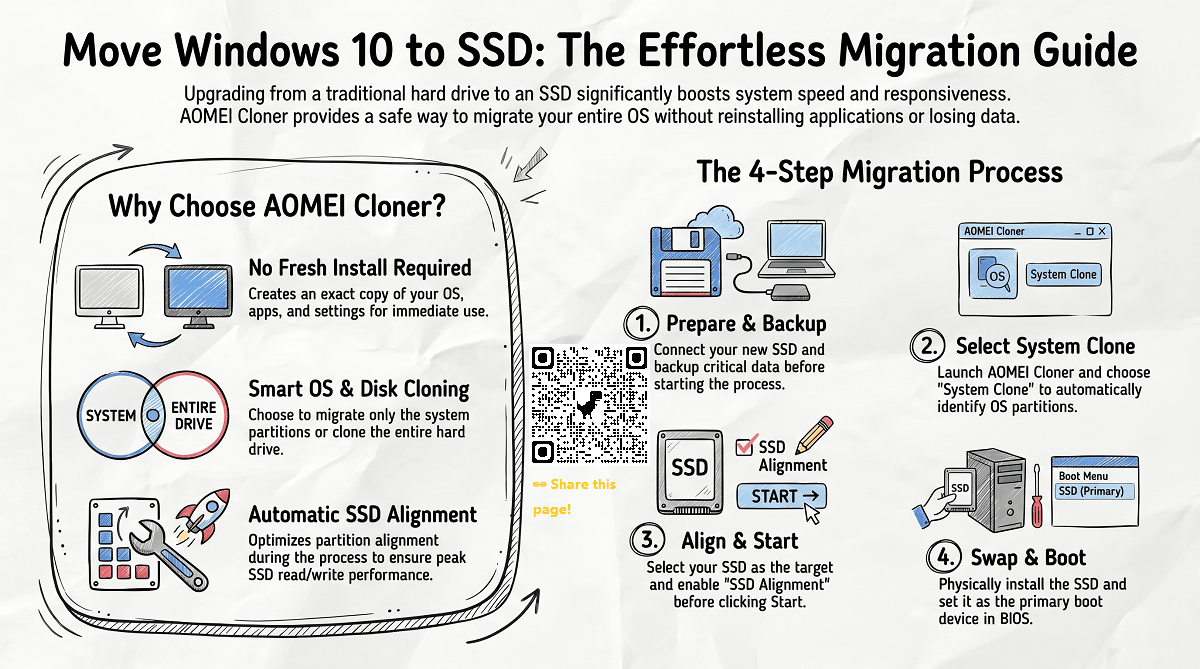
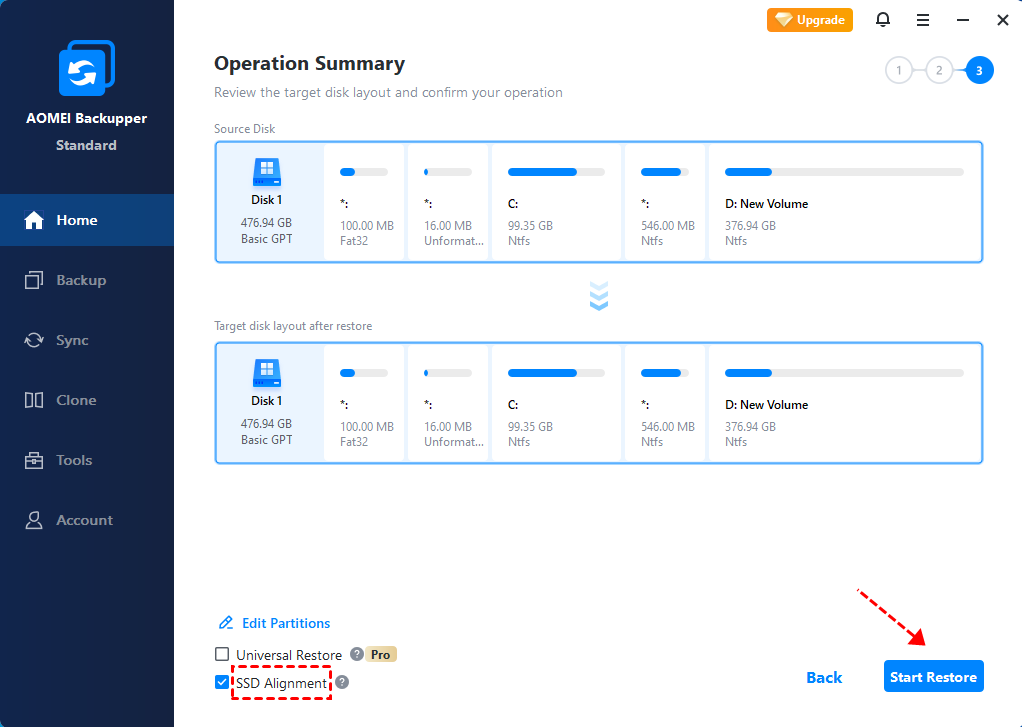
Method 4: Align partitions during cloning
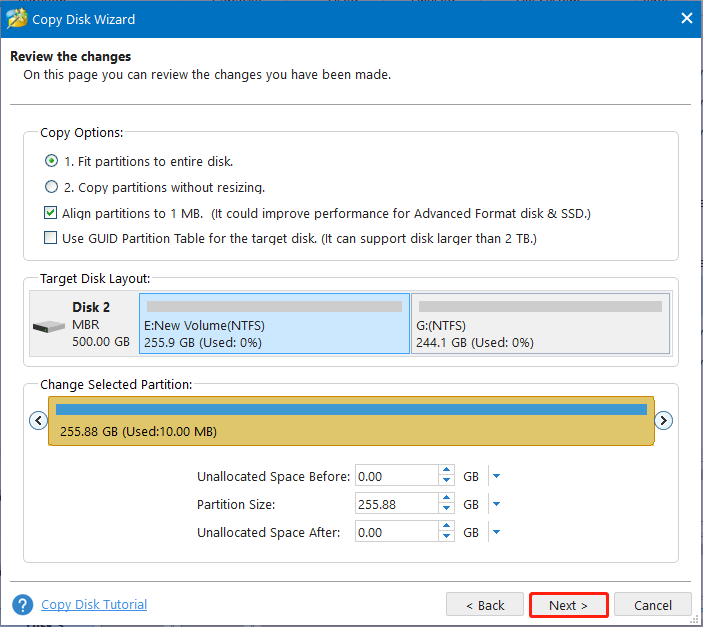
When cloning an operating system, select a cloning tool that includes an option such as:
• SSD alignment
• Optimize for SSD
• 1 MiB alignment
• 4K alignment
• Proportional partition resizing
Do not assume that every cloning program corrects alignment automatically. Some copy the original partition structure exactly. That can preserve a poor offset from an older disk.
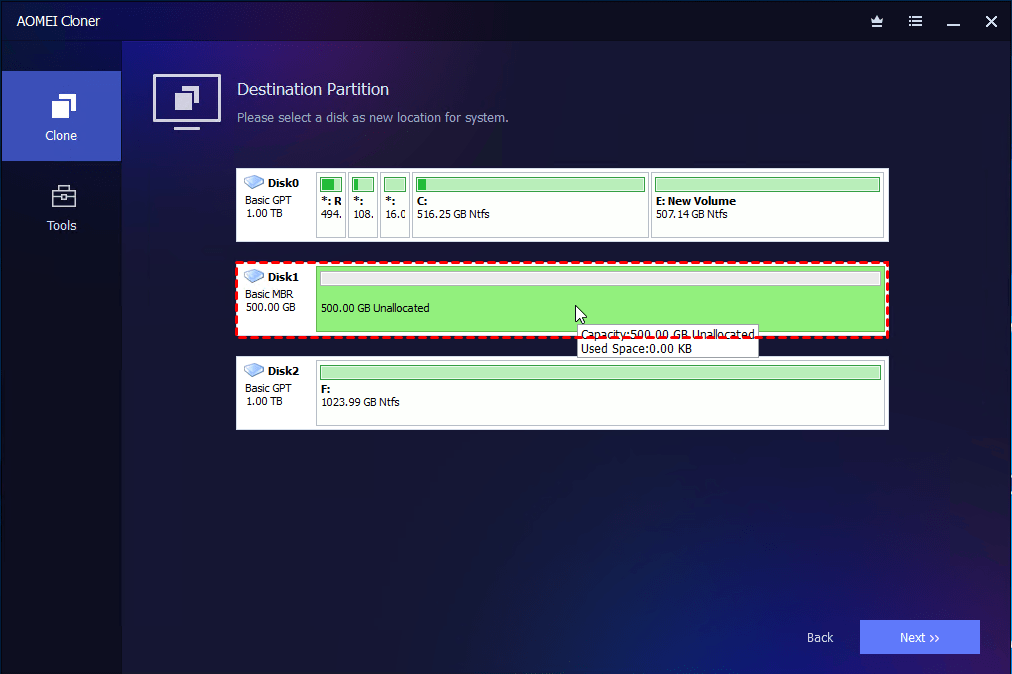
Before starting the clone:
• Update the cloning software.
• Confirm the source and target disks.
• Back up critical files.
• Check whether the target uses GPT or MBR.
• Confirm that the target SSD has enough capacity.
• Enable SSD alignment if the tool provides that option.
After the clone, check the new partition offset. This final check is one of the most valuable steps in how to align SSD partitions for better performance.
Best partition offset for an SSD
A 1 MiB boundary is the standard practical choice for most modern SSDs. It works well with 4K physical sectors and common erase-block layouts.
You may see other recommendations, such as starting at sector 2,048 or sector 4,096. These can also be aligned, depending on the sector size and storage setup.
The rule is more useful than any single number:
• Use a starting offset divisible by 4,096 bytes.
• Prefer 1 MiB alignment for broad compatibility.
• Use the partition tool’s “optimal” alignment setting when available.
• Check the physical sector size before making manual changes.
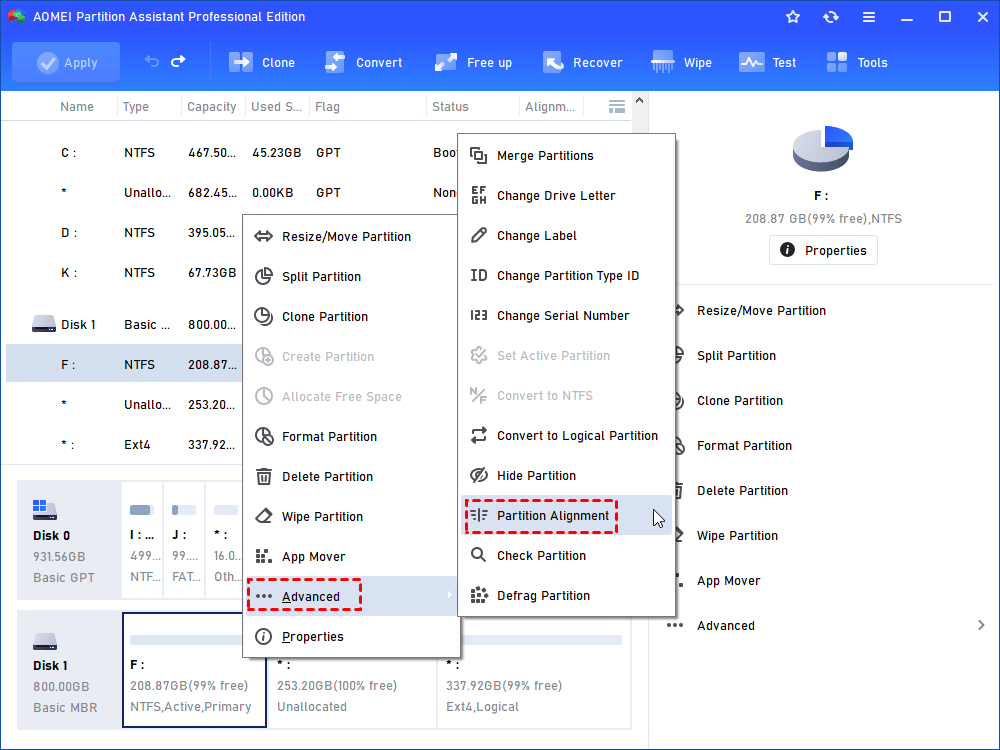
Do not confuse partition alignment with cluster size. Alignment controls where the partition begins. Cluster size controls how the file system stores files inside that partition.
For most Windows users, the default NTFS allocation unit size is suitable. For most Linux users, the default ext4 settings are also appropriate. Changing cluster size does not fix a misaligned partition.
How to fix a misaligned SSD partition
Fixing alignment usually requires moving or recreating the partition. That is why a full backup comes first.
Option 1: Recreate the partition
This is the cleanest method for a secondary drive with no important data:
Copy the data to another drive.
Delete the misaligned partition.
Create a new GPT partition table if appropriate.
Create the partition at a 1 MiB boundary.
Format it.
Copy the data back.
This method reduces complexity and avoids moving every file within the existing partition.
Option 2: Move the partition
Some advanced partition tools can move the start of a partition while keeping the data. This may take a long time, especially if the partition is nearly full.
Keep the computer connected to reliable power. Do not interrupt the process. A sudden shutdown while moving a partition can damage the file system.
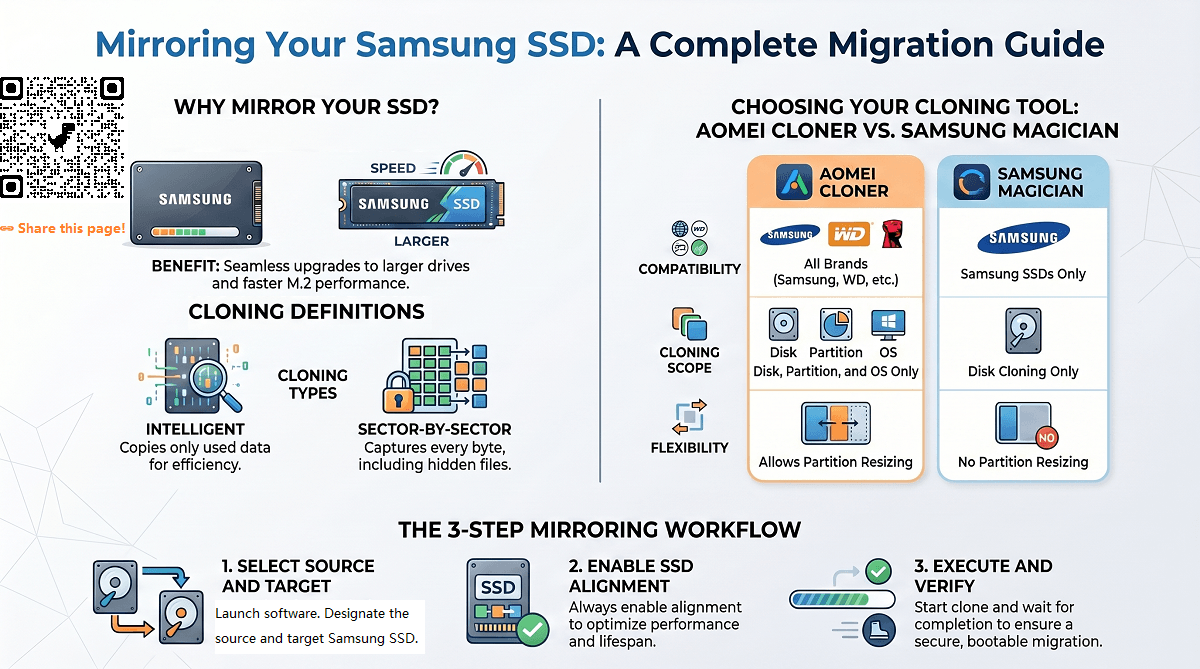
Option 3: Clone to a correctly aligned SSD
For an operating system disk, cloning to a new SSD may be easier than repairing the old layout. Choose a cloning tool that supports alignment and verify the result before wiping the source drive.
Keep the original drive untouched until the new SSD boots correctly and your files are confirmed.
Option 4: Reinstall the operating system
A clean installation is often the most reliable solution for an old or damaged system. It creates a fresh partition layout and removes years of unwanted software and file-system clutter.
It also takes more time because you must reinstall applications, restore files, and adjust settings.
How to align SSD partitions for better performance in Windows
Windows generally handles SSD alignment well when you use a current installer. The main risks come from old disk images, manual partitioning, and outdated cloning software.
For Windows 11, use GPT and UEFI whenever your hardware supports them. Windows 10 also works well with GPT and UEFI, although older systems may use MBR.
To improve the result:
• Install current storage and chipset drivers.
• Keep reasonable free space on the SSD.
• Leave TRIM enabled.
• Avoid filling the drive to its absolute limit.
• Check alignment after cloning.
• Use a current version of the storage manufacturer’s diagnostic tool.
Windows can report TRIM support with:
fsutil behavior query DisableDeleteNotify
A result of 0 usually means TRIM commands are enabled. TRIM and alignment solve different problems, but both support healthy SSD operation.
Do not run traditional hard drive defragmentation on an SSD as a routine fix. Windows Storage Sense and the built-in Optimize Drives tool know how to send TRIM commands and manage SSD maintenance.
How to align SSD partitions for better performance in Linux
Linux distributions usually create aligned partitions when you use modern versions of parted, fdisk, or graphical installers.
For manual partitioning, use MiB boundaries:
sudo parted -a optimal /dev/nvme0n1
The -a optimal option asks the tool to use the device’s reported optimal alignment.
You can verify the result with:
lsblk -o NAME,PHY-SEC,LOG-SEC,ALIGNMENT,START
Linux users should also review:
• The partition table type
• The file system
• The mount options
• TRIM support
• The swap setup
• The system’s boot mode
To check scheduled TRIM:
systemctl status fstrim.timer
A weekly TRIM schedule is common and suitable for many systems. Do not force aggressive changes without a clear reason. Storage behavior differs between consumer SSDs, enterprise drives, USB enclosures, and virtual machines.
Common mistakes to avoid
Many alignment problems come from rushing a disk migration. The partition itself is simple, but the data around it may be valuable.
Avoid these mistakes:
• Running clean on the wrong disk.
• Cloning without enabling SSD alignment.
• Repartitioning before making a verified backup.
• Assuming every partition manager uses optimal alignment.
• Treating a benchmark score as proof of long-term health.
• Confusing partition alignment with file-system block size.
• Using old tools that do not understand GPT or 4K sectors.
• Interrupting a partition move.
• Changing alignment on a working system without a clear benefit.
One practical lesson stands out: measure before you modify. If the partition starts at 1 MiB and the drive performs normally, changing it may add risk without adding speed.
Other ways to improve SSD performance
Correct alignment is useful, but it is only one part of SSD maintenance. If your drive feels slow, check the wider system first.
Keep free space available
An SSD needs spare NAND blocks for garbage collection and wear leveling. Performance may drop when the drive is nearly full.
As a practical rule, try to keep at least 10% to 20% free when possible. The ideal amount depends on the drive, workload, and overprovisioning design.
Confirm TRIM support
TRIM tells the SSD which blocks no longer contain active data. This helps the drive prepare those blocks for future writes.
Use the operating system’s normal SSD optimization features. Avoid random third-party “SSD booster” programs that make broad changes without explaining them.
Check temperature
NVMe SSDs can reduce speed when they become too hot. This is called thermal throttling.
Improve cooling by:
• Using the motherboard’s heat spreader
• Keeping airflow clear
• Avoiding blocked laptop vents
• Checking temperatures during heavy transfers
Update firmware carefully
SSD firmware can improve compatibility, stability, and error handling. Before updating, read the release notes and back up important data.
A firmware update is not automatically necessary. Apply it when it addresses a known problem, improves compatibility, or is recommended by the manufacturer.
Use the correct interface
A PCIe NVMe SSD in a slow enclosure may not reach its rated speed. A SATA SSD cannot exceed the limits of the SATA interface.
Check whether the drive is connected through:
• SATA III
• PCIe 3.0
• PCIe 4.0
• PCIe 5.0
• USB 3.x
• Thunderbolt
The slowest component in the connection sets the practical limit.
When alignment will not improve performance
Partition alignment cannot fix every storage problem. You may see little or no difference when:
• The SSD was already aligned.
• The workload is limited by the CPU.
• The system has too little memory.
• The drive is nearly full.
• The SSD is overheating.
• The interface is slower than the drive.
• The SSD is failing.
• Background processes are using the disk.
• The benchmark is not repeatable.
Modern SSD controllers hide much of the physical complexity from the operating system. As a result, alignment matters most during setup, migration, and unusual storage configurations.
If performance is poor, review SMART data, temperatures, available space, firmware, and interface speed before changing partitions.
How to test SSD performance after alignment
Use the same test before and after making changes. Otherwise, the comparison may be misleading.
Record:
• Sequential read speed
• Sequential write speed
• Random read speed
• Random write speed
• Access latency
• Drive temperature
• Free space
Run each test more than once and avoid using the computer during testing. Large benchmark transfers can also create significant writes, so do not run them repeatedly on a drive with limited endurance.
Real-world tests may be more useful than synthetic scores. Copy a large project folder, open applications, build software, or load a virtual machine. The best result is not always the highest benchmark number. Stable response under your normal workload matters more.
Frequently asked questions about how to align SSD partitions for better performance
Does SSD partition alignment really improve speed?
It can improve efficiency when a partition is misaligned, especially on older SSDs, 4K-sector devices, and heavy workloads. If the partition is already aligned, changing it may produce little or no visible improvement.
What is the best alignment for an SSD?
A 1 MiB boundary is the common choice for modern SSDs. More technically, the starting offset should be divisible by the drive’s physical sector size, with 4,096-byte alignment supporting most current devices.
How do I check SSD alignment in Windows?
Use an administrator Command Prompt and run wmic partition get Name, Index, StartingOffset. A starting offset divisible by 4,096 bytes is generally aligned, and 1,048,576 bytes is a common 1 MiB boundary.
Can I align an SSD without losing data?
Some partition tools can move a partition without deleting data, but the process carries risk. Make a verified backup first, and consider cloning to a correctly aligned drive when the system disk is involved.
Does Windows automatically align SSD partitions?
Current Windows installers normally create properly aligned partitions on modern drives. Problems are more likely after using old cloning software, restoring outdated disk images, or creating partitions manually.
Is SSD alignment the same as 4K alignment?
They are related but not identical terms. SSD partition alignment refers to the partition’s starting offset, while 4K alignment usually means that the offset matches 4,096-byte physical sectors or storage pages.
Should I align an SSD that already works well?
Usually not. If the partition is aligned and the drive has normal temperatures, free space, TRIM support, and healthy diagnostic data, changing the layout may add risk without a clear benefit.
Conclusion
How to align SSD partitions for better performance starts with one basic rule: use a properly aligned starting offset, usually at a 1 MiB boundary. Modern installers handle this well, but cloning tools, old disk images, and manual partitioning can create problems.
Check the offset before making changes. Back up important data, use GPT and UEFI when suitable, enable SSD alignment during cloning, and verify the result afterward. Also remember that TRIM, free space, cooling, firmware, and the storage interface can matter just as much.
If you are preparing a new SSD, use the guidance above before installing or cloning your system. For more storage tips, explore related drive maintenance guides and share your experience with SSD alignment in the comments.
