How To Connect Bluetooth Headphones To PC: Easy Guide
Connect Bluetooth headphones to a PC by turning on Bluetooth, pairing the headset, and selecting it as the audio device.
Learning how to connect Bluetooth headphones to a PC is simple once you know where the right settings are. This guide covers Windows 11, Windows 10, Mac computers, pairing problems, sound settings, microphone issues, and practical tips from real-world use.

What you need before connecting Bluetooth headphones
Before you start, check that your computer and headphones are ready. Most connection problems happen because one device is not in pairing mode, the headphones have a low battery, or the PC lacks Bluetooth support.
You need the following:
• Bluetooth headphones with some battery power


• A Windows 10, Windows 11, or macOS computer
• Built-in Bluetooth or a USB Bluetooth adapter
• The latest available Bluetooth driver for your computer
Bluetooth headphones usually connect within a few feet of a computer. Keep the headset close during setup. Walls, USB 3.0 devices, and other wireless signals can sometimes reduce connection quality.
If your desktop PC has no Bluetooth option, do not worry. A small USB Bluetooth adapter can add this feature. Choose one that supports your version of Windows and follow its setup instructions.
In my experience, the most common mistake is pressing the power button but not the pairing button. These are often different buttons. A flashing blue or white light usually means the headphones are ready to pair, but check the headset manual if the light pattern is unclear.
How to connect Bluetooth headphones to a PC on Windows 11
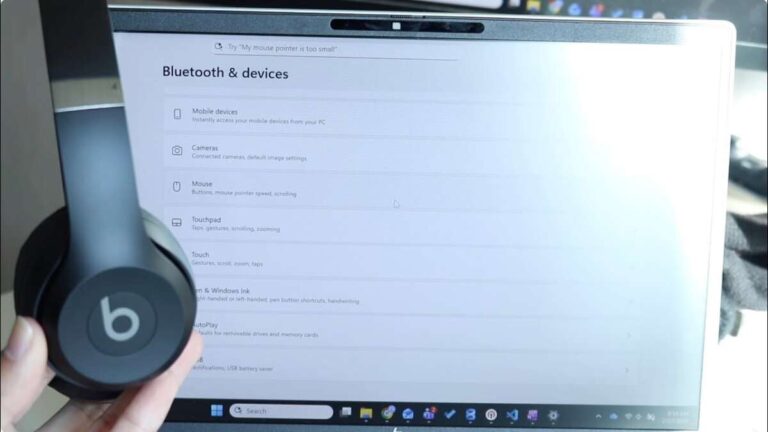
Windows 11 makes it easy to connect Bluetooth headphones through Quick Settings or the Settings app. Keep the headphones near the computer and place them in pairing mode first.
Follow these steps:
-
Turn on your Bluetooth headphones.
-
Press and hold the pairing button until the indicator light flashes.
-
Select the network, sound, or battery area on the right side of the Windows taskbar.
-
Select the Bluetooth button to turn it on.
-
Right-click the Bluetooth button and choose Go to Settings.
-
Select Add device.
-
Choose Bluetooth.
-
Select your headphones from the list.
-
Wait for the message that says your device is connected.
Windows may display the headphones by their brand name or model number. For example, you might see entries such as “WH-1000XM5,” “AirPods,” or “QuietComfort 45.”
Once paired, Windows usually reconnects to the headphones when they are turned on and nearby. If another phone or tablet connects first, turn off Bluetooth on that device for a moment. Many headphones connect automatically to the last active device.
Choose the headphones for sound output
Pairing does not always make the headphones the main audio device. If sound still comes from the computer speakers, change the output manually.


-
Select the speaker icon on the Windows taskbar.
-
Select the arrow next to the volume slider.
-
Choose your Bluetooth headphones.
You can also open Settings, select System, choose Sound, and select the headphones under Output. Set them as the default device if you want Windows to use them every time they are connected.

How to connect Bluetooth headphones to a PC on Windows 10
The Windows 10 process is similar, but the menus look slightly different. Start by placing your headphones in pairing mode.
-
Open the Start menu.
-
Select Settings.
-
Choose Devices.
-
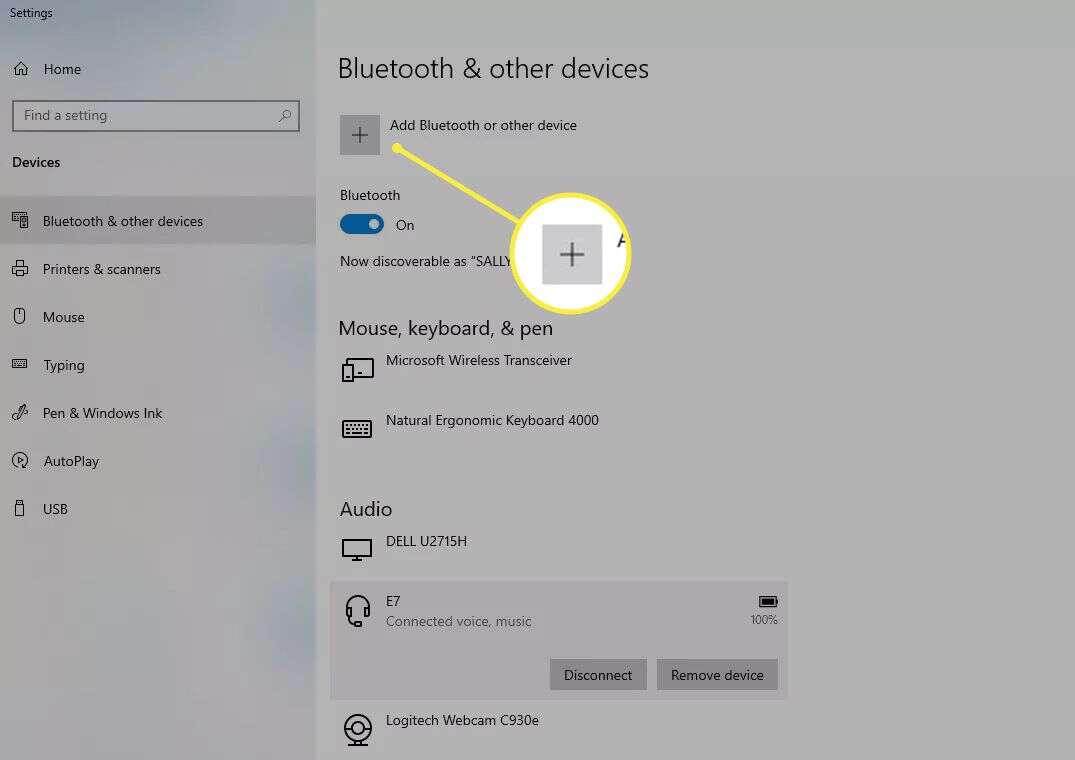
Select Bluetooth & other devices.
-
Turn on Bluetooth.
-
Select Add Bluetooth or other device.
-
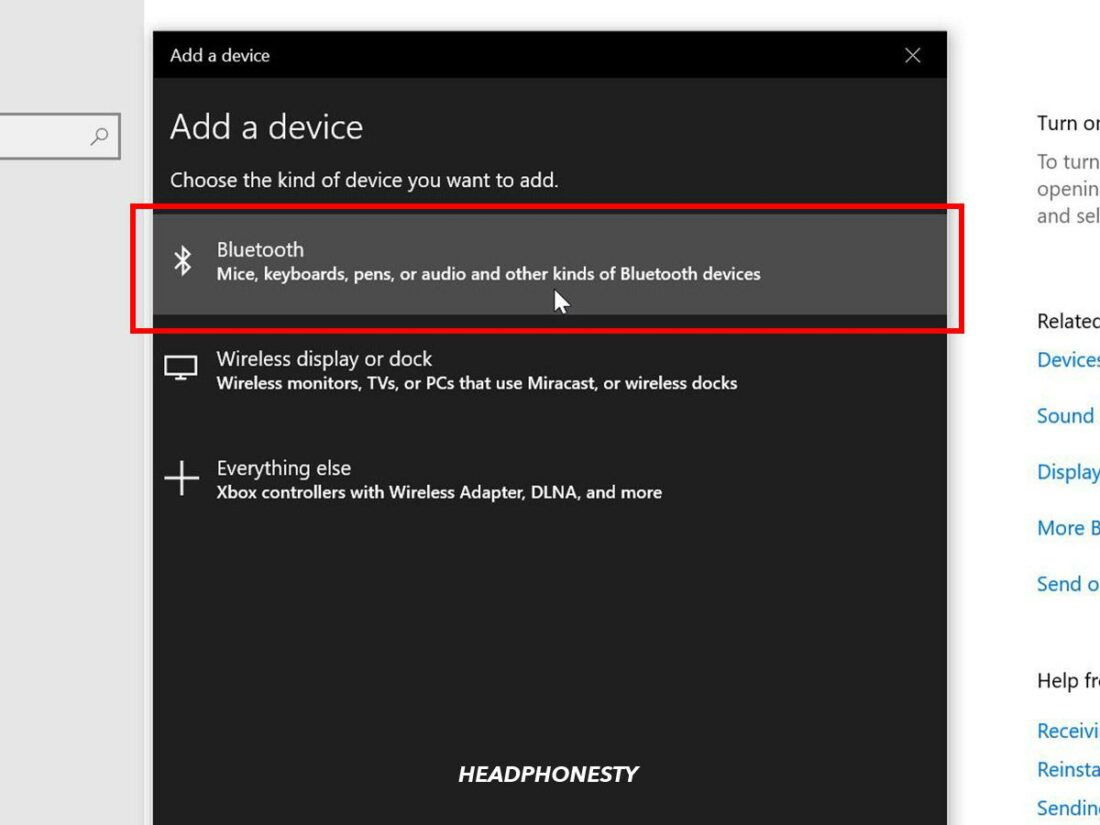
Choose Bluetooth.
-
Select your headphones.
-
Select Done when Windows confirms the connection.
After pairing, select the speaker icon in the taskbar to choose the headphones for audio. If the device appears as “Paired” but not “Connected,” select its name and choose Connect.
Windows 10 may ask for a PIN during setup. Common codes include 0000 or 1234, but many modern headphones connect without a code. Use the code listed in the headset manual if Windows requests one.
Older computers may need a Bluetooth driver before this process works. Open Device Manager, expand Bluetooth, and look for a Bluetooth adapter. A yellow warning icon can indicate a driver issue.

How to connect Bluetooth headphones to a Mac
Bluetooth headphones work with MacBook, iMac, Mac mini, and Mac Studio computers. The labels vary slightly between macOS versions, but the basic process remains the same.
-
Turn on the headphones.
-
Put them into pairing mode.
-
Select the Apple menu.
-
Open System Settings on newer macOS versions, or System Preferences on older versions.
-
Select Bluetooth.
-
Turn Bluetooth on if it is off.
-
Find the headphones in the device list.
-
Select Connect.
After the connection is complete, select the Control Center icon in the menu bar. Choose Sound, then select the headphones if your Mac continues using its built-in speakers.
A useful Mac tip is to remove old headphone entries. If a headset appears but will not connect, select the information button beside it and choose Forget This Device. Then place the headphones into pairing mode and connect them again.
How to put Bluetooth headphones in pairing mode
Pairing mode allows your computer to discover the headphones. Without it, the headset may be turned on but invisible to nearby devices.
Most headphones enter pairing mode in one of these ways:
• Press and hold the power button for several seconds
• Press and hold a separate Bluetooth or pairing button


• Open the charging case and hold its setup button
• Remove the earbuds from the case and touch both controls
Look for a flashing light or a voice prompt such as “pairing.” Some models use a fast blue flash, while others use alternating blue and red lights.
If the headphones connect to your phone instead, turn off Bluetooth on the phone temporarily. Some headphones support multipoint Bluetooth, but older models may connect to only one device at a time.
Resetting the headphones can help when pairing mode does not start. The reset method varies by model, so use the manufacturer’s instructions. A reset usually clears saved devices and lets the headphones begin a fresh connection.
How to fix Bluetooth headphones that will not connect
When Bluetooth headphones fail to connect, work through the problem in a set order. This is faster than repeatedly clicking the same connection button.
Try these solutions:
• Charge the headphones for at least 15 minutes.
• Move the headphones within three feet of the PC.
• Confirm that pairing mode is active.
• Turn Bluetooth off and back on in Windows or macOS.
• Restart both the computer and headphones.
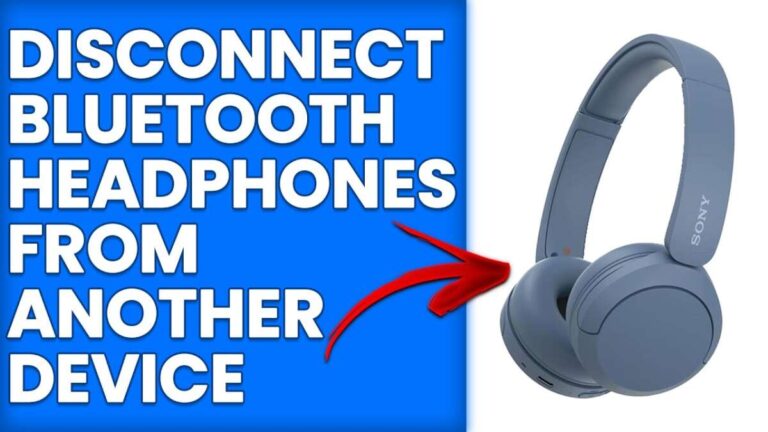
• Disconnect the headphones from phones, tablets, and smart TVs.
• Remove the headphones from the computer’s saved Bluetooth list.
• Pair the headphones again.
If the headphones still do not appear, check whether Bluetooth is available on the computer. In Windows, open Settings and search for Bluetooth. If there is no Bluetooth setting, your PC may need a USB adapter or a working driver.
For Windows computers, open Device Manager and expand Bluetooth. Right-click the adapter and select Update driver. You can also visit the computer maker’s support page for the correct driver.
Avoid random driver websites because incorrect drivers can create new problems.

Windows includes a Bluetooth troubleshooter in its support tools. Running it can identify disabled services, driver problems, or connection errors. The exact troubleshooter location may change with Windows updates, so searching Settings for “Bluetooth troubleshooter” is often the quickest method.
How to fix Bluetooth headphone sound problems
A headset can show as connected while producing no sound. This usually means the PC is using another output device or has selected the wrong Bluetooth profile.
First, choose the headset manually:
-
Select the speaker icon on the taskbar.
-
Open the output device list.
-
Select the headphones.
-
Raise the system volume.
-
Check the volume controls on the headphones.
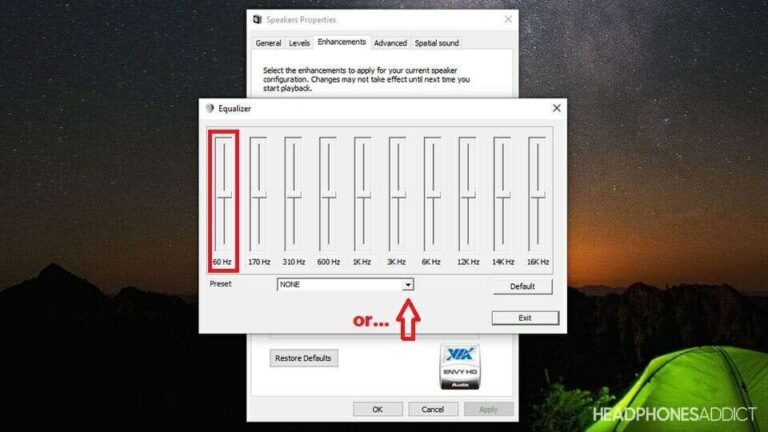
On Windows, two audio profiles may appear. The Stereo or Headphones profile offers better music quality. The Headset or Hands-Free profile supports the microphone but may reduce sound quality during calls.
This change happens because Bluetooth audio uses different modes for listening and speaking. When an app activates the microphone, Windows may switch to the hands-free mode. That behavior is normal, though it can sound less clear.
Close apps that may control audio, such as video calls, music players, or browser tabs. Then reconnect the headphones and test them with a short video. If only one app has a problem, check that app’s audio output settings.
How to use Bluetooth headphones with a PC microphone
Many Bluetooth headphones include a built-in microphone. To use it for calls, meetings, or gaming, select it as the input device.
On Windows 11:
-
Open Settings.
-
Select System.
-
Choose Sound.
-
Scroll to Input.
-
Select the headphone microphone.
On Windows 10, open Settings, choose System, select Sound, and choose the headset under Input. On a Mac, open System Settings, select Sound, and choose the headphones under Input.
Test the microphone before joining an important meeting. Open the sound settings and speak normally. Watch for movement in the input meter.
Bluetooth microphone quality can vary. When the microphone is active, music may sound narrower or quieter because the connection is sharing bandwidth. For frequent calls, a wired headset or a dedicated USB microphone may provide better results.
How to improve Bluetooth headphone performance
A good Bluetooth connection should feel almost invisible. You should hear clear sound without repeated drops, delays, or sudden volume changes.
Use these practical tips:
• Keep the PC’s Bluetooth adapter away from crowded USB ports when possible.


• Keep the headphones within a reasonable range of the computer.
• Install operating system and Bluetooth driver updates.
• Charge the headphones before long meetings or gaming sessions.
• Disconnect unused Bluetooth devices.
• Avoid placing the computer behind thick furniture or metal objects.
• Use a USB extension cable if a desktop adapter has a weak signal.
Bluetooth performance depends on the computer, headset, driver, distance, and nearby wireless traffic. Newer Bluetooth versions may improve range and efficiency, but both devices still need compatible features for the best result.
Audio delay can also occur during games or video playback. Some headphones support low-latency modes, but these modes may reduce range or sound quality. For competitive gaming, a wired headset or a headset with a dedicated wireless USB receiver often performs better.
How to remove and reconnect Bluetooth headphones
Removing a headset gives you a clean start when Windows or macOS remembers incorrect connection data.
On Windows 11:
-
Open Settings.
-
Select Bluetooth & devices.
-
Find the headphones.
-
Select the three-dot menu.
-
Choose Remove device.
-
Restart Bluetooth.
-
Put the headphones in pairing mode.
-
Select Add device and connect again.
On Windows 10, open Bluetooth & other devices, select the headset, and choose Remove device. Then pair it again through Add Bluetooth or other device.
On a Mac, open Bluetooth settings, select the information button beside the headphones, and choose Forget This Device. Turn the headphones off and on, then reconnect them.
This approach solved many connection issues in my own testing. A headset can appear connected while storing an outdated profile, much like a saved address that no longer exists. Removing it clears that old path.
Bluetooth headphones versus a USB wireless headset
Bluetooth headphones are convenient because they can work with computers, phones, and tablets. They also avoid cables and often offer strong battery life.
A USB wireless headset uses a small receiver plugged into the computer. It may provide lower delay, stronger gaming performance, and easier microphone support. However, the receiver uses a USB port and may not work with every device.


Choose Bluetooth headphones if you want:
• Easy switching between several devices
• A portable headset for travel
• Active noise cancellation
• Compatibility with phones and tablets
Choose a USB wireless or wired headset if you want:
• Low delay for competitive games
• Reliable microphone performance
• Simple plug-and-play setup
• No battery charging
Neither option is best for every person. Bluetooth is often ideal for music, work, and casual gaming. A wired or USB wireless headset may be better for professional calls or fast-paced games.
Common mistakes to avoid
Small setup errors can make a simple Bluetooth connection seem difficult. Avoid these mistakes when learning how to connect Bluetooth headphones to a PC.
• Pairing the headphones while they are already connected to a phone
• Choosing the wrong audio output after pairing
• Ignoring low battery warnings
• Using an outdated Bluetooth driver
• Pairing from the wrong Windows menu
• Keeping the headset too far from the PC during setup
• Assuming every desktop computer has built-in Bluetooth
• Expecting a Bluetooth microphone to match a USB microphone
The best habit is to check the connection in this order: power, pairing mode, Bluetooth settings, audio output, and microphone input. This simple sequence finds most problems quickly.
Frequently Asked Questions About How to Connect Bluetooth Headphones to a PC
Why can’t my PC find my Bluetooth headphones?
Your headphones may not be in pairing mode, or they may already be connected to another device. Charge them, disconnect nearby phones, restart Bluetooth on the PC, and search again.
How do I know if my PC has Bluetooth?
Open Windows Settings and search for Bluetooth. You can also open Device Manager and look for a Bluetooth category or adapter.
Can I connect Bluetooth headphones to a desktop PC?
Yes. A desktop PC can use Bluetooth if it has built-in support or a compatible USB Bluetooth adapter. Install the adapter’s driver if Windows does not recognize it automatically.
Why are my Bluetooth headphones connected but silent?
The computer may still be using its speakers as the output device. Open the sound settings and select your Bluetooth headphones as the output device.
Can I use Bluetooth headphones and their microphone on a PC?
Yes, if the headphones support a microphone and the computer has the correct Bluetooth profile. Select the headphones under both Output and Input in the sound settings.
Why does Bluetooth audio sound worse during a video call?
The headset may switch from Stereo mode to Hands-Free mode when its microphone is active. This supports two-way communication but can reduce music quality.
Do Bluetooth headphones work with Windows 11 and Windows 10?
Most modern Bluetooth headphones work with both systems. Compatibility can depend on the PC’s Bluetooth adapter, drivers, and the headset’s supported profiles.
Conclusion
Connecting Bluetooth headphones to a PC usually takes only a few steps: turn on pairing mode, open Bluetooth settings, select the headphones, and choose them as the audio output. If the connection fails, check the battery, disconnect other devices, update the driver, and remove the headset before pairing it again.
Once you understand pairing mode, audio output, and microphone input, Bluetooth setup becomes much easier. Try the steps for your operating system, test the sound and microphone, and leave a comment if you discover another useful connection tip.