

Most Beats headphones reset by holding the power and volume buttons until the indicator lights flash.
Knowing how to reset Beats headphones can fix pairing errors, audio drops, charging glitches, and frozen controls. The exact button combination depends on your model, so this guide gives clear steps for popular Beats headphones and earbuds, plus safe fixes to try when a reset does not work.

What a reset does to Beats headphones
A reset returns your Beats device to a clean connection state. It can remove saved Bluetooth connections and clear temporary software errors, much like restarting a computer that has stopped responding.
A reset may help when:
• Your Beats headphones will not connect to a phone or laptop
• Only one side produces sound
• Bluetooth keeps disconnecting
• The buttons stop responding
• The battery level looks wrong
• Your headphones are stuck in pairing mode
A reset does not repair broken speakers, damaged buttons, liquid damage, or a worn-out battery. If the problem remains after several resets, the cause may be physical rather than software-based.
Before learning how to reset Beats headphones, charge the device for at least 10 minutes. A low battery can make the reset fail or create confusing light patterns.
Before you reset Beats headphones
A reset is simple, but a few quick checks can save time. Keep your phone nearby, and turn off Bluetooth on other devices that may try to connect first.
Follow these steps before the reset:
Charge your Beats headphones or earbuds.
Move within a few feet of your phone or computer.
Turn off Bluetooth on nearby devices you do not want to use.
Note the name of your Beats model.
Remove the Beats device from your phone’s Bluetooth list if you plan to pair it again.
To remove the device on an iPhone, open Settings, select Bluetooth, tap the information button next to your Beats, and choose Forget This Device. On Android, open Settings, choose Connected Devices or Bluetooth, select your Beats, and tap Forget or Unpair.
On a Mac or Windows PC, remove the Beats device from the Bluetooth settings menu. This gives your headphones a clean start after the reset.
How to reset Beats headphones by model
The correct method for how to reset Beats headphones depends on the controls built into your model. Use the section that matches your device.
Beats Studio Pro
To reset Beats Studio Pro:
Press and hold the system button on the right earcup for 10 seconds.
Release the button when the five fuel gauge lights flash white.
Watch for one red light, followed by three white flashes.
Turn Bluetooth off and on again on your phone.
Pair the headphones as a new device.
The system button is located on the right earcup. Do not release it too early, because a short press only turns the headphones on or off.
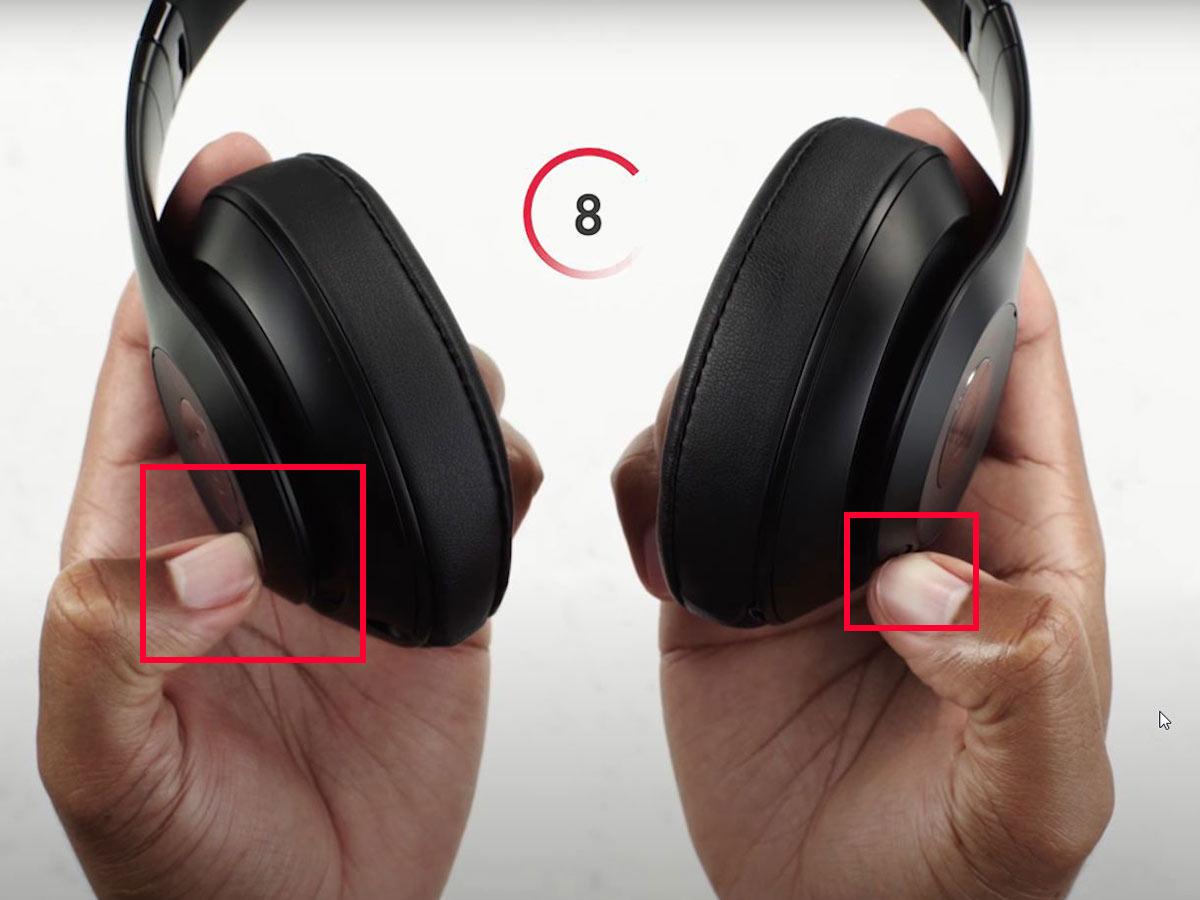
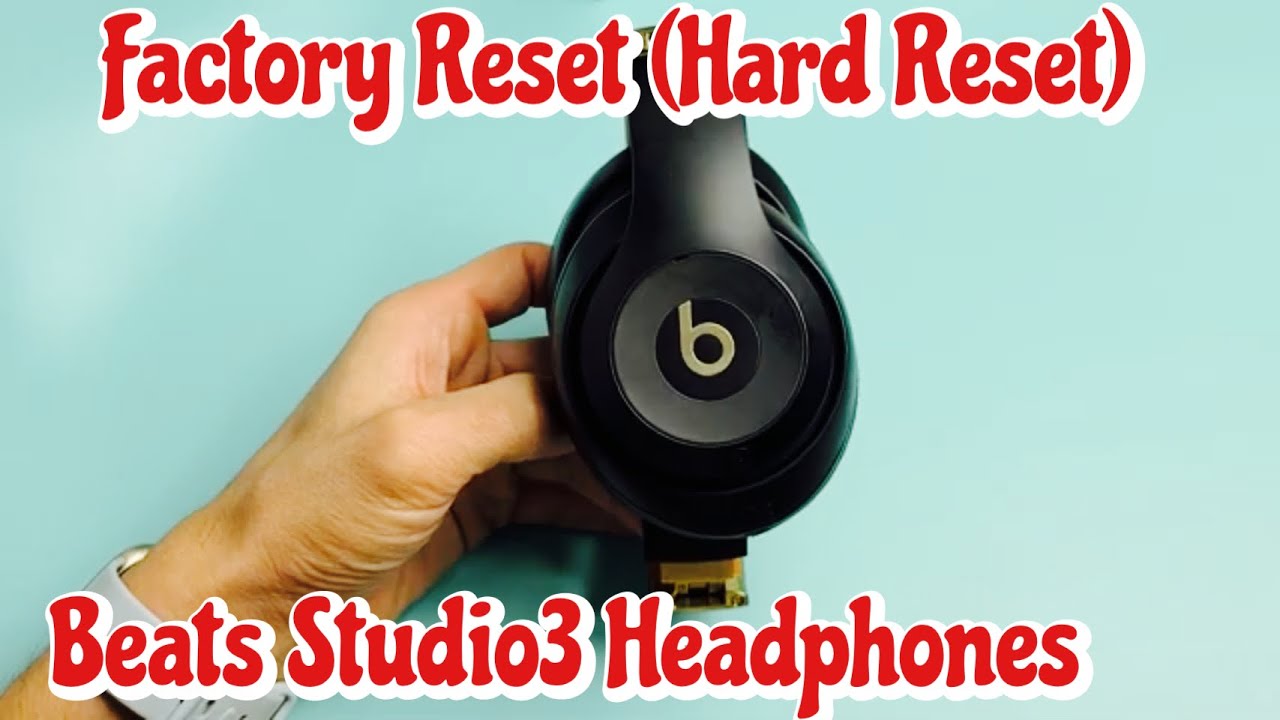
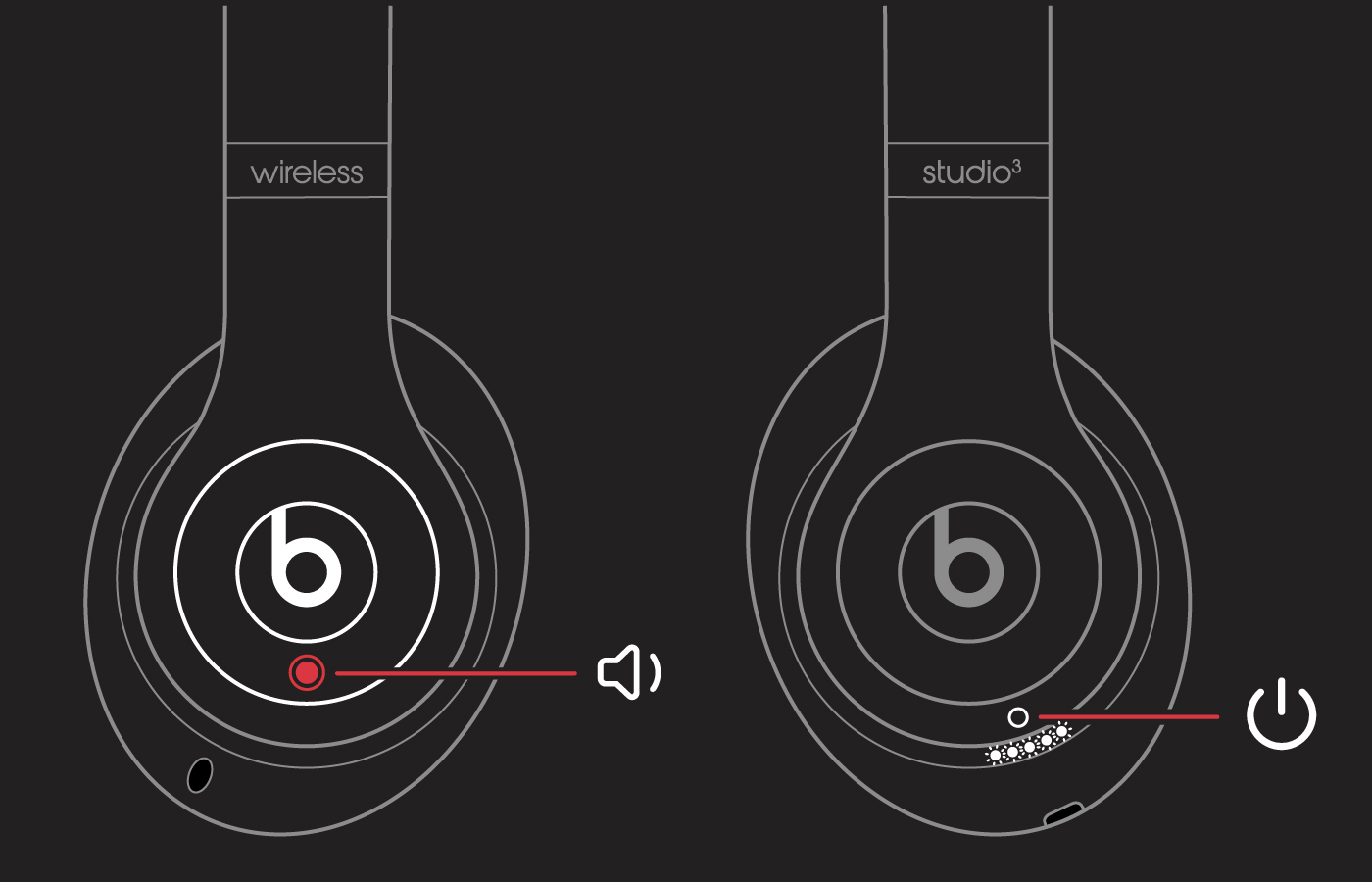
Beats Studio3 Wireless
To reset Beats Studio3 Wireless:
Press and hold the power button and the volume down button together.
Keep holding both buttons for about 10 seconds.
Release the buttons when the Fuel Gauge lights flash.
Wait a few seconds.
Pair the headphones again through Bluetooth.
This process clears the previous connection data. You may need to connect the Studio3 Wireless to every phone, tablet, or computer again.
Beats Solo3 Wireless
To reset Beats Solo3 Wireless:
Press and hold the power button.
Press and hold the volume down button at the same time.
Continue holding both buttons for 10 seconds.
Release them when the indicator lights flash.
Forget the old Bluetooth connection and pair the headphones again.
Keep the buttons pressed together. Pressing one button slightly before the other may only change the volume or power state.
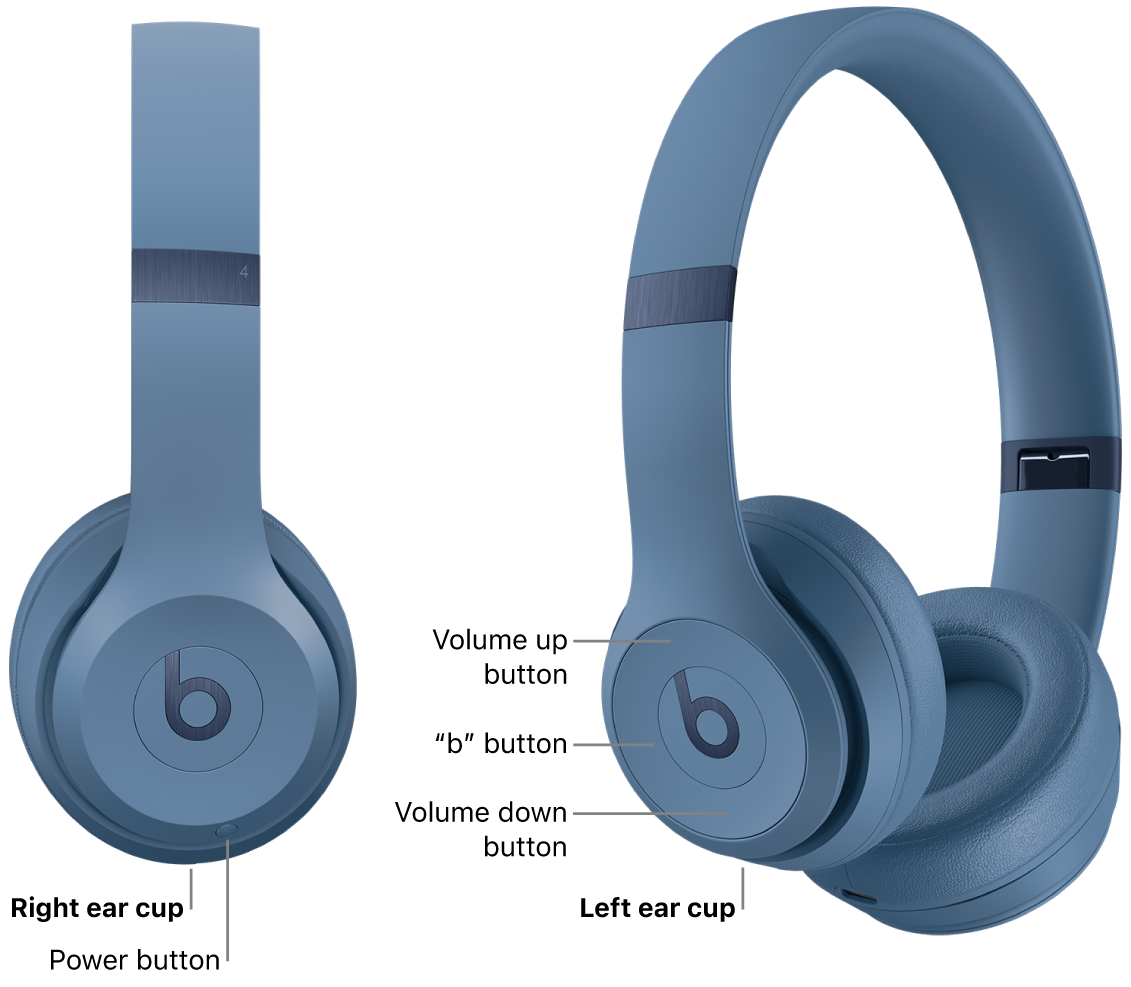
Beats Solo4
To reset Beats Solo4, press and hold the power button and volume down button together for about 10 seconds. Release both buttons when the indicator light flashes, then reconnect the headphones through your device’s Bluetooth menu.
If the light does not flash, charge the headphones and try again. Also make sure you are pressing the physical volume down control rather than changing the volume from your phone.
Beats Solo Pro
To reset Beats Solo Pro:
Press and hold the mode button and volume down button.
Keep both buttons pressed for about 10 seconds.
Release them when the indicator light flashes.
Open Bluetooth settings on your phone.
Forget Solo Pro, then pair it again.
The mode button is on the left earcup. This button controls listening modes, while the volume down button is on the right earcup.
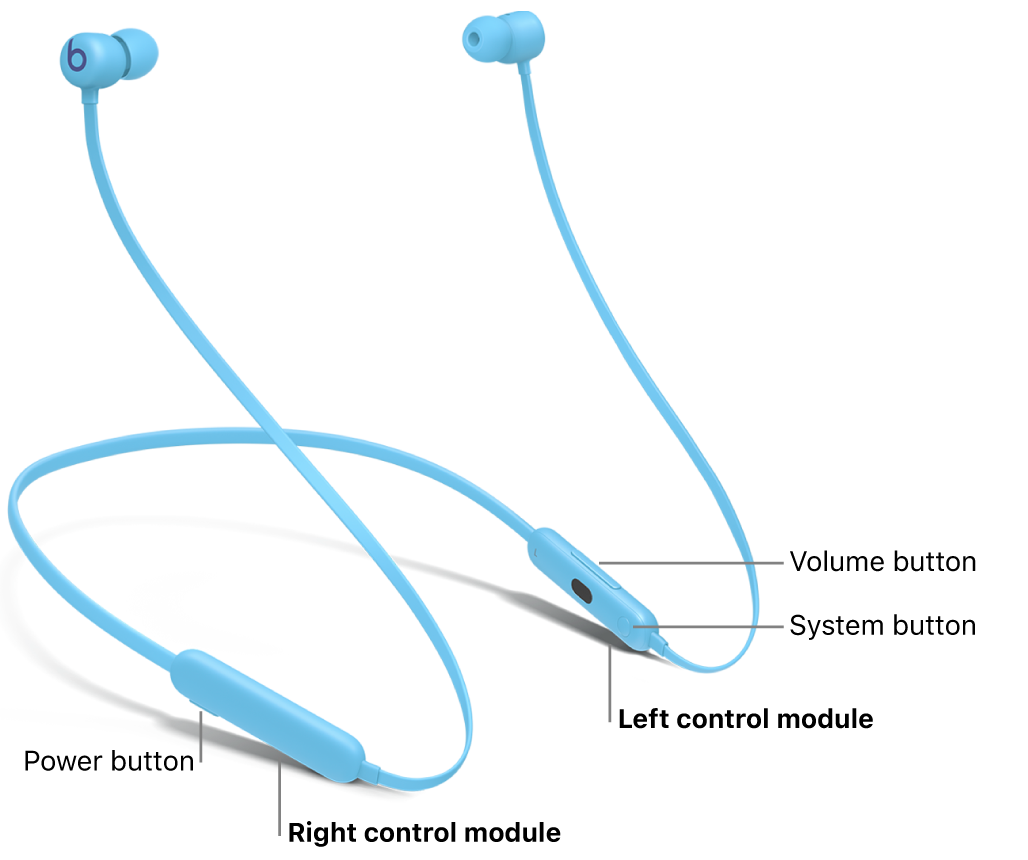
Beats Flex
To reset Beats Flex:
Press and hold the power button and volume down button.
Continue holding them for about 15 seconds.
Release the buttons when the indicator light flashes.
Wait for the headphones to restart.
Pair Beats Flex again.
Because Beats Flex uses a neckband design, check that the small controls are not covered by clothing or pressed against your neck. Accidental button presses can interrupt the reset.
Powerbeats3 Wireless
To reset Powerbeats3 Wireless:
Press and hold the power button and volume down button together.
Keep holding for about 10 seconds.
Release the buttons when the indicator lights flash.
Remove Powerbeats3 from your Bluetooth list.
Pair the earphones again.
Although Powerbeats3 is designed for exercise, sweat and moisture can affect charging contacts. Wipe the earphones and charging cable with a dry, soft cloth before trying again.

How to reset Beats earbuds
Beats earbuds use a charging case button instead of the earcup controls found on over-ear headphones. The general process is similar, but the earbuds must stay inside the case.
Beats Studio Buds and Studio Buds+
To reset Beats Studio Buds or Studio Buds+:
Place both earbuds in the charging case.
Leave the lid open.
Press and hold the system button inside the case.
Continue holding for about 15 seconds.
Release the button when the light flashes red and white.
Close the case, wait briefly, and open it again.
Pair the earbuds with your phone.
If the case light does not respond, charge the case first. A case with almost no power may not complete the reset cycle.
Beats Fit Pro
To reset Beats Fit Pro:
Put both earbuds in the charging case.
Keep the case open.
Press and hold the system button inside the case.
Hold it for about 15 seconds.
Release the button when the light flashes red and white.
Forget Beats Fit Pro from your phone’s Bluetooth settings.
Pair the earbuds again.
Fit Pro may reconnect to an Apple device through your Apple Account after the reset. If that happens, remove the old Bluetooth entry manually before starting a new pairing attempt.
Powerbeats Pro
To reset Powerbeats Pro:
Place both earbuds in the charging case.
Leave the lid open.
Press and hold the system button in the case.
Keep holding for about 15 seconds.
Release the button when the light flashes red and white.
Close the lid for a few seconds.
Open the case and connect the earbuds again.
Make sure both earbuds are seated correctly. If one earbud does not touch its charging pins, the case may not detect it and the reset may not work.
How to pair Beats headphones after a reset
After you reset Beats headphones, pairing them again is usually quick. Keep the headphones close to your phone and make sure Bluetooth is enabled.
Use these steps:
Turn on your Beats headphones.
Open the Bluetooth settings on your phone or computer.
Find your Beats model in the available devices list.
Tap or click the model name.
Accept the pairing request if one appears.
Play audio for a few seconds to test the connection.
On an iPhone, some Beats models show a setup animation when they are nearby. On Android, Windows, and other devices, you may need to select the headphones manually.
If your Beats do not appear, turn Bluetooth off, wait 10 seconds, and turn it back on. Then restart the headphones and search again.
What to do if resetting Beats headphones does not work
Sometimes the reset is not the real problem. A dead battery, dirty charging contact, old firmware, or damaged control can cause the same symptoms.
Try these fixes in order:
• Charge the headphones and case with a different cable.
• Test a different wall charger or USB port.
• Clean charging contacts with a dry cotton swab.
• Remove the old Beats entry from every nearby device.
• Restart your phone, tablet, or computer.
• Update your device’s operating system.
• Install available Beats firmware updates through a supported Apple device or the Beats app.
• Try pairing with a different phone.
• Check whether the buttons feel loose, stuck, or damaged.
Do not use water, alcohol spray, compressed air, or sharp tools inside the charging case. Moisture and debris can damage the contacts.
In my own troubleshooting work, the most common mistake is repeating the reset without removing the old Bluetooth profile. The headphones may reset correctly, but the phone keeps trying to use damaged connection data. Forgetting the device first often solves the problem faster.

Reset versus restart: what is the difference?
A restart turns the headphones off and on again. It usually keeps Bluetooth settings and saved connections.
A reset goes further. It clears connection data and returns the device to a fresh pairing state.
Use a restart when:
• Audio briefly stops
• The controls respond slowly
• Bluetooth drops once
• The headphones appear to work after power cycling
Use a reset when:
• The headphones refuse to pair
• They connect to the wrong device
• One side will not sync
• The same error returns after every restart
Think of a restart as closing an app and a reset as clearing the app’s stored data. Both are useful, but a reset has a bigger effect.

Common mistakes to avoid
Learning how to reset Beats headphones is easy, but small mistakes can prevent the process from working.
Avoid these errors:
• Releasing the buttons too soon
• Holding the wrong buttons
• Trying to reset earbuds outside the case
• Leaving only one earbud in the case
• Forgetting to charge the device
• Pairing before the reset finishes
• Keeping Bluetooth active on several nearby devices
• Using a damaged charging cable
The light pattern is important, but it can vary by model. If your device shows a different pattern, check the model-specific instructions in the user guide or the manufacturer’s support information.
Do not keep pressing random buttons for several minutes. If the controls do not respond, charge the device and inspect it for damage instead.
When to contact Beats support
Contact support or an authorized service provider if how to reset Beats headphones does not solve the issue after two or three careful attempts.
Seek help when:
• The indicator never lights up
• The headphones will not charge
• One side stays silent after resetting
• The device becomes unusually hot
• The headband, earcup, or case is cracked
• The buttons no longer click
• The headphones connect but produce no sound on any device
Have the model name, purchase details, and troubleshooting steps ready. This helps support identify whether the issue involves software, charging, Bluetooth, or hardware.
A reset cannot restore a failed battery or broken speaker. Continuing to force buttons or cables may cause more damage.
Frequently Asked Questions About How to Reset Beats Headphones
Does resetting Beats headphones delete everything?
A reset usually removes saved Bluetooth connections and pairing information. It does not delete music, photos, apps, or files from your phone or computer.
How long does it take to reset Beats headphones?
Most Beats headphones reset in about 10 seconds. Beats earbuds commonly need about 15 seconds with both earbuds inside the charging case.
Why will my Beats headphones not reset?
The battery may be too low, the buttons may be pressed incorrectly, or the model may use a different reset method. Charge the device, confirm the model, and hold the required buttons for the full time.
Do I need to forget my Beats before resetting them?
You can reset first, but forgetting the old Bluetooth entry afterward is often helpful. Removing the old profile prevents your phone from reusing faulty connection data.
Will a reset fix one Beats earbud that is not working?
A reset can fix a syncing or software issue between the earbuds. It will not fix a blocked speaker grille, damaged charging contact, failed battery, or water damage.
Can I reset Beats headphones without a phone?
Yes. The reset uses the physical buttons on the headphones or charging case. You only need a phone or computer later when you want to pair the device again.
Will resetting Beats headphones improve sound quality?
A reset may fix distorted or missing audio caused by a connection error. It will not improve normal sound quality or change the headphones’ built-in audio tuning.
Conclusion
Resetting Beats headphones can solve many pairing, connection, and control problems in a few seconds. Use the button method for your exact model, charge the device first, and remove the old Bluetooth profile before pairing again.
If the reset fails, test a new cable, clean the charging contacts, update your device, and try another phone. Follow these steps carefully, then explore the official support guide for your model or leave a comment about what worked for you.
