How To Connect Bose SoundSport Earbuds: Easy Pairing Guide
Introduction
To connect Bose SoundSport earbuds in the United States, turn on bluetooth on your phone, put the earbuds in pairing mode, and select them from the Bluetooth menu. Most SoundSport models connect in less than a minute.
The exact steps depend on your model. Bose SoundSport Wireless and SoundSport Pulse use a cable between the earbuds. SoundSport Free earbuds are fully wireless and use a charging case. This guide covers both types, plus common connection problems on iPhone, iPad, Android phones, Windows PCs, and Macs.

Identify Your Bose SoundSport Model
The model name changes the pairing steps, so check the earbuds before you begin.
| Model | How to identify it | Main pairing method |
|---|---|---|
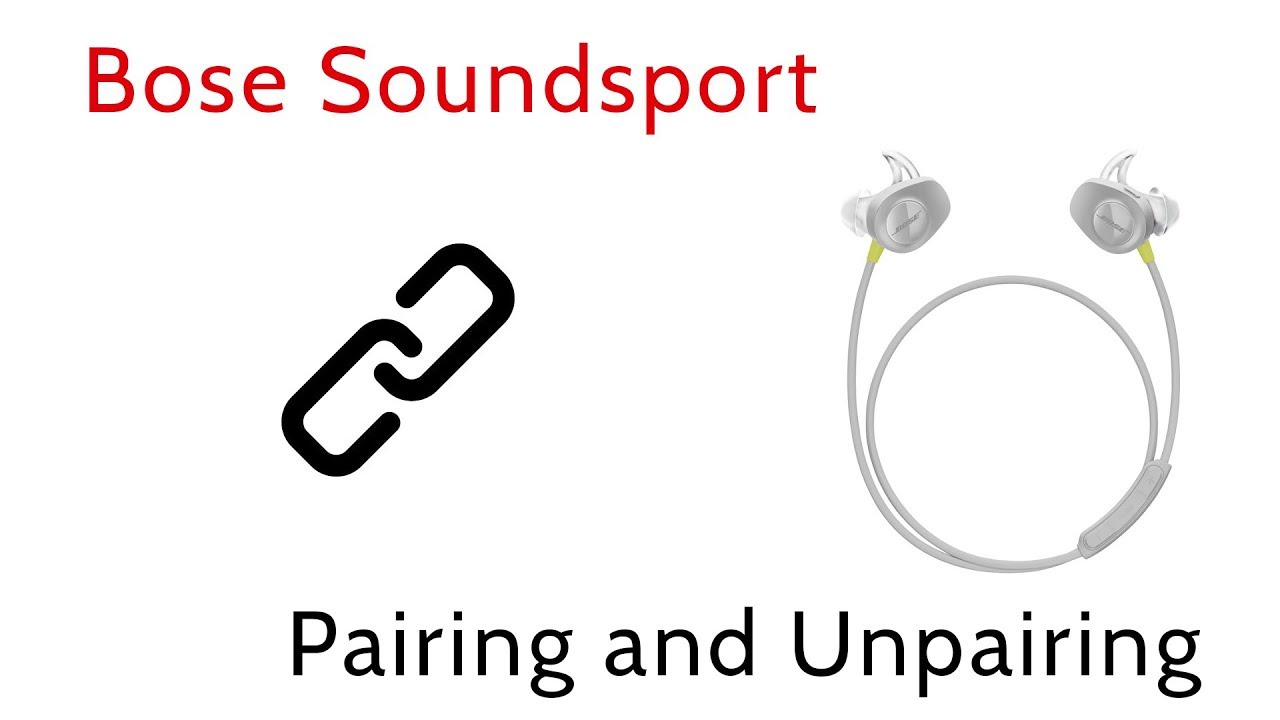
| SoundSport Wireless | A short cable connects both earbuds | Power and Bluetooth button on the inline remote |
| SoundSport Pulse Wireless | Similar to SoundSport Wireless, often sold with a heart-rate sensor | Power and Bluetooth button |
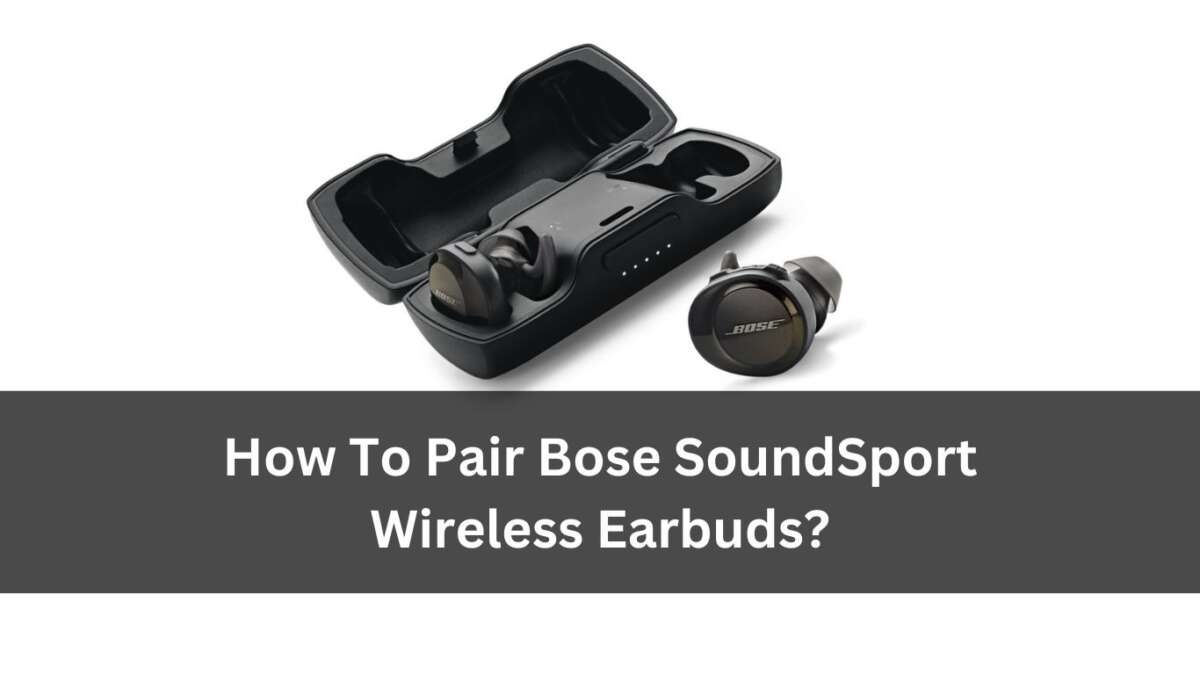
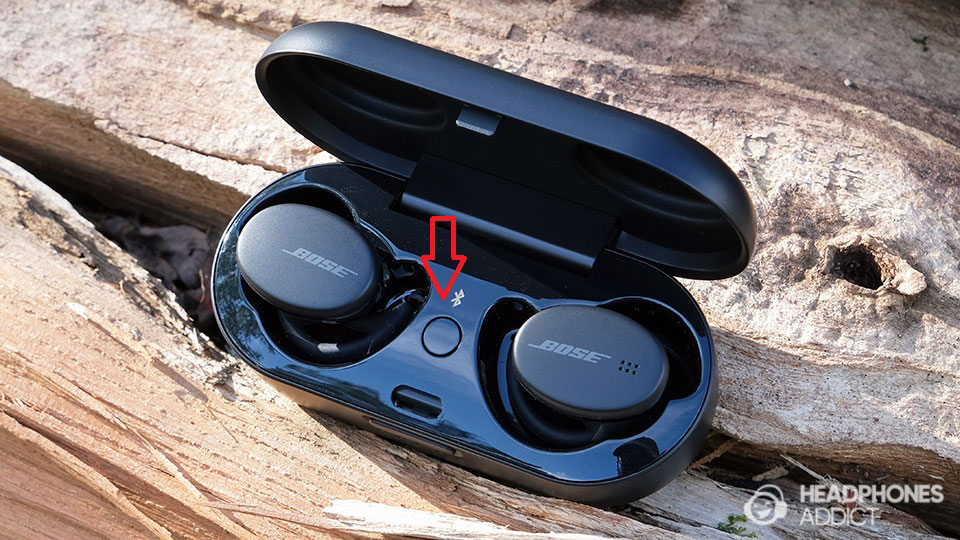
| SoundSport Free Wireless | Two separate earbuds and a charging case | Bluetooth button on the right earbud |
| Sport Open Earbuds | An open-ear design that rests near the ear canal | Separate product setup; not the same as SoundSport |
The name may appear on the box, in the original manual, or in the Bluetooth device list. If you see “Bose SoundSport” without “Free,” you likely have the wired-together SoundSport Wireless model.


You do not need the Bose app to complete a basic Bluetooth connection. Your device’s Bluetooth menu is enough. The Bose Connect app may offer extra controls for some older Bose products, but app support can vary by model, phone, and operating system.
Before You Pair the Earbuds
A short check can prevent most pairing failures.
- Charge the earbuds. Low battery power can stop pairing or cause repeated disconnections.
- Place the earbuds close to your phone. Keep them within a few feet during setup.
- Turn off Bluetooth on nearby devices. The earbuds may try to reconnect to a tablet, laptop, or old phone.
- Remove the earbuds from the case if you use SoundSport Free. The earbuds must be awake before they can pair.
- Keep the original name in mind. The device may appear as “Bose SoundSport,” “SoundSport Free,” or a similar name.
If you bought used earbuds, they may still remember the former owner’s phone. Forgetting the old Bluetooth connection and clearing the earbuds’ pairing list usually solves this issue.
How to Connect Bose SoundSport Wireless Earbuds
Follow these steps for SoundSport Wireless and SoundSport Pulse Wireless.
- Turn on the earbuds. Slide the power switch on the inline remote toward the Bluetooth symbol.
- Enter pairing mode. Press and hold the Bluetooth button until the indicator light blinks blue. The earbuds may also say, “Ready to connect.”
- Open Bluetooth settings on your device.
- On an iPhone or iPad, open Settings > Bluetooth.
- On Android, open Settings > Connected devices > Pair new device. The wording may differ by phone brand.
- On Windows, open Settings > Bluetooth & devices, turn on Bluetooth, and choose Add device.
- On a Mac, open System Settings > Bluetooth.
- Select the Bose earbuds. Tap or click Bose SoundSport or the name that matches your model.
- Wait for the connection message. The status should change to Connected or Connected for audio.
- Play a short audio clip. Start at a low volume and raise it as needed.
The blue light should stop flashing once the connection is complete. Your device may also show a headphone icon or list the earbuds as an audio output.
If a PIN appears, try 0000. Most SoundSport connections do not ask for a code, but some older devices may display one.

How to Connect Bose SoundSport Free Earbuds
SoundSport Free earbuds pair through the right earbud. The right earbud acts as the main link to your phone, while the left earbud connects to the right one.
Pair SoundSport Free with a phone
- Remove both earbuds from the charging case.
- Press and hold the Bluetooth button on the right earbud. Hold it until the light flashes blue or the voice prompt says the earbuds are ready to connect.
- Open Bluetooth settings on your phone.
- Choose “Bose SoundSport Free” from the list of available devices.
- Wait for the connection.
- Play audio in both earbuds.
If only the right earbud plays sound, return both earbuds to the case, close the lid, and wait a few seconds. Then remove both earbuds and try again. Make sure the left earbud is charged and seated correctly in the case.


Pair SoundSport Free with a computer
The process is similar on a computer:
- Put the SoundSport Free earbuds in pairing mode.
- Open the computer’s Bluetooth settings.
- Select Bose SoundSport Free.
- Choose the earbuds as the computer’s audio output if sound still comes from the speakers.
On Windows, you may need to click the speaker icon in the taskbar and select the Bose earbuds. On a Mac, open Control Center > Sound and choose the earbuds.

Connect Bose SoundSport Earbuds to an iPhone
An iPhone connects through its standard Bluetooth menu.
- Turn on Bluetooth in Settings > Bluetooth.
- Put the Bose earbuds in pairing mode.
- Tap the Bose model name under Other Devices.
- Wait until the name moves to My Devices and shows Connected.
- Open a music or video app and test the sound.
If the earbuds appear under My Devices but will not connect, tap the information button next to their name and choose Forget This Device. Put the earbuds back into pairing mode, then pair them again.
The Bose earbuds may connect for calls and music at the same time. If an iPhone connects but sends sound to its speaker, open the playback menu in Control Center and select the Bose earbuds.
Connect Bose SoundSport Earbuds to Android
Android menus differ among Samsung, Google Pixel, Motorola, and other phones, but the process is much the same.
- Open Settings.
- Select Connected devices, Connections, or Bluetooth.
- Turn on Bluetooth.
- Choose Pair new device if that option appears.
- Put the Bose earbuds in pairing mode.
- Tap the Bose model name.
- Approve the pairing request, if shown.
After pairing, open the Bluetooth details for the earbuds and check that Media audio is enabled. If you want to use the earbuds for calls, also check that Phone calls is enabled.
The Bose Connect app is optional for basic pairing. Use the phone’s Bluetooth menu first. This makes it easier to tell whether the problem is with Bluetooth or with the app.
Connect Bose SoundSport Earbuds to a Laptop or TV
Bose SoundSport earbuds can connect to many laptops with built-in Bluetooth. A television is less predictable because some TVs support Bluetooth headphones and others do not.
Windows PC
- Put the earbuds in pairing mode.
- Open Settings > Bluetooth & devices.
- Turn on Bluetooth.
- Select Add device > Bluetooth.
- Choose the Bose earbuds.
- Select them as the output device from the Windows sound menu.
If Windows shows two Bose entries, choose the one marked for audio rather than a low-energy or services entry.
Mac
- Open System Settings > Bluetooth.
- Turn on Bluetooth.
- Put the earbuds in pairing mode.
- Select the Bose earbuds and click Connect.
- Open Control Center > Sound and choose them if needed.


TV
Open the TV’s Settings > Sound > Bluetooth, Wireless Speaker, or Audio Output menu. Then put the earbuds in pairing mode and select them.
Some TVs do not support Bluetooth audio. A Bluetooth transmitter connected to the TV’s audio output may be required. Check the TV manual before buying one. Also, some transmitters can create a small delay between the picture and sound.
What to Do When Bose SoundSport Earbuds Will Not Connect
Start with the simplest checks. Do not reset the earbuds before trying these steps.
The earbuds do not appear in Bluetooth
- Confirm that the earbuds are in pairing mode.
- Turn Bluetooth off and back on.
- Move the earbuds closer to the device.
- Charge the earbuds.
- Turn off Bluetooth on nearby phones and computers.
- Restart the phone or computer.
- Search for the model name again.
The earbuds appear but will not pair
The device may have an old or damaged pairing record.
- Open the Bluetooth settings.
- Select the Bose earbuds.
- Choose Forget, Remove, or Forget This Device.
- Turn Bluetooth off.
- Restart the phone or computer.
- Turn Bluetooth back on.
- Put the earbuds in pairing mode.
- Pair them again.
The earbuds connect but produce no sound
Check the active audio output. A phone or computer can remain connected to the earbuds while sending sound to its built-in speaker.
Also check the volume on both devices. On a computer, confirm that the Bose earbuds are selected as the output device. On a phone, open the media output panel and choose the earbuds.
Only one SoundSport Free earbud works
Place both earbuds in the charging case. Confirm that each earbud’s contacts touch the charging pins. Clean visible dirt from the contacts with a dry, soft cloth.
Then close the case, wait briefly, and remove both earbuds together. If the left earbud still does not play, forget the Bluetooth connection and pair the earbuds again.
The connection drops often
Keep the phone close to the earbuds and avoid placing it behind your body or inside a bag during testing. A crowded wireless area can also affect Bluetooth performance.
If the problem continues, fully charge the earbuds, restart the source device, and clear the saved pairing. A damaged battery or charging contact may require Bose support or repair.

How to Reset Bose SoundSport Earbuds
A reset can clear temporary Bluetooth problems, but the method depends on the model.
Reset SoundSport Wireless
- Turn off the earbuds.
- Connect the USB charging cable to the earbuds.
- Disconnect the cable.
- Turn the earbuds back on.
- Pair them again from the device’s Bluetooth menu.
If this does not work, consult the manual for your exact version. SoundSport Wireless and SoundSport Pulse controls are similar, but instructions can vary by production model.


Clear the pairing list
For many Bose SoundSport models, holding the Bluetooth button for about 10 seconds clears the saved Bluetooth devices. The voice prompt may announce that the list was cleared. The earbuds then enter pairing mode.
Because button behavior can differ by model, use the instructions for the name printed on your product. Bose provides model-specific manuals through its official support site.
After clearing the list, remove the old Bose entry from your phone or computer. Then start a new pairing session.

Common Pairing Mistakes to Avoid
The most common mistake is choosing the wrong Bluetooth entry. Select the Bose device name that matches the earbuds, not a nearby speaker or another Bose product.
Another mistake is pairing only one SoundSport Free earbud. Remove both earbuds from the case and let them connect to each other before selecting the Bose device on your phone.
Do not press random buttons repeatedly while pairing. This can turn the earbuds off or switch them out of pairing mode. Hold the Bluetooth button until the light or voice prompt confirms pairing mode.
Finally, do not assume the Bose app must be installed. Test the connection through Bluetooth first. Add the app only if your model and phone support it and you need its extra controls.
Bose SoundSport Pairing Questions
How do I put Bose SoundSport earbuds in pairing mode?
For SoundSport Wireless, turn on the earbuds and hold the Bluetooth button until the light flashes blue. For SoundSport Free, hold the Bluetooth button on the right earbud until it flashes blue or announces that it is ready to connect.
Why is my Bose SoundSport not showing up?
The earbuds may not be in pairing mode, may be connected to another device, or may have a low battery. Turn off nearby Bluetooth devices, charge the earbuds, and clear the old pairing if necessary.
Can Bose SoundSport connect to two devices?
Some Bose SoundSport models can remember multiple devices and may connect to more than one device under supported conditions. They normally play audio from one active source at a time. If switching does not work, disconnect the first device before pairing the second.
Can I use Bose SoundSport earbuds without the Bose app?
Yes. Basic music and call functions work through the device’s Bluetooth settings. The app is optional and may not support every older SoundSport model.
How do I connect Bose SoundSport earbuds after getting a new phone?
Forget the earbuds on the old phone or turn off its Bluetooth. Then place the earbuds in pairing mode and select them from the new phone’s Bluetooth menu. If the new phone still cannot find them, clear the earbuds’ pairing list and try again.
Conclusion
The fastest way to connect Bose SoundSport earbuds is to put them in Bluetooth pairing mode and select the correct Bose name in your device’s Bluetooth settings. SoundSport Wireless models use the inline remote, while SoundSport Free uses the right earbud and its Bluetooth button.
If pairing fails, charge the earbuds, disconnect nearby devices, forget the old Bluetooth record, and pair again. For one-earbud problems, focus on the charging case, contact points, and the right earbud’s connection.
For model-specific reset instructions, use the official Bose support page and search for the exact product name printed on your earbuds or case.