

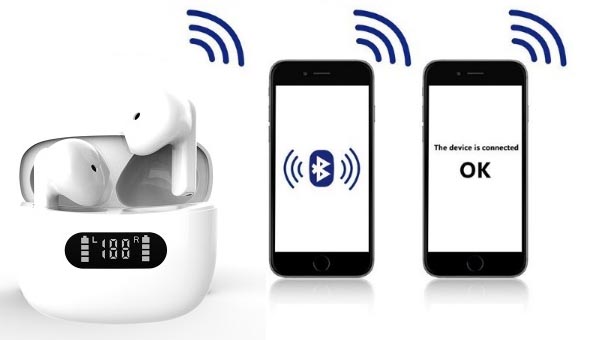
To pair TWS earbuds, turn on Bluetooth, open the case, select the earbuds, and confirm the connection.
Learning how to pair TWS earbuds is simple once you understand pairing mode, Bluetooth settings, and reset steps. This guide explains the process for Android phones, iPhones, Windows PCs, Macs, smart TVs, and other devices. It also covers common problems, useful safety tips, and lessons from real-world earbud use.
What Are TWS Earbuds?
TWS means “true wireless stereo.” TWS earbuds are two separate wireless earbuds that connect to each other and then connect to your phone, tablet, computer, or another device through Bluetooth.
Unlike older wireless earphones, TWS earbuds have no cable between the left and right sides. Most models come with a charging case that stores, charges, and often activates the earbuds.
Before learning how to pair TWS earbuds, it helps to know these basic terms:
• Pairing mode means the earbuds are ready to connect to a new device.
• Bluetooth is the short-range wireless system that links your earbuds to another device.
• The charging case stores power and often controls the earbuds’ connection state.
• Mono mode lets you use only one earbud, while stereo mode uses both earbuds together.
Most TWS earbuds use Bluetooth Classic for audio and Bluetooth Low Energy for control features, such as battery status or touch commands. Bluetooth versions may improve range and efficiency, but the pairing steps are usually similar across devices.

Before You Pair TWS Earbuds
A few quick checks can prevent most connection problems. I have found that many failed pairing attempts are not caused by the phone at all. The earbuds may simply have a low battery, an active connection to another device, or dirty charging contacts.
Check the following before you start:
• Charge the earbuds and case for at least 10 to 15 minutes.
• Remove any thin protective film from the charging contacts.
• Keep the earbuds within a few feet of the device.
• Turn off Bluetooth on nearby devices that may connect automatically.
• Make sure the earbuds are not already connected to another phone, tablet, or laptop.
• Read the quick-start card if the brand uses a special button or touch gesture.
Some earbuds enter pairing mode as soon as you open the case. Others require you to press the case button or touch both earbuds for several seconds. A flashing white, blue, or red-and-blue light often signals pairing mode, but the color depends on the brand.
When learning how to pair TWS earbuds, do not remove them from the case too early if the manual says to keep them inside. Some models pair more reliably while both earbuds remain in the case.

How to Pair TWS Earbuds With an Android Phone
Android phones from Samsung, Google, Motorola, OnePlus, and other brands use a similar Bluetooth process. The exact menu name may differ slightly based on the Android version and the phone maker.
Place both earbuds in the charging case.
Open the case lid.
Press and hold the case button until the indicator light flashes. If there is no case button, touch and hold both earbuds as the manual instructs.
Open Settings on your Android phone.
Select Connected devices, Connections, or Bluetooth.
Turn Bluetooth on.
Tap Pair new device or scan for available devices.
Select the name of your earbuds from the list.
Tap Pair or Confirm if Android asks for permission.
After a few seconds, the status should change to Connected. You may also hear a sound in the earbuds or see the case light change.
If you are learning how to pair TWS earbuds with Android, wait for the correct device name. Some earbuds show a model name, while others display a short code. Avoid selecting a similar device unless you know it belongs to your earbuds.
For future use, opening the case may connect the earbuds automatically. If it does not, open the Bluetooth menu and tap the saved earbud name.
How to Pair TWS Earbuds With an iPhone
The iPhone pairing process is quick, but the earbuds must be in discovery mode. Discovery mode allows a new device to find them.
Put both earbuds in the case.
Open the case near your iPhone.
Press and hold the pairing button until the light flashes.
Open Settings on your iPhone.
Tap Bluetooth.
Turn Bluetooth on.
Wait for the earbuds to appear under Other Devices.
Tap the earbud name.
Accept any pairing request.
The earbuds should move to My Devices and show a Connected label. You can now play music, make calls, and use supported touch controls.
Some brands offer a companion app for iPhone. The app may show battery levels, firmware updates, equalizer controls, and noise cancellation settings. Pair the earbuds through iPhone Bluetooth first unless the brand specifically says to use its app.
A useful lesson from testing many Bluetooth accessories is to avoid opening several device menus at once. Close the music app, Bluetooth settings, and earbud app if the connection behaves strangely. Then begin the pairing process again from a clean start.

How to Pair TWS Earbuds With a Windows PC
TWS earbuds can connect to Windows laptops and desktop computers for music, video calls, and games. Windows 11 and Windows 10 use similar steps.
Put the earbuds into pairing mode.
Open the Start menu.
Select Settings.
Choose Bluetooth & devices in Windows 11, or Devices in Windows 10.
Turn Bluetooth on.
Select Add device.
Choose Bluetooth.
Click the name of your earbuds.
Select Done if Windows asks for confirmation.
After pairing, click the speaker icon on the taskbar and choose your earbuds as the sound output. For calls, select the earbuds as both the speaker and microphone in your meeting app.
Windows may show two audio profiles. The stereo profile usually provides better sound for music. The hands-free profile supports the microphone but may reduce audio quality during calls. This is a Bluetooth design limitation, not always a problem with the earbuds.
If you are learning how to pair TWS earbuds with a Windows PC, check whether your computer has Bluetooth built in. Desktop computers may need a USB Bluetooth adapter.

How to Pair TWS Earbuds With a Mac
Mac computers can pair with most Bluetooth earbuds. The steps are simple:
Place the earbuds in pairing mode.
Click the Apple menu.
Open System Settings.
Select Bluetooth.
Find the earbuds under Nearby Devices.
Click Connect.
Allow any requested permissions.
On older macOS versions, open System Preferences and choose Bluetooth instead. Once connected, select the earbuds from the sound menu in the Control Center if you need to change the audio output.
When you learn how to pair TWS earbuds with a Mac, remember that automatic switching can vary by brand. Apple earbuds may offer deeper integration with Apple devices, while other brands usually connect through standard Bluetooth features.
For the best call quality, select the earbuds under both Input and Output in System Settings. If the microphone sounds unclear, move closer to the Mac and check whether another microphone is selected.

How to Pair TWS Earbuds With a Smart TV
Many modern smart TVs support Bluetooth audio. This can help you watch shows without disturbing other people in the room.
Put the earbuds into pairing mode.
Open the TV’s Settings menu.
Select Sound, Audio, or Remotes & Accessories.
Choose Bluetooth devices or Bluetooth speaker list.
Scan for available devices.
Select the earbuds.
Confirm the connection.
TV menus differ widely. Samsung, LG, Roku, Sony, and other brands may place Bluetooth settings in different areas. Check the TV’s manual if you cannot find the option.
Bluetooth audio may have a small delay on some TVs. This delay can make voices seem slightly out of sync with the picture. Look for an audio delay or lip-sync adjustment in the TV settings.
If you are learning how to pair TWS earbuds with a smart TV, remember that some TVs allow only one Bluetooth audio connection at a time. Disconnect a soundbar or wireless speaker before trying again.

How to Pair TWS Earbuds With Other Devices
You can also connect TWS earbuds to tablets, game consoles, Chromebooks, smartwatches, and car systems. The basic pattern stays the same: activate pairing mode, open Bluetooth settings, and select the earbuds.
For a Chromebook:
• Click the clock in the lower-right corner.
• Select Bluetooth.
• Turn Bluetooth on.
• Choose the earbuds from the device list.
For an iPad:
• Open Settings.
• Tap Bluetooth.
• Put the earbuds in pairing mode.
• Select the earbuds under Other Devices.
For a smartwatch, open the watch’s Bluetooth or audio settings. Some watches connect to earbuds directly so you can listen without a phone nearby.
Game consoles are less predictable. Some consoles do not support ordinary Bluetooth audio because of delay, compatibility, or microphone limits. In that case, you may need a compatible Bluetooth transmitter or a console-approved wireless headset.
When figuring out how to pair TWS earbuds with a new device, remember that earbuds may reconnect to the last device they used. Turn off Bluetooth on that device before trying to connect somewhere else.
How to Fix TWS Earbuds That Will Not Pair
Pairing problems are common, but most have a clear fix. Start with the easiest steps and move toward a full reset only when necessary.
Forget the old Bluetooth connection
Open the device’s Bluetooth menu and select Forget, Remove, or Unpair. Then place the earbuds in pairing mode and search again.
Turn Bluetooth off and on
Switch Bluetooth off for about 10 seconds. Turn it on again and try to connect. This refreshes the wireless scan without restarting the whole device.
Restart both devices
Restart your phone, computer, or tablet. Put the earbuds back in the case, close the lid, wait a few seconds, and try again.
Charge and clean the earbuds
A low battery can stop pairing or cause one earbud to disconnect. Clean the metal charging contacts with a dry cotton swab. Do not pour liquid into the case.
Reset the earbuds
Most TWS earbuds reset when you place them in the case and hold the case button for 10 to 15 seconds. Some require you to touch both earbuds while they are in the case. Check the product manual because reset methods vary.
A reset removes old pairing data. You will need to repeat the Bluetooth setup afterward.
Check for separate earbud names
Some low-cost models show separate names for the left and right earbuds. This often means the earbuds lost their internal stereo link. Reset both earbuds together, then pair only the main device name.
In my experience, the most common mistake is pairing the left earbud first and then trying to add the right one as a separate Bluetooth device. TWS earbuds usually need to connect to each other before they connect to your phone.

How to Improve Connection Quality
A stable connection depends on more than the pairing process. Bluetooth signals can weaken when blocked by walls, metal objects, or the human body.
Use these practical tips:
• Keep the source device within about 30 feet in open space, though real range varies.
• Keep your phone on the same side as the earbud you use most.
• Avoid crowded wireless areas when possible.
• Update the earbud firmware through the manufacturer’s app.
• Keep the earbuds and case away from strong heat and moisture.
• Do not cover the phone with thick metal accessories during testing.
Bluetooth audio does not usually require a clear line of sight, but obstacles can reduce performance. Wi-Fi routers, wireless accessories, and other Bluetooth devices may also add congestion in busy areas.
Battery age matters, too. Lithium-ion batteries lose capacity over time. If one earbud dies much sooner than the other, the problem may be battery wear rather than pairing.
Good fit also improves the experience. A poor ear-tip seal can make music sound weak and may tempt you to raise the volume too high. Choose the right ear-tip size and keep the volume at a comfortable level.
Useful TWS Earbud Features to Know
Once you know how to pair TWS earbuds, explore the features that make daily use easier.
Auto-pause
Some earbuds pause audio when you remove one earbud. This feature uses a small sensor and may be disabled in the companion app.
Transparency mode
Transparency mode uses microphones to let outside sounds in. It is useful when walking, traveling, or speaking with someone.
Active noise cancellation
Active noise cancellation reduces certain outside sounds by creating an opposing sound signal. It works best with steady sounds, such as airplane or bus noise. It may be less effective against sudden voices or sharp sounds.
Multipoint connection
Multipoint lets compatible earbuds connect to two devices at once. You might connect to a laptop and phone, then switch between them. Not every TWS model supports this feature.
Find-my-device tools
Some brands let you view the last known location of the earbuds or play a sound. This feature usually works only while the earbuds have battery power and remain within wireless range.
Feature names and performance vary by brand. Read the product manual instead of assuming that every model supports the same controls.
Safety and Care Tips
Learning how to pair TWS earbuds is only part of using them well. Proper care can extend battery life and protect your hearing.
Keep the volume at a moderate level. The World Health Organization recommends safe listening habits, including lower volume and regular breaks. If you notice ringing, muffled hearing, or discomfort, remove the earbuds and reduce your listening time.
Clean the ear tips often. Use a soft, dry cloth and follow the manufacturer’s cleaning instructions. Avoid sharp tools, alcohol on sensitive surfaces, and water near charging contacts.
Do not use noise cancellation as a replacement for awareness in traffic. Keep transparency mode on or remove one earbud when you need to hear vehicles, alarms, or people around you.
Store the earbuds in their case when you are not using them. This protects them from dust and reduces the chance of losing one.
Frequently Asked Questions About How to Pair TWS Earbuds
How do I put TWS earbuds in pairing mode?
Place both earbuds in the case and open the lid. Press the case button until the light flashes, or touch and hold both earbuds if your model has no button.
Why are my TWS earbuds not showing on Bluetooth?
They may be connected to another device, out of battery, or not in pairing mode. Turn off Bluetooth on nearby devices, charge the earbuds, reset them if needed, and scan again.
Can I pair TWS earbuds with two devices?
Some models support multipoint Bluetooth and can connect to two devices at once. If multipoint is not supported, you usually need to disconnect the earbuds from one device before pairing them with another.
How do I reset TWS earbuds?
The usual method is to place both earbuds in the case and hold the case button for about 10 to 15 seconds. The correct method varies, so check the manual for your exact model.
Why does only one TWS earbud work?
The earbuds may have lost their stereo connection, or one side may not be charging. Clean the contacts, charge both earbuds, forget the old Bluetooth connection, and perform a complete reset.
Can I use TWS earbuds with a laptop?
Yes, most TWS earbuds work with laptops that support Bluetooth audio. Open the laptop’s Bluetooth settings, put the earbuds in pairing mode, and select them from the device list.
How far can TWS earbuds be from a phone?
Many Bluetooth earbuds work within roughly 30 feet in open space. Walls, metal objects, crowded wireless networks, and the phone’s Bluetooth hardware can reduce the real range.
Conclusion
Learning how to pair TWS earbuds usually takes only a few steps: charge the earbuds, activate pairing mode, open Bluetooth settings, and select the correct device name. If the connection fails, forget the old pairing, restart both devices, and reset the earbuds when necessary.
Keep the earbuds clean, update their software, and use safe listening habits. Once you understand the basic process, you can connect TWS earbuds to phones, tablets, computers, TVs, and many other devices with confidence. Try the steps above with your earbuds today, and share your experience or question in the comments.
