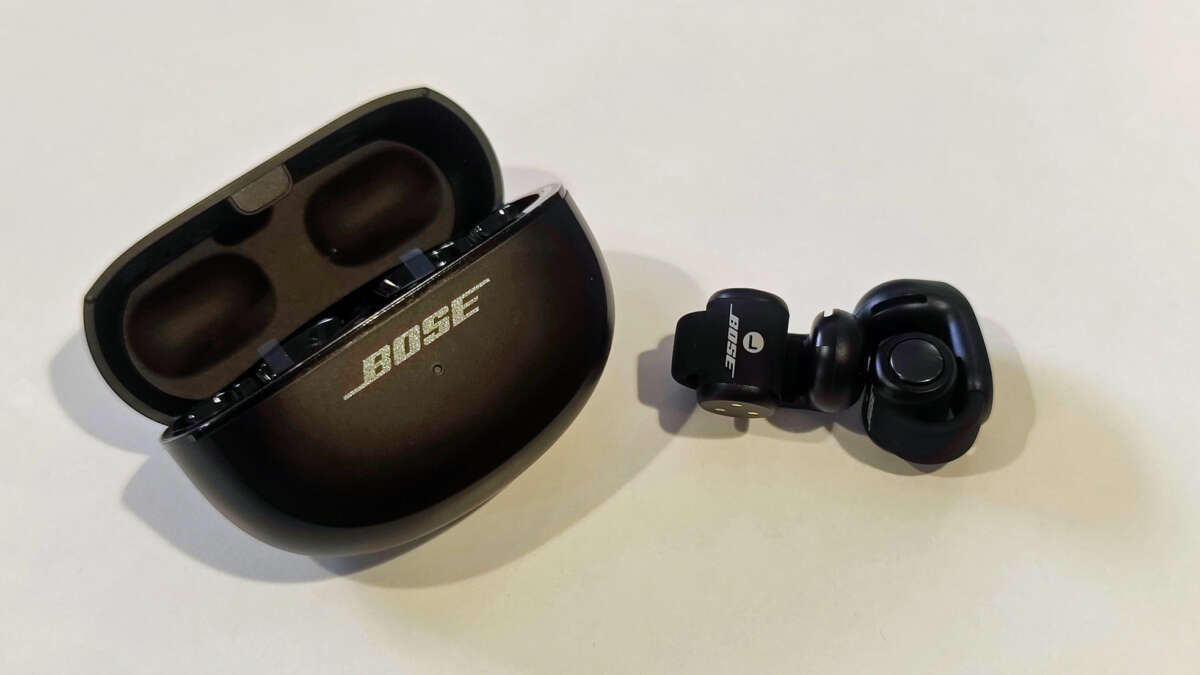
How To Connect Bose Ultra Open Earbuds: Easy Guide
Connecting Bose Ultra Open Earbuds to an iPhone, Android phone, Windows PC, or Mac in the United States usually takes a few minutes. The most reliable method is to place the earbuds in pairing mode, select Bose Ultra Open Earbuds in your device’s Bluetooth settings, and then finish setup in the Bose app.
Before you start, charge the earbuds and keep them close to your device. If the earbuds were paired with another phone or computer, turn off Bluetooth on that device or clear the old connection first.

What You Need Before Pairing
You need three things to connect Bose Ultra Open Earbuds:
- The earbuds and charging case
- A compatible device with Bluetooth turned on
- The Bose app, formerly known as the Bose Music app, if you want firmware updates and full controls


Bose Ultra Open Earbuds work with common Bluetooth devices, including:
- iPhone and iPad
- Android phones and tablets
- Windows laptops and desktop computers
- Mac computers
- Some smart TVs and other Bluetooth audio devices
The Bose app is useful but not always required for basic audio. You can connect through your device’s Bluetooth menu without installing the app.
For the best setup, charge the earbuds first. A low battery can interrupt pairing and may make the earbuds appear to connect and then disconnect.
How to Connect Bose Ultra Open Earbuds to an iPhone
Follow these steps to pair the earbuds with an iPhone in the United States:
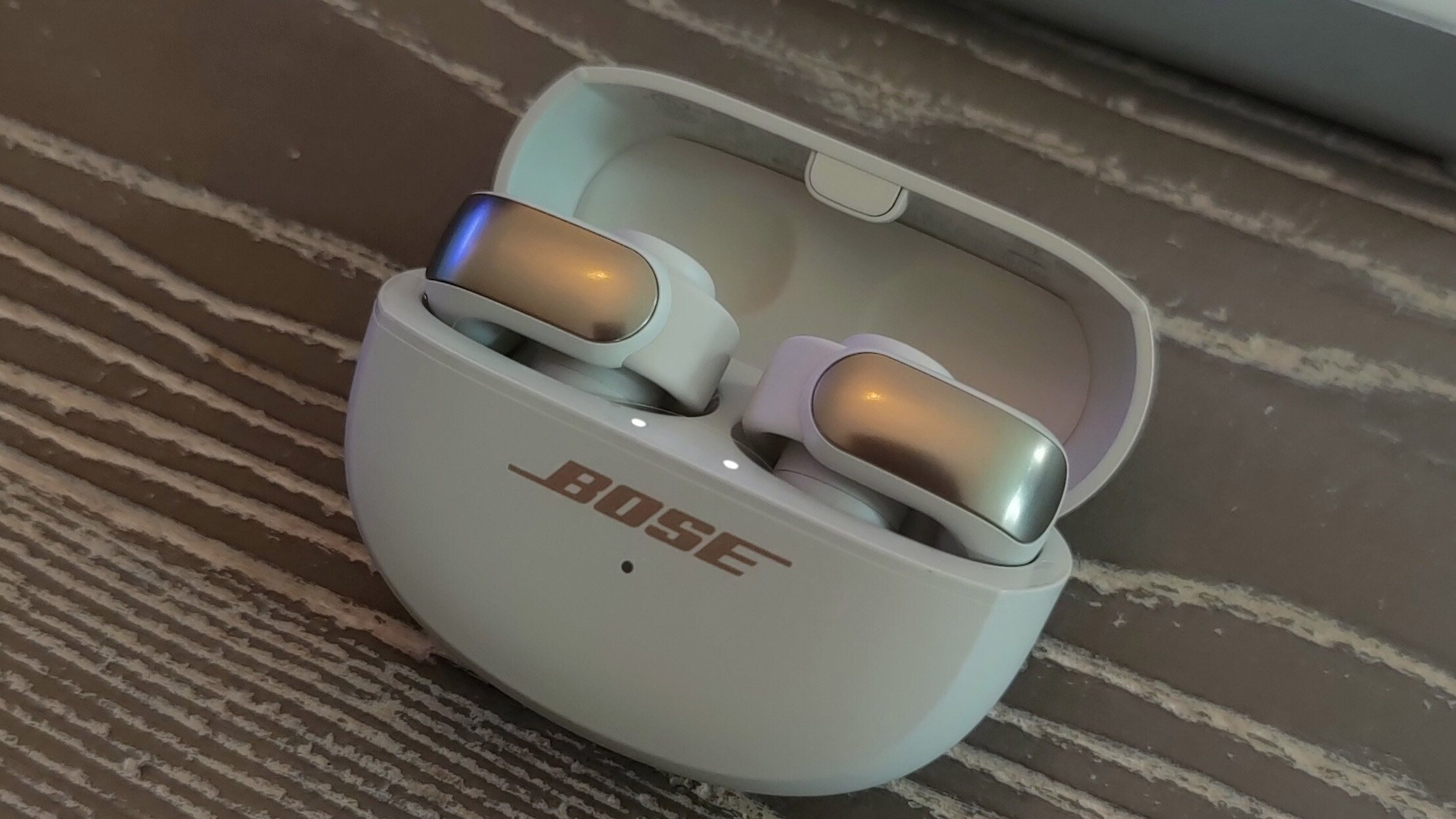
- Place both Bose Ultra Open Earbuds in the charging case.
- Open the case.
- Remove the earbuds or leave them nearby.
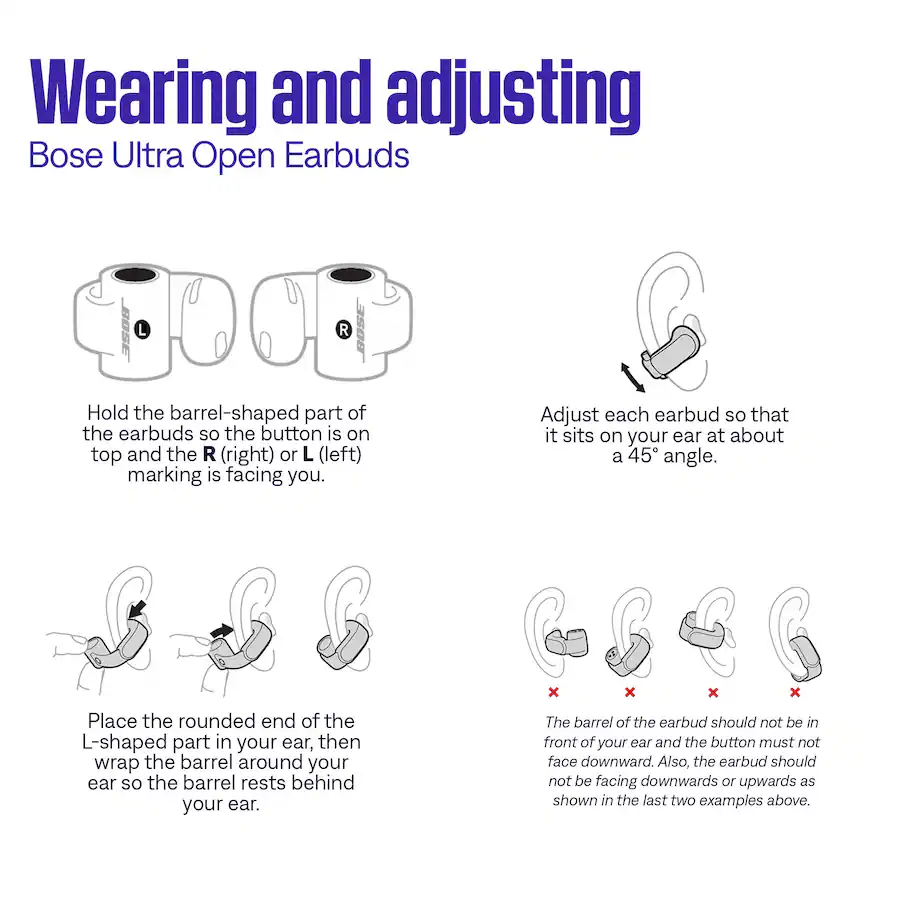
- On the right earbud, press and hold the Bluetooth button until the status light begins to blink blue or you hear a pairing prompt.
- Open Settings on your iPhone.
- Tap Bluetooth.
- Turn Bluetooth on if it is off.
- Look under Other Devices.
- Tap Bose Ultra Open Earbuds.
- Wait for the earbuds to move to My Devices and show Connected.
You can now play music, podcasts, calls, and other audio through the earbuds.
If your iPhone shows more than one Bose entry, select the entry that clearly says Bose Ultra Open Earbuds. Avoid selecting an old or duplicate entry if the connection does not complete.
Finish setup in the Bose app
For added controls, install the Bose app from the Apple App Store. Open the app, sign in or continue without an account if that option is offered, and choose Add Product. Select the Ultra Open Earbuds and follow the on-screen instructions.
The app can help you:
- Install firmware updates
- Change shortcuts
- Manage Bluetooth connections
- Adjust available sound settings
- Check battery information
- Find help for connection problems
How to Connect Bose Ultra Open Earbuds to Android
The Android pairing process is similar to the iPhone process.


- Put the earbuds in the charging case.
- Open the case and keep it near your Android phone.
- Press and hold the Bluetooth button on the right earbud.
- Release the button when the status light flashes blue or the earbuds announce that they are ready to connect.
- Open Settings on your Android phone.
- Select Connected devices, Connections, or Bluetooth. The menu name can vary by phone brand and Android version.
- Tap Pair new device if needed.
- Select Bose Ultra Open Earbuds.
- Approve the pairing request if Android displays one.
When the earbuds connect, Android should show them as a paired or connected device.
You may also see a Fast Pair notification on some Android phones. If it appears, tap the notification and follow the instructions. If Fast Pair does not appear, use the normal Bluetooth menu instead.
For full settings, install the Bose app from the Google Play Store. The app may ask for Bluetooth, nearby-device, or location-related permissions. Allow only the permissions needed for the features you want to use.
How to Connect Bose Ultra Open Earbuds to a Windows PC
You can connect the earbuds to a Windows computer for music, video, meetings, and calls.
Windows 11
- Put the Bose Ultra Open Earbuds into pairing mode.
- On your PC, open Start.
- Select Settings.
- Choose Bluetooth & devices.
- Turn Bluetooth on.
- Select Add device.
- Choose Bluetooth.
- Click Bose Ultra Open Earbuds.
- Wait for Windows to confirm the connection.
Windows 10
- Put the earbuds into pairing mode.
- Open Start and select Settings.
- Choose Devices.
- Select Bluetooth & other devices.
- Turn Bluetooth on.
- Click Add Bluetooth or other device.
- Choose Bluetooth.
- Select Bose Ultra Open Earbuds.
After pairing, select the earbuds as the sound output device. In Windows 11, click the speaker icon in the taskbar and choose the Bose earbuds. For calls, open the meeting app’s audio settings and confirm that the Bose earbuds are selected for both speaker and microphone, if available.
Windows may show separate options for stereo audio and headset audio. Stereo mode is usually better for music. Headset mode may be used during calls, but the sound quality can change because the computer is using the earbud microphone.

How to Connect Bose Ultra Open Earbuds to a Mac
To pair with a Mac:
- Put the earbuds into pairing mode.
- Open the Apple menu.
- Select System Settings.
- Click Bluetooth.
- Turn Bluetooth on.
- Find Bose Ultra Open Earbuds in the list.
- Click Connect.
On older versions of macOS, Bluetooth may be under System Preferences instead of System Settings.
If the Mac connects but does not play sound through the earbuds, open System Settings > Sound. Under Output, select Bose Ultra Open Earbuds. For video calls, also check the app’s microphone and speaker settings.
The earbuds may connect automatically to the last device used. If they connect to your phone instead of your Mac, temporarily turn Bluetooth off on the phone, then connect them from the Mac’s Bluetooth menu.
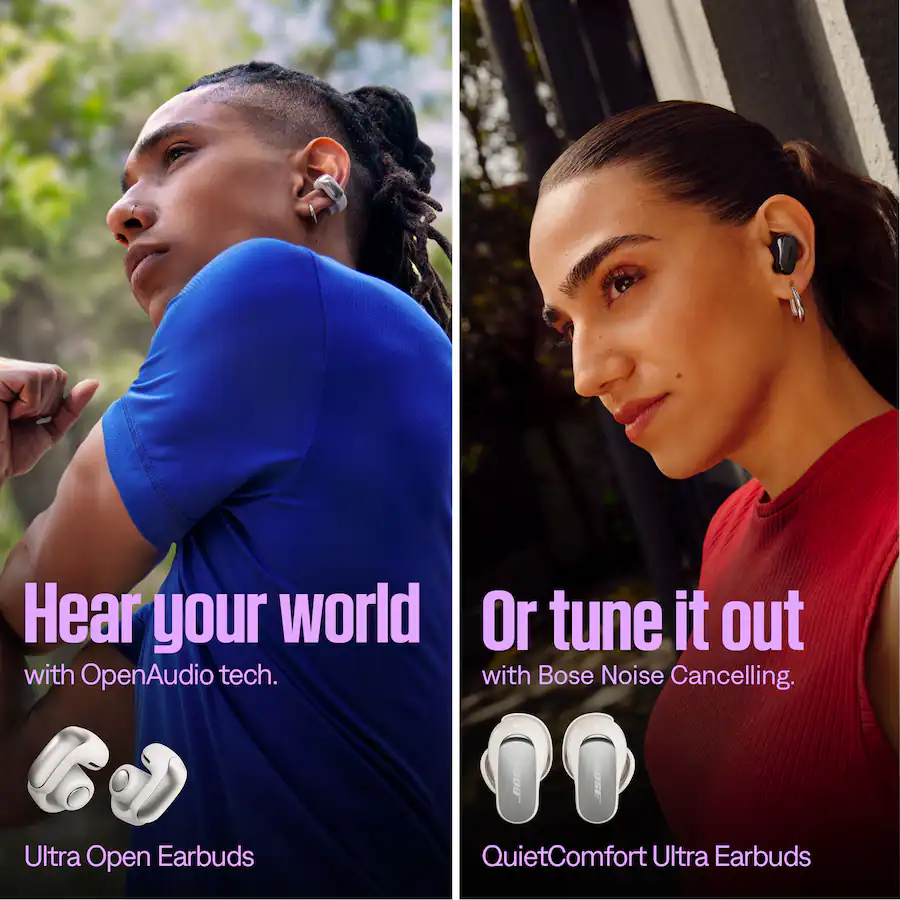
How to Connect the Earbuds With the Bose App
The Bose app can guide the setup and manage supported features.


- Download the Bose app from the Apple App Store or Google Play Store.
- Turn on Bluetooth on your phone.
- Open the app.
- Select Add Product or the option to set up a new device.
- Choose Bose Ultra Open Earbuds.
- Follow the instructions in the app.
- Install a firmware update if the app offers one.
- Test audio after setup finishes.
Keep the earbuds near the phone during an update. Do not close the app or place the phone far away while the update is running.
The app and the phone’s Bluetooth menu serve different purposes. The Bluetooth menu creates the basic wireless connection. The Bose app provides product setup, updates, and supported controls.

How to Connect Bose Ultra Open Earbuds to a Second Device
Bose Ultra Open Earbuds can remember paired devices, but the exact connection behavior depends on the device, software, and current Bluetooth settings.
To connect the earbuds to a second phone or computer:
- Disconnect the earbuds from the first device, or turn Bluetooth off on that device.
- Put the earbuds into pairing mode.
- Open Bluetooth settings on the second device.
- Select Bose Ultra Open Earbuds.
- Confirm the connection.
- Turn Bluetooth back on for the first device when finished.
If the earbuds switch back to the first device, disconnect them there before trying again. Some phones reconnect automatically as soon as Bluetooth is enabled.
If the Bose app includes a multipoint or simultaneous-connection setting for your earbuds, use the app to manage it. Availability and behavior can change with firmware, so do not assume that every two-device setup will work in the same way.

How to Tell If the Connection Worked
The connection is successful when:
- Your phone or computer shows Connected
- The earbuds announce a connection
- Audio plays through the earbuds
- The Bose app recognizes the product
- The earbuds appear under the device’s saved Bluetooth devices
Test with a short video or song. Also check the volume on both the source device and the earbuds.
Because Bose Ultra Open Earbuds use an open-ear design, you may still hear sounds around you. That is normal and does not mean Bluetooth pairing failed. The earbuds sit near the ear rather than sealing the ear canal like traditional in-ear headphones.
Bose Ultra Open Earbuds Are Connected but Have No Sound
A Bluetooth connection does not always mean the device selected the earbuds for audio output. Try these checks:
- Start playing audio.
- Open the device’s sound-output menu.
- Select Bose Ultra Open Earbuds.
- Raise the device volume.
- Raise the earbud volume with the earbud controls, if available.
- Close and reopen the music or video app.
- Disconnect other Bluetooth audio devices.
On a Windows PC, confirm the earbuds are selected under Sound output. In Zoom, Microsoft Teams, Google Meet, or another call app, check the separate speaker and microphone menus.


On a Mac, select the earbuds under System Settings > Sound > Output.
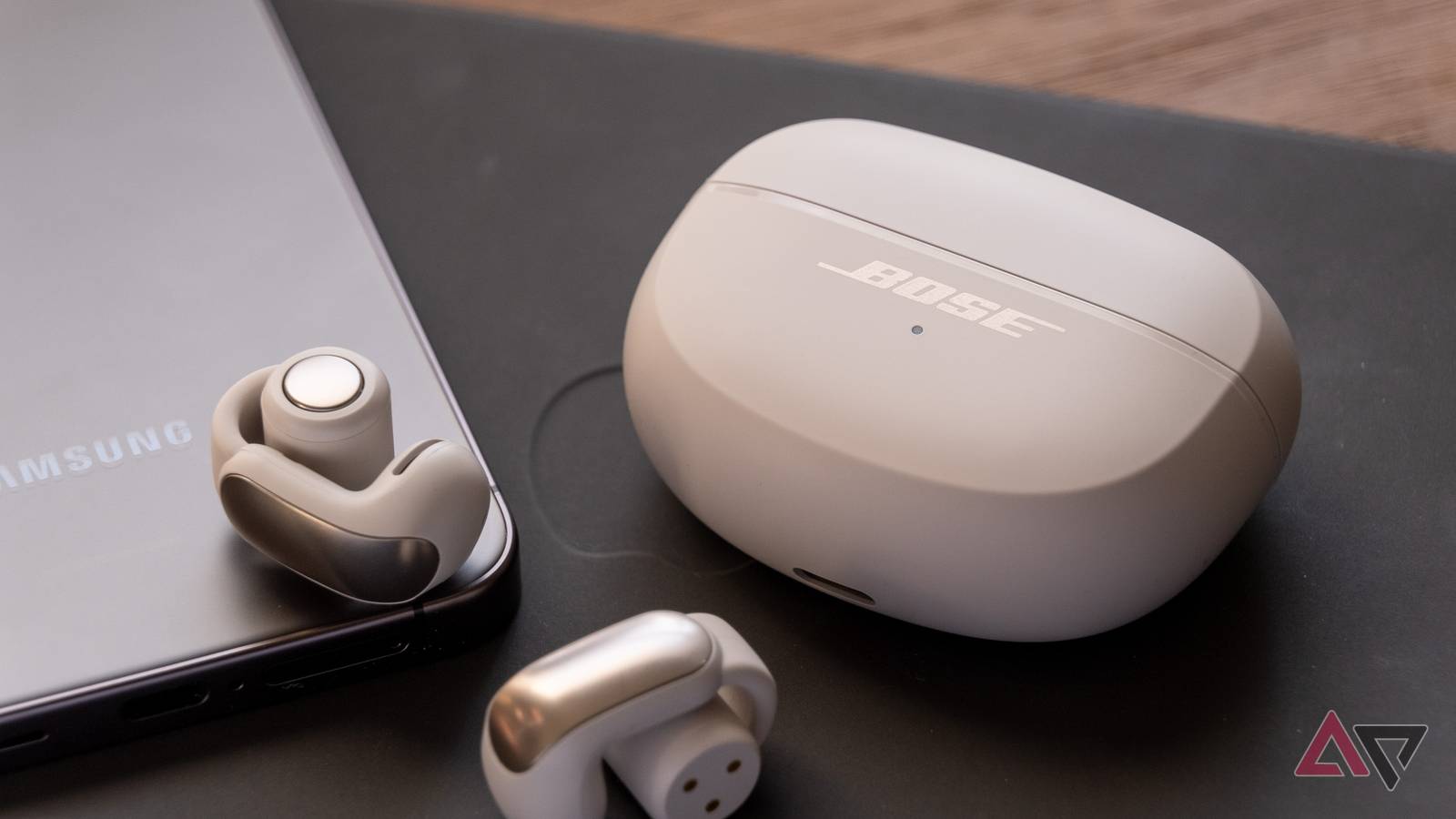
Bose Ultra Open Earbuds Will Not Pair
If the earbuds do not appear in the Bluetooth list, work through these steps in order:
- Make sure the earbuds have charge.
- Keep the earbuds within a few feet of the device.
- Turn Bluetooth off, wait several seconds, and turn it back on.
- Close the Bose app and reopen it.
- Turn off Bluetooth on nearby phones, tablets, and computers.
- Put the earbuds into pairing mode again.
- Restart the phone or computer.
- Remove an old Bose entry from the Bluetooth list.
- Try pairing from the device’s Bluetooth settings instead of the Bose app.
An old saved connection is a common cause. A phone may try to connect to a previous Bose profile even when you are attempting to use a new device.
Clear an old Bluetooth connection
On your phone or computer, open the saved Bluetooth devices list and choose the Bose earbuds. Select Forget, Remove device, or Forget this device. Then place the earbuds into pairing mode and pair them again.
If the earbuds still do not appear, use the Bose app’s product support or reset instructions. Bose can change reset steps through firmware and model revisions, so follow the instructions shown for the exact Ultra Open Earbuds model.

One Earbud Is Not Working
If only one earbud produces sound:
- Put both earbuds in the charging case.
- Check that each earbud is seated correctly.
- Charge them for several minutes.
- Remove both earbuds at the same time.
- Reconnect them to the phone or computer.
- Check the device’s left-right audio balance.
- Confirm that mono audio or an accessibility setting is not changing the output.
- Restart the earbuds and the source device.
If one earbud does not show a light, does not charge, or remains unresponsive, inspect the charging contacts for dirt or moisture. Do not insert sharp objects into the charging contacts. Use a clean, dry, soft cloth and contact Bose Support if the issue continues.
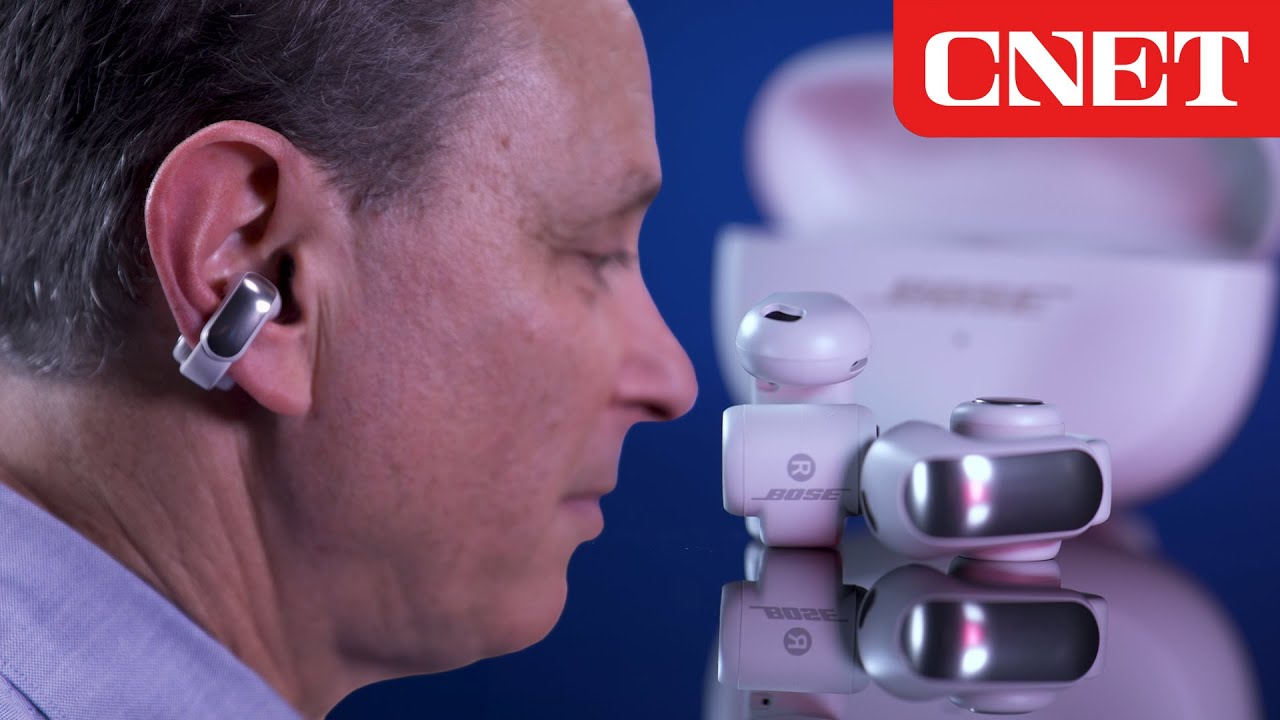
The Earbuds Keep Disconnecting
Repeated disconnections usually point to low battery, distance, interference, or a device that is trying to take control of the connection.
Try this sequence:
- Charge the earbuds and case.
- Keep the source device nearby.
- Move away from crowded wireless areas, such as many active Bluetooth devices.
- Disconnect the earbuds from unused phones and computers.
- Restart Bluetooth on the source device.
- Install available Bose firmware updates.
- Forget the earbuds and pair them again.
- Test the earbuds with a different phone.
If the earbuds work normally with another device, the original phone or computer is the more likely source of the problem. Check its Bluetooth updates, operating system updates, and audio-output settings.

Common Pairing Mistakes to Avoid
Avoid these errors when connecting Bose Ultra Open Earbuds:
- Selecting the wrong Bose device: Choose the entry that says Bose Ultra Open Earbuds.
- Pairing while the earbuds are still connected elsewhere: Turn off Bluetooth on the old device first.
- Skipping pairing mode: The earbuds must be discoverable before they appear in a new Bluetooth list.
- Using the wrong audio output: A device can show “connected” while sending sound to its speakers.
- Ignoring battery level: Charge both the earbuds and case before troubleshooting.
- Installing an unofficial app: Use the official Bose app from the Apple App Store or Google Play Store.
- Blocking the open-ear speaker: Keep hair, hats, or other items from pressing against the speaker area.
- Cleaning with liquid: Moisture can damage charging contacts and electronics.
The open-ear design also has a safety limit. Keep the volume low enough to hear traffic, alarms, and people around you, especially while walking, cycling, or working near vehicles.


Frequently Asked Questions
Do I need the Bose app to connect Bose Ultra Open Earbuds?
No. You can pair the earbuds through your phone or computer’s Bluetooth settings. The Bose app is useful for firmware updates, setup, and supported controls.
Why can I hear my surroundings after connecting the earbuds?
Bose Ultra Open Earbuds are designed to sit outside the ear canal. Hearing nearby sounds is part of the open-ear design and does not usually indicate a pairing problem.
Can I connect Bose Ultra Open Earbuds to a TV?
Yes, if the TV supports Bluetooth audio. Open the TV’s Bluetooth or sound settings, place the earbuds in pairing mode, and select them from the available-device list. TV Bluetooth support varies, and some TVs do not support Bluetooth headphones.
How do I switch the earbuds from my phone to my laptop?
Disconnect the earbuds from the phone or turn off Bluetooth on the phone. Then put the earbuds into pairing mode and select them in the laptop’s Bluetooth settings.
What should I do if the Bose app cannot find the earbuds?
Confirm that Bluetooth is on, the earbuds are charged, and the earbuds are in pairing mode. Close and reopen the app, restart the phone, and remove any old Bose Bluetooth entry. If the app still cannot find them, use the app’s official support and reset instructions for the Ultra Open Earbuds.
Key Takeaways
- Put Bose Ultra Open Earbuds into pairing mode with the Bluetooth button on the right earbud.
- Select Bose Ultra Open Earbuds in your phone or computer’s Bluetooth menu.
- Use the official Bose app for updates and extra settings.
- If pairing fails, charge the earbuds, disconnect old devices, forget the saved Bluetooth entry, and try again.
- If the earbuds connect without sound, manually choose them as the audio output.
Conclusion
The fastest way to connect Bose Ultra Open Earbuds is to enter pairing mode and select them from your device’s Bluetooth settings. The Bose app is optional for basic listening but helpful for updates and product controls.
If the connection fails, start with the simple checks: charge the earbuds, disable Bluetooth on nearby devices, remove the old pairing, and try again. Most connection problems clear up without a full reset.