How To Pair Earfun Earbuds: Easy Setup Guide
Introduction
To pair EarFun earbuds in the United States, place both earbuds in the charging case, open the lid, and put them into Bluetooth pairing mode. Then open Settings > Bluetooth on your iPhone, Android phone, Mac, or Windows PC and select the EarFun model shown in the list.
Most EarFun earbuds pair in less than a minute. The exact button or touch-control step can vary by model, so check the quick-start guide if the standard method does not work.

Quick Answer: How Do You Pair EarFun Earbuds?
Use these steps for most EarFun models:
- Charge the earbuds and case. Remove any protective film from the charging contacts.
- Put both earbuds in the case.
- Open the case lid.
- Enter pairing mode.
- On some models, take the earbuds out and touch or hold both earbuds for about 3 seconds.
- On other models, press and hold the button on the charging case for about 3 seconds.
- Open Bluetooth settings on your device.
- Select the EarFun name, such as EarFun Air Pro 3, EarFun Air S, or another model name.
- Wait for the status to show Connected.


A flashing case or earbud light usually means the earbuds are ready to pair. A connected message on your phone or computer confirms that the process worked.
Before You Start
A few quick checks prevent most pairing problems.
- Charge the earbuds and charging case.
- Keep the earbuds close to the phone or computer.
- Turn off Bluetooth on nearby devices that have used the earbuds before.
- Remove any plastic film covering the charging pins.
- Make sure both earbuds sit correctly in the case.
- Know the exact model name printed on the case, box, or manual.
- Update your phone or computer if Bluetooth is not working with other devices.
EarFun earbuds use Bluetooth for sound and calls. The EarFun Audio app may add features such as firmware updates, equalizer settings, button controls, or noise-control options, but the app does not replace the normal Bluetooth pairing process.
How to Pair EarFun Earbuds With an iPhone
The iPhone method works with most current EarFun earbuds.
- Place both earbuds in the charging case.
- Open the lid.
- Put the earbuds into pairing mode.
- On your iPhone, open Settings.
- Tap Bluetooth.
- Turn Bluetooth on if it is off.
- Wait under Other Devices for the EarFun model to appear.
- Tap the model name.
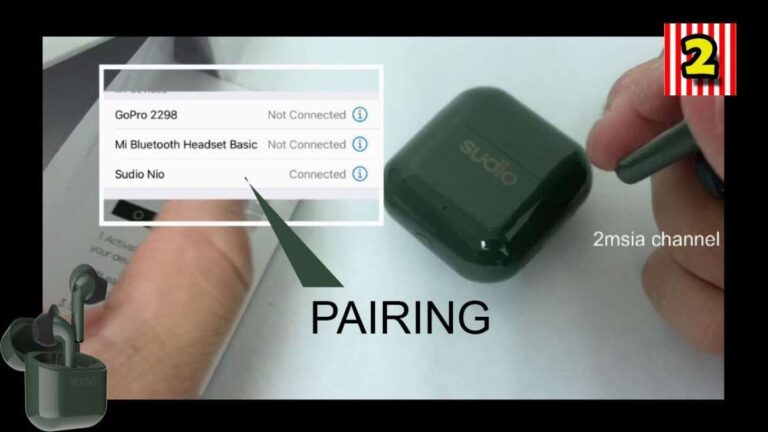
- Wait until it moves to My Devices and shows Connected.
If the earbuds do not appear, close the case for a few seconds. Then open it and repeat the pairing-mode step.
If you see two separate EarFun entries, do not connect to both unless the manual specifically tells you to. Most true wireless EarFun earbuds pair with each other first and then appear as one Bluetooth device.
If your iPhone asks for a passcode
Most EarFun earbuds do not need a passcode. If your iPhone asks for one, try 0000 or 1234 only if the model manual lists that code. Otherwise, cancel the request and reset the earbuds before trying again.

How to Pair EarFun Earbuds With an Android phone
android menus differ by phone maker, but the Bluetooth steps are similar.
- Put both earbuds in the case.
- Open the lid.
- Activate pairing mode using the case button or earbud touch controls.
- Open Settings on your Android phone.
- Tap Connected devices, Connections, or Bluetooth.
- Choose Pair new device if that option appears.
- Select the EarFun model.
- Tap Pair or Connect.


Some Android phones show the earbuds in a pop-up window. If the name does not appear, open the full Bluetooth menu and scan again.
On newer Android phones, you may also see options for calls, media audio, contacts, or spatial audio. Leave Media audio on if you want music and video sound through the earbuds.
Pairing with a Samsung Galaxy phone
On many Samsung Galaxy phones, go to:
Settings > Connections > Bluetooth
Turn Bluetooth on, place the EarFun earbuds in pairing mode, and tap the model name under Available devices.

How to Pair EarFun Earbuds With a Windows PC
EarFun earbuds can connect to a Windows PC for music, video, meetings, and calls.
Windows 11
- Put the earbuds into pairing mode.
- Select Start > Settings.
- Open Bluetooth & devices.
- Turn Bluetooth on.
- Select Add device.
- Choose Bluetooth.
- Select the EarFun model.
- Click Done.
After pairing, click the speaker icon on the Windows taskbar and choose the EarFun earbuds as the output device.
For calls, open the sound or microphone settings and select the EarFun earbuds as the input device if Windows does not choose them automatically.
Windows 10
Go to:
Start > Settings > Devices > Bluetooth & other devices > Add Bluetooth or other device
Choose Bluetooth, then select the EarFun earbuds from the list.
Windows may show two sound profiles:
- Headphones or Stereo: better for music and video.
- Headset or Hands-Free: used for the microphone and calls, often with lower audio quality.
This change is normal for Bluetooth headsets. If you need clear music during a meeting, use the computer’s built-in microphone when possible.

How to Pair EarFun Earbuds With a Mac
To connect EarFun earbuds to a Mac:


- Place the earbuds in pairing mode.
- Select the Apple menu.
- Open System Settings.
- Select Bluetooth.
- Find the EarFun model under nearby devices.
- Click Connect.
On older macOS versions, open System Preferences > Bluetooth instead.
After connecting, select the Control Center in the menu bar, choose Sound, and select the EarFun earbuds. If you want to use them for a video call, also check the microphone choice in the call app.
How to Put Different EarFun Models Into Pairing Mode
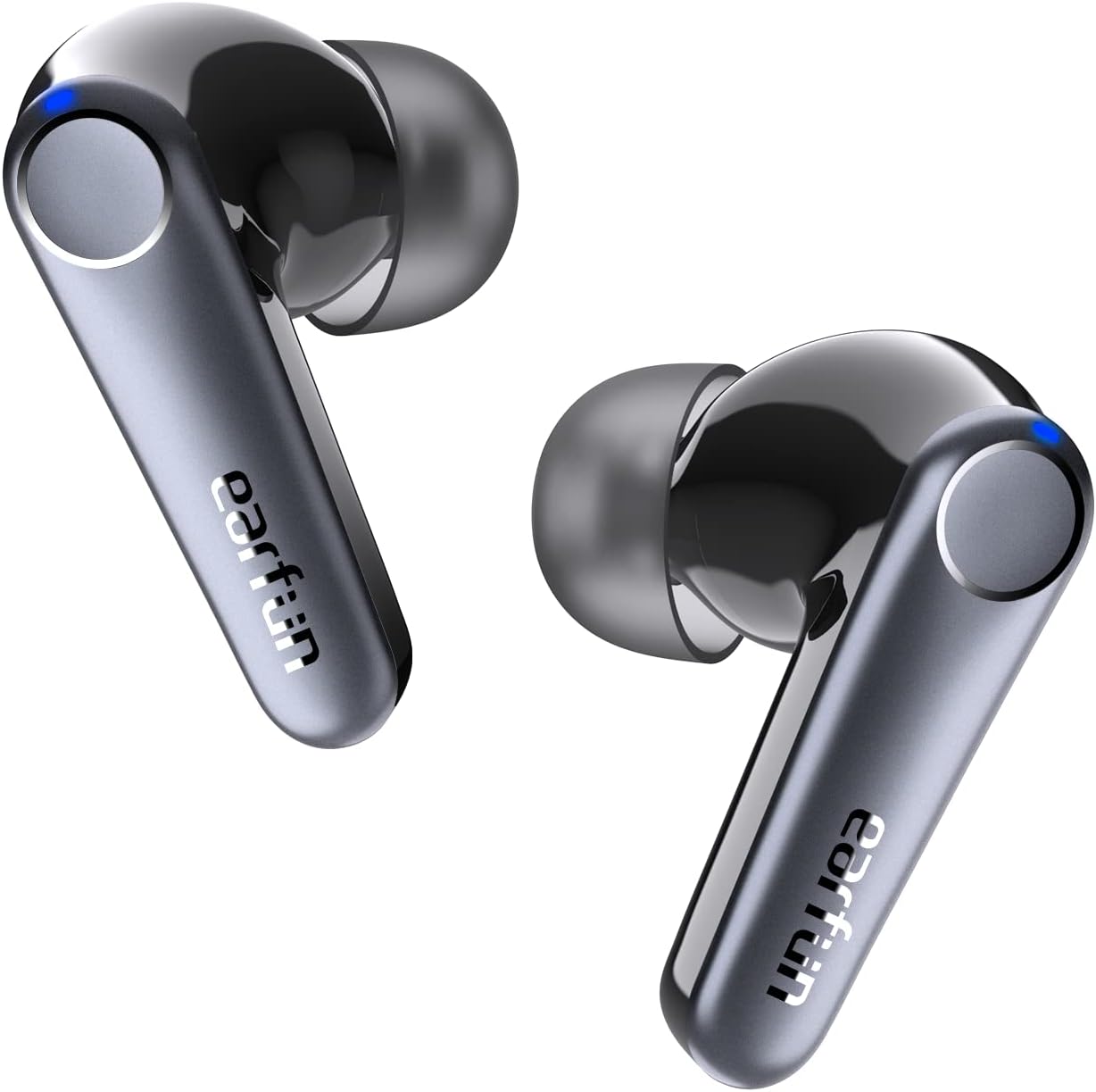
The pairing method depends on the model. EarFun has used both case buttons and earbud touch controls across its product range.
| EarFun design | Usual pairing method | What to check |
|---|---|---|
| Charging case with a physical button | Hold the case button for about 3 seconds | The case light should begin flashing |
| Touch-control earbuds | Remove the earbuds and touch or hold the control area for about 3 seconds | Use the model’s quick-start guide for the exact gesture |
| Earbuds that enter pairing mode automatically | Open the case near a new device | Select the model when it appears |
| Previously paired earbuds | Disconnect or clear the old Bluetooth connection first | The earbuds may reconnect to the last device |
The model name matters. For example, the steps for an EarFun Air Pro model may not match the steps for an EarFun Free or EarFun Air model. Use the manual for your exact version when the generic method fails.
You can find model-specific manuals and support information through EarFun’s official support page.

How to Pair EarFun Earbuds With a Second Device
Many EarFun earbuds can remember more than one device, but memory is not the same as active connection. Some models also support multipoint Bluetooth, while others connect to only one device at a time.
To pair a second device:
- Disconnect the earbuds from the first device.
- Put the earbuds into pairing mode again.
- Open Bluetooth settings on the second device.
- Select the EarFun model.
- Test sound on both devices.
If the earbuds reconnect to the first phone before you can pair the second device, turn off Bluetooth on the first phone temporarily. Then repeat the process.
If your model supports multipoint, the manual or EarFun app may show an option to enable it. Without multipoint, you may need to disconnect from one device before connecting to another.

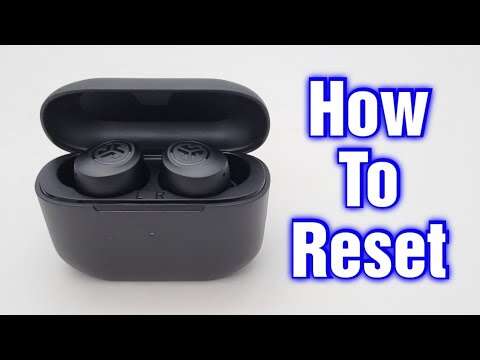
How to Pair EarFun Earbuds After a Factory Reset
A reset clears old pairing information from the earbuds. It is useful when the earbuds appear on one device but fail to connect, when only one earbud works, or when the earbuds connect to the wrong phone.
A common reset process is:
- Forget or remove the EarFun earbuds from your phone or computer.
- Put both earbuds in the charging case.
- Leave the lid open.
- Press and hold the case button, if your model has one.
- Hold until the case light changes or flashes.
- Close and reopen the lid.
- Put the earbuds into pairing mode.
- Select them from your device’s Bluetooth menu.
Some models use a different reset gesture. Do not assume that one EarFun model’s reset method applies to another. The exact manual is the best source for the reset sequence.
How to forget EarFun earbuds
On an iPhone:
Settings > Bluetooth > Information icon next to EarFun > Forget This Device


On Android:
Settings > Connected devices > Previously connected devices > Settings icon next to EarFun > Forget
On Windows:
Settings > Bluetooth & devices > Devices > three dots next to EarFun > Remove device
On a Mac:
System Settings > Bluetooth > Information icon next to EarFun > Forget This Device

EarFun Earbuds Are Not Showing Up in Bluetooth
If the earbuds do not appear, follow these checks in order:
- Confirm pairing mode. A normal white or blue light may only show that the earbuds are powered on. Look for the flashing pattern that indicates pairing.
- Turn Bluetooth off and on. Wait a few seconds before scanning again.
- Move the earbuds closer. Keep them within a few feet of the phone or computer.
- Turn off Bluetooth on nearby devices. Another phone may be taking the automatic connection.
- Charge the earbuds. A low battery can stop pairing.
- Restart the phone or computer.
- Forget the old EarFun entry.
- Reset the earbuds using the model-specific instructions.
- Try a second device. This helps show whether the problem is with the earbuds or the first device.
If the earbuds appear on a second phone but not the first, the first device likely has a Bluetooth setting or stored-pairing problem.
EarFun Earbuds Connect but Have No Sound
A Bluetooth connection does not always mean the earbuds are selected for audio output.
On a phone, start music and check the audio-output menu. Select the EarFun earbuds rather than the phone speaker.
On Windows, click the speaker icon and choose the EarFun device. On a Mac, open Control Center > Sound and select the earbuds.
Also check these points:
- Make sure the media volume is high enough.
- Confirm that the app is not muted.
- Test a different music or video app.
- Disconnect other Bluetooth speakers or headphones.
- Place both earbuds in the case, then reconnect them.
- Check whether the earbuds are connected for calls only.
If calls work but music does not, the device may have disabled the media-audio profile. Open the Bluetooth settings for the EarFun earbuds and turn on Media audio, when that option is available.

Only One EarFun Earbud Works
One earbud may fail to play because the earbuds lost their link to each other, one side did not charge, or the phone saved an incomplete connection.
Try this sequence:
- Put both earbuds in the case.
- Check that both charging lights respond, if your model has them.
- Clean the charging contacts with a dry, soft cloth.
- Forget the EarFun device on your phone.
- Reset both earbuds together.
- Pair them again as one device.
Do not pair the left and right earbuds separately unless the manual specifically instructs you to do so. In normal use, the two earbuds should work as a matched pair.
If one side still does not charge or power on, check the case contacts and try a different charging cable or power source. Stop using the product if the battery or case becomes unusually hot, swollen, or damaged.


EarFun Earbuds Keep Disconnecting
Brief interruptions can come from distance, walls, crowded wireless areas, low battery, or a device that is switching between Bluetooth accessories.
Try the following:
- Keep the phone or computer close to the earbuds.
- Avoid storing the phone in a bag or behind a thick wall during testing.
- Charge both earbuds and the case.
- Disconnect unused Bluetooth devices.
- Restart Bluetooth on the source device.
- Update the EarFun firmware through the official app if an update is offered.
- Reset and re-pair the earbuds if the issue continues.
A firmware update may improve compatibility, but it cannot fix every hardware or battery fault. If disconnections happen with several devices at close range, contact EarFun support or the retailer for model-specific help.

Common Pairing Mistakes to Avoid
The most common mistake is selecting the earbuds before they are actually in pairing mode. A powered-on earbud may not be discoverable.
Other mistakes include:
- Trying to pair while the earbuds remain connected to another phone.
- Searching for the wrong model name.
- Pairing only one earbud.
- Ignoring a low case battery.
- Leaving old Bluetooth records on the phone.
- Using a reset method from a different EarFun model.
- Expecting the EarFun app to create the Bluetooth connection.
- Placing the phone too far away during setup.
If the model name appears but connection fails, remove the old Bluetooth record first. If the model never appears, focus on pairing mode, battery level, and whether another device has already connected.

Pairing Status Guide
Use the device message and light behavior together. Light colors can differ by model, so the manual takes priority.
| What you see | Likely meaning | Next step |
|---|---|---|
| EarFun model appears under available devices | Pairing mode is active | Tap or select the model |
| Model shows “Connected” | Bluetooth pairing worked | Test music and calls |
| Model shows “Saved” but not connected | The device remembers it but is not linked now | Tap the model or reconnect |
| Earbuds connect, but no sound plays | Wrong audio output or profile | Select EarFun as the sound output |
| One earbud works | Earbuds may be out of sync or one side may not charge | Reset and pair both together |
| Earbuds never appear | Pairing mode, battery, or another connection may be the issue | Charge, disconnect nearby devices, and retry |

Frequently Asked Questions
Do EarFun earbuds pair automatically?
They often reconnect automatically to the last device they used when removed from the case. For a new phone or computer, you normally need to activate pairing mode and select the earbuds from Bluetooth settings.
Why does my phone show two EarFun devices?
This can happen when the earbuds are not linked to each other or when a device has saved old Bluetooth records. Forget the old entries, reset the earbuds, and pair them again as one set.
Can I use EarFun earbuds without the EarFun app?
Yes. Basic Bluetooth audio and calls normally work without the app. The app may be needed for certain settings, firmware updates, equalizer controls, or model-specific features.
How do I connect EarFun earbuds to a TV?
Put the earbuds into pairing mode, open the TV’s Bluetooth, Sound, or Accessories menu, and select the EarFun model. Some TVs support Bluetooth audio only, and some may not support Bluetooth headphones at all.
Can I pair EarFun earbuds with an iPad?
Yes. Open Settings > Bluetooth on the iPad, put the earbuds in pairing mode, and select the EarFun model. The steps are almost the same as pairing with an iPhone.
Final Takeaway
The standard way to pair EarFun earbuds is to open the charging case, activate pairing mode, and select the EarFun model in your device’s Bluetooth menu. If the earbuds do not appear, charge them, disconnect nearby devices, remove the old Bluetooth record, and reset the earbuds using the instructions for your exact model.
Start with the official EarFun manual for the model name printed on your case. That single detail determines the correct pairing, reset, and multipoint steps.