

To sync soundcore earbuds, place both earbuds in the charging case, reset them if they do not connect to each other, then pair them with your phone or computer through Bluetooth. Most Soundcore models follow this process, but button timing and LED signals can vary by model.
This guide is for people in the United States using Soundcore earbuds with an iPhone, Android phone, Windows PC, Mac, tablet, or other Bluetooth device. It also explains what to do when only one earbud works, the earbuds keep disconnecting, or the Soundcore app cannot find them.
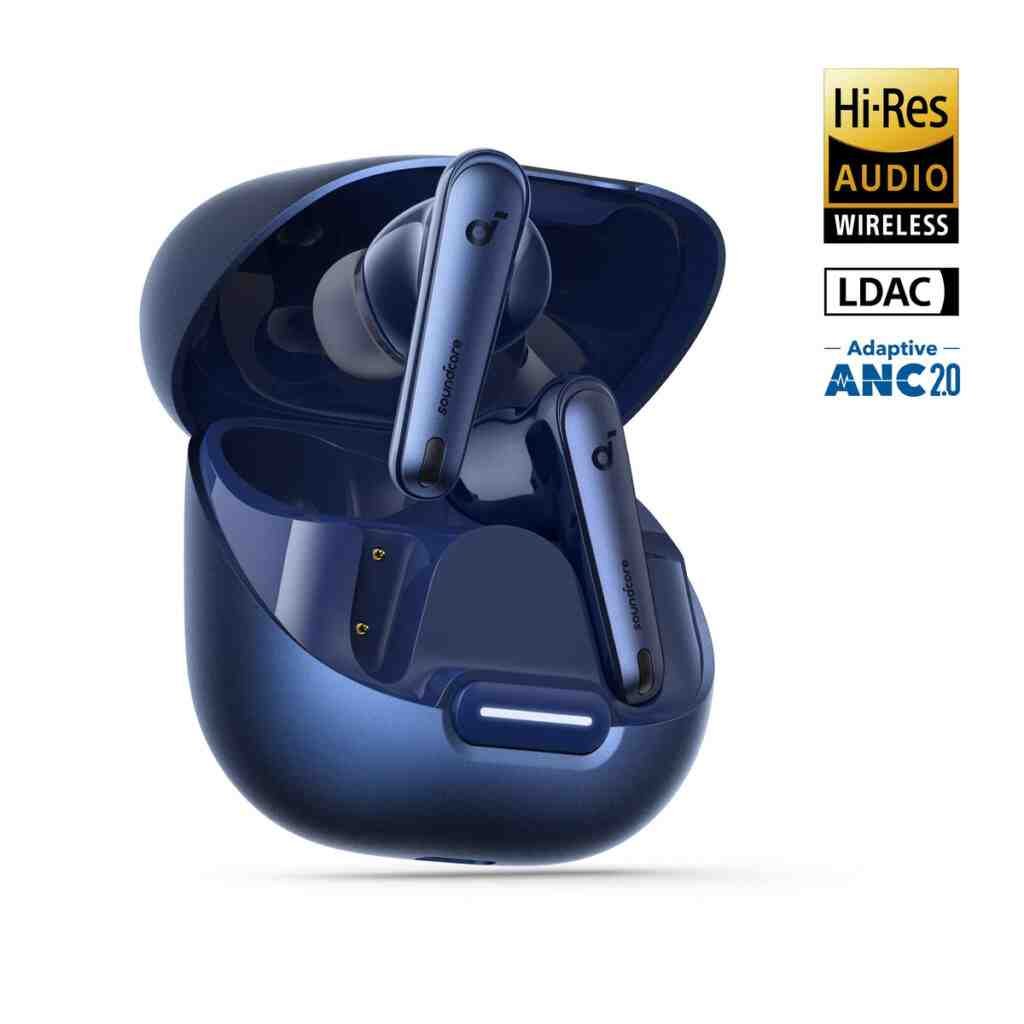
What “syncing” Soundcore earbuds means
“Syncing” can mean two different things:
- Earbuds syncing with each other: Both earbuds link as a stereo pair.
- Earbuds pairing with a device: The stereo pair connects to your phone, tablet, or computer.
You need both connections for normal listening. If the earbuds connect to your phone but only one side plays, the earbuds may not be synced with each other. If both earbuds work but your phone cannot find them, the issue is usually Bluetooth pairing.
Soundcore earbuds use Bluetooth for the connection to your device. The left and right earbuds usually form their own wireless link before communicating with the phone. A reset clears old pairing data and often fixes a broken link.
Before you begin
Check these points first:
- Charge the case and both earbuds.
- Remove any protective film from the charging contacts.
- Make sure both earbuds sit correctly in the case.
- Keep the earbuds within a few feet of your phone or computer.
- Turn off Bluetooth on devices that may connect to the earbuds automatically.
- Install or update the soundcore app from the Apple App Store or Google Play if your model supports it.
- Check the model-specific manual on the Soundcore support website.
How to sync Soundcore earbuds with each other
The most reliable method is to clear the old connection and start again.
1. Put both earbuds in the case
Place the left and right earbuds in their matching slots. Confirm that the case detects them. The earbud or case LEDs may light up when the charging contacts connect.
If an LED does not light up:
- Remove the earbud and place it back in the case.
- Wipe the metal charging contacts with a clean, dry cotton swab.
- Check that the case has power.
- Look for dirt, moisture, or a loose fit.
Do not use liquid or metal tools on the charging contacts.
2. Forget the old Bluetooth connection
On your phone or computer, open Bluetooth settings and remove the saved Soundcore entry.
On an iPhone:
- Open Settings.
- Tap Bluetooth.
- Tap the information button beside the Soundcore earbuds.
- Choose Forget This Device.
- Confirm the removal.
On Android:
- Open Settings.
- Open Connected devices or Connections.
- Tap Bluetooth.
- Select the Soundcore earbuds.
- Tap Forget, Unpair, or Remove.
On Windows:
- Open Settings.
- Select Bluetooth & devices.
- Find the Soundcore earbuds.
- Select the three-dot menu.
- Choose Remove device.
Removing the old entry matters because your device may keep trying to use an outdated connection record.
3. Reset the earbuds
The reset method depends on the Soundcore model.
For many Soundcore earbuds with a case button:
- Leave both earbuds in the open charging case.
- Press and hold the case button for about 10 seconds.
- Release the button when the case or earbud LEDs flash.
- Close the case for a few seconds.
- Open the case again.
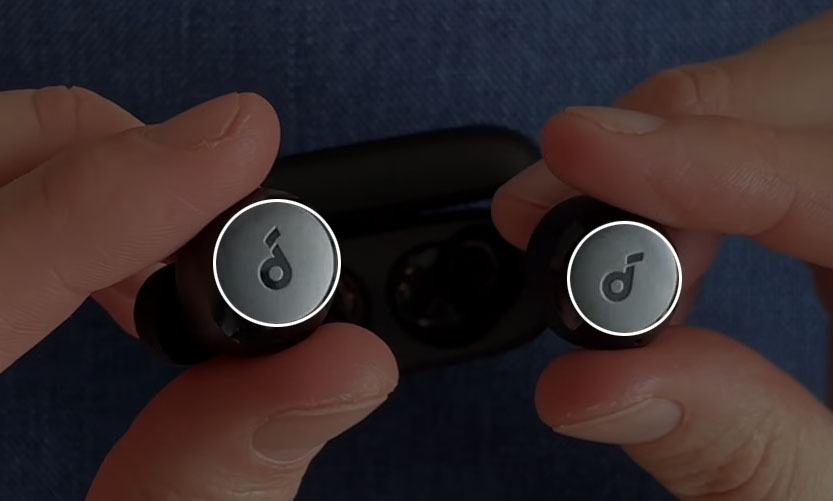
Some models reset through touch controls instead of a case button. The instructions may require you to touch and hold both earbuds while they are in the case or outside the case.
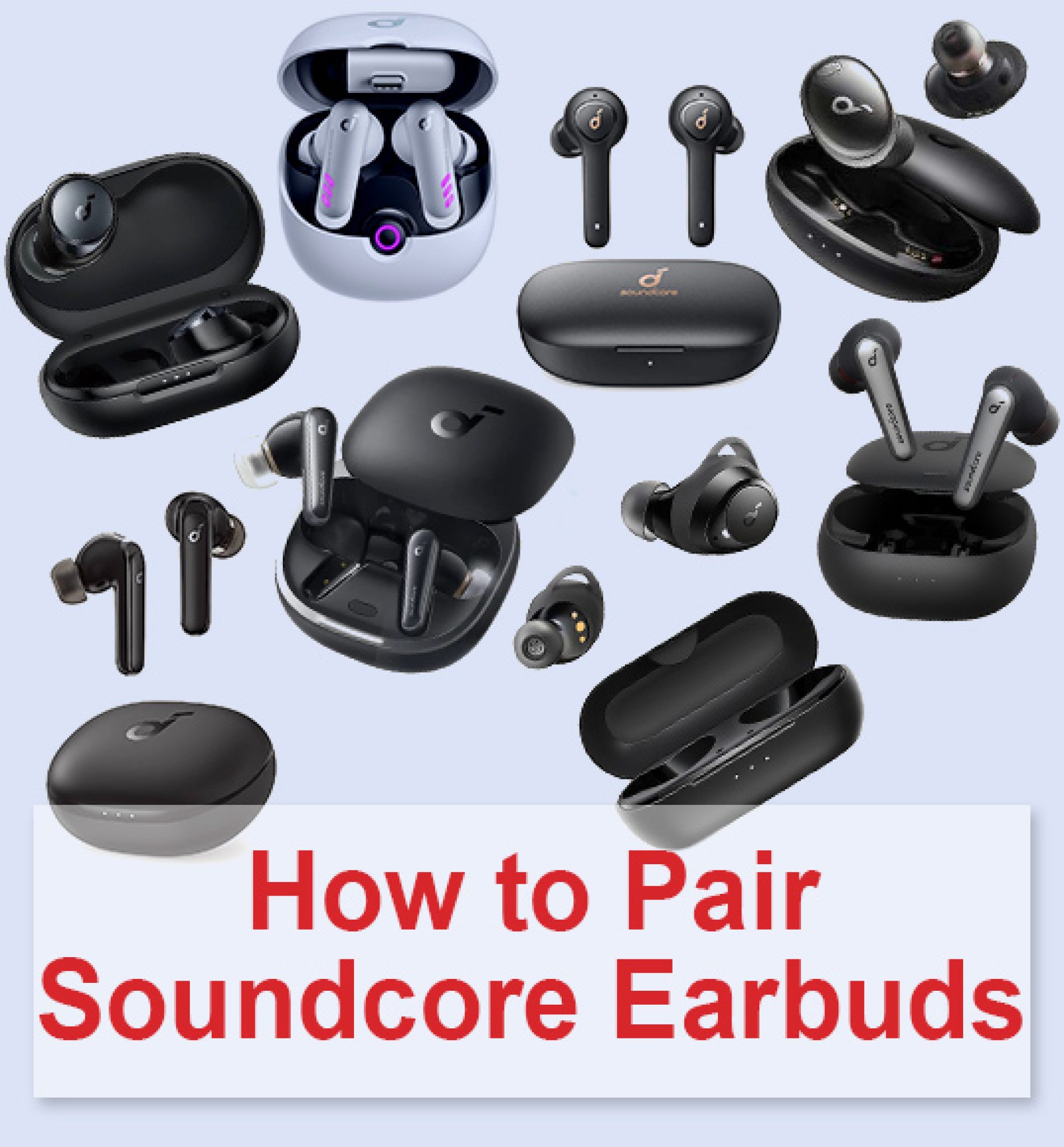
Because Soundcore uses different controls across models, use the instructions for your exact product. Examples include Soundcore Liberty, Space A40, Life P2, Life P3, and AeroFit models. The model name is often printed inside the case lid, on the bottom of the case, or in the original packaging.
4. Take both earbuds out together
Remove both earbuds from the case at the same time. Wait several seconds while they connect to each other.
A successful stereo sync usually shows one of these signs:
- One earbud stops flashing before the other.
- The earbuds announce that they are connected.
- Both earbuds appear as one Soundcore device during Bluetooth pairing.
- Sound plays from both sides after pairing.
If you see two separate entries, such as a left and right earbud name, the earbuds may still be in separate-earbud mode or may need another reset.

How to pair Soundcore earbuds with an iPhone or Android phone
After the earbuds sync with each other, pair them with your phone as a single Bluetooth device.
Pair with an iPhone
- Open the charging case.
- Remove both earbuds, or leave them in the open case if your model supports pairing from the case.
- Open Settings > Bluetooth.
- Turn Bluetooth on.
- Wait for the Soundcore model name to appear under Other Devices.
- Tap the name.
- Accept the pairing request if one appears.
The earbuds should move to My Devices and show as Connected. Play a short audio clip to confirm that sound comes from both earbuds.
Pair with an Android phone
Android menus can differ by manufacturer, but the process is similar:
- Open Settings.
- Tap Connected devices, Connections, or Bluetooth.
- Turn Bluetooth on.
- Select Pair new device if needed.
- Choose the Soundcore earbuds from the list.
- Approve the pairing request.
If the earbuds do not appear, close and reopen the case. Then place the earbuds into pairing mode according to the model manual.
Use the soundcore app after pairing
The soundcore app can provide features such as:
- Firmware updates
- Touch-control changes
- Equalizer settings
- Noise-control modes
- Find-device functions on supported models
- Battery information
Pair the earbuds in the phone’s Bluetooth settings first if the app does not detect them. Keep the app open near the earbuds and allow Bluetooth permissions when requested.
A firmware update may improve compatibility, but do not remove the earbuds from the case or close the app during an update unless the app tells you to do so. Keep the case charged.
How to connect Soundcore earbuds to a Windows PC or Mac
Soundcore earbuds can pair with a computer like other Bluetooth headphones.
Windows 11
- Put the earbuds in pairing mode.
- Open Settings.
- Select Bluetooth & devices.
- Turn Bluetooth on.
- Select Add device.
- Choose Bluetooth.
- Select the Soundcore earbuds.
After pairing, select the speaker icon in the taskbar and choose the Soundcore earbuds as the sound output.
If you use the earbuds for calls, Windows may show separate audio choices. The Headphones option usually provides better stereo sound. The Headset option may activate the microphone but reduce audio quality because Bluetooth call mode has less bandwidth.
macOS
- Put the earbuds into pairing mode.
- Open the Apple menu.
- Select System Settings.
- Choose Bluetooth.
- Find the Soundcore earbuds.
- Select Connect.
Open System Settings > Sound and select the Soundcore earbuds for audio output if your Mac does not switch automatically.
If the computer sees two earbuds
Do not pair separate left and right entries unless the model manual specifically instructs you to do so. Reset the earbuds, let them sync with each other, and then pair the single Soundcore device name.
Some computers also remember an old connection even after you remove it from the phone. Delete old Soundcore entries from the computer before trying again.
What to do when Soundcore earbuds will not sync
Use the checks below in order. Start with power and charging because a low battery can look like a Bluetooth problem.
Only one earbud plays sound
Possible causes include a failed stereo sync, a dirty charging contact, an uneven battery level, or a device connected to only one earbud.
Try this sequence:
- Put both earbuds in the case.
- Charge them for at least a short period.
- Forget the Soundcore entry on your phone.
- Reset both earbuds.
- Remove both earbuds together.
- Pair the single Soundcore entry again.
- Test music, not only a phone call.
If one earbud still does not respond, check whether its LED activates when placed in the case. If there is no light and no charging response, clean the contacts and try another compatible charging cable or power source.
The earbuds connect but keep disconnecting
Common causes include distance, radio interference, low battery, software problems, or a second device taking control.
Try the following:
- Keep the phone within a few feet during setup.
- Turn off Bluetooth on nearby devices that have used the earbuds.
- Restart the phone.
- Charge the case and earbuds.
- Remove and re-pair the Soundcore device.
- Update the soundcore app and earbud firmware when an update is offered.
- Test in another location away from crowded wireless devices.
Bluetooth connections can weaken through walls, inside crowded areas, or when the phone is placed in a bag or pocket that blocks the signal. If the problem happens with several devices, the earbuds or case may need service.
The earbuds do not appear in Bluetooth settings
Make sure the earbuds are in pairing mode rather than only powered on. A reset is often needed when the earbuds automatically reconnect to another device.
Then:
- Turn Bluetooth off and back on.
- Close the charging case.
- Open it near the phone.
- Take both earbuds out.
- Wait for the Soundcore name to appear.
- Restart the phone if the list remains empty.
If the earbuds show on another phone but not yours, the issue may be your phone’s Bluetooth settings. If they show on no device, repeat the model-specific reset and check the case battery.
One earbud is much quieter
This is not always a sync problem. Earwax or debris can block the speaker mesh, and phone accessibility settings can shift the audio balance.
Check:
- The speaker mesh on the quiet earbud
- The phone’s left-right audio balance
- The equalizer in the soundcore app
- Noise-control settings
- Whether the issue follows the earbud when tested with another device
Clean the speaker mesh carefully with a dry, soft brush. Do not push debris deeper into the earbud or soak it in water. Water resistance ratings, when present, do not mean the earbuds are safe to submerge or expose to soap.
The soundcore app cannot find the earbuds
The app may not detect earbuds that are already connected to another phone. First disconnect them from other devices.
Then confirm:
- Bluetooth is enabled.
- The app has Bluetooth permission.
- The earbuds are connected in the phone’s Bluetooth menu.
- The app is updated.
- The earbuds are compatible with the app.
- The phone has an active internet connection if the app needs to check an update.
The app’s features vary by model. A feature shown for one Soundcore product may not be available on another.
Common mistakes that prevent Soundcore earbuds from syncing
Avoid these setup errors:
- Pairing before resetting: Old records can cause the phone to reconnect to an incomplete stereo profile.
- Removing only one earbud: Both earbuds need to be reset together for a full stereo repair.
- Pairing two separate entries: A single Soundcore name is normally the correct choice.
- Ignoring the case battery: The earbuds may not reset if the case has no charge.
- Using the wrong model instructions: Soundcore button and touch sequences are not universal.
- Leaving another device connected: A laptop, tablet, or old phone may take the connection first.
- Updating during low power: Keep the case charged before starting a firmware update.
- Testing only during a call: Call mode can change sound quality and microphone behavior.
If your model has multipoint Bluetooth, it may connect to two devices at once. That can be useful, but it may also make troubleshooting harder. Temporarily disconnect the second device while syncing.
Quick troubleshooting table
Use this table to match the symptom with the most likely next step.
| Problem | First check | Best next action |
|---|---|---|
| Only one earbud works | Both earbuds charge | Reset both earbuds and forget the Bluetooth entry |
| Earbuds do not appear | Pairing mode is active | Open the case, remove both earbuds, and reset if needed |
| Two Soundcore entries appear | Earbuds lost stereo sync | Reset both earbuds and pair one device name |
| Connection drops | Battery, distance, or another device | Charge, move closer, and disconnect other devices |
| App cannot detect earbuds | Bluetooth and app permissions | Pair in phone settings, then reopen the app |
| One side is quiet | Speaker mesh and audio balance | Clean the mesh and check left-right balance |
| No LEDs respond | Case power or charging contacts | Charge the case and clean the contacts |
The exact LED color and flashing pattern differ across Soundcore products. Treat the model manual as the final guide when an LED signal conflicts with this general table.
When to contact Soundcore support
Contact Soundcore support when the earbuds remain unresponsive after a correct reset and charging check.
Before contacting support, record:
- The exact model name
- The phone or computer model
- The operating system version
- Whether both earbuds show charging lights
- Whether the earbuds appear on another Bluetooth device
- What happens during the reset
- Any error message in the soundcore app
Stop using the earbuds if they become unusually hot, swell, smell unusual, or show visible battery damage. Do not open the earbuds or attempt to replace an internal lithium-ion battery yourself. A damaged battery needs proper service and disposal.
FAQs about syncing Soundcore earbuds
Why do my Soundcore earbuds show up as two devices?
The earbuds may have lost their stereo link or entered separate-earbud mode. Forget both Bluetooth entries, reset the earbuds together, and pair the single Soundcore device name.
Can I sync Soundcore earbuds without the app?
Yes. The basic sync and Bluetooth pairing process usually works without the soundcore app. The app is mainly useful for firmware updates, controls, equalizer settings, and model-specific features.
How long does it take to reset Soundcore earbuds?
A reset often takes less than a minute, but the button or touch-control timing varies by model. Use the exact instructions for your product rather than assuming every Soundcore earbud uses the same timing.
Can I use only the left or right Soundcore earbud?
Many Soundcore models support single-earbud use, but the feature depends on the model and firmware. If one side does not work alone, reset the pair and check the product manual.
Why do my Soundcore earbuds connect to my old phone?
The old phone may still have an active Bluetooth connection. Turn off Bluetooth on that phone or remove the Soundcore earbuds from its saved devices before pairing with your current device.
Final steps
For most Soundcore earbuds, the fix is simple: charge both earbuds, forget the old Bluetooth record, reset the pair, remove both earbuds together, and connect the single Soundcore device name. If that fails, check the charging contacts, disconnect nearby devices, and follow the instructions for the exact model.
The next best action is to identify the model printed on the case, then compare its reset method and LED signals with the official Soundcore manual.