Can You Play Games Off An External SSD: What To Know
Yes, you can play most games directly from an external SSD with little or no performance loss.
Can you play games off an external SSD? In most cases, yes, but your results depend on the SSD type, connection speed, game platform, and computer. This guide explains setup, performance, compatibility, storage limits, and the common mistakes that can cause slow loading or crashes.

Can You Play Games Off an External SSD?
Yes, you can play games off an external SSD on a Windows PC, Mac, PlayStation, Xbox, and some handheld gaming devices. The game files stay on the external drive, while your system runs the game from that location.
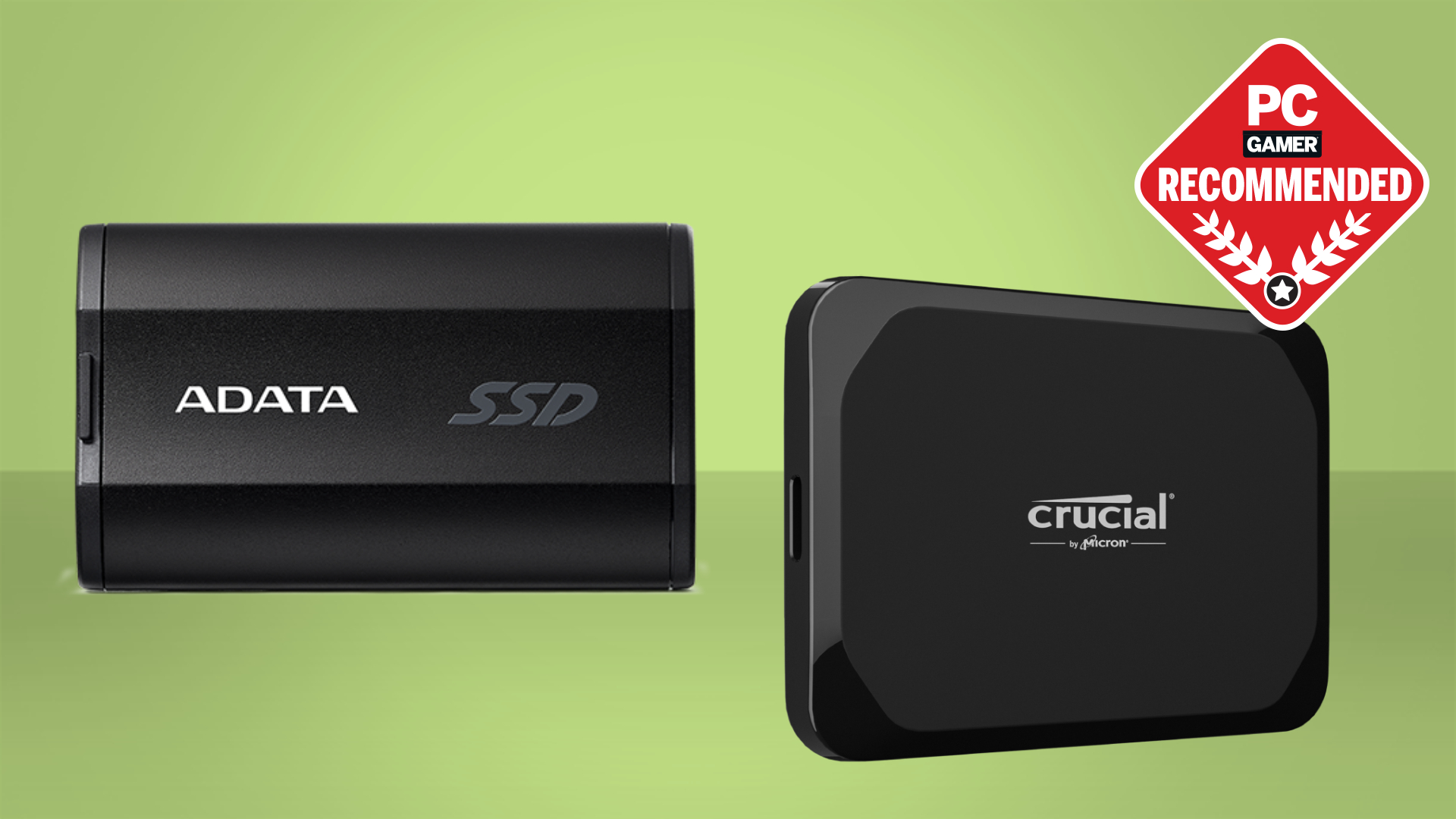
An external solid-state drive uses flash memory instead of moving parts. This makes it much faster and more reliable than an external hard disk drive. For many games, the difference between an internal SSD and a good external SSD is small.


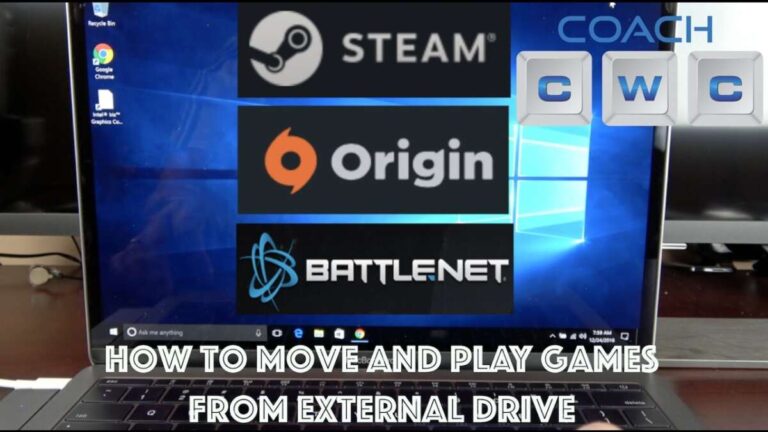
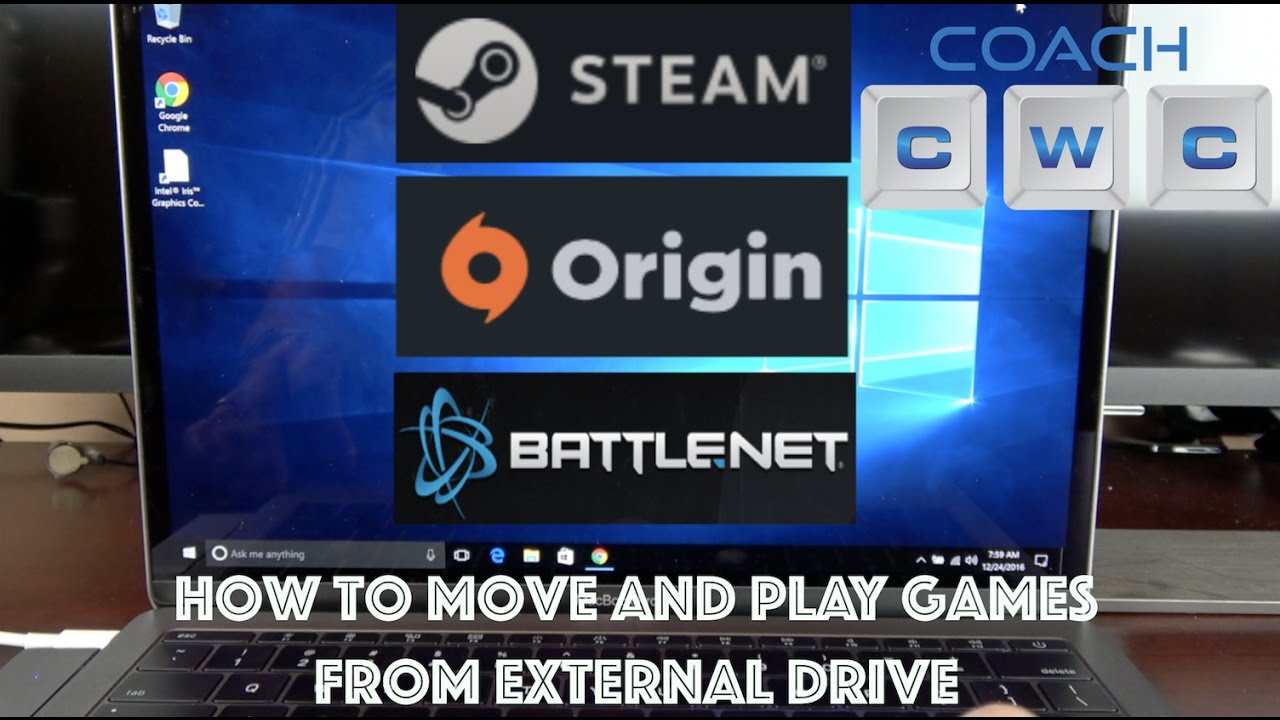
Can you play games off an external SSD without installing them on your main drive? Yes. Platforms such as Steam, Epic Games Store, Xbox PC, and Battle.net let you choose a separate game library folder.
However, not every external SSD performs the same way. A slow USB connection, poor cable, or overheated drive can reduce speed. Think of the SSD as a fast road. The USB port is the bridge. If the bridge is narrow, the road cannot work at full speed.
How External SSD Gaming Works
When you launch a game from an external SSD, your computer reads game files from that drive. These files include textures, sound, maps, models, save data, and configuration files.
The game does not need to be stored on the internal drive. It only needs a stable connection and permission to access its files. Your computer still uses the CPU, graphics card, and system memory to run the game.
Can you play games off an external SSD while keeping your operating system on the internal drive? Yes. This is a common setup because the internal drive handles Windows or macOS, while the external SSD stores large games.
Some game data may still be saved elsewhere. For example, save files, shader caches, launchers, and settings can remain in your user profile or cloud storage. This is normal and does not mean the game failed to run from the external drive.
What You Need to Play Games From an External SSD
The basic setup is simple. You need a compatible SSD, a fast connection, enough free space, and a game launcher that supports external libraries.
Choose the right external SSD
Look for these features:
- USB 3.0 or faster support
- USB-C or USB-A compatibility with your device
- At least 500 GB for a small library
- 1 TB or more for modern AAA games
- Sustained write speeds suitable for large downloads
- Good heat control
- A reliable enclosure and cable
A portable NVMe SSD usually offers better performance than a portable SATA SSD. Both can run games well, but NVMe models often provide higher transfer speeds.


Use the correct USB port
A USB 3.0 port can handle gaming well. USB 3.2 Gen 2, USB4, and Thunderbolt can provide even more bandwidth. The exact speed depends on both the drive and the computer port.
A USB-C connector does not always mean high speed. USB-C describes the shape of the connector, not its performance. Check the technical specifications of your computer and SSD.
Keep enough free space
Try to keep at least 10% to 20% of the SSD free. A drive that is almost full may slow down during downloads, updates, and file management.
Can you play games off an external SSD that has only a few gigabytes left? Technically, perhaps, but updates may fail. Many games need extra temporary space while installing patches.

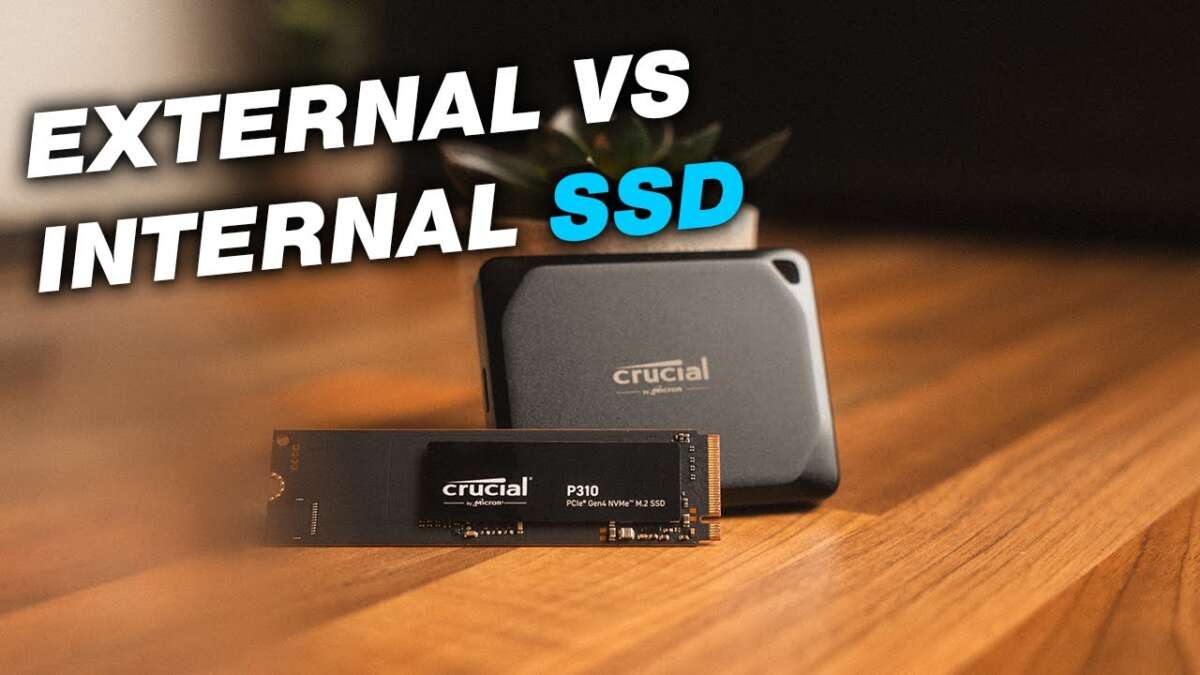
External SSD vs. Internal SSD for Gaming
An internal SSD is usually the best choice for maximum performance and convenience. It connects directly to the motherboard and does not depend on a cable or external port.
An external SSD is more flexible. You can move your game library between computers, free space on your internal drive, and carry your games with you.
| Feature | Internal SSD | External SSD |
|---|---|---|
| Connection | Direct motherboard connection | USB, USB-C, USB4, or Thunderbolt |
| Portability | Low | High |
| Cable required | No | Usually yes |
| Gaming speed | Usually fastest | Often very close |
| Risk of disconnecting | Low | Higher |
| Easy to move between systems | No | Yes |
| Heat control | Usually better | Depends on the enclosure |
Can you play games off an external SSD with the same frame rate as an internal SSD? Usually, yes. Frame rate mainly depends on the graphics card, processor, memory, and game settings.
The main difference is often loading time. A fast internal NVMe SSD may load some games a little faster than an external SSD. During normal gameplay, the difference may be difficult to notice.

How Fast Should an External SSD Be?
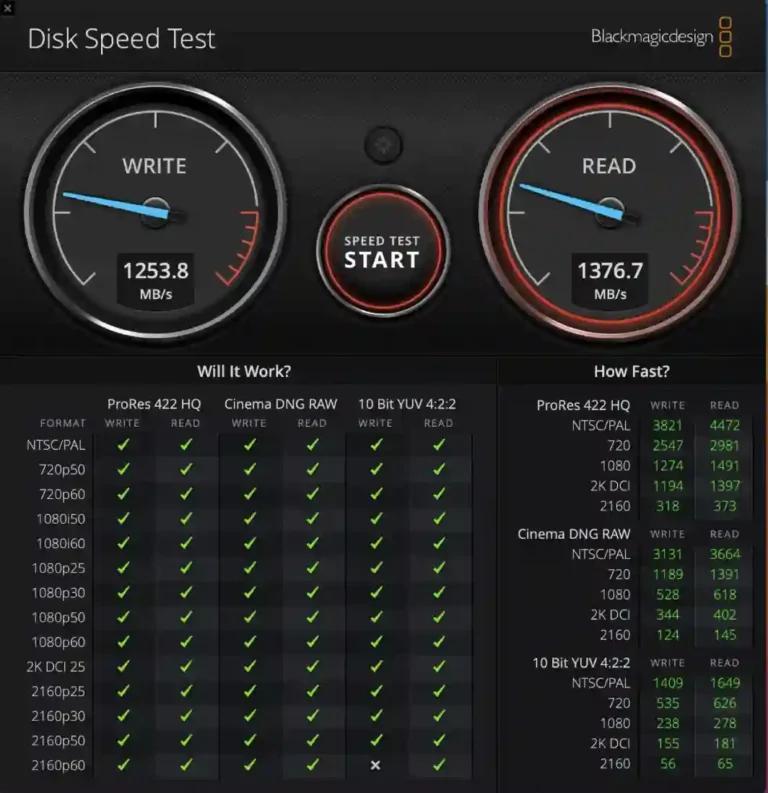
For most gaming, you do not need the fastest SSD available. A quality USB 3.0 or USB 3.2 SSD is enough for many games.
Here are practical speed ranges:
- 400 to 600 MB/s: Good for most games and much faster than an external hard drive
- 800 to 1,050 MB/s: Excellent for USB 3.2 Gen 2 systems
- 2,000 MB/s or more: Useful with USB4 or Thunderbolt, but not essential for every game
Advertised speed is not the whole story. Some drives reach their top speed only during short file transfers. Large game installations and updates can expose slower sustained write performance.
Can you play games off an external SSD rated at 500 MB/s? Yes. That speed is more than adequate for most PC games. The quality of the controller, cooling, cable, and USB port also matters.
Newer games may use advanced asset streaming. These games can benefit from faster storage, especially when loading large open worlds. Still, a reliable external SSD is usually far better than an external hard drive.
How to Install Games on an External SSD
The steps vary slightly by platform, but the process is generally easy.
Steam
- Connect the external SSD.
- Open Steam.
- Go to Settings and open Storage.
- Select the external SSD.
- Create or choose a Steam library folder.
- Install new games to that folder.


You can also move an existing game. In Steam, open the game properties, choose Installed Files, and select Move Install Folder.
Epic Games Store
- Start installing the game.
- Select the external SSD as the installation path.
- Allow the launcher to create the required folder.
- Complete the installation.
If the game already exists on the drive, the launcher may need to verify the files before it recognizes them.
Xbox app for PC
The Xbox app can be more restrictive than Steam. Some games use protected folders or special installation permissions. Choose the external drive in the app settings, and make sure the drive uses a supported file system.
PlayStation and Xbox consoles
Modern consoles support external USB drives for storing games. Depending on the console and game generation, you may be able to play directly from the external drive or use it only for storage.
PlayStation 5 games generally need the internal SSD or an approved internal expansion SSD for play. PS4 games can usually run from a compatible external USB drive. Xbox Series X and Series S games may require the internal storage or an official expansion card, while many Xbox One games can run from a USB external drive.

Can You Play Games Off an External SSD on a Laptop?
Yes, gaming laptops often work very well with external SSDs. This can be useful when the laptop has limited internal storage or when large game files are taking up too much space.
Connect the SSD before starting the game launcher. Then create a library on the external drive and install the game there.
For the best experience:
- Use the laptop’s fastest USB port
- Connect the laptop to wall power
- Avoid using a loose or damaged cable
- Place the SSD on a hard surface
- Do not cover the drive during long sessions
- Keep the laptop and SSD cool
Can you play games off an external SSD while using a laptop on battery power? Yes, but performance may drop if the laptop enters a power-saving mode. Some USB ports may also provide less power when the laptop is running on battery.

Can You Play Games Off an External SSD on a Mac?
Yes, but compatibility depends on the operating system, game, launcher, and file system. Many Mac games can run from an external SSD, especially when the drive is formatted correctly.
For modern Macs, APFS is often a suitable choice for Mac-only use. ExFAT is more convenient if you plan to move the drive between Windows and macOS, but it may not support every Mac-specific feature.
Before formatting the drive, back up any important files. Formatting usually erases the entire SSD.
Some games designed for Windows may require compatibility software or a supported Mac version. An external SSD cannot solve software compatibility problems by itself.
Advantages of Playing Games From an External SSD
Can you play games off an external SSD and gain practical benefits? Definitely. External storage is useful for more than simply adding capacity.


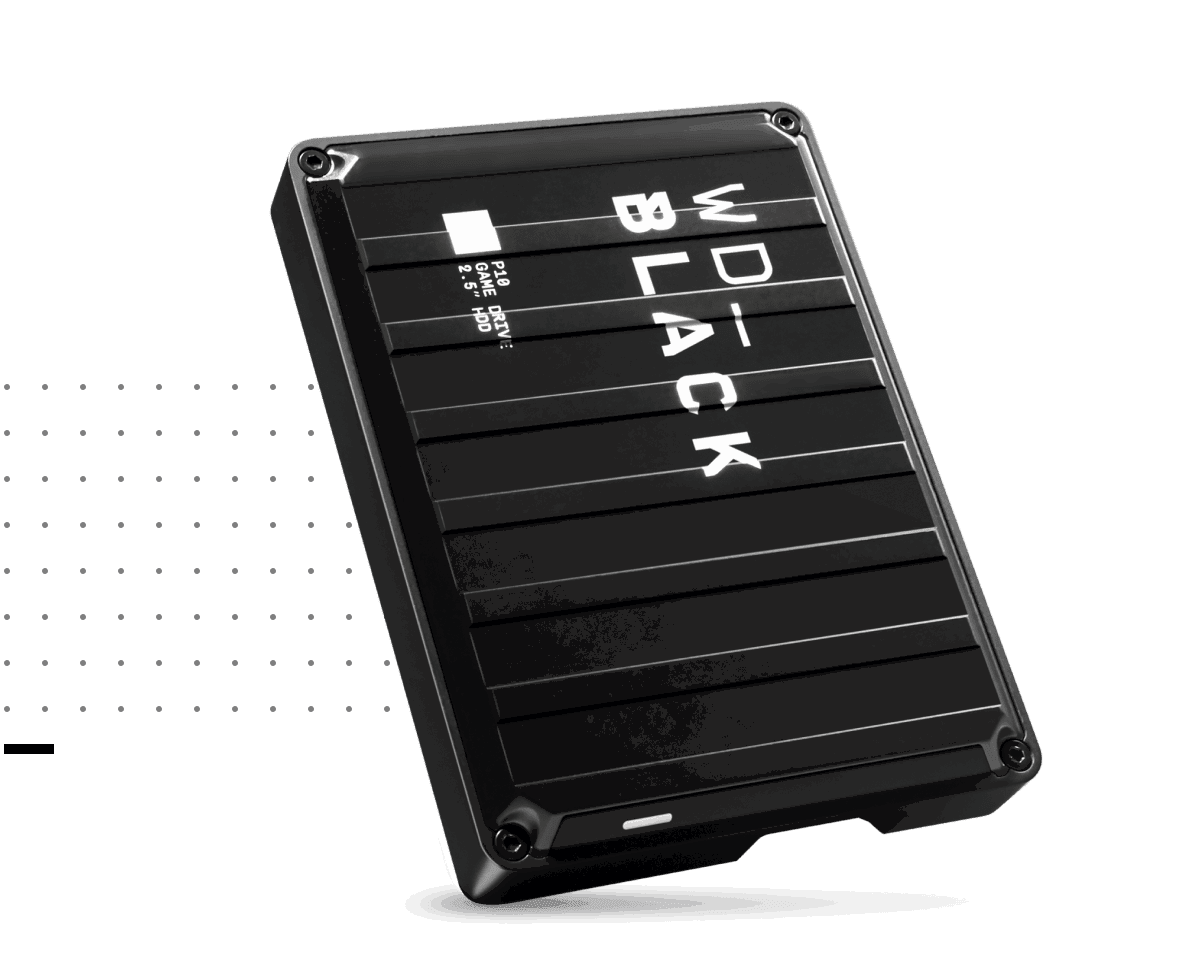
More storage for large games
Modern games can use 100 GB or more. An external SSD lets you store several large titles without replacing your internal drive.
Easy library management
You can separate work files, personal files, and games. This can make your main drive easier to manage.
Portability
You can carry your game library between compatible computers. You may need to install the launcher and sign in again, but you do not always need to download the full game.
Better performance than an external hard drive
An SSD has much lower access time than a hard drive. This can reduce loading delays and improve the general feel of the system.
Simple upgrades
Adding an external SSD is often easier than opening a desktop or laptop. It is a practical option for users who do not want to change internal hardware.
Limitations and Problems to Watch For
Can you play games off an external SSD without any drawbacks? No storage setup is perfect. External drives have a few important limitations.
Accidental disconnection
If the cable comes loose during a game, the game may freeze or close. In some cases, files can become damaged.
Use a short, secure cable. Avoid moving the drive while it is active.
Heat buildup
Small portable SSDs can become warm during long file transfers or game updates. High heat may reduce performance through thermal throttling.
Give the drive airflow. Do not place it under papers, clothing, or a soft surface.
Slow USB ports
A USB 2.0 port can severely limit an SSD. The game may still launch, but loading times and transfers will be much slower.
Drive letter changes
Windows can assign a different drive letter after the SSD is connected to another computer. The launcher may then fail to find the game.
You can fix this by assigning a stable drive letter in Windows Disk Management or by reconnecting the library through the launcher.
File system problems
A drive formatted for one operating system may not work properly on another. Check compatibility before moving a game library between Windows, macOS, and consoles.
Anti-cheat and protected files
Some games use anti-cheat tools or protected installation folders. These games may have stricter requirements and may not work correctly after being moved between computers.


How to Improve External SSD Gaming Performance
A few simple habits can make external SSD gaming more reliable.
- Connect the SSD directly to the computer instead of using a cheap hub.
- Use the cable supplied with the drive when possible.
- Install the latest chipset, USB, and storage drivers.
- Keep firmware updated through the SSD manufacturer’s utility.
- Leave free space for updates and temporary files.
- Safely eject the drive before unplugging it.
- Scan the drive for errors if games begin crashing.
- Avoid running several heavy file transfers during gameplay.
- Keep the SSD cool and stable.
- Back up valuable save files and personal data.
A useful lesson from real-world testing is that the cable is often the overlooked part of the setup. A fast SSD connected through a poor cable can act like a slow drive. Replacing the cable or changing the USB port can fix problems that appear to be caused by the SSD.
Another common mistake is unplugging the drive immediately after closing a game. Wait a moment, close the launcher, and use the operating system’s safe removal option.
Best External SSD Setup for Different Gamers
The ideal drive depends on how you play.
For casual PC gaming
A 500 GB or 1 TB USB 3.0 SSD is usually enough. It can hold several smaller games and provide much faster loading than a hard drive.
For AAA gaming
Choose a 1 TB or 2 TB SSD with strong sustained performance. Large open-world games can consume storage quickly.
For laptop users
A compact NVMe portable SSD is convenient. Look for a sturdy case and a cable that fits your laptop’s fastest port.
For console users
Check the console’s official storage rules before buying. Some consoles allow direct play from USB storage, while others require internal storage or a dedicated expansion card for newer games.
For moving games between computers
Choose a drive with a durable enclosure and enough capacity for your full library. Make sure the games and launchers support the operating systems you use.
Frequently Asked Questions About Can You Play Games Off an External SSD
Can you play games off an external SSD on Windows?
Yes, you can install and run many Windows games from an external SSD. Use a fast USB port, keep the drive connected, and set the game launcher to use the correct library folder.
Does playing games from an external SSD reduce FPS?
Usually, no. Frame rate mainly depends on the graphics card, processor, memory, and game settings, while the SSD mostly affects loading times and asset streaming.
Is an external SSD better than an external hard drive for gaming?
Yes. An external SSD offers much faster access times, quieter operation, and better resistance to movement. It is usually the better choice for modern games.
Can you play games off an external SSD on PS5?
PS5 games generally must run from the internal SSD or a compatible internal expansion drive. PS4 games can usually run directly from a compatible external USB drive.
Can you play games off an external SSD on Xbox?
It depends on the Xbox model and game generation. Many Xbox One and older games can run from external USB storage, while some Xbox Series X and Series S games require internal storage or an approved expansion card.


Will an external SSD make games load faster?
It can make games load much faster than an external hard drive. Compared with a good internal NVMe SSD, the difference may be small but can still vary by game and connection type.
Can you install Steam games on an external SSD?
Yes. Steam lets you create a library folder on an external SSD and install new games there. You can also move many existing games through the Steam storage settings.
Conclusion
Can you play games off an external SSD? Yes, and it is one of the easiest ways to expand gaming storage without replacing your internal drive. A reliable SSD connected through USB 3.0 or faster can deliver quick loading, smooth access to game files, and a much better experience than an external hard drive.
Choose the right capacity, use a fast port and cable, keep the drive cool, and safely eject it when finished. Before buying, check the storage rules for your computer or console, then build your game library with confidence. Share your external SSD setup or explore more storage guides to find the best option for your games.