How To Put Bose Earbuds In Pairing Mode: Quick Setup Guide
To put Bose earbuds in pairing mode, open the case and hold the Bluetooth button until the light flashes blue.
Knowing how to put Bose earbuds in pairing mode is simple once you identify your model. Most Bose wireless earbuds use either the charging case button or touch controls on the earbuds. This guide explains both methods, plus phone setup, computer pairing, common fixes, and tips that help when the earbuds refuse to connect.
What pairing mode means
Pairing mode allows your Bose earbuds to find and connect with a phone, tablet, laptop, or other Bluetooth device. The earbuds usually show this mode with a flashing blue light or a voice prompt such as “Ready to connect.”
The exact steps can differ between Bose QuietComfort Earbuds, QuietComfort Ultra Earbuds, Sport Earbuds, and older models. That is why the safest way to learn how to put Bose earbuds in pairing mode is to match the steps to your earbuds.


Pairing mode is not the same as normal use. If your earbuds have already connected to another device, they may need to disconnect first before a new phone can find them.
How to put Bose earbuds in pairing mode with the charging case
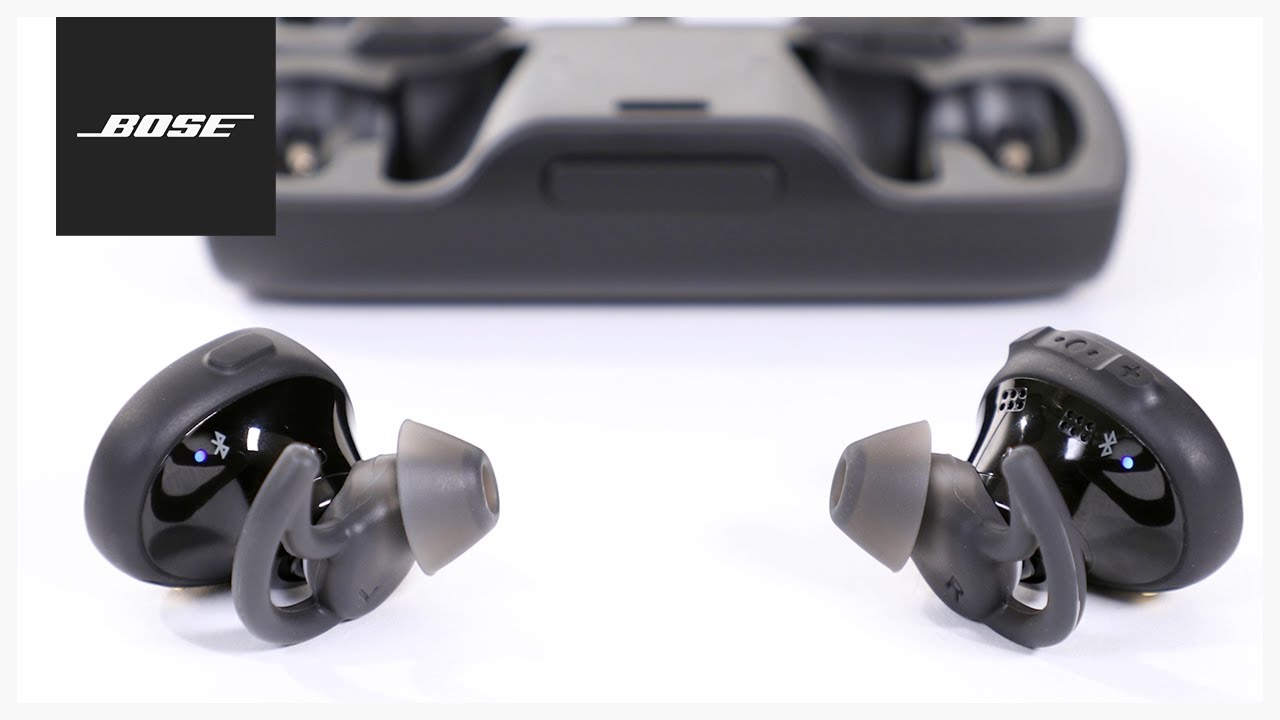
Many newer Bose earbuds use a Bluetooth button on the charging case. This includes several versions of the Bose QuietComfort Earbuds and QuietComfort Ultra Earbuds.
Follow these steps:
- Place both earbuds in the charging case.
- Keep the case open.
- Find the Bluetooth button on the back or side of the case.
- Press and hold the button for about three seconds.
- Release the button when the case light slowly flashes blue.
- Open Bluetooth settings on your phone or computer.
- Select your Bose earbuds from the device list.
The flashing blue light means the earbuds are ready to connect. Keep your phone within a few feet of the case during setup. Bluetooth works best with a clear path and little wireless interference.
If the earbuds do not appear, close the case for a few seconds and open it again. Then repeat the steps for how to put Bose earbuds in pairing mode.
How to put Bose earbuds in pairing mode using touch controls
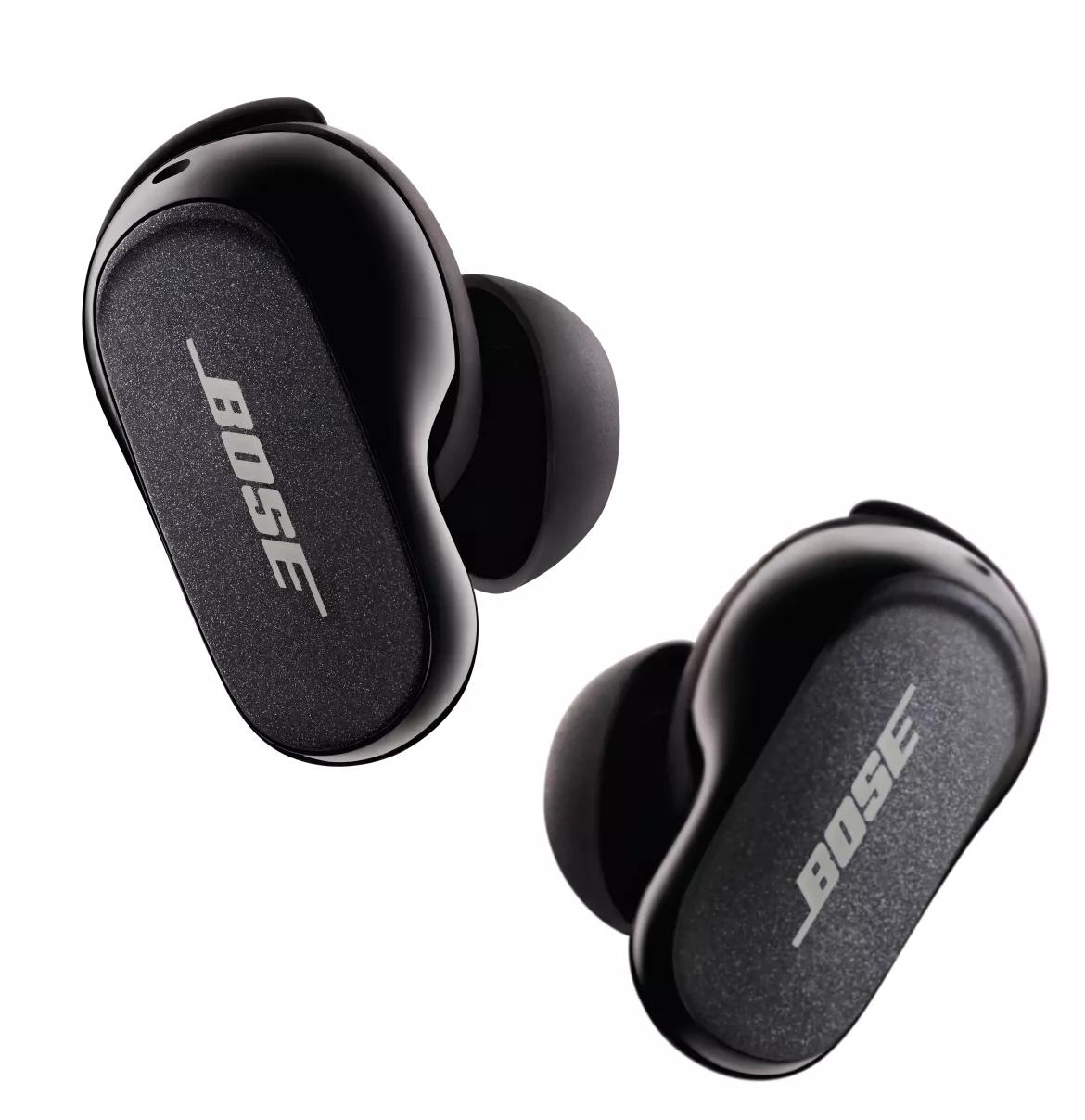
Some Bose earbuds enter pairing mode through touch controls instead of a case button. This method is common with models such as the Bose QuietComfort Earbuds II and some Bose Sport Earbuds.
Try these steps:
- Remove both earbuds from the case.
- Put the earbuds in your ears, or hold them securely.
- Touch and hold the control surface on both earbuds.
- Continue holding for about four seconds.
- Release when you hear a voice prompt or see a flashing blue light.
- Open Bluetooth settings on your device.
- Tap the name of your Bose earbuds.
The touch surface is usually on the outside of each earbud. Do not press the ear tip or the small microphone opening. A light, steady touch works better than tapping quickly.
If one earbud responds but the other does not, return both earbuds to the case. Wait several seconds, remove them, and try again. This small reset often solves a failed attempt at how to put Bose earbuds in pairing mode.

Model-specific steps for Bose earbuds
Bose has released several earbud families. Their pairing controls are similar, but not identical. Use the section that best matches your model.
Bose QuietComfort Ultra Earbuds
For most QuietComfort Ultra Earbuds:


- Put both earbuds in the charging case.
- Leave the lid open.
- Press and hold the Bluetooth button on the case.
- Wait for the blue light to pulse.
- Select the earbuds in your device’s Bluetooth menu.
The Bose Music app can also guide setup after the first connection. Keep the app updated if it does not detect the earbuds.
Bose QuietComfort Earbuds II
To learn how to put Bose earbuds in pairing mode on the QuietComfort Earbuds II:
- Remove both earbuds from the case.
- Touch and hold both earbuds for about four seconds.
- Listen for the pairing prompt.
- Choose the earbuds in your phone’s Bluetooth settings.
The touch controls may be disabled or customized in the Bose Music app. If the normal touch command fails, check the app or use the charging case method if your case includes a Bluetooth button.
Bose Sport Earbuds
For Bose Sport Earbuds:
- Remove the earbuds from the case.
- Touch and hold both earbuds for several seconds.
- Wait for the voice prompt.
- Select Bose Sport Earbuds from your device list.
The Sport Earbuds may connect to the last device used. Turn Bluetooth off on that older device if the earbuds keep connecting to it.
Older Bose wireless earbuds
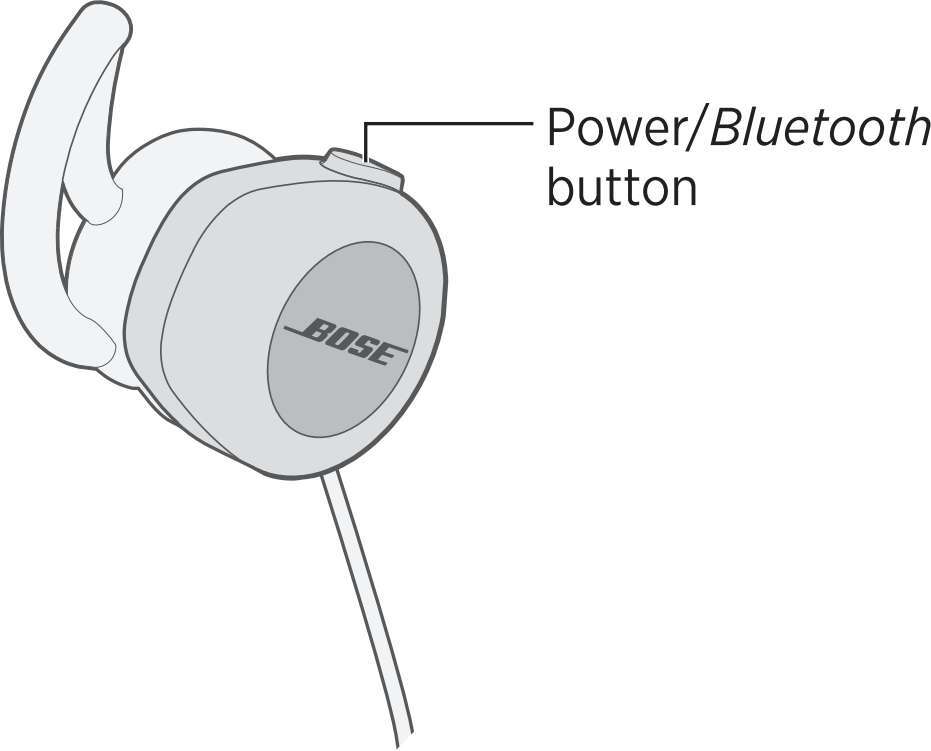
Older Bose models may use a physical Bluetooth button, a case button, or a touch command. Look for a button marked with the Bluetooth symbol and hold it until the indicator flashes blue.
If your model has no clear button, check the quick-start guide or the Bose Music app. The model name is often printed inside the charging case or near the earbud contacts.
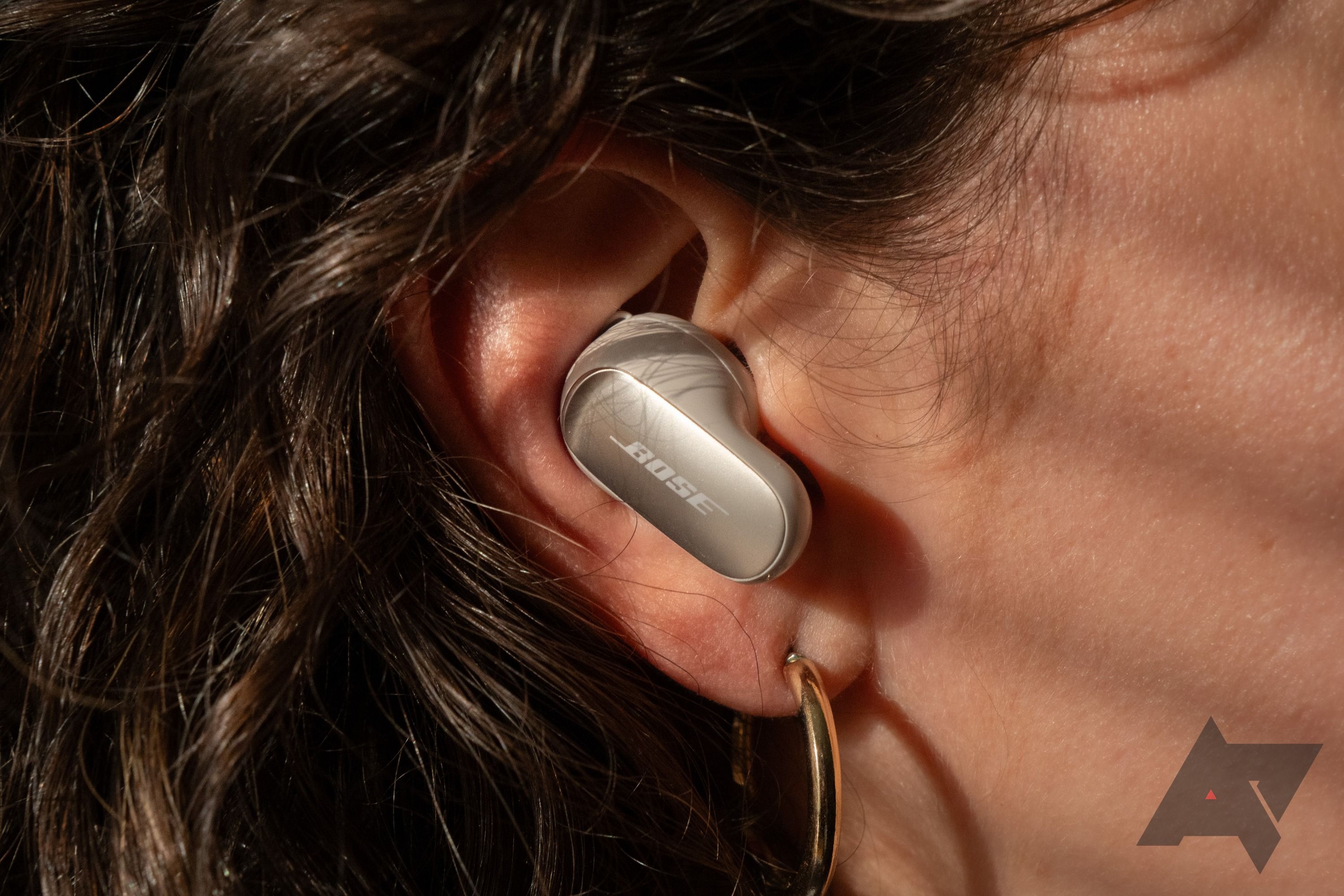
How to connect Bose earbuds to an iPhone or Android phone
Once you know how to put Bose earbuds in pairing mode, connecting them to a phone takes less than a minute.
On an iPhone
- Open Settings.
- Tap Bluetooth.
- Turn Bluetooth on.
- Wait for your Bose earbuds to appear under Other Devices.
- Tap the earbud name.
- Wait until the status changes to Connected.
Your iPhone may show the earbuds under a name such as Bose QC Ultra Earbuds or Bose QuietComfort Earbuds. Do not select a duplicate device unless the first entry fails.
On an Android phone
- Open Settings.
- Tap Connected devices or Connections.
- Select Bluetooth.
- Turn Bluetooth on.
- Tap Pair new device if needed.
- Choose your Bose earbuds.
Android menus vary by brand. Samsung, Google Pixel, Motorola, and OnePlus phones may use slightly different labels, but the Bluetooth steps remain much the same.


After pairing, the earbuds should reconnect when you remove them from the case. If they do not, keep Bluetooth enabled and make sure the earbuds have enough battery power.

How to pair Bose earbuds with a Windows PC or Mac
Bose earbuds can work well with laptops for music, video calls, and meetings. First, follow the correct steps for how to put Bose earbuds in pairing mode. Then open your computer’s Bluetooth settings.
Windows 11
- Open Settings.
- Select Bluetooth & devices.
- Turn Bluetooth on.
- Click Add device.
- Choose Bluetooth.
- Select your Bose earbuds.
- Click Done.
If Windows lists two Bose audio options, choose the standard stereo option for music. During calls, Windows may switch to a hands-free audio mode with lower sound quality. That behavior comes from Bluetooth audio limits, not usually from a fault in the earbuds.
Mac
- Open the Apple menu.
- Select System Settings.
- Click Bluetooth.
- Find your Bose earbuds.
- Click Connect.
Keep the case open while pairing if your model uses a case button. For touch-controlled models, keep both earbuds active until the Mac completes the connection.

What to do when Bose earbuds do not appear
If your Bose earbuds do not show in the Bluetooth list, do not repeat the same step again and again. Work through the likely causes in order.
Check the battery
Place both earbuds in the case and confirm that the case has power. Dirty charging contacts can prevent one or both earbuds from turning on.
Wipe the contacts gently with a dry cotton swab. Avoid water, metal tools, and cleaning sprays.
Disconnect other devices
Your earbuds may still be connected to a phone, tablet, television, or laptop nearby. Turn Bluetooth off on those devices for a moment, then try how to put Bose earbuds in pairing mode again.
Remove the old Bluetooth record
On your phone or computer, forget the Bose earbuds from the Bluetooth menu. Then place the earbuds back into pairing mode and connect as if they were new.
This is useful after a phone upgrade, operating system update, or failed setup.
Restart both devices
Turn Bluetooth off, restart your phone or computer, and turn Bluetooth on again. Also place the earbuds in the case, close the lid, wait ten seconds, and reopen it.
Simple restarts fix more Bluetooth problems than most users expect.
Update the Bose software
The Bose Music app may offer firmware updates for supported earbuds. Keep the earbuds charged and follow the app’s instructions during an update.


Do not close the app or place the earbuds far away during the process. An interrupted update can create new connection problems.
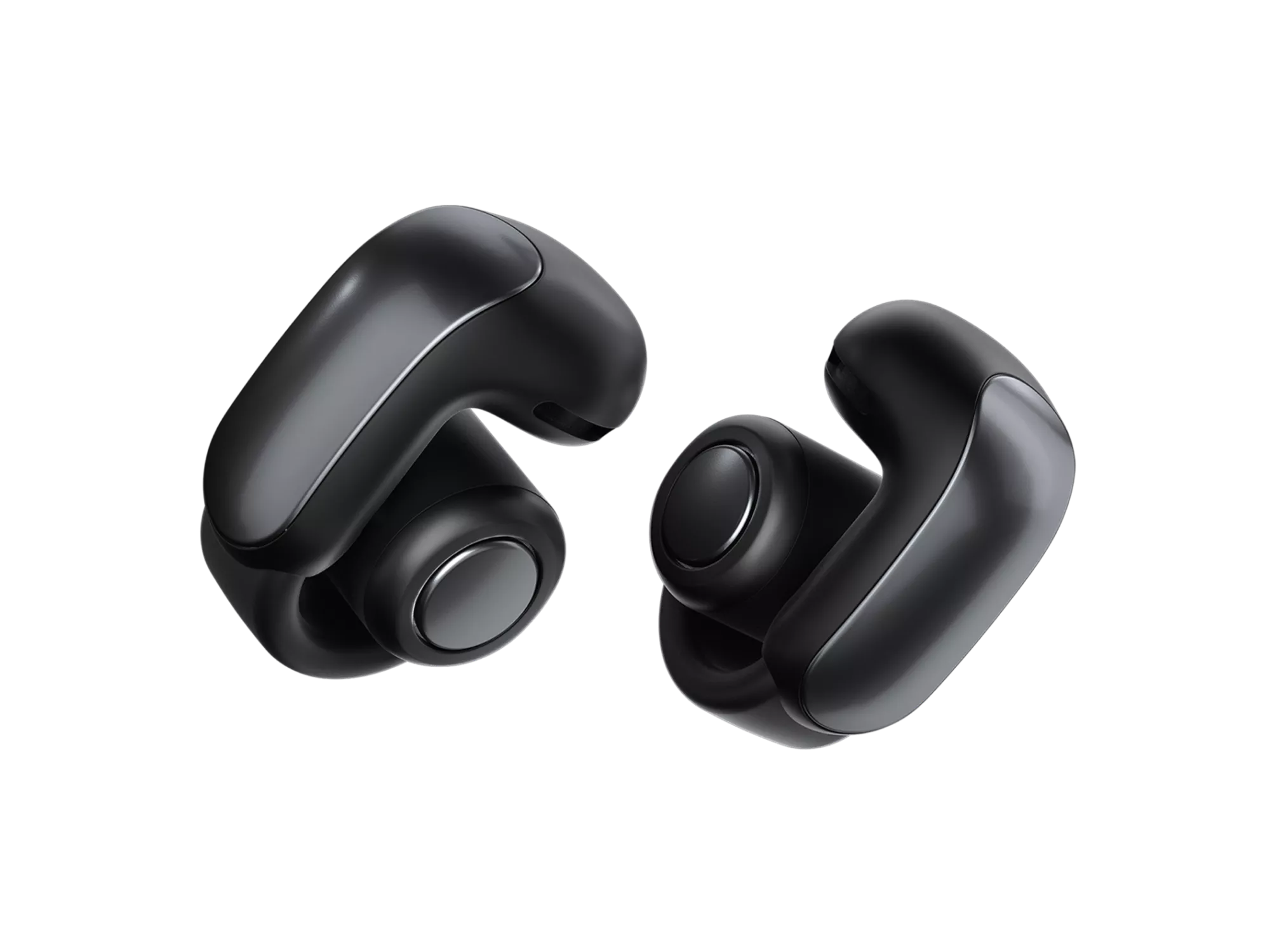
How to reset Bose earbuds before pairing again
A reset can help when the earbuds connect to the wrong device, fail to enter pairing mode, or behave differently from the normal instructions. The exact reset method varies by model.
A common process is:
- Remove the earbuds from your device’s Bluetooth list.
- Place both earbuds in the charging case.
- Leave the case open.
- Press and hold the case button for about 25 to 30 seconds, if your model supports this method.
- Watch for the light to change or flash.
- Close and reopen the case.
- Try pairing again.
Some models use a different reset command. Do not assume that the case-button reset works for every Bose earbud. Check the instructions for your exact model before holding a button for a long time.
A reset may erase saved connections and custom settings. It is best used after charging, restarting, and forgetting the old Bluetooth connection have failed.

Common mistakes to avoid
Most pairing problems come from a small setup mistake. These tips make how to put Bose earbuds in pairing mode easier and faster.
• Do not hold the wrong surface. The touch control is usually on the outer panel, not the silicone ear tip.
• Do not release the button too soon. Pairing mode may take several seconds to start.
• Do not keep an old phone nearby with Bluetooth active. The earbuds may reconnect to it before your new device can find them.
• Do not pair through the Bose Music app before Bluetooth pairing is complete if the app cannot detect the earbuds. Pair through the device’s Bluetooth menu first when needed.
• Do not clean charging contacts with liquid. Moisture can damage the earbuds or interfere with charging.
• Do not place the earbuds too far from the phone. Keep them close during the first connection.
A common real-world mistake is opening the Bluetooth menu before the earbuds are actually in pairing mode. The phone cannot find earbuds that are only turned on. Look for the flashing blue light or listen for the pairing message first.
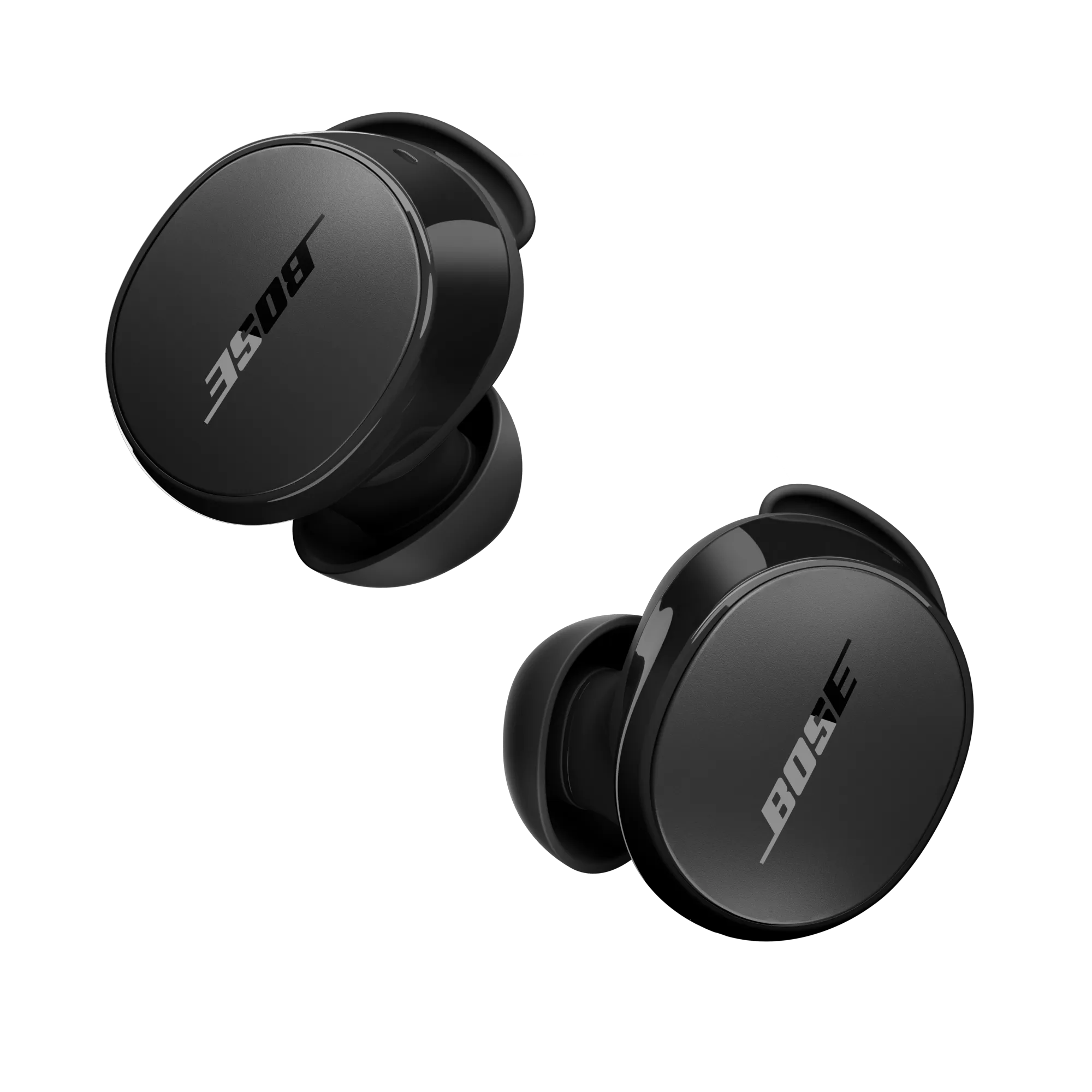
How to improve the Bose Bluetooth connection
Pairing is only the first step. Good placement and simple habits can improve daily performance.
Keep your phone on the same side of your body as the main Bluetooth antenna when possible. Your body, walls, crowded Wi-Fi areas, and other Bluetooth devices can reduce signal strength.


Keep the Bose Music app and your phone’s operating system updated. Updates may improve connection stability, battery reporting, and compatibility.
Use the case when you finish listening. It protects the earbuds, charges them, and helps end the current Bluetooth connection. This makes the next use more predictable.
If audio cuts out only in one location, test the earbuds in another room. Wireless interference is often tied to a place, not a damaged earbud.
Frequently Asked Questions
How do I put Bose earbuds in pairing mode?
For many Bose models, place the earbuds in the open charging case and hold the Bluetooth button until the light flashes blue. For some models, remove the earbuds and touch both controls for about four seconds.
Why are my Bose earbuds not showing in Bluetooth?
They may not be in pairing mode, may be connected to another device, or may have a low battery. Turn off Bluetooth on nearby devices, restart the earbuds, and repeat the correct pairing steps.
How do I put Bose QuietComfort Earbuds II in pairing mode?
Remove both earbuds and touch and hold the control surface on each one for about four seconds. Release when you hear the pairing prompt, then select the earbuds in your phone’s Bluetooth settings.
Can I pair Bose earbuds without the Bose Music app?
Yes. You can pair supported Bose earbuds directly through the Bluetooth settings on an iPhone, Android phone, Windows PC, or Mac. The app is useful for updates and settings, but it is not always required for basic Bluetooth pairing.
How do I connect Bose earbuds to a new phone?
Forget the earbuds on the old phone or turn its Bluetooth off. Then use the correct method for how to put Bose earbuds in pairing mode and select them from the new phone’s Bluetooth list.
Why do my Bose earbuds keep connecting to the wrong device?
They are likely reconnecting to a previously saved device nearby. Turn Bluetooth off on that device, remove the old pairing record if needed, and connect the earbuds to the device you want to use.
Conclusion
Learning how to put Bose earbuds in pairing mode is usually quick. Use the charging case button when your model has one, or touch and hold both earbuds when your model uses touch controls. A flashing blue light or voice prompt confirms that the earbuds are ready.
If pairing fails, charge the earbuds, disconnect nearby devices, forget the old Bluetooth record, and try again. Check your exact Bose model before using a reset, since controls vary across the product range.
Try these steps with your earbuds now, and explore the Bose Music app for firmware updates and sound settings.