Where Is The SSD In A PC: Find It Fast
An SSD in a PC is usually on the motherboard, inside a drive bay, or fitted to a PCIe expansion card.
If you are asking where is the SSD in a PC, the answer depends on the SSD type and the computer’s design. Most modern desktops use a small M.2 SSD that sits flat on the motherboard, while older or larger systems may use a 2.5-inch SATA SSD connected by cables. This guide explains how to find your SSD safely, identify its connection, and avoid common mistakes during an upgrade.
Where Is the SSD in a PC?
The SSD in a PC can be in one of several places. Its location depends on whether it is an M.2 drive, a 2.5-inch SATA drive, or a PCIe expansion card.
The most common locations are:
• On the motherboard, secured in an M.2 slot


• Inside a 2.5-inch drive cage or tray
• On a PCIe adapter card plugged into the motherboard
• Inside a laptop or all-in-one computer, often under a service panel
In a desktop PC, the SSD is usually easy to reach once you remove the side panel. However, some cases hide storage drives behind the motherboard tray or under a metal cover.
When people ask where is the SSD in a PC, they often expect to see a box like an older hard disk drive. That is not always the case. An M.2 SSD looks more like a small stick of gum than a traditional drive.

How to Find an M.2 SSD on the Motherboard
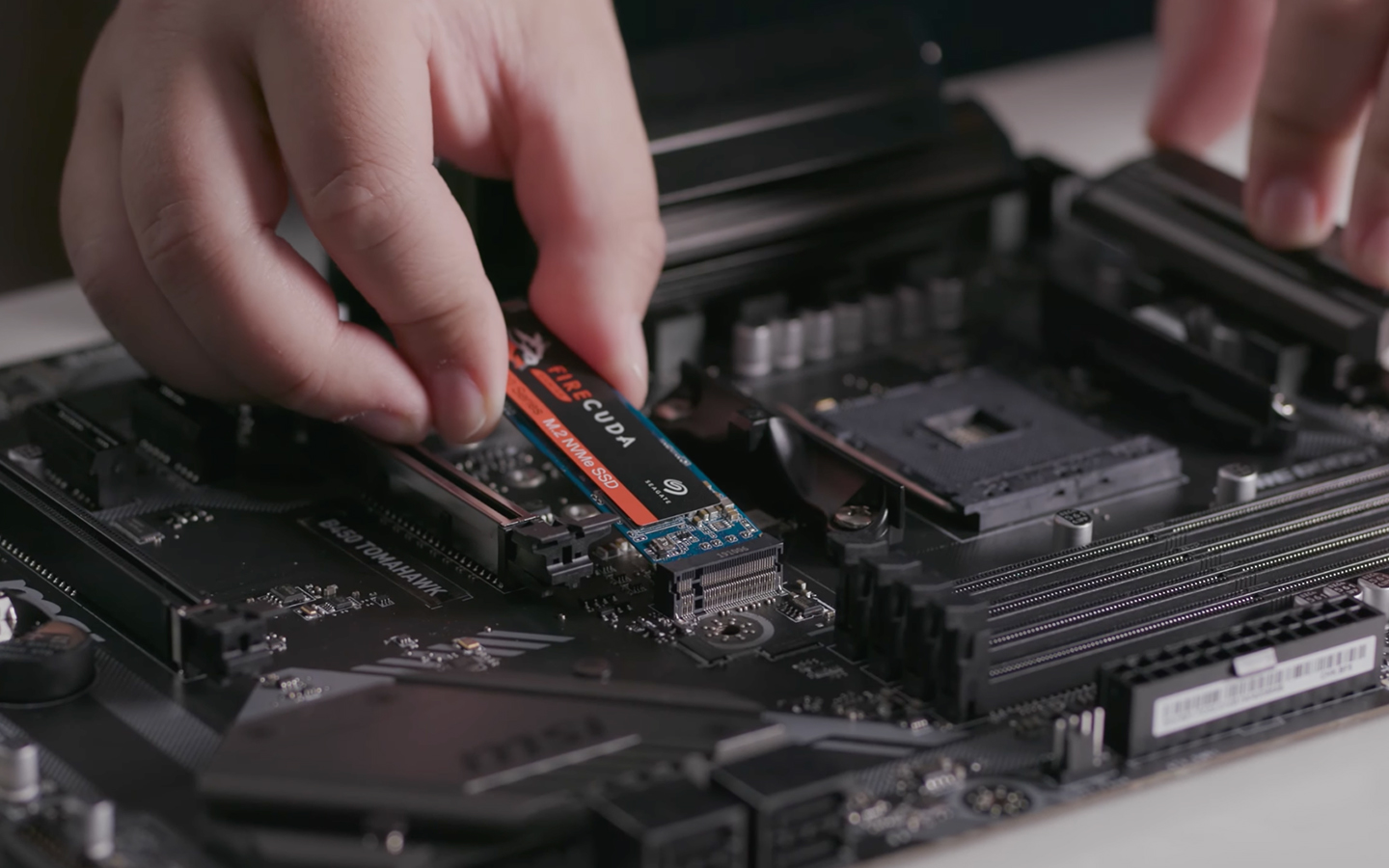
An M.2 SSD is the most common type in newer computers. It is a thin circuit board that lies flat against the motherboard.
Look for a small slot labeled with terms such as:
• M.2
• M2
• PCIe
• NVMe
• SATA
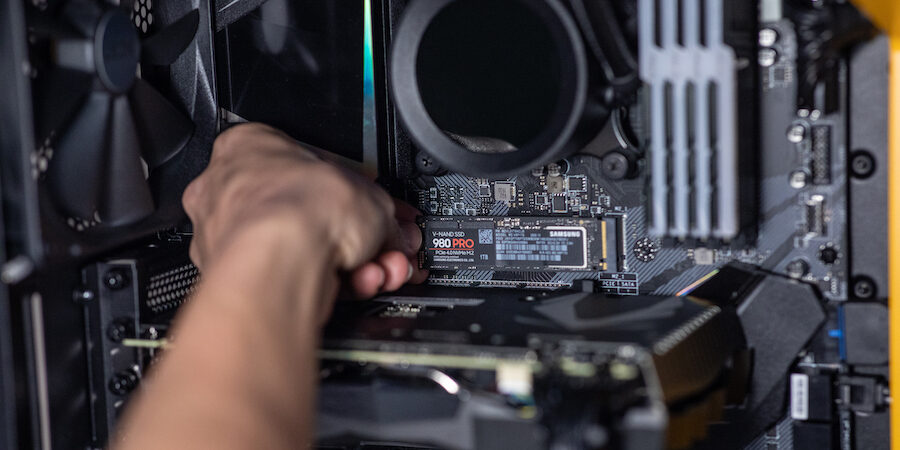
The M.2 slot is often located between the CPU socket and the main PCIe slot. On some motherboards, it sits below the graphics card. Newer boards may cover the SSD with a metal heat spreader labeled “M.2 Shield” or “Thermal Guard.”
To find this SSD in a PC, follow these steps:
-
Shut down the computer completely.
-
Unplug the power cable from the wall.
-
Press the power button for a few seconds to discharge leftover power.
-
Remove the side panel from the case.
-
Look for a narrow, horizontal circuit board about 2 to 4 inches long.
-
Check for a small screw holding the far end of the drive down.


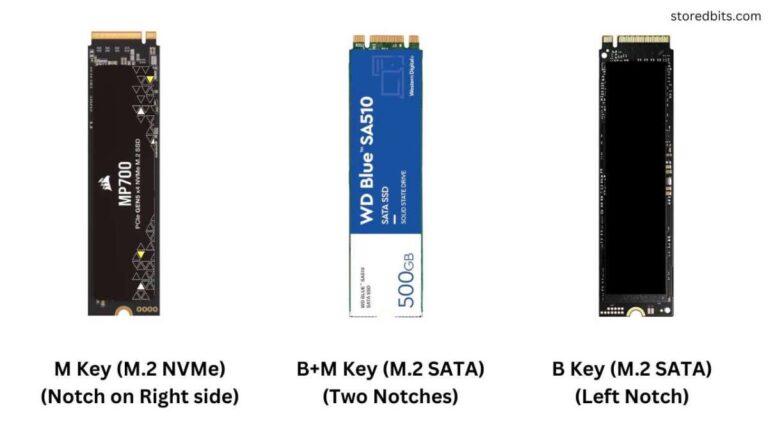
An M.2 SSD usually has a notch along its connector edge. The notch position helps show whether it is a SATA M.2 drive or an NVMe drive, although some slots support both types.
Do not remove the M.2 drive while the computer is running. It is usually not designed for hot swapping, and doing so can damage the drive or corrupt your data.
What an M.2 SSD Looks Like
An M.2 SSD is usually:
• Thin and rectangular
• About the size of a stick of gum
• Mounted flat on the motherboard
• Held down by one tiny screw
• Marked with a brand name, model number, or storage size
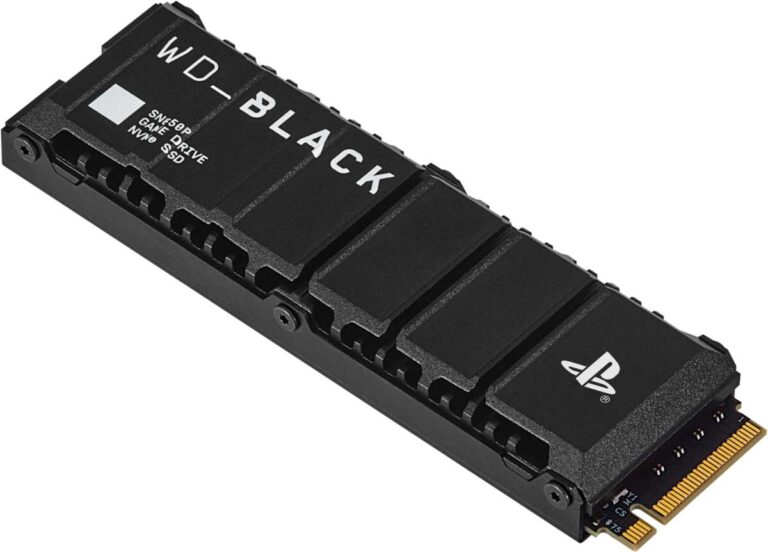
Some M.2 SSDs have a heat sink covering them. If you cannot see the circuit board, look for a long metal plate with one or two screws.
In systems I have opened, the most common mistake is looking only near the hard drive cage. The M.2 SSD may be hidden under the graphics card or motherboard heat spreader instead.

Where Is a 2.5-Inch SATA SSD Located?
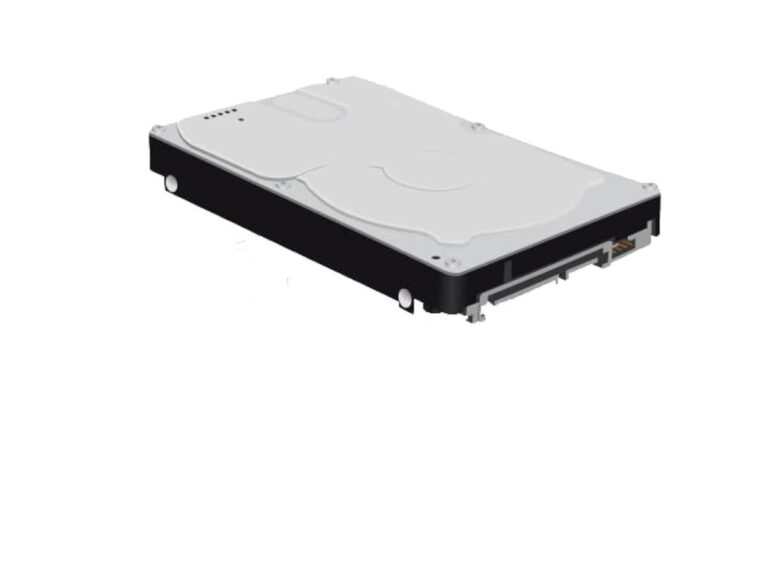
A 2.5-inch SATA SSD looks like a small, flat metal box. It is larger than an M.2 SSD but much smaller and lighter than a traditional 3.5-inch hard drive.
In a desktop PC, a 2.5-inch SATA SSD is usually mounted in one of these places:
• A dedicated 2.5-inch drive tray
• A 3.5-inch drive bay with an adapter
• Behind the motherboard tray
• On the bottom of the case
• Near the front or lower section of the case
A SATA SSD connects to the PC with two cables:


• A SATA data cable connects the SSD to the motherboard.
• A SATA power cable connects the SSD to the power supply.
The data cable is narrow and often has an L-shaped connector. The power connector is wider and comes from the power supply.
If you are checking where is the SSD in a PC and find two cables connected to a small rectangular drive, you are likely looking at a 2.5-inch SATA SSD.
How to Track SATA SSD Cables
Start at the drive and follow the thin SATA data cable. It should lead to a SATA port along the edge of the motherboard. Then follow the wider power cable toward the power supply or its cable bundle.
SATA SSDs may be hidden behind the right-side case panel. This design keeps cables out of sight and improves airflow. You may need to remove both side panels to see the drive and its connections.
In my experience, cable routing causes more confusion than the drive itself. A SATA SSD can be mounted in a quiet, hidden spot, while its cables run behind the motherboard tray. Always trace the cables rather than guessing from the front of the case.
Where Is a PCIe SSD Installed?
Some SSDs come as PCIe expansion cards. These drives look like small graphics cards and plug into a long PCIe slot on the motherboard.
A PCIe SSD may be installed:
• In a PCIe x4 slot
• In a PCIe x8 slot
• In a PCIe x16 slot
• Under or beside the graphics card
The card may have a heat sink, fan, or large brand label. Unlike an M.2 SSD, it does not lie directly on the motherboard. It stands vertically in a rear expansion slot.
A PCIe SSD is less common in standard home computers, but it can be useful in workstations, servers, and older systems without an available M.2 slot.
If your PC has several expansion cards, look for one labeled with a storage brand or terms such as NVMe, PCIe SSD, or storage accelerator. The drive may look similar to a graphics card, so check its length and power connectors carefully.

Where Is the SSD in a Laptop or All-in-One PC?
The SSD in a laptop is usually inside the bottom case. It may be an M.2 drive or a small 2.5-inch SATA drive.


Modern laptops commonly use an M.2 SSD. Older laptops may use a 2.5-inch SATA SSD connected with a short cable or adapter.
To find the SSD in a laptop:
-
Shut the laptop down.
-
Disconnect the charger.
-
Remove the bottom cover if the model allows access.
-
Look for a small M.2 board or a rectangular 2.5-inch drive.
-
Check the manufacturer’s service manual before removing anything.
Some laptops have a removable bottom panel. Others require removing the entire base cover. A few models have storage soldered directly to the motherboard, which means the SSD cannot be replaced easily.
An all-in-one PC may place its SSD behind the display panel. Opening one can be much harder than opening a desktop tower because the screen, cables, and clips are delicate.
Always check the exact model number before opening a laptop or all-in-one computer. Manufacturer repair guides often show the storage location and list the correct screw sizes.
How to Tell Whether Your PC Has an SSD
You can identify your storage drive without opening the computer. Windows provides several simple methods.
Check Task Manager
-
Press Ctrl, Shift, and Esc together.
-
Select the Performance tab.
-
Click Disk 0 or another listed disk.
-
Look for the word SSD or HDD.
Windows may also display the drive model. You can search that model online or on the manufacturer’s support page to learn its physical type.
Use Windows Settings
Open:
Settings > System > Storage > Advanced storage settings > Disks and volumes
Select a drive to view its model and properties. The exact menu name may differ slightly between Windows versions.
Use Device Manager
-
Right-click the Start button.
-
Select Device Manager.
-
Expand Disk drives.
-
Read the model name listed there.
Device Manager confirms that a drive is installed, but it may not clearly show whether the drive is M.2, SATA, or PCIe. A model search can provide that detail.
Check the BIOS or UEFI
Restart the PC and enter the firmware menu. Common keys include Delete, F2, F10, and F12, but the correct key depends on the manufacturer.
The storage page may list the SSD model and interface. This method is useful when Windows cannot detect the drive.

SSD Types and Their Physical Locations
Knowing the SSD type makes it much easier to find the drive.


M.2 NVMe SSD
An M.2 NVMe SSD is a slim board mounted directly to the motherboard. It uses PCIe lanes and usually provides much faster performance than a SATA SSD.
It may sit beneath a motherboard heat spreader. The label may include terms such as NVMe, PCIe Gen 3, PCIe Gen 4, or PCIe Gen 5.
M.2 SATA SSD
An M.2 SATA SSD has the same general shape as an NVMe drive. The key difference is the communication standard it uses.
An M.2 slot may support SATA, NVMe, or both. Check the motherboard manual before buying a replacement. A drive can fit physically but still fail to work if the slot does not support its protocol.
2.5-Inch SATA SSD
This SSD has a box-like shape and uses separate power and data cables. It is common in older desktops and laptops.
It is slower than many NVMe models, but it is still much faster, quieter, and more resistant to movement than a mechanical hard drive.
PCIe Add-In SSD
This SSD is mounted on an expansion card. It uses a PCIe slot and may include a large heat sink.
Workstations and professional editing systems often use this style when they need extra storage or more cooling.

Why You Might Not See the SSD
Sometimes the SSD is installed correctly but is difficult to spot. Several design choices can hide it.
Common reasons include:
• The M.2 drive is under a heat spreader.
• The SSD is behind the motherboard tray.
• A graphics card blocks the view.
• The drive is mounted under a case cover.
• The storage is soldered to a laptop motherboard.
• The PC uses a custom layout from an original equipment manufacturer.


Prebuilt computers may use unusual mounting points. Some manufacturers place a SATA SSD behind the front panel or use a special bracket that is not obvious at first glance.
If you cannot locate the SSD physically, check the exact computer model and motherboard model. The user manual often includes a diagram that shows the drive position.
I once spent far too long searching near the front of a case for a SATA SSD that was mounted behind the motherboard tray. The lesson was simple: check the cable path and the case manual before removing parts.

How to Access the SSD Safely
Before touching the inside of a PC, protect both yourself and the computer.
Follow these basic steps:
-
Shut down the operating system.
-
Turn off the power supply if it has a switch.
-
Unplug the power cable.
-
Disconnect all external cables if needed.
-
Hold the power button for several seconds.
-
Work on a clean, dry surface.
-
Touch the metal case before handling components.
Avoid touching the gold contacts on the SSD. Hold the drive by its edges. Do not force a connector, screw, or heat spreader.
If your PC is under warranty, opening it may affect warranty service in some regions. Check the manufacturer’s terms first.
For laptops, use the correct screwdriver. A damaged screw head can turn a simple upgrade into a difficult repair. Keep each screw in a small container because laptop screws may have different lengths.

How to Remove or Replace an SSD
Replacing an M.2 SSD is usually straightforward, but small parts require care.
Replacing an M.2 SSD
-
Remove the M.2 heat spreader if one is present.
-
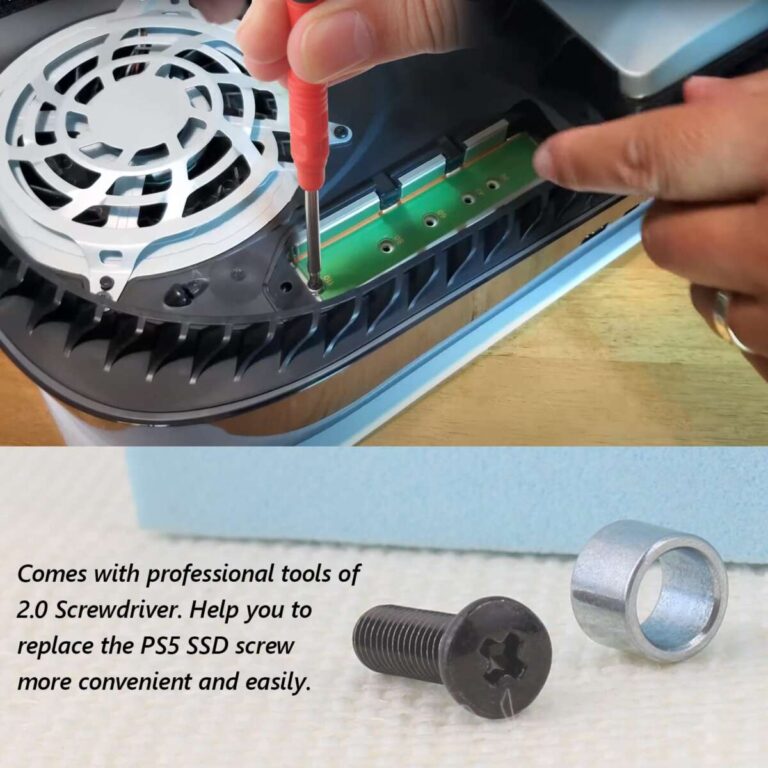
Remove the small retaining screw.
-
Lift the end of the SSD slightly.
-
Slide the SSD out of the connector.
-
Insert the new SSD at a slight angle.
-
Press it down gently.
-
Reinstall the retaining screw and heat spreader.
Do not bend the SSD. The connector should slide in smoothly. If it does not, check the notch direction.
Replacing a 2.5-Inch SATA SSD
-
Disconnect the SATA power cable.
-
Disconnect the SATA data cable.
-
Remove the drive from its bracket.
-
Mount the new SSD in the same position.
-
Reconnect both cables.
-
Secure the drive so it cannot move.
A SATA SSD does not need to be perfectly flat, but it should be secured. Loose drives can rattle, pull on cables, or become damaged during transport.
Before replacing any drive, back up important files. Cloning software can copy the old operating system to the new SSD, but the process must be planned carefully to avoid copying the wrong disk.
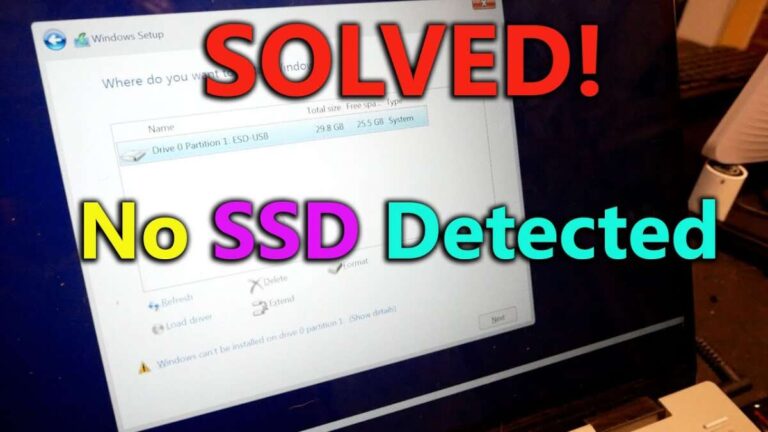
What to Do If the SSD Is Not Detected
If the computer cannot find the SSD, do not assume the drive has failed. The issue may involve installation, firmware settings, cables, or partitioning.
Try these checks:
• Confirm that the SSD is fully inserted.
• Check that the M.2 retaining screw holds the drive flat.
• Reseat SATA power and data cables.
• Try another SATA port or cable.
• Check the BIOS or UEFI storage list.
• Open Disk Management in Windows.
• Initialize and format a new drive if required.
A brand-new SSD may appear in BIOS but not in File Explorer. This often means the drive has no partition or drive letter yet.
To check it in Windows, right-click the Start button and open Disk Management. Be careful when selecting a disk. Formatting or deleting the wrong volume can erase valuable files.
Some motherboards disable specific SATA ports when certain M.2 slots are used. This limitation is common and is normally explained in the motherboard manual. It does not mean that either device is broken.
SSD Location and Computer Performance
The physical location of an SSD does not by itself determine its speed. The interface and protocol matter more.
An NVMe SSD in an M.2 slot usually uses PCIe technology. A 2.5-inch SSD generally uses SATA. NVMe drives can offer much higher sequential speeds, but everyday tasks may not always feel dramatically different.
For example, both drive types can make Windows start quickly and applications open faster than they would from a mechanical hard drive. Large file transfers, video editing, and professional workloads show a clearer difference.
Cooling also matters. An M.2 NVMe SSD under a graphics card may become hot during long transfers. Many drives reduce their speed temporarily to control temperature. A motherboard heat spreader or improved airflow can help.
Do not choose an SSD based only on its advertised speed. Check:
• Compatibility with the motherboard
• Storage capacity
• Warranty length
• Endurance rating
• Thermal design
• Price per gigabyte
• Manufacturer support
Industry testing often shows that real-world performance differs from peak laboratory figures. A reliable SSD with enough space is usually a better choice than the fastest model for a light office PC.
Common Mistakes to Avoid
Finding the SSD in a PC is usually safe, but several mistakes can cause trouble.
• Removing the wrong storage drive: Check the model in Windows before opening the case.
• Forgetting to back up files: Hardware work can lead to accidental data loss.
• Forcing an M.2 drive: Align the notch and insert it at the correct angle.
• Losing the tiny M.2 screw: Keep it in a tray or magnetic dish.
• Mixing up SATA connectors: Power and data connectors are different.
• Ignoring heat: High temperatures can reduce sustained NVMe performance.
• Buying an incompatible M.2 drive: Confirm whether the slot supports SATA, NVMe, or both.
• Touching circuit contacts: Oils and static can affect sensitive electronics.
• Removing a heat spreader carelessly: Some motherboard covers have thermal pads that can stick to the SSD.
A good rule is to take a clear photo before disconnecting anything. That simple step makes it much easier to restore cables correctly.
Frequently Asked Questions About Where Is the SSD in a PC
Where is the SSD in a PC desktop?
The SSD in a PC desktop is usually on the motherboard in an M.2 slot or inside a drive bay as a 2.5-inch SATA drive. Some computers use a PCIe expansion card instead.
How do I know which drive is my SSD?
Open Task Manager and select the Performance tab, then choose each disk. Windows normally identifies the drive as an SSD or HDD and shows its model number.
Is the SSD under the graphics card?
It can be. Many motherboards place an M.2 slot below the graphics card, and the card may need to be removed before the SSD is visible or accessible.
Can I add an SSD to any PC?
Most desktop PCs can accept an SSD, but compatibility varies. Check whether the motherboard has an open M.2 slot, available SATA ports, or a suitable PCIe slot.
Does an SSD need power cables?
An M.2 SSD receives power through the motherboard and does not need separate cables. A 2.5-inch SATA SSD needs both a SATA power cable and a SATA data cable.
Why is my SSD visible in BIOS but not in Windows?
The SSD may be uninitialized, unformatted, or missing a drive letter. Open Disk Management to check its status, but do not format it if it contains important data.
Can I move my SSD to another PC?
You can usually move a secondary SSD to another compatible PC. Moving an operating system drive may require driver changes, activation steps, or a fresh Windows installation.
Conclusion
The SSD in a PC is most often found on the motherboard as a slim M.2 drive or inside the case as a 2.5-inch SATA drive. It may also sit on a PCIe expansion card, behind the motherboard tray, or inside a laptop beneath its bottom cover.
Start by identifying the drive type in Windows, then check the motherboard manual or computer service guide. Work slowly, back up your files, and never force a connector or screw. Once you know what an M.2 SSD, SATA SSD, and PCIe SSD look like, finding storage inside a PC becomes much less intimidating.
Open your PC only when you are ready, take clear photos, and use the model manual as your map. Share your computer model or SSD type in the comments if you need help locating it.