

Yes, CHKDSK works on SSDs, but its safest command depends on the problem you need to fix.
If you have ever wondered, “does CHKDSK work on SSD,” the answer is clear: it can check and repair the file system on solid-state drives. However, an SSD is not a hard disk, so some CHKDSK options need extra care. This guide explains what CHKDSK does, when to use it, which commands are safest, and what to do when an SSD may be failing.

Does CHKDSK work on SSD drives?
Yes, CHKDSK works on SSD drives that use a Windows-supported file system, such as NTFS or exFAT. It checks the logical structure of the drive, including files, folders, indexes, security data, and free space records.
CHKDSK does not repair the physical memory cells inside an SSD. Instead, it repairs file system errors that can make files appear missing, cause Windows crashes, or display messages such as “The file or directory is corrupted and unreadable.”
When people ask, “does CHKDSK work on SSD,” they often mean whether the tool is safe. In most cases, a normal scan is safe. The main concern is using repair or bad-sector commands when the drive may be failing or when important data has not been backed up.
CHKDSK can help with:
• File system corruption
• Invalid file indexes
• Lost file references
• Incorrect free-space information
• Problems after a sudden shutdown
• Errors caused by an unsafe removal
• Read errors reported by Windows
It cannot fix:
• Worn-out NAND flash cells
• A damaged SSD controller
• Firmware bugs
• A dead drive
• Severe electrical or physical damage
• Files that were already overwritten or lost
In simple terms, CHKDSK is like a librarian checking a catalog. It can correct wrong entries in the catalog, but it cannot rebuild a burned book.
How CHKDSK works on an SSD
CHKDSK checks the logical layout of a volume. A volume is the usable section of a physical drive, such as the C: drive in Windows. The tool looks for mismatches between what the file system says and what is actually stored.
For an NTFS volume, CHKDSK may examine:
• The master file table
• File records
• Folder indexes
• Security descriptors
• Data streams
• Volume bitmap information
• Bad-cluster records
With the basic command, CHKDSK scans the volume without making changes. This makes it a useful first step when you want information rather than immediate repair.
The command below checks the C: drive:
chkdsk C:
If Windows finds errors, it may tell you to run CHKDSK with a repair switch. The most common repair command is:
chkdsk C: /f
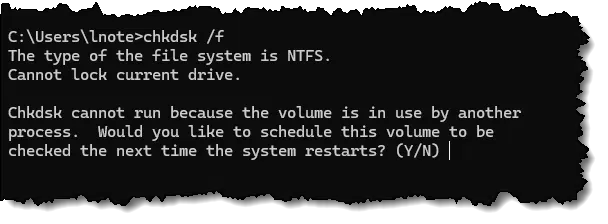
The /f switch tells Windows to fix logical errors. If the drive is in use, Windows may schedule the scan for the next restart.
On modern Windows versions, you may also see commands such as:
chkdsk C: /scan
The /scan switch performs an online scan on supported NTFS volumes. It is often a convenient first choice because it can check the volume while Windows is running.
The answer to “does CHKDSK work on SSD” is therefore yes, but the tool works at the file system level. It does not perform a full health test of the SSD hardware.
Which CHKDSK commands are safe for an SSD?
The safest CHKDSK command depends on your goal. Start with the least aggressive option, then move to repair commands only when needed.
CHKDSK without switches
chkdsk C:
This scans the drive and reports errors. It does not normally repair them. Use it when you want a basic check before making changes.
CHKDSK with /scan
chkdsk C: /scan
This performs an online scan on supported NTFS volumes. It is a good choice for a quick check on a working Windows SSD.
CHKDSK with /f
chkdsk C: /f
This fixes logical file system errors. It may require a restart if Windows is using the volume.
CHKDSK with /r
chkdsk C: /r
The /r switch looks for readable data in bad sectors and tries to recover it. It also includes the functions of /f.
On an SSD, /r is usually not the first tool to choose. SSDs manage physical flash blocks internally, and CHKDSK cannot directly repair those blocks. A long /r scan may also create extra reads and delay the real diagnosis.
This does not mean /r instantly destroys an SSD. Modern SSDs are designed for substantial workloads. Still, unnecessary scans are not useful when the real problem is a failing controller, firmware fault, or worn flash.
CHKDSK with /x
chkdsk C: /x /f
The /x switch forces the volume to dismount first. It can help when Windows cannot repair the volume while it is mounted. Use it only when you understand that programs using the drive may be interrupted.
When should you run CHKDSK on an SSD?
Run CHKDSK when you see signs of file system trouble. Typical symptoms include repeated repair messages, missing folders, corrupted files, or a drive that suddenly changes to a RAW format.
Useful situations include:
• Windows reports file system errors
• A folder will not open
• An external SSD was unplugged during a transfer
• A computer lost power while writing data
• Windows repeatedly runs an automatic disk check
• An application reports corrupted files
• The drive shows the wrong free-space amount
Do not treat every SSD problem as a CHKDSK problem. Slow performance, random freezes, disappearing drives, and repeated blue-screen errors may point to hardware or driver issues.
If the SSD is making data disappear, disconnecting, or showing a critical health warning, back up your files first. A repair scan can change file system information. That may make later recovery harder in some cases.
From my own troubleshooting experience, the most common mistake is running a repair command before copying important files. People often see a scary Windows message and immediately type chkdsk /f. A backup should come first whenever the drive still opens.
How to run CHKDSK on an SSD in Windows
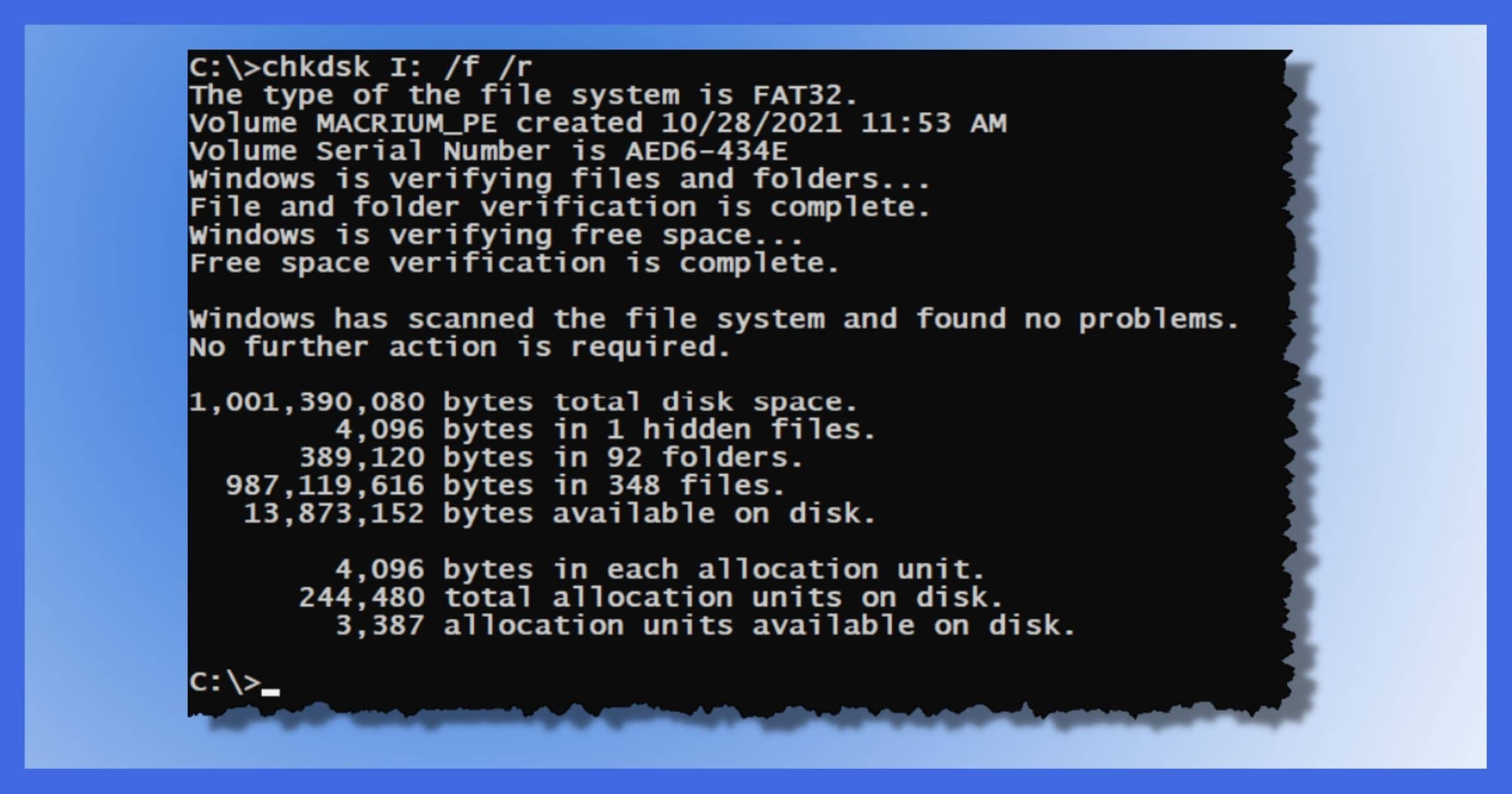
Follow these steps to check an SSD safely.
Step 1: Back up important files
Copy documents, photos, project files, and other important data to another drive or a trusted cloud service. If Windows cannot copy a file, save everything else first.
Step 2: Open Windows Terminal as an administrator
Right-click the Start button and select one of these options:
• Terminal (Admin)
• PowerShell (Admin)
• Command Prompt (Admin)
Choose “Yes” if Windows asks for permission.
Step 3: Run a read-only scan
Type the drive letter and run:
chkdsk C:
Replace C: with the correct letter. You can check the drive letter in File Explorer before running the command.
Step 4: Review the result
If the scan reports no errors, the file system may be healthy. If it reports errors, back up your data again if possible, then consider:
chkdsk C: /f
Windows may ask whether you want to schedule the scan after restarting. Type Y, press Enter, and restart the computer.
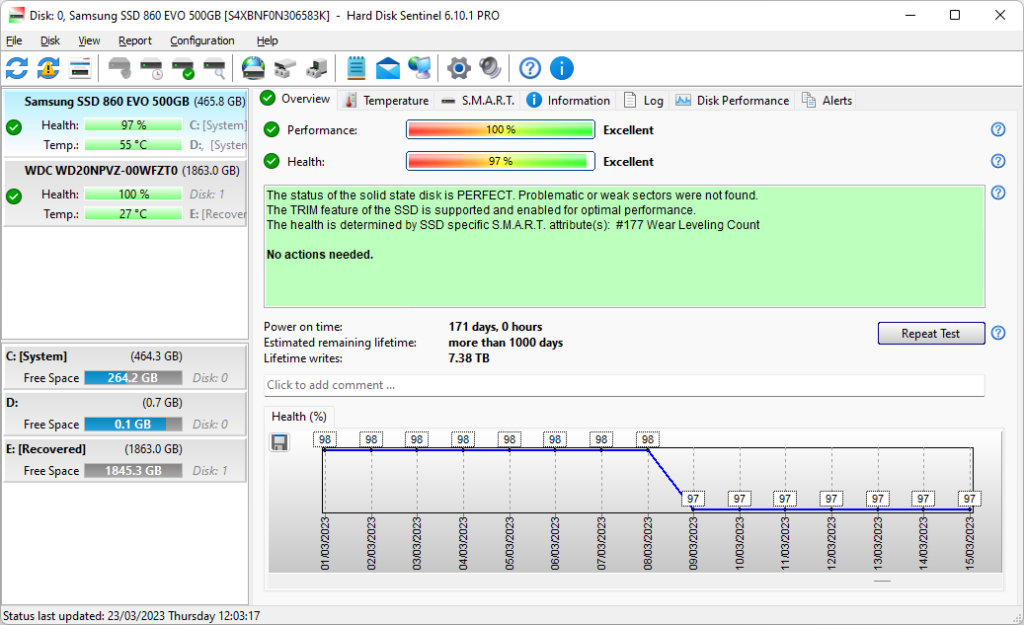
Step 5: Check SSD health separately
Use the SSD maker’s utility or a trusted drive health tool. Review:
• Remaining life
• Total data written
• Temperature
• Available spare blocks
• Critical warnings
• Media and data integrity errors
• Firmware version
This two-part process matters. CHKDSK checks the file system, while a health tool checks information reported by the SSD itself.
Does CHKDSK damage an SSD?
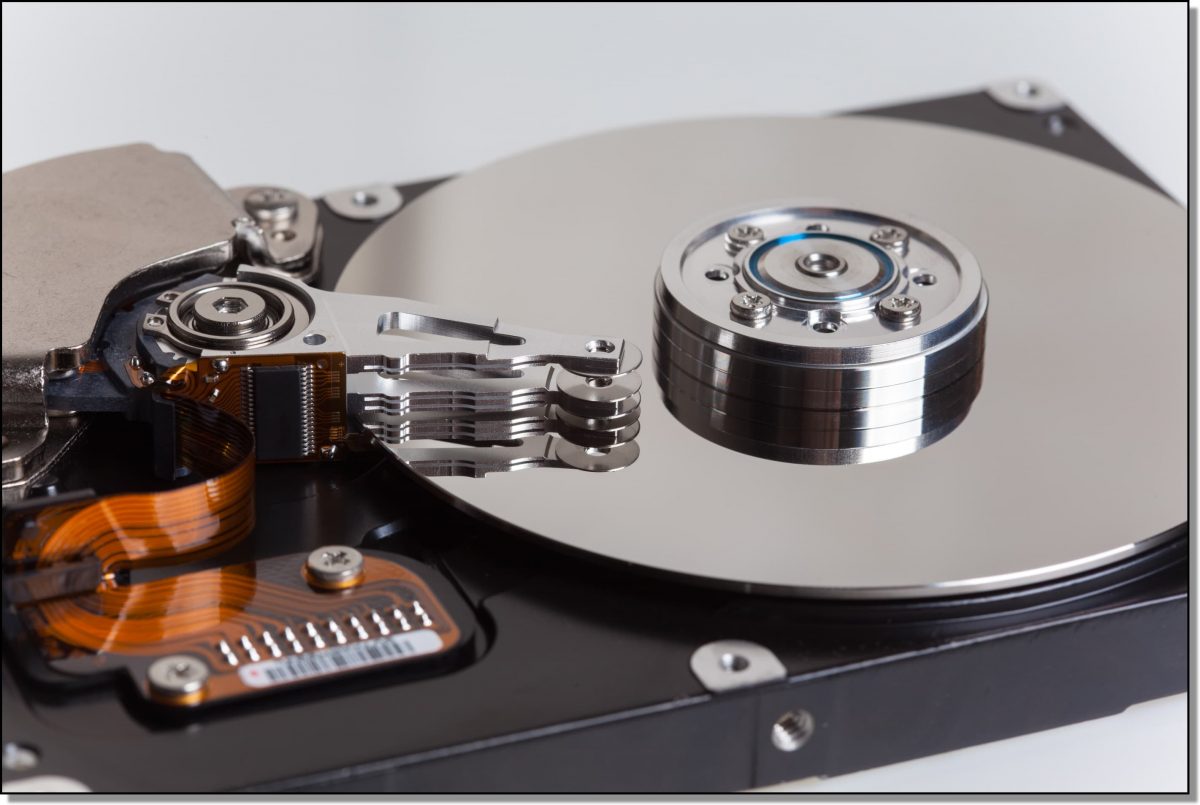
For normal use, CHKDSK does not usually damage an SSD. A basic scan mainly reads file system data, and the /f switch repairs logical records rather than deliberately overwriting the entire drive.
Still, no storage tool is risk-free. A repair operation can change directory entries, remove invalid references, or place damaged file fragments into recovery folders. If the drive is failing, heavy activity may also expose problems that were already developing.
The /r command can perform a lengthy scan. It is more appropriate when Windows reports unreadable sectors or when a recovery plan specifically calls for it. It should not be used as a routine SSD maintenance command.
Keep these rules in mind:
• Do not run CHKDSK repeatedly without a reason
• Back up data before repair scans
• Avoid interrupting CHKDSK while it is changing the volume
• Keep a laptop connected to power
• Do not use /r as a regular SSD optimization tool
• Check SMART or vendor health data when hardware failure is possible
So, does CHKDSK work on SSD without harm? Yes, when used carefully and for the right type of problem.
CHKDSK versus SSD health tools
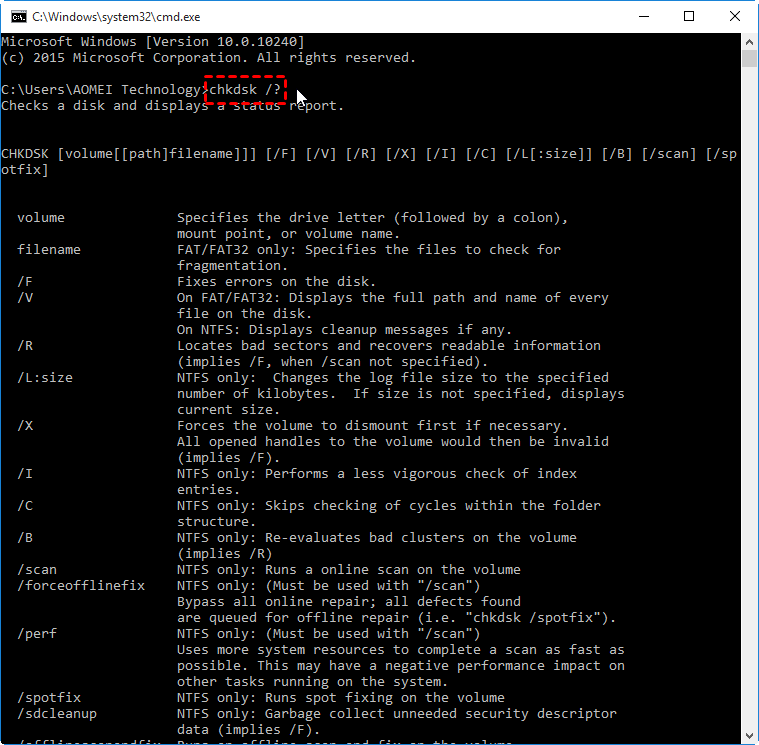
CHKDSK and SSD health tools answer different questions. Confusing them can lead to the wrong repair.
| Tool | Main purpose | Best use |
|---|---|---|
| CHKDSK | Checks Windows file system structure | Corrupted folders, indexes, and volume records |
| SMART data | Reports drive health indicators | Wear, errors, temperature, and warnings |
| Manufacturer utility | Tests and manages a specific SSD | Firmware updates, secure erase, and diagnostics |
| Windows Error Checking | Provides a simple graphical scan | Basic file system checks |
| Backup software | Copies valuable data | Protection before troubleshooting |
For example, CHKDSK may say that the file system is healthy while the SSD utility reports a critical warning. In that case, the drive may still fail even though the Windows volume looks normal.
The opposite can also happen. The SSD hardware may be healthy, but a sudden power loss may corrupt the file system. CHKDSK can often repair that logical damage.
This is why the best answer to “does CHKDSK work on SSD” includes a limitation: CHKDSK is not a complete SSD diagnostic tool.
What to do if CHKDSK finds errors on an SSD
If CHKDSK finds errors, avoid panic. A file system error does not always mean the SSD is dying.
Use this practical order:
- Back up all accessible files.
- Record the exact CHKDSK result.
- Run the manufacturer’s health check.
- Check Windows Event Viewer for storage errors.
- Update the SSD firmware only after securing your data.
- Run
chkdsk C: /fif the volume has logical errors. - Replace the SSD if health data shows a critical warning or repeated failures.
Pay attention to patterns. One error after a forced shutdown may be a one-time event. New errors after every restart are more serious.
If the drive is listed as RAW, stop writing to it. Do not format it just to make it visible. First attempt recovery with a professional tool or service, especially if the files are important.
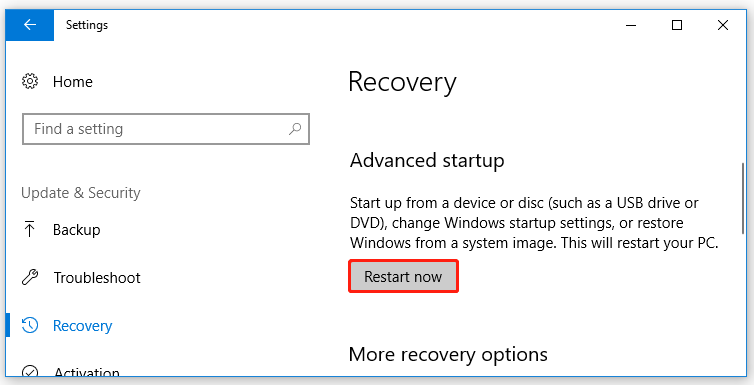
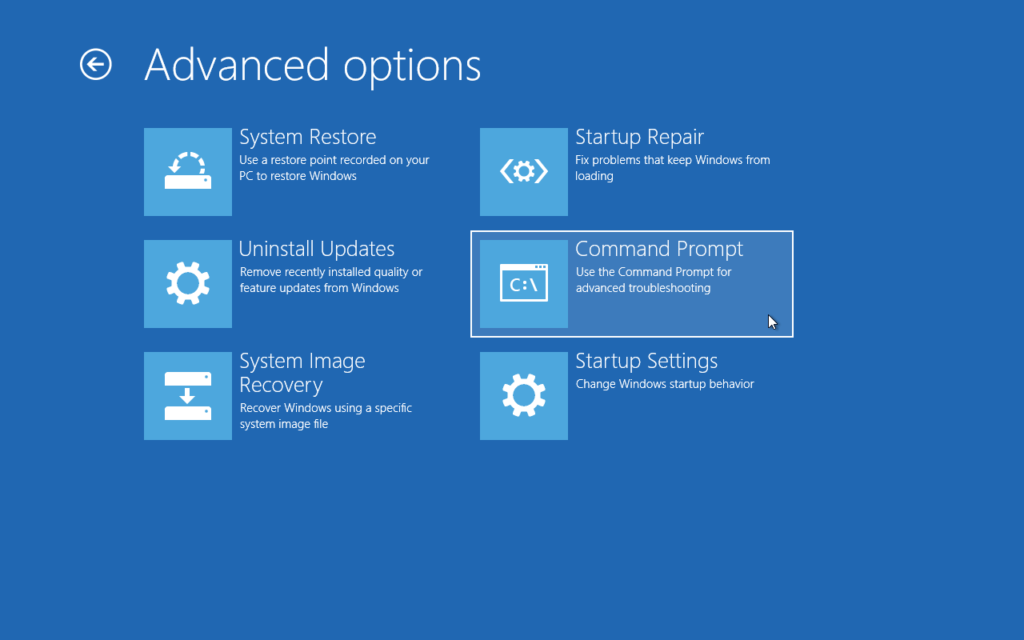
If Windows cannot boot, use Windows Recovery Environment. Open Command Prompt there and identify the correct volume letter before running CHKDSK. The Windows drive may not be C: in the recovery environment.
Common mistakes when using CHKDSK on an SSD
Many storage problems become worse because of rushed commands. Avoid these common mistakes.
Running repair before making a backup
CHKDSK can modify file system records. A backup gives you a safer starting point if the repair does not produce the expected result.
Assuming CHKDSK repairs every disk problem
It cannot replace a failing SSD controller or restore worn flash cells. Hardware symptoms require health testing and, often, replacement.
Using the wrong drive letter
Always confirm the target volume. Running a command on the wrong drive can cause unnecessary changes.
Stopping a repair scan
Do not shut down the computer during an active repair unless the system is completely frozen and you have no alternative. An interruption can leave the file system in a worse state.
Treating CHKDSK as SSD optimization
CHKDSK does not improve SSD speed. Windows already uses TRIM to help the SSD manage unused blocks. For optimization, keep free space available, use current firmware, and let Windows handle scheduled maintenance.
Ignoring repeated warnings
If CHKDSK keeps finding new errors, the problem may be hardware, power, cabling, firmware, or the motherboard slot. Repeating the same scan will not solve the root cause.
Does CHKDSK work on external SSDs?
Yes, CHKDSK works on external SSDs when Windows can recognize the volume and assign it a drive letter. The same file system rules apply to USB SSDs and internal SSDs.
External drives are more likely to suffer file system corruption because users may unplug them during file transfers. Always use “Safely Remove Hardware” before disconnecting an external SSD.
If an external SSD disconnects during the scan, stop troubleshooting and check the connection. Try a different USB port, cable, or computer. A weak cable or unstable USB hub can look like a failing drive.
For an external SSD, start with:
chkdsk E:
Replace E: with the correct drive letter. If the scan reports logical errors and your files are backed up, use:
chkdsk E: /f
Frequently Asked Questions
Does CHKDSK work on SSDs in Windows 10 and Windows 11?
Yes. CHKDSK works on SSDs in both Windows 10 and Windows 11. The available switches can vary by file system, so use the command shown by your version of Windows.
Is CHKDSK safe for an SSD?
CHKDSK is generally safe when used for a real file system problem. Back up important files first, and avoid using /r as routine SSD maintenance.
Should I use CHKDSK /r on an SSD?
Use /r only when there is a specific reason, such as unreadable data or reported bad sectors. It is not normally needed for routine SSD checks because it cannot repair failing flash memory.
Can CHKDSK fix a corrupted SSD?
CHKDSK can fix corruption in the Windows file system stored on an SSD. It cannot repair physical damage, worn memory cells, a bad controller, or defective firmware.
Does CHKDSK improve SSD speed?
No. CHKDSK is a file system checker, not a performance optimizer. Slow speeds usually require checks for free space, thermal problems, firmware issues, drivers, or SSD health.
What should I do before running CHKDSK?
Back up important files and confirm the correct drive letter. If the SSD is disconnecting or showing critical health warnings, prioritize data recovery and replacement over repair.
Conclusion
So, does CHKDSK work on SSD? Yes. It can scan and repair logical file system errors on internal and external solid-state drives. It cannot repair failing flash memory or replace a proper SSD health test.
Start with a backup and a read-only scan. Use /f when Windows reports logical errors, and reserve /r for specific recovery situations. If errors return, investigate the SSD’s health, firmware, connection, and power supply instead of running CHKDSK again and again.
Use these steps to check your SSD with confidence, and share your experience or questions in the comments.
