

Open the case, hold the pairing button, and select your Sony earbuds in Bluetooth settings.
Learning how to put Sony earbuds in pairing mode is usually simple, but the exact steps can vary by model. Most newer Sony wireless earbuds use the case button, while some LinkBuds models use the touch sensors. This guide explains both methods, plus the fixes that help when your earbuds do not appear on your phone.
How to put Sony earbuds in pairing mode
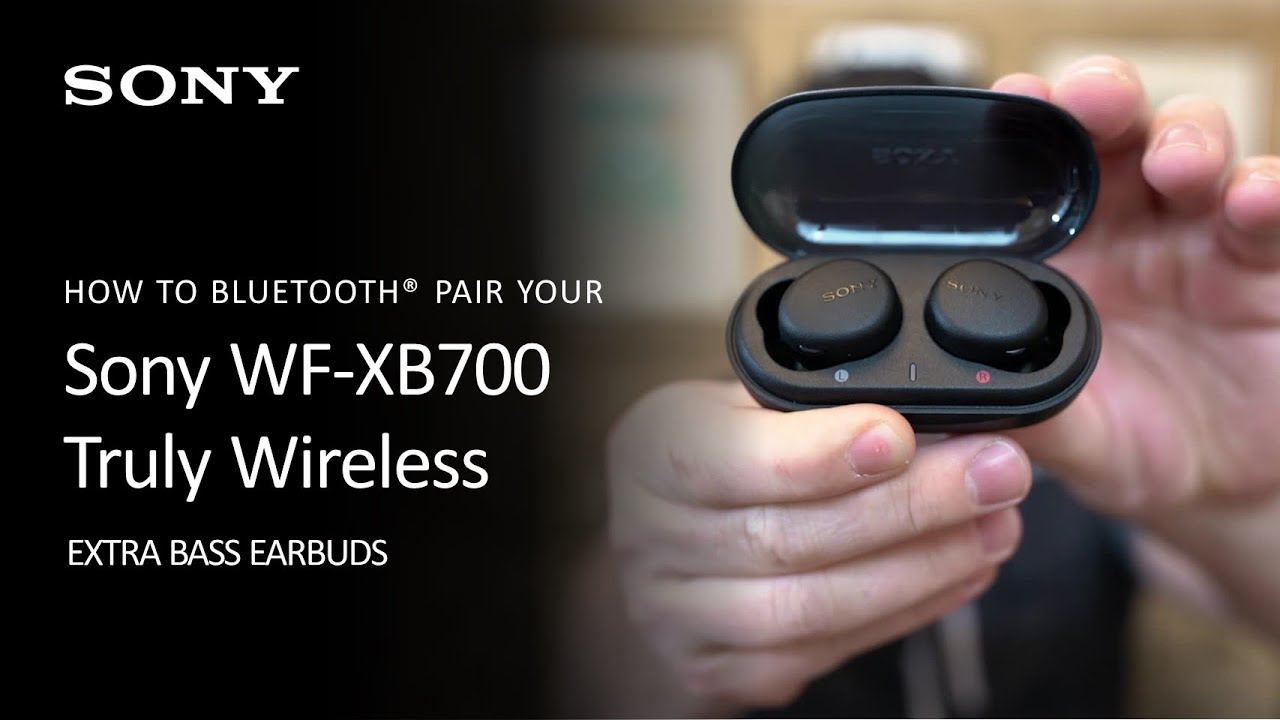
Pairing mode lets your earbuds search for a nearby phone, tablet, computer, or other Bluetooth device. A blue indicator may flash when pairing mode is active, although the light pattern differs by model.
Use these steps for most Sony true wireless earbuds, including many WF-1000XM, WF-C, LinkBuds S, and similar models:
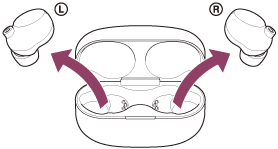
- Remove both earbuds from the charging case.
- Place them back into the case.
- Keep the lid open.
- Press and hold the pairing button on the back or bottom of the case for about five seconds.
- Release the button when the indicator begins flashing blue or starts flashing quickly.
- Open Bluetooth settings on your device.
- Select your Sony earbuds from the list of available devices.
- Tap Pair, Connect, or the matching option shown on your screen.
If this is the first time you have used the earbuds, they may enter pairing mode automatically when you remove them from the case. If they have already connected to another device, the manual five-second button press is usually needed.
How to pair Sony earbuds with an Android phone
Android phones may use slightly different menu names, but the Bluetooth process is nearly the same. Keep the earbuds close to the phone while pairing.
- Put the Sony earbuds in pairing mode.
- Open Settings on your Android phone.
- Select Connected devices, Connections, or Bluetooth.
- Turn Bluetooth on.
- Tap Pair new device or Scan for devices.
- Choose your Sony earbuds from the list.
- Confirm the pairing request if one appears.
Some Android phones show the earbuds in a pop-up window. Tap Connect when that window appears. You may also see a request to use Google Fast Pair, which can make future connections quicker.
If the earbuds appear with an old or incomplete name, wait a few seconds. The full model name may appear after the scan finishes.
How to connect Sony earbuds to an iPhone
The steps for an iPhone are quick once the earbuds are in pairing mode. Make sure the earbuds are not connected to a nearby laptop or tablet first.
- Open the charging case with the earbuds inside.
- Hold the case button for about five seconds.
- Wait for the indicator to flash blue.
- Open Settings on your iPhone.
- Tap Bluetooth.
- Turn Bluetooth on if it is off.
- Select your Sony earbuds under Other Devices.
- Tap the earbuds’ name to connect.
After the first connection, your iPhone should remember the earbuds. The next time you open the case, they may connect automatically.
If your iPhone shows the earbuds under My Devices but says Not Connected, tap the name once. If that fails, put the earbuds back into pairing mode and try again.

How to put Sony LinkBuds in pairing mode
Sony LinkBuds models do not all use the same control method. LinkBuds S usually use the button on the charging case, while the original LinkBuds may use the touch areas on both earbuds.
LinkBuds S
For LinkBuds S, follow the standard case-button method:
- Put both earbuds in the case.
- Leave the lid open.
- Press and hold the case button for about five seconds.
- Wait for the blue indicator to flash.
- Select LinkBuds S in your device’s Bluetooth menu.
Original Sony LinkBuds
For the original LinkBuds, pairing mode may be activated through the touch sensors:
- Remove both earbuds from the case.
- Touch and hold the sensors on both earbuds at the same time.
- Continue holding for about seven seconds.
- Wait for the voice prompt or flashing indicator.
- Select LinkBuds from your phone or computer’s Bluetooth list.
The exact touch gesture can depend on the firmware and model. If the touch method does not work, check the model name printed on the case or inside the Sony | Sound Connect app.
How to pair Sony earbuds with a Windows PC
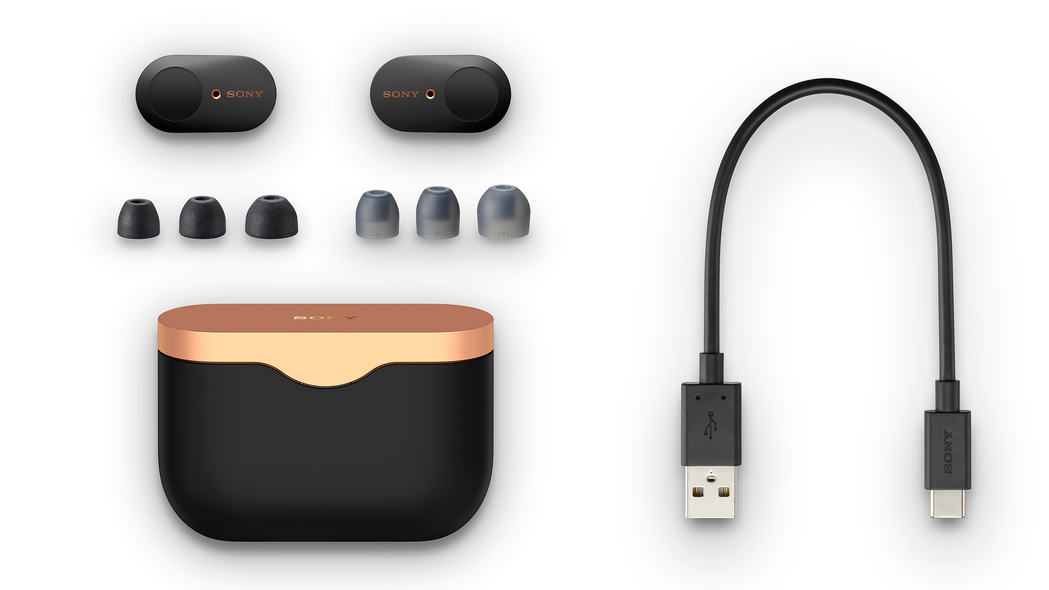
Sony earbuds work with most Windows computers that support Bluetooth. Pairing is helpful for music, video calls, and online meetings.
- Put the Sony earbuds in pairing mode.
- Open Settings on your Windows PC.
- Select Bluetooth & devices.
- Turn Bluetooth on.
- Click Add device.
- Choose Bluetooth.
- Select your Sony earbuds.
- Click Done when Windows confirms the connection.
Windows may list two audio options after pairing. Choose the option labeled Headphones or Stereo for better music quality. The Hands-Free option is designed for microphone use and may sound less clear.
If your computer does not have built-in Bluetooth, you may need a compatible USB Bluetooth adapter. Some desktop PCs also require Bluetooth drivers before they can find wireless earbuds.
How to connect Sony earbuds to a Mac
The Mac pairing process is similar to the iPhone process.
- Put the earbuds into pairing mode.
- Click the Apple menu.
- Open System Settings.
- Select Bluetooth.
- Find the Sony earbuds under Nearby Devices.
- Click Connect.
On older macOS versions, Bluetooth may be inside System Preferences instead of System Settings. Once connected, open the Sound settings and select the earbuds as the output device if your Mac continues using its built-in speakers.
What to do when Sony earbuds do not appear
When Sony earbuds do not appear in the Bluetooth list, the problem is often a previous connection rather than a serious fault. Bluetooth devices can usually maintain an active connection with only one source at a time.
Try these steps in order:
• Move the earbuds within a few feet of your phone or computer.
• Turn Bluetooth off, wait 10 seconds, and turn it on again.
• Close Bluetooth settings on nearby phones, tablets, TVs, and computers.
• Put both earbuds in the case, close the lid, wait 10 seconds, and open it again.
• Hold the case button for at least five seconds to start pairing mode.
• Restart the device you want to connect.
• Charge the earbuds and case for at least 15 minutes.
• Remove the old Sony earbuds entry from Bluetooth settings, then pair again.
On Android, use Forget or Unpair. On an iPhone, tap the information icon beside the earbuds and select Forget This Device. On Windows and Mac, remove the earbuds from the saved Bluetooth device list.
A useful troubleshooting habit is to change only one thing at a time. This makes it easier to see whether the issue comes from the earbuds, the source device, or an old Bluetooth record.
How to reset Sony earbuds before pairing again
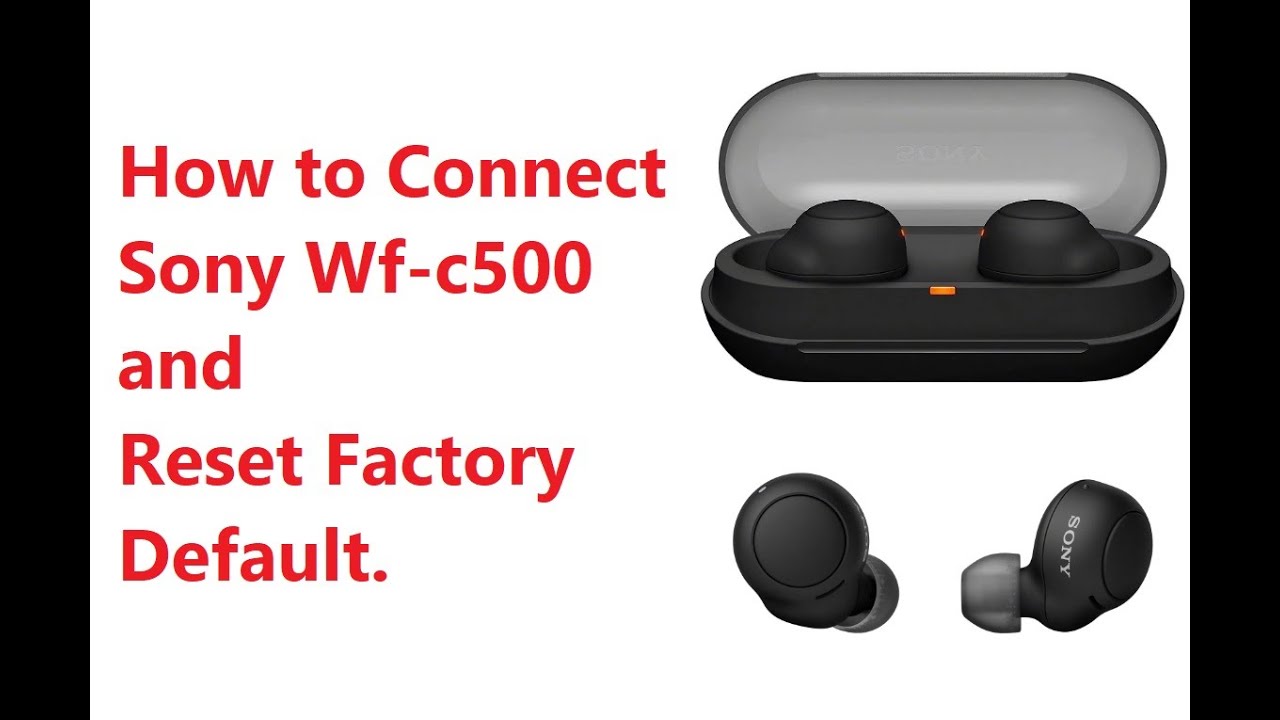
Resetting removes stored connection data and can solve repeated pairing failures. It is different from simply placing the earbuds into pairing mode.
The reset process depends on the model, but many Sony WF earbuds use a method similar to this:
- Place both earbuds in the charging case.
- Keep the lid open.
- Press and hold the case button for about 15 seconds.
- Release the button when the indicator flashes orange and then blue, or follows the model’s reset pattern.
- Close the lid.
- Wait a few seconds.
- Open the lid and put the earbuds into pairing mode again.
Some models reset through both earbud touch sensors instead of the case button. Because reset patterns vary, use the instructions for your exact model in the Sony | Sound Connect app or the official user guide.
Resetting may remove saved device connections and custom settings. Use it after basic pairing steps fail, not as the first solution.
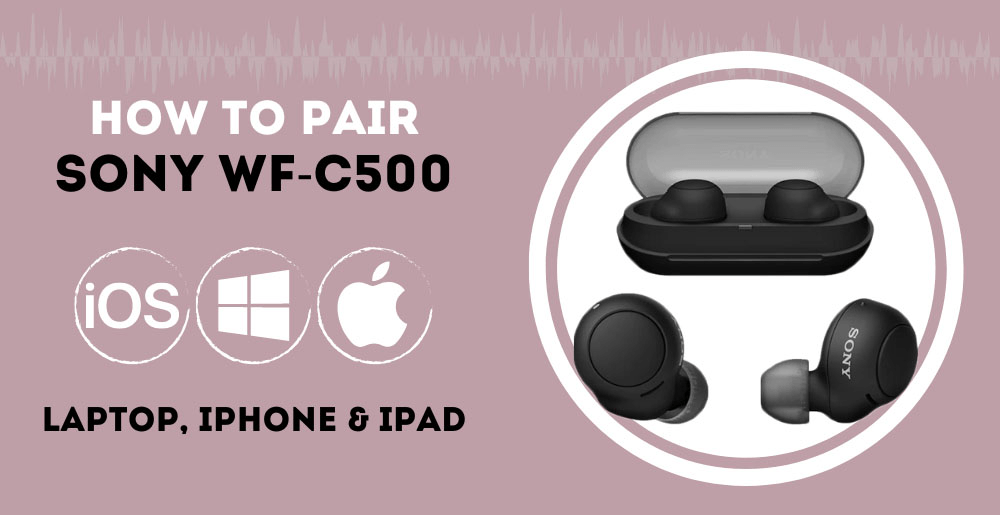
How to put different Sony earbud models in pairing mode
Sony has used several pairing designs over the years. Knowing the model helps you choose the right method.
Sony WF-1000XM5
Place both earbuds in the case and leave the lid open. Hold the button on the back of the case for about five seconds, then choose WF-1000XM5 from your device’s Bluetooth menu.
Sony WF-1000XM4
Place the earbuds in the case, keep the lid open, and hold the case button for about five seconds. A blue indicator usually confirms pairing mode.
Sony WF-C700N
Place the earbuds in the case and press the case button for about five seconds. When the indicator flashes, open Bluetooth settings and select WF-C700N.
Sony WF-C500
The earbuds may enter pairing mode automatically during first use. For later connections, remove both earbuds and touch and hold the buttons on both earbuds for several seconds until the pairing prompt or indicator appears.
Sony LinkBuds S
Use the button on the charging case. Hold it for about five seconds with the earbuds inside and the lid open.
These instructions cover common models, but Sony can change controls through new hardware and firmware. If your earbuds use a different button or light pattern, confirm the model number before attempting a reset.
Understanding Sony earbud indicator lights
The indicator light gives you a quick view of the earbuds’ status. It may appear on the case, on the earbuds, or in both places.
Common patterns include:
• Blue flashing light: Pairing mode or an active Bluetooth connection.
• Orange or red light: Low battery or charging.
• Green light: A charged case or full battery on some models.
• No light: The case may be closed, the battery may be empty, or the earbuds may not be seated correctly.
Light colors are not identical across every Sony model. Treat them as clues rather than universal codes. Voice prompts and the Sony | Sound Connect app can give more reliable information.
Keep the charging contacts clean. Dust or skin oil can stop an earbud from charging, which may prevent it from entering pairing mode correctly.
Using the Sony | Sound Connect app
The Sony | Sound Connect app can make setup easier, but it is not required for basic Bluetooth pairing. First connect the earbuds through your phone’s normal Bluetooth settings. Then open the app and follow its setup instructions.
The app can help you:
• Check battery levels.
• Install firmware updates.
• Change noise cancellation settings.
• Adjust touch controls.
• Rename the earbuds.
• View connection and sound settings.
Firmware updates may improve stability, but install them with the earbuds charged and close to the phone. Do not place the phone far away during an update.
The app cannot fix every hardware problem. If the earbuds will not charge, show no lights, or fail after a reset, the issue may require Sony support or service.
Common mistakes to avoid during pairing
Most pairing problems come from small setup mistakes. Avoid these common issues:
• Searching for the earbuds before activating pairing mode.
• Leaving the earbuds connected to another nearby device.
• Holding the case button for too little time.
• Removing one earbud while the other remains in the case.
• Choosing a similarly named device that belongs to someone else.
• Trying to pair with a nearly empty case.
• Resetting the earbuds before removing the old Bluetooth entry.
• Keeping the earbuds too far from the phone or computer.
In hands-on setup, the most frequent mistake is leaving Bluetooth active on an old phone. The earbuds connect to that phone first, so the new device never gets a chance to find them. Turning Bluetooth off on the old device usually solves the problem within seconds.
Bluetooth pairing tips for better results
Bluetooth works best when the first connection is simple and direct. Keep the source device close, remove obstacles, and avoid pairing in a crowded room full of active wireless devices.
For a smoother setup:
• Charge the case before starting.
• Pair one source device at a time.
• Update the phone or computer if Bluetooth has been unstable.
• Keep the earbuds and case away from strong wireless interference.
• Use the same Sony model name shown on the case or app.
• Save the user guide for your exact model.
Sony earbuds support modern Bluetooth features, but the available features depend on the earbuds and source device. For example, high-quality codecs may not work on every phone or computer. A successful pairing does not always mean every audio feature is supported.
Frequently asked questions
How do I put Sony earbuds in pairing mode?
Place both earbuds in the charging case and keep the lid open. Hold the case button for about five seconds, then select the earbuds in your device’s Bluetooth settings.
Why are my Sony earbuds not showing up on Bluetooth?
They may still be connected to another nearby device or may not be in pairing mode. Turn off Bluetooth on nearby devices, place the earbuds in the case, and hold the case button for five seconds.
How do I put Sony WF-1000XM4 earbuds in pairing mode?
Place both WF-1000XM4 earbuds in the case and leave the lid open. Hold the case button for about five seconds until the blue indicator flashes, then select the earbuds from the Bluetooth list.
Can I pair Sony earbuds with more than one device?
Some Sony models support multipoint connections, while others connect to one device at a time. Check your model’s specifications and enable multipoint through the Sony | Sound Connect app when supported.
How do I reset Sony earbuds that will not pair?
Many models reset through the case button, but the timing and indicator pattern can differ. Check the guide for your exact model before resetting because the process may erase saved connections and settings.
Do Sony earbuds pair automatically?
They often enter pairing mode automatically during first setup. After that, they usually reconnect to a saved device, so you may need to hold the case button to connect them to a new phone or computer.
Conclusion
Putting Sony earbuds in pairing mode usually takes only a few seconds: place both earbuds in the case, keep the lid open, hold the case button for about five seconds, and select the earbuds from Bluetooth settings. LinkBuds and older WF models may use different touch controls, so the exact model still matters.
If pairing fails, charge the earbuds, disable Bluetooth on nearby devices, remove the old Bluetooth record, and try again. Once you know how to put Sony earbuds in pairing mode, setup becomes quick and routine. Check your model’s guide for special controls, and share your experience or questions in the comments.
