

Use Windows, macOS, Linux, BIOS, or a trusted tool to identify whether your drive is HDD or SSD.
Knowing how to check drive is hdd or ssd helps you understand your computer’s speed, storage health, upgrade options, and value. I have checked many drives during upgrades and repairs, and the safest method is to confirm the result in the operating system instead of guessing from performance alone.
This guide explains how to check drive is hdd or ssd on Windows, macOS, and Linux. You will also learn how to identify external drives, read health data, avoid common mistakes, and confirm whether a system has both storage types.
Why It Matters Whether Your Drive Is an HDD or SSD
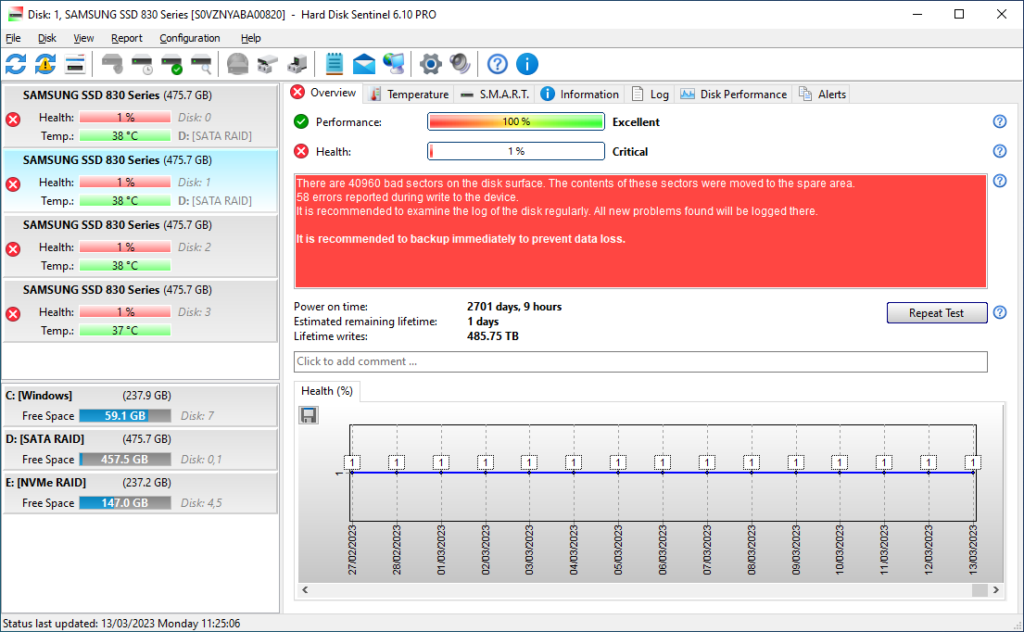
A hard disk drive, or HDD, stores data on spinning magnetic platters. A solid state drive, or SSD, stores data on flash memory chips and has no moving parts.
This design difference affects speed, noise, power use, durability, and price. An SSD usually starts a computer faster and opens apps more quickly. An HDD often provides more storage for less money.
You may want to check your drive type before:
- Upgrading your computer
- Reinstalling Windows or macOS
- Buying a replacement drive
- Selling a laptop or desktop
- Troubleshooting slow performance
- Checking whether a new SSD was installed correctly
- Comparing storage health and remaining life
Learning how to check drive is hdd or ssd also prevents a common mistake: assuming that every fast drive is an SSD or every large drive is an HDD. Some modern HDDs have large caches, while older SSDs may feel slow when nearly full.
How to Check Drive Is HDD or SSD in Windows
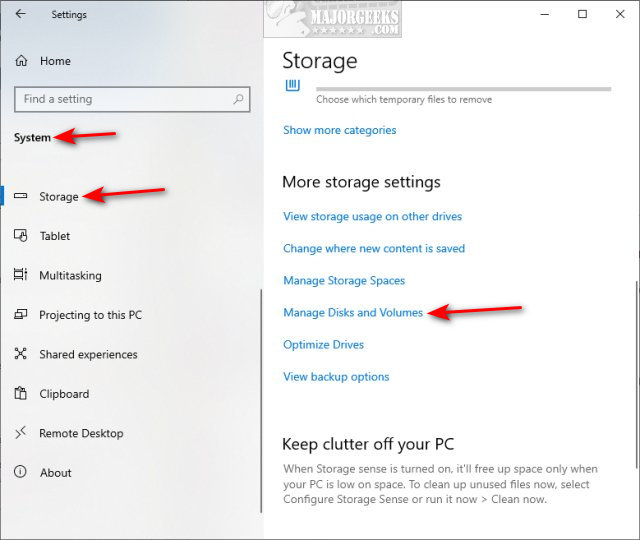
Windows offers several built-in ways to identify a drive. The Settings app is simple, but Task Manager, PowerShell, and Windows Terminal can provide more useful details.
Method 1: Use Task Manager
Task Manager is one of the fastest ways to check the drive type in Windows 10 and Windows 11.
- Press Ctrl + Shift + Esc to open Task Manager.
- Select the Performance tab.
- Click Disk 0, Disk 1, or another disk listed on the left.
- Look for the drive type near the disk name.
Windows may display “SSD” or “HDD” beside the model name. If your computer has several drives, check each disk separately. Disk 0 is not always the main physical drive, so do not assume that its number tells you its purpose.
This method is useful for a quick answer, but Windows may show “SSD” for some unusual storage devices or fail to label a drive correctly. If the result looks unclear, confirm it with PowerShell or the model number.
Method 2: Use Optimize Drives
The Optimize Drives tool gives another simple answer.
- Press the Windows key.
- Type Optimize Drives.
- Open Defragment and Optimize Drives.
- Check the Media type column.
The tool usually labels the device as Solid state drive or Hard disk drive. It also shows the drive letter and optimization status.
Do not worry if Windows shows “Optimize” for an SSD. Windows sends an appropriate maintenance command to the drive. It does not perform the same traditional defragmentation process used for an HDD.
Method 3: Use PowerShell
PowerShell can identify the media type more directly.
- Right click the Start button.
- Choose Terminal or PowerShell.
- Enter this command:
Get-PhysicalDisk | Select-Object FriendlyName, MediaType, Size
The result may show:
- HDD for a hard disk drive
- SSD for a solid state drive
- Unspecified when Windows cannot determine the type
You can also use this command for more details:
Get-PhysicalDisk | Format-List FriendlyName, Manufacturer, Model, MediaType, Size, HealthStatus
The model, manufacturer, size, and health status can help confirm the result. PowerShell is often the best built-in option when Task Manager does not display a clear label.
Method 4: Use Command Prompt
Command Prompt can list the model of each physical disk.
- Open Command Prompt as an administrator.
- Type:
wmic diskdrive get model,mediaType,size
On newer versions of Windows, WMIC may be removed or disabled. If the command does not work, use PowerShell instead.
The model name is important because a search for the exact model can reveal whether it is an HDD, SATA SSD, NVMe SSD, or another type of storage device.

How to Check Drive Is HDD or SSD on macOS
Mac computers provide clear storage information through System Information and Disk Utility. The exact menu names can vary slightly by macOS version.
Method 1: Use About This Mac
- Click the Apple menu.
- Select About This Mac.
- Choose More Info if shown.
- Open System Report.
- Select NVMExpress, SATA, or Storage in the sidebar.
An NVMe device is an SSD. A SATA device may be either an SSD or an HDD, so check the model and medium type. Apple silicon Macs normally use built-in flash storage rather than a traditional spinning HDD.
Method 2: Use Disk Utility
- Open Applications.
- Open Utilities.
- Start Disk Utility.
- Select View, then Show All Devices.
- Click the physical drive in the sidebar.
Disk Utility may show whether the device is an internal solid state drive. It can also show the connection type, capacity, partitions, and volume format.
Remember that a volume is not the same as a physical drive. A single physical SSD may contain several volumes, such as Macintosh HD and a recovery volume.
Method 3: Use Terminal
Open Terminal and run:
diskutil list
This command lists physical disks and their partitions. To inspect a specific disk, use:
diskutil info disk0
Replace disk0 with the correct identifier. Look for details such as Solid State, rotational status, protocol, or device model.
For many Macs, the command provides enough information to determine the storage type. If it does not, copy the model number and check the manufacturer’s technical information.
How to Check Drive Is HDD or SSD in Linux
Linux gives you several reliable command line tools. These commands work on many distributions, including Ubuntu, Fedora, Debian, and Linux Mint.
Method 1: Check Rotational Status
Open Terminal and run:
lsblk -d -o NAME,MODEL,SIZE,ROTA,TYPE
The ROTA column is especially useful:
- ROTA value 1 usually means the drive is rotational, so it is an HDD.
- ROTA value 0 usually means the drive is nonrotational, so it is an SSD.
A sample result might look like this:
NAME   MODEL             SIZE ROTA TYPE
sda    WDC Hard Drive    1.8T    1 disk
nvme0n1 Samsung SSD      1.0T    0 disk
This is one of the clearest methods for how to check drive is hdd or ssd on Linux.
Method 2: Read the Device Queue
You can check rotational status with this command:
cat /sys/block/sda/queue/rotational
Replace sda with the correct device name.
A result of 1 normally indicates an HDD. A result of 0 normally indicates an SSD. Be careful when entering device names because Linux identifies physical drives differently from Windows.
Method 3: Use smartctl
The smartmontools package can read Self-Monitoring, Analysis and Reporting Technology, commonly called SMART, data.
After installing the package, run:
sudo smartctl -i /dev/sda
For an NVMe drive, use a device such as:
sudo smartctl -i /dev/nvme0
The output may identify the device type, model, firmware, and supported health features. SMART data is useful for checking both the type and condition of a drive, but some USB enclosures do not pass all SMART information to the operating system.

How to Identify an External HDD or SSD
External drives can be harder to identify because the USB enclosure may hide the actual drive model. The USB connection alone does not prove that the device is an SSD or HDD.
Try these steps:
- Connect the external drive directly to the computer.
- Check its model in Windows Device Manager, macOS System Information, or Linux with lsblk.
- Search the full model number on the manufacturer’s product page.
- Check the product label, packaging, or original receipt.
- Listen for movement and feel for vibration, but use these only as clues.
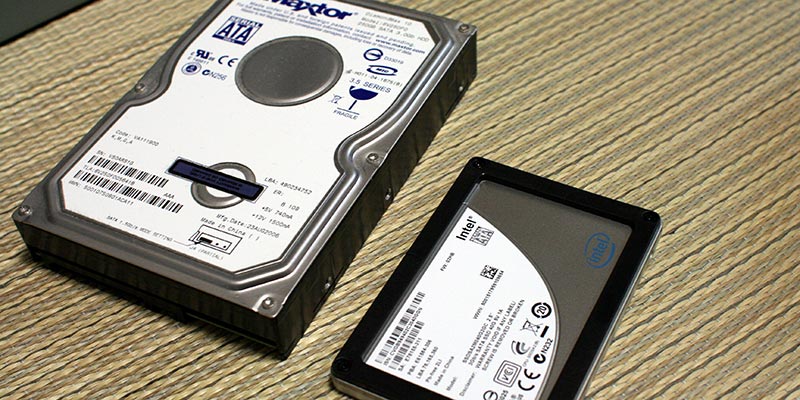
An external HDD may make a soft spinning sound or vibrate during use. An external SSD is usually silent and lighter. However, some HDDs are quiet, and some external SSDs have large cases for cooling, so physical clues are not proof.
If an external device reports only a generic name such as “USB Storage,” the enclosure may be hiding the drive details. In that case, a trusted disk information tool or the enclosure manufacturer’s specifications may be needed.
How to Tell an NVMe SSD From a SATA SSD
Both NVMe and SATA drives are SSDs, but they use different interfaces.
A SATA SSD commonly uses:
- A 2.5 inch drive enclosure
- A SATA data connection
- A SATA power connection in a desktop
- Speeds limited by the SATA interface
An NVMe SSD commonly uses:
- An M.2 slot
- PCI Express lanes
- A small circuit board shaped like a stick
- Much faster transfer speeds in many workloads
The physical shape can help, but it is not enough by itself. Some M.2 drives use SATA rather than NVMe, even though both fit into similar slots.
On Windows, PowerShell may show the model and bus type. On Linux, lsblk and lspci can help. On macOS, System Information often lists NVMExpress for NVMe storage.
How to Confirm the Drive Type From Its Model Number
When built-in tools give an unclear answer, the model number is usually the best backup method.
Find the model in one of these locations:
- Task Manager
- Device Manager
- PowerShell
- Disk Utility
- System Information
- Linux Terminal
- The label on the physical drive
Copy the complete model number, including letters and numbers. Search that exact code on the manufacturer’s website or a reputable hardware database.
Look for terms such as:
- HDD
- Hard disk
- 5400 RPM or 7200 RPM
- SATA SSD
- NVMe SSD
- PCIe solid state drive
- NAND flash
A listed rotation speed almost always indicates an HDD. Terms such as NAND, flash, NVMe, and solid state indicate an SSD.
Be careful with storage brands that sell both types. A product family name alone may not be enough. The full model number matters.

Can You Check Drive Type by Speed?
Drive speed can provide a clue, but it cannot prove whether a drive is an HDD or SSD.
A typical HDD may deliver roughly 80 to 200 MB per second in sequential transfers. A SATA SSD may reach around 500 to 550 MB per second. Modern NVMe SSDs can exceed those numbers by a wide margin.
These figures vary with the drive model, interface, temperature, file size, free space, and test software. A nearly full SSD may perform poorly, while a fast HDD may seem acceptable for basic tasks.
Use speed tests only after identifying the device through the operating system or model number. A benchmark is like judging a car by one short trip. It gives useful information, but it does not reveal the whole machine.

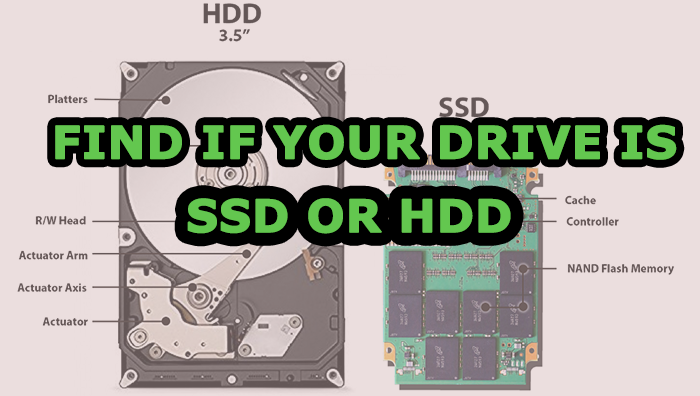
How to Check Drive Health After Identifying It
Finding out whether the drive is an HDD or SSD is only the first step. You should also check its health before moving important files or relying on it for backups.
Windows may show basic health information in Settings, PowerShell, or the drive manufacturer’s software. Linux users can inspect SMART data with smartctl. macOS users can review Disk Utility and system information, although detailed health data may be limited on some Apple storage systems.
Pay attention to:
- Warnings about predicted failure
- Reallocated sectors on an HDD
- Uncorrectable errors
- High temperature
- Excessive wear indicators on an SSD
- Sudden increases in read or write errors
- A drive that disappears during use
A health status of “good” is not a guarantee that the drive will never fail. SMART data can miss sudden electronic failures, cable problems, or issues inside an external enclosure. Always keep at least one separate backup of important files.

Common Mistakes When Checking a Drive
Many incorrect answers come from confusing a partition, a volume, a connection, or a cache with the physical drive.
Avoid these mistakes:
- Do not assume Disk 0 is always an SSD.
- Do not identify a drive from capacity alone.
- Do not treat USB 3, USB 4, or Thunderbolt as proof of SSD storage.
- Do not confuse an M.2 shape with NVMe technology.
- Do not rely only on noise or vibration.
- Do not use a benchmark as the only test.
- Do not format a drive while trying to identify it.
- Do not unplug an external drive during a write operation.
I once checked a desktop that appeared to have only one slow drive. The user had several drive letters, so they assumed the computer contained several physical disks. Disk Management revealed that the letters belonged to partitions on one HDD. That small distinction prevented an unnecessary purchase and made the upgrade plan much clearer.
A Safe Verification Process
If you want the most accurate result, use two methods rather than trusting one label.
- Identify the physical disk in your operating system.
- Record its model number and capacity.
- Check the media type in Task Manager, Disk Utility, PowerShell, or lsblk.
- Confirm the model on the manufacturer’s product page.
- Check health data before moving important files.
- Label the drive if your computer contains multiple devices.
- Back up important data before opening the computer or replacing storage.
This process works well for desktops, laptops, workstations, and most external drives. It also helps when a computer contains an HDD for large files and an SSD for the operating system.
If the result is “Unspecified,” do not panic. This usually means the operating system cannot identify the media type through the current driver or enclosure. The model number and manufacturer specifications can still provide a reliable answer.
Frequently Asked Questions About How to Check Drive Is HDD or SSD
How can I check if my Windows drive is an HDD or SSD?
Open Task Manager with Ctrl + Shift + Esc, select Performance, and click the disk. Windows usually displays SSD or HDD near the drive name, and Optimize Drives can provide a second confirmation.
Can I check whether a drive is SSD without opening my computer?
Yes. Windows, macOS, and Linux can usually identify the drive through built-in tools. If the system shows only a generic USB name, use the model number or a trusted hardware information tool.
Does an M.2 drive always mean it is an SSD?
An M.2 drive is normally an SSD, but M.2 describes the physical form and connector. M.2 drives can use SATA or NVMe, so check the interface for a complete answer.
Is NVMe the same as SSD?
NVMe is a communication protocol used by many SSDs over PCI Express. Therefore, an NVMe drive is an SSD, but not every SSD uses NVMe because SATA SSDs are also common.
Can a drive be both HDD and SSD?
A physical drive is generally one type, but a hybrid drive can combine magnetic storage with flash memory. A computer can also contain both an HDD and an SSD as separate physical drives.
Does a faster drive test prove that it is an SSD?
No. Speed can suggest the drive type, but it is not proof. Confirm the result through the operating system, the model number, or the manufacturer’s specifications.
How often should I check my drive health?
Check health when you notice crashes, slowdowns, strange sounds, missing files, or connection problems. For important computers, reviewing health every few months and keeping current backups is a sensible habit.
Conclusion
You can check drive is hdd or ssd quickly with Task Manager, Optimize Drives, PowerShell, Disk Utility, System Information, or Linux commands. For the strongest result, compare the operating system label with the physical model number and manufacturer specifications.
Remember that storage type, interface, capacity, and health are different details. An SSD may be faster, but every drive still needs backups and sensible care. Check your drive today, record its model and health status, and use that information before upgrading or replacing it.
