

Windows can show SSD health through Settings, PowerShell, or trusted SMART tools that report remaining drive life.
Knowing how to check SSD health percentage in Windows helps you spot wear before it causes slowdowns, errors, or data loss. The key detail is that “health percentage” may mean remaining life, estimated wear, or a vendor-specific score. This guide explains each method, how to read the results, and what to do when the number looks low.
What SSD health percentage means
SSD health percentage usually estimates how much useful write life remains. A new drive may show 100%, while a worn drive may show a lower number such as 85% or 60%.
The percentage comes from SMART data. SMART stands for Self-Monitoring, Analysis, and Reporting Technology. Your SSD records data such as:
• Estimated life remaining
• Percentage of rated life used
• Total data written
• temperature
• Bad blocks
• Read and write errors
• Unsafe shutdowns
• Available spare capacity
Different brands may label the same data in different ways. One tool may show 90% health, while another reports 10% wear. These can describe the same condition.
A health score is not the same as performance. An SSD can still work at full speed with a lower health percentage. However, a low score means you should back up your files and plan for replacement.
How to check SSD health percentage in Windows Settings
Windows 11 can show basic drive health information through the Settings app. This method works best with supported NVMe drives and modern storage drivers.
Follow these steps:
- Press Windows + I to open Settings.
- Select System.
- Choose Storage.
- Click Advanced storage settings.
- Select Disks & volumes.
- Choose your SSD from the list.
- Click Properties.
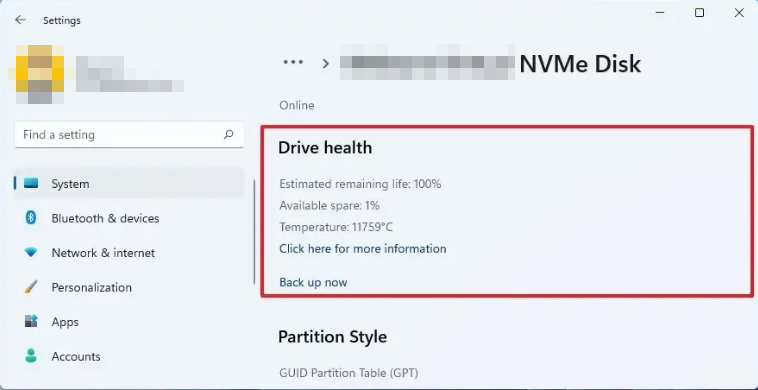
- Look for the Drive health section.
Depending on your SSD and Windows version, you may see details such as:
• Estimated remaining life
• Available spare
• Temperature
• Drive reliability
• Warning status
The estimated remaining life is the closest built-in option to an SSD health percentage. Some SATA SSDs and older drives may not display this information in Settings.
If Windows shows a warning, take it seriously. The message may indicate a critical warning, reduced reliability, or a problem with the drive. Back up important files before testing anything else.
This method is simple, but it has a limitation. Windows does not always expose every SMART attribute, so the result may be less detailed than a dedicated SSD health tool.
How to check SSD health percentage with PowerShell
PowerShell can read storage reliability data without installing third-party software. It is useful when you want a quick technical check or need to inspect several drives.
Open PowerShell as an administrator:
- Right-click the Start button.
- Select Terminal (Admin) or PowerShell (Admin).
- Approve the User Account Control prompt.
- Run this command:
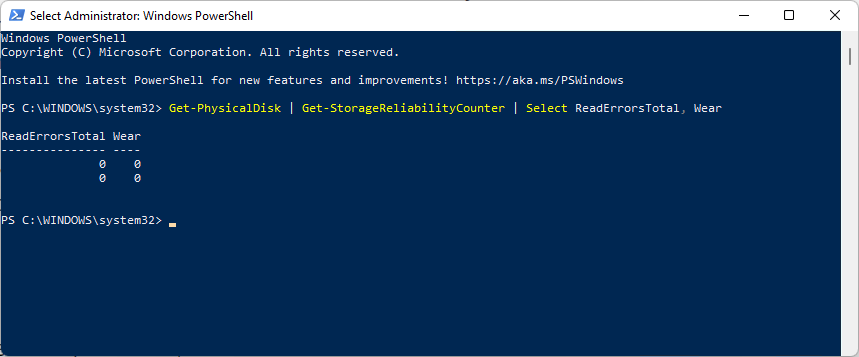
Get-PhysicalDisk | Get-StorageReliabilityCounter |
Select-Object DeviceId, Wear, Temperature, PowerOnHours, ReadErrorsTotal, WriteErrorsTotal
The output may include these values:
• Wear: The estimated percentage of the SSD’s rated life already used
• Temperature: The current or recorded drive temperature
• PowerOnHours: The number of hours the drive has been powered on
• ReadErrorsTotal: Reported read errors
• WriteErrorsTotal: Reported write errors
Wear can be confusing. If the command reports a wear value of 12, that usually means about 12% of the rated life has been used. In simple terms, the estimated remaining life may be around 88%.
The exact result depends on the drive firmware. Some SSDs return blank values, while others report only part of their SMART data. Do not treat a missing value as proof that the drive is healthy.
You can also check the general health status with:
Get-PhysicalDisk | Select-Object FriendlyName, MediaType, HealthStatus, OperationalStatus, Size
A Healthy status means Windows has not detected a basic problem. It does not guarantee that the SSD has 100% remaining life.

How to check SSD health percentage with a SMART tool
A SMART utility is often the clearest way to check SSD health percentage in Windows. These tools read the drive’s internal health data and display it in a more user-friendly format.
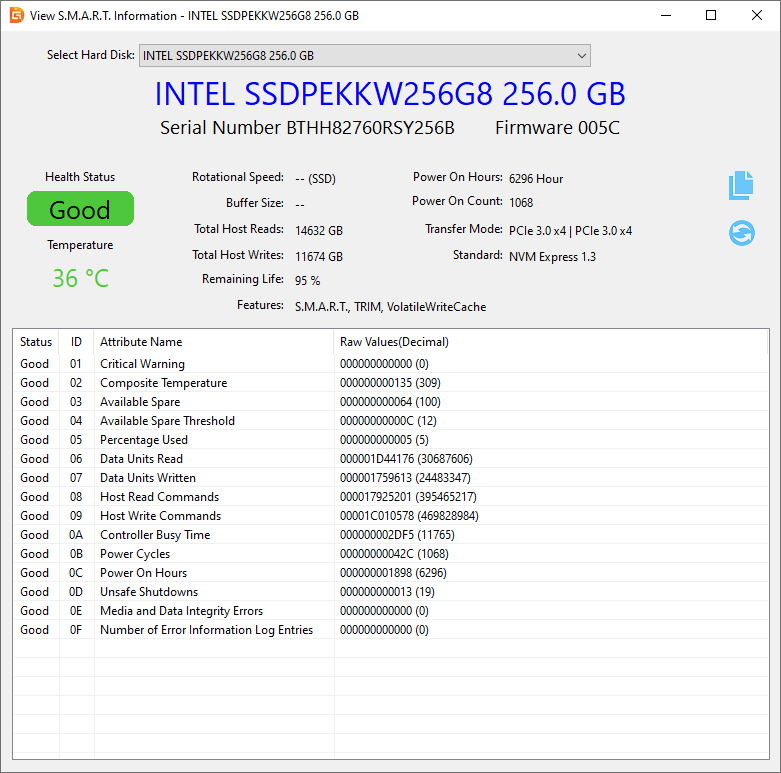
A popular option is CrystalDiskInfo. After installing and opening it, select the correct SSD from the drive list. The main screen often shows:
• Health Status
• Health percentage
• Drive temperature
• Firmware version
• Total host reads
• Total host writes
• Power-on count
• Power-on hours
• SMART attributes
Many SSD manufacturers also provide their own tools. Examples include:
• Samsung Magician for Samsung SSDs
• Crucial Storage Executive for Crucial drives
• Kingston SSD Manager for Kingston drives
• Western Digital Dashboard for Western Digital drives
• Solidigm Storage Tool for supported Solidigm drives
Manufacturer software is useful because it may provide firmware updates, drive tests, secure erase features, and warranty information.
When using any tool, download it from the official manufacturer website or a well-known, reputable software publisher. Avoid unknown “PC cleaner” apps that promise to repair SSD health. A software tool cannot restore worn flash memory.

How to check SSD health percentage with smartctl
Advanced users can use smartctl from the smartmontools package. This tool provides detailed SMART information and works well for technical troubleshooting.
After installing smartmontools, open Command Prompt or Windows Terminal as an administrator. First, list available drives:
smartctl --scan
Then inspect a drive by using its device path. The command may look similar to this:
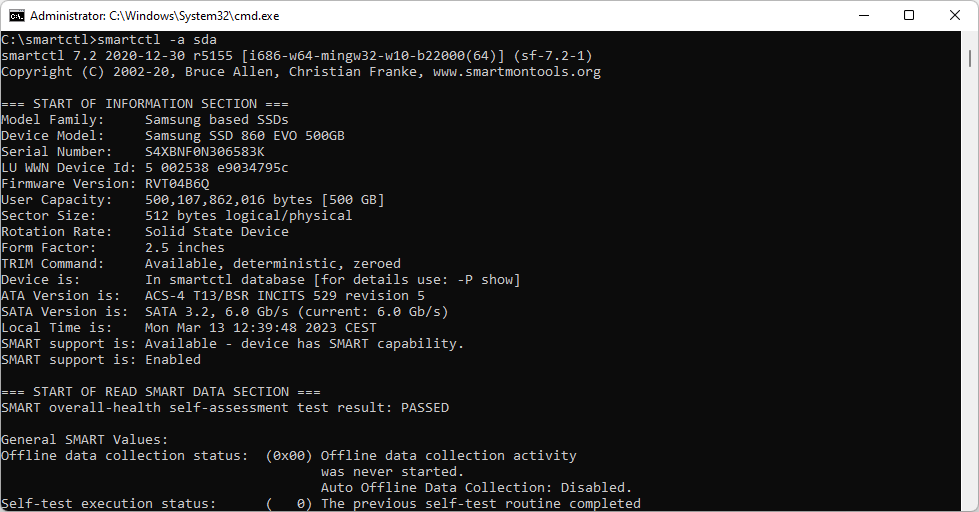
smartctl -a /dev/sda
For NVMe drives, you may need a command such as:
smartctl -a /dev/nvme0
The exact device name can vary. Read the output carefully and look for entries such as:
• Percentage Used
• Available Spare
• Available Spare Threshold
• Critical Warning
• Media and Data Integrity Errors
• Data Units Written
• Temperature
For NVMe drives, Percentage Used usually means the estimated percentage of the drive’s endurance that has been consumed. It is not always a direct “health remaining” score.
For example, a value of 7 may mean the SSD has used about 7% of its rated endurance. That suggests roughly 93% remains, although real-world endurance is an estimate.
External USB enclosures can prevent SMART data from passing through. If the tool cannot read the drive, the enclosure or USB bridge may be the reason.
How to read an SSD health percentage correctly
A health percentage is useful, but it should never be viewed alone. Think of it as one warning light on a car dashboard. You also need to check temperature, errors, and reliability.
Use this general guide:
• 90% to 100%: Normal for a new or lightly used SSD
• 70% to 89%: Usually fine, but the drive has recorded some wear
• 50% to 69%: Monitor the drive and keep current backups
• 20% to 49%: Plan a replacement, especially for important systems
• Below 20%: Replace the drive soon and avoid relying on it for critical data
• Critical warning or failing status: Back up immediately and stop unnecessary use
These ranges are practical guidelines, not official failure limits. An SSD rated for high endurance may remain dependable at a lower percentage than a low-end consumer drive.
Also check the total data written. A drive with 95% health and heavy error counts may deserve more attention than one with 70% health and no errors.
Some tools report “health” as remaining life. Others report “wear” as life already used. Always read the label before interpreting the number.

What to do if SSD health is low
If you find a low health percentage, stay calm and protect your data first. SSD wear normally happens over time, but sudden errors can signal a more serious problem.
Take these steps:
- Back up important files to another drive or secure cloud storage.
- Check the SSD temperature.
- Review SMART warnings and error counts.
- Update the SSD firmware if the manufacturer recommends it.
- Make sure Windows is fully updated.
- Avoid defragmenting the SSD manually.
- Replace the drive if its health keeps falling or errors appear.
Windows normally uses TRIM to help an SSD manage deleted data. You can check TRIM with this command in Command Prompt:
fsutil behavior query DisableDeleteNotify
A result of 0 means TRIM is enabled. A result of 1 means TRIM is disabled for that file system.
TRIM can support long-term performance, but it cannot reverse wear. It also does not repair damaged flash cells.
A common mistake is to run repeated benchmark tests on a drive that is already failing. Large write tests add more data to the SSD and may make a weak drive worse. Use benchmarks only when you have a current backup and a clear reason to test performance.
Why SSD health percentages can differ
It is normal for two programs to show different SSD health values. Each application may read a different SMART field or calculate its own score.
Common reasons include:
• The manufacturer uses a proprietary health formula
• One tool reports wear used, while another reports life remaining
• The drive firmware gives incomplete SMART data
• A USB adapter blocks some attributes
• The tool has not been updated for a newer SSD model
• Windows storage drivers expose different information
• The SSD uses different endurance ratings for different workloads
For example, a tool may show 8% wear, while another shows 92% health. Those numbers are not necessarily in conflict. They may simply describe opposite sides of the same estimate.
When results disagree, compare the raw values. Focus on critical warnings, available spare capacity, media errors, and the manufacturer’s own diagnostic software.

SSD health versus SSD performance
SSD health and performance are related, but they measure different things.
Health describes estimated endurance and reliability. Performance describes how quickly the drive can read and write data.
An SSD may slow down because of:
• A nearly full drive
• High temperature
• A low-quality or outdated driver
• A weak USB enclosure
• Background updates
• Too little free space
• A failing controller
• Heavy sustained writes
Free space matters because SSDs need room for garbage collection and wear leveling. Try to keep at least 10% to 20% of the drive free, especially on a system drive.
A healthy SSD can also perform poorly if it is overheating. Many NVMe drives reduce speed when they reach high temperatures. This behavior is called thermal throttling.
Best practices for protecting SSD health
You cannot prevent all SSD wear, but you can reduce avoidable stress and improve data safety.
• Keep at least 10% to 20% free space
• Enable automatic backups
• Keep Windows and SSD firmware updated
• Use a reliable surge protector or uninterruptible power supply
• Avoid unnecessary write-heavy benchmark tests
• Keep laptops cool and well ventilated
• Use an SSD made for your workload
• Replace a drive before it reaches a critical condition
• Do not use registry cleaners that claim to fix storage health
• Check the drive every few months
For everyday use, modern SSDs can last many years. The life estimate is based on rated write endurance, often expressed as TBW, or terabytes written. TBW is not a promise that the drive will fail immediately after reaching that number. It is a useful endurance rating for comparison.
The safest habit is simple: treat health checks as an early warning system, not as a backup plan.
Frequently Asked Questions
How often should I check my SSD health percentage in Windows?
Checking every few months is enough for most home users. Check more often if the drive is used for video editing, virtual machines, gaming captures, databases, or other write-heavy tasks.
Can Windows show the exact SSD health percentage?
Windows Settings may show estimated remaining life for some supported drives, especially NVMe models. For a more detailed percentage and SMART data, use the SSD manufacturer’s utility or a trusted SMART program.
Is 80% SSD health still good?
Yes, 80% health is generally acceptable for normal use. Keep backups, monitor the trend, and consider replacement when the number drops quickly or error counts increase.
Does a low SSD health percentage mean the drive will fail soon?
Not always. The percentage is an estimate based on flash wear, and an SSD may continue working well after the number becomes lower. However, a low score combined with errors, critical warnings, or sudden performance problems requires quick action.
Can I reset or improve SSD health percentage?
You cannot safely reset real flash wear or restore used endurance. Firmware updates may fix reporting errors, but software cannot reverse physical wear in NAND flash memory.
Is SSD health more important than SSD temperature?
Both matter. Health shows estimated endurance, while high temperature can reduce performance and may contribute to long-term stress. Review both values when checking the drive.
Should I replace an SSD at 0% health?
Replace it as soon as possible and keep it out of service for important data. A 0% reading may mean the estimated endurance has been consumed, but it does not guarantee immediate failure.
Conclusion
Learning how to check SSD health percentage in Windows gives you an early view of drive wear and reliability. Start with Windows Settings, use PowerShell for a built-in technical check, and confirm the result with a trusted SMART or manufacturer tool.
Remember that health percentage is an estimate, not a promise. Review wear, temperature, errors, available spare space, and backup status together. Check your SSD today, protect your important files, and explore your manufacturer’s diagnostic tools before a small warning becomes a major data problem.
