

Most headphone jack problems come from dust, loose connections, damaged plugs, or simple audio settings.
Learning how to fix headphone jack issues starts with finding the real cause, not forcing parts or buying new headphones too soon. This guide covers safe cleaning, device settings, plug checks, and hardware repair options so you can restore clear sound with less guesswork.
Check the Symptoms Before You Repair Anything
A headphone jack can fail in several ways. The sound may work in one ear, cut in and out, stay on the speakers, or produce crackling noise when the plug moves.
These clues help you locate the fault. For example, sound in only one ear often points to a damaged cable or plug. No sound at all may come from blocked contacts, incorrect settings, or a damaged jack.
Before learning how to fix headphone jack problems, test the headphones on another device. Then test a different pair of headphones on the original device.
Use this simple process:
- Plug your headphones into another phone, computer, or tablet.
- Try another working pair in the problem device.
- Raise the volume and check mute settings.
- Remove any phone case that may block the plug.
- Gently move the plug and listen for changes.
- Check whether Bluetooth audio is still connected.
If the same headphones fail on every device, the headphones are likely the problem. If several headphones fail on one device, the jack or audio system may need attention.

Turn the Device Off and Work Safely
Always power off the device before cleaning or inspecting a headphone jack. This lowers the risk of short circuits and prevents accidental audio output during testing.
Do not pour liquid into the jack. Avoid metal tools, sewing needles, paper clips, and sharp picks. These objects can bend the internal contacts or scratch the connector.
If the device uses a built-in battery, do not open it unless you have proper repair training. Lithium-ion batteries can catch fire if punctured or crushed.
Safe tools include:
• A flashlight
• A dry, soft-bristle brush
• Compressed air made for electronics
• A wooden or plastic pick
• Isopropyl alcohol with a concentration near 70% or higher
• A clean, lint-free cloth
Use compressed air in short bursts. Keep the can upright, and do not insert the nozzle deep into the jack.

Clean the Headphone Jack Carefully
Dust and pocket lint are among the most common causes of headphone jack trouble. Lint can stop the plug from reaching the correct depth, much like a small pebble stopping a door from closing.
Shine a light into the jack first. Look for lint, dirt, moisture, or bent metal contacts. If you see debris, hold the device with the jack facing downward and use a soft brush.
For stubborn lint, gently lift it with a wooden or plastic pick. Work around the inside edge. Never scrape forcefully or push the debris farther inside.
You can also use a small amount of isopropyl alcohol on a lint-free swab. The swab should be slightly damp, not wet. Clean the plug, allow it to dry fully, and then test the connection.
Follow these steps to clean the jack:
- Turn off the device.
- Remove the headphones and case.
- Inspect the port with a flashlight.
- Brush away loose dust.
- Lift out packed lint with a nonmetal pick.
- Let the port dry for several minutes.
- Restart the device and test the headphones.
Cleaning often fixes headphone jack issues caused by poor contact. It will not repair broken wiring or a physically damaged socket.
Check the Headphone Plug and Cable
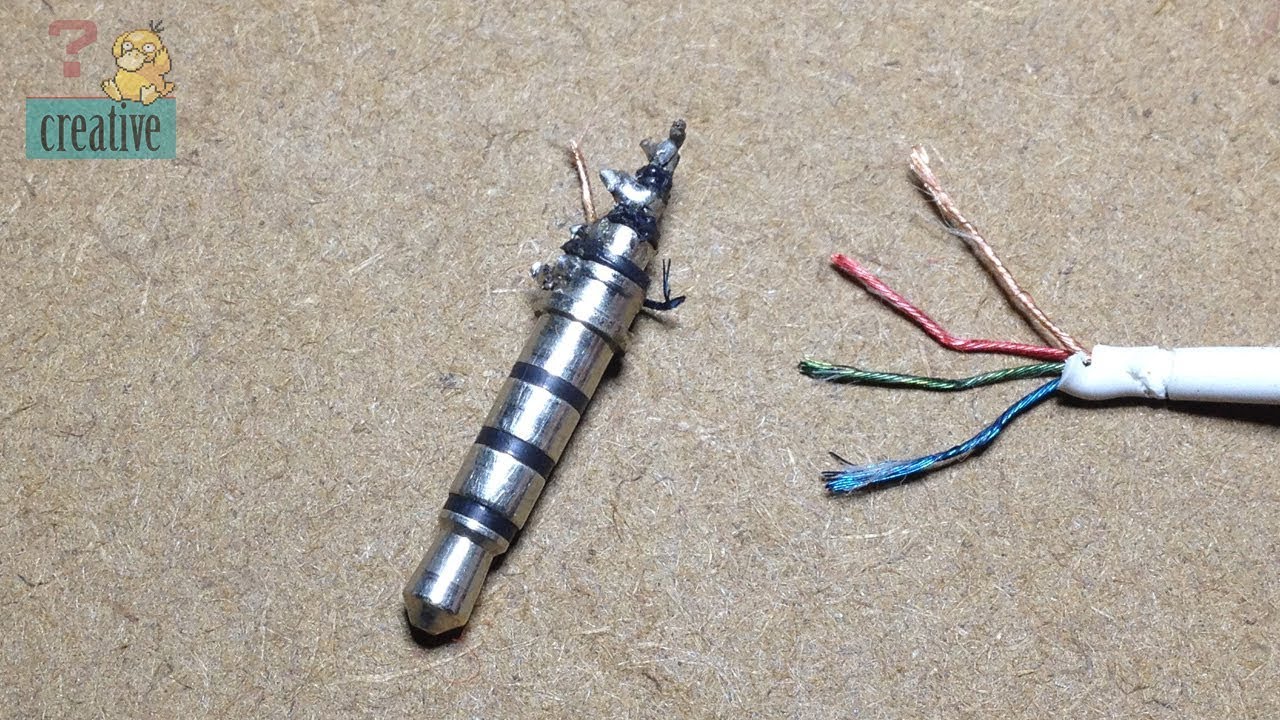
A headphone plug can look fine while its internal wire is broken. Repeated bending near the plug creates stress in a small area. This is one of the most common reasons headphones work only when held at a certain angle.
Inspect the metal plug for scratches, corrosion, or dark spots. Wipe it with a dry cloth. If the plug feels loose inside the jack, try another pair before assuming the device is damaged.
Bend the cable gently near the plug and each earcup. If the sound cuts in and out, the cable may have a broken conductor. Do not twist the plug hard. That can damage both the headphones and the jack.
Many wired headphones use a 3.5 mm TRS or TRRS plug. TRS plugs usually support stereo sound. TRRS plugs may support a microphone and call controls. A mismatch can cause microphone or button problems, but it usually does not stop basic stereo sound.
A useful repair lesson is simple: always test the cable before opening a device. Many people try to fix headphone jack hardware when the real fault is a worn plug.

Check Audio Settings and Software
Sometimes the headphone jack works, but the device sends sound somewhere else. This can happen after using Bluetooth earbuds, a USB audio adapter, a monitor, or a docking station.
Turn Bluetooth off for a moment. Then unplug other audio accessories and reconnect the wired headphones. On a computer, open the sound settings and choose the headphone output manually.
Also check the balance control. If the left or right channel is set too low, one side may seem broken. Turn off audio effects, spatial sound, or equalizer settings while testing.
Try a full restart. Updates can also fix audio driver problems, especially on Windows laptops and Android devices. If the issue began after an update, check whether the manufacturer offers a newer driver or a rollback option.
On a computer, review these settings:
• Default output device
• Volume mixer
• Left and right balance
• Audio enhancements
• Headphone detection
• Sound driver status
These steps can fix headphone jack problems without any physical repair.
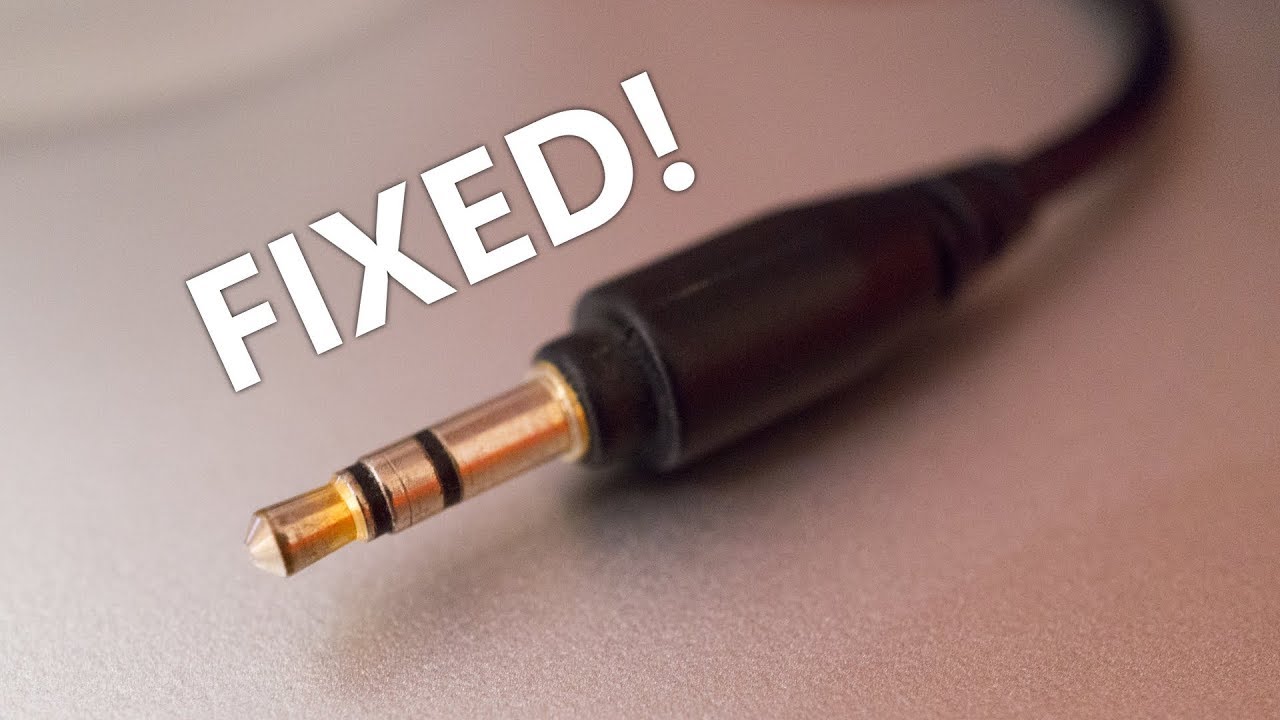
Fix Headphone Jack Problems on a Phone or Tablet
Phones and tablets often collect lint because they spend time in pockets and bags. A blocked jack may allow the plug to enter only partway, which can create weak or uneven sound.
Remove the case before testing. Some thick cases prevent the plug from seating fully. If the device has a USB-C or Lightning port instead of a 3.5 mm jack, the adapter may be the real source of the problem.
Try these steps:
- Restart the phone or tablet.
- Disable Bluetooth.
- Clean the jack or adapter port.
- Test another known-good headset.
- Check the sound balance and accessibility settings.
- Install available system updates.
- Test the headphones in safe mode if the device supports it.
If the phone shows a headphone icon after you unplug the headphones, debris may be pressing against the internal contacts. Cleaning can help, but moisture or physical damage may require professional service.
Do not use a charging cable, knife, or metal pin to clean a phone port. Modern ports contain delicate contacts that can bend easily.
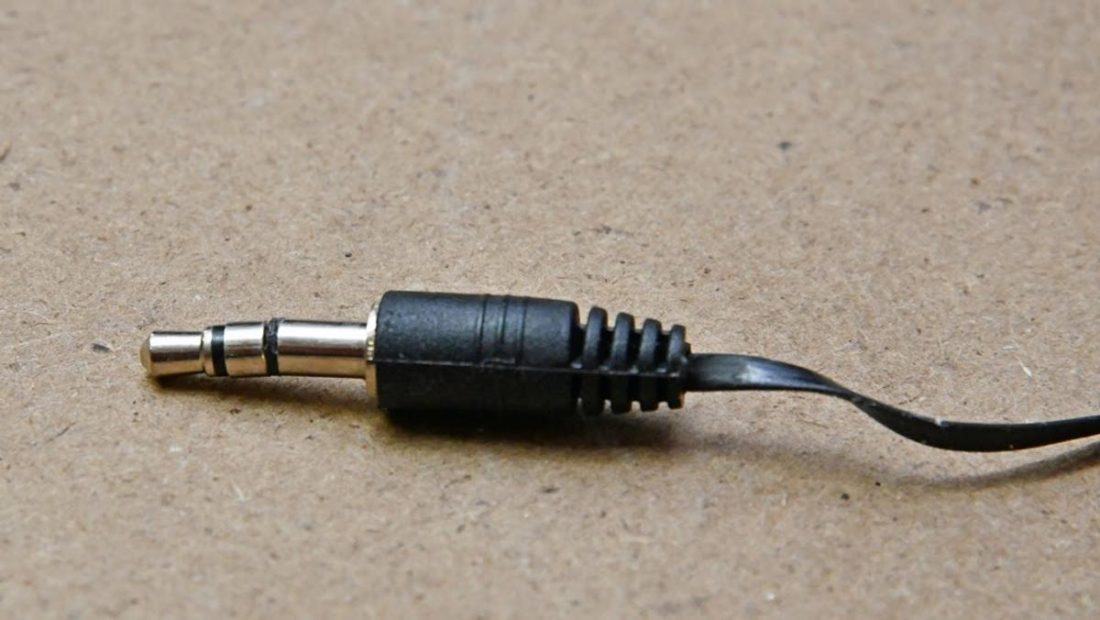
Fix Headphone Jack Problems on a Windows PC or Mac
Desktop computers often have separate front and rear audio jacks. The front jack may fail because its cable is loose inside the case, while the rear jack still works.
Test both ports. If only the front jack fails, the internal front-panel cable may need to be reconnected. Turn off and unplug the computer before opening the case, and avoid touching other components.
On Windows, right-click the speaker icon and select the correct output device. Then open the sound control panel and confirm that the headphones are enabled.
On a Mac, open the sound settings and choose headphones as the output. If the Mac does not detect them, test another headset and inspect the port for debris.
USB audio adapters are useful for testing. If headphones work through a USB adapter but not the built-in jack, the computer’s analog jack or audio circuit may be faulty.
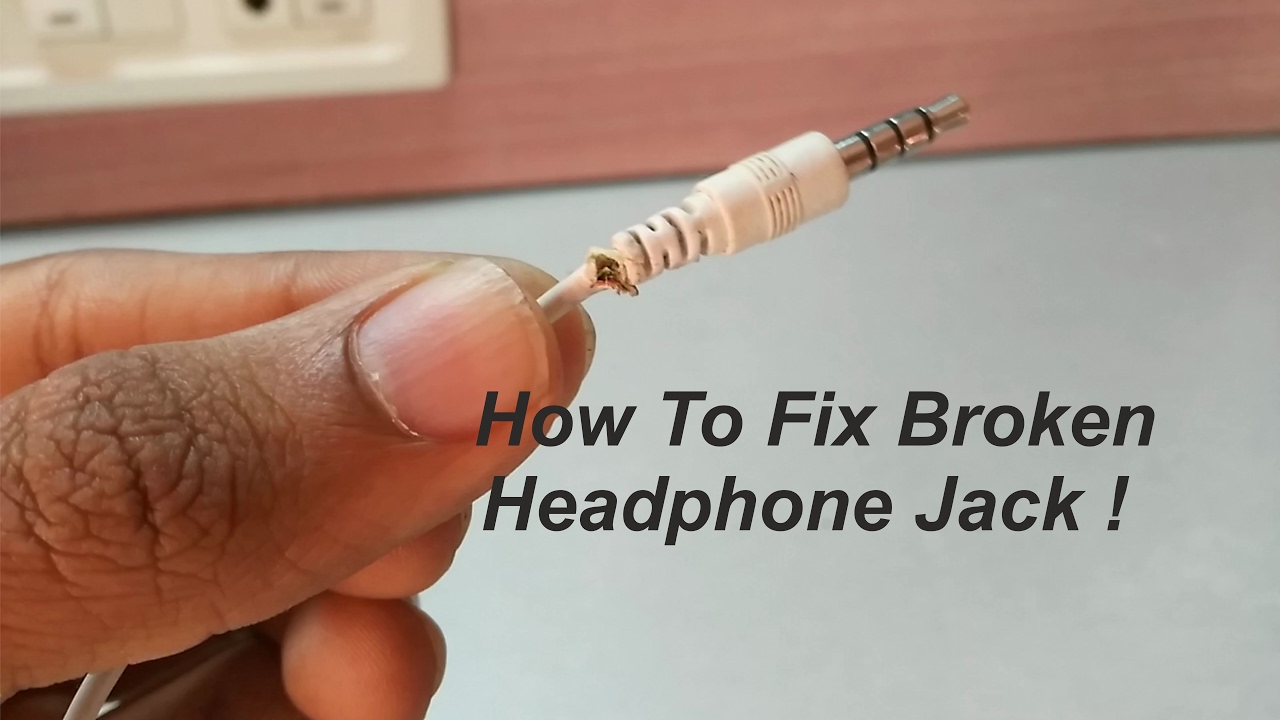
Repair or Replace a Damaged Headphone Jack
A loose jack may move inside the device, spin when you insert the plug, or lose sound when the cable shifts. These signs often indicate broken solder joints or a damaged socket.
Repair usually requires disassembly and soldering. A technician may replace the jack, reconnect loose wires, or replace an entire circuit board. On some phones and laptops, the jack is part of a small replaceable board. On others, it is soldered directly to the main board.
Consider professional repair when:
• The jack is loose or pushed inward.
• Cleaning does not help.
• Multiple headphones fail on the device.
• The port has visible physical damage.
• The device has liquid damage.
• You do not have electronics repair experience.
A do-it-yourself repair can save money on older, easy-to-open equipment. However, it can also damage ribbon cables, screws, batteries, and circuit boards. Check the repair manual for your exact model before opening anything.
If the repair cost approaches the value of the device, a USB or USB-C audio adapter may be a practical alternative. This bypasses the damaged analog jack without changing the main board.

Know When the Headphone Jack Cannot Be Fixed at Home
Some faults need expert testing. Liquid damage can cause corrosion that spreads under the jack. A broken audio chip may also look like a simple port problem.
Stop troubleshooting if the device becomes hot, smells burnt, sparks, or shows signs of a swollen battery. Disconnect power when safe and seek qualified service.
You should also avoid repeated plugging and unplugging when the jack feels loose. Each attempt can worsen damaged solder joints.
A repair shop can test continuity, inspect the port under magnification, and measure the audio signal. Ask for a clear estimate before approving work. For a valuable laptop, phone, or audio recorder, professional repair is often safer than trial and error.
Prevent Future Headphone Jack Damage
Good habits can extend the life of a headphone jack. Keep the plug clean, remove headphones by holding the plug, and avoid pulling the cable.
Do not leave the plug connected while carrying the device in a pocket or bag. Pressure from the cable can bend the port. A short cable with strain relief can also reduce stress.
Helpful habits include:
• Store headphones in a case.
• Keep the jack covered when possible.
• Clean the plug once in a while.
• Keep liquids away from the device.
• Do not force a plug into the port.
• Replace cables with cracked insulation.
• Use a right-angle plug when it reduces cable strain.
Prevention matters because a headphone jack is a small mechanical part. It handles repeated movement, pressure, and dirt every day.
Frequently Asked Questions About How to Fix Headphone Jack
Why is my headphone jack not working?
The jack may contain lint, the headphones may be damaged, or the device may be using another audio output. Test the headphones on a second device and clean the port safely before considering hardware repair.
Can I clean a headphone jack with a cotton swab?
A dry cotton swab can leave fibers inside the port, so it is not the best choice. Use a soft brush or a small wooden or plastic pick, and never push debris deeper into the jack.
Why do my headphones work in one ear only?
A broken cable, damaged plug, dirty contact, or incorrect balance setting can cause one-sided sound. Test another headset and check the left-right audio balance to identify the cause.
Can a headphone jack be repaired?
Yes, a damaged jack can often be replaced or resoldered. The repair may be difficult if the jack is attached directly to the main circuit board, so professional service may be safer.
Why does my device show headphones after I unplug them?
Lint, moisture, or damaged internal contacts may make the device think the plug is still connected. Turn off the device, inspect the port, and clean it carefully without using metal tools.
Will a USB audio adapter fix a broken headphone jack?
A USB audio adapter can bypass a damaged built-in jack. It is a useful solution for computers and compatible phones, but the device must support audio through that USB port.
Conclusion
Most headphone jack problems have a clear cause: dirt, a damaged plug, loose hardware, incorrect settings, or a failed audio port. Start with simple tests, clean the jack safely, check the software, and avoid forcing anything into the opening.
If cleaning and settings do not help, use another headset or a USB audio adapter to confirm the fault. For loose ports, liquid damage, or internal failures, choose a qualified repair technician instead of risking further damage.
Try these steps in order, and share your repair experience or questions in the comments so others can learn from it.
