

Pair your skullcandy earbuds, use touch controls, manage settings in the app, and keep them charged for reliable listening.
Learning how to use Skullcandy earbuds is simple once you understand pairing, charging, controls, and the companion app. The steps can vary by model, so this guide explains the common process for popular Skullcandy earbuds while showing where model-specific features may differ.
What to Do Before Using Skullcandy Earbuds
Before learning how to use Skullcandy earbuds, charge both earbuds and the case. Most new earbuds have a small amount of battery power, but a full charge makes setup smoother.
Place both earbuds inside the charging case. Connect the case to power with the included USB cable. Small LED lights usually show the charging status, but the exact light pattern depends on the model.
Check the ear tips, too. A secure seal improves sound, bass, and noise control. If the earbuds feel loose, try another included ear tip size.
You should also have:
• A phone, tablet, or computer with Bluetooth enabled
• The latest version of the Skullcandy app, if your model supports it
• Your earbuds and charging case nearby
• A quiet place for the first pairing attempt
Skullcandy sells several earbud lines, including Dime, Sesh, Indy, Grind, Push, Rail, and Skull-iQ models. Their buttons and features are not identical. Always check the quick-start guide for your exact model if a step seems different.

How to Pair Skullcandy Earbuds With a Phone
Bluetooth pairing is the first key step in learning how to use Skullcandy earbuds. Most Skullcandy true wireless earbuds enter pairing mode when you remove them from the case for the first time.
Follow these steps:
- Open the charging case.
- Remove both earbuds.
- Turn on Bluetooth in your phone’s settings.
- Look for your Skullcandy model in the list of available devices.
- Tap the model name.
- Wait for the message that confirms the connection.
- Play a song or video to test the sound.
The device name may look like “Dime,” “Sesh,” “Indy,” “Grind,” or a similar model name. Some products may show “Skullcandy” followed by a model number.
If the earbuds do not appear, return them to the case for a few seconds. Then remove them again. On some models, you may need to press and hold one or both earbud buttons until the LED flashes.
For a new phone, disconnect the earbuds from the old device first. Bluetooth earbuds often try to reconnect to the last device they used. This can make them seem missing when they are still connected to a nearby laptop or tablet.
Pairing Skullcandy Earbuds With an iPhone
Open Settings, select Bluetooth, and turn Bluetooth on. Choose your Skullcandy earbuds from the list.
After pairing, your iPhone should reconnect automatically when the earbuds are removed from the case. If it does not, tap the earbuds under My Devices.
Pairing Skullcandy Earbuds With Android
Open Settings, select Connected devices or Connections, and choose Bluetooth. Turn it on, then select your Skullcandy earbuds under Available devices.
Android menus vary by phone brand. If you cannot find the Bluetooth menu, use the Settings search bar and type “Bluetooth.”
Pairing Skullcandy Earbuds With a Computer
Open the Bluetooth settings on your Windows PC or Mac. Select Add device or Pair a new device, then choose your Skullcandy earbuds.
For video calls, open the meeting app’s audio settings. Select the Skullcandy earbuds for both the speaker and microphone if you want to use the earbuds for conversation.

How to Use Skullcandy Earbuds Controls
Learning the controls is an important part of how to use Skullcandy earbuds. The control may be a physical button, a touch panel, or a combination of both.
Common controls include:
• One press to play or pause audio
• One press to answer or end a call
• Two presses to skip to the next track
• Press and hold to reject a call or change a sound mode
• Press and hold the left or right earbud to adjust volume
Control commands differ across models. Some earbuds use separate left and right commands, while others use a single button for several actions.
Start with short presses. A long press may activate a voice assistant, change noise control, or turn the earbuds off. If you hear an unexpected sound, check the model guide or the Skullcandy app.
Managing Calls
When a call arrives, press the control on either earbud to answer it. Press again to end the call on many models.
The microphone works best when the earbuds fit well. Wind, traffic, and crowded rooms can reduce call quality. For important calls, move away from strong background noise.
Using Voice Assistants
Many Skullcandy earbuds work with Siri, Google Assistant, or another voice assistant. Press or hold the assigned control, then speak after the assistant activates.
Your phone must support the assistant, and the earbuds must have permission to access it. If voice commands fail, check both Bluetooth permissions and the app settings.

How to Use the Skullcandy App
The Skullcandy app can make learning how to use Skullcandy earbuds much easier. Supported models may let you view battery levels, update firmware, change controls, and adjust sound settings.
Download the official Skullcandy app from the Apple App Store or Google Play. Then:
- Install and open the app.
- Sign in or create an account if requested.
- Turn on Bluetooth.
- Select your earbuds.
- Follow the on-screen setup steps.
- Install any available firmware update.
Some models use the Skull-iQ app instead of the standard Skullcandy app. The correct app should be listed in the product guide or on the official product page.
App features vary. Depending on the model, you may find:
• Equalizer presets
• Custom button controls
• Stay-Aware or ambient listening modes
• Noise cancellation controls
• Voice assistant settings
• Firmware updates
• Earbud and case battery information
Firmware updates can fix connection problems and improve performance. Keep the earbuds in the case and close to your phone during an update. Do not close the app or remove the earbuds unless the app tells you to do so.

How to Use Noise Cancellation and Ambient Modes
Some Skullcandy earbuds include active noise cancellation, often called ANC. ANC uses microphones to reduce steady outside sounds such as air conditioners, bus engines, and office hum.
To use ANC, press the assigned earbud control or change the setting in the Skullcandy app. You may hear a tone when the mode changes.
Ambient or Stay-Aware mode does the opposite. It allows some outside sound to pass through. This can help when you need to hear announcements, traffic, or a coworker.
Use ambient mode near roads and in busy public spaces. Noise cancellation can make music feel more peaceful, but it may also reduce your awareness of nearby sounds.
ANC is not a perfect wall against noise. Sudden voices, sharp sounds, and high-pitched noise may still be heard. A proper ear tip seal often improves ANC more than changing the app setting.

How to Charge Skullcandy Earbuds
Place the earbuds into the correct slots in the charging case. The charging contacts on the earbuds must touch the metal contacts inside the case.
Close the lid and connect the case to power when the case battery is low. Depending on the model, the LED may blink while charging and stop or change color when charging is complete.
Use these charging habits:
• Wipe moisture from the earbuds before placing them in the case
• Keep the charging contacts clean
• Avoid very hot or cold places
• Use a safe, compatible USB power source
• Do not force an earbud into the wrong slot
Battery life depends on volume, Bluetooth use, ANC, call time, and the model itself. Higher volume and noise cancellation usually reduce play time.
If one earbud does not charge, remove it and inspect the contact points. A dry cotton swab can help remove dust. Do not use water or metal tools inside the case.

How to Reset Skullcandy Earbuds
A reset can help when your Skullcandy earbuds refuse to pair, connect to only one side, or keep dropping the Bluetooth connection.
The reset method differs by model. A common process is:
- Forget the earbuds in your phone’s Bluetooth settings.
- Turn Bluetooth off.
- Place both earbuds in the charging case.
- Press and hold the earbud buttons or touch controls as directed by the model guide.
- Wait for the LED pattern that confirms a reset.
- Turn Bluetooth on again.
- Pair the earbuds as a new device.
Do not rely on one reset method for every Skullcandy product. The button timing for Dime may differ from Indy, Sesh, Rail, or Push models.
Resetting removes the old pairing information. It does not usually repair physical damage, a worn battery, or blocked charging contacts. If the problem returns after a reset, test the earbuds with another phone.
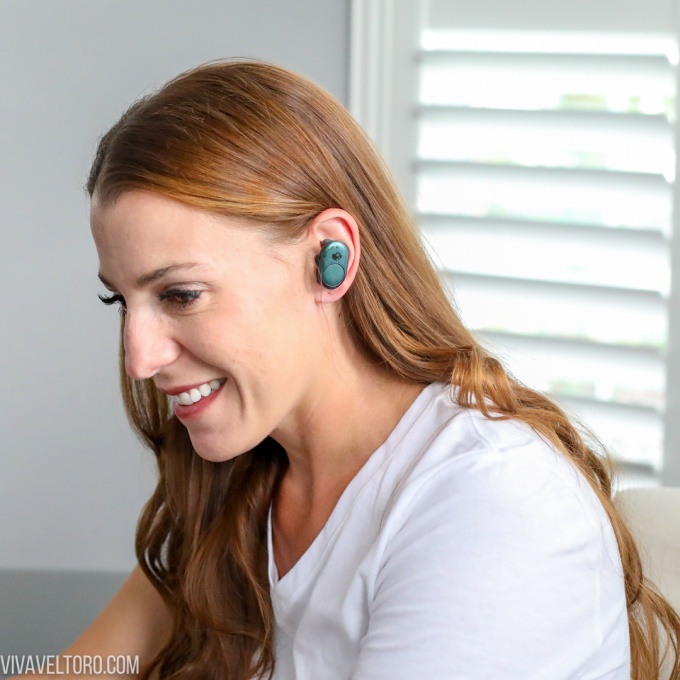
How to Fix Common Skullcandy Earbud Problems
Most connection issues have a simple cause. The earbuds may be out of battery, connected to another device, or unable to charge because the contacts are dirty.
Try these solutions:
Only One Earbud Works
Place both earbuds in the case and charge them for at least a few minutes. Then forget the Bluetooth connection and reset the earbuds using the instructions for your model.
Check that both earbuds show charging lights when placed in the case. If one light never appears, clean the contacts and inspect the case.
Earbuds Keep Disconnecting
Stay within the normal Bluetooth range and keep your phone nearby. Walls, crowded wireless areas, and other connected devices can affect the signal.
Turn Bluetooth off and on again. If the problem continues, restart your phone and update the Skullcandy app or earbud firmware.
Sound Is Too Quiet
Check the phone’s media volume and the earbud controls. Also inspect the speaker mesh for wax, dust, or debris.
Clean the mesh gently with a dry, soft brush. Avoid liquids, sharp objects, and compressed air held close to the speaker.
The Earbuds Will Not Turn On
Charge the case and earbuds. Confirm that the earbuds sit correctly on the charging contacts.
If the case has no lights and will not charge, try another cable and power adapter. Continued failure may indicate a battery or hardware problem that requires Skullcandy support.
Music Plays Through the Phone Speaker
Open the phone’s Bluetooth menu and select the Skullcandy earbuds as the audio output. On iPhone, tap the AirPlay audio icon; on Android, use the media output panel.
Also check that the earbuds are not connected to a different device nearby.
Tips for Better Sound and Comfort
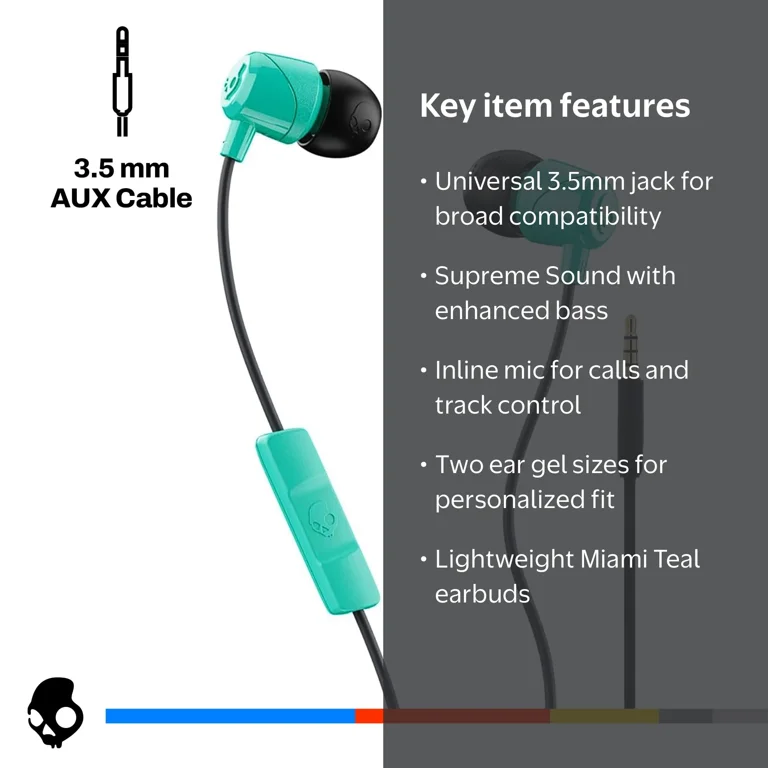
Good sound depends on more than the earbud brand. Fit, position, volume, and ear tip size all matter.
Try these practical tips:
• Twist each earbud gently into place
• Test every included ear tip size
• Keep the speaker opening pointed toward the ear canal
• Use the app equalizer only after testing the default sound
• Lower the volume when listening for long periods
• Clean the earbuds often
A tight seal can improve bass and reduce the need for high volume. However, a seal that feels painful is not a good fit.
The World Health Organization advises keeping personal listening devices at a safe volume and taking breaks. A useful habit is to listen at a comfortable level where you can still notice nearby sounds when safety requires it.

How to Use Skullcandy Earbuds Safely
Do not use noise cancellation or loud audio when you need full awareness, such as crossing streets or cycling near traffic. Use ambient mode when you need to hear your surroundings.
Keep the earbuds dry unless your exact model has a stated water-resistance rating. Water resistance does not always mean waterproofing, and protection can weaken with age or physical damage.
Never share earbuds without cleaning them first. Earwax and moisture can collect on the ear tips and speaker mesh.
If your ears hurt, itch, or ring after use, remove the earbuds and reduce listening time. Persistent symptoms should be discussed with a health professional.
Frequently Asked Questions About How to Use Skullcandy Earbuds
How do I put Skullcandy earbuds into pairing mode?
Open the case and remove both earbuds. Turn on Bluetooth, then select the Skullcandy model from the available device list. If it does not appear, return the earbuds to the case and follow the model-specific pairing instructions.
Why are my Skullcandy earbuds not connecting?
They may be connected to another phone, tablet, or computer nearby. Forget the old Bluetooth connection, turn Bluetooth off and on, then reset and pair the earbuds again if needed.
How do I control volume on Skullcandy earbuds?
Volume control depends on the model. Many use a press or press-and-hold command on the left or right earbud, while others require you to adjust volume on the connected phone or in the Skullcandy app.
Can I use only one Skullcandy earbud?
Many Skullcandy models support single-earbud use, but the exact behavior varies. Place the unused earbud in the case and connect the remaining earbud to your phone.
How do I reset Skullcandy earbuds?
First, forget the earbuds in your phone’s Bluetooth settings. Then use the button or touch-control reset process listed for your exact model, because reset steps differ across Skullcandy product lines.
How long do Skullcandy earbuds take to charge?
Charging time depends on the model and the battery level. Place the earbuds in the case and watch the LED indicator; use the product guide for the exact charging time and battery estimate.
Do Skullcandy earbuds work with iPhone and Android?
Yes, most Skullcandy Bluetooth earbuds work with both iPhone and Android devices. Some app features may vary by operating system and earbud model.
Conclusion
Learning how to use Skullcandy earbuds comes down to four habits: charge them, pair them correctly, learn the controls, and keep the app and firmware updated. A proper fit improves comfort and sound, while regular cleaning helps prevent charging and audio problems.
Start by pairing your earbuds in a quiet place, then test each control before using them on the go. If a problem appears, check the battery, Bluetooth connection, charging contacts, and model guide before assuming the earbuds are broken. Explore the official Skullcandy app for your model, and share your own setup tips or questions in the comments.
