How To Connect Beats Earbuds To Phone: Easy Pairing Guide
To connect Beats earbuds to an iPhone or Android phone in the United States, turn on Bluetooth, place the earbuds in pairing mode, and select them from your phone’s Bluetooth menu. On many Beats models, you can also open the charging case near an iPhone to see an automatic setup prompt.
The steps are similar for Beats Studio Buds, Beats Studio Buds+, Beats Fit Pro, Powerbeats, and other Beats wireless earbuds. The button location and reset method may vary by model.
Before You Connect Your Beats Earbuds
Before pairing, charge the earbuds and case, keep the earbuds near your phone, and disconnect them from other devices. A low battery or an old Bluetooth connection is a common reason pairing fails.
You will need:
- A charged pair of Beats earbuds
- The earbuds’ charging case, if your model uses one
- An iPhone or Android phone with Bluetooth
- The latest available phone software, when possible
- The Beats app for Android if your model supports app-based setup


Keep the phone and earbuds within a few feet of each other during setup. Remove the earbuds from a previous phone’s Bluetooth list only if they keep reconnecting to that device.
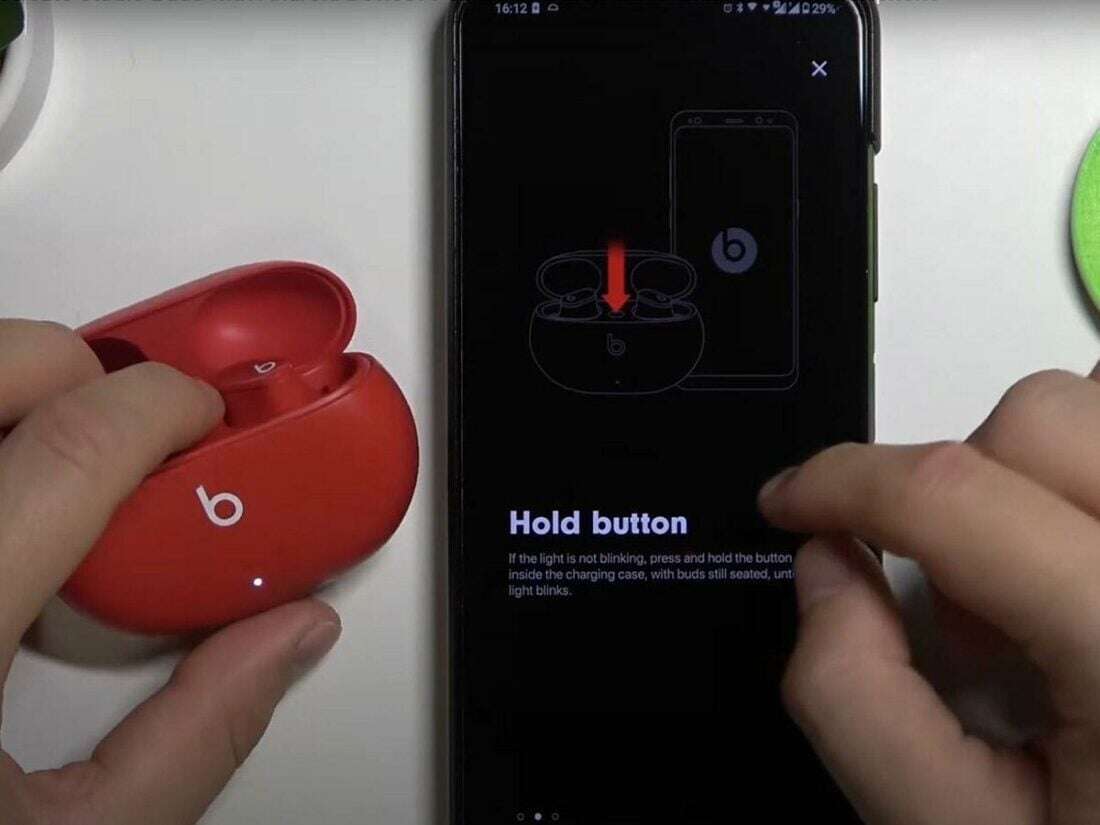
How to put Beats earbuds in pairing mode
Most Beats earbuds enter pairing mode when you:
- Place both earbuds in the charging case.
- Open the case lid.
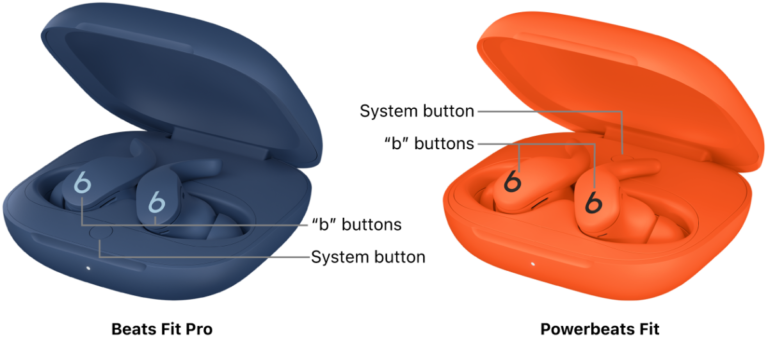
- Press and hold the case’s system button.
- Release the button when the status light flashes white.
A flashing white light usually means the earbuds are ready to pair. Some Beats headphones and Powerbeats models use a power or multifunction button instead. Hold that button until the indicator flashes or the device announces pairing mode.
If your light does not flash, place the earbuds back in the case, close the lid for a few seconds, and try again. Do not press buttons repeatedly while the earbuds are updating or charging.

How to Connect Beats Earbuds to an iPhone
The fastest method is to use the pairing prompt that appears when compatible Beats earbuds are close to an unlocked iPhone. If the prompt does not appear, pair the earbuds through Bluetooth Settings.
Method 1: Use the automatic Beats setup prompt
- Unlock your iPhone.
- Turn on Bluetooth by opening Settings > Bluetooth.
- Place both Beats earbuds in their case.
- Open the case near the iPhone.
- Follow the on-screen instructions.
- Tap Connect or the option shown on the screen.
- Finish any setup steps, such as enabling Find My or downloading firmware updates.
The automatic prompt may not appear every time. It can fail if the earbuds are already connected to another device, the case battery is low, or the iPhone is too far away.
Method 2: Pair through Bluetooth Settings
- Open Settings on your iPhone.
- Tap Bluetooth.
- Turn Bluetooth on.
- Put the Beats earbuds in pairing mode.
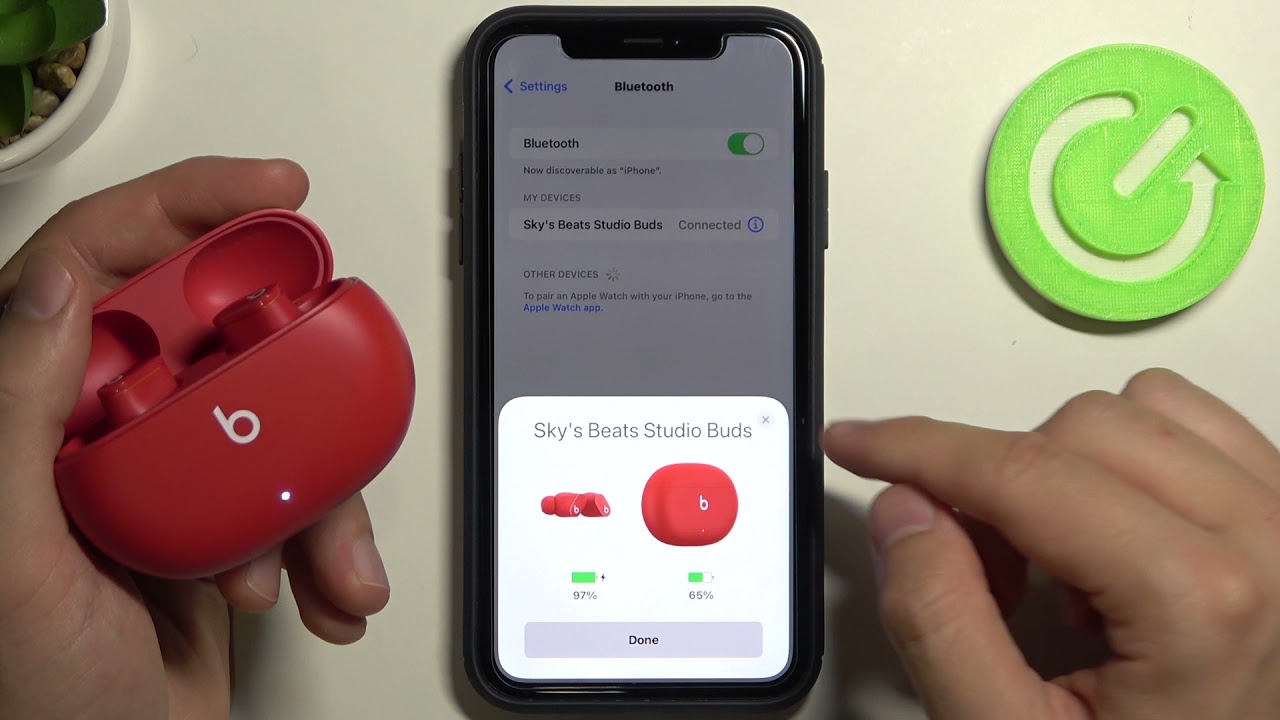
- Look under Other Devices.
- Tap the name of your Beats earbuds.
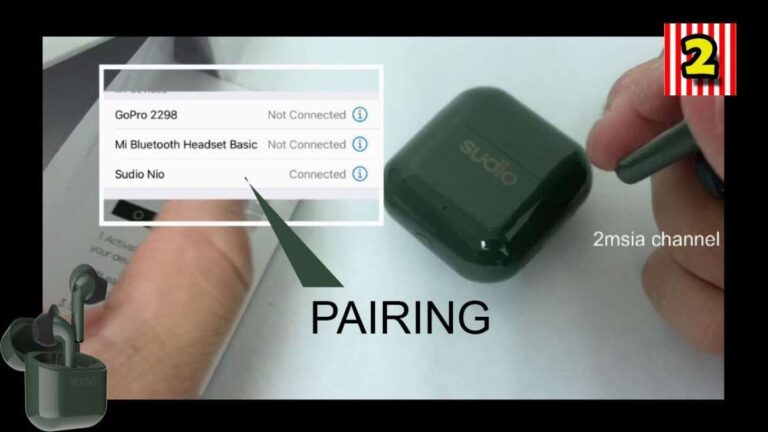
- Wait until the name moves to My Devices and shows Connected.
The exact name may include the model, such as “Beats Studio Buds” or “Beats Fit Pro.”
How to confirm the connection
Play music or a video after the earbuds show as connected. You should hear sound through the Beats earbuds. You can also open Control Center, tap the audio output button, and confirm that the Beats earbuds are selected.


If the connection works but sound comes from the iPhone speaker, tap the audio output icon in the playback controls and choose your Beats earbuds.

How to Connect Beats Earbuds to an Android Phone
Beats earbuds connect to Android phones through the standard Bluetooth menu. Some supported models also work with Google Fast Pair or the Beats app.
Pair Beats earbuds through Android Bluetooth
- Open Settings on your Android phone.
- Tap Connected devices, Connections, or Bluetooth. The label depends on the phone brand and Android version.
- Turn Bluetooth on.
- Put the Beats earbuds in pairing mode.
- Tap Pair new device if your phone shows that option.
- Select your Beats earbuds from the list.
- Approve the pairing request if Android displays one.
- Wait for the status to change to Connected.
Android phone menus vary. On Samsung Galaxy phones, Bluetooth is usually under Settings > Connections > Bluetooth. On Google Pixel phones, it is usually under Settings > Connected devices > Pair new device.
Use Google Fast Pair when available
Some Beats models support Google Fast Pair. When supported, place the earbuds in pairing mode near an Android phone with Bluetooth turned on. A setup notice may appear on the screen.
Tap the notice and follow the instructions. Fast Pair may require:
- A compatible Android phone
- Bluetooth turned on
- Location services enabled in some setup conditions
- An active Google account
- Updated Google Play services
If no Fast Pair notice appears, use the regular Bluetooth steps. The earbuds can still work without Fast Pair.
Use the Beats app on Android
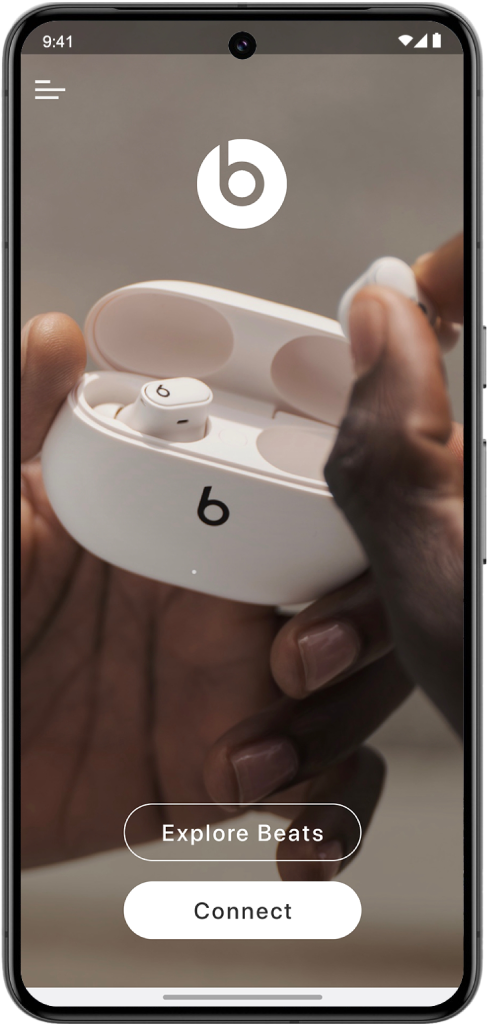
The Beats app can provide model-specific controls and software updates for supported Beats products. Download it from the Google Play Store, then open the app and follow its setup instructions.
The app is not required for basic Bluetooth audio on every Beats model. Pairing through Android’s Bluetooth settings is often enough to listen to music and make calls.

How to Reconnect Beats Earbuds After the First Pairing
After the first successful setup, Beats earbuds usually reconnect when you remove them from the case or turn them on. Keep Bluetooth enabled on the phone.
If they do not reconnect:
- Open the phone’s Bluetooth settings.
- Tap the Beats earbuds in the saved-device list.
- Wait for the status to show Connected.
- Check the phone’s audio output if sound still comes from the speaker.
If the earbuds connect to a different phone, turn off Bluetooth on that phone temporarily. Many wireless earbuds try to reconnect to the last device they used.
You may also need to choose the earbuds manually from the phone’s audio output menu. A Bluetooth connection and an audio-output selection are related, but they are not always the same setting.

What to Do If Beats Earbuds Will Not Connect
Start with the simplest checks. Most pairing problems come from the earbuds not being in pairing mode, another device claiming the connection, or an old saved Bluetooth record.


1. Check the battery
Put both earbuds in the case and confirm that the case has power. Charge the case with a compatible cable or charging method for your model.
If one earbud has no charge, the phone may show an incomplete connection or fail to finish setup.
2. Turn Bluetooth off and on
On the phone, turn Bluetooth off, wait about 10 seconds, and turn it on again. Then place the earbuds back into pairing mode.
Do not rely only on the quick settings button if it does not fully open Bluetooth settings. Open the phone’s complete Bluetooth menu and check that Bluetooth is active.
3. Move away from other connected devices
Turn off Bluetooth on nearby phones, tablets, computers, and televisions that have used the Beats earbuds. This prevents the earbuds from reconnecting to the wrong device.
Keep the phone close to the earbuds while pairing. Walls and other wireless devices can sometimes reduce connection reliability.
4. Forget the old Bluetooth record
If the phone sees the earbuds but will not connect, remove the saved pairing:
- Open Bluetooth settings.
- Tap the information, gear, or settings icon beside the Beats earbuds.
- Choose Forget, Unpair, or Forget This Device.
- Restart pairing mode on the earbuds.
- Select the earbuds again.
Forgetting the device removes the phone’s old Bluetooth record. It does not damage the earbuds.
5. Restart both devices
Restart the phone. Put the earbuds in their case, close the lid, wait briefly, and open it again. Then try pairing from the start.
This can clear a temporary Bluetooth process that prevents the phone from completing setup.
6. Reset the Beats earbuds only when needed
A reset can fix repeated pairing failures, but it also removes saved connections. Use the reset instructions for your exact Beats model.
Many Beats earbuds with a case reset by placing both earbuds inside, leaving the lid open, and holding the case button for about 15 seconds until the light flashes red and white. This method is not universal, so verify it in the official guide for your model before using it.
After a reset, forget the old Beats entry on the phone and pair the earbuds again.

Beats Earbuds Connected but No Sound
If the phone says the Beats earbuds are connected but you hear nothing, check the audio output first.


On an iPhone:
- Start playing audio.
- Open Control Center.
- Tap the audio output icon.
- Select the Beats earbuds.
On Android:
- Start playing audio.
- Open the media panel or volume controls.
- Select the output device.
- Choose the Beats earbuds.
Also check the volume on both the phone and earbuds. If calls work but music does not, open the Bluetooth settings for the earbuds and confirm that Media audio is enabled. If calls do not work, confirm that Phone calls or Call audio is enabled.
A phone may remember the Bluetooth connection but send audio to a speaker, car system, television, or another headset.

Beats Earbuds Keep Disconnecting
Frequent disconnections can result from low battery, distance, interference, outdated software, or a weak Bluetooth record.
Try these steps in order:
- Charge the earbuds and case.
- Keep the phone within a few feet during testing.
- Turn off Bluetooth on nearby devices.
- Forget and re-pair the Beats earbuds.
- Restart the phone.
- Install available phone, Beats, or app updates.
- Test the earbuds with another compatible phone.
If the earbuds disconnect with every device, the issue may involve the earbuds, case, battery, or hardware. If they work normally with another phone, the first phone’s Bluetooth settings or software may be the cause.
Avoid using a reset as the first step. It removes saved pairings and may not fix a range or hardware problem.
Can Beats Earbuds Connect to Two Phones?
Some newer Beats products support automatic switching or connection to more than one device, but the feature depends on the exact model, phone type, and software. Basic Bluetooth pairing does not always mean the earbuds can actively maintain two audio connections.
For a reliable connection, pair the earbuds with one phone first. If you want to use a second phone, place the earbuds in pairing mode again and select them from that phone’s Bluetooth menu.
If the earbuds keep switching devices, turn Bluetooth off on the phone or tablet that you are not using. This is often faster than repeatedly reconnecting the earbuds.
Can Beats Earbuds Connect to a Phone Without the Beats App?
Yes. Most Beats wireless earbuds can connect for basic audio through the phone’s Bluetooth settings. The Beats app may add features on supported Android devices, such as product information, controls, or updates.
An iPhone also does not always need a separate Beats app for basic pairing. The built-in Bluetooth menu and Apple’s device setup features may be enough, depending on the model.
The app cannot fix every connection problem. If the earbuds do not appear in Bluetooth, first check pairing mode, battery level, and old device connections.
Common Mistakes to Avoid
These mistakes often make a simple setup seem broken:


- Opening the case without entering pairing mode: The phone may not see the earbuds until the status light flashes.
- Leaving another phone nearby: The earbuds may reconnect to that phone instead.
- Pairing only one earbud: Keep both earbuds in the case during the first setup unless the model’s instructions say otherwise.
- Choosing the wrong Bluetooth entry: Select the Beats name, not an unrelated nearby device.
- Ignoring audio output: A phone can show “connected” while sending sound to its built-in speaker.
- Resetting too soon: A reset erases saved pairings and should usually come after charging, restarting, and forgetting the old device.
- Using an incorrect model guide: Beats earbuds do not all use the same buttons or reset steps.

Key Takeaways
- Turn on Bluetooth before pairing.
- Put the Beats earbuds in pairing mode until the light flashes white.
- Select the earbuds from the iPhone or Android Bluetooth menu.
- Use the automatic setup prompt on compatible iPhones when it appears.
- Use Google Fast Pair or the Beats app on supported Android phones.
- If pairing fails, charge the earbuds, disable nearby Bluetooth devices, forget the old pairing, and try again.
- Check the phone’s audio output if the earbuds connect but produce no sound.
- Use the official guide for your exact Beats model before resetting it.
Frequently Asked Questions
Why are my Beats earbuds not showing up in Bluetooth?
They may not be in pairing mode, may be connected to another device, or may have a low battery. Put both earbuds in the case, open the lid, and hold the case button until the light flashes white. Then refresh the phone’s Bluetooth device list.
How do I connect Beats earbuds after forgetting them?
Put the earbuds in pairing mode again, open the phone’s Bluetooth settings, and select the Beats name under available devices. Forgetting the device does not prevent future pairing.
Can I connect Beats earbuds to an iPhone and Android phone?
Yes. Beats earbuds use Bluetooth and can pair with both iPhones and Android phones. Some Apple-specific features and Android app features vary by model.
Why do my Beats earbuds connect but play no audio?
The phone may be sending sound to its speaker or another Bluetooth device. Open the audio output menu while music is playing and select the Beats earbuds. On Android, also confirm that Media audio is enabled for the Beats connection.
How do I reset Beats earbuds?
The reset process depends on the model. Many case-based Beats earbuds reset when you hold the case button with the earbuds inside and the lid open until the light changes color. Check the official instructions for the exact model before resetting.
Conclusion
Connecting Beats earbuds to a phone usually takes less than a minute: charge the earbuds, enter pairing mode, open Bluetooth settings, and select the Beats name. iPhone users may see an automatic setup prompt, while Android users can pair through Bluetooth or use Fast Pair when supported.
If the earbuds fail to connect, do not reset them right away. First check the battery, nearby devices, pairing mode, saved Bluetooth record, and audio output. Then use the model-specific reset guide if the basic steps do not work.
Official references
- Apple Support: Connect a third-party Bluetooth accessory to your iPhone or iPad
- Apple Support: If your Bluetooth accessory won’t connect to your iPhone or iPad
- Beats Support: Beats User Guides
- Google Android Help: Connect through Bluetooth on your Android device