

To connect true wireless earbuds, turn on Bluetooth, open the case, and select the earbuds from your device’s list.
learning how to connect true wireless earbuds is simple once you understand pairing mode, Bluetooth settings, and the role of the charging case. This guide covers phones, tablets, computers, common connection problems, and practical tips that make pairing quick and reliable.

What True Wireless Earbuds Are
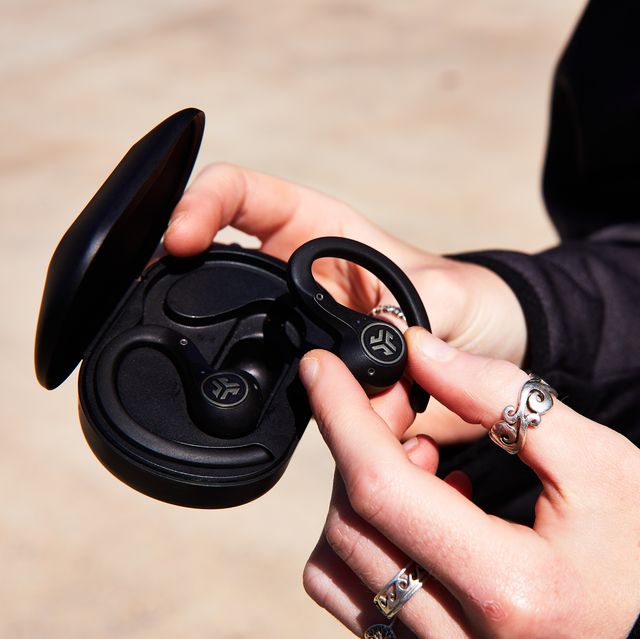
True wireless earbuds are small Bluetooth headphones with no cable between the left and right earbud. Each earbud has its own battery, speaker, microphone, and wireless connection. The charging case stores both earbuds and usually places them into pairing mode when you open it for the first time.
Most models use Bluetooth Classic or Bluetooth Low Energy features to communicate with your device. Newer earbuds may support Bluetooth 5.0 or later, but newer Bluetooth versions do not always guarantee better sound. Your phone, computer, operating system, and earbud design all affect performance.
Knowing how to connect true wireless earbuds starts with one key idea: the earbuds must be discoverable before your phone or computer can find them. Discoverable mode is often called pairing mode.
Prepare Your Earbuds Before Pairing
A few seconds of preparation can prevent most connection problems. Before you begin, check these points:
• Charge the earbuds and charging case. A low battery can stop pairing or cause repeated disconnections.
• Remove any thin plastic film covering the charging contacts. New earbuds often have this film in place.
• Keep the earbuds close to your device, ideally within 3 feet during setup.
• Turn off Bluetooth on nearby devices that have used the earbuds before. The earbuds may try to reconnect to them instead.
• Read the quick-start guide if your model uses a special button or touch gesture.
For many models, opening the case starts pairing mode. Others require you to press and hold the case button for a few seconds. A flashing white, blue, or red-and-blue light often confirms that the earbuds are ready.
In my experience testing and setting up wireless audio devices, the most common mistake is tapping the earbuds too early. If the case light is not flashing, the earbuds may still be asleep or connected to another device.

How to Connect True Wireless Earbuds to an iPhone
The process is similar for most iPhone models, including devices running recent versions of iOS.
- Place both earbuds in the charging case.
- Open the case and keep the earbuds inside.
- Press and hold the pairing button if the status light does not flash.
- Open Settings on your iPhone.
- Tap Bluetooth.
- Turn Bluetooth on.
- Wait for the earbud name to appear under Other Devices.
- Tap the name to connect.
- Remove the earbuds from the case and play audio to test them.
Some earbuds show a setup card on the iPhone. If it appears, tap Connect and follow the on-screen instructions. Apple earbuds may also connect through a dedicated pop-up, but the Bluetooth menu works for most brands.
If the earbuds appear under My Devices but show Not Connected, tap the name once. If they do not appear at all, place them back in the case, close the lid, wait 10 seconds, and try again.
When learning how to connect true wireless earbuds to an iPhone, do not pair each earbud as a separate device unless the manufacturer specifically requires it. Most modern models use one Bluetooth name for the complete set.
How to Connect True Wireless Earbuds to an Android Phone
Android menus can look different between Samsung, Google, Motorola, OnePlus, and other phones. The basic Bluetooth process remains much the same.
- Put both earbuds in the charging case.
- Open the lid.
- Activate pairing mode by holding the case button or earbud touch controls.
- Open Settings on your Android phone.
- Tap Connected devices, Connections, or Bluetooth.
- Select Pair new device if needed.
- Tap your earbuds when their name appears.
- Accept the pairing request.
Some Android phones display a Fast Pair notification. If you see it, tap Connect. This can save time, but standard Bluetooth pairing is still available if the notification does not appear.
If you only hear sound from one earbud, place both earbuds in the case and close the lid. Then remove them together. This often allows the left and right earbuds to sync before they connect to the phone.
Android may also ask for permission to access nearby devices. This permission helps the phone scan for Bluetooth products. Grant it during setup if your phone requests it.

How to Connect True Wireless Earbuds to a Windows PC
True wireless earbuds can connect to a Windows laptop or desktop for music, video calls, and games. The steps may vary slightly between Windows 10 and Windows 11.
- Put the earbuds into pairing mode.
- Open Settings on your Windows computer.
- Select Bluetooth & devices.
- Turn Bluetooth on.
- Click Add device.
- Choose Bluetooth.
- Select the earbuds from the list.
- Click Done after the connection finishes.
Once connected, click the speaker icon in the Windows taskbar. Select the earbuds as the sound output device. For calls, also check the microphone setting in the video meeting app.
Windows may list two audio choices for the same earbuds. One may be labeled Stereo, while the other may say Hands-Free or Headset. Stereo usually provides better music quality. Hands-Free mode activates the microphone but can reduce sound quality.
If you are learning how to connect true wireless earbuds on a work computer, company Bluetooth restrictions may affect setup. In that case, contact your workplace support team rather than installing unknown drivers or software.

How to Connect True Wireless Earbuds to a Mac
Mac computers usually make Bluetooth pairing easy.
- Place the earbuds in pairing mode.
- Click the Apple menu.
- Open System Settings.
- Select Bluetooth.
- Find the earbuds under Nearby Devices.
- Click Connect.
- Open the sound menu and choose the earbuds if audio does not switch automatically.
On older macOS versions, Bluetooth appears inside System Preferences. The names may differ, but the steps are still similar.
For calls, open System Settings, select Sound, and choose the earbuds for both input and output. Remember that using the earbud microphone may change the sound profile during a call.

How to Connect True Wireless Earbuds to a Tablet or Smart TV
The same Bluetooth method usually works with tablets. Open the Bluetooth settings, activate pairing mode, and select the earbuds. Keep the case near the tablet until the connection is complete.
Smart TVs can be more selective. Some TVs support Bluetooth audio, while others only support Bluetooth accessories such as remote controls. Check the TV’s sound or device menu for a Bluetooth speaker option.
To connect true wireless earbuds to a smart TV:
- Put the earbuds into pairing mode.
- Open the TV’s Settings menu.
- Select Sound, Audio Output, or Bluetooth Speaker List.
- Choose the earbuds.
- Confirm the connection.
- Test the audio and adjust the TV volume.
TV Bluetooth connections may have a slight delay. This delay can make a person’s voice appear out of sync with their lips. Some TVs include an audio delay control, but the best fix may be earbuds and a TV that support a low-latency feature.
How to Put Earbuds Into Pairing Mode
Pairing mode is the state that lets a new device find your earbuds. The exact method depends on the brand and model, but these methods are common:
• Open the charging case with both earbuds inside.
• Press and hold the case button for 3 to 5 seconds.
• Remove both earbuds and hold their touch panels at the same time.
• Hold the power button on one earbud until the indicator flashes.
• Reset the earbuds if they refuse to enter pairing mode.
A flashing light usually signals pairing mode. Some models use voice prompts instead. If you hear “pairing” or “ready to connect,” open your device’s Bluetooth menu.
Do not hold the controls for too long unless you intend to reset the earbuds. On some models, a long press can power them off or erase stored connections.
How to Fix Earbuds That Will Not Connect
Bluetooth pairing can fail for simple reasons. Work through these fixes in order.
Check the battery
Charge the case and both earbuds for at least 15 minutes. Clean the metal charging contacts with a dry cotton swab if one earbud does not charge.
Move away from other Bluetooth devices
A nearby phone, laptop, car stereo, or tablet may connect first. Temporarily turn off Bluetooth on those devices and try again.
Forget and pair again
Open your device’s Bluetooth menu. Tap the settings icon beside the earbuds, choose Forget, Remove, or Unpair, and then restart the pairing process.
Restart both devices
Turn Bluetooth off and back on. If that does not help, restart the phone or computer and place the earbuds back in their case.
Reset the earbuds
Many models reset when you hold the case button for 10 to 15 seconds. The light may flash several times. Check the product guide because reset steps are not universal.
Update the software
Install available updates for your phone, computer, or earbud app. Updates can improve Bluetooth stability, battery reporting, and device compatibility. Download firmware only through the manufacturer’s official app or support page.
A lesson I have seen repeatedly is that resetting should not be the first step. It removes saved settings and can create extra work. Try charging, forgetting the device, and restarting Bluetooth first.
How to Reconnect Earbuds Automatically
After the first successful pairing, most earbuds reconnect automatically. Put both earbuds in the case, open the lid near the same phone, and wait a moment. The phone should connect if Bluetooth is on and the earbuds are not already linked to another device.
Automatic reconnection may fail when:
• The phone’s Bluetooth is off.
• The earbuds are connected to a laptop or tablet.
• The earbuds are out of battery.
• The phone has removed the saved pairing.
• Multipoint connections are active.
Multipoint Bluetooth lets some earbuds connect to two devices at the same time. It is useful when moving between a phone and laptop, but it can also cause confusion. Turn off Bluetooth on the second device if you want to connect to only one source.
To connect true wireless earbuds after using them with another product, disconnect them from the old device first. You usually do not need to pair them again unless you selected Forget or Reset.
How to Connect Only One Earbud
Many true wireless earbuds support single-earbud use. This is helpful when you want to hear traffic, talk to someone, or extend battery life.
Start by pairing both earbuds normally. Then place one earbud in the case and keep the other in your ear. The remaining earbud should continue playing.
If one earbud will not work alone, check the manufacturer’s app or manual. Some budget models require both earbuds to connect as a pair. Others need a reset before single-earbud mode works correctly.
When only one side produces sound, also check your device’s audio balance. On an iPhone, open Accessibility and Audio/Visual. On Android, look for hearing or audio settings. A balance slider moved too far left or right can make one earbud seem broken.
Tips for Better Bluetooth Performance
A stable connection depends on more than the initial pairing. Use these habits for better results:
• Keep your phone within about 30 feet in open space, though walls and metal can reduce that range.
• Avoid covering the phone with a thick metal case during use.
• Keep the earbuds and charging contacts clean and dry.
• Store the earbuds in their case when you are not using them.
• Avoid pairing with many unfamiliar devices.
• Keep the earbud app and device software updated.
• Use the correct audio output when switching between speakers, a car, and earbuds.
Bluetooth signals can weaken around crowded wireless areas. Airports, gyms, offices, and apartment buildings may have many nearby devices. If your earbuds cut out in one place but work well at home, interference may be the reason.
Bluetooth also does not pass well through the human body. Keeping your phone in a back pocket can create more dropouts than keeping it in a front pocket or bag on the same side as the main earbud.
Bluetooth Safety and Privacy
Pair earbuds only with devices you recognize. If an unknown pairing request appears, decline it. Bluetooth connections use security measures, but safe habits still matter.
Keep your device software current. Updates can fix security issues and improve compatibility. Avoid downloading unofficial firmware or pairing tools from random websites.
Wireless earbuds are generally safe for normal use, but loud sound can damage hearing. The World Health Organization advises keeping listening levels moderate and taking breaks. If you need to raise the volume often, the earbuds may not fit well or may not seal outside noise properly.
Earbud fit also affects call quality. A loose fit can make microphones pick up more background sound. Try the included ear tips and choose the size that feels secure without pressure.
Frequently Asked Questions About How to Connect True Wireless Earbuds
Why are my true wireless earbuds not showing up in Bluetooth?
Make sure the earbuds are charged and in pairing mode. If they still do not appear, turn off Bluetooth on nearby devices, restart your phone, and reset the earbuds according to the manufacturer’s instructions.
Can I connect true wireless earbuds to two devices?
Some models support multipoint Bluetooth, which allows two active connections. If your earbuds do not support multipoint, you must disconnect them from one device before pairing them with another.
How do I connect true wireless earbuds after replacing my phone?
Open Bluetooth settings on the new phone and place the earbuds in pairing mode. Select their name from the available devices, and remove the old phone from the earbud app if the model limits saved connections.
Why is only one earbud connecting?
The earbuds may have lost their left and right sync, or one side may not be charged. Put both earbuds in the case, charge them, forget the Bluetooth connection, and pair them again.
Do true wireless earbuds work with every phone?
Most true wireless earbuds work with phones that support Bluetooth audio. However, some advanced features, such as fast pairing, spatial audio, or battery widgets, may work only with certain phones or operating systems.
How do I reset true wireless earbuds?
The reset method depends on the model. A common method is holding the case button for 10 to 15 seconds, but you should confirm the exact steps in the product guide before resetting.
Conclusion
Connecting true wireless earbuds usually takes three steps: charge them, place them in pairing mode, and select them in your device’s Bluetooth menu. The same basic method works with iPhones, Android phones, Windows PCs, Macs, tablets, and many smart TVs.
If pairing fails, stay calm and check the battery, nearby devices, saved Bluetooth connections, and earbud sync. With these steps, you can connect true wireless earbuds faster and avoid the most common setup mistakes. Try the process with your earbuds today, and share your model or question in the comments for more practical Bluetooth help.
