

Check the M.2 size, key notch, slot type, mounting screw, and orientation before applying any pressure.
An M.2 SSD should slide into its connector at a slight angle and lie flat after you secure it with the correct standoff and screw. If it does not fit, the usual cause is a mismatch in size, key type, interface, or installation direction—not a defective drive.
This guide explains how to troubleshoot M 2 SSD not fitting in slot with safe, practical steps. It also covers common mistakes, motherboard compatibility, damaged connectors, heatsinks, and the point where you should stop and seek professional help.
How to troubleshoot M 2 SSD not fitting in slot safely
First, shut down the computer completely. Unplug the power cable, switch off the power supply if your desktop has one, and hold the power button for a few seconds to discharge leftover power.
Touch an unpainted metal part of the case before handling the drive. Static electricity is not always visible, but it can damage sensitive computer parts.
Use this simple process:
- Remove the M.2 SSD from the slot.
- Inspect the connector and the slot under good light.
- Check the SSD length and key notch.
- Read the motherboard or laptop manual.
- Confirm that the standoff is in the correct position.
- Reinsert the SSD at a 20 to 30-degree angle.
- Press it down gently only after the connector is fully engaged.
- Secure it with the correct screw.
Never push an M.2 SSD straight down into the socket. The edge connector must enter the slot first, much like inserting a key before turning a lock.
If the drive stops halfway, remove it and start again. Repeated pressure can bend the circuit board or damage the small contacts inside the M.2 socket.

Check the M.2 SSD size
M.2 drives use a naming system based on their width and length. The most common size for desktop and laptop SSDs is M.2 2280.
The first two digits show the width in millimeters. The last two digits show the length.
Common sizes include:
• M.2 2230: 22 mm wide and 30 mm long
• M.2 2242: 22 mm wide and 42 mm long
• M.2 2260: 22 mm wide and 60 mm long
• M.2 2280: 22 mm wide and 80 mm long
• M.2 22110: 22 mm wide and 110 mm long
A shorter SSD may fit a longer slot if the motherboard has the correct mounting hole. A longer SSD cannot fit if the board lacks a matching standoff.
Look for labels such as 2230, 2242, 2260, or 2280 near the screw holes. Some motherboards support several lengths. Others support only one.
When learning how to troubleshoot M 2 SSD not fitting in slot, size is one of the first checks to make. A 2280 drive in a laptop designed only for a 2230 drive may physically reach beyond the available space.
Do not drill new holes, move permanent standoffs, or leave a long SSD unsupported. The circuit board can flex when the screw is tightened.
Inspect the M.2 key notch
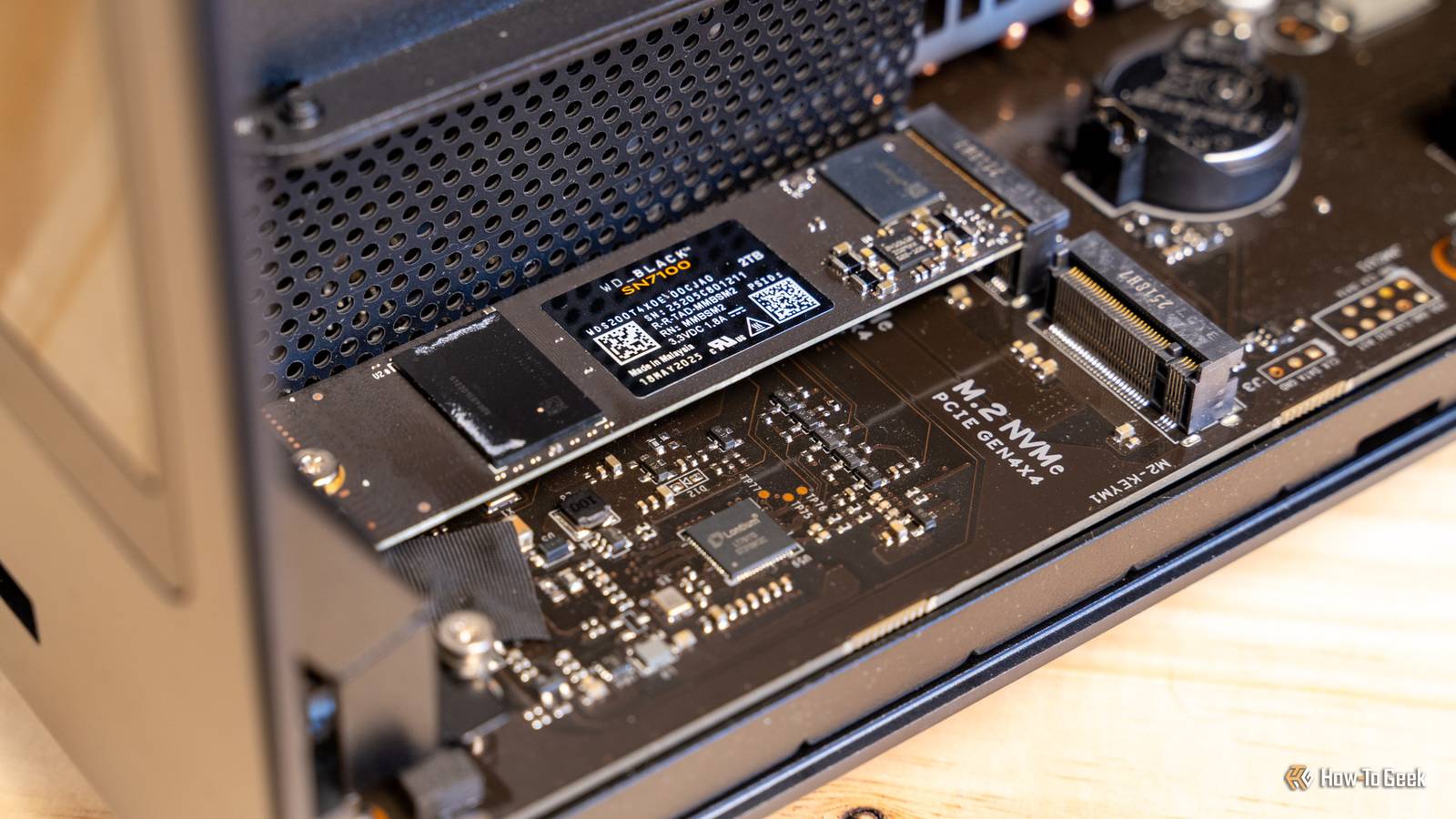
The notch on an M.2 SSD is called its key. It controls how the drive fits into the socket and helps identify its supported interface.
The most common key types are:
• B key: Often used with SATA or PCIe x2 devices
• M key: Common on PCIe NVMe drives
• B and M key: Has two notches and may support wider compatibility
A slot may also be labeled with a key type. Compare the notch on the SSD with the guide inside the socket.
An M-key NVMe SSD will not correctly fit a B-key-only socket. A B-and-M-key SATA drive may physically fit an M-key socket, but physical fit does not guarantee that the drive will work.
This is an important point when you troubleshoot M 2 SSD not fitting in slot: matching shape and matching technology are separate issues. A drive can slide into a slot and still remain undetected because the slot supports NVMe but not SATA, or the reverse.
Never remove, file, or modify the notch. The key is part of the electrical and mechanical design.

Confirm the slot supports your SSD type
M.2 describes the shape of the device. It does not describe the storage protocol by itself.
An M.2 SSD may use:
• SATA
• PCI Express with NVMe
• PCI Express with AHCI on some older devices
Most modern high-speed M.2 drives use NVMe over PCIe. Older or budget drives may use the SATA protocol.
Check the motherboard manual for wording such as:
• M.2 SATA
• M.2 PCIe
• PCIe x4
• NVMe
• SATA and PCIe support
• Shared bandwidth with SATA ports
Some M.2 slots accept both SATA and NVMe drives. Others accept only one type. A slot labeled “M.2 PCIe” may not recognize an M.2 SATA SSD even if the connector looks correct.
This compatibility check is central to how to troubleshoot M 2 SSD not fitting in slot. If the drive does not physically enter the slot, inspect the key and orientation first. If it fits but does not appear in BIOS, check the supported protocol next.
Motherboard manuals are more reliable than product photos or online listings. Manufacturers often use similar socket designs across models, but the supported interfaces can differ.

Insert the SSD at the correct angle
An M.2 SSD should enter the connector at a slight angle, usually around 20 to 30 degrees. The gold contacts should slide into the socket smoothly.
Follow these steps:
- Hold the SSD by its edges.
- Line up the notch with the socket key.
- Insert the gold contacts into the connector.
- Keep the drive raised at an angle.
- Lower the free end toward the standoff.
- Secure the drive with the correct screw.
The SSD may feel loose before the screw is installed. That is normal. It should not lie flat before it enters the connector.
If the drive sits flat but the contacts are not inside the socket, stop. It is not installed correctly.
A common mistake I’ve seen during PC upgrades is trying to install the drive like a desktop memory module. RAM presses straight down, but an M.2 SSD slides in first and lowers second. Treating both parts the same can damage the slot.
This installation angle is a key part of how to troubleshoot M 2 SSD not fitting in slot without causing damage.

Check the standoff and mounting screw
The standoff supports the far end of the M.2 SSD. It must match the drive’s length.
For example, a 2280 SSD usually needs a standoff at the 80 mm mounting point. If the standoff is set at 42 mm, the drive may not reach the screw hole. If an extra standoff sits under the circuit board, it may prevent the SSD from lying flat.
Inspect the mounting area for:
• A standoff at the correct length
• A small M.2 screw
• A missing or loose screw
• An extra standoff under the SSD
• A plastic latch or tool-free clip
• A heatsink covering the mounting point
Do not use a thick case screw or a random motherboard screw. The wrong screw can damage the drive or prevent it from sitting level.
Some newer motherboards use a tool-free latch instead of a screw. Read the manual before removing or turning the latch. Forcing the latch can break its plastic post.
If the SSD fits the connector but will not lower into place, the standoff is often the reason. This is one of the most useful checks when you troubleshoot M 2 SSD not fitting in slot.
Remove the M.2 heatsink and protective film
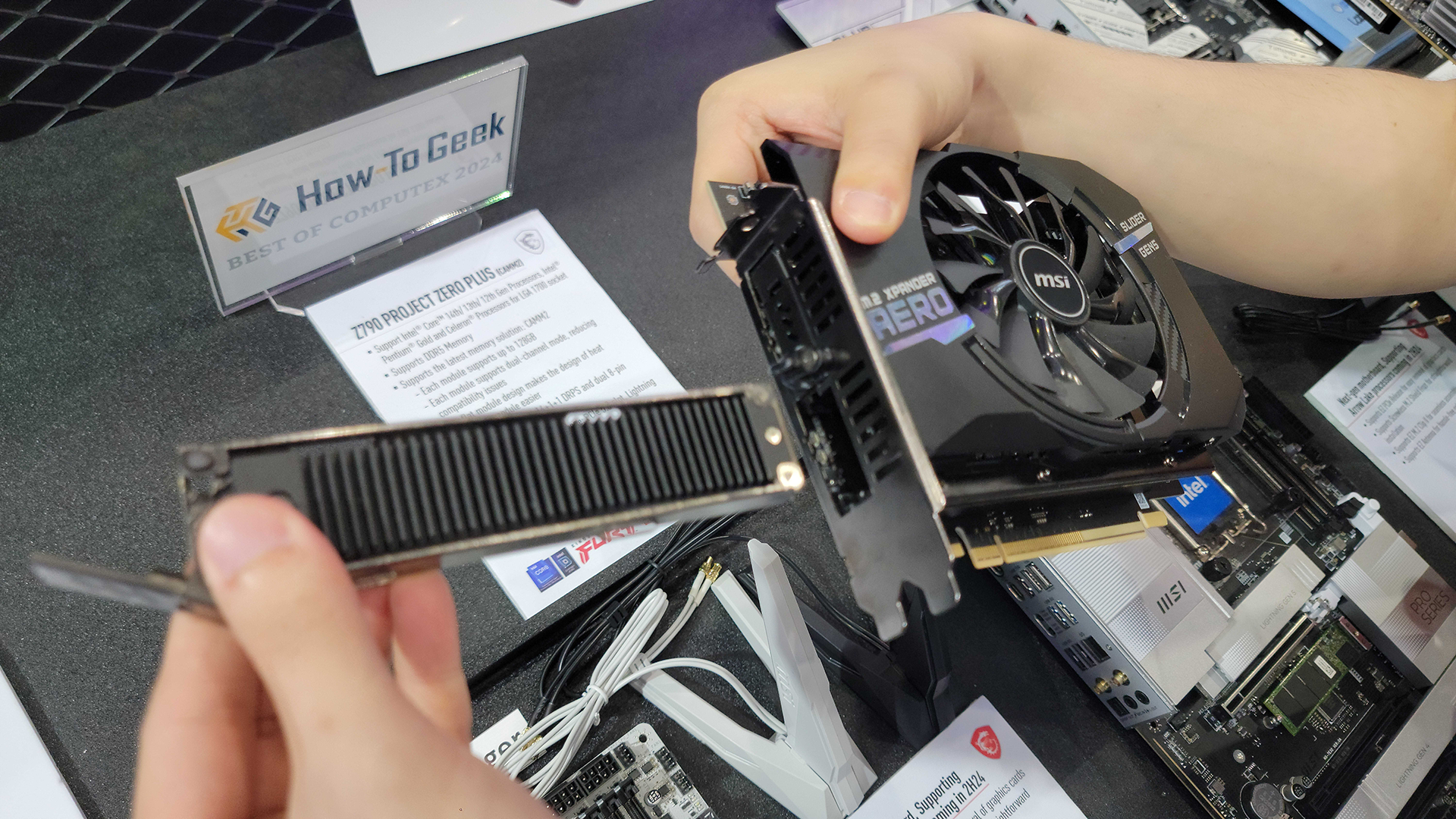
Many motherboards include a metal M.2 heatsink. It may cover the slot, screw area, or thermal pad.
Remove the heatsink before installing the SSD. Check whether the thermal pad has a clear plastic film on it. The film must be removed before the heatsink is installed, but do not remove the pad itself.
Also inspect the SSD for:
• A factory label
• A separate heatsink
• A thick thermal cover
• A raised controller or memory chip
• A protective film over the contacts
Do not stack a motherboard heatsink over a tall SSD heatsink unless the manufacturer allows it. Excess pressure can bend the SSD or affect the connector.
Some SSDs with large cooling covers are designed for desktop systems. They may not fit inside thin laptops or under a motherboard heatsink.
If the drive appears too tall rather than too long, the problem is likely a heatsink or cover. This distinction makes how to troubleshoot M 2 SSD not fitting in slot much easier.

Check the motherboard slot for damage
Use a flashlight to examine the M.2 socket. Look for bent contacts, broken plastic, dust, or debris.
A healthy socket should be firmly attached to the motherboard. It should not move when you gently touch the outer plastic. Do not insert metal tools into the connector.
Signs of possible damage include:
• Bent or missing contacts
• A cracked socket shell
• A loose connector
• Burn marks
• Scratches near the slot
• A standoff that is torn from the motherboard
• An SSD that fits only when held at an unusual angle
Compressed air can remove loose dust, but keep the can upright and use short bursts. Do not use a vacuum cleaner directly on the motherboard, and do not scrape the socket.
If the connector looks damaged, stop testing. A repair shop can inspect the socket with magnification and determine whether the board needs replacement or microsoldering work.
When people ask how to troubleshoot M 2 SSD not fitting in slot, they often focus only on the SSD. The motherboard socket deserves equal attention.
Test the SSD in the correct slot
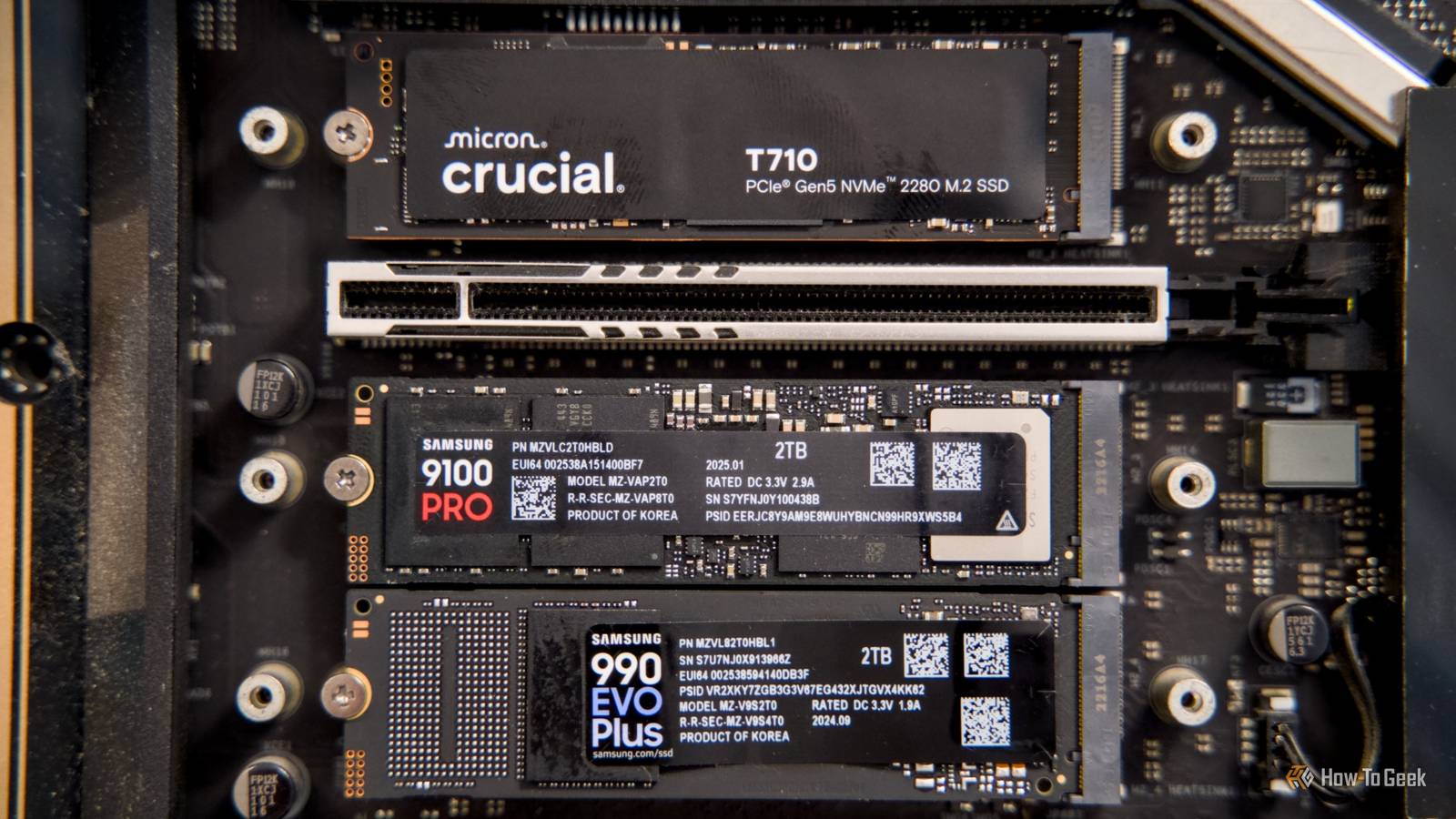
Some motherboards have two or more M.2 sockets. They may not support the same drive types or lengths.
The top slot may connect directly to the processor and support PCIe 4.0 or PCIe 5.0. A lower slot may connect through the chipset and support fewer lanes. Some slots may share bandwidth with SATA ports or PCIe expansion slots.
Read the labels printed on the board and compare them with the manual. Pay attention to notes about:
• CPU-connected and chipset-connected slots
• NVMe-only slots
• SATA-only slots
• Shared SATA ports
• Disabled PCIe slots
• Supported SSD lengths
• Boot support
If the drive physically fits one slot but not another, that can be normal. Socket designs and mounting points may differ.
Testing a compatible SSD in the same slot can help separate a drive problem from a motherboard problem. Test one change at a time and power down before moving the drive.
This method is useful when you troubleshoot M 2 SSD not fitting in slot because it prevents guesswork.
Laptop-specific M.2 fit problems
Laptop M.2 slots are less flexible than desktop slots. The internal space may support only one length, such as 2230 or 2280.
A laptop may also use a proprietary bracket, a tiny screw, or a cable that blocks access. Some thin computers use an M.2 drive with a different key or a nonstandard connector.
Before opening a laptop, check:
• The exact laptop model
• The supported M.2 length
• The supported SATA or NVMe protocol
• The maximum drive thickness
• Whether a bracket is required
• Whether the battery should be disconnected
Do not force the drive beneath a cable or metal shield. Route cables as they were originally placed. A cable pressed against the SSD can cause heat, wear, or a short circuit.
I once saw a laptop upgrade fail because the owner bought a normal 2280 drive for a system designed for a short 2230 module. The drive was not faulty. It simply had no room for the mounting hole or the enclosure.
Laptop service manuals and manufacturer specifications are especially important when you troubleshoot M 2 SSD not fitting in slot.
What to do if the SSD fits but is not detected
A fitting problem and a detection problem are different. If the SSD enters the slot and is secured correctly, check BIOS or UEFI before changing operating system settings.
Enter firmware setup by pressing the required key during startup. Common keys include Delete, F2, F10, or Esc, but the correct key depends on the computer.
Check whether the drive appears under:
• Storage information
• NVMe configuration
• SATA configuration
• Boot devices
• Advanced device settings
If the drive appears in BIOS but not in Windows, it may need initialization and partitioning in Disk Management. Initializing a new drive can erase existing data, so confirm that the SSD is empty before proceeding.
If it does not appear in BIOS:
- Confirm the slot supports the SSD protocol.
- Reseat the drive.
- Update the motherboard firmware if appropriate.
- Try another compatible slot.
- Test the SSD in another computer or enclosure.
- Check for disabled ports or shared lanes.
Do not update firmware during an unstable power event. Follow the manufacturer’s instructions and keep a backup of important data.
These steps help you troubleshoot M 2 SSD not fitting in slot and distinguish a physical issue from a firmware or operating system issue.
Mistakes to avoid during installation
Small mistakes can create large problems. Slow down and avoid these common errors:
• Forcing the wrong key into the slot
• Installing the SSD upside down
• Pressing it straight down instead of inserting it at an angle
• Tightening the screw before the contacts are fully inserted
• Using the wrong standoff position
• Leaving protective film on a thermal pad
• Stacking incompatible heatsinks
• Using a screw that is too long
• Touching the gold contacts
• Working while the system is still connected to power
• Ignoring the motherboard manual
• Assuming every M.2 slot supports NVMe and SATA
The most expensive mistake is forcing the SSD. An M.2 connector is small, but it is not designed to absorb much sideways pressure.
When you troubleshoot M 2 SSD not fitting in slot, patience is a practical tool. A five-minute inspection can prevent a damaged drive, socket, or motherboard.
When to replace the SSD or motherboard
Replace the SSD only after confirming that the slot, size, key, and protocol are correct. A drive that does not physically fit is rarely fixed by software.
Consider professional repair when:
• The socket is loose or cracked
• Contacts are bent
• The board has burn marks
• The drive was forced into the slot
• The mounting post has broken away
• The SSD works in another system but not yours
• The computer shuts down when the drive is installed
If an SSD fits correctly but fails in several known-good systems, it may be defective. Keep purchase records and check the warranty before opening or modifying the drive.
The manufacturer’s manual is the best authority for compatibility. Retail listings can contain errors, especially when several revisions of a motherboard use similar names.
Frequently Asked Questions
Why does my M.2 SSD not fit into the slot?
The SSD may have the wrong key, length, or orientation. It may also be an M.2 SATA drive for an NVMe-only slot, or the slot may have a damaged connector.
Can I force an M.2 SSD into the slot?
No. The notch must align with the socket key, and the drive should slide in with light, even pressure. Forcing it can bend contacts or crack the connector.
Should an M.2 SSD lie flat before I install the screw?
No. Insert the SSD at an angle first, then lower it onto the correct standoff. The screw holds the free end down after the connector is fully engaged.
Will every M.2 SSD work in every M.2 slot?
No. M.2 slots can support different sizes, keys, and protocols. Check whether the slot supports SATA, NVMe, or both before buying or installing a drive.
What does 2280 mean on an M.2 SSD?
The number means the drive is 22 millimeters wide and 80 millimeters long. A motherboard or laptop must have an 80 mm mounting point for the drive to fit securely.
Why does my M.2 SSD fit but not show in BIOS?
The slot may not support the SSD’s protocol, the drive may need to be reseated, or the firmware may need an update. A faulty SSD or motherboard slot is also possible.
Can I install a shorter M.2 SSD in a longer slot?
Often, yes, if the motherboard has a matching mounting hole and supports that drive size. The SSD must be secured so it does not flex or move.
Conclusion
Troubleshooting an M.2 SSD that does not fit starts with four checks: size, key notch, interface, and mounting position. Insert the drive at an angle, use the correct standoff, remove conflicting heatsinks, and never force the connector.
If the SSD fits but is not detected, move on to BIOS settings, slot compatibility, firmware, and testing in another system. Follow the motherboard or laptop manual closely, and stop immediately if you see bent contacts or a loose socket.
Use these steps to install your drive with confidence, then explore your manufacturer’s support resources or share your results in the comments.
