

Update drivers, free space, enable TRIM, check temperatures, and test hardware to restore normal SSD write speed.
Slow SSD write speed can make file transfers, game installs, backups, and system updates feel far slower than expected. The cause may be simple, such as a nearly full drive or a bad cable, but it can also point to thermal throttling, worn flash memory, an incorrect BIOS setting, or a failing SSD. This guide explains how to fix slow SSD write speed with safe tests and practical fixes for Windows, macOS, and Linux.
Why SSD write speed becomes slow
An SSD does not write every file in one simple step. It must manage flash cells, erase old data, move blocks, update its mapping table, and protect data from sudden power loss. As the drive fills or handles more data, these tasks can take longer.
A new SSD may also show a high burst speed during a short benchmark. That speed often comes from a fast SLC cache. After the cache fills, the drive may write directly to slower NAND memory. This is why a drive rated for 5,000 MB/s may later write at a much lower sustained speed.
Common causes include:
• The SSD has less than 10% to 20% free space.
• The drive is hot and has reduced its speed to prevent damage.
• The SSD uses a full or exhausted SLC cache.
• TRIM is disabled or not working.
• The NVMe drive is installed in a slower slot.
• A SATA cable, USB enclosure, or adapter is limiting performance.
• The SSD firmware, chipset driver, or BIOS is outdated.
• The drive is connected through a SATA II port or a slow USB port.
• Background tasks are using the drive.
• The SSD has high wear, bad blocks, or other health problems.
The first step in how to fix slow SSD write speed is to identify whether the problem affects short bursts, long transfers, or every type of write. That difference points to the correct solution.
Test your SSD before changing anything
Do not change several settings at once. First, create a backup of important files. Some troubleshooting steps are safe, but a drive that is already failing can become inaccessible without warning.
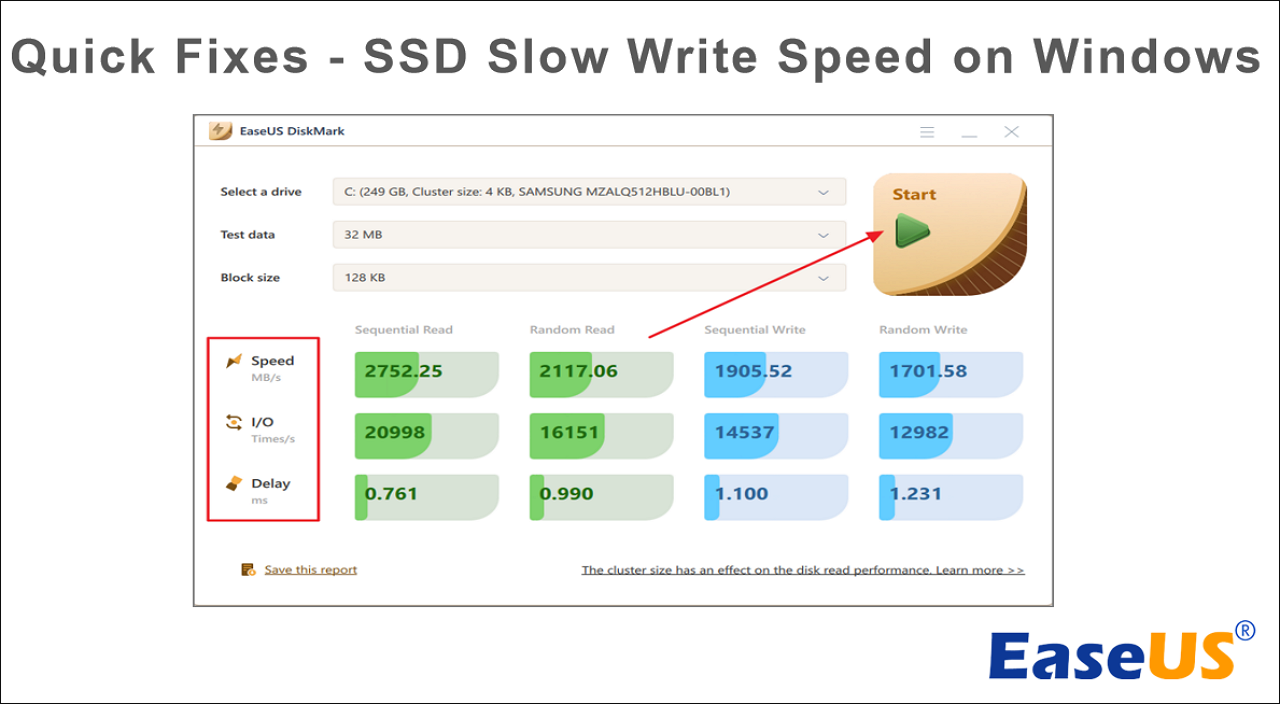
Use a trusted benchmark tool and record both read and write results. Run one short test and one larger test. A large test is useful because it can fill the SSD cache and reveal the real sustained write speed.
Check these details during testing:
• Note the drive model and rated interface speed.
• Test with at least 20% free space when possible.
• Close game launchers, cloud sync tools, and backup programs.
• Run the test more than once, but avoid repeated tests on a failing drive.
• Watch the SSD temperature with the drive maker’s software or a trusted hardware monitor.
• Test a single large file and many small files if your normal workload includes both.
Windows users can check drive activity in Task Manager. Open Task Manager, select Performance, and choose the SSD. If Active time stays near 100% while write speed remains low, another process may be creating a bottleneck.
For a basic health check, use the SSD maker’s utility or a SMART reader. SMART data can show temperature, percentage used, media errors, and unsafe shutdowns. A healthy status does not guarantee perfect performance, so combine the result with error logs and real tests.
Free space and enable TRIM
Keeping an SSD nearly full is one of the most common reasons for slow SSD write speed. The controller needs spare blocks to write new data and clean old blocks in the background. When little space remains, it has fewer options and must move more data before completing each write.
Try to keep at least 10% free space. For a drive used for video editing, virtual machines, or large game installs, 20% may provide better sustained performance.
Remove or move files such as:
• Large downloads and installation files
• Old system restore points
• Unused games and applications
• Duplicate photos and videos
• Temporary files
• Local cloud storage that you no longer need
Do not fill the drive again immediately after cleaning it. Run another sustained write test and compare the result.
TRIM tells the SSD which data blocks are no longer in use. This helps the controller prepare those blocks before new data arrives.
In Windows, open Command Prompt as an administrator and run:
fsutil behavior query DisableDeleteNotify
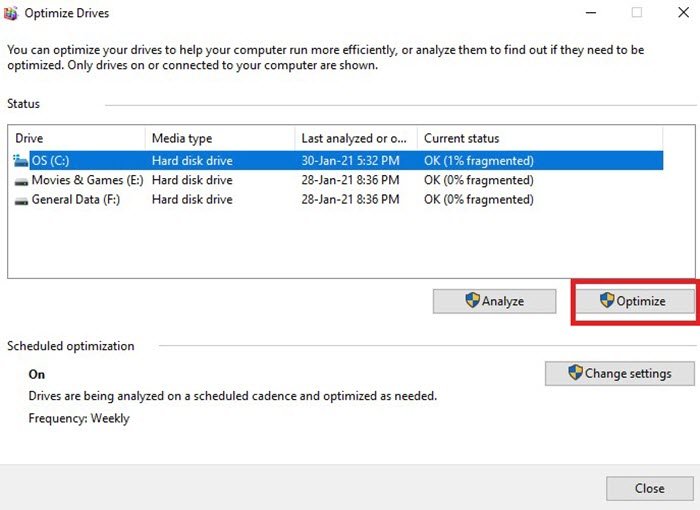
A result of 0 usually means TRIM notifications are enabled. A result of 1 means they are disabled for the related file system. You can also open Optimize Drives and select the SSD. Windows normally uses the Optimize function to send a TRIM command to solid state drives.
On Linux, run:
sudo fstrim -av
Many modern Linux systems run fstrim on a schedule. Check your distribution’s timer or service if the command works manually but does not run automatically.
TRIM is not the same as defragmentation. Windows normally handles this distinction, but manually forcing traditional defragmentation on an SSD is unnecessary and may create extra writes.
Check temperature and cooling
Heat can cause an SSD to slow down. NVMe drives are especially sensitive because they can move large amounts of data through a small circuit board. When the controller reaches its thermal limit, it reduces power and speed. This process is called thermal throttling.
A short file copy may look normal, while a long game installation or video export becomes much slower after several minutes. That pattern strongly suggests a cache or heat issue.
Check the temperature during a sustained write test. Exact limits vary by model, but many NVMe drives begin reducing speed well before their highest emergency temperature. Use the manufacturer’s specifications rather than relying on one universal number.
Practical cooling steps include:
• Make sure the motherboard heatsink still has its protective film removed.
• Confirm that the heatsink makes firm contact with the SSD.
• Replace a damaged or badly fitted thermal pad.
• Improve case airflow.
• Keep the SSD away from a hot graphics card when possible.
• Clean dust from intake filters and fans.
• Add a motherboard heatsink if the drive supports one.
Laptop users should check vents and fan operation. A thin laptop may have limited cooling by design, so sustained write performance can be lower than desktop benchmark results.
Check the connection, slot, and BIOS settings
A fast SSD can perform slowly when the connection limits it. For example, a PCIe 4.0 NVMe drive installed in a PCIe 3.0 slot will normally run at PCIe 3.0 speeds. It is not faulty, but the interface sets a lower ceiling.
SATA SSDs face similar limits. A SATA III drive connected to a SATA II port may be limited to roughly 250 to 300 MB/s instead of about 500 to 550 MB/s. A weak SATA cable can also cause link errors and repeated transfers.
Check the following:
• Confirm the SSD is in the correct M.2 slot.
• Read the motherboard manual because some M.2 slots share lanes with other ports.
• Check whether the slot supports NVMe or only SATA M.2 drives.
• Replace the SATA data cable if link errors appear.
• Connect the drive directly to the motherboard instead of using a hub.
• Test a USB SSD on a USB 3.x port, not an older USB 2.0 port.
• Check BIOS storage settings and PCIe link speed.
Avoid changing AHCI, RAID, or storage controller modes without a backup. Changing the wrong mode can prevent Windows from booting. If the operating system was installed in RAID or Intel VMD mode, keep that setting unless you understand the migration process.
A BIOS update may improve compatibility, but it is not a guaranteed speed fix. Install it only when the release notes mention storage, NVMe, PCIe, or stability improvements, and follow the motherboard maker’s instructions.

Update firmware, drivers, and power settings
SSD firmware controls how the drive manages flash memory, error correction, garbage collection, and thermal behavior. Manufacturers sometimes release firmware that improves stability or fixes performance bugs.
Install the official management tool for your SSD and check for:
• Firmware updates
• Health information
• Temperature readings
• Overprovisioning settings
• Secure erase tools
• Performance or power options
Back up important files before updating firmware. Most updates are safe, but an interrupted update can create serious problems.
Also update the motherboard chipset driver and storage controller driver. Windows Update may provide a stable driver, while the motherboard or processor maker may offer a newer chipset package.
Power management can affect SSD speed, especially on laptops. Use a balanced or high performance plan for testing. If the drive performs well while plugged in but slows on battery power, the issue may be an energy saving policy rather than damaged hardware.
Do not disable every power saving feature permanently. Lower power use can be valuable for battery life and drive temperature. Test first, then choose the setting that fits your workload.

Reduce background disk activity
A busy system can make SSD write speed look poor even when the hardware is healthy. Cloud sync, antivirus scans, game updates, search indexing, and backup tools may all write data at the same time.
Open Task Manager in Windows and sort the Processes list by Disk. On macOS, use Activity Monitor and select the Disk tab. Linux users can use tools such as iotop, iostat, or the system monitor included with their desktop environment.
Pause nonessential tasks during testing:
• Cloud backup and file synchronization
• Game downloads and updates
• Large media exports
• Virtual machines
• Search indexing after a major file move
• Scheduled backup jobs
Antivirus software may inspect every new file. Do not disable protection for normal use, but schedule large transfers when scans are less active. If one program constantly creates disk activity, update it or review its cache and logging settings.
Do not disable the Windows page file just to improve SSD performance. Modern operating systems use virtual memory for stability, and disabling it can cause crashes or application errors. Keep it system managed unless you have a specific, tested reason to change it.

Improve SSD performance on Windows
Windows includes several settings that can help diagnose slow SSD write speed without risky changes.
Start with Optimize Drives. Search for “Defragment and Optimize Drives,” select the SSD, and choose Optimize. For an SSD, Windows sends a TRIM command rather than performing the same full defragmentation used for a hard disk.
Then check the drive policy:
Open Device Manager.
Expand Disk drives.
Right click the SSD and select Properties.
Open the Policies tab.
Confirm that write caching is enabled if appropriate.
Write caching can improve performance, but it may increase data loss risk during sudden power loss. A desktop with a reliable power supply or UPS is safer than a system that often loses power. Do not enable a setting that promises better speed if you do not understand its protection limits.
If errors appear in Event Viewer, look under Windows Logs and System for disk, storport, stornvme, or controller warnings. Repeated reset, timeout, or bad block messages may indicate a cable, driver, firmware, or hardware problem.
Run system file checks only when you have signs of Windows corruption. These commands repair the operating system, not a worn SSD:
sfc /scannow
DISM /Online /Cleanup-Image /RestoreHealth
Use them from an administrator Command Prompt and allow each process to finish.

Improve SSD performance on macOS and Linux
On macOS, begin with Activity Monitor, Disk Utility, and the SSD’s health software if the drive maker supports macOS. Disk Utility’s First Aid can check file system structures, but it cannot repair failing flash memory.
For an external SSD, test another cable and another port. Many slow external drives are limited by the enclosure, USB bridge, cable, or port. Some enclosures also become hot and throttle during long transfers.
Third party SATA SSDs in older Macs may need TRIM support enabled with Apple’s built in tool:
sudo trimforce enable
Read the warning carefully and back up first. Apple silicon Macs and many newer systems manage storage differently, so do not apply this command without confirming that it fits your hardware.
On Linux, check the device and file system:
lsblk
sudo smartctl -a /dev/nvme0n1
The device path may differ. For NVMe drives, this command can also help:
sudo nvme smart-log /dev/nvme0
Use the correct package for your distribution. Check mount options, scheduled TRIM, kernel updates, and drive temperature. Avoid copying random mount options from forums because some can increase write amplification or reduce data safety.
Check SSD health and remaining life
An SSD can slow down as it approaches its endurance limit, although wear alone does not always cause a dramatic speed drop. More concerning signs include media errors, critical warnings, uncorrectable errors, rapidly increasing percentage used values, or repeated system resets.
Look at the SMART data supplied by the drive maker. Important fields vary between SATA and NVMe models, so compare them with the manufacturer’s documentation.
Back up the drive immediately if you see:
• The operating system reports critical warnings.
• Files become corrupted or disappear.
• The SSD disconnects during use.
• SMART errors increase after each test.
• The computer freezes during file transfers.
• The drive becomes read only.
Avoid destructive tests on a drive that shows failure signs. Benchmarking cannot repair hardware, and repeated full write tests may put extra stress on an unstable SSD.
If the drive is under warranty, save screenshots of the health report, benchmark results, model number, and purchase details. The manufacturer may request this information before approving replacement.
Use overprovisioning for sustained write speed
Overprovisioning means leaving part of the SSD unused so the controller has extra space for garbage collection and wear leveling. Many consumer SSDs already reserve hidden spare area, but leaving additional free space can help demanding workloads.
This matters most when the drive handles:
• Frequent video capture
• Large database files
• Virtual machines
• Software development builds
• Scratch files
• Daily backups
For ordinary office use, keeping 10% to 20% free is often enough. For heavy write workloads, a larger reserve may produce more stable sustained performance, but it reduces usable capacity. It does not turn a budget SSD into an enterprise model.
If you create unallocated space, do not delete partitions blindly. Confirm the drive layout and back up first. Some recovery partitions and boot partitions are important.
Know when the SSD may need replacement
Troubleshooting cannot overcome a weak controller, low quality NAND, or failing flash cells. Consider replacement when the drive remains slow after you have checked free space, temperature, connection, firmware, and background activity.
Compare your measured result with the manufacturer’s specifications, but allow for differences in test size and workload. A drive may meet its advertised burst speed while having modest sustained write performance. That is normal for some entry level models.
Replace the SSD sooner if:
• It reports critical SMART warnings.
• It causes file corruption or system crashes.
• Its write speed falls sharply and stays low.
• It repeatedly disappears from BIOS or the operating system.
• It becomes read only.
• The manufacturer confirms a hardware fault.
Choose a replacement based on workload, not only peak sequential speed. Endurance rating, warranty length, sustained write behavior, thermal design, and power loss protection can matter more than a large number on the box.
Frequently Asked Questions About How to Fix Slow SSD Write Speed Issue
Why is my SSD write speed suddenly slow?
A sudden drop may come from low free space, a full write cache, heat, background disk activity, or a connection problem. Check temperature, available space, Task Manager activity, and SMART health before changing system settings.
Does keeping free space improve SSD write speed?
Yes, free space gives the SSD more room for garbage collection and wear leveling. Keep at least 10% free for normal use, and consider 20% for heavy write workloads.
How do I know if thermal throttling is slowing my SSD?
Monitor the SSD during a large file transfer or sustained benchmark. If speed falls after several minutes while temperature rises, improve cooling and test again.
Is it safe to defragment an SSD?
Modern Windows versions handle SSD optimization by sending TRIM commands. Do not manually run repeated traditional defragmentation on an SSD because it adds unnecessary writes.
Can a bad SATA cable reduce SSD write speed?
Yes, a damaged or poor quality SATA cable can cause link errors, retries, and unstable performance. Replace the cable and connect the SSD to another SATA port to test it.
Should I disable the page file to speed up my SSD?
No. Disabling the page file can cause memory errors, crashes, and application failures. Leave virtual memory system managed unless you have a specific technical reason to change it.
Does SSD health affect write speed?
It can. High wear, media errors, thermal warnings, and controller problems may reduce performance or cause instability. Back up the drive at once when SMART reports critical errors.
Conclusion
Fixing slow SSD write speed starts with simple checks: keep enough free space, test sustained performance, confirm TRIM, monitor temperature, and remove background disk activity. Then inspect the cable, port, M.2 slot, firmware, drivers, and SMART health data.
Avoid risky changes without a backup, especially BIOS storage settings and destructive disk tools. Work through the checks in order, compare results after each change, and replace the SSD if health warnings or repeated errors remain. If this guide helped, share your SSD model and test results in the comments or explore more storage troubleshooting resources.
