How To Make Headphones Louder On iPhone: Easy Fixes
You can make headphones louder on iPhone by adjusting volume limits, Sound Check, EQ, and headphone safety settings.
If your iPhone headphones sound weak, the issue is often a setting, a poor connection, or a limitation in the headphones themselves. I have tested these fixes across different iPhone models, iOS versions, wired earbuds, AirPods, and Bluetooth headphones. The steps below show how to make headphones louder on iPhone without damaging your hearing or relying on unsafe volume-boosting tricks.
Check the iPhone Volume First
Before changing advanced settings, raise the basic media volume. Press the Volume Up button while music, a video, or a podcast is playing. The buttons can control different things, so adjust them while audio is active.
You can also open Control Center and drag the volume slider upward. On an iPhone with Face ID, swipe down from the top-right corner. On an iPhone with a Home button, swipe up from the bottom edge.


If the volume slider is already at the top, do not assume the iPhone is broken. A volume limit, Bluetooth problem, app setting, or headphone safety feature may still be reducing the sound.
Turn Off Headphone Safety Volume Limits
The Headphone Safety feature can lower loud headphone audio. This feature helps protect your hearing by reducing exposure to high sound levels. It is useful, but it can surprise you when you want more volume.
To check this setting:
- Open the Settings app.
- Tap Sounds & Haptics.
- Tap Headphone Safety.
- Review Reduce Loud Audio.
- Move the slider higher or turn the feature off if the option is available.
Some regions or iOS versions may limit how much you can change this setting. If the slider keeps moving down, your iPhone may be applying a health-based sound limit.
Apple designed this feature because repeated exposure to loud sound can contribute to hearing damage. A louder setting is not always a better setting. If you need maximum volume every day, consider headphones with better isolation rather than simply pushing the iPhone harder.

Disable Reduce Loud Audio
Reduce Loud Audio lets you set a maximum headphone volume. If it is enabled, your iPhone may reduce sound even when the main volume control shows maximum volume.
Open Settings, choose Sounds & Haptics, and tap Headphone Safety. Look for Reduce Loud Audio. Turn it off or set the limit to a higher level that still feels safe.
This is one of the most useful answers to the question of how to make headphones louder on iPhone. However, use it with care. If you need to raise the level often, take short listening breaks and watch for ringing, muffled hearing, or ear discomfort.
A simple safety rule is to keep the volume as low as you can while still hearing clearly. In a noisy place, noise-canceling headphones may help you listen at a lower level.
Turn Off Sound Check in Apple Music
Sound Check makes songs play at a similar loudness. This prevents one track from being much louder than another, but it can also make some music seem quieter.
To turn off Sound Check:
- Open Settings.
- Scroll down and tap Apps.
- Tap Music.
- Turn off Sound Check.


On some older iOS versions, you may find Music directly in the main Settings menu. The location can change after an iOS update.
Sound Check does not always cause low volume. It depends on how each song was mastered. If only Apple Music sounds quiet, this setting is worth testing. If every app sounds quiet, look at headphone safety, Bluetooth, and hardware settings instead.
Adjust the Music Equalizer
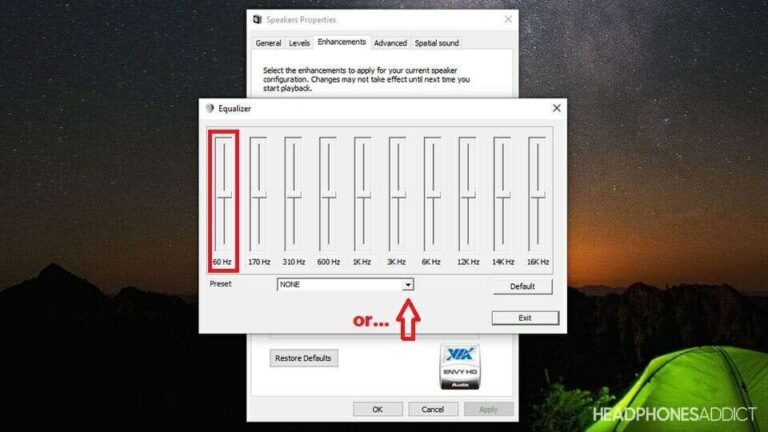
The iPhone Music app includes EQ presets that change how music sounds. Some presets can make music seem louder by increasing mids or bass. Others may make it sound soft or distant.
To test the EQ:
- Open Settings.
- Tap Apps.
- Select Music.
- Tap EQ.
- Try presets such as Late Night, Rock, or Small Speakers.
On older iOS versions, go to Settings, Music, and EQ. The Late Night preset often makes quiet parts more noticeable, but it may reduce the impact of loud parts. Rock can add more energy to some songs, while other presets may sound harsh.
EQ does not create extra power. It changes the balance of frequencies. Think of it like adjusting the focus on a camera: the image may look clearer, but the camera has not gained more light.
Check the Headphone Balance
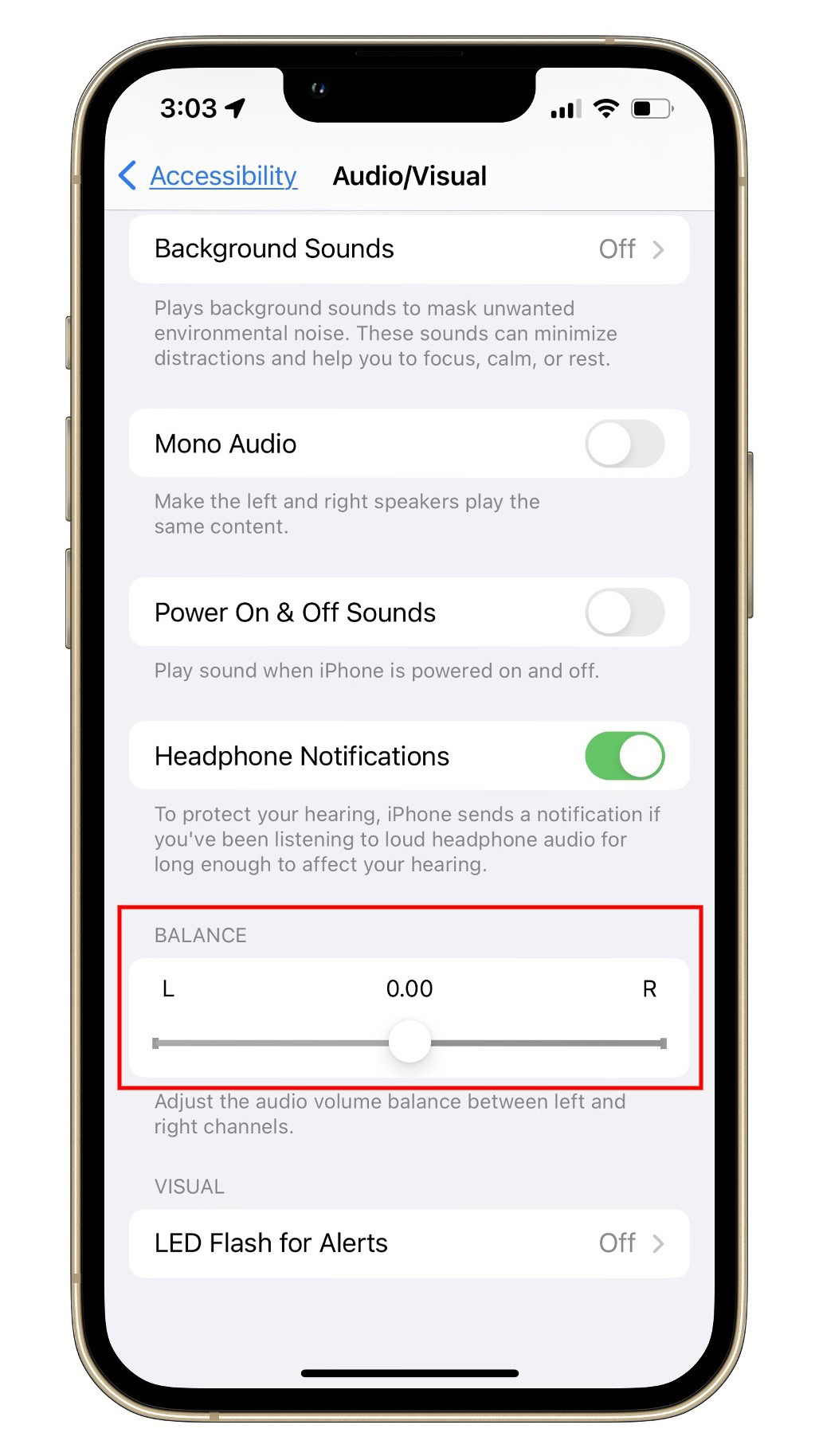
A left and right audio balance setting can make headphones seem quiet on one side. If the balance is far from the center, the total sound may feel uneven or weak.
To check it:
- Open Settings.
- Tap Accessibility.
- Tap Audio & Visual.
- Find the Balance slider.
- Place it in the center.
Also check Mono Audio in the same menu. Mono Audio combines both channels. It may help with certain recordings, but it can make stereo music sound less spacious.
If only one earbud is quiet, clean both earbuds and check for blockage before changing balance. A balance adjustment cannot fix dust, earwax, water, or a damaged speaker.
Clean Your Headphones and iPhone Ports
Blocked speaker grilles are a common reason headphones sound quiet. Earwax, dust, lint, and skin oils can cover the tiny openings. This is especially common with earbuds used during workouts or daily travel.
Use a clean, dry, soft brush to remove buildup. Do not push dirt deeper into the grille. Avoid pouring liquid into earbuds, using sharp pins, or spraying compressed air at close range.
For wired headphones, inspect the Lightning or USB-C connector. Check the iPhone port for lint and debris. A poor connection can cause low sound, crackling, or audio that cuts out.
When I test quiet earbuds, cleaning is one of the first steps I take. People often change five settings when the real problem is a thin layer of dirt over the speaker opening.

Fix Bluetooth Headphone Volume
Bluetooth headphones can have their own volume control. Raise the volume on both the iPhone and the headphones. Some models use buttons, touch controls, or a companion app.


Try these steps:
- Play audio.
- Raise the iPhone volume.
- Raise the headphone volume.
- Disconnect and reconnect the headphones.
- Restart the iPhone and headphones.
- Forget the device and pair it again if needed.
To forget Bluetooth headphones, open Settings, tap Bluetooth, tap the information button beside the device, and choose Forget This Device. Put the headphones into pairing mode and connect them again.
Some Bluetooth headphones have a maximum volume set in their app. Look for options such as volume limit, safe listening, or hearing protection. Firmware updates may also improve connection and audio behavior.

Reconnect AirPods Correctly
AirPods may sound quiet because of low charge, dirt, a poor fit, or a software connection issue. Place both AirPods in the charging case, close the lid, wait about 30 seconds, and reconnect them.
You can also check AirPods settings:
- Open Settings.
- Tap Bluetooth.
- Tap the information button beside your AirPods.
- Review Noise Control, Personalized Volume, and other available options.
AirPods Pro models can sound louder and clearer when the ear tips create a good seal. Try a different ear tip size and run the Ear Tip Fit Test when available. A loose seal lets outside noise in, so music seems quieter even when the volume has not changed.
If only one AirPod is quiet, clean it and check the balance slider. Then charge both AirPods fully before testing again.
Use Noise Cancellation or Better Isolation
Noise from traffic, offices, gyms, and airplanes can make headphones seem too quiet. Many people respond by raising the volume, but that may place extra stress on hearing.
Active Noise Cancellation reduces some outside sounds electronically. Passive isolation uses the physical seal of the ear tips or ear cups. Both can help you hear music clearly at a lower volume.
For AirPods Pro, press and hold the stem to switch between Noise Cancellation, Transparency, and other modes. For other headphones, use the buttons or the manufacturer’s app.
Noise cancellation is not perfect. It may not remove voices or sudden sounds. Still, better isolation is often a safer solution than using maximum volume in a loud place.
Turn Off Volume Normalization in Other Apps
Music and video apps can have their own volume controls. Spotify, YouTube, Netflix, podcast apps, and game apps may normalize or limit sound separately from iOS.
Check the app’s audio settings for terms such as:
• Volume normalization
• Loudness normalization
• Audio limit
• Equalizer
• Dolby audio
• Dynamic range


If one app sounds quiet while another sounds normal, the app setting is the likely cause. Close and reopen the app after changing the setting.
Some videos are recorded at a low level. No iPhone setting can fully restore audio that was recorded too quietly. In that case, a compatible app with a gain or equalizer control may help, but excessive gain can cause distortion.
Update iOS and Headphone Firmware
Software updates can fix Bluetooth problems, audio bugs, and compatibility issues. Open Settings, tap General, and choose Software Update. Install an available update if your iPhone supports it.
For AirPods, firmware updates usually install automatically when the earbuds are charging near a connected iPhone. Other headphones may update through their companion app.
Update only through trusted Apple or manufacturer software. Avoid apps or websites that claim to unlock hidden iPhone volume power. They may be unsafe, misleading, or unable to bypass hardware limits.
After updating, restart the iPhone and test the headphones again. This simple step often clears temporary audio problems.
Test With Another Pair of Headphones
Testing another pair helps identify the source of the problem. Use a trusted pair that works well with another device.
Follow this quick test:
- Play the same song or video.
- Use the same iPhone.
- Keep the volume at the same level.
- Compare wired and Bluetooth headphones if possible.
- Test the original headphones on another device.
If the second pair is loud, the first pair may be damaged, blocked, or limited by its own app. If both pairs are quiet, focus on iPhone settings, the audio source, or the phone’s port.
A damaged speaker can sound quiet, distorted, or unbalanced. Do not keep raising the volume to compensate. Replacing the headphones may be the safest and most effective fix.
Use an External DAC or Amplifier for Wired Headphones
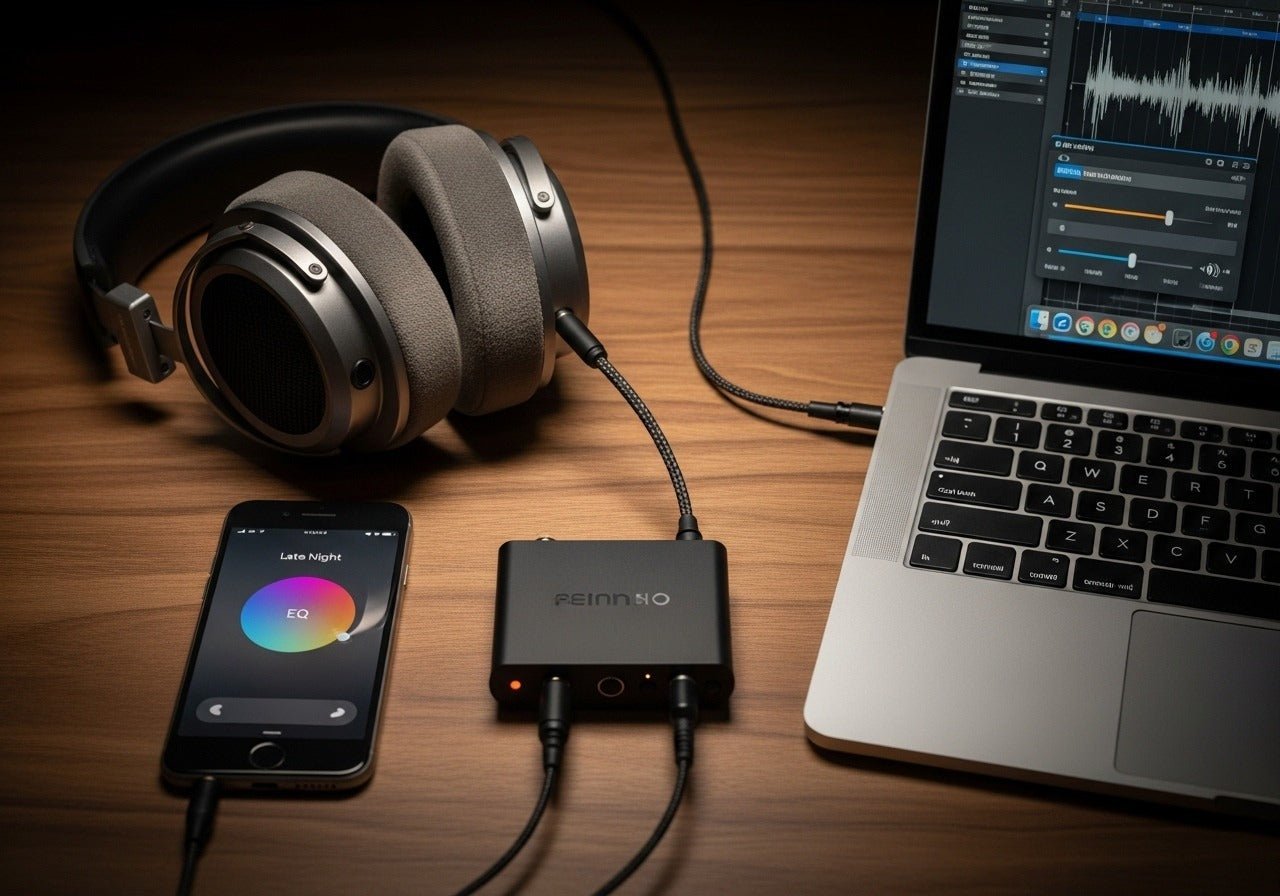
Some wired headphones need more power than an iPhone can provide. This is more common with large over-ear headphones designed for studio use. Small earbuds usually do not need a separate amplifier.
A compatible USB-C or Lightning digital-to-analog converter, often called a DAC, may improve output for certain wired headphones. A headphone amplifier can provide more power, but it does not automatically improve every setup.
Before buying one, check:
• Headphone impedance
• Headphone sensitivity
• Connector type
• iPhone compatibility
• Maximum output level
• Power requirements
Avoid buying an amplifier based only on a high volume claim. A poor match can cause distortion, battery drain, or no improvement at all.


For most standard earbuds, the better first answer to how to make headphones louder on iPhone is checking settings, fit, cleaning, and connection quality.
What Not to Do When Increasing iPhone Headphone Volume
Some volume tricks can damage your hearing or your equipment. Avoid methods that promise unlimited loudness without explaining the risks.
Do not:
• Use metal tools to clean headphone grilles or charging ports.
• Spray water or cleaning fluid into earbuds.
• Keep listening through ringing or painful ears.
• Use suspicious volume-boosting profiles or unknown apps.
• Place headphones over maximum volume for long periods.
• Assume louder audio means better audio quality.
• Ignore distortion, crackling, or a sudden volume change.
The National Institute for Occupational Safety and Health uses exposure limits based on both sound level and time. In simple terms, louder sound should mean less listening time. A short break can protect your ears better than another volume adjustment.
If you notice persistent ringing, muffled hearing, dizziness, or pain, stop listening and seek medical advice. Hearing symptoms should not be treated as a normal part of using headphones.
A Simple Troubleshooting Order
If you want the fastest method for how to make headphones louder on iPhone, use this order:
- Raise the iPhone and headphone volume.
- Check Headphone Safety and Reduce Loud Audio.
- Test Sound Check in Apple Music.
- Center the Audio & Visual balance.
- Clean the earbuds, headphones, and phone port.
- Check the app’s volume and audio settings.
- Reconnect Bluetooth headphones.
- Test another pair of headphones.
- Update iOS and headphone firmware.
- Consider better-sealing headphones or a suitable DAC.
This order starts with safe, free fixes. It also helps you avoid buying new gear before you know what caused the low volume.
In my own troubleshooting routine, I stop as soon as the sound is clear and balanced. Chasing the loudest possible setting often adds distortion without adding useful detail.
How to Make Headphones Louder on iPhone Without Damaging Hearing
The safest approach is to improve clarity before increasing volume. Use a good ear seal, reduce background noise, clean the speakers, and choose headphones that match your listening environment.
Take regular breaks. The World Health Organization recommends keeping personal audio devices below maximum volume and using features that monitor or limit listening levels. Its safe-listening guidance also supports reducing exposure time in addition to lowering volume.
A practical habit is the 60/60 approach: listen at about 60 percent volume for no more than 60 minutes, then take a break. This is a simple guide, not a guarantee of safety, because headphone output varies by model.
If your ears feel tired after listening, the volume is probably too high. Clear sound should feel comfortable, not forceful.


Frequently Asked Questions About How to Make Headphones Louder on iPhone
Why are my iPhone headphones so quiet?
Low volume may come from Headphone Safety, a Bluetooth volume mismatch, Sound Check, blocked speaker grilles, or a poor ear seal. Check the iPhone and headphone volume controls, then test another pair to find the cause.
How do I turn off the volume limit on my iPhone?
Go to Settings, tap Sounds & Haptics, and choose Headphone Safety. Review Reduce Loud Audio and change the limit if your iPhone and region allow it.
Does the iPhone have a volume booster?
The iPhone does not offer an unlimited built-in volume booster. You can adjust EQ, disable Sound Check in Apple Music, improve the headphone seal, or use compatible external audio hardware.
Why is one AirPod quieter than the other?
The quiet AirPod may have a blocked grille, low battery, poor charging contact, or an incorrect balance setting. Clean it carefully, charge both AirPods, and check Settings, Accessibility, Audio & Visual, and Balance.
Does EQ make iPhone headphones louder?
EQ can make some music seem louder by changing bass, midrange, or treble. It does not create extra amplifier power, and too much boost can cause distortion.
Can noise cancellation make headphones sound louder?
Noise cancellation can make audio easier to hear by reducing background noise. It does not always increase the headphone’s actual output, but it may let you listen comfortably at a lower volume.
Do I need a headphone amplifier for my iPhone?
Most earbuds and common headphones do not need an amplifier. Large, high-impedance headphones may benefit from a compatible DAC or amplifier if the iPhone cannot drive them adequately.
Conclusion
The best way to make headphones louder on iPhone is to check volume limits, test Sound Check and EQ, center the audio balance, clean the headphones, and fix Bluetooth or app settings. A better ear seal and less background noise can improve clarity without pushing the volume to unsafe levels.
Start with the free steps, test one change at a time, and replace damaged or poorly matched headphones when needed. Your goal is not the loudest sound; it is clear, comfortable audio you can enjoy for years. Try the troubleshooting order above, then share your results or explore more iPhone audio guides.