

To pair bmani earbuds, charge them, open the case, select “bmani” in Bluetooth settings, and tap Pair.
Learning how to pair bmani earbuds is usually simple, but small differences between models can cause confusion. This guide explains the standard pairing process, first-time setup, single-earbud use, reset steps, common fixes, and practical tips based on how true wireless earbuds work in real-world use.

How to Pair bmani Earbuds for the First Time
Most bmani earbuds use Bluetooth for a wireless connection. When you remove both earbuds from the charging case, they normally turn on and enter pairing mode automatically.
Follow these steps:
- Charge the earbuds and case first. A low battery can stop pairing.
- Place both earbuds inside the charging case.
- Open the case lid.
- Remove both earbuds at the same time.
- Wait for the LED lights to flash. Flashing lights often mean the earbuds are ready to pair.
- Open the Bluetooth settings on your phone, tablet, or computer.
- Turn Bluetooth on.
- Look for a device name such as “bmani,” “bmani T9,” “bmani M5,” or a similar model name.
- Tap the bmani device name.
- Select Pair, Connect, or OK if your device asks for confirmation.
After the connection is complete, the earbuds may say “connected.” Some models also stop flashing or show a steady light.
The exact LED pattern can differ by model. If your earbuds do not appear in the Bluetooth list, place them back in the case, close the lid for a few seconds, and try again.

How to Pair bmani Earbuds With an Android Phone
Android phones usually pair with bmani earbuds through the Settings app. The menu names may vary slightly between Samsung, Google Pixel, Motorola, and other Android brands.
- Open Settings.
- Tap Connected devices, Connections, or Bluetooth.
- Turn Bluetooth on.
- Keep the Bluetooth screen open.
- Take both bmani earbuds out of the case.
- Wait for “bmani” to appear under Available devices.
- Tap the name to connect.
If Android shows a pairing request, approve it. You may also see a request to allow access to contacts or call history. That permission is not normally needed for music, so you can deny it if you prefer.
Once connected, play a song at a low volume. This helps you confirm that both earbuds work before increasing the sound. If only one side plays, use the reset instructions later in this guide.

How to Pair bmani Earbuds With an iPhone
Pairing bmani earbuds with an iPhone takes only a few steps. Keep the earbuds close to the phone during setup, ideally within a few feet.
- Open the Settings app.
- Tap Bluetooth.
- Turn Bluetooth on.
- Open the bmani charging case.
- Remove both earbuds.
- Wait for the bmani name to appear under Other Devices.
- Tap the name.
- Wait until the status changes to Connected.
If the bmani name appears under My Devices but says Not Connected, tap it once. The iPhone should reconnect without requiring a new setup.
If you are pairing the earbuds with an iPhone that previously used them, make sure they are not still connected to another nearby phone. Bluetooth earbuds may automatically reconnect to the last device they used.

How to Pair bmani Earbuds With a Windows PC or Mac
bmani earbuds can work with many computers that support Bluetooth audio. You can use them for music, video calls, online classes, and casual gaming, although some Bluetooth connections may create a slight audio delay.
On a Windows PC
- Open Settings.
- Select Bluetooth & devices.
- Turn Bluetooth on.
- Click Add device.
- Choose Bluetooth.
- Remove the bmani earbuds from their case.
- Select the bmani device name.
- Click Done.
If you plan to use the earbuds for calls, open the sound settings after pairing. Select the bmani earbuds as both the output and input device when available.
On a Mac
- Open the Apple menu.
- Select System Settings.
- Click Bluetooth.
- Turn Bluetooth on.
- Remove the earbuds from the case.
- Find the bmani name in the device list.
- Click Connect.
After pairing, select the bmani earbuds from the sound menu if your Mac continues using its built-in speakers.

How to Pair bmani Earbuds When They Do Not Appear
If your earbuds do not show in the Bluetooth list, the issue is often caused by power, distance, or an old connection. Bluetooth pairing works best when the earbuds are charged and no other device is trying to use them.
Try these steps:
• Turn Bluetooth off and on again on your phone.
• Put both earbuds in the charging case, close the lid, and wait 10 seconds.
• Remove the earbuds and keep them within three feet of your device.
• Turn off Bluetooth on nearby phones, tablets, and laptops.
• Restart your phone or computer.
• Check that the charging contacts are clean.
• Look for a name that includes the model number instead of only “bmani.”
• Reset the earbuds if they still do not appear.
A common mistake is opening the Bluetooth menu before the earbuds enter pairing mode. In that case, the phone may scan too early. Put the earbuds back in the case and remove them again while the Bluetooth screen is open.
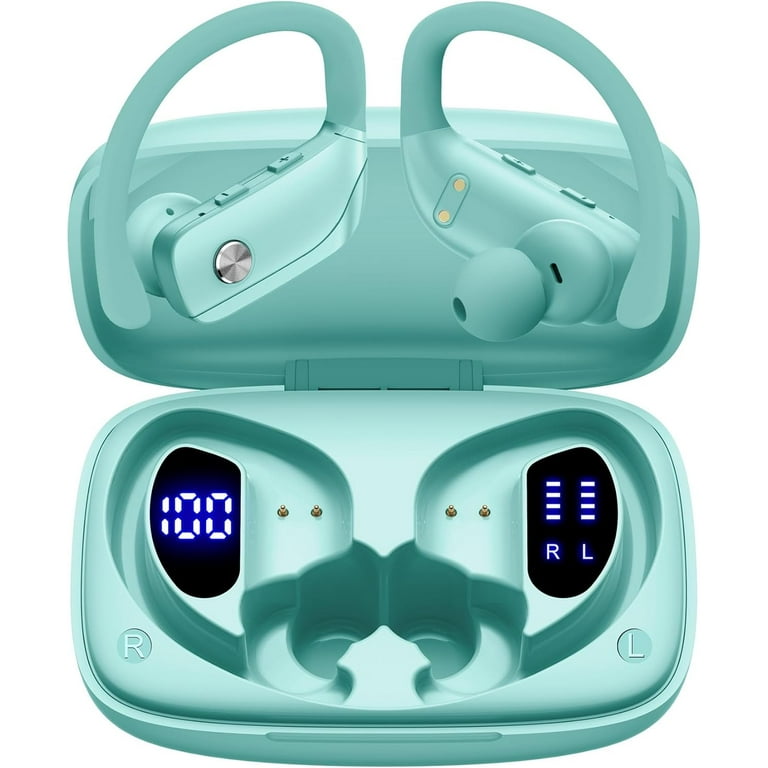
How to Pair bmani Earbuds With Only One Earbud
Many bmani models support single-earbud use. This is helpful when you want to hear traffic, talk with someone, or save battery.
To use one earbud:
- Put both earbuds in the charging case.
- Remove the earbud you want to use.
- Open Bluetooth settings on your device.
- Select the bmani device name.
- Wait for the connection.
Some models pair the left and right earbuds together before connecting to your phone. Other models allow either earbud to connect on its own.
If one earbud works but the other does not, the two earbuds may have lost their internal connection. Reset both earbuds together, then pair them again as a new Bluetooth device.

How to Pair bmani Earbuds With a New Device
A bmani earbud set can usually remember more than one device, but it may connect to only one device at a time. Before pairing with a new phone or laptop, disconnect the earbuds from the old device.
Use this process:
- Turn off Bluetooth on the old device.
- Place both earbuds in the charging case.
- Remove them from the case.
- Open Bluetooth settings on the new device.
- Select the bmani name.
- Confirm the connection.
If the new device cannot find the earbuds, choose Forget This Device or Remove Device on the old phone. Then reset the earbuds and start again.
In my experience helping people set up wireless audio, automatic reconnection causes the most confusion. The earbuds are not always broken; they may simply be trying to connect to a tablet, laptop, or family member’s phone nearby.

How to Reset bmani Earbuds Before Pairing Again
A reset removes old Bluetooth connection data and helps the earbuds start fresh. The exact reset method depends on the bmani model, so check the instructions included with your earbuds when possible.
A common reset method is:
- Remove bmani earbuds from your device’s Bluetooth list.
- Turn Bluetooth off on nearby devices.
- Put both earbuds in the charging case.
- Remove both earbuds.
- Touch and hold both earbuds for several seconds.
- Continue holding until the LED lights flash or the earbuds power off.
- Put both earbuds back in the case.
- Remove them again and wait for them to synchronize.
- Turn Bluetooth on and pair them again.
Some bmani earbuds reset when you tap each earbud several times while they are in the case. Others use a case button. Do not assume every model uses the same gesture.
A successful reset often solves these problems:
• Only one earbud produces sound.
• The earbuds connect but do not play audio.
• The device shows two separate bmani entries.
• The earbuds connect to the wrong phone.
• The earbuds keep disconnecting after pairing.
What to Do When Only One bmani Earbud Works
When one earbud works, the earbuds may not be synchronized with each other. This can happen after pairing one side by itself or connecting the earbuds to several devices.
Start with a simple check:
- Confirm that both earbuds are charged.
- Clean the metal charging contacts.
- Forget the bmani device in Bluetooth settings.
- Turn off Bluetooth on nearby devices.
- Reset both earbuds.
- Remove both earbuds from the case at the same time.
- Wait for them to connect to each other.
- Pair the bmani name again.
Also check your phone’s audio balance. On an iPhone, go to Accessibility and Audio & Visual, then make sure the balance slider is centered. Android phones may place this option under Accessibility or Hearing enhancements.
I once helped troubleshoot a pair that seemed defective, but the left earbud had not charged because a thin piece of packaging film covered its contact. Removing the film and cleaning the contact fixed the problem immediately. Always inspect new earbuds before assuming they need a reset.
How to Fix bmani Earbuds That Keep Disconnecting
A Bluetooth connection can drop when the signal is blocked or the earbuds have very little power. Walls, crowded wireless areas, and a phone kept in a back pocket can also affect stability.
Try the following fixes:
• Keep the phone within 10 to 30 feet when possible.
• Avoid placing the phone under thick clothing or inside a metal bag.
• Fully charge the earbuds and case.
• Close music apps running in the background.
• Forget and reconnect the bmani earbuds.
• Restart the phone.
• Install available phone software updates.
• Test the earbuds with another device.
If the earbuds disconnect from every device, the issue may involve the battery, charging case, or hardware. If they work normally with another device, the original phone’s Bluetooth settings may be the cause.
Bluetooth range claims are measured in open conditions. Real indoor range is often shorter because walls and wireless signals interfere with the connection.
How to Improve bmani Earbud Sound After Pairing
Pairing connects the earbuds, but it does not guarantee ideal sound. Once the connection works, adjust the fit and settings for a better listening experience.
Use these tips:
• Choose the ear tip that seals your ear without causing pressure.
• Keep the speaker openings free of wax and dust.
• Set the phone volume to a moderate level.
• Turn off audio effects if the sound becomes harsh.
• Check whether your music app has its own equalizer.
• Keep both earbuds charged for balanced performance.
A good ear tip acts like a small door seal. It keeps outside noise out and helps the earbuds produce stronger bass without unsafe volume levels.
For calls, speak in a quiet space and keep the phone close. Tiny earbud microphones can pick up wind, traffic, and room noise more easily than a phone microphone.
Common Mistakes When Pairing bmani Earbuds
Most pairing problems come from a few easy-to-miss mistakes. Avoiding them can save time.
• Pairing before removing the earbuds from the case: Many models do not enter pairing mode until they leave the case.
• Leaving Bluetooth on for an old device: The earbuds may reconnect to that device instead.
• Pairing only one earbud: This can separate the left and right channels.
• Ignoring low battery warnings: Low power can interrupt pairing.
• Selecting the wrong Bluetooth entry: Nearby earbuds may have similar names.
• Resetting only one earbud: Both earbuds usually need to be reset together.
• Covering the charging contacts: Dirt or protective film can prevent charging.
• Using the earbuds too far from the phone: Start close, then increase the distance.
These mistakes are normal, especially during first-time setup. Treat the process like introducing two devices: give them enough power, keep them close, and remove old connections when needed.
bmani Earbud LED Lights and What They Usually Mean
LED behavior varies across bmani models, so the user guide for your specific model is the best reference. Still, the lights often follow common Bluetooth patterns.
• Flashing blue or red and blue: The earbuds may be searching for a device or ready to pair.
• A steady light: The earbud may be charging or connected.
• No light: The earbud may be turned off, fully charged, or out of power.
• Flashing red: The battery may be low.
• Different lights on each earbud: The earbuds may be connecting to each other or charging separately.
Do not rely on color alone. Listen for voice prompts and check your phone’s Bluetooth menu. LED colors can look different in bright daylight, and some models use short flashes that are easy to miss.
How to Keep bmani Earbuds Connected
Good care can prevent many pairing problems. Store the earbuds in their charging case when you are not using them. This protects them and helps keep the batteries charged.
Keep the charging case clean and dry. Use a soft, dry cotton swab to clean the contacts. Do not pour liquid into the case or use sharp tools inside the charging ports.
It is also wise to remove unused Bluetooth entries from your phone. A long list of old devices can make it harder to identify the correct bmani connection.
For battery health, avoid leaving the case in very hot places, such as a parked car. Heat can reduce the life of small lithium-ion batteries used in wireless earbuds.
Frequently Asked Questions About How to Pair bmani Earbuds
Why are my bmani earbuds not showing in Bluetooth?
Make sure both earbuds are charged and removed from the case. Turn off Bluetooth on nearby devices, restart your phone, and reset the earbuds if the bmani name still does not appear.
How do I put bmani earbuds into pairing mode?
Place both earbuds in the case, open the lid, and remove them together. Flashing LED lights usually indicate pairing mode, but the exact light pattern depends on the model.
Can I pair bmani earbuds with an iPhone?
Yes. Open Settings, tap Bluetooth, turn it on, and select the bmani name under Other Devices. Keep the earbuds close to the iPhone during setup.
Can I connect bmani earbuds to two devices at once?
Most bmani earbuds do not support true Bluetooth multipoint pairing. You normally need to disconnect them from one device before connecting them to another.
Why does only one bmani earbud connect?
The earbuds may have lost their connection with each other, or one side may not be charged. Forget the Bluetooth connection, reset both earbuds together, and pair them again.
How do I reset my bmani earbuds?
Forget the earbuds in your phone’s Bluetooth settings, place both earbuds in the case, and use the model’s reset gesture or case button. Since reset steps vary, check the instruction manual for your exact bmani model.
Why do my bmani earbuds connect but have no sound?
Check the phone’s media output and volume settings. Also make sure the bmani earbuds are selected for audio output instead of the phone speaker or another Bluetooth device.
Conclusion
Pairing bmani earbuds usually takes less than a minute: charge them, remove both earbuds from the case, open Bluetooth settings, and select the bmani name. If pairing fails, turn off nearby Bluetooth devices, forget the old connection, and reset both earbuds together.
A clean charging case, a full battery, and a short distance between the earbuds and phone prevent many common problems. Try the steps above with your specific bmani model, and share this guide with anyone who needs help getting their earbuds connected.
