

Most Skullcandy earbuds pair by entering Bluetooth mode, selecting their name, and confirming the connection.
Learning how to pair Skullcandy earbuds is simple once you know the correct order. The steps can vary between Dime, Indy, Sesh, Jib, Grind, and Skull-iQ models, so this guide covers the safest method for each situation. You will also learn what to do when only one earbud connects, Bluetooth cannot find your earbuds, or pairing fails after an update.
How to pair Skullcandy earbuds for the first time
Before you begin, charge both earbuds and the charging case. A low battery can stop the earbuds from entering pairing mode or cause the connection to drop during setup.
Follow these steps:
- Take the earbuds out of the charging case.
- Remove any protective plastic from the charging contacts.
- Turn on Bluetooth on your phone, tablet, or computer.
- Keep the earbuds close to the device.
- Open the Bluetooth settings menu.
- Look for the name of your Skullcandy earbuds.
- Tap the name to connect.
- Wait for the status to show “Connected.”
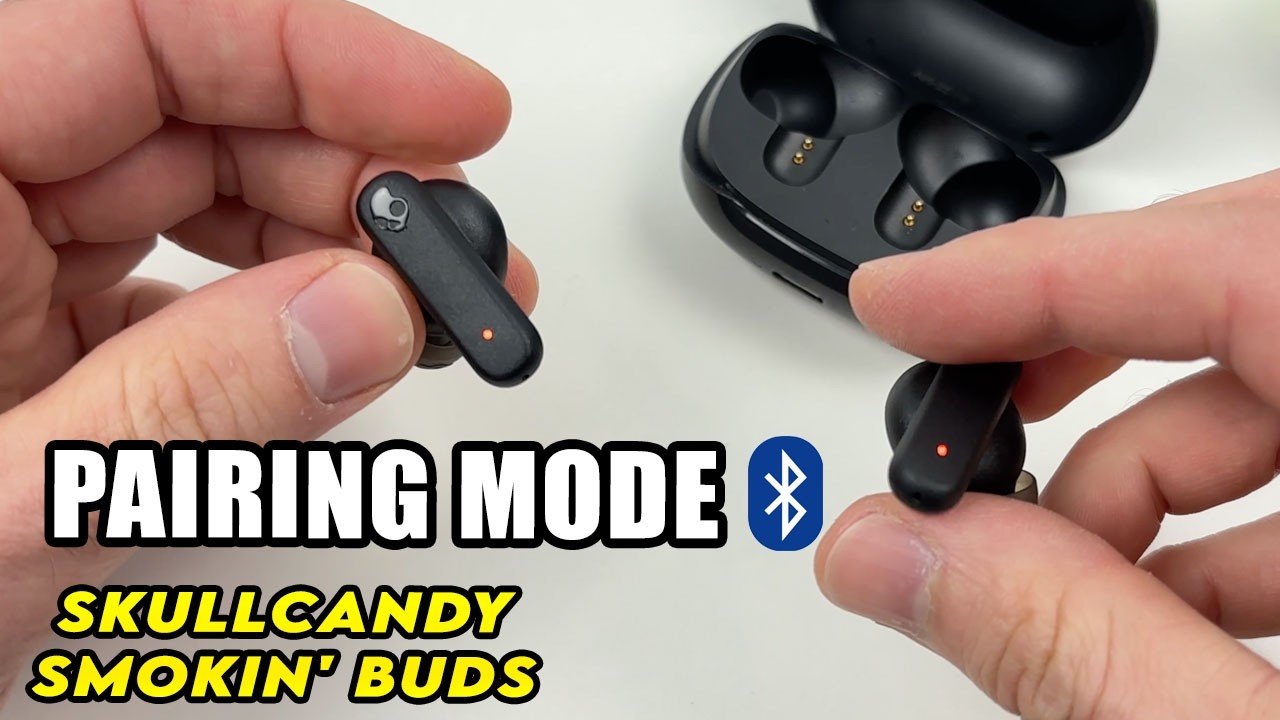
Most new Skullcandy earbuds enter pairing mode the first time you remove them from the case. You may hear a voice prompt or see a flashing blue or red LED. This means the earbuds are ready to connect.
If the earbuds do not appear, place them back in the case for a few seconds. Then remove them again. This small reset often works better than repeatedly tapping the Bluetooth menu.

How to pair Skullcandy earbuds with an iPhone
Pairing Skullcandy earbuds with an iPhone usually takes less than a minute. Apple devices show Bluetooth accessories in a clear list, which makes the process easy to follow.
- Open the Settings app.
- Tap Bluetooth.
- Turn Bluetooth on.
- Remove both earbuds from the case.
- Find the Skullcandy model under “Other Devices.”
- Tap the model name.
- Wait until it moves to “My Devices” and shows “Connected.”
The name may look like “Dime,” “Indy,” “Sesh,” “Grind,” or “Crusher.” If you see more than one Skullcandy entry, do not select a single earbud unless the manual specifically instructs you to do so. Choose the main product name when available.
If the iPhone asks for a passcode, try 0000 or 1234. Most modern Skullcandy earbuds do not need a code, but older Bluetooth products may request one.
When explaining how to pair Skullcandy earbuds to iPhone users, I always suggest turning off Bluetooth on nearby devices first. Earbuds often reconnect to the last phone, tablet, or laptop they used. That can make them seem missing even when they are working normally.

How to pair Skullcandy earbuds with Android phones
Android menus can look different by brand, but the basic process remains the same. Samsung, Google Pixel, Motorola, OnePlus, and other Android phones all use a Bluetooth device list.
- Open Settings.
- Tap Connected devices, Connections, or Bluetooth.
- Select Pair new device if needed.
- Remove both earbuds from the case.
- Tap the Skullcandy earbuds when they appear.
- Approve the pairing request.
Some Android phones scan for devices automatically. On others, you must tap Scan or Add device. Keep the phone within a few feet of the earbuds during this step.
If you use the Skullcandy mobile app, pair the earbuds through your phone’s Bluetooth settings first. Then open the app and follow its setup instructions. The app may offer firmware updates, control customization, and battery information, but it does not replace the standard Bluetooth pairing process.
For reliable results, close music apps before pairing. This prevents another Bluetooth accessory from taking control of the phone’s audio output.
How to pair Skullcandy earbuds with a laptop
Skullcandy earbuds can work with Windows laptops, MacBooks, and many Chromebooks. The laptop must support Bluetooth audio.
Windows
- Open Settings.
- Select Bluetooth & devices.
- Turn Bluetooth on.
- Click Add device.
- Choose Bluetooth.
- Select your Skullcandy earbuds.
- Wait for the connection to finish.
If Windows connects the earbuds but no sound plays, click the speaker icon near the clock. Select the Skullcandy earbuds as the audio output device.
Mac
- Open the Apple menu.
- Choose System Settings.
- Select Bluetooth.
- Turn Bluetooth on.
- Find the Skullcandy earbuds.
- Click Connect.
You can choose the earbuds as the sound output under Sound settings if the Mac connects without switching audio automatically.
Chromebook
- Click the time in the lower-right corner.
- Turn Bluetooth on.
- Click the Bluetooth arrow.
- Select the Skullcandy earbuds.
- Approve the connection.
A laptop may remember the earbuds but fail to reconnect after you use them with a phone. In that case, disconnect them from the phone first, then choose Connect on the laptop.

How to put Skullcandy earbuds into pairing mode
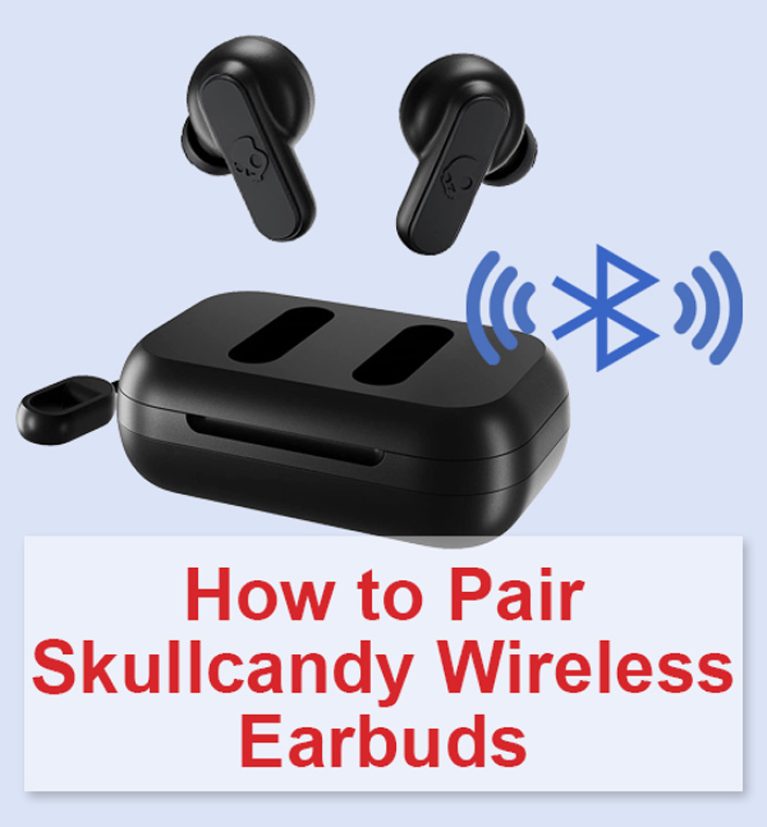
Pairing mode allows a Bluetooth device to discover your earbuds. Most Skullcandy models enter this mode when they power on and are not connected to another device.
Try this general method:
- Turn off Bluetooth on nearby phones and tablets.
- Place both earbuds in the charging case.
- Close the lid for about five seconds.
- Open the lid and remove both earbuds.
- Watch for a flashing LED or listen for a pairing prompt.
- Open the Bluetooth menu and search again.
Some models use physical buttons. Others use touch controls. If your earbuds do not enter pairing mode automatically, press and hold the main button or touch panel for several seconds. The exact time differs by model, so check the product guide for your specific earbuds.
Skull-iQ products may use voice controls and the Skull-iQ app during setup. The app can help identify the model and guide you through features, but your phone still needs to see the earbuds in its Bluetooth settings.
One mistake I often see is holding the touch panel too long. That can turn the earbuds off or activate another function. Use short, controlled presses unless your model guide says otherwise.
How to pair Skullcandy earbuds when they do not show up
If your Skullcandy earbuds do not appear in the Bluetooth list, work through the problem in order. Randomly repeating the same step rarely helps.
Try these fixes:
• Charge the earbuds and case for at least 15 minutes.
• Turn Bluetooth off, wait a few seconds, and turn it back on.
• Move away from other active Bluetooth devices.
• Place the earbuds in the case, close the lid, and try again.
• Restart your phone, tablet, or computer.
• Forget an old Skullcandy connection from the Bluetooth menu.
• Make sure the earbuds are not connected to another device.
• Reset the earbuds by following the instructions for your exact model.
Bluetooth range is another factor. Bluetooth connections can be affected by walls, crowded wireless areas, and nearby electronic devices. For initial setup, keep the earbuds within one or two feet of your phone.
If the LED does not light up, the problem may be charging rather than pairing. Clean the metal contacts on the earbuds and case with a dry cotton swab. Do not use water or metal tools.
How to pair Skullcandy earbuds after forgetting the device
Forgetting the old Bluetooth entry is useful when the earbuds connect poorly, show as unavailable, or connect to only one side.
On your phone or computer, open the Bluetooth device list. Select the Skullcandy earbuds, then choose Forget, Remove, or Unpair. After that, place both earbuds in the case and start the pairing process again.
This creates a fresh connection record. It is similar to erasing an old address from your phone before saving the correct one.
When troubleshooting how to pair Skullcandy earbuds, forgetting the device is safer than immediately performing a factory reset. A reset may remove custom settings, and the button sequence differs widely among models.
.png?cache=always)
How to fix one Skullcandy earbud not connecting
When only one earbud works, the two earbuds may have lost their connection with each other. Your phone may also have saved an incomplete Bluetooth profile.
Use this process:
- Forget the Skullcandy earbuds from your phone.
- Turn off Bluetooth on nearby devices.
- Put both earbuds into the charging case.
- Confirm that both earbuds are charging.
- Remove both earbuds at the same time.
- Wait for them to sync with each other.
- Turn Bluetooth on again.
- Select the main Skullcandy device name.
If this fails, follow the reset steps in the manual for your model. Do not assume that every Skullcandy product resets in the same way. Some models use button presses, while others use touch controls or the charging case.
A common cause is a dirty charging contact. If one earbud never charges, it may not power on or sync. Clean the contacts gently and check whether the charging LED responds.
How to reset Skullcandy earbuds
A reset can solve repeated pairing errors, one-sided audio, and connection problems that continue after forgetting the device. It should be a later step, not the first one.
Before resetting:
• Charge the earbuds and case.
• Forget the earbuds from every nearby device.
• Read the instructions for your exact model.
• Note that saved settings may be removed.
Many Skullcandy models reset when both earbuds are placed in the case and their buttons or touch panels are pressed in a specific pattern. However, the sequence is not universal. Using the wrong pattern may simply turn an earbud off or change its mode.
After the reset, remove both earbuds and wait for pairing mode. Then search for the earbuds in Bluetooth settings. This is the correct point to apply the steps for how to pair Skullcandy earbuds again.
Manufacturer guides are the best authority for reset instructions because product generations can share similar names but use different controls.

How to improve your Skullcandy Bluetooth connection
A good pairing is only the start. These habits can make the connection more stable:
• Keep your phone and earbuds within normal Bluetooth range.
• Keep the charging case powered.
• Install firmware updates through the official Skullcandy app when available.
• Avoid pairing with many devices at the same time.
• Turn off Bluetooth on devices you no longer use.
• Keep the earbuds and charging contacts clean.
• Store both earbuds in the case after use.
Bluetooth audio can pause when the phone is behind your body or blocked by thick walls. This is normal for short-range wireless technology. It does not always mean the earbuds are defective.
In my experience, the most useful habit is simple: disconnect the earbuds from the old device before trying a new one. This prevents the familiar “connected, but no sound” problem.
Common mistakes when pairing Skullcandy earbuds
Many pairing problems come from small setup errors rather than damaged hardware.
Avoid these mistakes:
• Searching for the earbuds while they are still inside the closed case.
• Selecting the wrong Bluetooth entry.
• Leaving Bluetooth active on the last phone used.
• Pairing only one earbud.
• Trying to connect with a nearly empty battery.
• Holding a touch control too long.
• Resetting the earbuds without checking the model guide.
• Assuming the earbuds will connect to two devices at once.
Some Skullcandy models support newer multipoint features, while others connect to only one source at a time. Check the specifications for your model before expecting automatic switching between a phone and laptop.
The best approach to how to pair Skullcandy earbuds is patient and orderly. Charge them, clear old connections, enter pairing mode, and connect from the device’s Bluetooth menu.
Frequently asked questions about how to pair Skullcandy earbuds
Why are my Skullcandy earbuds not showing in Bluetooth?
Charge the earbuds, turn off Bluetooth on nearby devices, and place both earbuds in the case before trying again. If they still do not appear, forget the old Bluetooth record and follow the reset instructions for your model.
How do I pair both Skullcandy earbuds at the same time?
Place both earbuds in the case, then remove them together. Wait for them to sync with each other before selecting the main Skullcandy product name in your phone’s Bluetooth menu.
Can I pair Skullcandy earbuds with an iPhone?
Yes. Open Settings, select Bluetooth, turn it on, and tap the Skullcandy earbuds when they appear. Most models connect without a passcode.
Can I connect Skullcandy earbuds to two devices?
Some newer models support multipoint or similar connection features, but many models support one active connection at a time. Check your model’s product guide to confirm its capabilities.
Why does only one Skullcandy earbud work?
The earbuds may have lost their internal sync, or one earbud may not be charging. Forget the Bluetooth connection, charge both earbuds, remove them together, and reset them if needed.
Do Skullcandy earbuds need an app to pair?
No. You can usually pair them through your phone, tablet, or computer’s Bluetooth settings. The Skullcandy app is useful for updates, controls, and model-specific features.
Conclusion
Pairing Skullcandy earbuds usually takes only a few steps: charge both earbuds, place them in pairing mode, open Bluetooth settings, and select the correct Skullcandy name. If the connection fails, forget the old device, check the charging contacts, and use the reset instructions for your exact model.
The key is to avoid rushing. Treat pairing like giving your earbuds a clear introduction to your device, and most connection issues become much easier to solve. Try these steps with your earbuds today, and share your model or pairing experience in the comments.
