

To pair Sony earbuds, open Bluetooth settings, place the earbuds in pairing mode, and select them from your device.
Learning how to pair Sony earbuds is usually quick, but the exact steps can vary by model, such as the WF-1000XM5, WF-C700N, LinkBuds, or INZONE Buds. This guide explains the pairing process for phones, tablets, computers, and other devices, while also covering common connection problems, reset steps, and tips for a stable wireless link.
What You Need Before Pairing Sony Earbuds
Before learning how to pair Sony earbuds, check a few simple things. Your earbuds should have enough battery, and your phone or computer should have Bluetooth turned on. Keep the earbuds close to the device during setup.
Most Sony earbuds enter pairing mode when you remove them from the charging case for the first time. If they have already been paired with another device, you may need to press and hold the touch sensors or buttons to start pairing mode again.
Check these points first:
• Charge the earbuds and case for at least a few minutes.
• Keep the earbuds within about three feet of your device.
• Turn off Bluetooth on nearby devices that may connect first.
• Remove any protective film from the charging contacts.
• Install the Sony | Sound Connect app if your model supports it.
The app was previously known as Sony | Headphones Connect. It can help with setup, firmware updates, noise control, equalizer settings, and device management. The app is useful, but you can pair most Sony earbuds through your device’s normal Bluetooth menu.
How to Pair Sony Earbuds With an Android Phone
The Android process is simple and works with most Sony wireless earbuds. The menu names may differ slightly by phone brand, but the main steps are nearly the same.
- Place both earbuds in the charging case.
- Open the case lid.
- Remove the earbuds if they turn on automatically.
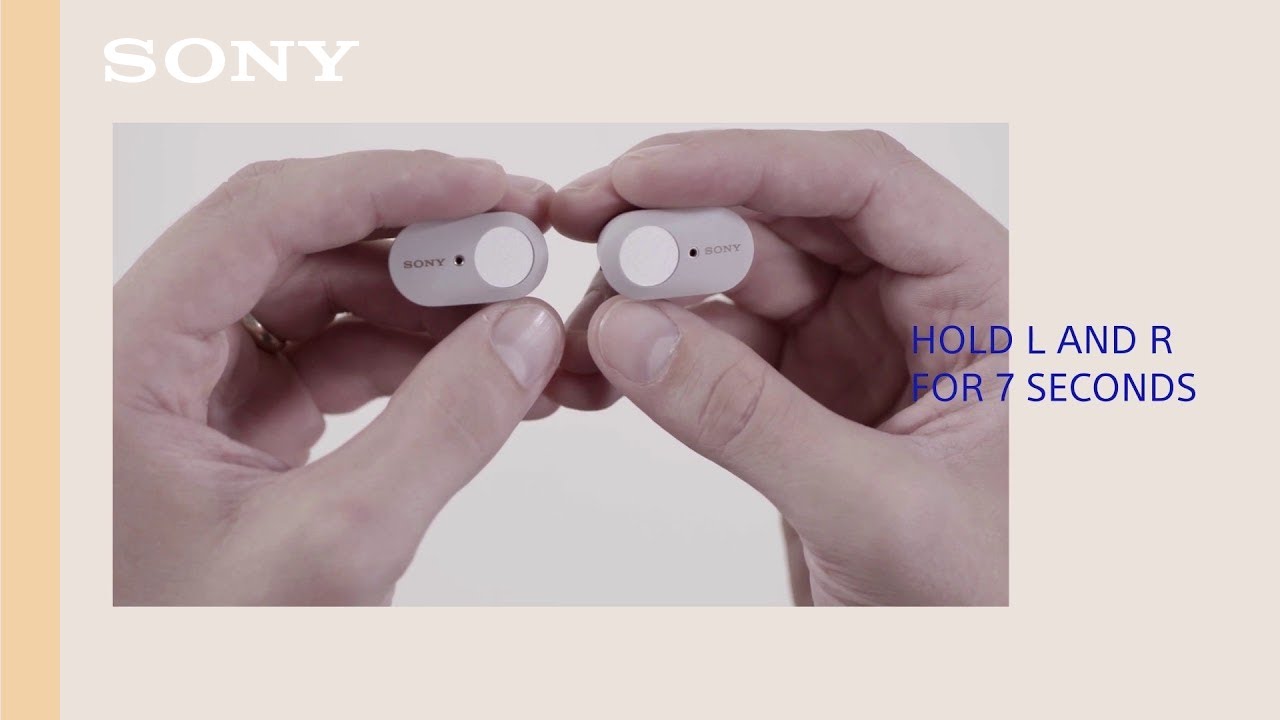
- Press and hold the touch sensors or buttons for about five to seven seconds.
- Release them when the indicator flashes blue or white, or when you hear “Bluetooth pairing.”
- Open Settings on your Android phone.
- Tap Connected devices, Connections, or Bluetooth.
- Turn on Bluetooth.
- Select your Sony earbuds from the list of available devices.
- Tap Pair or Connect.
Your earbuds may appear as a model name such as “WF-1000XM5,” “WF-C700N,” or “LinkBuds.” Some models may show an extra code, such as “LE,” beside the name. Choose the standard model name first unless Sony’s instructions for your model say otherwise.
If your Android phone supports Google Fast Pair, a pop-up may appear when you open the charging case near the phone. Follow the pop-up instructions to connect. Fast Pair can make how to pair Sony earbuds almost automatic, but Bluetooth must be active and the phone may need an internet connection.

How to Pair Sony Earbuds With an iPhone or iPad
Pairing Sony earbuds with an iPhone or iPad takes only a few steps. The process is the same for most Sony WF and LinkBuds models.
- Put the earbuds into pairing mode.
- Open the Settings app on your iPhone or iPad.
- Tap Bluetooth.
- Turn Bluetooth on if it is off.
- Wait for your Sony earbuds to appear under Other Devices.
- Tap the earbuds’ name.
- Wait until the status changes to Connected.
After the first connection, the earbuds should connect automatically when you open the case near your iPhone. If they do not connect, open the Bluetooth menu and tap the earbuds’ name again.
For a better setup, install the Sony | Sound Connect app from the App Store. The app does not replace iPhone Bluetooth pairing. Instead, it adds controls for features such as adaptive sound control, noise canceling, ambient sound, and touch controls.
One mistake I often see is opening the app before pairing through iPhone settings. In most cases, pair the earbuds in Bluetooth settings first, then open the Sony app. This order prevents many setup errors.
How to Pair Sony Earbuds With a Windows PC
You can use Sony earbuds with a Windows laptop or desktop for music, video calls, and games. Windows may list the earbuds as both an audio device and a microphone.
Here is how to pair Sony earbuds with Windows 11:
- Put the earbuds into pairing mode.
- Open Settings.
- Select Bluetooth & devices.
- Turn Bluetooth on.
- Click Add device.
- Select Bluetooth.
- Choose your Sony earbuds.
- Click Done after the connection is complete.
On Windows 10, open Settings, select Devices, choose Bluetooth & other devices, and click Add Bluetooth or other device. Then select Bluetooth and choose your Sony earbuds.
If you see two entries, select the normal headset name. Avoid choosing a separate “LE” entry unless your model specifically requires it. The standard Bluetooth audio connection usually offers better support for music, calls, and controls.
For calls, open Windows sound settings and confirm that your Sony earbuds are selected as both the output and input device. If sound quality drops during a call, Windows may switch to a hands-free Bluetooth profile. That behavior is normal for many Bluetooth headsets.
How to Pair Sony Earbuds With a Mac
Sony earbuds work with MacBook and iMac computers through macOS Bluetooth settings. The steps are short and do not require the Sony app.
- Put the earbuds into pairing mode.
- Click the Apple menu.
- Open System Settings.
- Select Bluetooth.
- Turn Bluetooth on.
- Find your Sony earbuds under Nearby Devices.
- Click Connect.
Older versions of macOS may show Bluetooth under System Preferences instead of System Settings. The names are different, but the pairing process remains similar.
After pairing, click the Control Center icon in the menu bar and select your Sony earbuds as the sound output. If you use the earbuds for video calls, check the microphone setting in the calling app as well.
If the earbuds connect but produce no sound, the Mac may still be using its built-in speakers. This is one of the most common issues after learning how to pair Sony earbuds with a Mac.
How to Put Sony Earbuds Into Pairing Mode
Pairing mode allows your phone or computer to find the earbuds. Without it, the earbuds may remain connected to an old device or stay invisible in the Bluetooth list.
For many Sony earbuds:
- Place both earbuds in the charging case.
- Leave the lid open.
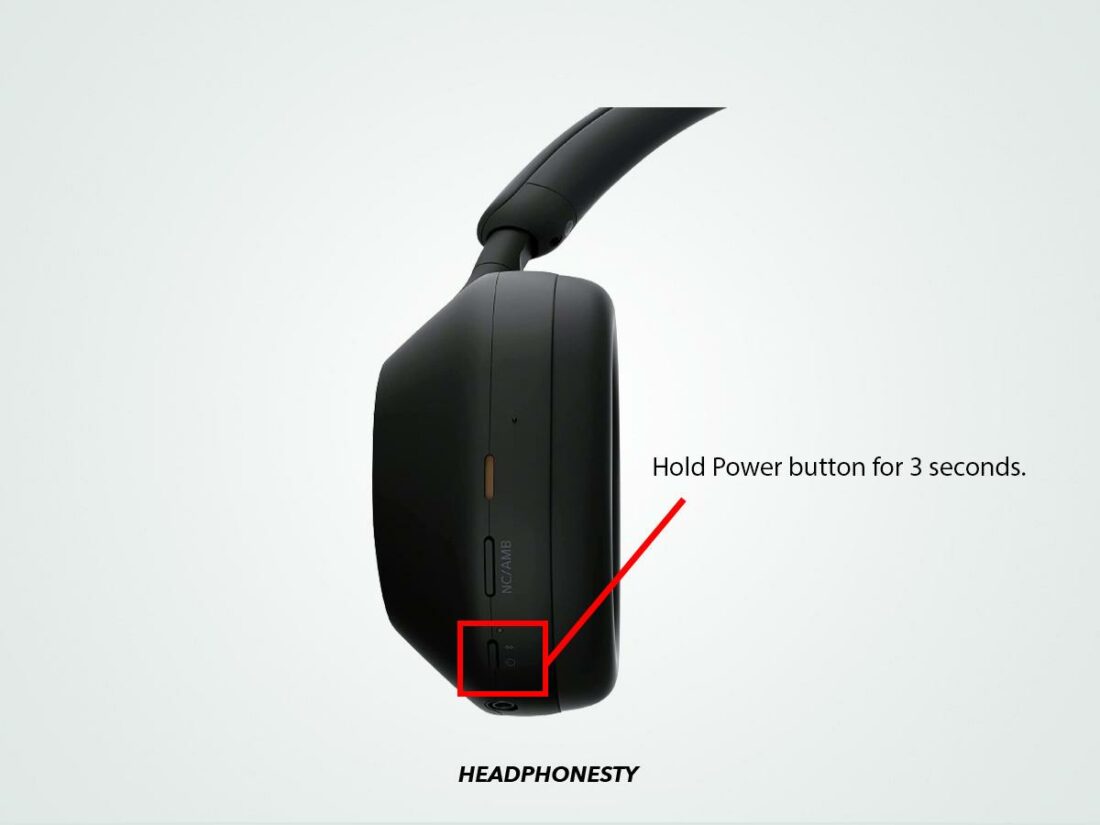
- Touch and hold both earbuds, or hold the case button.
- Continue for about five to seven seconds.
- Watch for a flashing blue or white light.
- Look for a voice prompt that says “Bluetooth pairing.”
The exact method depends on the model. Some earbuds use touch controls, while others use physical buttons. Sony’s model-specific help guide is the best reference if these steps do not work.
The WF-1000XM series usually uses the touch sensors on both earbuds. Some newer models use a button on the case. INZONE gaming earbuds may use a USB transceiver instead of standard Bluetooth for some devices, so their setup can differ from regular WF earbuds.

How to Pair Sony Earbuds With a Second Device
Many Sony earbuds support multipoint Bluetooth. This feature lets the earbuds stay connected to two devices at once, such as a laptop and a phone. You can listen to music on one device and answer a call from the other.
To connect a second device:
- Connect the earbuds to the first device.
- Put the earbuds into pairing mode again.
- Open Bluetooth settings on the second device.
- Select the Sony earbuds.
- Confirm the connection.
- Use the Sony | Sound Connect app to enable multipoint if your model requires it.
Not every Sony model supports multipoint. Some models also require a firmware update before the feature becomes available. Multipoint can use more power and may cause confusion if several devices try to play audio at the same time.
When I troubleshoot how to pair Sony earbuds with multiple devices, I recommend connecting only two devices at first. Add more devices later, one at a time. This makes it easier to identify which device is taking control.
How to Pair Sony Earbuds With the Sony App
The Sony | Sound Connect app can guide you through pairing and help you manage advanced settings. It is available for many Sony wireless headphones and earbuds, but not every model supports every feature.
- Download and open Sony | Sound Connect.
- Accept the required permissions.
- Turn on Bluetooth.
- Put the earbuds into pairing mode.
- Select Add device or Connect.
- Choose your Sony earbuds.
- Follow the on-screen setup steps.
The app may ask for access to nearby devices, notifications, or location services. These permissions can support Bluetooth discovery and device features. You can review permissions in your phone settings if you prefer more control.
Use the app to check for firmware updates. Updates may improve stability or add features, but keep the earbuds in the case or follow the app’s instructions during the update. Do not close the app or turn off Bluetooth while the update is running.
What to Do If Sony Earbuds Do Not Pair
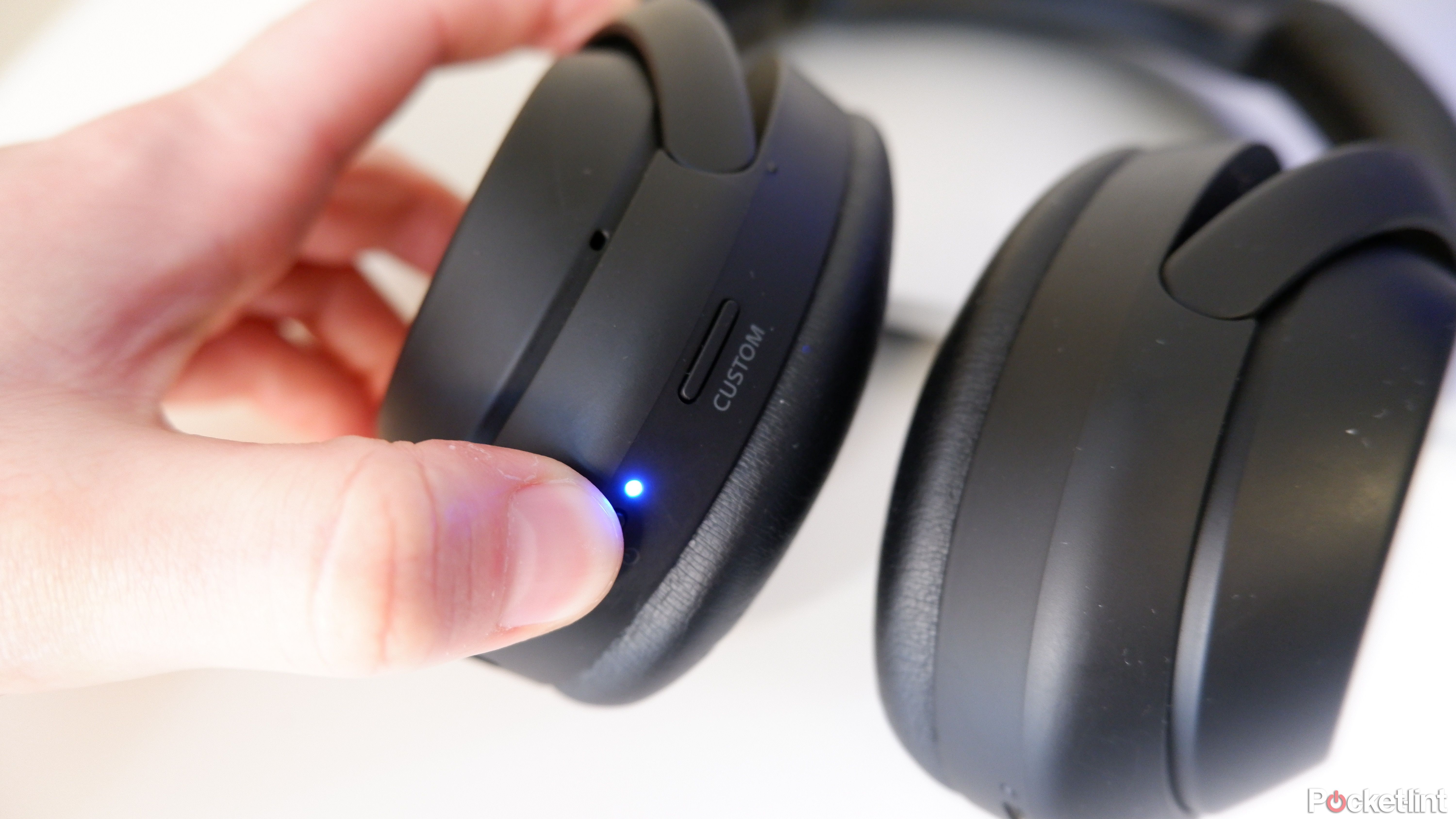
If your Sony earbuds do not appear in the Bluetooth list, start with the easy fixes. Bluetooth pairing is like introducing two people in a noisy room: moving closer and removing other distractions often solves the issue.
Try these steps:
• Turn Bluetooth off, wait ten seconds, and turn it on again.
• Put the earbuds back in the case, close the lid, and try again.
• Charge both the earbuds and the case.
• Move away from other Bluetooth devices.
• Forget the earbuds in your phone or computer’s Bluetooth menu.
• Restart the phone, tablet, or computer.
• Put the earbuds back into pairing mode.
• Update the Sony app and the earbuds’ firmware.
To forget the earbuds on an iPhone, open Settings, tap Bluetooth, select the information icon beside the earbuds, and tap Forget This Device. On Android, open Bluetooth settings, tap the gear icon beside the earbuds, and choose Forget or Unpair.
On Windows and Mac, remove the earbuds from the Bluetooth device list before trying again. This creates a clean connection instead of asking the computer to reuse damaged pairing information.
How to Reset Sony Earbuds
A reset can fix repeated pairing failures, one-earbud problems, or unstable connections. A reset usually removes stored Bluetooth connections, so you will need to pair the earbuds again.
The reset method depends on the model. Many Sony earbuds use this general process:
- Place both earbuds in the charging case.
- Keep the lid open.
- Touch and hold both earbuds, or use the case button.
- Continue holding until the indicator flashes in the required pattern.
- Close the case after the reset finishes.
- Open the case and place the earbuds into pairing mode.
- Pair them with your device again.
Some Sony models use initialization rather than a simple reset. Initialization returns the earbuds to factory settings and deletes all pairing information. Always check the instructions for your exact model before holding the buttons for a long time.
Do not reset the earbuds as your first step if one device simply has Bluetooth turned off. A reset is useful, but it is more disruptive than restarting Bluetooth or forgetting the device.
Tips for a Strong and Stable Bluetooth Connection
Knowing how to pair Sony earbuds is only the first step. A strong connection also depends on distance, obstacles, software, and nearby wireless signals.
Use these practical habits:
• Keep your phone or computer within a reasonable range.
• Avoid placing the source device deep inside a bag or behind your body.
• Keep the earbuds and charging contacts clean and dry.
• Update the earbuds when Sony releases compatible firmware.
• Avoid connecting to many devices at the same time.
• Keep your phone’s operating system up to date.
• Store the earbuds in the case when you are not using them.
Bluetooth can struggle around crowded wireless areas, such as airports, gyms, and busy offices. Water, thick walls, and the human body can also affect the signal. Small interruptions do not always mean the earbuds are defective.
Battery level matters, too. Very low power can cause unexpected behavior, including random disconnects or failure to enter pairing mode. Charging the case and both earbuds is a simple first check.
Common Mistakes to Avoid
Several small mistakes can make how to pair Sony earbuds seem harder than it is. The most common mistake is selecting the wrong device name from the Bluetooth list.
Avoid these errors:
• Do not select a nearby person’s headphones by mistake.
• Do not leave the earbuds connected to an old phone.
• Do not close the case before pairing mode begins.
• Do not assume every Sony model uses the same button sequence.
• Do not ignore low battery warnings.
• Do not pair the earbuds through the Sony app before enabling Bluetooth.
• Do not choose an “LE” listing unless your model requires it.
Another common issue is pairing only one earbud. Place both earbuds in the case, reset or initialize them if needed, and repeat the setup. If one earbud still fails to charge, inspect the metal contacts and clean them gently with a dry cotton swab.
Frequently Asked Questions About How to Pair Sony Earbuds
How do I put Sony earbuds into pairing mode?
Place the earbuds in the case, open the lid, and press and hold the touch sensors, buttons, or case button. The indicator should flash, or a voice prompt should announce Bluetooth pairing. The exact method depends on the Sony model.
Why are my Sony earbuds not showing in Bluetooth?
They may still be connected to another device, or they may not be in pairing mode. Turn off Bluetooth on nearby devices, restart Bluetooth on your phone, and place the earbuds into pairing mode again.
Can I pair Sony earbuds with two devices?
Some Sony earbuds support multipoint connections with two devices. You may need to enable multipoint in the Sony | Sound Connect app, and the feature is not available on every model.
How do I pair Sony earbuds with an iPhone?
Open Settings, tap Bluetooth, turn Bluetooth on, and select the Sony earbuds from the list. If they do not appear, put them into pairing mode and try again.
How do I reset Sony earbuds for pairing?
Place both earbuds in the charging case and use the model-specific reset or initialization steps. This usually deletes saved Bluetooth connections, so you must pair the earbuds again afterward.
Can I use Sony earbuds without the Sony app?
Yes. Most Sony earbuds can connect through the standard Bluetooth settings on a phone, tablet, Mac, or Windows PC. The app is mainly useful for updates, sound controls, and advanced features.
Conclusion
How to pair Sony earbuds usually takes only a few minutes: charge the earbuds, enter pairing mode, open Bluetooth settings, and select the correct Sony model. If the connection fails, forget the old device, restart Bluetooth, and try pairing again before performing a reset.
For the best experience, keep the earbuds updated and use the Sony | Sound Connect app for supported features. Try the steps above with your model, and explore Sony’s model-specific support guide if you need help with a unique button or touch-control sequence.
