

Put both earbuds in pairing mode, select them in your device’s Bluetooth settings, and confirm the connection.
Learning how to pair wireless earbuds is simple once you understand the small steps involved. Most connection problems come from low battery, pairing with the wrong device, or earbuds that are still linked to an older phone. This guide explains the process for iPhone, Android, Windows, and Mac, plus practical fixes that help when pairing does not go as planned.
What does pairing wireless earbuds mean?
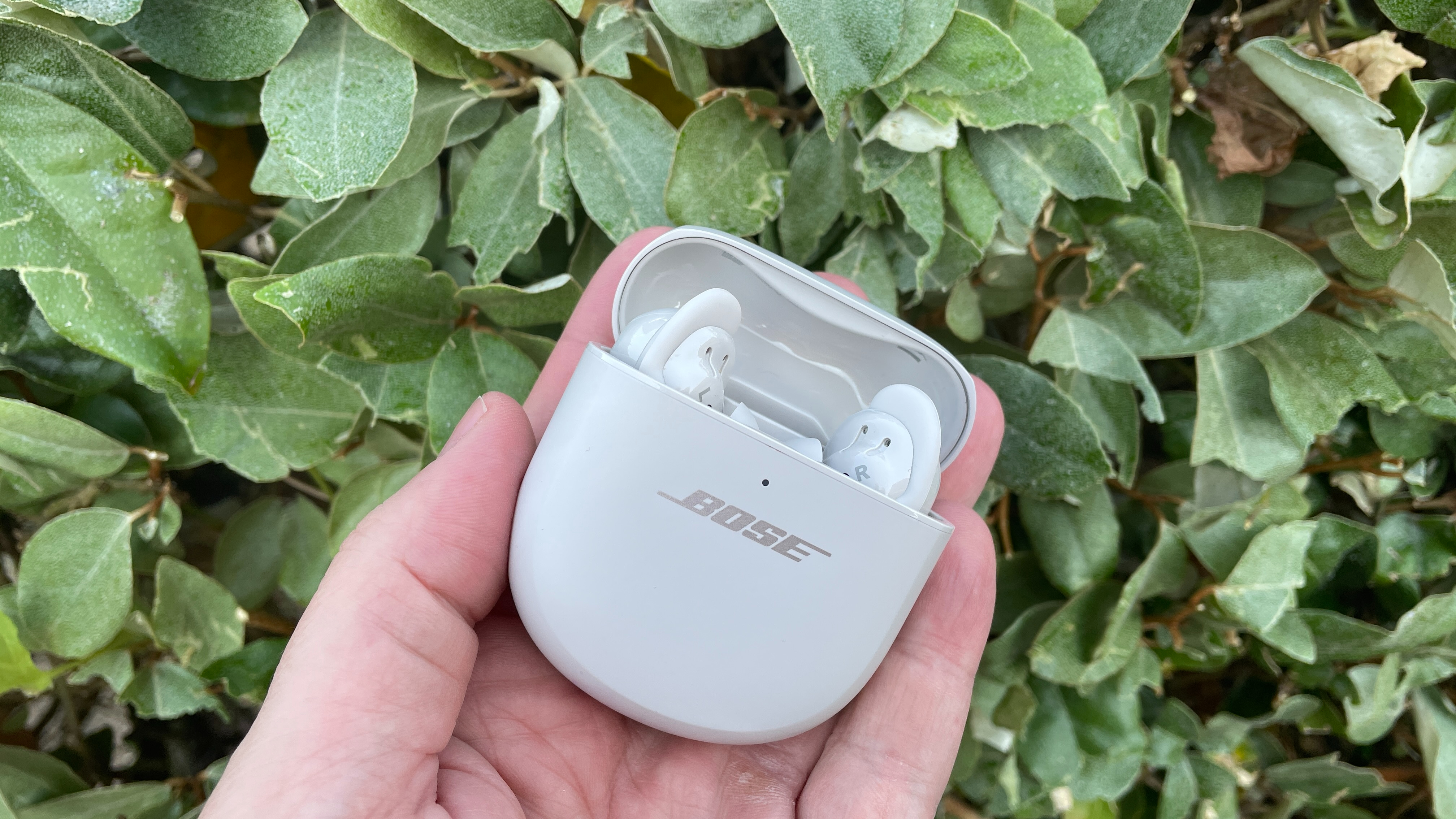
Pairing wireless earbuds means creating a Bluetooth connection between the earbuds and a device. This connection lets you listen to music, make calls, watch videos, and use voice assistants without a cable.
The first connection usually takes the most work. After that, your earbuds often reconnect on their own when you open the charging case or turn them on.
Bluetooth pairing works over a short range. Most earbuds use Bluetooth technology from the Bluetooth Special Interest Group, and modern models may support features such as Bluetooth Low Energy, multipoint pairing, and improved audio codecs.
Here is the basic process:
- Charge the earbuds and their case.
- Open the case or turn on the earbuds.
- Hold the pairing button or touch control.
- Open Bluetooth settings on your device.
- Select the earbuds from the device list.
- Confirm the connection if asked.
The exact button, light pattern, and menu names vary by brand. For that reason, the user manual can help when the standard process does not work.

Before you pair wireless earbuds
A few quick checks can prevent most pairing problems. Think of them as preparing the road before you start driving.
Charge the earbuds
Place both earbuds in the case and check the battery level. If the case or earbuds have almost no power, they may not enter pairing mode.
Some earbuds show a light when they charge. Others display the battery level in a phone app. Give them at least 10 to 15 minutes of charge if they seem unresponsive.
Keep the earbuds close
Keep the earbuds within a few feet of your phone or computer during setup. Bluetooth can reach much farther in open areas, but nearby devices, walls, and wireless signals can affect the first connection.
Turn off nearby Bluetooth devices
Your earbuds may connect to the last device they used. If they connect to a tablet, laptop, or smart TV nearby, your phone may not find them.
Temporarily turn off Bluetooth on other devices or move away from them. This is one of the most useful lessons when learning how to pair wireless earbuds.
Remove plastic shipping tabs
New earbuds sometimes have thin plastic covers over their charging contacts. If you leave these covers in place, the earbuds may not charge or power on.
Remove the tabs, place the earbuds back in the case, and make sure the charging contacts touch correctly.
Keep the earbuds in the case at first
Many earbuds enter pairing mode when you open the case lid. Some models require you to remove them first, while others need a button press.
If you are unsure, open the case near your device and watch for a flashing white, blue, or green light. The manual will explain what each light means.

How to pair wireless earbuds with an iPhone
Pairing wireless earbuds with an iPhone usually takes less than a minute. Apple AirPods may show a pop-up window, while other Bluetooth earbuds use the regular Settings menu.
- Place the earbuds in pairing mode.
- Open the Settings app on your iPhone.
- Tap Bluetooth.
- Turn Bluetooth on if it is off.
- Wait for the earbuds to appear under Other Devices.
- Tap the earbuds’ name.
- Accept any pairing request.
Once connected, the earbuds should move to the My Devices section. You can tap the information icon beside their name to change settings, forget the device, or check connection details.
For AirPods, open the charging case near the unlocked iPhone. If the setup card appears, tap Connect and follow the instructions. If no pop-up appears, press and hold the setup button on the case until the status light flashes white, then select the AirPods in Bluetooth settings.
If you use an iPhone with third-party earbuds, check the manufacturer’s app for firmware updates and control options. The app may also help you set noise cancellation, transparency mode, touch controls, and multipoint connections.

How to pair wireless earbuds with Android
Android phones from Samsung, Google, Motorola, OnePlus, and other brands use similar Bluetooth steps. The wording may differ slightly between Android versions.
- Put the earbuds into pairing mode.
- Open Settings on your Android phone.
- Tap Connected devices, Connections, or Bluetooth.
- Select Pair new device if needed.
- Find the earbuds in the available devices list.
- Tap the earbuds’ name.
- Tap Pair or Confirm.
Some Android phones show a Fast Pair notification when compatible earbuds are nearby. Tap the notification and follow the instructions on the screen.
If the earbuds do not appear, tap the refresh icon or turn Bluetooth off and back on. Keep the earbuds close to the phone and make sure they are not connected to another device.
You may also need to grant access to nearby devices. Android uses this permission to discover Bluetooth products. The permission does not mean the earbuds can read your personal files or messages.
After pairing, open the Bluetooth menu to check useful options. Depending on the model, you may see settings for phone calls, media audio, contact sharing, spatial audio, or high-quality sound.
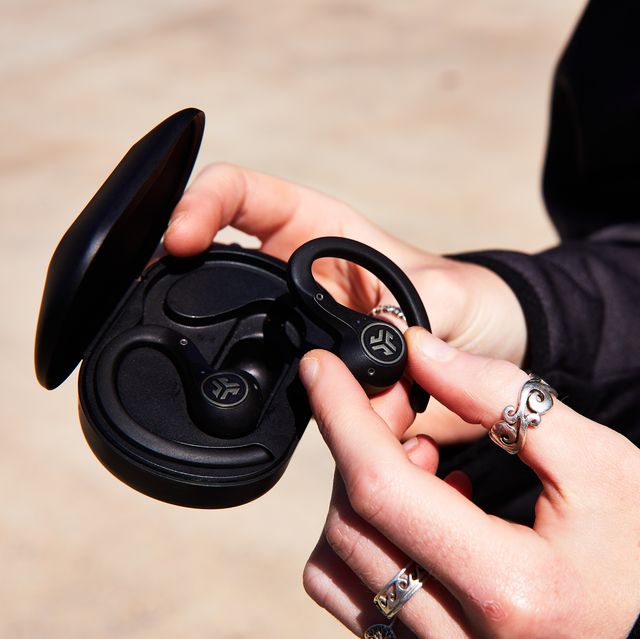
How to pair wireless earbuds with a Windows PC
Windows computers can connect to wireless earbuds for music, video calls, gaming, and other audio tasks. The steps are slightly different on Windows 10 and Windows 11, but the main process is similar.
Windows 11
- Put the earbuds into pairing mode.
- Open Start and select Settings.
- Choose Bluetooth & devices.
- Turn Bluetooth on.
- Click Add device.
- Select Bluetooth.
- Choose your earbuds from the list.
- Click Done when the connection finishes.
Windows 10
- Put the earbuds into pairing mode.
- Open Start and select Settings.
- Choose Devices.
- Select Bluetooth & other devices.
- Turn Bluetooth on.
- Click Add Bluetooth or other device.
- Choose Bluetooth.
- Select the earbuds.
After pairing, click the speaker icon in the Windows taskbar and select the earbuds as the sound output. For video calls, open the meeting app’s audio settings and choose the earbuds for both speaker and microphone use.
Windows may show two audio options for some earbuds. One may be labeled Stereo, while another may be labeled Hands-Free AG Audio. Stereo usually offers better sound. Hands-free mode may be needed for the microphone but can reduce music quality.

How to pair wireless earbuds with a Mac
A Mac can pair with most Bluetooth earbuds, even when the earbuds are made by another brand.
- Put the earbuds in pairing mode.
- Click the Apple menu.
- Open System Settings.
- Select Bluetooth.
- Find the earbuds under Nearby Devices.
- Click Connect.
- Approve the connection if macOS asks for confirmation.
On older versions of macOS, open System Preferences and select Bluetooth instead. After the connection is complete, click the Control Center icon in the menu bar and choose the earbuds as the audio output.
If the earbuds connect but sound still comes from the Mac speakers, open System Settings, select Sound, and choose the earbuds under Output. This small step is often missed.
A useful tip from everyday troubleshooting is to remove unused Bluetooth devices from the Mac. A long list can make it harder to find the right earbuds, especially in a busy office or classroom.
.png?cache=always)
How to pair wireless earbuds for the first time
First-time pairing is usually the same across brands, but the pairing button may be in a different place. It can be on the charging case, inside the lid, or on one of the earbuds.
Follow these steps:
- Remove the earbuds from their packaging.
- Remove any protective film from the charging contacts.
- Charge the earbuds and case.
- Open the case.
- Press and hold the pairing button for about three to five seconds.
- Watch for a flashing light.
- Open Bluetooth settings on your phone, tablet, or computer.
- Select the earbuds.
- Test both earbuds with music or a short video.
Some models enter pairing mode automatically the first time you open the case. Others require a longer button press. A steady light often means the earbuds are connected, while a flashing light usually means they are ready to pair.
Do not worry if the earbuds do not connect instantly. Close the case, wait a few seconds, open it again, and repeat the process. Bluetooth pairing is more like introducing two devices than plugging in a simple cable.
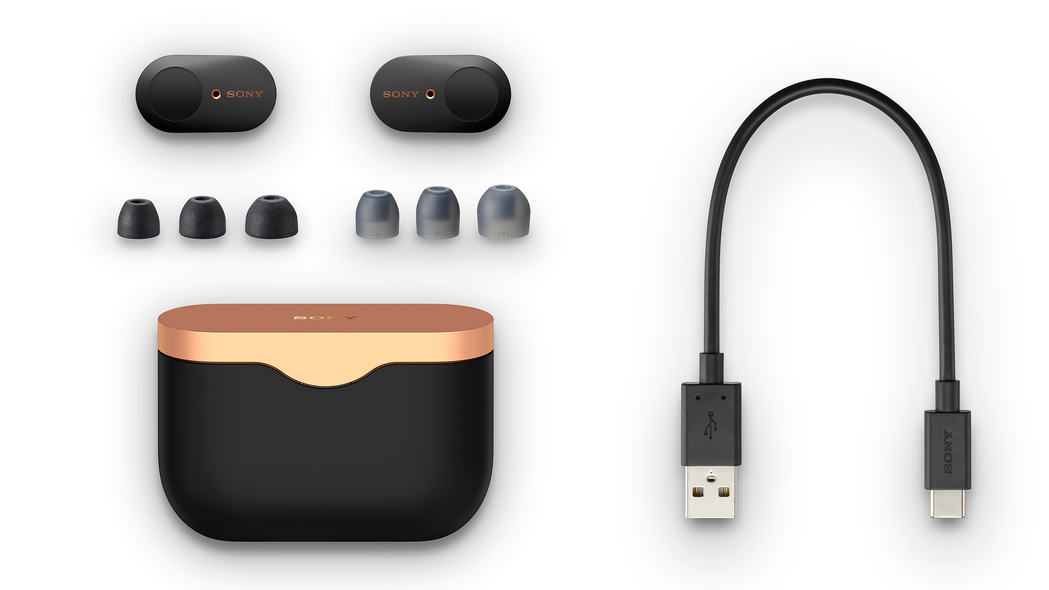
How to pair wireless earbuds with a second device
Many wireless earbuds can remember several devices, but they may not connect to all of them at the same time. This depends on whether the earbuds support multipoint Bluetooth.
To pair a second device:
- Disconnect the earbuds from the first device.
- Put the earbuds into pairing mode again.
- Open Bluetooth settings on the second device.
- Select the earbuds.
- Confirm the connection.
If the earbuds support multipoint, you may be able to connect them to a phone and laptop at the same time. For example, you can listen to music from your laptop and still answer a call from your phone.
Some earbuds switch between devices automatically. Others require you to select them manually. The product’s app or manual should explain the supported connection limits.
A common mistake is assuming that every pair of earbuds supports multipoint. Many models remember several devices but connect to only one at a time. This difference explains why some earbuds seem to “forget” a phone when they connect to a computer.
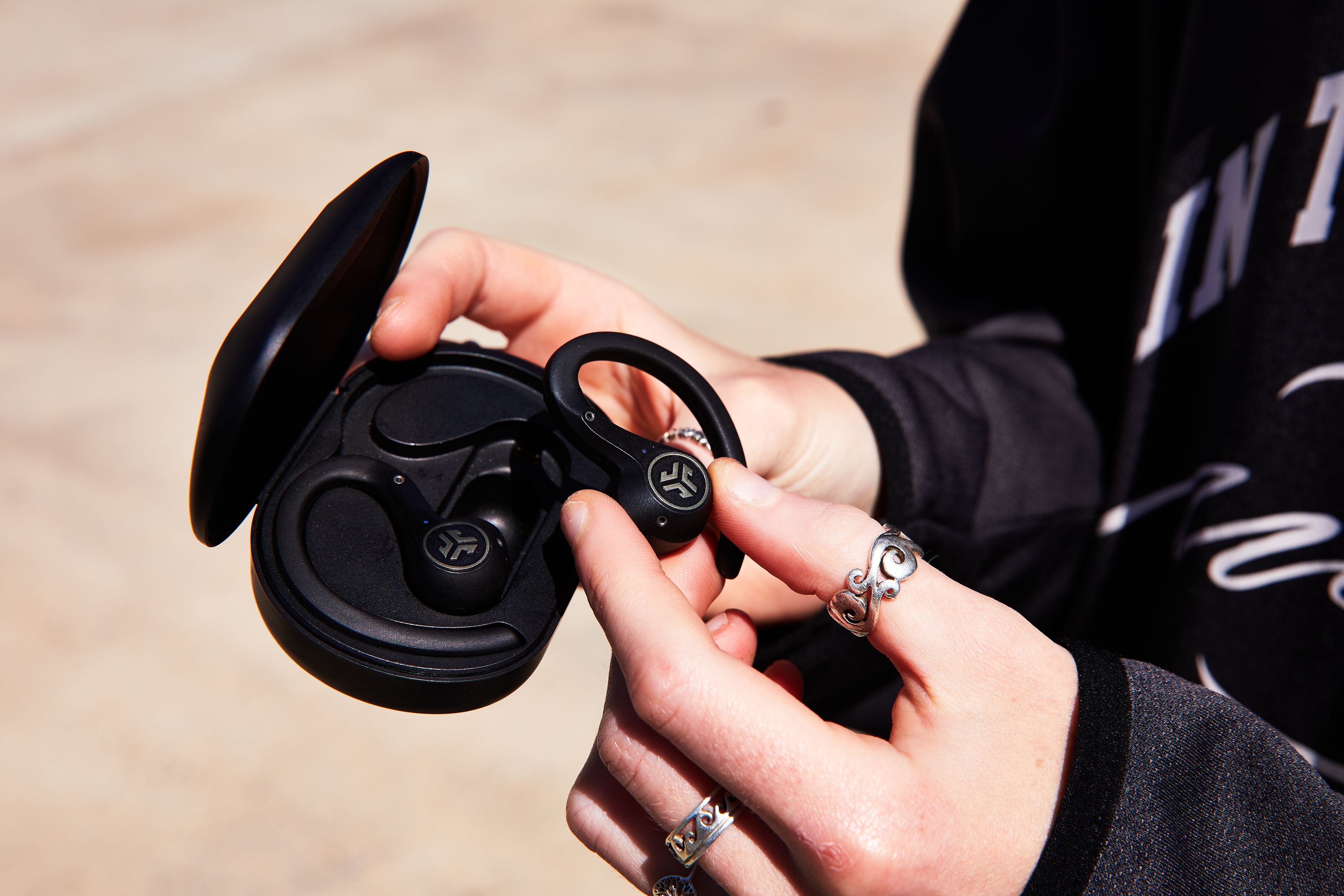
How to pair wireless earbuds when they are not showing up
If your earbuds do not appear in the Bluetooth list, start with the simplest fixes. In my experience, the issue is often that the earbuds are connected to another device or were not placed into pairing mode correctly.
Try these steps:
• Turn Bluetooth off, wait five seconds, and turn it back on.
• Close the charging case, wait 10 seconds, and open it again.
• Press and hold the case button until the status light flashes.
• Move the earbuds away from other phones, tablets, and computers.
• Charge the earbuds and case.
• Restart your phone or computer.
• Check that airplane mode is off.
• Look for the earbuds under Available Devices, Other Devices, or Add Device.
If the earbuds appear but pairing fails, tap Forget This Device on an iPhone or choose Remove Device on Windows and Android. Then place the earbuds back into pairing mode and try again.
Be careful when resetting the earbuds. A factory reset removes saved connections and may erase custom settings. However, it is often the best fix when one earbud connects but the other does not.
How to reset wireless earbuds
A reset can fix repeated connection errors, one-sided audio, and earbuds that connect to the wrong device. The reset method differs by brand, so check the manual before you begin.
A common reset process looks like this:
- Forget or remove the earbuds from every connected device.
- Place both earbuds in the charging case.
- Keep the lid open.
- Press and hold the case button for 10 to 15 seconds.
- Wait for the light to flash a different color.
- Close and reopen the case.
- Pair the earbuds again.
Some earbuds reset through a mobile app. Others require you to touch both earbuds for a set number of seconds.
After resetting, pair only with the device you want to use first. This makes it easier to confirm that the reset worked. Then add other devices one at a time.
Resetting should not be your first step for every problem. Try charging, restarting Bluetooth, and removing the old connection before using a full reset.
Common wireless earbud pairing problems
Only one earbud connects
Place both earbuds in the case and check that each one is charging. Clean the metal contacts with a dry cotton swab, then reset and pair them again.
This problem often happens when the earbuds lose synchronization with each other. A reset usually allows the left and right earbuds to create a new pair.
The earbuds connect but have no sound
Check the selected audio output on your device. The earbuds may be connected for calls but not selected for media audio.
On Android, open the Bluetooth device settings and check that Media audio is enabled. On Windows and Mac, select the earbuds as the active output device.
The sound keeps cutting out
Keep the device close to the earbuds and remove large obstacles between them. Wi-Fi routers, crowded public spaces, and other Bluetooth devices can sometimes add interference.
Also check for software updates in the earbud maker’s app. Updates may improve stability, but they cannot fix every hardware or distance issue.
The microphone sounds poor
Wireless earbuds often switch to a lower-quality Bluetooth profile when the microphone is active. This is normal with some computers and video call apps.
Choose the earbuds as the microphone only when needed. For important meetings, a computer microphone or wired headset may provide clearer speech.
The earbuds keep connecting to an old device
Turn off Bluetooth on the old device or remove the earbuds from its saved Bluetooth list. Then connect the earbuds to the device you use most.
Some products include an auto-connect setting in their app. Adjusting that setting can stop unwanted connections.
Tips for a stronger Bluetooth connection
Good pairing is only the start. These habits can keep your connection stable:
• Keep your phone or computer within the recommended Bluetooth range.
• Store both earbuds in the case when you are not using them.
• Keep the charging contacts clean and dry.
• Install firmware updates from the official manufacturer app.
• Avoid pairing in crowded areas when possible.
• Remove old Bluetooth devices that you no longer use.
• Keep your device’s operating system updated.
• Use the correct earbud app for your model.
• Check battery levels before travel or long calls.
Water and sweat resistance do not mean the charging contacts can stay wet. Dry the earbuds fully before placing them in the case. Moisture can cause charging and connection problems over time.
Battery age also matters. Small lithium-ion batteries lose capacity as they are used. If the earbuds shut down quickly even after charging, the problem may be battery wear rather than Bluetooth pairing.
Safety and privacy tips
Bluetooth earbuds are generally safe for everyday use, but sensible habits still matter. Keep the volume at a comfortable level, especially during long listening sessions. Health agencies commonly advise lowering volume and taking listening breaks to reduce the risk of hearing damage.
Pair earbuds only with devices you recognize. In a public place, avoid accepting unknown Bluetooth requests. Turn Bluetooth off when you do not need it if you want to reduce unwanted connection attempts and save a small amount of battery.
Do not use noise-canceling earbuds when you need to hear traffic, alarms, or people around you. Transparency mode can help, but it should not replace attention in busy areas.
For work or school computers, do not install unofficial pairing software. Use the operating system’s Bluetooth settings or the manufacturer’s official app.
Frequently Asked Questions About How to Pair Wireless Earbuds
How do I put wireless earbuds into pairing mode?
Open the charging case and press the pairing button until the status light flashes. If your earbuds have no case button, touch and hold both earbuds or follow the model’s manual.
Why are my wireless earbuds not showing up on Bluetooth?
They may be connected to another device, out of battery, or not in pairing mode. Charge them, move away from other Bluetooth devices, restart Bluetooth, and try again.
Can I pair wireless earbuds with both my phone and laptop?
Yes, if the earbuds support multipoint Bluetooth. If they do not, they may remember both devices but connect to only one at a time.
How do I pair wireless earbuds after forgetting the device?
Put the earbuds back into pairing mode, open your device’s Bluetooth settings, and select their name again. You may need to reset the earbuds if they do not appear.
Why does only one wireless earbud connect?
The earbuds may have lost their left-right synchronization, or one earbud may not be charging. Place both earbuds in the case, clean the contacts, reset them, and pair them again.
Do wireless earbuds work with every phone?
Most Bluetooth earbuds work with modern iPhone and Android phones. Some features, such as automatic switching or special audio controls, may work only with devices from the same brand.
How close should earbuds be to a Bluetooth device?
Keep them within a few feet during the first pairing. Afterward, many earbuds can work across a room, but walls, interference, and the Bluetooth version can affect the actual range.
Conclusion
Learning how to pair wireless earbuds comes down to four steps: charge them, enter pairing mode, open Bluetooth settings, and select the correct device. If the connection fails, remove the old pairing, restart Bluetooth, check the battery, or reset the earbuds.
Once you know how to pair wireless earbuds across iPhone, Android, Windows, and Mac, setup becomes quick and predictable. Try the steps with your own earbuds, keep the manual nearby, and share this guide with anyone who is still wrestling with a flashing Bluetooth light.
