Can A Full SSD Cause Stuttering: Causes And Fixes
Yes, a full SSD can cause stuttering by slowing writes, increasing latency, and limiting space for system tasks.
Can a full SSD cause stuttering? In many cases, yes, but the drive is not always the only cause. When an SSD has very little free space, it has less room for garbage collection, temporary files, updates, and data movement. This can create slowdowns in games, apps, and Windows.
I have seen this issue look like a graphics problem when the real cause was a nearly full system drive. This guide explains why it happens, how to confirm it, and which fixes work best.


Can a Full SSD Cause Stuttering?
Yes, a full SSD can cause stuttering, especially when less than 10% to 15% of its capacity remains free. The effect may appear as game hitching, delayed app loading, short freezes, or sudden frame-time spikes.
An SSD stores data in flash memory cells. It cannot simply overwrite old data in the same way a hard drive can rewrite a magnetic sector. Before writing new data, the SSD may need to move valid data, erase old blocks, and prepare fresh space.
This process is called garbage collection. It normally happens in the background, but a nearly full SSD has fewer spare blocks available. As a result, write speeds can fall and response times can rise.
A full SSD may cause:
• Short pauses during game play
• Stuttering when loading new areas
• Slow Windows updates
• Delays when opening or saving files
• Longer boot times
• Freezes during large file transfers
• Poor performance when recording gameplay
• Application crashes when the system drive has almost no space
The problem is often worse on the drive that holds Windows, game files, the page file, and temporary data. If your secondary SSD is full but your system drive has plenty of free space, you may notice fewer system-wide problems.

Why Does a Full SSD Cause Stuttering?
A full SSD can cause stuttering because it reduces the drive’s ability to manage data efficiently. Several storage processes can compete for the same small amount of free space.
Reduced write performance
Many SSDs have a fast write cache. This cache uses part of the flash memory or system memory to accept data quickly. After the cache fills, the SSD must write data directly to slower flash storage.
On a drive with plenty of free space, this process may remain smooth. On a nearly full drive, the SSD may also need to move existing data before writing new information. That creates a sharp drop in write speed.
This matters during tasks such as:
• Installing a game
• Loading a large game world
• Recording video
• Extracting files


• Using a virtual machine
• Editing photos or video
Less room for garbage collection
Garbage collection combines valid data into fewer blocks and frees the unused blocks. It helps the SSD prepare space for future writes.
When the drive is full, the controller has fewer empty blocks to use. It may need to perform more work during an active write. That extra work can create high latency, even if a benchmark still shows a decent average speed.
Stuttering is often linked to latency rather than average transfer speed. A drive can report fast sequential speeds and still pause for several seconds during small random writes.
Limited overprovisioning
Overprovisioning is storage reserved for the SSD controller. It supports wear leveling, garbage collection, and bad-block management.
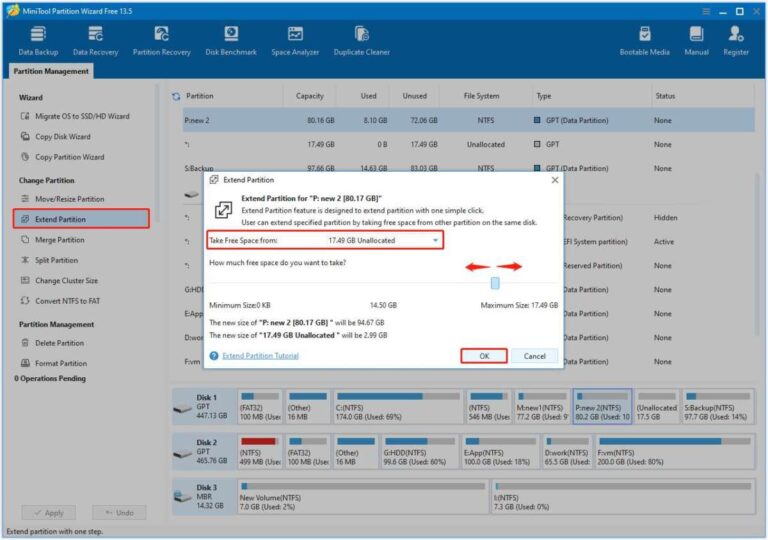
Some SSDs include built-in overprovisioning. However, leaving unallocated space can still improve performance, especially on consumer drives with limited spare area. A nearly full SSD reduces this working room.
Windows needs free space
Windows uses free storage for temporary files, updates, logs, caches, restore points, and virtual memory. If the system drive has almost no free space, Windows may struggle to complete routine tasks.
A low-space warning does not always mean stuttering will begin at that exact point. Performance can decline before the drive reaches zero free space.
The page file may become stressed
The page file is storage space that Windows uses when physical RAM is not enough. It is much slower than RAM, but it helps prevent crashes and memory errors.
If the SSD is full, Windows may not be able to expand or manage the page file properly. Heavy memory use can then lead to pauses, app failures, or severe hitching.
How Much Free Space Should an SSD Have?
A good rule is to keep at least 10% to 20% of an SSD free. For a 1 TB SSD, that means keeping about 100 GB to 200 GB available when possible.
The best amount depends on the SSD model, workload, and controller. A drive used for gaming may work well with 10% free space, while a drive used for video editing, virtual machines, or large databases may need more.
Use these general targets:
• Light office use: Keep 10% free
• Gaming: Keep 15% free
• Video editing: Keep 20% or more free
• Virtual machines: Keep 20% or more free
• Frequent large file transfers: Keep 20% free
• Older or lower-end SSDs: Keep more free space when possible
Do not confuse advertised capacity with usable capacity. A drive sold as 1 TB may show closer to 931 GB in Windows because manufacturers use different methods to measure storage.


Can a full SSD cause stuttering when it still shows 5% free space? Yes. Five percent may be enough for basic use, but it leaves little room for temporary data and background maintenance.
If you want a simple target, leave at least 100 GB free on a 1 TB system SSD. More space is better if you install large games or work with large media files.

What Does SSD-Related Stuttering Look Like?
Storage stuttering often has a different pattern from graphics stuttering. Recognizing that pattern can save you hours of troubleshooting.
SSD-related stuttering may include:
• Frame-time spikes during new area loading
• A brief freeze while textures appear
• Disk usage reaching 100% in Task Manager
• Game audio cutting out during a pause
• Delays when saving or autosaving
• Stuttering during shader cache creation
• Slow response when switching between apps
• A game running smoothly after its first loading pass
A common example is a game that runs at 100 frames per second but pauses for half a second when entering a new zone. The graphics card may not be overloaded. Instead, the game may be reading assets while Windows or another program is writing to the same nearly full drive.
Storage stutter can also happen outside games. You may notice Windows Explorer freezing when you copy files, or a browser pausing while it saves a large download.
Check these signs in Task Manager:
• Disk active time near 100%
• Low or inconsistent disk transfer speed
• High response time
• Memory usage near its limit
• CPU or GPU usage dropping during the stutter
If the disk shows 100% active time with very little transfer speed, the drive may be waiting on small operations. That can point to storage pressure, background tasks, a failing SSD, or a driver issue.

Other Causes That Can Look Like a Full SSD
Can a full SSD cause stuttering? It can, but storage space is only one possible cause. Avoid replacing hardware before checking the full system.
Not enough RAM
When a computer runs out of RAM, Windows moves data between memory and the page file. This is called paging. Heavy paging can cause stuttering even when the SSD has plenty of free space.
Games with large maps, browsers with many tabs, and creative apps can use a large amount of RAM. If memory use reaches 90% to 100%, close unused programs or consider a RAM upgrade.


Thermal throttling
SSDs can slow down when they become too hot. This is common with high-speed NVMe drives during long file transfers, game installations, or large workloads.
A hot SSD may reduce its speed to protect the flash memory and controller. Check the drive temperature with a trusted monitoring tool. A brief peak is not always a problem, but sustained high temperatures deserve attention.
Shader compilation
Some games compile shaders during play. This may cause short stutters even on a fast, healthy SSD. New graphics drivers, game updates, or new areas can trigger shader compilation again.
This type of stutter often improves after the game builds its shader cache. It does not necessarily mean the SSD is full.
CPU or GPU limits
A busy CPU can delay asset processing, physics, or game logic. A busy GPU can cause regular frame drops. Use an overlay to compare CPU use, GPU use, temperatures, and frame time during the problem.
SSD health problems
An SSD can stutter because it is wearing out or reporting errors. Warning signs include:
• Increasing bad blocks
• Uncorrectable errors
• File corruption
• Frequent crashes
• Disappearing files
• A drive vanishing from the BIOS
• Extremely slow performance after normal use
Back up important files before testing a drive that shows health warnings.
Background activity
Windows Update, antivirus scans, cloud synchronization, game launchers, and indexing services can use the drive. A full SSD may make these tasks more disruptive, but background activity can also cause stuttering on a drive with plenty of free space.
How to Fix Stuttering Caused by a Full SSD
If you suspect that a full SSD is causing stuttering, start with safe steps. Do not delete random system files or remove folders you do not recognize.
1. Check available space
Open File Explorer, select This PC, and check the free space on each drive. Pay special attention to the drive containing Windows and the affected game.
You can also use Windows Settings:
- Open Settings.
- Select System.
- Choose Storage.
- Review temporary files, installed apps, and large files.
2. Remove safe temporary files
Windows Storage settings can identify temporary files, old update files, and recycle bin contents. Review the list before deleting anything.
Useful places to inspect include:
• Downloads
• Recycle Bin
• Temporary files
• Old game installations
• Large video files


• Unused applications
Do not delete personal files unless you have a backup.
3. Move large games and media
Move games, videos, and project files to another drive if possible. Most game launchers allow you to move an installation without downloading it again.
Keep the operating system and frequently used apps on the fastest, healthiest drive. Store less demanding files on another SSD or hard drive.
4. Leave free space for the drive
After cleaning the drive, aim for at least 10% to 20% free space. Recheck the amount after installing large games or downloading updates.
Can a full SSD cause stuttering after you delete one small file? Usually, no. Removing a few gigabytes may not make a clear difference if the drive remains nearly full.
5. Enable TRIM
TRIM tells the SSD which data blocks are no longer needed. This helps the drive manage free space.
Open Command Prompt as an administrator and run:
fsutil behavior query DisableDeleteNotify
A result of 0 generally means TRIM commands are enabled. Avoid changing advanced storage settings unless you understand the result.
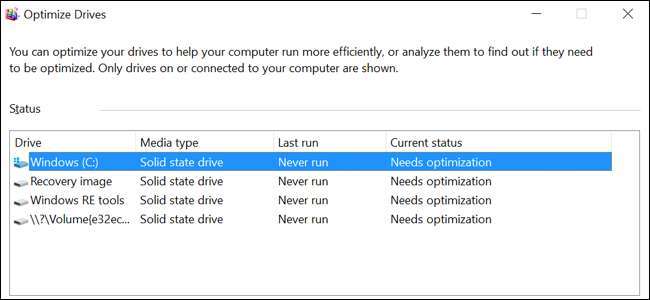
Windows usually manages TRIM automatically for modern SSDs. You can also open the drive optimization tool and run the recommended optimization. Do not use traditional defragmentation on an SSD as if it were a hard drive.
6. Update firmware and drivers
Check the SSD maker’s support software for firmware updates. Also install suitable chipset, storage, and graphics drivers from trusted sources.
Back up important data before applying SSD firmware updates. Most updates are safe, but power loss or an interrupted process can create risk.
7. Check temperatures
Make sure the SSD has proper airflow. For an NVMe drive, confirm that the heatsink pad makes good contact with the controller and memory chips.
Avoid blocking case fans. If the drive becomes hot during normal use, improve airflow or install a compatible heatsink.
8. Test the game on another drive
Move the affected game to a different healthy SSD. If the stuttering disappears, the original drive, its free space, or its connection may be involved.


This test is more useful than relying on one synthetic benchmark. Real game loading creates mixed, small, and unpredictable reads.

How to Prevent SSD Stuttering
Preventing low-space problems is easier than repairing them later. Treat free storage like breathing room in a crowded room. The more space you leave, the easier it is for the drive to work.
Use these habits:
• Keep 10% to 20% free space
• Review large files once a month
• Uninstall games you no longer play
• Move recordings to another drive
• Avoid filling the SSD before major updates
• Monitor SSD temperature
• Keep backups of important files
• Check drive health from time to time
• Avoid unknown “speed booster” tools
• Allow Windows to run its normal drive optimization
Use a monitoring app to check total host writes, temperature, health status, and remaining life. These values vary by manufacturer, so do not judge the drive from one number alone.
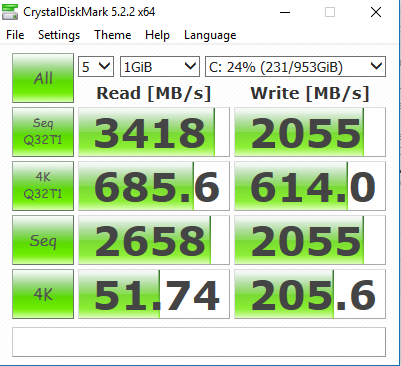
A personal troubleshooting lesson is simple: do not trust average benchmark speed by itself. I have seen a nearly full SSD post an impressive sequential read result while causing long pauses during real file activity. Frame-time graphs and disk response time often reveal the issue more clearly.
Can a Full SSD Damage the Drive?
A full SSD usually does not cause immediate physical damage. However, operating with very little free space can increase write amplification and make the controller work harder.
Write amplification means the SSD writes more data internally than the amount requested by the computer. It can occur when the drive must move valid data while preparing free blocks.
Modern SSDs include wear management, so occasional low-space use is not normally dangerous. Still, keeping free space available can support performance and may reduce unnecessary internal writes.
A full SSD can also increase the risk of failed updates or file errors. If Windows, a game launcher, or a backup program cannot create temporary files, the process may stop unexpectedly.
Free space is not a substitute for backups. An SSD can fail without warning, so keep important documents, photos, and projects in at least two locations.
How to Tell Whether the SSD Is the Real Problem
Use a simple test plan instead of changing many settings at once.
- Check free space on the system and game drives.
- Record stuttering with a frame-time overlay.
- Watch disk activity, memory use, CPU use, and GPU use.
- Free at least 15% of the affected SSD.
- Restart the computer.
- Test the same game or application again.
- Compare results with another healthy drive.
- Check SSD health and temperature.
If stuttering improves after freeing space, the full drive was likely part of the problem. It may not have been the only cause, especially if RAM use, shader compilation, or background activity also changed.
If there is no improvement, investigate memory, drivers, game settings, temperatures, and hardware health. This process prevents a common mistake: blaming the SSD when the real limit is system RAM or the graphics driver.
Frequently Asked Questions
Can a full SSD cause stuttering in games?
Yes, a full SSD can cause game stuttering when the game needs to load assets while the drive is also handling Windows tasks or background writes. Keeping 10% to 20% free can reduce this risk, but shader compilation and low RAM can cause similar symptoms.
How full can an SSD get before it slows down?
Many SSDs may begin losing performance when they reach about 80% to 90% capacity, but the exact point depends on the model and workload. High-end drives with strong controllers may handle heavy use better than low-cost or older drives.
Does a full SSD lower FPS?
A full SSD usually does not lower average FPS directly. It can cause frame-time spikes, loading pauses, and hitching, which makes gameplay feel less smooth even when the average FPS number looks normal.
Should I defragment a full SSD?
No. Traditional defragmentation is not needed for SSDs and can create unnecessary writes. Use the Windows drive optimization tool, which sends the proper maintenance command for an SSD.
Can a full SSD cause computer freezes?
Yes, a nearly full system SSD can contribute to freezes if Windows cannot create temporary files, manage the page file, or complete background tasks. A failing drive, low RAM, overheating, or driver issue can cause the same symptom.
Is 5% free space enough on an SSD?
Five percent may be enough for light use, but it leaves little room for updates and internal maintenance. For smoother performance, keep at least 10% free and consider 15% to 20% for gaming or heavy workloads.
Can an SSD stutter even when it has lots of free space?
Yes. SSD stuttering can result from overheating, firmware problems, a failing drive, low RAM, background writes, or a poor connection. Free space is important, but it is only one part of storage performance.
Does TRIM fix a full SSD?
TRIM helps the SSD identify blocks that no longer contain useful data, but it does not create free space by itself. You still need to delete, move, or uninstall files to restore enough capacity.
Conclusion
Can a full SSD cause stuttering? Yes, especially when the drive has very little free space and must handle game loading, Windows tasks, temporary files, or large writes at the same time. The result is often frame-time spikes and short pauses rather than a simple drop in average FPS.
Keep 10% to 20% free, monitor SSD health and temperature, enable TRIM, and compare the drive with another healthy storage device. If stuttering continues, check RAM, drivers, shader compilation, CPU and GPU limits, and background activity.
Free some space today, test the same workload again, and share your results or explore more storage troubleshooting guides for a smoother system.