

To use Bose QC Ultra headphones, pair them with your device, choose a listening mode, and adjust controls in the Bose app.
Learning how to use Bose QC Ultra headphones is simple once you understand the buttons, touch controls, Bose app, noise modes, and charging system. This guide explains the full setup in plain language, with practical tips for music, calls, travel, work, and daily listening.
Get to Know the Bose QC Ultra Headphones
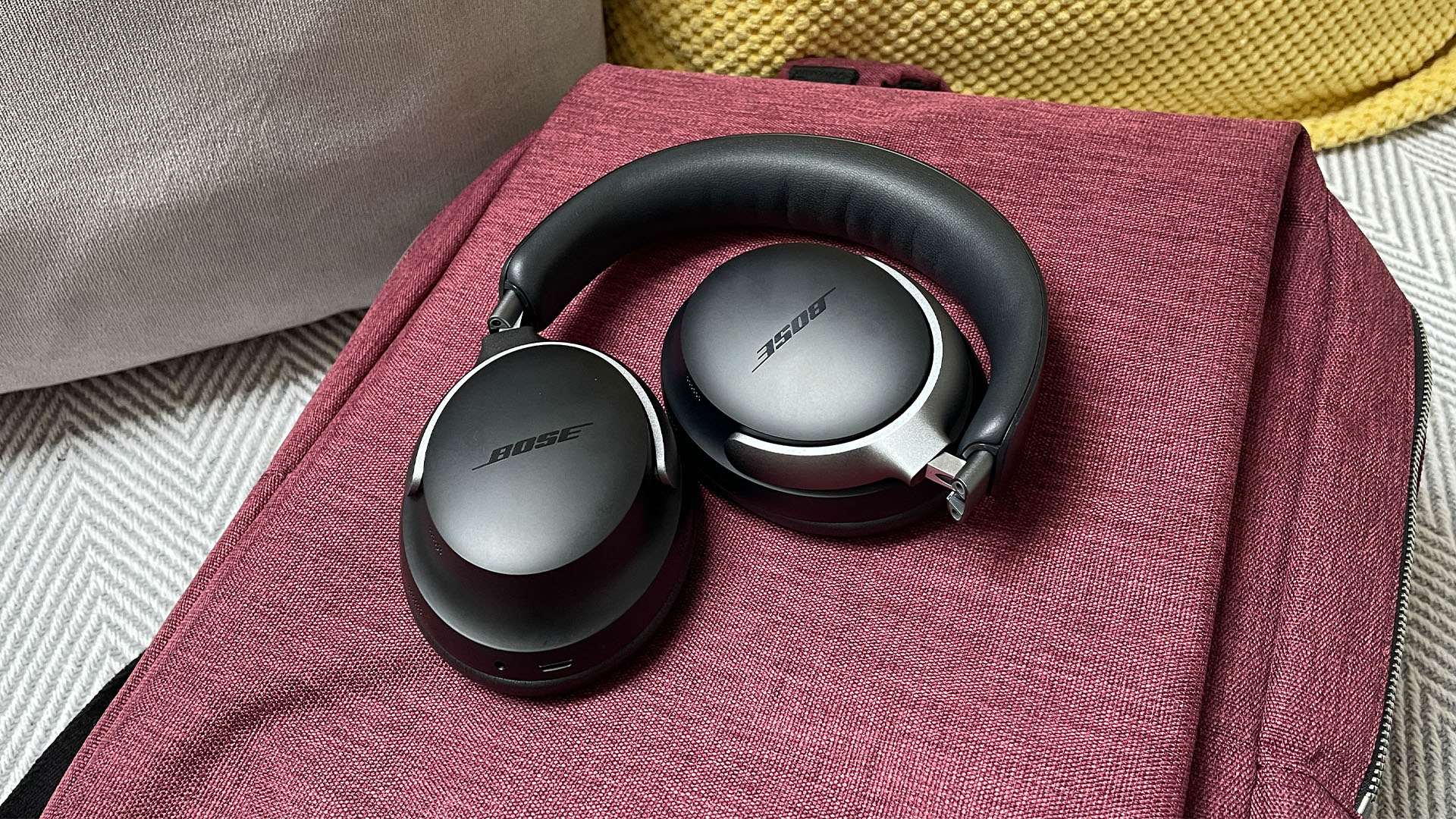
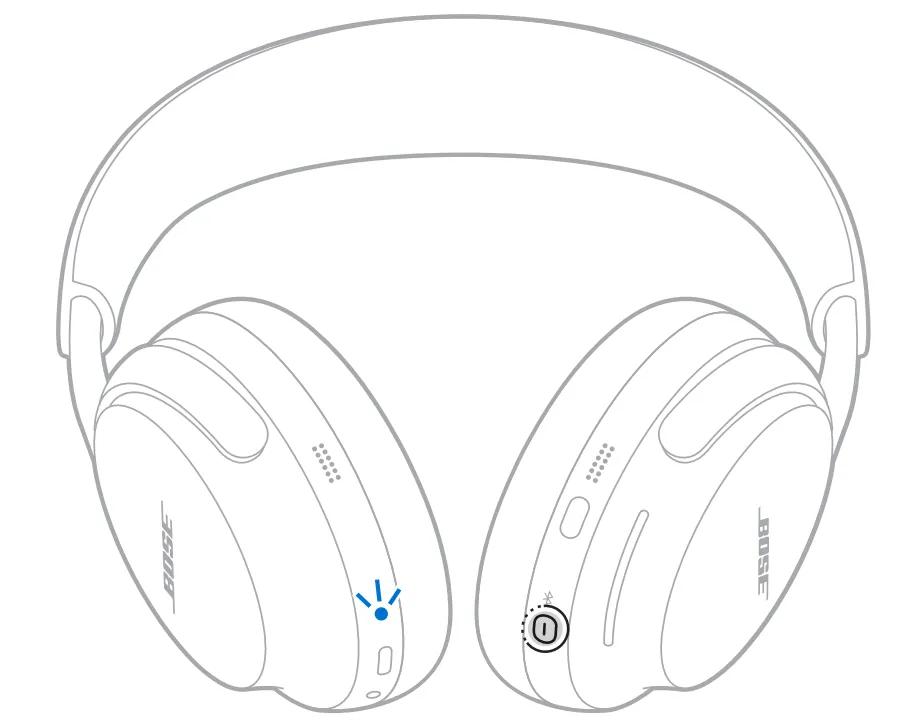
Before learning how to use Bose QC Ultra headphones, take a moment to identify the main controls. The headphones have physical buttons, a capacitive touch strip, ear cups, a USB-C charging port, and a 3.5 mm audio jack.
The right ear cup usually handles power, Bluetooth pairing, and calls. The left ear cup includes the shortcut button, which can change listening modes or trigger another function set in the Bose app.
Key parts include:
• Power and Bluetooth button: Turns the headphones on or off and starts pairing.
• Shortcut button: Changes between listening modes, such as Quiet, Aware, and Immersion.
• Touch control strip: Adjusts volume with an up or down swipe.
• USB-C port: Charges the battery.
• 3.5 mm audio port: Connects the headphones to compatible wired devices.
• Ear cup microphones: Help with noise cancellation, voice pickup, and calls.
The ear cups also fold inward for easier storage. Be gentle when folding them, and avoid forcing the hinges. A careful setup helps protect the headphones and reduces wear over time.
Charge the Headphones Before First Use
The best first step in learning how to use Bose QC Ultra headphones is to charge them fully. Connect the supplied USB-C cable to the charging port on the right ear cup, then connect the other end to a wall charger or powered USB port.
A light near the charging port shows the charging status. The exact light behavior can vary, so check the quick-start guide if the indicator is unclear.
Bose lists up to 24 hours of battery life with noise cancellation enabled under standard listening conditions. Immersive Audio can reduce battery life to about 18 hours. Actual battery life depends on volume, Bluetooth use, call time, temperature, and other settings.
For longer battery life:
• Turn off Immersive Audio when you do not need spatial sound.
• Keep the volume at a moderate level.
• Turn the headphones off instead of leaving them idle.
• Store them in the case when traveling.
• Keep the firmware updated through the Bose app.
A short charge can help before a flight or workday. Battery results vary, but a quick charge often provides enough time for a commute or a few meetings.

Turn On the Bose QC Ultra Headphones
To turn on the headphones, press and hold the power button until you hear a voice prompt. The status light should also respond.
To turn them off, press and hold the same button. You may hear a power-down sound or voice prompt.
If the headphones do not turn on, try these steps:
Charge them for at least 15 minutes.
Disconnect and reconnect the USB-C cable.
Press and hold the power button again.
Check whether the charging light turns on.
Reset the headphones only after trying the basic steps.
A common mistake is pressing the button too briefly. A quick press may not activate the headphones, while a longer press starts the power or pairing function.
Auto power-off settings can also affect your experience. Use the Bose app to adjust inactivity settings if the headphones turn off sooner than expected.

Pair Bose QC Ultra Headphones With a Phone
Pairing is one of the most important parts of learning how to use Bose QC Ultra headphones. You can connect them to an iPhone, Android phone, tablet, laptop, or other Bluetooth device.
Follow these steps:
Turn on the headphones.
Press and hold the Bluetooth or power button until you hear the pairing prompt.
Open Bluetooth settings on your phone.
Select Bose QC Ultra Headphones from the device list.
Confirm the connection if your phone asks for permission.
Open the Bose app to complete setup.
When pairing works, you should hear a voice prompt or see the headphones marked as connected. If the headphones do not appear, turn Bluetooth off and on again, then repeat the process.
Keep the phone close during the first pairing. Thick walls, crowded wireless areas, and many nearby Bluetooth devices can sometimes cause delays.
Use the Bose App
The Bose app gives you more control than the headphone buttons alone. It can help you:
• Update headphone firmware.
• Rename the headphones.
• Adjust noise cancellation.
• Create and save listening modes.
• Set the shortcut button.
• Manage connected devices.
• Adjust the equalizer.
• Check battery status.
The app is especially useful when learning how to use Bose QC Ultra headphones because it explains the available features as you explore them. Download the official Bose app from the Apple App Store or Google Play, then follow the on-screen setup instructions.

Connect Bose QC Ultra Headphones to a Laptop
You can use Bose QC Ultra headphones with a Windows PC, Mac, Chromebook, or many other Bluetooth devices.
On a Windows computer:
Open Settings.
Select Bluetooth and devices.
Turn Bluetooth on.
Choose Add device.
Select Bluetooth.
Choose Bose QC Ultra Headphones.
On a Mac:
Open System Settings.
Select Bluetooth.
Turn Bluetooth on.
Find Bose QC Ultra Headphones.
Select Connect.
If the headphones connect but you hear no sound, open the computer’s sound settings. Select the Bose headphones as the output device. For video calls, also check that the Bose headphones are selected as the microphone and speaker.
Computer calls may sound different from music. This happens because Bluetooth can switch to a lower-quality call profile when the microphone is active. That behavior is normal for many Bluetooth headphones.

Use Quiet, Aware, and Immersion Modes
Listening modes are central to how to use Bose QC Ultra headphones. They change how much outside sound you hear and how the headphones process audio.
Quiet Mode
Quiet mode uses active noise cancellation, or ANC, to reduce steady background sounds. It works well for:
• Airplane engines.
• Train noise.
• Office hum.
• Air conditioners.
• Traffic sounds.
Noise cancellation is less effective against sudden voices, nearby conversations, or sharp sounds. It does not create perfect silence, but it can make background noise feel much softer.
Aware Mode
Aware mode lets outside sound pass through the microphones. Use it when you need to hear announcements, talk with someone, or stay alert near traffic.
You can often adjust the amount of outside sound in the Bose app. Some versions also offer a wind-blocking or active noise reduction option that helps in breezy conditions.
Immersion Mode
Immersion combines noise cancellation with spatial audio effects. It can make music, films, and podcasts feel wider and more room-like.
Bose provides two main Immersive Audio choices:
• Still: Keeps the spatial sound effect in a fixed position.
• Motion: Lets the effect respond as you move your head.
Immersion can sound impressive, but it may not suit every track. It can also use more battery. Try it with films, live recordings, and orchestral music, then switch back to Quiet mode for longer listening.
To change modes, press the shortcut button or select a mode in the Bose app.
Adjust Volume and Playback
The touch control strip makes daily use fast. Swipe up to raise the volume and swipe down to lower it. A short swipe is useful for small changes, while a longer swipe changes the level more quickly.
You can usually control playback with the touch area or connected device. Available actions may include:
• Play or pause music.
• Skip to the next track.
• Return to the previous track.
• Answer or end a call.
• Reject an incoming call.
Control behavior can depend on the phone, app, operating system, and firmware version. If a gesture does not work, use the connected device to test whether the issue is with the headphones or the music app.
Keep your finger on the touch strip rather than tapping randomly. Many users accidentally change the volume because they touch the strip while adjusting the ear cup. With practice, the controls feel more natural.

Customize the Shortcut Button
The shortcut button is one of the most useful features when learning how to use Bose QC Ultra headphones. By default, it may cycle through saved listening modes.
In the Bose app, you can often choose what the shortcut does. Depending on the available software version, options may include:
• Change listening mode.
• Activate a voice assistant.
• Skip tracks.
• Announce battery status.
• Use another custom action.
A practical setup is to assign the shortcut to Quiet, Aware, and Immersion. This lets you move from focused listening to outside awareness without opening your phone.
Test the shortcut while walking, sitting at a desk, and traveling. A setting that works well at home may be less useful on a busy street.
Use Bose QC Ultra Headphones for Phone Calls
The built-in microphones allow you to make calls without removing the headphones. To answer a call, use the touch control, physical button, or controls on your phone.
For clearer calls:
• Speak in a normal voice.
• Keep the microphones free from scarves and hair.
• Avoid strong wind when possible.
• Use a stable Bluetooth connection.
• Check the microphone input in your phone or computer settings.
Noise rejection can reduce some background sound, but it cannot remove every loud noise. If you are in a busy café, move closer to a wall or quieter area for better results.
When using a laptop, confirm that the computer has selected the Bose headphones as both the speaker and microphone. Many call problems come from the computer using its built-in microphone while sending sound to the headphones.

Connect to Two Devices
Bose QC Ultra headphones can support connections with more than one device when multipoint or related connection features are available and enabled. This can help you move between a phone and laptop without repairing each time.
For example, you might connect to:
• A phone for calls.
• A laptop for music or meetings.
If switching does not happen as expected, pause audio on the first device before starting audio on the second. Some devices hold the Bluetooth connection even when no sound is playing.
You can manage connected devices through the Bose app. If the connection becomes confused, remove the headphones from one device, restart Bluetooth, and pair again.
A useful lesson from real-world setups is to avoid pairing the headphones with too many devices at once. An old tablet or work computer can connect in the background and interrupt the device you actually want to use.
Use a Wired Connection
The Bose QC Ultra headphones include a 3.5 mm audio connection for compatible phones, laptops, airplanes, music players, and other devices.
A wired connection can help when:
• Bluetooth is restricted.
• You are on an airplane.
• The battery is low.
• You want to reduce wireless interruptions.
• You are using an older audio device.
Some phones do not have a 3.5 mm port, so you may need a compatible adapter. Keep in mind that headphone controls may work differently in wired mode. The source device controls the volume and playback in many wired setups.
Noise cancellation and other features may depend on battery power even when the audio cable is connected. Charge the headphones before long trips, even if you plan to listen with a cable.
Improve Sound Quality With the Equalizer
The Bose app includes an equalizer that can adjust bass, midrange, and treble. These controls shape the sound without changing the music files.
Try small changes:
• Increase bass for electronic music or action films.
• Lower bass if voices sound covered.
• Increase treble for extra detail.
• Lower treble if cymbals or “s” sounds feel sharp.
A flat or moderate setting is often the best starting point. Large changes can make music sound unnatural or cause listening fatigue.
Your ear shape, music style, volume, and source quality all affect the result. Spend a few minutes testing familiar songs. Use tracks you know well, rather than songs you have never heard before.
Clean and Care for the Headphones
Good care keeps Bose QC Ultra headphones comfortable and reliable. Wipe the ear cups and headband with a soft, dry cloth. If needed, use a slightly damp cloth, but keep liquid away from the ports and microphones.
Avoid:
• Spraying cleaner directly on the headphones.
• Using alcohol or harsh chemicals on the cushions.
• Wearing them with wet hair.
• Leaving them in direct sunlight or a hot car.
• Blocking the microphone openings.
The ear cushions collect sweat and skin oils during regular use. Let the headphones dry before placing them in the case after exercise or long travel.
Store them in the case when possible. The case protects the hinges, cushions, and touch controls from pressure inside a backpack.
Fix Common Bose QC Ultra Problems
Even when you understand how to use Bose QC Ultra headphones, small connection or sound problems can occur. Most are easy to fix.
Headphones Will Not Pair
Try this order:
Turn Bluetooth off on nearby devices.
Restart the headphones.
Remove Bose QC Ultra Headphones from your phone’s Bluetooth list.
Put the headphones into pairing mode.
Pair them again.
Update the Bose app and headphone firmware.
No Sound
Check the volume on both the headphones and connected device. Then confirm that Bose QC Ultra Headphones are selected as the audio output.
If only one app has a problem, close and reopen that app. You can also test another song or video.
Noise Cancellation Feels Weak
Make sure the ear cups create a comfortable seal around your ears. Glasses, hair, hats, and poor positioning can reduce the effect.
Try Quiet mode and check the noise control setting in the Bose app. If the issue continues, restart the headphones and check for a software update.
Touch Controls Do Not Respond
Dry your fingers and clean the touch strip with a soft cloth. Very thick gloves may prevent touch gestures from working.
You can still use the physical buttons and phone controls if the touch area is inconvenient.
Battery Drains Too Fast
Check whether Immersive Audio is active. Also review Bluetooth connections, call use, volume, and the auto-off setting.
If the battery performs poorly after a full charge and updated firmware, contact Bose support. Battery capacity naturally declines over time.
Reset and Update the Headphones
Firmware updates can improve performance, add features, or fix bugs. Open the Bose app and follow its update instructions. Keep the headphones near your phone and avoid closing the app during the update.
If normal troubleshooting fails, a reset may help. The exact reset process can change with firmware, so use the current instructions in the Bose support documentation rather than relying on an old button combination.
Before resetting, remember that you may need to pair the headphones again. Remove old Bluetooth entries if the headphones do not reconnect after the reset.
Resetting should be a later step, not the first one. Most pairing issues can be fixed by restarting Bluetooth, charging the headphones, or removing an old device connection.
Use Bose QC Ultra Headphones Safely
Learning how to use Bose QC Ultra headphones also means using them responsibly. Noise cancellation can reduce awareness of cars, bicycles, alarms, and people nearby.
Use Aware mode when walking near traffic or waiting for announcements. Keep volume at a level that lets you hear important sounds when needed.
Long exposure to loud sound can harm hearing. A simple habit is to lower the volume during long listening sessions and take short breaks. If you notice ringing, pain, or muffled hearing, stop listening and consider speaking with a health professional.
The headphones are not hearing protection. Do not treat noise cancellation as a safety barrier in loud workplaces or around dangerous machinery.
Tips for Travel, Work, and Daily Use
The best way to use Bose QC Ultra headphones depends on where you wear them.
For air travel:
• Charge them before leaving home.
• Use Quiet mode during the flight.
• Carry the audio cable for in-flight entertainment.
• Keep the case in an easy-to-reach pocket.
For work:
• Create a Quiet mode for focus.
• Use Aware mode when coworkers may speak to you.
• Check the microphone before a meeting.
• Keep a wired backup if your laptop has Bluetooth problems.
For exercise or outdoor use:
• Avoid heavy rain and excessive sweat.
• Use Aware mode near roads.
• Wipe the headphones dry after use.
• Keep the fit secure without pressing the headband too tightly.
In my experience with headphone setup checks, the biggest improvement usually comes from using saved modes. Instead of changing every setting each time, create one mode for travel, one for work, and one for relaxed listening.
Frequently Asked Questions About How to Use Bose QC Ultra Headphones
How do I turn on Bose QC Ultra headphones?
Press and hold the power button until you hear the startup prompt. If they do not turn on, charge them for several minutes and try again.
How do I pair Bose QC Ultra headphones with my phone?
Press and hold the Bluetooth or power button until pairing mode starts. Then open your phone’s Bluetooth settings and select Bose QC Ultra Headphones.
How do I switch between Quiet and Aware mode?
Press the shortcut button to cycle through your saved listening modes. You can also change modes in the Bose app.
Can I use Bose QC Ultra headphones without Bluetooth?
Yes, you can connect them to compatible devices with the included 3.5 mm audio cable. Some features still need battery power, so charge the headphones before using them for a long wired session.
How long does the Bose QC Ultra battery last?
Bose rates the headphones for up to 24 hours in standard use with noise cancellation. Immersive Audio can reduce battery life to about 18 hours, depending on other settings.
Why are my Bose QC Ultra headphones not connecting?
Restart Bluetooth, charge the headphones, and remove the old Bose connection from your device. Then place the headphones in pairing mode and connect again.
How do I update Bose QC Ultra headphones?
Open the Bose app and follow the firmware update instructions. Keep the headphones close to your phone and charged during the update.
Conclusion
Using Bose QC Ultra headphones is mostly about mastering a few key tools: Bluetooth pairing, the Bose app, listening modes, touch controls, charging, and basic care. Quiet mode helps reduce steady noise, Aware mode improves awareness, and Immersion adds a wider sound experience.
Start by pairing the headphones, updating the firmware, and creating listening modes for your most common situations. Then test the controls at home before relying on them during a flight, work call, or busy commute.
Try these steps today, explore the Bose app, and share your favorite QC Ultra settings or tips in the comments.
