What Kind Of SSD Does The Steam Deck Use: Storage Guide
For Steam Deck models sold in the United States, the internal drive is a small M.2 2230 NVMe SSD that uses the PCIe 3.0 x4 interface. The exact storage depends on the model:
- Steam Deck LCD 64GB: eMMC storage, not an SSD
- Steam Deck LCD 256GB: M.2 2230 NVMe SSD
- Steam Deck LCD 512GB: M.2 2230 NVMe SSD
- Steam Deck OLED 512GB: M.2 2230 NVMe SSD
- Steam Deck OLED 1TB: M.2 2230 NVMe SSD
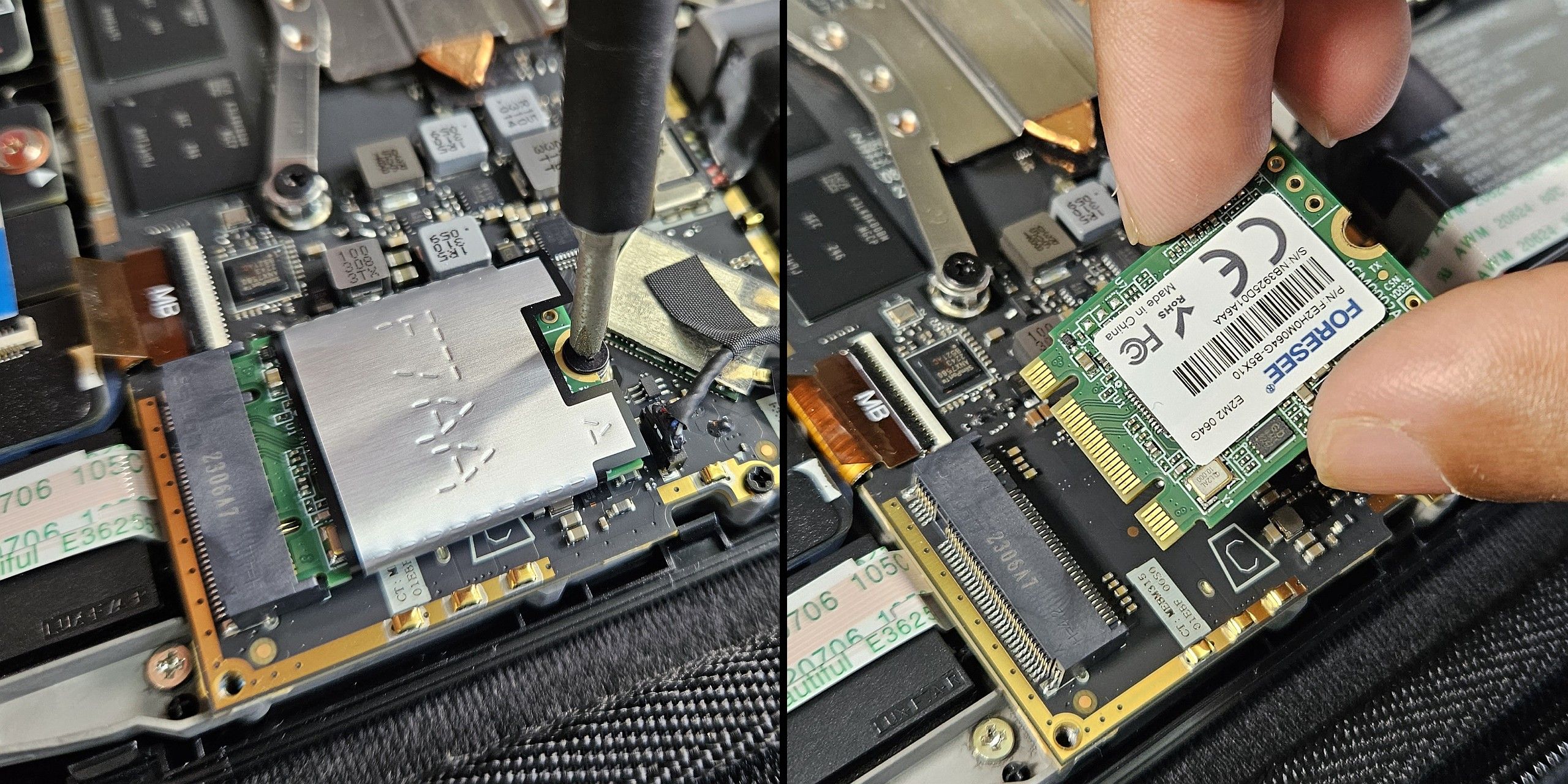
The main point is simple: if you want to replace the internal drive, look for a single-sided M.2 2230 NVMe PCIe SSD. A standard desktop M.2 2280 drive will not fit.
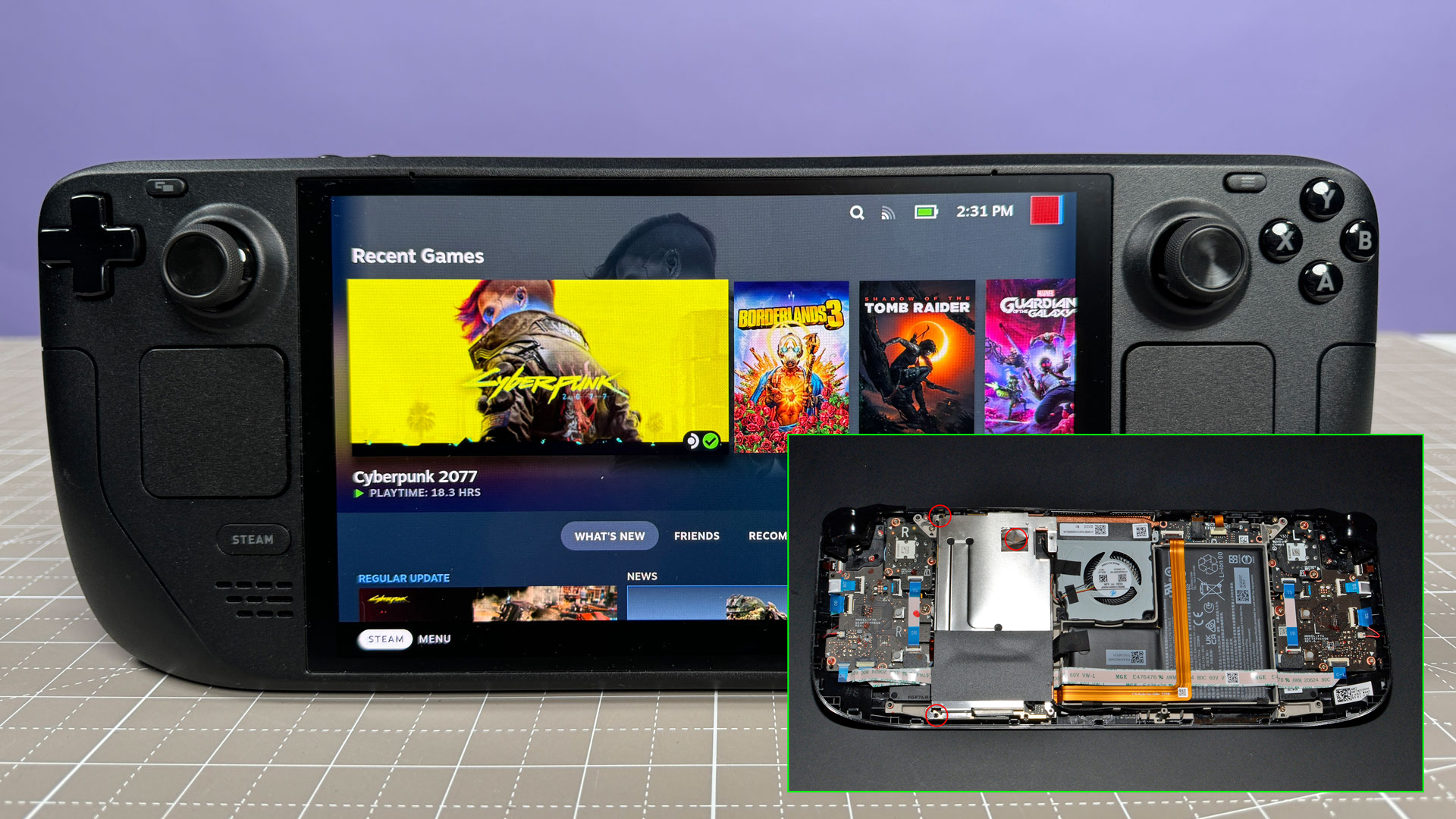
Steam Deck SSD specifications
Valve lists the Steam Deck’s internal NVMe drive as an M.2 2230 SSD. “M.2” describes the connector and card style, while “2230” describes the drive’s size: 22 millimeters wide and 30 millimeters long.


The NVMe drive connects through PCI Express rather than the older SATA interface. Valve’s official Steam Deck technical specifications identify the NVMe models as using PCIe Gen 3 x4 storage.
| Steam Deck model | Internal storage | Drive type | Upgradeable? |
|---|---|---|---|
| LCD 64GB | 64GB | eMMC | Yes, but it is not an SSD |
| LCD 256GB | 256GB | NVMe SSD | Yes |
| LCD 512GB | 512GB | NVMe SSD | Yes |
| OLED 512GB | 512GB | NVMe SSD | Yes |
| OLED 1TB | 1TB | NVMe SSD | Yes |
The 64GB LCD model is the exception. It uses eMMC, a form of flash storage commonly found in mobile devices and low-cost computers. It is slower than the NVMe drives used in the other Steam Deck models.
What do M.2, 2230, NVMe, and PCIe mean?
These terms describe different parts of the drive:
- M.2: The physical card and connector format.
- 2230: The physical size, measuring 22 by 30 millimeters.
- NVMe: The storage protocol designed for PCI Express flash drives.
- PCIe 3.0 x4: The connection used by the SSD. “x4” means it has four PCIe lanes.
A drive can be M.2 but still use SATA instead of NVMe. That type is not the right choice for a Steam Deck. The replacement must be an M.2 2230 NVMe drive, not merely any M.2 drive.
Which Steam Deck models have an SSD?
The 256GB and 512GB LCD models have internal NVMe SSDs. Both OLED models also use NVMe SSDs. The 64GB LCD model uses eMMC storage instead.
The OLED Steam Deck does not use a different physical drive format. Its internal storage is still an M.2 2230 NVMe SSD. The OLED model has other hardware changes, such as its display, battery, cooling system, and motherboard layout, so parts should still be matched to the correct Steam Deck version.
Valve’s official OLED specifications list:
- 512GB NVMe SSD
- 1TB NVMe SSD
- microSD expansion
Valve’s original LCD specifications list:
- 64GB eMMC
- 256GB NVMe SSD
- 512GB NVMe SSD
- microSD expansion


The factory capacity is not always the same as the usable capacity shown in SteamOS. The operating system, recovery tools, and formatting take up some space.
Can you upgrade the Steam Deck SSD?
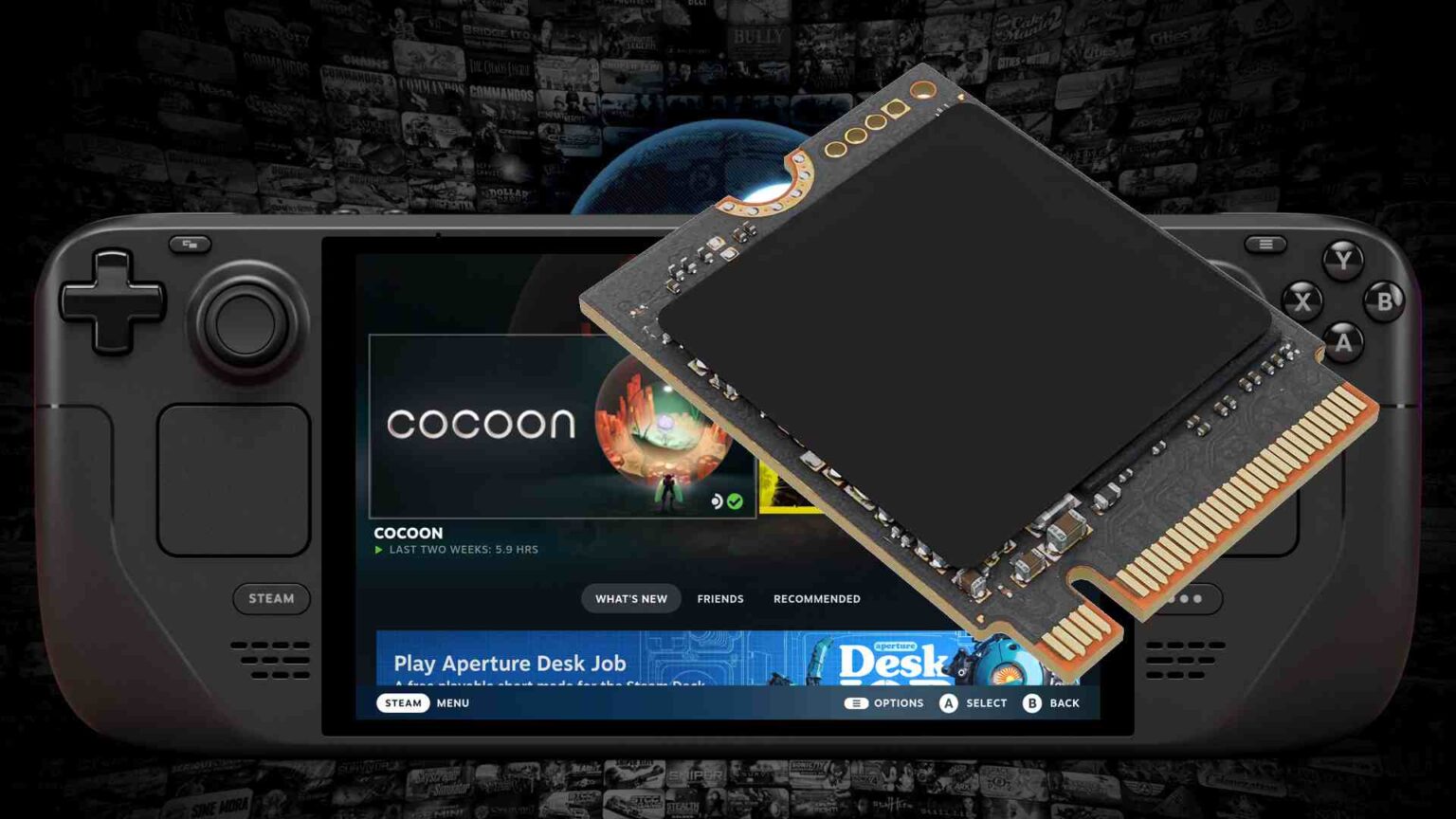
Yes. The internal SSD can be replaced with a larger compatible M.2 2230 NVMe drive. Common replacement sizes include 512GB, 1TB, and 2TB, but compatibility depends on the specific drive and the physical space available.
Before buying a replacement, check these points:
- Form factor: It must be M.2 2230.
- Protocol: It must use NVMe.
- Interface: PCIe is required; PCIe 3.0 is the native target.
- Keying: The connector must match the Steam Deck slot.
- Physical design: A single-sided drive is the safer choice.
- Capacity: SteamOS must be able to partition and format the drive.
- Source: Buy from a reliable seller to reduce the risk of counterfeit or worn storage.
A PCIe 4.0 2230 NVMe drive may work because PCIe is backward compatible, but it will operate within the Steam Deck’s PCIe Gen 3 limits. A newer interface does not automatically make the Steam Deck faster.
Will a 2280 SSD work?
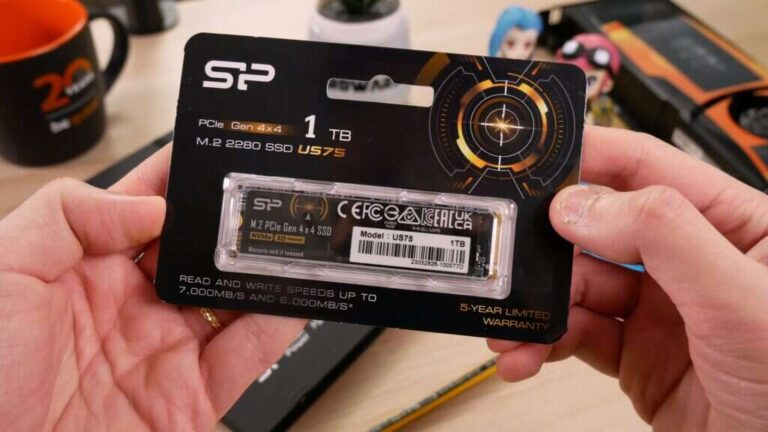
No. A standard M.2 2280 SSD is 80 millimeters long. The Steam Deck’s internal slot is designed for a 30-millimeter M.2 2230 drive.
Do not use an extension cable or try to bend a longer SSD into place. The drive, shield, and rear case are designed around the 2230 size. An incorrect fit can damage the drive, board, or enclosure.
Does the replacement need to be single-sided?
A single-sided SSD is the best choice. Single-sided means the memory chips and controller sit on one side of the circuit board. This helps the drive fit beneath the Steam Deck’s internal shield.
Some double-sided 2230 SSDs may fit, but thickness can vary. A drive that presses against the shield can create mechanical stress or interfere with reassembly. Check the drive’s dimensions instead of relying only on its capacity or brand.
How to replace the Steam Deck SSD
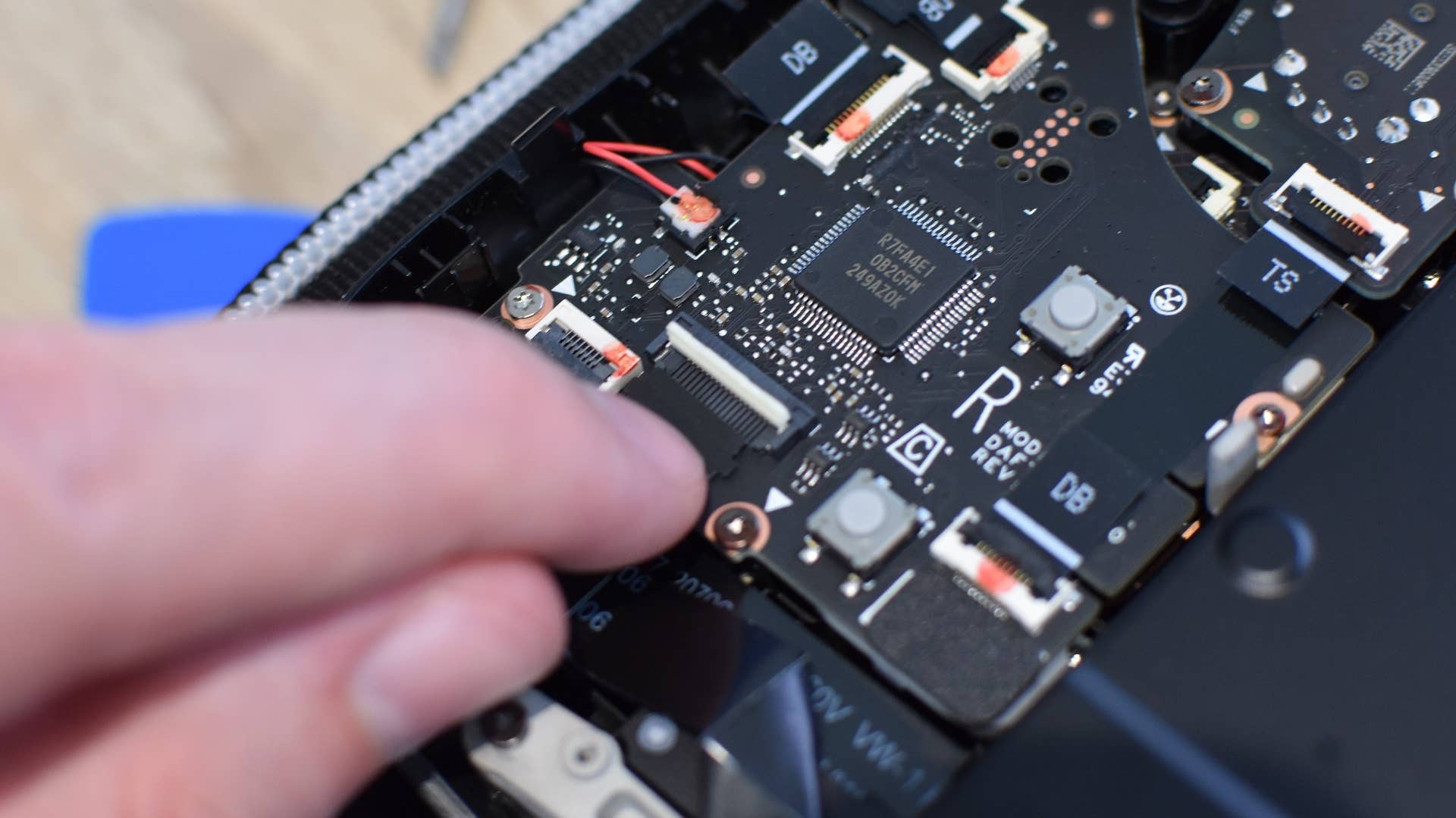
Replacing the Steam Deck SSD requires opening the case and reinstalling the operating system or restoring a cloned image. It is not a quick plug-in upgrade.
Valve recommends using care when opening the device, and iFixit’s Steam Deck SSD replacement guide documents the repair process. The exact screw locations and internal layout vary between the LCD and OLED models, so use a guide for the correct version.
Prepare before opening the device
You will need:
- A compatible M.2 2230 NVMe SSD
- A small Phillips screwdriver
- A plastic opening tool
- A USB-C drive or microSD card for SteamOS recovery
- A computer if you plan to clone the old drive
- A way to back up saves and personal files
Before starting, shut down the Steam Deck completely. Do not work on it while it is suspended. Remove any microSD card before separating the case; leaving the card inserted can damage it.
Basic replacement sequence
-
Back up your data.
Cloud saves may restore many games, but local files, emulator data, screenshots, and non-Steam saves may need separate backups. -
Shut down the Steam Deck.
Avoid sleep mode. Use the system menu and wait until the device is fully off. -
Remove the rear case.
Keep track of the screw lengths and avoid forcing the clips apart. -
Disconnect the battery or place the device in the recommended battery storage state.
This reduces the risk of a short while working inside. -
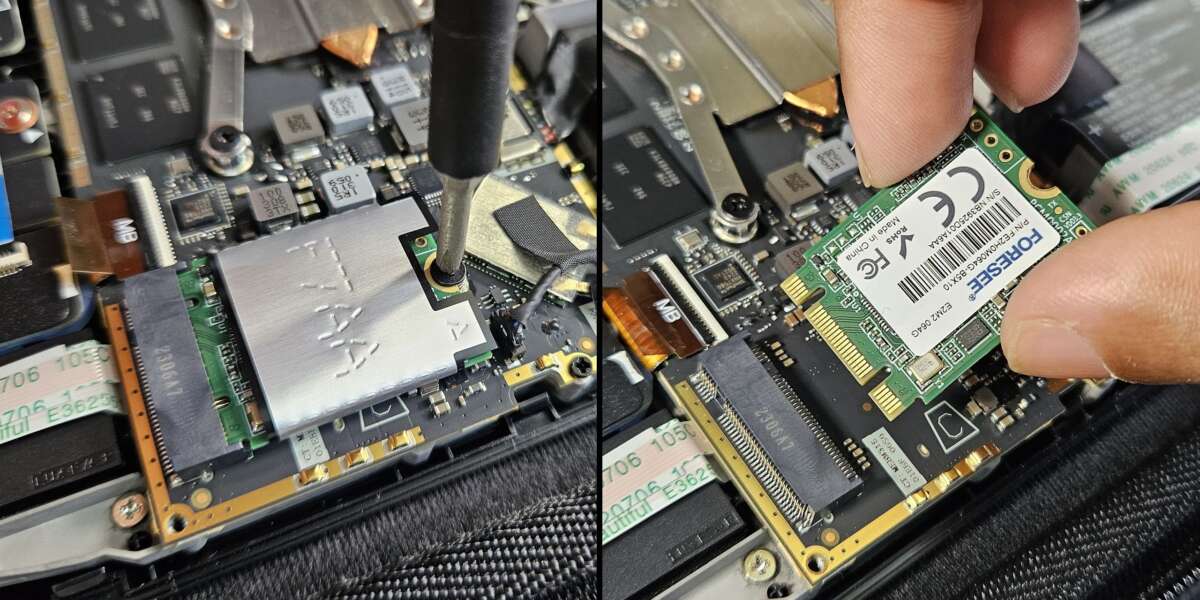
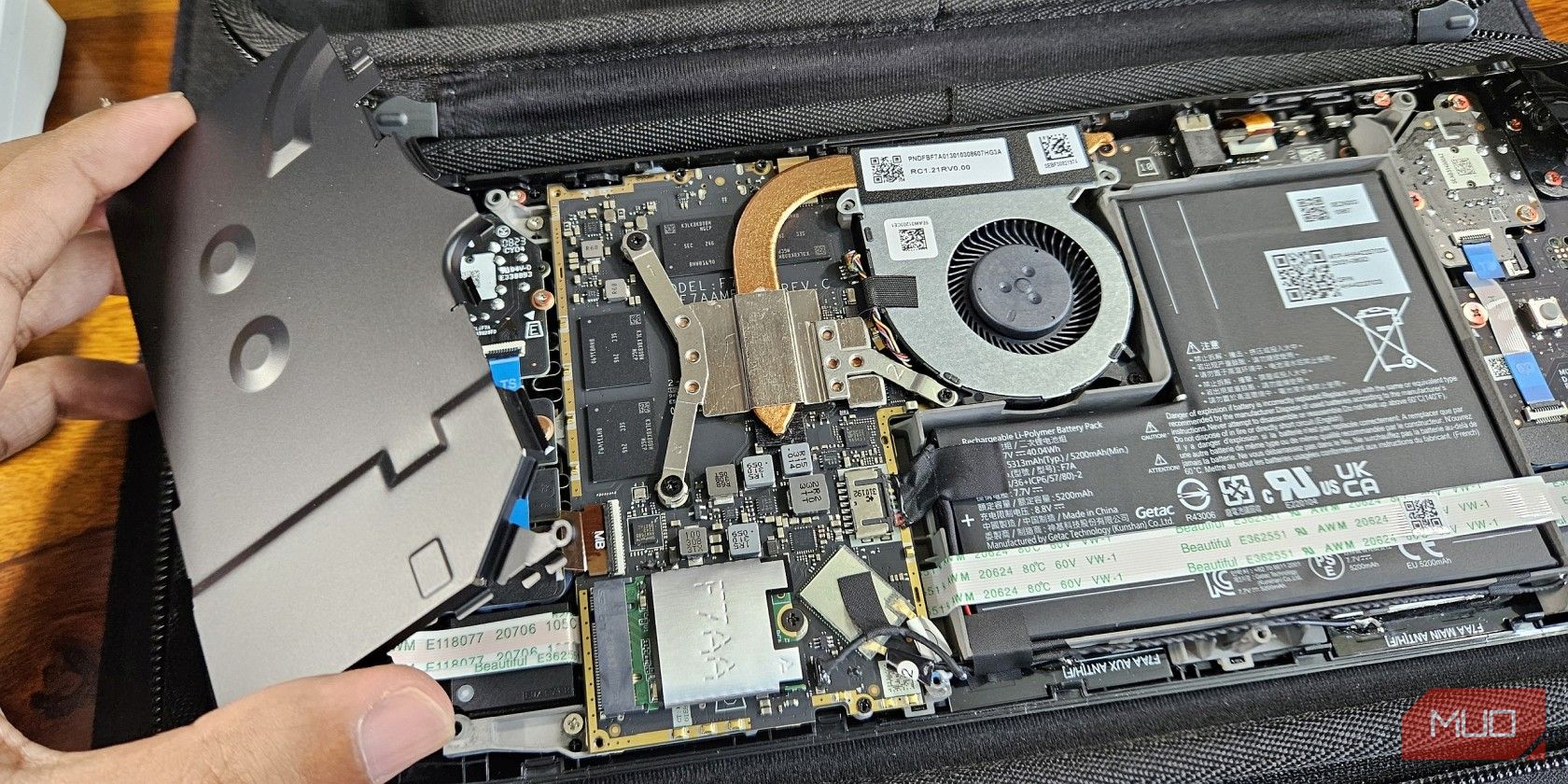
Remove the SSD shield and retaining screw.
The shield may also cover nearby components, so lift it carefully. -
Swap the SSD.
Slide the old drive out at an angle. Insert the replacement in the same position and secure it with the original retaining screw. -
Reconnect the battery and close the case.
Check that no cable is pinched and that the case sits evenly before tightening the screws. -
Install or restore SteamOS.
Use Valve’s Steam Deck recovery instructions and a recovery image from the official source. -
Test the system.
Confirm that SteamOS detects the full drive capacity, then install a small game and check that it launches.


Opening the Steam Deck can cause physical damage if tools slip or cables are pulled. If you are not comfortable handling small electronics, a professional repair service is the safer option.

Should you upgrade the SSD or use a microSD card?
An internal SSD upgrade provides more system storage and generally offers better game-loading performance than a microSD card. A microSD card is easier to install and is useful for expanding a game library without opening the Steam Deck.
The Steam Deck supports microSD cards through a UHS-I interface. This makes a good card practical for many games, but it does not turn the card into an internal NVMe drive.
| Option | Main benefit | Main limitation |
|---|---|---|
| Internal M.2 2230 NVMe SSD | Faster internal storage and large capacity | Requires opening the Steam Deck |
| microSD card | Simple, external expansion | Usually slower and easier to lose or damage |
| USB-C SSD | Portable high-capacity storage | Needs a cable or hub and may reduce portability |
Choose an internal SSD when you want one large library, more room for shader caches and system files, or a cleaner long-term setup. Choose a microSD card when you want a low-risk expansion method or want to move games between devices.
A microSD card does not replace the internal system drive. The Steam Deck still needs its internal storage for SteamOS and other system data.

How fast is the Steam Deck SSD?
The Steam Deck’s internal NVMe SSD is faster than eMMC storage and usually faster than a microSD card for tasks such as game installation, updates, and loading large files. However, game performance is not determined by storage speed alone.
The processor, graphics system, game engine, shader compilation, and texture settings also affect loading and play. Replacing the original SSD with a much faster PCIe 4.0 drive will not make the Steam Deck operate like a newer gaming PC because the Steam Deck’s storage connection remains limited by its PCIe Gen 3 design.
The biggest practical improvement usually comes from moving from the 64GB eMMC model to an NVMe SSD. An SSD upgrade can also remove storage pressure when a large game library fills the original drive.
Do not judge a replacement only by its advertised sequential speed. For the Steam Deck, physical fit, power use, reliability, controller quality, and sustained performance matter more than a high peak number from a desktop benchmark.
Common Steam Deck SSD mistakes
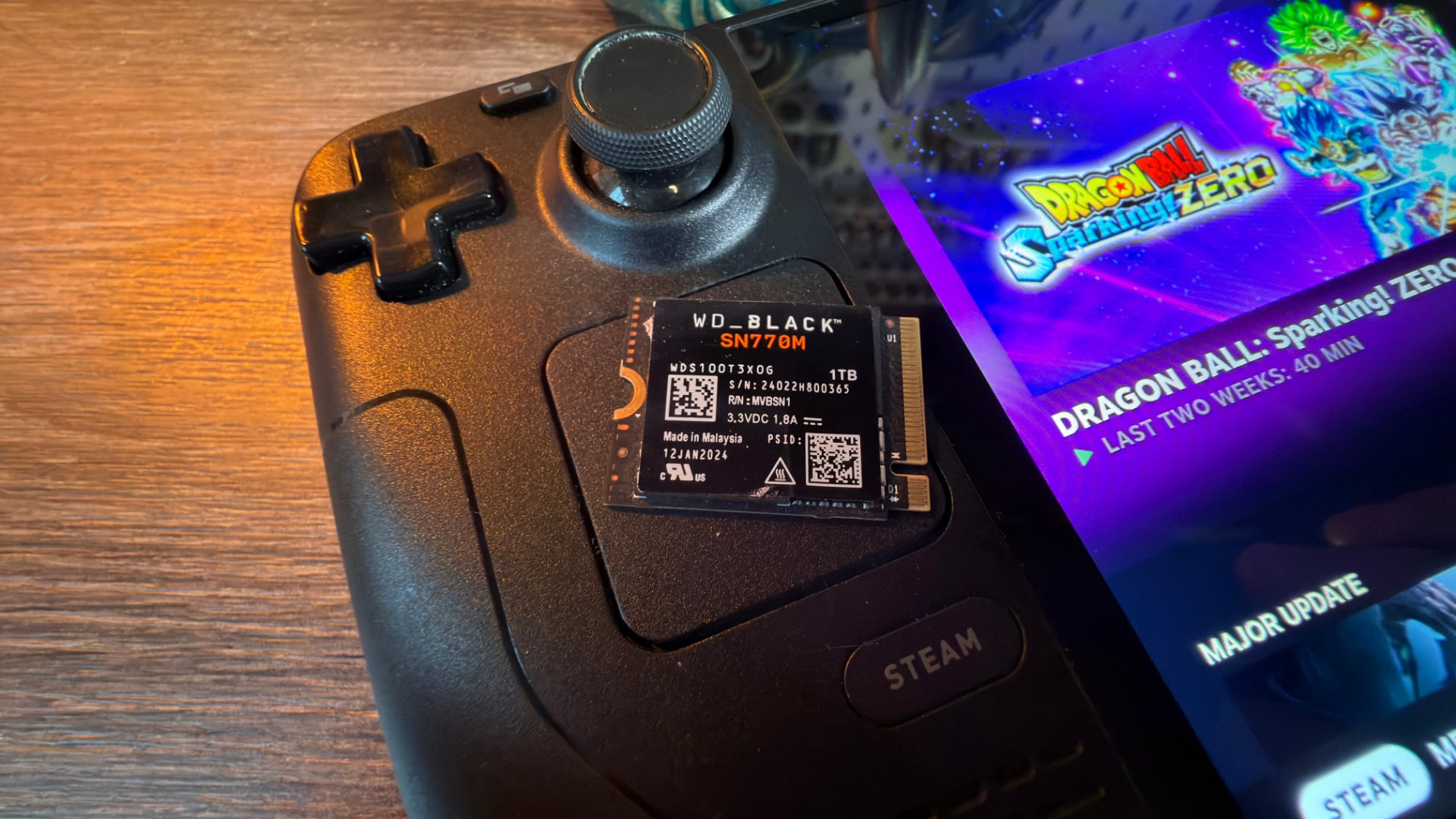
Several upgrade errors appear again and again.
Buying the wrong M.2 size
M.2 2280 is common in laptops and desktops, but it is too long for the Steam Deck. Confirm “2230” in the product specifications.
Buying an M.2 SATA drive
M.2 describes the shape, not the storage technology. An M.2 SATA drive may look similar but is not the correct replacement for the Steam Deck’s NVMe slot.
Ignoring the 64GB model’s eMMC storage
A 64GB LCD Steam Deck does not contain a factory NVMe SSD. If you own this model, upgrading means replacing eMMC-based internal storage with a compatible NVMe drive.
Forgetting to back up local files
Steam Cloud does not cover every file. Save data from emulators, mods, creative tools, and some games may exist only on the device.
Leaving the microSD card inserted
Remove the microSD card before opening the case. The card can be damaged if it remains in the slot while the shell is separated.


Reusing damaged screws
A stripped screw can make later repair much harder. Use the correct driver, apply firm downward pressure, and replace damaged screws rather than forcing them.
Assuming any 2TB drive will fit
Capacity does not tell you the drive’s thickness, power behavior, or controller quality. Check the full physical specification and choose a model known to fit the Steam Deck.
Frequently asked questions
Does the Steam Deck use an M.2 SSD?
Yes. The 256GB and 512GB LCD models and both OLED models use M.2 2230 NVMe SSDs. The 64GB LCD model uses eMMC storage instead.
Is the Steam Deck SSD PCIe Gen 3 or Gen 4?
The Steam Deck uses a PCIe Gen 3 x4 storage connection. A compatible PCIe Gen 4 SSD may work, but the Steam Deck will not provide full Gen 4 performance.
Can I install a 1TB SSD in the Steam Deck?
Yes, a 1TB M.2 2230 NVMe SSD is a common upgrade size. Confirm that the drive is physically compatible and back up your data before replacing the original drive.
Can I install a 2TB SSD in the Steam Deck?
A 2TB M.2 2230 NVMe SSD may work if its dimensions, power behavior, and firmware are compatible. Check current product specifications and user reports for the exact model before buying.
Does replacing the SSD delete SteamOS?
Replacing the drive removes the old installation unless you clone it. After installing a blank SSD, you normally need to restore SteamOS using Valve’s recovery media or restore a verified clone.
Is an SSD upgrade better than a microSD card?
An internal SSD offers faster internal storage and more room for system files. A microSD card is easier and safer to install. The better option depends on whether you value performance and capacity or simple expansion.
Can an SSD upgrade improve FPS?
Usually, no. A faster SSD may reduce some loading or installation times, but frame rate is mainly controlled by the Steam Deck’s processor, graphics hardware, game settings, and software.
Key takeaways
- The Steam Deck uses an M.2 2230 NVMe SSD in most models.
- The internal interface is PCIe Gen 3 x4.
- The 64GB LCD model uses eMMC, not NVMe storage.
- A replacement drive must be 2230-sized and NVMe-based.
- M.2 2280 and M.2 SATA drives are not suitable replacements.
- A single-sided SSD is the safer physical choice.
- Back up your data and use an official SteamOS recovery image before upgrading.
Conclusion
The Steam Deck uses a compact M.2 2230 NVMe SSD, except for the 64GB LCD model, which uses eMMC storage. For an upgrade, focus on the correct 2230 size, NVMe protocol, physical thickness, and reliable source rather than chasing the highest advertised speed.
If you want the easiest expansion, use a quality microSD card. If you need faster internal storage or much more room for games, replace the internal drive with a compatible 2230 NVMe SSD and reinstall or restore SteamOS.