How To Disconnect Jlab Earbuds Without Phone: Quick Guide
If you are in the United States and need to stop your JLab earbuds from playing audio, connecting to a laptop, or draining their battery, you usually do not need your phone. The fastest method is to place both earbuds in the charging case and close the lid. If that does not work, power the earbuds off with their touch controls or buttons. A factory reset is only needed when the earbuds keep reconnecting or refuse to enter pairing mode.
The fastest way to disconnect JLab earbuds
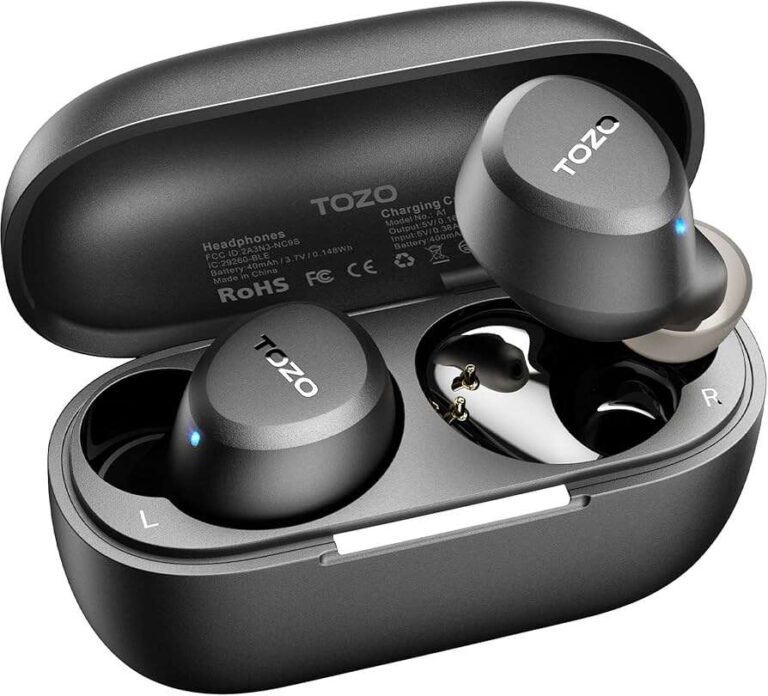
Put both JLab earbuds into the charging case, then close the lid. This normally powers them down and ends the Bluetooth connection.
Use these steps:
- Stop music or calls on the connected device.
- Place the left and right earbuds in the correct sides of the charging case.
- Make sure each earbud sits on its charging contacts.
- Close the case lid.
- Wait a few seconds for the earbuds’ status lights to turn off or change to the charging pattern.


The earbuds should now stop sending audio. They may still show as a saved Bluetooth device on your phone, tablet, computer, or television, but they should not remain actively connected.
If the case does not disconnect them
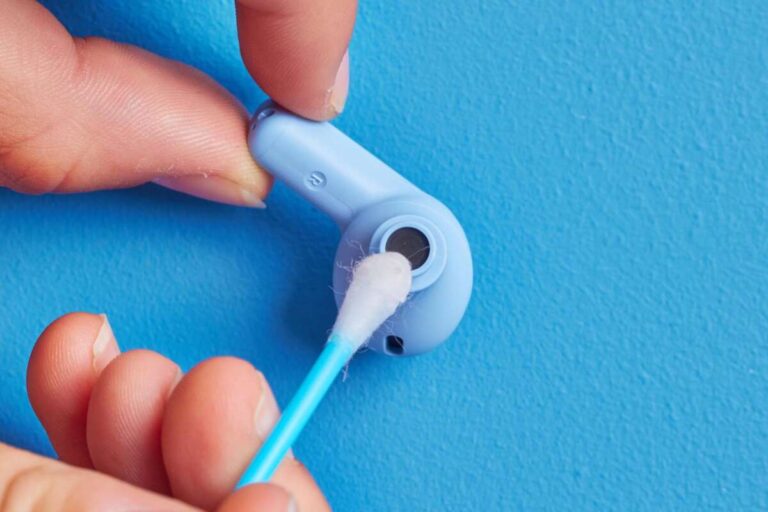
Check that the earbuds are seated correctly. Dust, earwax, or a low case battery can prevent the charging pins from making contact.
Try these checks:
- Remove and replace each earbud.
- Wipe the metal charging contacts with a clean, dry cotton swab.
- Charge the case for at least a short time.
- Check whether an indicator light appears when each earbud enters the case.
- Close the lid fully instead of leaving it partly open.
JLab’s true wireless earbuds use different control systems across models. Some models power down as soon as they enter the case, while others may remain active until the lid closes or the earbuds detect the charging connection.

How to turn off JLab earbuds without the charging case
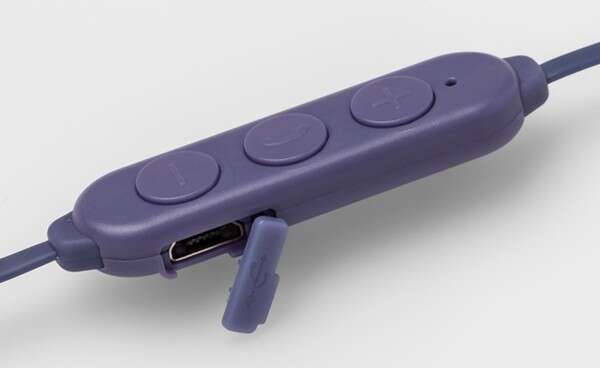
If you do not have the case, use the earbuds’ touch controls or physical buttons. The exact command depends on the JLab model.
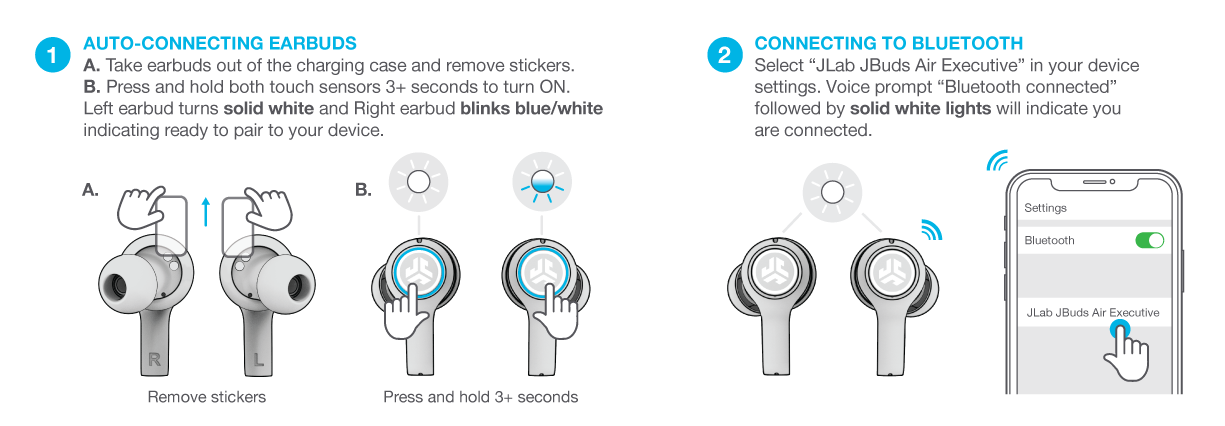
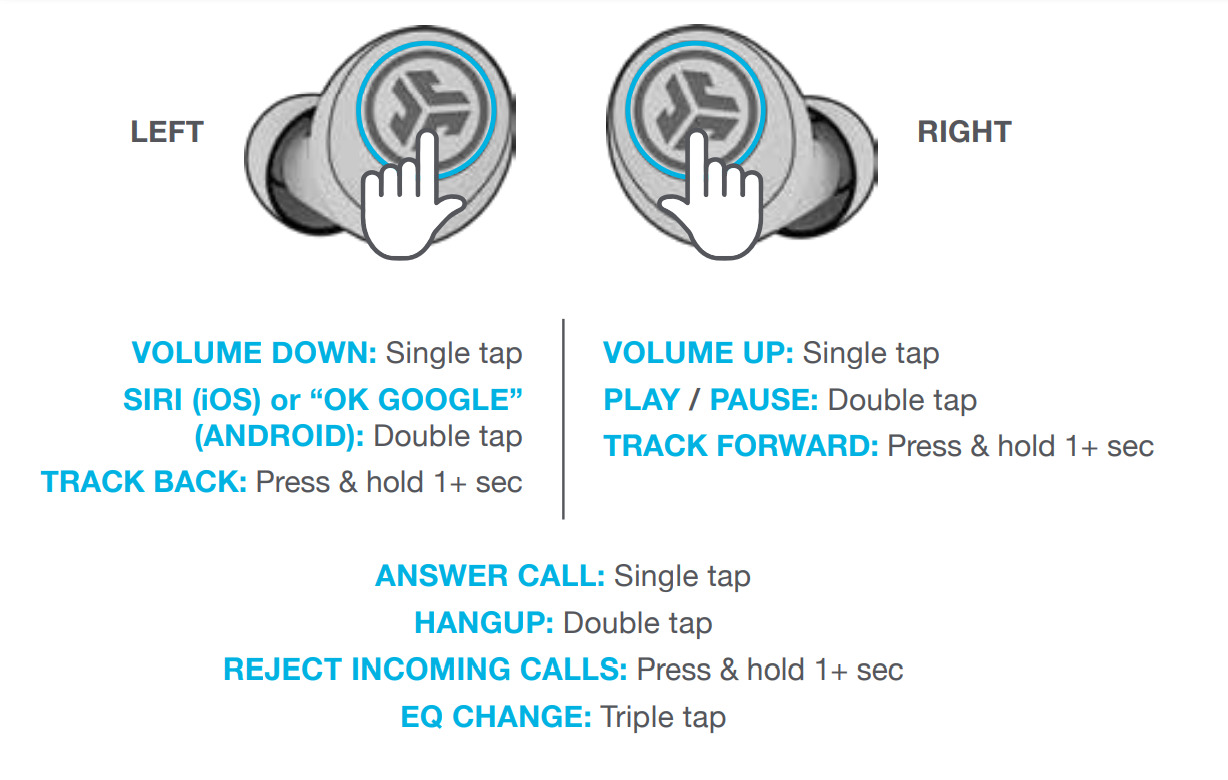
Many JLab true wireless models use a press-and-hold action on the outer panel. On some models, holding the touch sensor or button for about three seconds turns the earbud off. Other models use a different command, so do not assume the same gesture works for every JLab product.
Try this general method:
- Remove the earbuds from your ears.
- Press and hold the touch panel or button on each earbud.
- Keep holding until the earbuds announce that they are powering off or their lights turn off.
- Repeat the process for the other earbud if it stays on.
Do not tap repeatedly unless your model’s instructions call for it. Repeated taps can change the volume, skip a track, answer a call, or activate another control.
How to identify the control on your JLab model
Look for one of these parts:
- A flat touch panel on the outside of the earbud.
- A click-style physical button.
- A small JLab logo that acts as the control surface.
- A status light near the control.
The model name may be printed on the case, box, or original receipt. Common JLab true wireless lines include GO Air Pop, GO Air Sport, JBuds Air, JBuds Mini, Epic Air, and Work Buds. Their controls are not identical.


For the correct command, check the manual for the exact model on JLab’s official support site: JLab Support. Search for the model name followed by “manual” or “controls.”
How to disconnect JLab earbuds from a laptop, tablet, or TV
You can disconnect JLab earbuds without using a phone by controlling Bluetooth on the device that is currently connected.
The earbuds may be connected to a Windows PC, Mac, iPad, Android tablet, smart TV, game console, or another Bluetooth source. Use the device’s Bluetooth menu to disconnect them.
Windows 11
- Select the network, sound, or battery area on the taskbar.
- Select Bluetooth.
- Choose the JLab earbuds.
- Select Disconnect.
For a fuller Bluetooth menu:
- Open Settings.
- Select Bluetooth & devices.
- Find the JLab earbuds.
- Select the three-dot menu.
- Choose Disconnect.
Mac
- Open System Settings.
- Select Bluetooth.
- Find the JLab earbuds.
- Select the connected control next to them.
- Choose Disconnect.
You can also hold the Option key while selecting the Bluetooth icon in the macOS menu bar. This may show more connection controls.
iPad or Android tablet
Open Settings, then open Bluetooth or Connected devices. Select the JLab earbuds and choose Disconnect.
The wording can vary. You may see Disconnect, Unpair, Forget, or Remove. These options do different things:
| Option | What it does |
|---|---|
| Disconnect | Ends the current connection but keeps the saved pairing |
| Unpair or Forget | Removes the saved Bluetooth relationship |
| Turn off Bluetooth | Disconnects all nearby Bluetooth devices |
| Power off earbuds | Turns off the earbuds themselves |
Choose Disconnect when you plan to use the earbuds again soon. Choose Forget when you want to stop that device from reconnecting automatically.
Smart TVs and game systems
Open the TV or console’s Bluetooth accessory menu. Select the JLab earbuds and choose the option to disconnect or remove them.
If the menu has no disconnect command, place the earbuds in their case and close the lid. On devices that reconnect quickly, you may need to remove the JLab earbuds from the saved device list.
How to stop JLab earbuds from reconnecting automatically
To stop automatic reconnection, remove the JLab earbuds from the device’s Bluetooth list. Turning the earbuds off only ends the current session; it does not erase the saved pairing.
Use this process on the device that keeps reconnecting:
- Open Bluetooth settings.
- Select the JLab earbuds.
- Choose Forget, Unpair, or Remove device.
- Confirm the choice.
- Place the earbuds in the case and close the lid.


This is useful when the earbuds connect to a family member’s phone, a work computer, or a TV before you can select another device.
If several nearby devices have saved the earbuds, repeat the process on each device. Bluetooth pairing information is stored on the source device, not only inside the earbuds.
What if you do not have the other device?
You generally cannot remove a Bluetooth pairing from a device you cannot access. You can, however, reset the JLab earbuds. A reset clears the earbuds’ stored connection data on models that support that procedure.
Resetting does not remotely erase the earbuds from a phone, laptop, or television. It only prepares the earbuds to pair again as a new Bluetooth accessory.
How to reset JLab earbuds without a phone
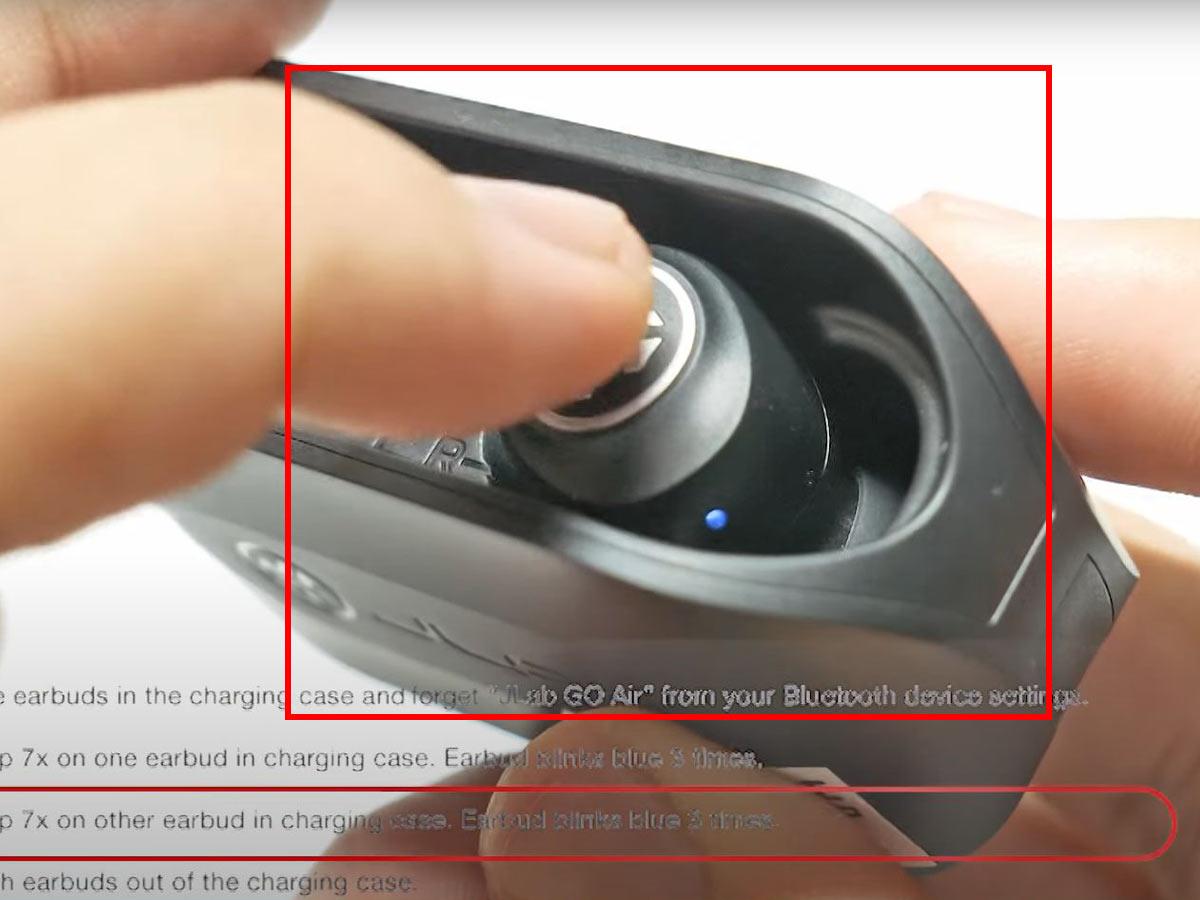
Reset the earbuds only if normal power-off and disconnect steps fail. A reset can fix repeated reconnection, one-earbud connection problems, or pairing errors, but it also removes existing pairing information.
Many JLab true wireless models use a case-based reset sequence. On some models, the process involves tapping or pressing each earbud several times while the earbuds are inside the charging case. The exact number and timing vary by model.
A safe model-specific process is:
- Find the exact JLab model name.
- Open the model’s user manual on JLab Support.
- Follow the instructions under Bluetooth reset, factory reset, or pairing reset.
- Complete the reset for both earbuds.
- Remove both earbuds from the case.
- Wait for the earbuds to enter pairing mode.
Do not rely on a reset sequence from a different JLab model. A procedure that works on one JBuds or GO Air model may not work on another.
Signs that the reset worked
Depending on the model, you may see one or more of these signs:
- The earbuds flash in a new pattern.
- One earbud becomes the primary connection earbud.
- The earbuds announce pairing mode.
- The old Bluetooth name no longer connects automatically.
- The earbuds appear as a new device during a later pairing attempt.
A reset is not the same as turning off Bluetooth on a source device. It is a deeper change to the earbuds’ connection state.

JLab earbuds will not disconnect: troubleshooting steps
Start with the least disruptive fix and move toward a reset only when needed.
1. Stop the audio source
Pause music, video, or a call on the connected device. Some devices keep the Bluetooth session active while an app is still using the earbuds.
2. Put both earbuds in the case
Make sure the left earbud goes into the left slot and the right earbud goes into the right slot. Confirm that both charging lights respond.
3. Close the case
A partially open lid may leave the earbuds active. Close it fully and wait several seconds.


4. Disconnect the source device
Open the laptop, tablet, TV, or other connected device’s Bluetooth settings. Select the JLab earbuds and choose Disconnect.
5. Turn off Bluetooth on the source
This is a quick test. If the earbuds stop connecting after Bluetooth is off, the source device was maintaining the connection.
6. Clean and charge the case
Dirty contacts or a dead case battery can stop the earbuds from entering their charging and power-off state. Use a dry, soft cloth. Do not pour liquid into the case or scrape the contacts with metal.
7. Reset the earbuds
Use the instructions for the exact model. This is the best next step when the earbuds remain connected, connect to only one side, or fail to pair with a new device.
8. Contact JLab support
If the earbuds stay on after a model-specific reset, the problem may involve the case battery, charging contacts, firmware, or a hardware fault. JLab’s support team can provide instructions for the exact model and warranty status.
Disconnecting versus turning off JLab earbuds
These actions are related but not identical.
- Disconnecting ends the current Bluetooth link.
- Turning off stops the earbuds from operating.
- Forgetting removes the saved pairing from a source device.
- Resetting clears connection data stored by the earbuds, when supported.
For example, placing JLab earbuds in the case may turn them off and disconnect them. It does not necessarily remove them from a laptop’s saved Bluetooth list.
Choose the action that matches the problem:
| Your goal | Best action |
|---|---|
| Stop audio right now | Place earbuds in the case |
| Save battery | Power off the earbuds |
| Keep the device paired for later | Select Disconnect |
| Stop automatic reconnection | Select Forget or Unpair |
| Pair with a different device after errors | Reset the earbuds |
This distinction prevents a common mistake: resetting the earbuds when simply closing the case would have solved the problem.
Common mistakes to avoid
Do not put wet earbuds into the charging case. Let them dry fully first. Moisture can damage the charging contacts and electronics.
Do not force the earbuds into the wrong side of the case. Each earbud is shaped for its matching slot.
Do not repeatedly reset the earbuds if the real issue is an active laptop, tablet, or television connection. First disconnect the source device.
Do not assume a flashing light always means the earbuds are connected. Light patterns vary by JLab model. Use the manual for your model rather than treating one color pattern as universal.
Do not use sharp tools or liquid cleaners on the charging contacts. A dry cotton swab or soft cloth is safer for routine cleaning.


Key takeaways
- The easiest way to disconnect JLab earbuds without a phone is to place them in the charging case and close the lid.
- Without the case, press and hold the touch control or button, but check the manual for the exact model.
- To stop automatic reconnection, choose Forget, Unpair, or Remove device in the connected laptop, tablet, TV, or other source.
- Reset the earbuds only when normal disconnection does not work.
- JLab control steps vary by model, so use the official manual before trying a reset sequence.
Frequently asked questions
Can I disconnect JLab earbuds without turning off Bluetooth on my phone?
Yes. Place the earbuds in the charging case and close the lid. This normally ends the earbuds’ active connection while leaving Bluetooth on for other accessories.
Can I turn off JLab earbuds without the case?
Often, yes. Many models let you press and hold the outer touch panel or physical button. The timing and control vary, so confirm the steps in the manual for your exact JLab model.
Will resetting JLab earbuds remove them from my phone?
A reset can clear pairing information stored in the earbuds, but it does not delete the saved Bluetooth entry from your phone. If the earbuds still appear in the phone’s Bluetooth list, select Forget This Device or Unpair there.
Why do my JLab earbuds reconnect after I put them away?
The earbuds may not be making contact with the charging pins, the case may be low on power, or the lid may not be fully closed. Clean the contacts, charge the case, and confirm that both earbuds show a charging response.
Can I disconnect JLab earbuds from a device I no longer have?
You cannot change the Bluetooth settings on a device you cannot access. You can place the earbuds in the case to stop the current session or use the model-specific reset procedure to clear the earbuds’ pairing data.
Final answer
For most JLab earbuds, put both earbuds in the charging case and close the lid. If you do not have the case, use the model’s power-off touch or button command. If the earbuds keep reconnecting, remove them from the source device’s Bluetooth list or perform the exact reset procedure listed in the JLab manual.
The best next step is simple: identify your JLab model, check that both earbuds are charging in the case, and use a reset only if ordinary power-off does not solve the problem.